



How to Migrate OneDrive to OneDrive for Business Without Losing Permissions or Metadata
A OneDrive to OneDrive for Business migration is the process of moving user data from a personal OneDrive account to a managed corporate OneDrive environment within Microsoft 365. While it may seem like a simple user-level task, executing it at an enterprise scale requires a specific architectural approach to prevent the loss of critical sharing permissions and metadata, ensuring a seamless transition without disrupting business continuity.
In our experience, the biggest mistake organizations make is underestimating the complexity of this migration. They treat it as a simple "copy-paste" job for each user, failing to recognize that a personal OneDrive is a silo, while OneDrive for Business is an integrated component of a corporate data governance and security strategy. The goal is not just to move files; it's to onboard user data into a managed, secure, and compliant ecosystem. A poorly executed migration leads to broken external sharing links, loss of file context, and a flood of helpdesk tickets on Day 1.
Why a Simple "Drag and Drop" Fails at Scale
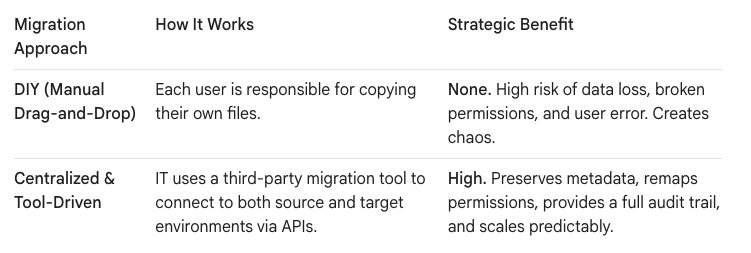
For a single user, manually dragging files from a synced personal OneDrive folder to a new OneDrive for Business folder might seem sufficient. However, this approach completely fails when applied across an organization for several critical reasons.
- Loss of External Sharing Links: This is the most immediate and damaging failure point. If a user shared a file from their personal OneDrive with an external client or vendor, that sharing link is tied to their personal account. The moment the file is copied to OneDrive for Business, it receives a new URL and a new set of permissions. Every external link breaks, instantly cutting off collaboration with clients and partners.
- Destruction of Metadata: Manual file copies only move the file itself. They strip away critical metadata, including the original "Created by" and "Modified by" information. All migrated files will appear as if they were created by the user on the day of the migration. This destroys file provenance, creating a nightmare for compliance, legal discovery, and version history.
- No Central Oversight or Auditing: A manual, user-driven migration provides zero central control. IT has no way to track progress, verify that all data was moved, or create an audit trail to prove chain of custody. It's a "migrate and pray" approach that is unacceptable for corporate data.
- Inability to Scale: Relying on hundreds or thousands of users to correctly execute a manual process is a recipe for failure. The process is inconsistent, error-prone, and impossible to manage, leading to massive data sprawl and incomplete migrations.
The Architect's Blueprint: A Centralized, Tool-Driven Migration
A successful OneDrive to OneDrive for Business migration is not a user-led activity; it's a centralized, IT-orchestrated project executed with enterprise-grade migration tools. This approach treats the migration as a technical project, ensuring data fidelity and a seamless user experience.
Preserving Permissions and Metadata: The Core Technical Challenge
The primary value of a tool-driven approach is its ability to handle the two most critical elements: permissions and metadata.
1. OneDrive Migration Permissions: From Personal Links to Guest Accounts
The key to preserving external access is to transform fragile sharing links into manageable guest accounts within your Microsoft 365 environment.
- The Audit: Before the migration, the tool should be used to generate a report of all files and folders in personal OneDrive accounts that are shared externally. This gives you a clear inventory of what needs to be re-established.
- The Transformation: During the migration, the tool can be configured to automatically handle these shares. When it encounters a file shared with an external email address (e.g.,
client@vendor.com), it doesn't just copy the file. Instead, it:- Copies the file to the user's new OneDrive for Business.
- Invites
client@vendor.comas a Guest User into your Azure Active Directory. - Applies permission to the new file for that specific Guest User.
- The Result: The external user receives a new, secure link inviting them to access the file within your corporate environment. You have transformed an anonymous, unmanaged link into a tracked, auditable guest account, significantly improving your security posture.
2. OneDrive Metadata Migration: Preserving File Provenance
Maintaining original metadata is non-negotiable for compliance and data integrity.
- How It Works: Enterprise migration tools use administrator-level APIs to write files to the destination. This allows them to override the default behavior and stamp the original metadata onto the files.
- The Outcome: A file created in 2021 by "John Smith" and last modified in 2023 will retain that exact information in OneDrive for Business. This preserves version history and ensures that search and eDiscovery tools have accurate data to work with. Manually copying a file would reset this data, making it appear as if the migrating user created it today.
A Phased Migration Plan for Zero User Disruption
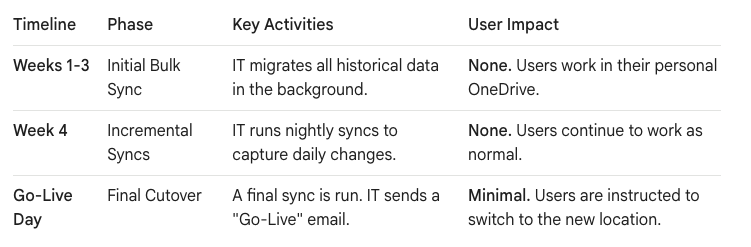
An enterprise migration should be invisible to the end-user until the final cutover. This is achieved through a phased approach orchestrated by the IT team.
- Phase 1: Silent, Full-Fidelity Sync
The IT team uses the migration tool to perform the initial bulk copy of every user's OneDrive data in the background. This can take days or weeks, depending on the data volume. Users are unaffected and continue to work in their personal OneDrive accounts as normal. - Phase 2: Incremental "Delta" Syncs
After the initial copy is complete, the tool is scheduled to run incremental (or "delta") syncs nightly. These syncs scan for any new or changed files from that day and copy only those changes to the destination. This keeps the new OneDrive for Business environment in a near-perfect state of sync without re-copying all the data. - Phase 3: The "Go-Live" Cutover
This is the only part that involves the user. On a planned "Go-Live" date, a final delta sync is run. IT then sends out a communication instructing users to begin saving all new work to their OneDrive for Business account. The old personal accounts are switched to read-only to prevent new data from being saved there.
Your Data is Now Part of an Ecosystem
Successfully migrating from OneDrive to OneDrive for Business is more than a technical task, it’s a strategic upgrade. Once the data is in your corporate tenant, it is no longer isolated on a user's personal account. It becomes part of your Microsoft 365 ecosystem, where you can apply governance, security, and compliance policies using tools like Microsoft Purview for data loss prevention (DLP) and retention.
By taking a centralized, architected approach, you avoid the common pitfalls of broken links and lost metadata. You transform a risky, user-driven process into a managed, secure, and scalable migration that enhances data governance and sets your users up for success from day one.

















