


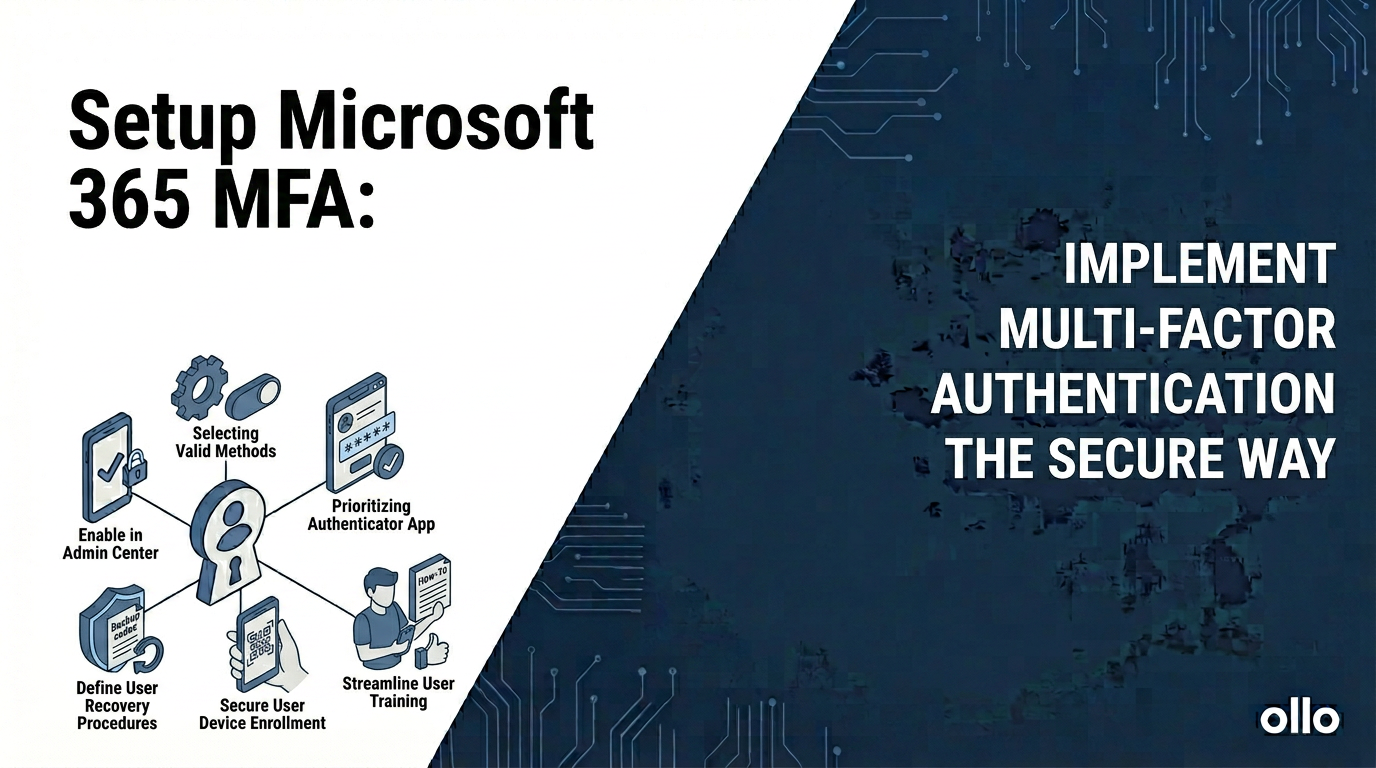

How to Set Up Multi-Factor Authentication in Microsoft 365 (The Right Way)
A proper Microsoft 365 multi-factor authentication setup does not involve manually enabling it for each user. The modern, correct approach uses Microsoft Entra Conditional Access as the central policy engine. This shifts MFA from a blunt, universal requirement into an intelligent, risk-based control that balances security with user productivity, preventing the "MFA fatigue" that cripples so many rollouts.
In our experience architecting secure environments, the single biggest mistake we see is IT teams treating MFA as a simple switch to be flipped. They enable it, congratulate themselves on being secure, and then spend the next six months dealing with a flooded helpdesk and frustrated users.
The hard reality is that how you enable MFA is as important as that you enable it. A poorly implemented MFA strategy creates security holes and operational drag. A well-architected one becomes a seamless, powerful layer of your Zero Trust foundation.
The Architectural Mistake: Why "Per-User MFA" Is Obsolete
Many administrators, following outdated online guides, navigate to the legacy MFA portal and enable it user by user. This method, known as "per-user MFA," is a relic. While better than nothing, it's an architectural dead-end for any serious enterprise. It's a blunt instrument in a world that requires surgical precision.
The trap most admins fall into is thinking that universal MFA prompts equal universal security. In practice, it just trains users to mindlessly approve notifications, creating a new vulnerability.

Continuing to manage MFA on a per-user basis in 2026 is the equivalent of assigning a security guard to every single door in your building, all day long. It's expensive, inefficient, and ignores the fact that the real risk isn't the door, but who is trying to open it and when.
The Modern Blueprint: Using Conditional Access as Your MFA Engine
The correct way to implement MFA is through Microsoft Entra Conditional Access. Think of it as the smart security system for your entire digital estate. Instead of a simple on/off switch, Conditional Access evaluates a set of signals every time a user tries to log in. It's a powerful IF-THEN engine for your security.
IF a user meets a certain set of conditions (the Assignments)...
THEN enforce a specific set of controls (the Access controls).
This allows you to create granular, intelligent policies. For example:
- The Low-Risk Scenario: An accountant signs in from a compliant, corporate-managed laptop, from inside the office network, to access a routine application. Result: Grant access seamlessly, no MFA prompt needed. The user is productive.
- The High-Risk Scenario: The same accountant signs in from a personal, unmanaged device, from an unfamiliar country, at 3:00 AM. Result: Block access immediately and trigger a high-risk alert for your security team.
This is the power of a modern MS365 MFA setup. It replaces user annoyance with intelligent, automated risk mitigation.
The Phased Rollout: A Step-by-Step Guide to a Successful MFA Setup
A "big bang" rollout of MFA is a recipe for failure. Like any major infrastructure change, it must be planned, piloted, and deployed in managed waves. This is the "Dark Mode" deployment philosophy: build and test in quarantine before going live to the entire organization.
Step 1: The Foundational "Baseline" Policy
Before targeting users, establish a foundational policy to block the biggest security holes.
- Create a New Policy: In the Microsoft Entra admin center, navigate to Protection > Conditional Access.
- Policy Name: "Block Legacy Authentication"
- Assignments:
- Users: Apply to All users.
- Target resources: Apply to All cloud apps.
- Conditions: Under Client apps, select Yes to configure, and check the boxes for Exchange ActiveSync clients and Other clients.
- Access controls: Select Block access.
This single policy closes the most common entry point for password spray attacks by blocking old protocols that can't handle MFA.
Step 2: The Pilot Wave
Never roll out MFA to 10,000 users at once. Start with a small, tech-savvy group who can provide valuable feedback.
- Create the MFA Policy:
- Policy Name: "Require MFA for All Users"
- Assignments:
- Users: Apply to a specific pilot group (e.g., "IT Department"). Crucially, exclude at least one "break-glass" global admin account from this policy to prevent locking yourself out.
- Target resources: Apply to All cloud apps.
- Access controls: Select Grant access, and check the box for Require multifactor authentication.
- Communication & Onboarding: This is a change management task. Communicate with your pilot group before you enable the policy. Provide them with clear instructions on how to register their MFA methods (e.g., Microsoft Authenticator app).
- Gather Feedback: Monitor helpdesk tickets and survey the pilot group. Are the prompts too frequent? Is the registration process clear? Use this feedback to refine your policies and communication plan.
Step 3: The Enterprise-Wide Rollout
Once the pilot is successful, you can expand the policy to the rest of the organization in managed waves.
- Expand the Policy: Gradually add more user groups to your "Require MFA for All Users" policy. Don't do it all at once. Add departments or regions in phases.
- Refine with Granularity (Best Practice): As you mature, enhance your single MFA policy with more intelligence. Instead of one policy for all apps, you might create several:
- A policy that requires MFA for all users accessing high-risk applications like your HR system or financial software.
- A policy that requires a compliant device in addition to MFA for administrators accessing the Azure portal.
Step 4: Implement and Enforce MFA Registration
To ensure new employees are protected from day one, use the MFA registration policy.
- Policy Name: "Require MFA Registration"
- Assignments:
- Users: Apply to All users.
- Target resources: Select the user action Register security information.
- Access controls: Select Grant access and check Require multifactor authentication.
This clever policy ensures that any user, when they first attempt to set up their security info, is required to do so securely. It closes a critical onboarding loophole.
Your Identity Is Your Perimeter
In the modern enterprise, your security perimeter is no longer the firewall of your office building; it is the identity of your users. Implementing MFA the right way—using the intelligence of Conditional Access—is the single most effective step you can take to secure that perimeter. It transforms security from a roadblock into a strategic enabler, allowing secure access to anyone, from anywhere, on any device, provided they are who they say they are.

















