



Microsoft 365 Governance Audit: 12 Things Every CTO Should Check Today
A Microsoft 365 Tenant Audit is a strategic review of your cloud environment's security, governance, and operational settings. It goes beyond a simple health check, providing a comprehensive analysis of critical configurations that, if left unmanaged, lead to data sprawl, security breaches, and uncontrolled costs. This is not just an IT task; it is an essential leadership exercise in risk management.
In our experience architecting M365 environments, we find that most tenants are in a state of "accidental governance." Settings are often left at their defaults, and features are adopted without a clear architectural plan. This organic growth inevitably creates a "Grey Zone"—a chaotic digital landscape of ambiguous ownership, inconsistent permissions, and hidden security gaps.
The problem is that you can't manage what you don't measure. A periodic, structured audit is the only way to move from this reactive, high-risk state to a proactive, intentional governance model. This checklist is born from the trenches—a list of the 12 most critical checks we perform to diagnose the health of an enterprise tenant.
The Foundational Security Posture
Before you worry about data classification or site lifecycle, you must verify the foundational security of your tenant. A breach at this level renders all other governance moot.
1. Review Privileged Role Assignments (The "Who Has the Keys?" Check)
The most damaging breaches often come from compromised administrative accounts. How many users are assigned a privileged role like Global Administrator? In our experience, the answer is almost always "too many." These roles should be guarded ruthlessly.
- Your Action: Audit all Azure AD roles. Ensure Global Admin is limited to a "break-glass" account and a handful of essential personnel. For day-to-day tasks, users should have specific, least-privilege roles (e.g., SharePoint Admin, Exchange Admin). Implement Azure AD Privileged Identity Management (PIM) to provide just-in-time (JIT) access that expires automatically.
2. Audit External Sharing Policies (The "Front Door" Check)
SharePoint and OneDrive sharing settings are the front door to your corporate data. By default, they can be dangerously permissive. A user sharing "a single file with a vendor" can accidentally create an anonymous link that exposes an entire folder to the public internet.
- Your Action: Review the global sharing settings in both the SharePoint and OneDrive admin centers. For most organizations, the most permissive setting should be "New and existing guests," which forces external users to authenticate. Anonymous, "Anyone with the link" access should be disabled tenant-wide and only enabled on specific, isolated sites with a clear business justification and an expiration date.
3. Check for Legacy Authentication Protocols
Legacy protocols (like POP, IMAP, SMTP) are a security nightmare. They do not support modern authentication methods like Multi-Factor Authentication (MFA), making them a prime target for credential theft and brute-force attacks.
- Your Action: Use the Azure AD sign-in logs to identify and quantify usage of legacy protocols. Develop a plan to migrate any applications or devices using them to modern authentication. Once usage is at zero, create a Conditional Access policy to explicitly block all legacy authentication requests.
The Governance and Information Architecture Layer
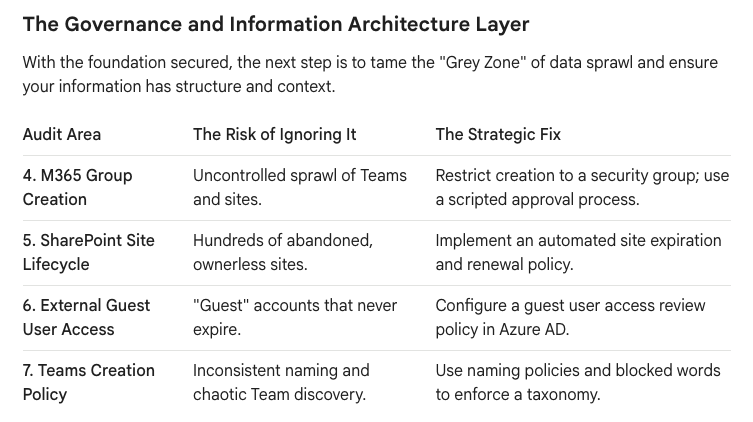
With the foundation secured, the next step is to tame the "Grey Zone" of data sprawl and ensure your information has structure and context.
4. M365 Group Creation
The Risk of Ignoring It:Uncontrolled sprawl of Teams and sites.
The Strategic Fix: Restrict creation to a security group; use a scripted approval process.
5. SharePoint Site Lifecycle
The Risk of Ignoring It: Hundreds of abandoned, ownerless sites.
The Strategic Fix: Implement an automated site expiration and renewal policy.
6. External Guest User Access
The Risk of Ignoring It: "Guest" accounts that never expire.
The Strategic Fix: Configure a guest user access review policy in Azure AD.
7. Teams Creation Policy
The Risk of Ignoring It: Inconsistent naming and chaotic Team discovery.
The Strategic Fix: Use naming policies and blocked words to enforce a taxonomy.
8. Audit Unified Audit Log Configuration
The Unified Audit Log is your single source of truth for investigating security incidents or policy violations. But it isn't always turned on by default, and its retention period might be insufficient for your compliance needs.
- Your Action: Verify that the Unified Audit Log is enabled. For enterprise compliance, the default 90-day retention is often inadequate. Consider Microsoft Purview Audit (Premium) to extend retention to one year or even ten years for critical activities.
9. Review Data Classification and Sensitivity Labels
Hoping users will correctly handle sensitive data is not a strategy. You must provide them with the tools to do so. Microsoft Purview Information Protection allows you to define labels that apply persistent protection.
- Your Action: Even if you don't have a full-blown classification scheme, start simple. Create basic labels like
Public,Internal, andConfidential. Configure theConfidentiallabel to apply encryption and restrict access. The act of forcing a user to choose a label makes them pause and consider the data's sensitivity.
The Operational and Cost-Control Layer
Finally, an audit must address the operational health and cost efficiency of the tenant. An unmanaged tenant is an expensive tenant.
10. Analyze M365 License Assignments
Are you paying for E5 licenses for users who only need E1? Unassigned licenses or over-provisioned accounts are a significant and unnecessary operational expense.
- Your Action: Regularly export a list of all licensed users and analyze their activity. Reclaim and reassign licenses from inactive or dormant accounts. Use group-based licensing in Azure AD to automate the provisioning and de-provisioning of licenses based on a user's role or department.
11. Check SharePoint Storage Quotas and Usage
While SharePoint storage is plentiful, it isn't infinite. A single runaway process or a poorly planned migration can consume your entire tenant storage quota, grinding business operations to a halt.
- Your Action: Review your total tenant storage against your allocated quota. Analyze the site storage report to identify the largest and fastest-growing sites. This often reveals "digital dumping grounds" that can be cleaned up or archived to low-cost storage.
12. Review Power Platform Environment Strategy
The Power Platform (Power Apps, Power Automate) is a powerful tool for citizen development, but it can also lead to chaos if unmanaged. A business-critical app built in the default "personal productivity" environment is a ticking time bomb.
- Your Action: You need more than just the default environment. Create dedicated, managed environments for "Important" and "Critical" applications. Use DLP policies within the Power Platform admin center to control which connectors can be used, preventing users from accidentally sending business data to a personal Dropbox, for example.
From Audit to Action: Your Next Steps
An audit is only valuable if it leads to action. Use the findings from this 12-point check to build a prioritized remediation plan. Focus first on the critical security gaps, then move to taming the governance "Grey Zone," and finally, optimize your operational efficiency.
This audit isn't a one-time event; it's a quarterly discipline. By regularly inspecting these 12 areas, you transform your role from a reactive firefighter to a strategic architect, ensuring your Microsoft 365 tenant is a secure, governed, and cost-effective asset for the entire enterprise.
Would you like a deeper dive into any of these 12 checks, such as how to build a Power Platform governance strategy? Contact us at www.ollo.ie

















