



Your Microsoft 365 security checklist is probably lying to you.
Microsoft gives you a huge control surface. That is not the same thing as a secure tenant. In enterprise environments, the failures come from the gaps between controls and operations: legacy authentication nobody retired, app consents nobody reviewed, SharePoint inheritance nobody can explain, and audit demands that arrive long after the evidence is gone.
That is why standard microsoft 365 security best practices break down so often in production. Teams treat security like feature activation. Turn on Conditional Access. Enable DLP. Require MFA. Then the tenant pushes back. Line-of-business apps fail authentication. DLP floods analysts with junk alerts. SharePoint access drifts after years of broken inheritance. Migration and cleanup work stalls on throttling, path limits, object conflicts, and undocumented dependencies. The control was correct. The rollout was careless.
The breach data is ugly. In the first half of 2025, attackers exposed or stole billions of records worldwide, according to the Surfshark data breach statistics analysis. In Microsoft 365, that kind of damage usually starts with ordinary mistakes: excessive privilege, weak identity boundaries, unmanaged app access, and poor visibility across Entra ID, Exchange, Teams, and SharePoint.
I have seen this pattern too many times. A tenant passes an internal review because the settings page looks healthy. Six weeks later, an audit finds dormant admin roles, external forwarding, stale guest accounts, and sensitive files shared through a site nobody owns anymore. Security failed long before the incident. Nobody checked whether the controls still worked under enterprise conditions.
This article is written from that reality. It focuses on the controls that matter, where they usually fail, and what to do instead if you want a tenant that survives audits, migrations, and bad days in production. If you need a starting point for identity enforcement, begin with a practical guide to Conditional Access policies in Microsoft 365.
If your estate is regulated, complex, or carrying years of tenant debt, your job is not to collect green ticks. Your job is to prevent the failure modes that cause lockouts, data loss, and ugly incident calls at 2 a.m.
1. Implement Conditional Access Policies with Zero-Trust Architecture
Conditional Access is the control that generates significant discussion, and the control that is often underestimated. If you still rely on “inside network equals trusted,” you're defending a building that no longer exists. Your users work from unmanaged devices, home networks, mobile apps, and partner tenants. Every access request needs verification.
The documentation says build policies around users, devices, locations, and risk. That part is right. However, your old authentication estate can resist these changes. We often see clients fail when they enable broad policies before they've mapped service accounts, SMTP dependencies, legacy mobile clients, and old middleware still talking to Microsoft 365 in ugly ways.
What breaks first
Start in Report-only mode. If you skip that, you're gambling with production access. The first casualty usually isn't a user account. It's a forgotten integration that nobody documented because “it's always worked.”
Use this as your minimum discipline:
- Map legacy dependencies: Inventory service accounts, line-of-business connectors, and anything still tied to legacy authentication before you block old protocols.
- Protect privileged roles first: Global Admin, Exchange Admin, SharePoint Admin, and app admins need tighter controls than the general population.
- Create controlled exclusions: Exclusions should be temporary and documented. If a service account needs one, replace it with managed identity or certificate-based auth.
- Validate actual impact: Check sign-in logs after every policy change. Documentation tells you intended behaviour. Logs tell you what your environment really did.
Practical rule: Don't enforce tenant-wide Conditional Access until you can explain every failed sign-in in Report-only mode.
A proper zero-trust design also ties Conditional Access to device compliance, not just MFA. If your admin can sign in from an unmanaged laptop with local malware, MFA alone won't save you.
For a grounded design approach, Ollo's guidance on Conditional Access policies for Microsoft 365 reflects how these controls behave in enterprise tenants, not in demo environments.
The Ollo verdict. Security Defaults are fine for very small estates. For regulated or merged tenants, you need custom Conditional Access architecture, staged rollout, and hard evidence from sign-in telemetry before enforcement.
Here's a useful Microsoft explainer on the model itself:
2. Enable Multi-Factor Authentication Universally with Enforced Registration
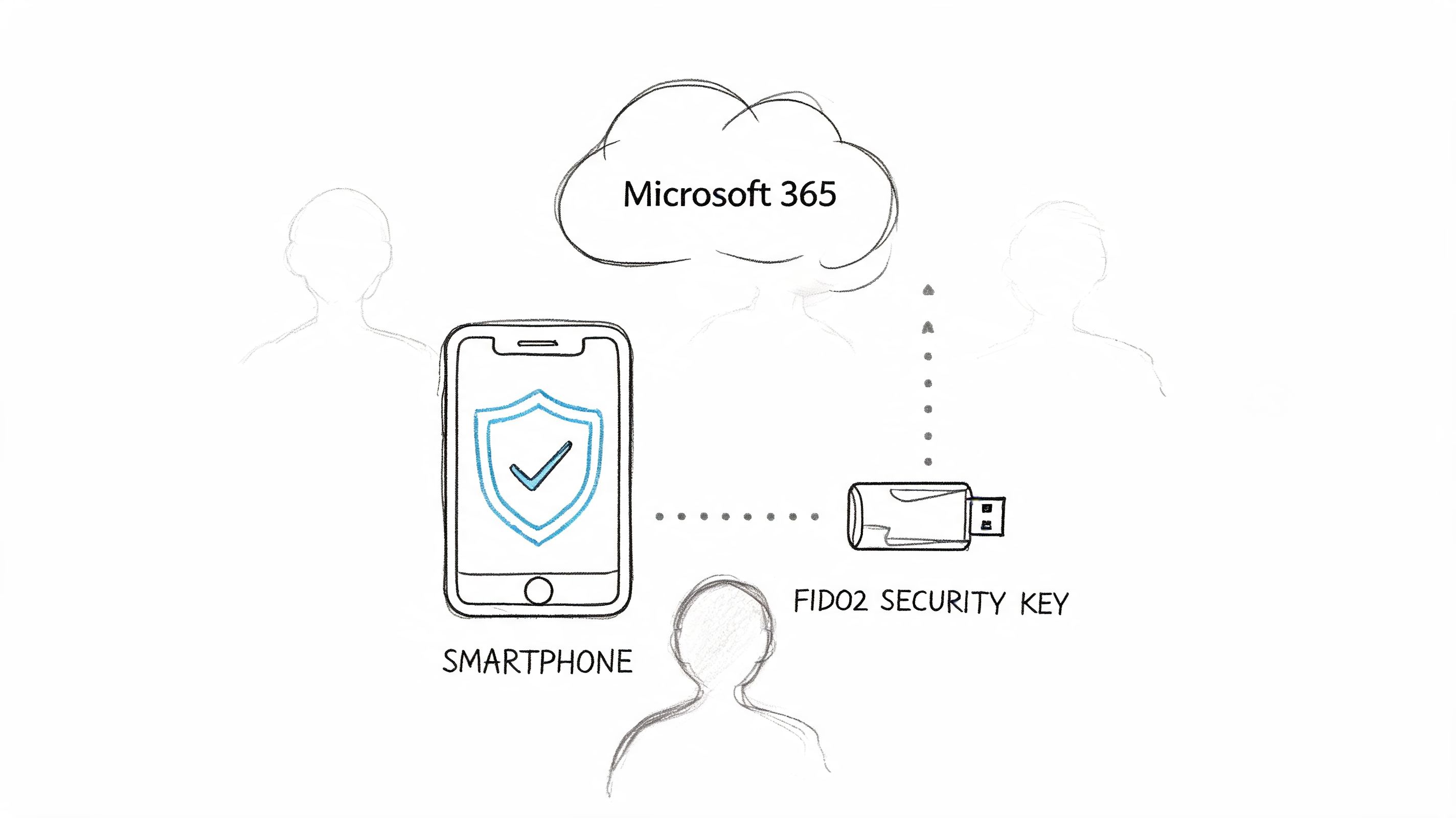
“Turn on MFA” is lazy advice. MFA only works when registration is enforced, break-glass accounts are controlled, privileged roles use phishing-resistant methods, and your rollout doesn't trigger an internal support incident.
Microsoft's research confirms MFA blocks 99.99% of account compromises, yet implementation gaps persist. The same source set notes that over 80% of breaches involve human error, and in Microsoft 365, 74% of organisations surveyed experienced at least one data security incident in the prior year, as summarised in this analysis of Microsoft 365 security best practices. That's why MFA still sits near the top of any serious list of microsoft 365 security best practices.
Registration discipline matters
We often see clients fail when they flip enforcement before users register methods properly. Then the helpdesk gets buried, executives bypass policy through exceptions, and the rollout loses authority on day one.
Use a phased approach:
- Lock down admins immediately: Privileged accounts should use FIDO2 keys or another phishing-resistant method.
- Force registration before enforcement: Registration campaigns need ownership, deadlines, and reporting.
- Control fallback methods: SMS and weak recovery routes become your soft underbelly if you leave them unmanaged.
- Test user journeys: New device, lost phone, travel sign-in, and device replacement all need documented support paths.
If you need a practical implementation pattern, Ollo's guide to Microsoft 365 multi-factor authentication setup is aligned to operational rollout, not checkbox compliance.
For smaller organisations that need baseline user education before a larger rollout, this small business MFA guide is useful context.
MFA is not the finish line. It's the front gate. If the wrong person gets through with the right token, your problem has only started.
The Ollo verdict. Use Security Defaults only if your tenant is simple and your risk is low. In every other case, pair MFA with Conditional Access, device posture, admin hardening, and access reviews. Otherwise you've improved authentication while leaving authorisation messy.
3. Audit and Remediate Azure Active Directory Entra ID Privilege Escalation Paths
Attackers do not need Global Administrator on day one. They need one messy path. A forgotten group owner. An over-permissioned app registration. A service principal nobody can explain. That is how a contained identity issue becomes a tenant-wide incident.
Analysts at Verizon found that use of stolen credentials remains a common breach path in the 2025 Data Breach Investigations Report. The lesson for Microsoft 365 is blunt. Authentication controls matter, but privilege design decides how far an attacker can move after the first sign-in.
Enterprise tenants rarely fail because nobody read Microsoft Learn. They fail because the tenant has history. Mergers leave duplicate admin groups. Old projects leave app consents behind. Helpdesk shortcuts become permanent role assignments. Then someone turns on a clean policy set and assumes the dirt underneath no longer matters. It still matters.
Privilege escalation usually hides in the boring parts
The ugly paths are rarely obvious in the Entra admin centre. They sit in transitive group membership, role-assignable groups, stale break-glass accounts, automation identities, and applications with permissions nobody reviews after deployment. Microsoft documents Privileged Identity Management for a reason. Standing access creates drift. Drift creates blind spots. Blind spots become incidents.
Start with an audit that assumes your directory is lying to you.
- Map every privileged identity: Include human admins, guest accounts, emergency access accounts, managed identities, service principals, and app registrations.
- Trace indirect admin paths: Check nested groups, role-assignable groups, ownership rights, and who can reset credentials or assign roles.
- Cut standing privilege: Move eligible roles into PIM with approval, justification, and short activation windows.
- Review application permissions separately: Delegated and application permissions often bypass the controls teams focus on for users.
- Treat old migrations as suspect: Tenant consolidations and hybrid cleanups regularly leave access behind that nobody intended to keep.
One hard lesson from the field. APIs and reporting views do not always make this easy. Large tenants hit Graph throttling. Export jobs time out. Different admin portals show different slices of the truth. If you rely on one GUI pass and call it an audit, you missed something. Run scripted collection, expect retries, and keep evidence outside the portal so you can compare snapshots over time.
Group ownership deserves more paranoia than it gets. A harmless-looking owner on the wrong group can become an escalation route, especially when that group controls app access, role eligibility, or downstream SharePoint and Teams administration. The same pattern shows up in data governance failures too. Weak control over who can grant access tends to break multiple workloads at once, which is why permission hygiene and content controls need to be designed together. Ollo's article on what DLP in Microsoft 365 gets wrong in real-world deployments covers the same operational problem from the data side.
For an architecture-first approach, Ollo's write-up on Privileged Identity Management in Microsoft 365 focuses on shrinking attack surface, not just turning features on.
The Ollo verdict. MFA gets you a stronger front door. Authorisation decides whether the intruder reaches the server room. Audit privilege paths like you expect to find bad inheritance, abandoned apps, and undocumented exceptions, because in enterprise tenants you usually will.
4. Enforce DLP Policies with Content Scanning for Sensitive Data Types
DLP is where good intentions often crash into production reality. Compliance teams want every sensitive data type covered. Security wants blocking. Users want to keep working. Microsoft gives you the tooling, but the documentation doesn't spend enough time on how aggressive policy design can hammer collaboration when you roll it out badly.
We often see clients fail when they apply broad DLP policies across Exchange, SharePoint, OneDrive, and Teams at the same time. Then the tenant starts behaving like every action is suspicious. Work slows down. Exceptions multiply. Trust in the control disappears.
Start in audit mode or prepare to back out
The right sequence is boring and controlled. That's why it works.
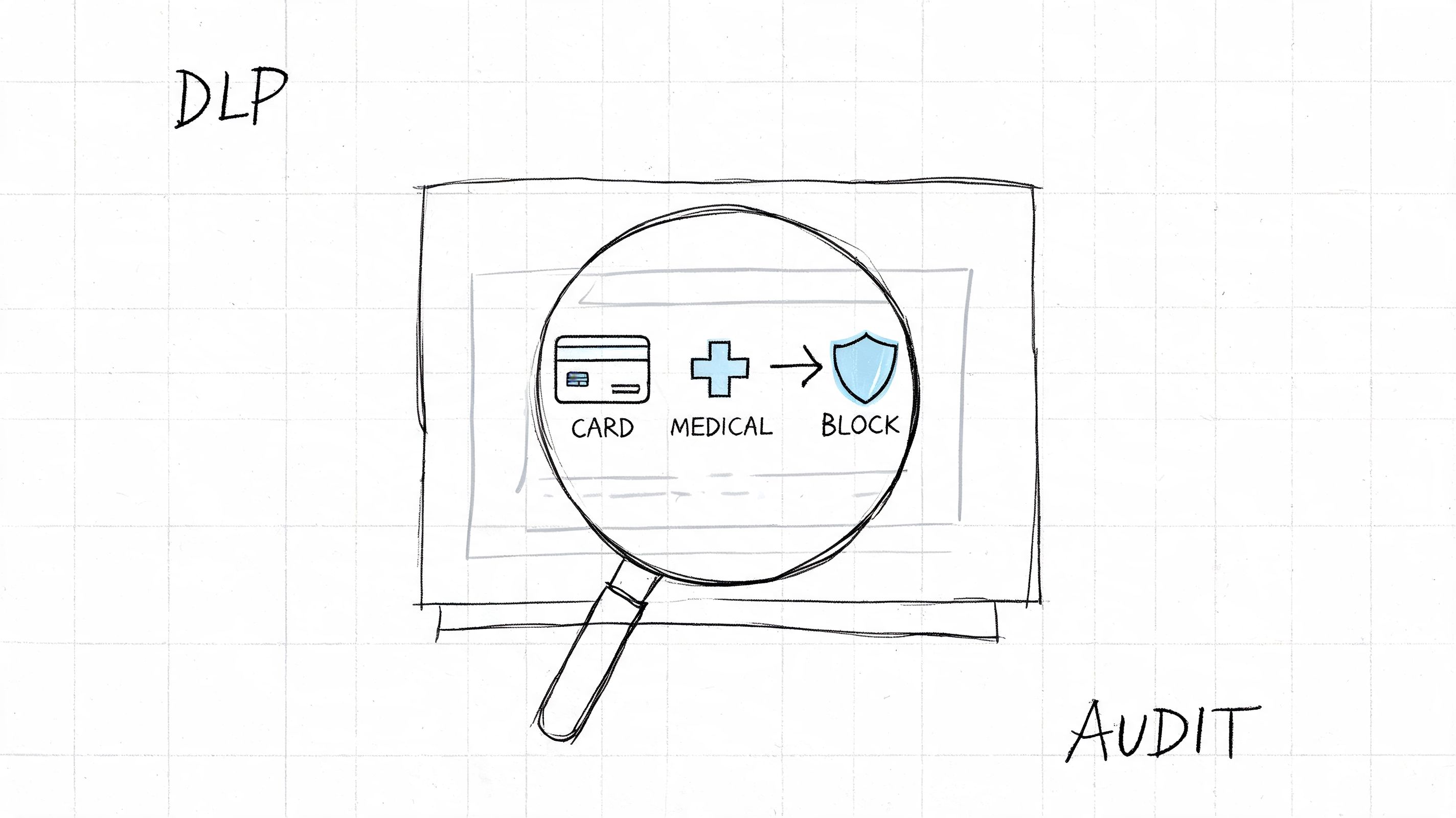
- Begin with audit-only: Learn what the policy matches before you block anything.
- Tune per workload: Teams, SharePoint, and Exchange carry different sharing patterns and need different thresholds.
- Define legitimate exceptions early: HR, legal, finance, and clinical workflows often need carefully bounded exceptions.
- Review false positives monthly: If everything triggers, nothing is useful.
Ollo has seen this repeatedly in migrations and post-migration governance work. Teams build DLP in a clean test tenant, then move to production and discover tenant-specific quirks, odd metadata, and collaboration patterns they never modelled. That's one reason Ollo's article on what DLP is in Microsoft 365 and why your setup is probably wrong hits close to reality.
Microsoft Learn confirms the ugly edge cases security teams ignore during migrations and governance work, including throttling behaviour, SharePoint's 5,000-item view threshold, and path length constraints. If your DLP design assumes the platform always behaves linearly at scale, it doesn't.
The Ollo verdict. Use DLP in phases. Start with visibility, then targeted enforcement on the highest-risk channels. If your tenant is large, regulated, or mid-migration, don't trust template-only deployment.
5. Implement SharePoint Site Permissions Governance with Broken Inheritance Remediation
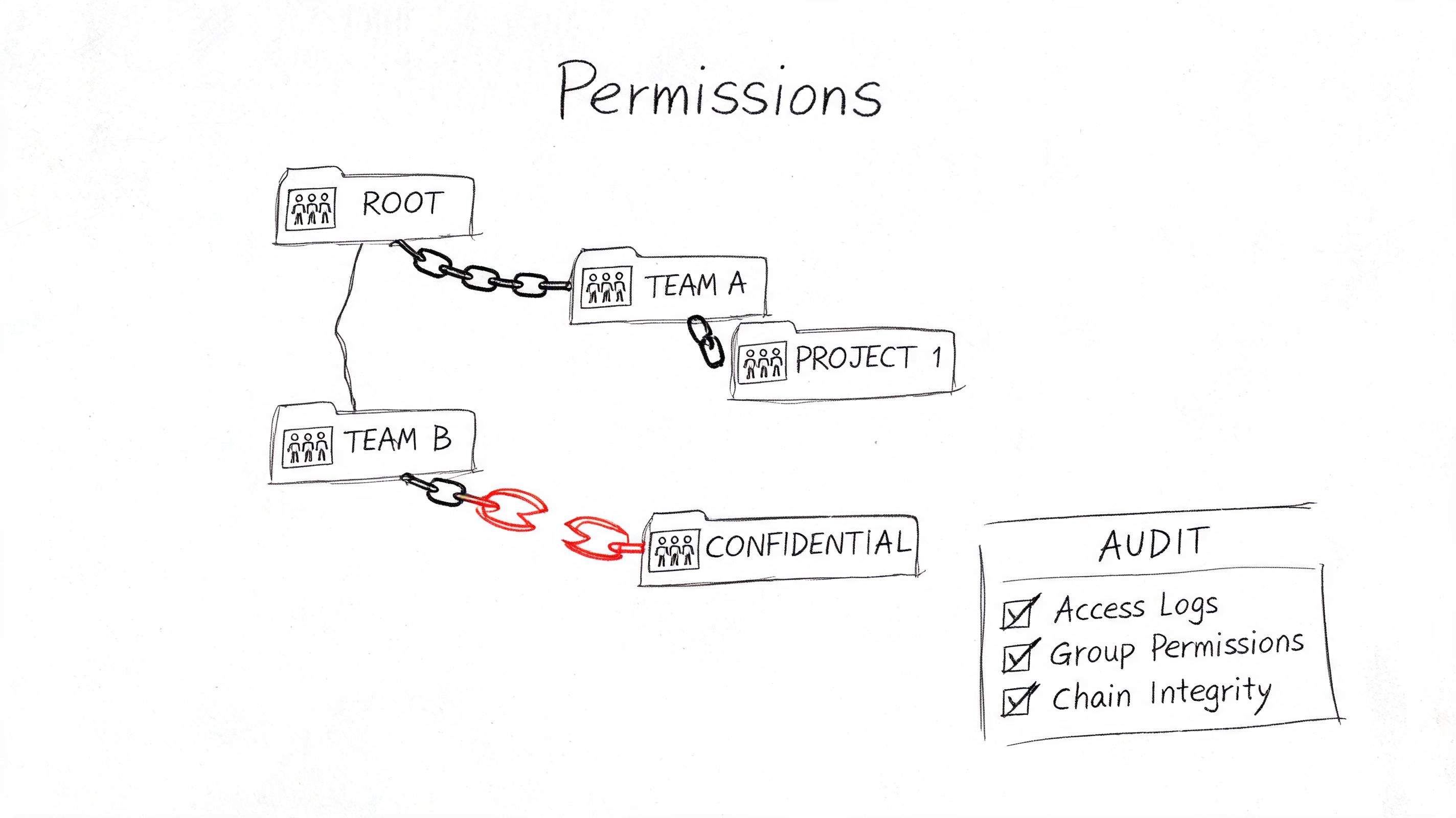
SharePoint permissions turn toxic slowly. That's why teams ignore them until audit time or breach review. One team grants direct access to a folder. Another breaks inheritance on a library. A migration copies old mess into a new site. Three years later nobody can explain who has access to what.
We often see clients fail when they assume “group-based permissions” is already true in their environment. It usually isn't. The documentation says use groups instead of individuals. Reality says years of exceptions, emergency access, contractor accounts, and rushed project sites have left a permission model nobody can defend.
Broken inheritance is the real problem
Broken inheritance isn't just untidy. It destroys auditability. In regulated sectors, that means you can't prove proper access control over sensitive records.
Use a forensic approach:
- Export the current permission state: Don't remediate blind.
- Prioritise sensitive sites first: HR, finance, legal, board, and regulated project areas come first.
- Remove direct user assignments: Push access back to group-based models wherever possible.
- Restore inheritance in bulk where justified: Manual clean-up on large estates is a waste of time and usually inconsistent.
Basic tooling has its limitations. SPMT can move content. It won't clean up years of SharePoint permission debt. ShareGate is useful for analysis and structured migrations, but enterprise remediation still needs custom PowerShell PnP scripting if you want to bulk repair inheritance, report exceptions, and handle messy edge cases.
From the trenches: Missing this step doesn't just leave a messy SharePoint estate. It breaks legal defensibility because you can't prove who could access sensitive content before, during, or after migration.
The Ollo verdict. Use SPMT for very small, low-risk content moves. For anything involving broken inheritance, sensitive data, or tenant consolidation, you need ShareGate plus custom scripting. Otherwise your migration preserves the problem instead of solving it.
6. Enforce Exchange Online Mail Flow Rules to Block External Forwarding and Prevent Data Exfiltration
External auto-forwarding is one of the simplest ways to leak data and one of the easiest ways to shut down. Yet many tenants still leave it open because nobody wants to upset edge-case workflows.
That is the wrong approach. If an attacker compromises a mailbox and forwarding remains allowed, they can siphon mail outside the tenant while your team debates whether DLP should have caught it. DLP has its place. Mail flow rules act earlier and with less ambiguity for this specific problem.
Fast control beats perfect theory
We often see clients fail when they over-engineer mail security and leave obvious exfiltration paths untouched. Start with the hard controls first.
- Block external forwarding by default: Force exceptions through documented approval.
- Review inbox and transport rules: Old forwarding rules often survive user departures and role changes.
- Protect high-risk mailboxes first: Finance, HR, legal, board support, and executive assistants deserve immediate review.
- Test rule order carefully: Exchange processes rules in sequence. Bad order creates false confidence.
Mail flow rules also help where DLP becomes too broad. You can block known risky attachment types, redirect suspicious flows, and enforce encryption conditions without scanning every collaboration event the same way.
A common failure pattern appears during migrations. Teams move mailboxes, validate delivery, and never review inherited forwarding behaviour, delegated access, or stale rules from old operational practices. Security debt survives the move and becomes harder to spot because everyone assumes the fresh tenant is clean.
The Ollo verdict. Block external forwarding now. Then layer DLP, impersonation protection, and audit review around it. If your tenant is in finance, healthcare, or energy, treating forwarding as a “business convenience” is reckless.
7. Deploy Insider Risk Management with Policy-Based User Activity Monitoring
Insider Risk Management is where tidy security diagrams go to die. On paper, policy-based monitoring looks precise. In real tenants, it turns into alert sludge if you switch on every template, ignore business context, and dump triage into a shared queue no one owns.
We have seen this fail the same way more than once. Finance exports at quarter end. Legal runs discovery. IT pulls bulk files during a migration. The platform sees volume, not intent, and analysts start tuning thresholds by instinct. That is how real insider cases disappear under perfectly legitimate noise.
Start narrower. Pick scenarios with a clear investigative path and an obvious business owner. Bulk downloads from high-value sites. Sensitive files shared externally after a role change. Access patterns that break from a user's normal scope and line up with other signals, such as DLP hits or unusual sign-in activity. If nobody can explain who reviews the alert, what evidence they need, and when they escalate, you do not have monitoring. You have theatre.
AI made this worse, not better. Microsoft's recent discussion of secure AI adoption points to a sharp rise in concern about sensitive data exposure through AI use inside Microsoft 365, especially where organisations deploy controls unevenly and assume default guardrails will save them. That assumption gets people hurt. Copilot and other AI features do not invent oversharing. They amplify the permissions mess you already have.
One alert rarely matters. A pattern does.
Watch for combinations: unusual downloads, sensitive sharing, repeated access to data outside the user's team, then a policy tip or DLP event in the same period. That sequence deserves investigation. A single spike often does not. Good investigators work from correlated behaviour, not isolated telemetry.
Licensing and data coverage matter here, and plenty of projects ignore both until the pilot falls apart. Insider Risk Management depends on the right Microsoft 365 licensing, good Purview integration, and audit data you can trust. If audit logging is incomplete, if SharePoint permissions are broken, or if Teams sprawl is out of control, your policies will reflect that chaos. The result is predictable: too many false positives, angry stakeholders, and pressure to weaken the rules until they are harmless. If you are still sorting out collaboration exposure, review how Microsoft Defender for Office 365 fits into layered Microsoft 365 security because insider monitoring only works when the rest of the stack is feeding it usable signals.
Do not ignore the physical edge either. Shared rooms, unmanaged peripherals, and ad hoc meeting spaces create ugly blind spots around file access and collaboration behaviour. Organisations rolling out hybrid work often spend heavily on policies and almost nothing on the endpoint and meeting environment those policies depend on. Even basic decisions around Microsoft Teams devices can affect how well you contain data exposure in shared spaces.
The Ollo verdict. Deploy Insider Risk Management surgically. Tie every policy to a real abuse case, a named investigator, and a response path that survives busy weeks. If your tenant is drowning in broken permissions, stale sites, and uncontrolled sharing, fix that first. Otherwise this control will bury you in noise and give you false confidence right before the incident.
8. Enable Advanced Threat Protection and Safe Links Safe Attachments for Email Security
Email protection fails in boring ways. The policy exists, the license is assigned, and the tenant still lets obvious phishing through because nobody tuned impersonation rules, quarantine review is a mess, and Safe Attachments is bypassed for the people who complain the loudest about mail delay.
Defender for Office 365 earns its keep when you treat it like an operational control, not a box on a procurement checklist. Safe Links and Safe Attachments catch a lot of commodity abuse. They do not fix bad sharing decisions, weak identity controls, or mailbox rules built years ago and never reviewed.
The common failure is blunt. Security teams switch everything on with default settings, then spend the next month dealing with delayed messages, broken URL rewrites in line-of-business workflows, and executives asking for exclusions. That is how protection gets carved up until only the quiet users keep the strict policy.
Run the mail stack like it will be attacked tomorrow
Start with the controls that reduce real exposure, then tune from evidence:
- Enable Safe Links and Safe Attachments across the tenant: Do not create a two-tier model where privileged staff or high-friction departments get weaker protection.
- Tune anti-phishing and impersonation policies against real business relationships: Subsidiaries, legal firms, payroll providers, and frequent supplier domains need deliberate review or you will drown in false positives.
- Review quarantine and submission data every week: Repeated false positives usually point to a broken policy, bad allow-listing habits, or a mail flow rule somebody forgot existed.
- Enforce SPF, DKIM, and DMARC properly: If sender authentication is sloppy, the rest of the stack wastes time inspecting junk that should have been rejected earlier.
- Test detonation and time-of-click behaviour with real mail paths: Transport rules, connectors, encrypted messages, and third-party gateways can create blind spots you will not see in the vendor diagram.
There is scale behind this problem. Exchange Online handles enormous mail volume, and attackers hide inside that noise. Some payloads arrive through links that only turn malicious after delivery. Some arrive as trusted conversation hijacks that sail past users because the thread looks familiar. Some bypass the email layer completely and pivot into Teams or SharePoint after the first credential theft. If you want the practical view, not the brochure version, read Ollo's piece on how Microsoft Defender for Office 365 fits into a layered Microsoft 365 security model.
Do not ignore the endpoint side either. In meeting-heavy environments, shared rooms and loosely managed peripherals turn protected messages into screenshots, forwarded content, and copied links the mail gateway never sees. The decisions around Microsoft Teams devices affect how much of your email security survives contact with actual environments.
The Ollo verdict. Enable Defender for Office 365 everywhere, then babysit it like a production system. Measure false positives. Test click protection. Hunt for exclusions. The failure pattern is always the same: teams trust the defaults, users route around the pain, and the attacker only needs one clean message to get in.
9. Audit and Control Microsoft 365 Application Permissions via Consent Governance Framework
App consent is where tidy identity controls go to die.
Teams spend months tightening Conditional Access, MFA, and admin roles, then let a user approve a SaaS app that asks for Mail.Read, Files.ReadWrite.All, or offline access without anyone serious reviewing it. The result is predictable. You end up with service principals nobody can explain, tenant-wide permissions nobody meant to allow, and old pilot apps still holding access long after the project was killed.
This failure gets missed because application access does not look like a classic account compromise. It looks legitimate. Tokens are valid. Sign-ins are normal. Audit trails are noisy. By the time someone investigates, the argument usually starts with, "we thought that app only needed calendar access."
Treat consent like a privileged change
Self-service consent for low-impact apps may be tolerable in a small tenant. In an enterprise, it becomes junk accumulation with legal exposure attached. Microsoft documents the control model in Entra ID, including user consent settings, admin consent workflows, and permission classifications in its guidance on configure how users consent to applications.
Set rules that people cannot dodge:
- Block user consent for high-impact permissions: Mail, files, directory data, and offline access should go through named approvers.
- Separate delegated from application permissions: Application permissions are more dangerous because they bypass the user boundary entirely.
- Inventory enterprise apps and app registrations together: If you review only one side, you miss abandoned service principals and test apps.
- Assign an owner and review date to every approved app: Unknown owner means automatic removal.
- Watch token usage, not just consent events: The risky moment is often weeks after approval, when the app starts pulling data at scale.
Licensing confusion makes this worse. Organizations buy Entra ID P1 or P2, assume governance is handled, and move on. Microsoft is clear in its Entra permissions and consent documentation that these controls still need to be configured, scoped, and operated. A license gives you the feature. It does not give you a working control plane.
The ugly part is operational. Reviews get skipped because the app estate grows faster than the team, API reporting is inconsistent across tools, and business owners disappear after implementation. Then nobody wants to revoke anything because they fear breaking a finance integration, an HR workflow, or some executive's pet automation. That is how bad permissions survive. Not through design. Through avoidance.
A consent governance framework needs five fields at minimum: business purpose, exact permissions requested, approval owner, last review date, and revocation plan. If any of that is missing, remove access first and argue later.
The Ollo verdict. Casual app consent is how enterprises create backdoors for themselves. Audit every privileged app path, force approvals through a real process, and kill anything without an accountable owner. In a regulated tenant, undocumented application access is not an oversight. It is a finding waiting to happen.
10. Establish a Microsoft 365 Backup and Disaster Recovery Strategy Beyond Native Retention
Native retention is not backup. Soft delete is not backup. Recycle bins are not backup. If your team still treats Microsoft 365 retention as disaster recovery, fix that before you do anything else on this list.
We often see clients fail when they assume Microsoft handles everything because the platform is cloud-hosted. Then a malicious deletion, ransomware event, or bad admin action lands, and they discover retention policies were built for governance, not full operational recovery.
Recoverability has to be separate
A real backup and recovery strategy needs independent copies, tested restores, and documented procedures. Anything less is optimism.
- Keep independent backups outside the tenant: If the same compromise can reach your backup plane, it isn't a recovery plan.
- Test restores regularly: Unverified restore paths are fiction.
- Use immutable storage where possible: Ransomware operators go after backups too.
- Protect the destination tenant before migration cutover: Don't decommission source data until recovery in the target is proven.
This matters even more in migration programmes. Ollo regularly sees teams focus on moving data and ignore recoverability in the destination tenant until late in the project. That's backwards. The migration window is exactly when permissions change, content moves, path issues surface, and throttling complicates reruns.
Microsoft Learn confirms several operational constraints that backup and migration tooling must respect, including throttling, SharePoint's 5,000-item view threshold, and path limitations. A backup vendor or custom process that ignores those realities will fail at the worst possible moment.
The Ollo verdict. If the data matters, back it up independently. If the tenant is regulated, test restores and document RTO and RPO. If you're doing tenant-to-tenant migration, establish recoverability in the destination before you switch anything off.
Microsoft 365 Security: 10 Best-Practices Comparison
| Item | 🔄 Implementation complexity | ⚡ Resources & time-to-value | 📊 Expected outcomes | 💡 Ideal use cases | ⭐ Key advantages |
|---|---|---|---|---|---|
| Implement Conditional Access Policies with Zero‑Trust Architecture | High, phased rollout, pilot testing required | Intune/Entra integration, admin effort, logging; ~8–12 weeks | Strong reduction in unauthorized access and compromised credentials (case examples: ~89% reduction) | Hybrid/remote workforces, finance/healthcare, tenant consolidations | Granular access control, regulatory alignment, real‑time risk enforcement |
| Enable Multi‑Factor Authentication (MFA) Universally with Enforced Registration | Medium, broad user enrollment & support overhead | Authenticator apps/FIDO2 keys, registration campaigns, support staff; ~4–8 weeks | Blocks ~99.9% of credential attacks (per Microsoft); reduces password reuse risk | All organisations; immediate for privileged accounts, phased for general users | Simple, high‑impact credential protection; supports passwordless and FIDO2 |
| Audit & Remediate Entra ID Privilege Escalation Paths (PIM/RBAC) | High, role audits and RBAC redesign | Azure AD PIM (P2 licensing), admin approvals, 6–10 weeks | Limits blast radius of admin compromise; better forensic trails and reduced standing privileges | Organisations with many legacy admins, regulated sectors | Time‑bound roles, JIT activation, auditability |
| Enforce DLP Policies with Content Scanning for Sensitive Data Types | Very High, tuning and phased enforcement essential | DLP policies, endpoint agents, monitoring; significant admin effort; ~8–16 weeks | Prevents accidental/exfiltration of PII/PHI; can cause API throttling if aggressive | Finance/healthcare; locations handling regulated data | Pre-built sensitive types, endpoint coverage, compliance evidence |
| SharePoint Site Permissions Governance & Broken Inheritance Remediation | High, large remediation effort for legacy permissions | Audit tools (PowerShell/PnP/third‑party), stakeholder change management; ~6–12 weeks | Centralised access model improves auditability and reduces orphaned access | Sites with long history of ad‑hoc shares, tenant migrations | Group‑based permissions, easier audits, reduced support tickets |
| Enforce Exchange Online Mail Flow Rules to Block External Forwarding | Medium, rule design and testing required | Exchange admin effort, journaling if needed; quick to deploy; ~2–4 weeks | Rapidly prevents mass mailbox exfiltration; lower API impact than DLP | Organisations vulnerable to mailbox compromise, regulated sectors | Fast, low‑cost control to stop forwarding/exfiltration |
| Deploy Insider Risk Management (IRM) with Policy‑Based Monitoring | High, iterative tuning and analyst capacity | Azure AD Premium P5, dedicated analyst (0.5–1 FTE), ~8–12 weeks | Early detection of insider threats; initial high false positives until tuned | Organisations with insider risk concerns, SOC 2/HIPAA requirements | Detects unusual behaviour, case management, forensic evidence |
| Enable Advanced Threat Protection (Safe Links / Safe Attachments) | Medium, tuning for latency and false positives | Defender for Office 365 licensing, admin tuning; ~3–6 weeks | Blocks majority of phishing/malware (95%+); may add 10–15s delivery delay | Any org receiving external email, especially finance/healthcare | URL detonation, sandboxing, user reporting loop |
| Audit & Control Microsoft 365 App Permissions (Consent Governance) | Medium‑High, policy & process required | Azure AD app inventory, approval workflows, periodic audits; ~6–10 weeks | Reduces risk of third‑party app exfiltration; enables rapid revocation | Tenants with many user‑installed apps, high‑risk data access | Centralised consent, admin approval, audit trails |
| Establish Microsoft 365 Backup & Disaster Recovery Beyond Native Retention | High, architecture, tooling, and testing needed | Third‑party backup solution, storage, recovery testing; ~4–8 weeks | Ensures point‑in‑time recovery from ransomware/malicious deletion; RTOs vary (4–24h+) | Regulated sectors, organisations needing immutable backups | Independent recoverability, immutable storage, compliance support |
The Ollo Verdict From Checklist to Control
Reading a list of microsoft 365 security best practices is easy. Living with them in a busy tenant is where the pain starts. Every control on this page looks sensible in isolation. Then your real environment adds old service accounts, stale app consent, broken SharePoint inheritance, unmanaged devices, partial licensing, audit pressure, API throttling, and a business that still expects users to work while you harden everything.
That's why checklists become liabilities. They create the impression that implementation is a switch. It isn't. Conditional Access is a project. MFA rollout is a project. PIM adoption is a project. DLP tuning is a project. Permission remediation in SharePoint is definitely a project. If your team treats these like admin-centre tasks instead of operational programmes, you'll either break production or leave dangerous gaps behind.
The licensing problem makes this worse. Higher Microsoft 365 tiers don't mean stronger protection by default. Licensing gives you access to controls, but somebody still has to design, enable, validate, and maintain them. Otherwise your tenant ends up in the worst possible state. Expensive on paper, weak in practice, and impossible to defend during audit.
The identity problem is just as bad. Too many teams stop at MFA because it's visible and easy to report upward. But authentication only proves who signed in. It doesn't prove they should have access, that their app should have consent, that their device is clean, or that their SharePoint permissions still make sense after a merger. We often see clients discover this the hard way during incident response, when they learn that the compromised account wasn't the only problem. The tenant had been carrying hidden over-permissioning for years.
The collaboration layer is where theory usually collapses. Teams and SharePoint encourage speed. Security requires restraint. If you don't govern external sharing, broken inheritance, DLP behaviour, AI access, and application permissions, the platform will happily amplify bad decisions at scale. Microsoft gives you strong components. It does not automatically turn those components into an operating model.
That is the essential lesson from failed projects. The documentation says what a feature can do. Reality is about what your tenant will tolerate, what your users will bypass, what your auditors will demand, and what native tooling won't surface cleanly. The gaps show up in live environments with history. Old migrations. Cross-tenant consolidations. Legacy identity patterns. Half-complete governance. Regulated data mixed into collaboration spaces that were never designed properly.
If your environment is small and simple, you can get a long way with careful internal effort. Most regulated, merged, or high-stakes estates aren't in that category. They need design discipline, staged enforcement, scripted auditing, and people who already know where Microsoft 365 tends to break under pressure. That's where a specialist matters. Not because the controls are mysterious, but because failure modes are predictable if you've seen enough of them.
Ollo works in that rescue space. Tenant-to-tenant consolidations, Entra ID zero-trust redesigns, SharePoint permission remediation, and migrations that can't afford data loss or compliance drift. The value isn't magic. It's risk reduction through experience, proper tooling, ShareGate where it fits, and custom PowerShell PnP work where native tools and simple migration paths stop being enough.
If your team is tired of inheriting half-secure configurations and cleaning up failed rollouts, stop treating the checklist as the outcome. The outcome is control. Defensible, tested, operational control.
If your Microsoft 365 tenant carries migration debt, privilege sprawl, or compliance pressure, talk to Ollo. We help IT leaders reduce risk in complex M365 estates by fixing the parts that usually fail in production.

















