


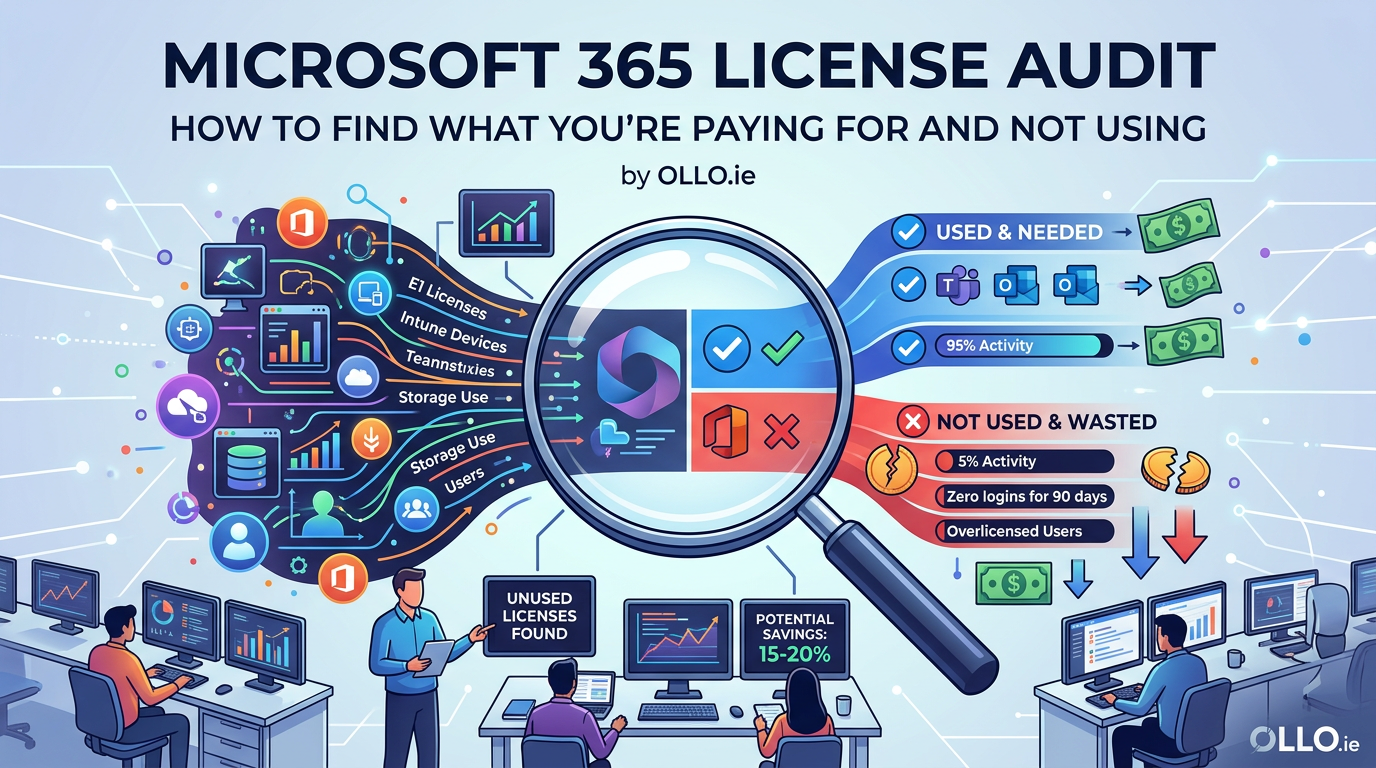

Microsoft 365 Licence Audit: How to Find What You're Paying For and Not Using
A Microsoft 365 licence audit is a systematic review that compares assigned licenses against actual user activity to identify waste. The core objective is to uncover services you are paying for but not using, creating an evidence-based plan to eliminate overspend. This is not a simple accounting check; it is a deep-dive into your organisation's operational pulse.
In our experience, a significant portion of an organisation's M365 budget is consumed by "ghost" usage: licenses assigned to departed employees, premium features enabled for users who don't need them, and full E3 licenses allocated to frontline workers who only require Teams and email. Without a proper audit, this digital waste becomes a permanent and expensive fixture of your IT overhead.
The trap most IT Directors fall into is relying solely on the high-level dashboards in the Microsoft 365 Admin Center. These tools show you what licenses are assigned, but they don't give you the granular detail needed to understand what is actually being used. A real audit moves beyond the surface and uses more precise instruments to get to the ground truth of your consumption.
Beyond the Admin Center: The Tools for a Real Audit
To conduct an audit that drives real savings, you must look past the default user interface. The Admin Center is fine for assigning a license, but it's not an investigative tool. For a true architectural review, you need to query the source of truth directly.
- PowerShell and the Microsoft Graph API: This is the non-negotiable toolkit for a professional audit. Using PowerShell, you can connect to the Microsoft Graph API to pull detailed reports that are simply not available in the UI. You can systematically query the last activity date for every user across key services like Exchange Online, SharePoint Online, and Microsoft Teams.
- The "Last Activity Date" Metric: This is the most important piece of data in your audit. The Admin Center might show a license as "Active," but the Graph API can tell you the user hasn't actually opened a file, sent an email, or posted in a Teams channel in over 90 days. This is the evidence that separates an assigned license from a utilized one.
The Three Layers of an Effective Audit
A thorough audit isn't a single action but a multi-layered investigation. We break it down into three distinct phases, moving from the obvious waste to the more strategic misalignments.
Layer 1: Inactive Licenses (The Low-Hanging Fruit)
This is the easiest and fastest way to generate savings. The goal here is to identify and reclaim licenses from completely inactive accounts.
- What to Look For: Use a PowerShell script to generate a report of all licensed users, sorted by their last login date.
- The 90-Day Rule: Any user who has not logged in for more than 90 days is a prime candidate for license reclamation. These are almost always departed employees or test accounts that were never disabled.
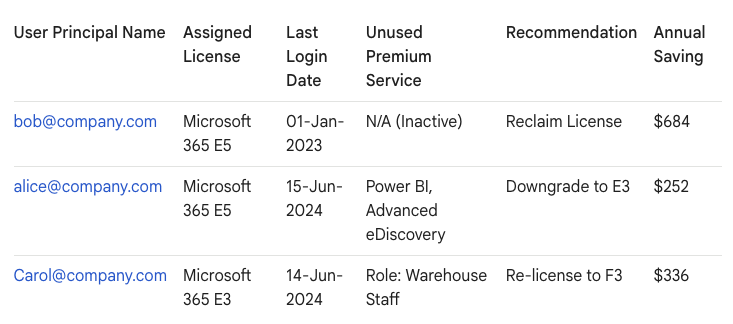
- The Action: Reclaim the license. This immediately returns it to your available pool, creating a direct cost saving. For a 1,000-person organisation, it's not uncommon to find 30-50 such accounts, representing thousands of dollars in annual savings.
Layer 2: Unused Premium Services (The Surgical Strike)
This layer requires more precision. Here, we target users who have expensive premium licenses (like E5 or add-ons) but are only using the basic features.
- What to Look For: Focus on users with E5, Power BI Pro, or Project licenses. Cross-reference their assigned licenses with their last activity date for those specific premium services.
- The Use Case Mismatch: You will inevitably find users with E5 licenses who have never used Power BI or the advanced security features. They were likely upgraded for a single reason and now carry the high cost of the full suite.
- The Action: Downgrade the license. Move the user from an E5 to an E3, or remove the Power BI Pro add-on. This right-sizes the license to their actual behaviour without removing any features they are actively using.
Layer 3: Mismatched Personas (The Strategic Realignment)
This is the most architectural layer of the audit. The goal is to align license types with employee roles across the entire organisation.
- What to Look For: Identify distinct user personas. The two most common are "Knowledge Workers" (desk-based, creating documents) and "Frontline Workers" (mobile-first, consuming information, e.g., in a warehouse or retail).
- The Costly Default: Many organisations give every employee an E3 license by default. This means you have frontline workers with full, expensive desktop app licenses they never use.
- The Action: Re-license your frontline workforce with Microsoft 365 F3. The F3 license provides access to Teams, email, and Office web apps—everything a frontline worker needs—at a significantly lower cost than an E3. This strategic realignment can be the single largest source of savings in a large-scale audit.
From Audit to Action: Presenting Your Findings
The output of your audit should be a clear, concise report that a CFO or department head can understand. It should move beyond raw data and provide concrete recommendations. We avoid the "Spreadsheet of Doom" and present our findings in a clear, actionable format.
Your Audit Is a Continuous Protocol, Not a One-Time Project
Finally, the greatest trap is to treat the audit as a one-off project. The reality is, your organisation is constantly changing. People change roles, projects start and end, and employees leave.
A successful Microsoft 365 license audit is not a task; it's the first step in building a continuous governance protocol. The insights and scripts you develop for this initial review should be adapted into a quarterly, automated process. This proactive stance ensures that you maintain a state of permanent optimisation, preventing license sprawl before it can take root and turning a reactive cost-cutting exercise into a strategic financial advantage.

















