



A large-scale SharePoint migration is a complex technical project, focused on moving critical data from legacy platforms like SharePoint Server 2013/2016 or unstructured file shares into a modern Microsoft 365 tenant. A successful cutover requires a meticulous technical blueprint that extends far beyond a simple data inventory. The process must start with a deep, technical audit to identify architectural risks and a strategic plan to re-architect for the cloud, not just replicate on-premises structures.
Building Your Migration Blueprint for Microsoft 365
Before migrating a single terabyte to SharePoint Online, a robust plan is non-negotiable. This discovery and assessment phase is the architectural drawing for your new cloud environment; without it, the project is destined for instability and technical debt. The objective is to understand not just what data exists, but how it's structured, secured, and accessed.
A rushed migration that skips this foundational analysis simply moves legacy problems to a more expensive cloud platform. The goal isn't just to lift-and-shift data; it's to engineer a more efficient, secure, and scalable information architecture within Microsoft 365.
Conducting a Comprehensive Technical Audit
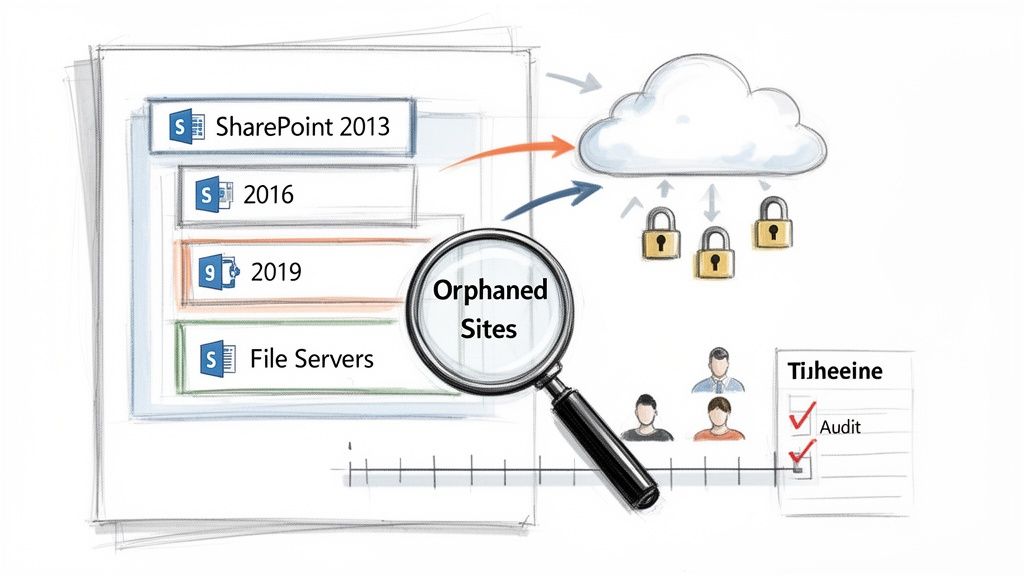
The first phase is a deep-dive audit of the source environment. This is a technical exercise to uncover hidden complexities that will derail a cloud migration. The goal is to build a complete, unvarnished inventory of your data landscape and its dependencies.
Your audit must meticulously document:
- Orphaned Sites and Data: Identify SharePoint sites and file shares with no verifiable owner or business purpose. These are candidates for archival or deletion, which reduces migration scope, cost, and the security attack surface.
- Convoluted Permissions: Map complex, nested, and broken permission inheritances. On large projects, we often find that up to 20% of permissions are misconfigured, representing significant latent security risks that must be resolved before moving to the cloud.
- Legacy Customisations: Catalogue all custom web parts, SharePoint Designer workflows, InfoPath forms, and any full-trust code solutions. These are incompatible with SharePoint Online and require a specific modernisation strategy, often involving the Power Platform.
- File and Metadata Integrity: Assess file path lengths (max 400 characters in SPO), illegal characters, and metadata consistency. Critical metadata like timestamps and version history can be lost with naive migration methods, creating significant compliance and operational issues.
A common pitfall is underestimating the pre-migration cleanup effort. We've seen projects where a thorough audit enabled an organisation to reduce its migration data volume by over 30%, simply by archiving redundant, obsolete, and trivial (ROT) data.
Engaging Stakeholders and Defining Technical Success
While a migration is a technical project, its success is measured by business outcomes. Engaging key stakeholders and power users is crucial for translating technical goals into tangible business value.
Conduct workshops with technical leads and departmental power users to understand their daily workflows and pain points with the legacy systems. This engagement defines the technical success criteria.
Key questions for a technical audience include:
- What are the most critical business processes dependent on this data?
- What are the current collaboration and external sharing patterns?
- What are the primary performance and usability frustrations with the current environment?
Their answers directly shape your success metrics. Instead of a vague goal like "migrate to the cloud," you can establish specific, measurable targets, such as reducing time-to-access for critical documents or enabling secure external collaboration via Entra B2B. A detailed blueprint for a Microsoft 365 migration builds a roadmap that solves real user problems and meets business objectives.
Creating a Realistic Timeline
Finally, your blueprint must culminate in a realistic timeline. A classic mistake is basing schedules purely on data volume. The true timeline is dictated by complexity—permissions remediation, modernisation of customisations, and user adoption activities.
Factor in dependencies, potential roadblocks uncovered during the audit, and necessary change management. A well-defined blueprint acknowledges these complexities, allowing you to set achievable milestones and manage expectations. This foundational work prevents costly rework and ensures your large-scale SharePoint migration is aligned with strategic goals from day one.
Modernizing Your Information Architecture for the Cloud
Simply lifting and shifting a legacy, nested SharePoint structure into SharePoint Online is a recipe for failure. A large-scale migration to Microsoft 365 is a rare opportunity to dismantle years of accumulated technical debt and engineer a secure, scalable information architecture (IA) designed for modern collaboration.
This means abandoning the on-premises paradigm of deeply nested sites and broken permission inheritance. The goal is to create a flat, hub-based IA that is intuitive for users and manageable for IT administrators, built on a foundation of zero-trust security.
Shifting from Nested to Flat Architecture
Legacy SharePoint Server architectures relied on complex, rigid hierarchies of sites and subsites. This model inevitably creates a permissions management nightmare, where breaking inheritance at one level creates security gaps and administrative complexity.
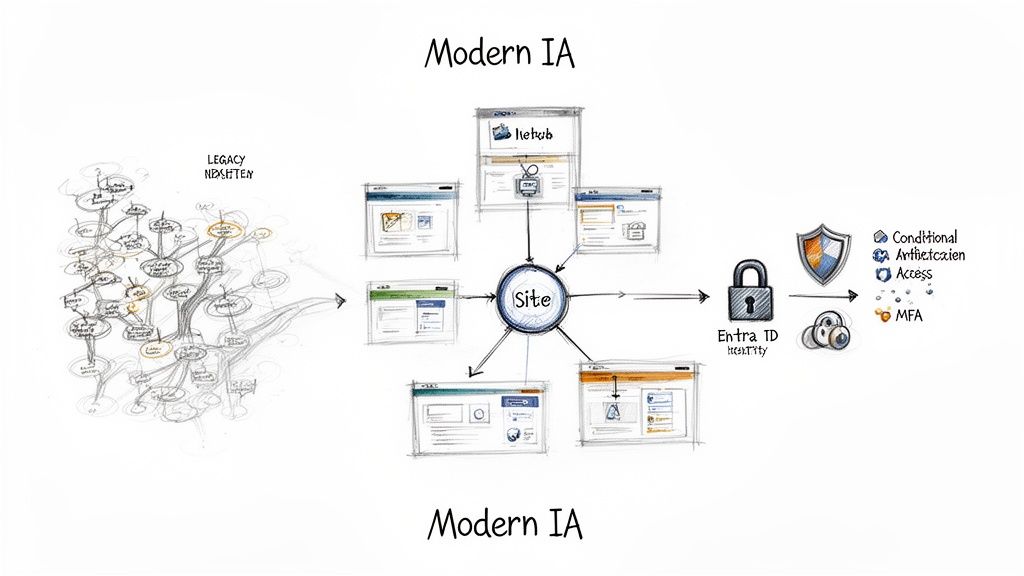
The modern SharePoint Online approach is a flat architecture connected by hub sites. Every site is a top-level site collection, which provides a distinct security boundary and simplifies permissions management.
- Communication Sites: Designed for broad, one-to-many communication, ideal for intranets, departmental news, or HR portals.
- Team Sites: Each is connected to a Microsoft 365 Group, providing a collaborative workspace with a shared mailbox, calendar, and Planner board for a specific team or project.
- Hub Sites: Act as the connective tissue. Hubs associate related sites, providing shared navigation, branding, and content roll-up without the rigid, breakable structure of subsites.
This model makes the entire environment more agile. Sites can be easily associated or disassociated from hubs as business needs change, without requiring a massive restructuring project. It's a resilient foundation for your content in Microsoft 365.
Redesigning Security for a Zero-Trust World
Modernising your IA is inseparable from overhauling security. The cloud operates on a zero-trust principle: verify every access request explicitly, rather than trusting users based on their network location. This is where the Microsoft 365 security stack is essential.
Your first step is to map all legacy identities to Entra ID (formerly Azure Active Directory). This centralises identity and access management, providing a single control plane for securing SharePoint content.
With identities managed in Entra ID, you can layer on powerful security policies:
- Conditional Access Policies: This is the core of a zero-trust model. You can enforce access controls based on signals like user, location, device compliance, and application. For example, require multi-factor authentication (MFA) for anyone accessing sensitive financial data from an unmanaged device or an unfamiliar location.
- Enforced Multi-Factor Authentication (MFA): MFA is a non-negotiable baseline. Microsoft data shows it blocks over 99.9% of account compromise attacks. Tenant-wide MFA enforcement is one of the most effective security measures you can implement.
Don't just replicate legacy Active Directory security groups. Use your migration as an opportunity to implement dynamic Microsoft 365 Groups. These automate membership based on user attributes (e.g., department, location) in Entra ID, ensuring permissions remain accurate without manual intervention.
Establishing a Robust Governance Plan
Without a strong governance plan, your new SharePoint Online environment will devolve into the same unstructured sprawl you're migrating from. Good governance provides a framework that empowers users to work efficiently within defined, secure boundaries.
A clear plan prevents costly future cleanup projects. The consequences of poor governance are significant, as detailed in the hidden costs of poor data governance and their long-term impact.
Your governance plan needs to define clear rules for key areas:
Migration Strategy Comparison Lift-and-Shift vs Modernization
Deciding how to approach the migration itself is a critical early step. While a direct "lift-and-shift" seems faster and cheaper upfront, it often just moves the old problems to a new location. A modernisation approach, while more involved, sets the foundation for long-term success.
Ultimately, investing the time to modernise pays for itself by reducing long-term administrative overhead and creating a platform that users find effective. You're not just moving data; you're building a strategic business asset that is secure, manageable, and ready to support your organisation for years to come.
Choosing Your Migration Toolkit
With a modernized information architecture and governance plan defined, the next phase is tactical: executing the data transfer. The right tools are essential for moving terabytes of data with precision, control, and fidelity.
This isn’t just about selecting software; it's about matching a tool's capabilities to the specific technical challenges uncovered during your audit—such as large data volumes, complex site structures, and legacy workflows that require modernization.
Evaluating Third-Party vs. Native Tools
The first major decision is whether to use Microsoft's native tools or invest in a specialized third-party solution. While both can move files, they are designed for different scales and complexities.
- Microsoft SharePoint Migration Tool (SPMT): This is Microsoft’s free utility, designed for straightforward migrations from SharePoint on-premises and file shares. It is suitable for small, uncomplicated projects but lacks the enterprise features required for a large-scale migration, such as deep pre-migration analysis, granular permissions mapping, or robust, auditable reporting.
- Third-Party Tools (e.g., ShareGate): Commercial tools like ShareGate are purpose-built for the complexities of large-scale migrations. They provide critical features like pre-migration analysis to identify potential issues, incremental copying (delta migration) to sync changes before cutover, and detailed post-migration reporting to validate data integrity. For any significant enterprise project, this level of control is indispensable.
While free tools are tempting, the cost of a failed or incomplete migration far outweighs the investment in a professional toolkit. Dealing with lost file versions or misconfigured permissions will halt business operations and erode user trust in the new platform.
The Power of Scripting with PnP PowerShell
Regardless of your primary migration tool, PnP PowerShell is your essential asset for automation and post-migration configuration. This open-source, community-driven library provides cmdlets for performing complex operations in SharePoint Online that are often outside the scope of GUI-based migration tools.
Post-migration, you may need to apply branding, provision standard document libraries with specific metadata columns, or configure hub site associations across hundreds of sites. Manual execution is impractical and prone to error.
With PnP PowerShell, you can script these actions to ensure consistent, flawless application across the entire tenant. This saves hundreds of man-hours and eliminates human error, enabling true scale in a large migration. It is crucial to understand the capabilities of any SharePoint migration tool and identify where scripting can fill critical automation gaps.
Optimising Your Migration Environment
Migration velocity is directly tied to the technical environment. Performance is not just about bandwidth; several factors can create bottlenecks that throttle progress.
A primary challenge is API throttling. Microsoft 365 imposes API request limits to protect service health. A poorly configured migration will repeatedly hit these limits, causing pauses and failures. Professional migration tools are designed to manage API calls intelligently, but you can also optimize by:
- Running multiple migration agents: Using several dedicated virtual machines to run the migration software in parallel can dramatically increase aggregate throughput.
- Scheduling for off-peak hours: Network traffic and service load are typically lower outside of standard business hours. Running large data transfers overnight can yield faster, more consistent speeds.
- Checking source environment performance: Often, the bottleneck is the source system. Slow disk I/O on a legacy file server or an overzealous antivirus scanner can cripple read performance before the data even traverses the network.
The Non-Negotiable Pilot Migration
Before the full cutover, you must execute several pilot migrations. These are real-world tests using a representative subset of data—such as a single department's site or a notoriously complex project folder.
A pilot is a full dress rehearsal. It's where your theoretical plans and scripts are validated against real-world complexity. You will uncover hidden issues that could not have been predicted from an audit alone.
These test runs are critical for:
- Validating Permissions Mapping: Does the plan for translating legacy permissions to Microsoft 365 Groups and SharePoint permissions work as expected?
- Identifying Content Issues: This is where you find problematic file names, path lengths exceeding cloud limits, and other content-related blockers.
- Fine-Tuning Your Scripts: Your PnP PowerShell scripts will almost certainly require adjustments after running against real-world content and site structures.
- Estimating Timelines: Pilot performance provides a realistic baseline, allowing you to accurately predict the time required for the full cutover and set stakeholder expectations.
By conducting thorough pilots, you can systematically identify and remediate issues in a controlled environment. This iterative process of testing, refining, and re-testing transforms a high-risk migration into a predictable and successful transition.
Executing A Seamless Migration Cutover
This is the main event: the migration cutover. Success at this stage depends on precision, communication, and meticulous execution of a pre-rehearsed plan.
A well-executed cutover is nearly invisible to end-users. A poorly executed one results in data loss, extended downtime, and a severe loss of confidence in the new platform. This phase is about following a detailed playbook, not improvisation.
This high-level process flow should look familiar from your test runs.
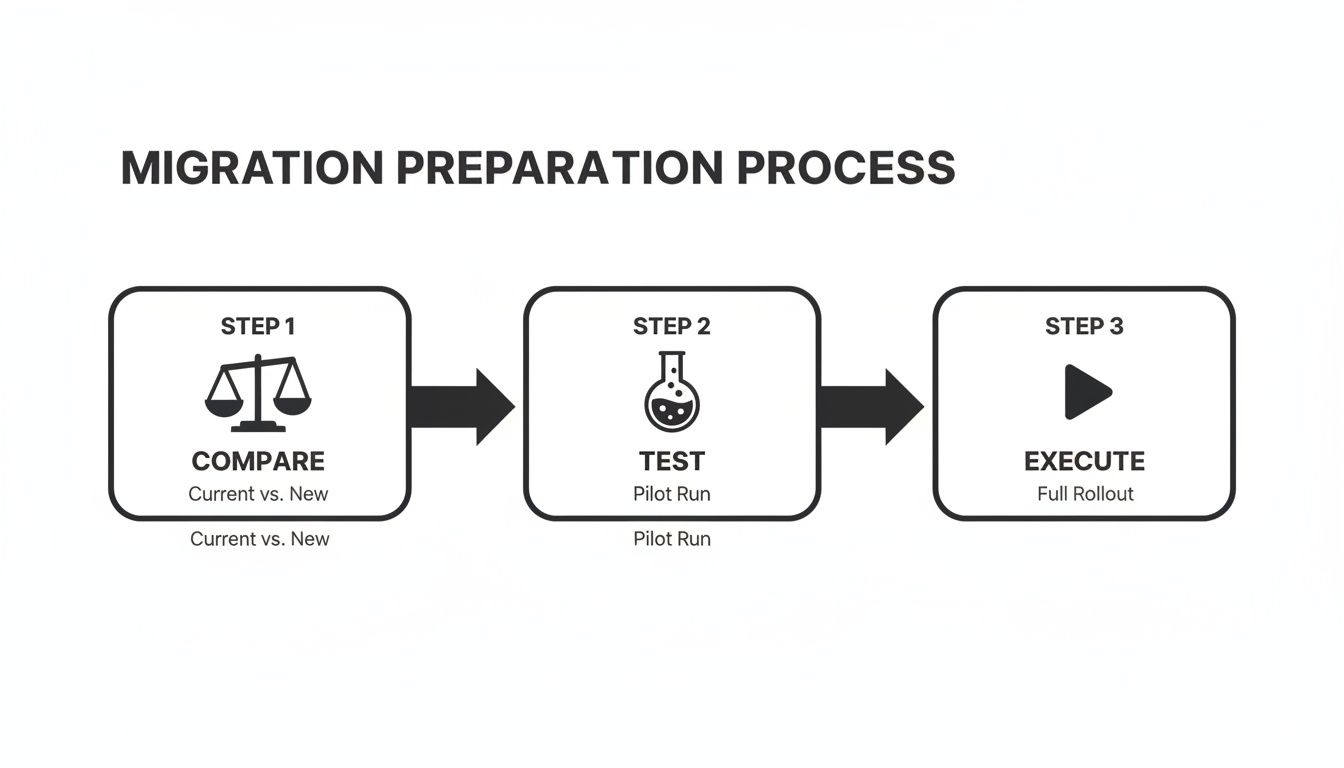
It’s a simple reminder that the final execution is only possible after you've put in the hard yards on comparison and testing.
Kicking Off the Content Freeze and Final Sync
The first step of the cutover is implementing a content freeze by setting the source environment (legacy SharePoint farm or file shares) to read-only. This is a non-negotiable step to ensure that no new or modified documents are left behind during the final data transfer.
Clear communication is critical. Users must be notified in advance about the freeze, its timing, and its duration. Transparency about the necessity of the freeze is key to mitigating user frustration and support tickets.
Once the source is read-only, you trigger your final delta sync. Your migration tool has already moved the bulk of the data. This final pass copies only the files that changed between the last major sync and the start of the freeze, making it a much faster process than the initial copy.
Pushing Data and Flipping the Switch
Performance is critical during the final syncs. Microsoft’s telemetry shows that tools like ShareGate or the SharePoint Migration Tool (SPMT) can achieve high throughput. We've seen speeds peak at up to 500 GB per day per migration agent in optimal network conditions, but this is a best-case scenario. Bottlenecks like slow source disk I/O or aggressive antivirus scanning can easily halve this rate.
With the final delta sync complete and verified, the next step is the DNS cutover. This involves updating your network’s DNS records to redirect traffic from legacy URLs to the new SharePoint Online environment. After DNS propagation, which can take several hours, users will be directed to their new digital workspace.
Your safety net here is a documented rollback plan. This must be a step-by-step checklist detailing exactly how to revert DNS changes and unlock the legacy system in case of a critical post-cutover issue. You hope to never use it, but you absolutely must have it.
Automated Validation: Trust, but Verify
The migration is not complete once the data is moved. The final, critical phase is validation. You must prove, with data, that everything arrived intact and is configured correctly. For any large scale SharePoint migration, manual spot-checks are insufficient.
Scripting is essential for scalable validation. Using a tool like PnP PowerShell, you can automate a comprehensive audit comparing the source and destination environments.
Your validation scripts should check for:
- File and Folder Counts: A simple but powerful verification that item counts match between source and destination.
- Version History: Verify that all major and minor versions for critical documents have been preserved, a common compliance requirement.
- Permissions Integrity: Compare the membership of key SharePoint groups and check site-level permissions to confirm the new security model was applied correctly.
Automated validation provides an auditable record of a successful migration. It is the proof required to give technical teams and business stakeholders the confidence to officially decommission the legacy systems. You can explore a real cloud migration story that highlights the importance of this final step.
Driving Adoption and Business Value Post-Migration
The completion of data transfer is a major milestone, but the true measure of a large-scale SharePoint migration is its long-term business impact. The technical project may be complete, but the business transformation is just beginning. Real success isn’t a server log showing 100% completion; it's seeing users adopt the new platform and leverage its modern capabilities.
This is where a complex IT initiative must translate into tangible business improvement. Without this focus, you risk having an expensive new system that users treat like the old one, ignoring the powerful new capabilities you worked to deliver.
From Technical Project to Business Evolution
The narrative must shift internally from "the migration is done" to "the new platform is ready." This requires a strategic communication and training plan.
Your messaging must focus on the "what's in it for me?" for different user groups. Instead of listing features, demonstrate how modern SharePoint resolves version control issues for the finance team or enables seamless external collaboration for the marketing team.
To drive adoption, build a network of internal champions—tech-savvy users who receive early access and additional training. They become peer-to-peer support, demonstrating the system's value in a way that resonates more effectively than a memo from IT.
Connecting SharePoint to the Power Platform
The strategic value of migrating to Microsoft 365 lies in SharePoint's integration with the broader ecosystem. This is where you can deliver significant business value by automating manual processes and decommissioning legacy applications like InfoPath forms and SharePoint Designer workflows.
These outdated tools represent significant technical debt and security risks. The migration provides the perfect opportunity to replace them with modern, integrated solutions from the Power Platform.
- Power Apps: A low-code platform for building custom, mobile-friendly applications. Create user-friendly forms to replace clunky InfoPath solutions for processes like expense claims, project requests, or employee onboarding.
- Power Automate: A workflow engine that automates repetitive tasks, sends notifications, and moves data between SharePoint and hundreds of other applications within and outside of Microsoft 365.
A common early win is to target a high-visibility, high-frustration manual process. For one client, we replaced a convoluted, email-based document approval workflow with a simple Power Automate flow. It slashed the approval time by 70% and immediately proved the practical power of the new platform.
Real-World Modernisation Examples
Let’s examine what this looks like in practice. Replacing legacy workflows is an opportunity to re-engineer and improve the underlying business process.
Replacing an InfoPath Onboarding Form
A legacy HR onboarding process built on InfoPath is difficult to update, has a poor mobile experience, and locks data in an old SharePoint list.
The modern solution is fundamentally different:
- A Power App: A clean, branded, mobile-friendly app guides the new hire through submitting their information, using conditional logic to show relevant fields.
- A SharePoint List: The app writes data to a modern SharePoint list that is secure, searchable, and manageable.
- A Power Automate Flow: On submission, a flow is triggered. It automatically creates tasks in Planner for IT and facilities, sends a welcome email from the manager, and adds the new employee to relevant Microsoft Teams channels.
Automating Document Approvals
A legacy SharePoint Designer workflow for contract approval is slow, unreliable, and lacks visibility.
The modern workflow is built in Power Automate. When a new contract is uploaded to a SharePoint document library with a status of “Ready for Review,” a flow is triggered. This flow can send an adaptive card directly into Microsoft Teams, allowing the reviewer to approve or reject the document with comments without leaving the Teams client. The result is a seamless, efficient, and fully auditable approval process.
These examples are just the beginning. By connecting your newly migrated SharePoint environment to the Power Platform, you transform a data repository into an active, intelligent business platform. For more ideas, explore our guide on three simple Power Automate workflows for non-technical teams. This is how a large-scale migration becomes a catalyst for lasting business improvement.
Common Questions About SharePoint Migration
Even with a detailed plan, a large-scale SharePoint migration will generate practical, technical questions. Here are direct answers to the most common ones, based on our experience managing complex migrations to Microsoft 365.
These answers address the realities of moving to the cloud and the technical sticking points that can impact your project's timeline and budget.
How Long Does a Large-Scale SharePoint Migration Take?
The timeline is dictated by complexity, not just data volume. A straightforward 10 TB migration from well-structured file shares can be completed faster than a complex 2 TB migration from a heavily customized SharePoint 2013 farm.
The real timeline drivers are technical factors:
- Source Complexity: Migrating from organized file servers is far less time-consuming than migrating from a decade-old, customized SharePoint environment with extensive InfoPath forms and legacy SharePoint Designer workflows that require modernization.
- Permissions Remodelling: A simple lift-and-shift of permissions is faster but ill-advised. A proper overhaul to align with a zero-trust model requires weeks, sometimes months, of planning, testing, and execution.
- Change Management: User adoption and training for a new way of working is a significant undertaking that cannot be rushed and often runs parallel to the technical work.
For a typical enterprise project involving terabytes of data and a complete architectural redesign, a realistic budget is anywhere from six months to over a year. A reliable estimate can only be provided after a comprehensive discovery phase.
Can We Preserve File Timestamps and Version History?
Yes, but it requires the right tools and methodology. Preserving metadata like original "Created Date" and "Modified Date," along with the full document version history, is a non-negotiable requirement for compliance and data integrity.
Using simple drag-and-drop methods or basic scripts will overwrite this metadata, making it appear as if all files were created on the day of the migration.
To avoid this, you must use a professional, third-party migration tool like ShareGate. These tools are engineered to use SharePoint's APIs to ensure that original timestamps, author information, and all historical versions are preserved with high fidelity.
How Do We Handle Throttling During the Migration?
Microsoft 365 API throttling is a built-in feature designed to protect service health for all tenants. When migrating terabytes of data, hitting these API limits is unavoidable and can significantly slow your migration velocity.
You cannot disable throttling, so your strategy must accommodate it. Key tactics include:
- Use the Right Tools: Professional migration software is designed to handle throttling. It intelligently manages API calls and will automatically back off when it detects throttling, preventing failures and ensuring a smooth data flow.
- Schedule Smart: Run large-scale data transfers during off-peak hours (e.g., evenings and weekends) when the service load on the Microsoft 365 platform is lower.
- Spread the Load: Use multiple migration servers or agents running in parallel. This distributes the API requests across different accounts and machines, making it less likely that any single process will be throttled.
A well-planned migration anticipates throttling and incorporates a strategy to manage it, turning a potential roadblock into a manageable execution detail.
Navigating the complexities of a large scale SharePoint migration requires deep expertise and a proven methodology. At Ollo, we specialise in helping enterprises modernise their Microsoft 365 environments with zero data loss and minimal disruption. We build secure, scalable, and easy-to-manage cloud platforms that drive real business value.

















