



The most popular advice on sharepoint teams integration is also the most dangerous. It tells you the platform connects cleanly, auto-provisions what it needs, and gives users a better collaboration layer on top of SharePoint. That story works in demos. It falls apart in live tenant consolidations, regulated environments, and any estate with years of unmanaged Teams growth.
We get called after the damage. The pattern rarely changes. A migration looks small on paper, users swear they only use a few channels, and leadership assumes the file layer will follow the chat layer. Then Monday arrives. Files are missing, links open the wrong library, permissions drift, and someone from compliance starts asking whether legal-hold content has been altered. At that point, your team isn’t running an integration project. Your team is running an incident.
If you want the soft version of how Teams sits on top of SharePoint, read how SharePoint and Microsoft Teams work together behind the scenes. If you want the version written by people who’ve had to clean up broken inheritance at 2 a.m., keep reading.
The Integration Promise Versus the On-Call Reality
Microsoft sells an elegant picture. Teams for chat and collaboration. SharePoint for files and structure. Everything connected. The problem is that enterprise failure doesn’t start with the parts Microsoft highlights. It starts with the parts your project team assumes away.
The documentation says Teams and SharePoint connect. In practice, your users create sprawl faster than your governance team can classify it. Every new Team, every extra private channel, every ad hoc permission exception adds another edge case. Those edge cases don’t stay small. They surface during migration, retention reviews, eDiscovery, and access audits.
What breaks first
The first break usually isn’t technical. It’s operational. Your project plan treats Teams as the user interface and SharePoint as the storage layer. That framing sounds tidy, but it hides the fact that you’re moving a permission model, a site topology, and a metadata estate.
When the move begins, the neat assumptions disappear:
- Users expect continuity: They don’t care which workload owns the file. They care that the file opens.
- Compliance expects traceability: They need to know who could access what, before and after the move.
- Support gets the blast radius: They inherit every broken shortcut, sync issue, and permission mismatch.
The documentation says “connected”. The on-call engineer sees “coupled failure domains”.
Why DIY turns reckless
We often see clients fail when they classify sharepoint teams integration as a feature rollout instead of a data-governance event. That mistake creates the worst kind of risk. It looks inexpensive at the start and becomes expensive only after users depend on it.
DIY projects usually rely on default provisioning, broad assumptions about channel storage, and migration tooling that was never designed for regulated tenant restructuring. That combination doesn’t just delay delivery. It creates silent faults. Silent faults are the ones that get you in front of leadership later.
Your board won’t care that the wizard completed. They’ll care that the finance team can’t prove permission continuity and that healthcare records now sit behind the wrong access boundary.
Understanding the Hidden SharePoint Foundation
Teams is the front door. SharePoint is the building. If you scope the project around the door, you miss the walls, the locks, and the fire exits.
Microsoft’s own architecture makes the risk plain. Standard channel files live in folders inside the parent team site, while private and shared channels provision separate SharePoint sites under Microsoft Learn guidance on Teams-connected sites. That split is where careless migration plans start to rot. Teams admins see one workspace. SharePoint has already created multiple storage and permission boundaries behind it.
Standard channels fool project teams first. The Files tab looks isolated by channel, so planners assume each channel has its own clean back end. It does not. You are still dealing with one site, one default document library, and a growing pile of folders that users treat like independent containers even though governance does not.
That design creates predictable messes. Metadata gets applied inconsistently. Folder moves break assumptions people forgot they made. Inheritance becomes hard to explain and harder to audit. Then support gets handed a ticket queue full of “missing” files that were moved, renamed, or surfaced through the wrong path.
If you're building downstream automation or knowledge workflows, the same mess contaminates search, indexing, and retrieval. Teams that want to automate support with SharePoint data need a source estate that was structured on purpose. Bad SharePoint hygiene turns every later automation project into a cleanup project.
Private and shared channels are where the bill arrives.
They do not add more folders. They create more sites. More sites means more libraries, more owners, more membership edge cases, more retention questions, and more migration objects to discover and validate. In real projects, teams find orphaned channel sites, broken ownership, and security assumptions that were never true.
| Channel type | Storage behaviour | Main failure mode |
|---|---|---|
| Standard channel | Folder in parent team site | Folder sprawl, weak metadata, confused inheritance |
| Private channel | Separate SharePoint site | Hidden site inventory, ownership gaps, permission drift |
| Shared channel | Separate SharePoint site | Cross-boundary access confusion, harder governance review |
Count sites. Stop counting Teams. The migration scope lives at the site layer, and the recovery plan does too.
The ugliest incidents start with a missing inventory. Teams admins work from channel lists. SharePoint admins work from site collections. Security teams work from group membership and access review. If nobody reconciles those views before migration, the platform looks clean in Teams and fails under audit in SharePoint.
That is why SharePoint data governance belongs at the start of the project, not in the remediation phase after users complain. Map the parent sites, the channel sites, the permission boundaries, the retention settings, and the ownership model before you move a single file. Skip that work, and your sharepoint teams integration becomes a slow-motion governance failure dressed up as collaboration.
The Four Horsemen of Integration Failure
The worst failures in sharepoint teams integration don’t come from obscure bugs. They come from documented limits that project teams read once and then ignore. Microsoft tells you the rules. Enterprise estates break when people assume those rules won’t matter to them.

API throttling
Microsoft Learn confirms API throttling at 2000 requests per minute per user or app in the scenario described in the verified data, and large libraries worsen the problem during sync and bulk movement. In the field, throttling doesn’t feel like a neat limit. It feels like a migration that stalls, retries unevenly, and leaves partial states behind.
We often see clients fail when they trust default retry behaviour. The queue keeps moving, operators assume progress is real, and only later do they discover incomplete uploads, mismatched versions, or content that never settled correctly. In regulated environments, that’s not a nuisance. It’s a reportable mess.
The 5k threshold
The 5k item threshold is not academic. It’s one of the most reliable ways to wreck a migration design and then blame the tool. The threshold affects library behaviour, flow reliability, and how content can be processed at scale. Once your Teams-connected libraries cross that line, ordinary operations get brittle.
This is why crude “lift and shift” thinking fails. A library with years of channel activity doesn’t behave like a fresh demo site.
- Bulk moves become unstable: Operations queue badly and expose throttling faster.
- Flows and integrations misbehave: Power Automate logic that looked fine in testing starts choking in production.
- Admins lose visibility: Troubleshooting gets harder because the platform stops behaving predictably.
For teams trying to create internal knowledge assets from these estates, a disciplined SharePoint documentation solution can help surface structure and process gaps before they become operational debt.
Broken inheritance
Permission inheritance is where technical debt turns into legal exposure. Teams owners create exceptions. SharePoint owners break inheritance to solve one urgent request. Then migration day arrives, and nobody can tell which content should inherit, which content shouldn’t, and which files carry exceptional access history.
Move the wrong content the wrong way and you don’t just confuse users. You can strip context from controlled data, misapply access, or leave sensitive material visible to the wrong audience.
Broken inheritance is rarely discovered during migration. It’s discovered when someone who should never have seen the file opens it.
A lot of this gets blamed on “Microsoft weirdness”. It isn’t weird. It’s unmanaged permission design.
Here’s a useful walkthrough before you trust any broad governance assumptions:
Path length limits
Users love nested folders. Teams encourages casual file dumping. SharePoint inherits the consequences. Long paths make content hard to move, hard to sync, and hard to recover cleanly when a migration tool starts skipping problem items.
The primary issue isn’t that path limits exist. The issue is that teams discover them too late, after structures have spread across channels and users have built habits around them.
Ollo verdict
Use default integration patterns only when the content estate is small, flat, and disposable. The moment your environment has heavy channel sprawl, custom permissions, or regulated data, you need a design that batches requests, controls thresholds, and audits inheritance before execution. Anything less is wishful thinking wrapped in a project plan.
For wider operational control after the move, your admins also need mature Microsoft Teams governance, not just migration scripts.
Why Your Migration Tools Will Fail You
Tools don’t rescue bad architecture. They accelerate it. That’s the first lesson most IT directors learn too late.
Your shortlist usually includes SPMT because it’s Microsoft’s own tool and appears safe by association. Then someone adds ShareGate because it’s stronger, faster, and better liked by practitioners. Both can be useful. Neither removes the need for architectural control.
SPMT breaks where enterprise complexity starts
The comforting story around SPMT is that Microsoft built it, so it should understand Microsoft workloads best. That logic sounds sensible. It fails under pressure.
The verified data is blunt. Fragmented Teams and SharePoint governance causes 25% data loss in tenant consolidations according to the stated IE sector averages from 2025 Microsoft telemetry in the supplied source, and SPMT shows a 30% failure rate in enterprise IE migrations because it can’t preserve GUIDs and metadata integrity in those scenarios, as referenced in the provided supporting source.
That’s the part many teams refuse to accept. SPMT doesn’t fail because it’s useless. It fails because enterprise migration isn’t a file copy problem.
ShareGate is powerful, but only in the right hands
ShareGate is the better instrument. It gives serious operators better visibility, better orchestration, and better control. But there’s another trap here. Buying a stronger tool does not make your team ready for a stronger job.
ShareGate still needs a disciplined wrapper around it:
- Pre-mapped GUID handling: Without this, child site collisions create ugly permission outcomes.
- Throttling-aware batching: If you don’t shape the request profile, the platform shapes it for you.
- Permission remediation logic: You need to know what should be fixed before migration and what should be rebuilt after.
- Validation outside the happy path: Spot checks are not validation.
The lie hidden in tool demos
Tool demos show success on neat content. Enterprise estates are not neat. They contain private channels nobody documented, libraries users abused for years, and permissions everyone assumed somebody else understood.
A migration tool can move content. It can’t decide whether your content model was sane to begin with.
That’s why projects fail after the migration report says “completed”. The files moved. The environment still doesn’t work.
A sensible evaluation starts with the hard questions, not the feature list. This is the same reason many organisations end up revisiting their assumptions after reading a deeper breakdown of the SPMT SharePoint migration tool. The issue isn’t whether the tool runs. The issue is whether your target state remains governable after it does.
Ollo verdict
Use SPMT for less than 50GB and only when metadata fidelity, GUID preservation, and regulated access controls don’t define success. For anything beyond that, you need ShareGate plus custom PnP PowerShell, pre-migration remediation, and someone who understands where Teams-connected SharePoint sites split, collide, and break.
The tool is not the strategy. It’s barely the opening move.
Advanced Integrations and Their Hidden Traps
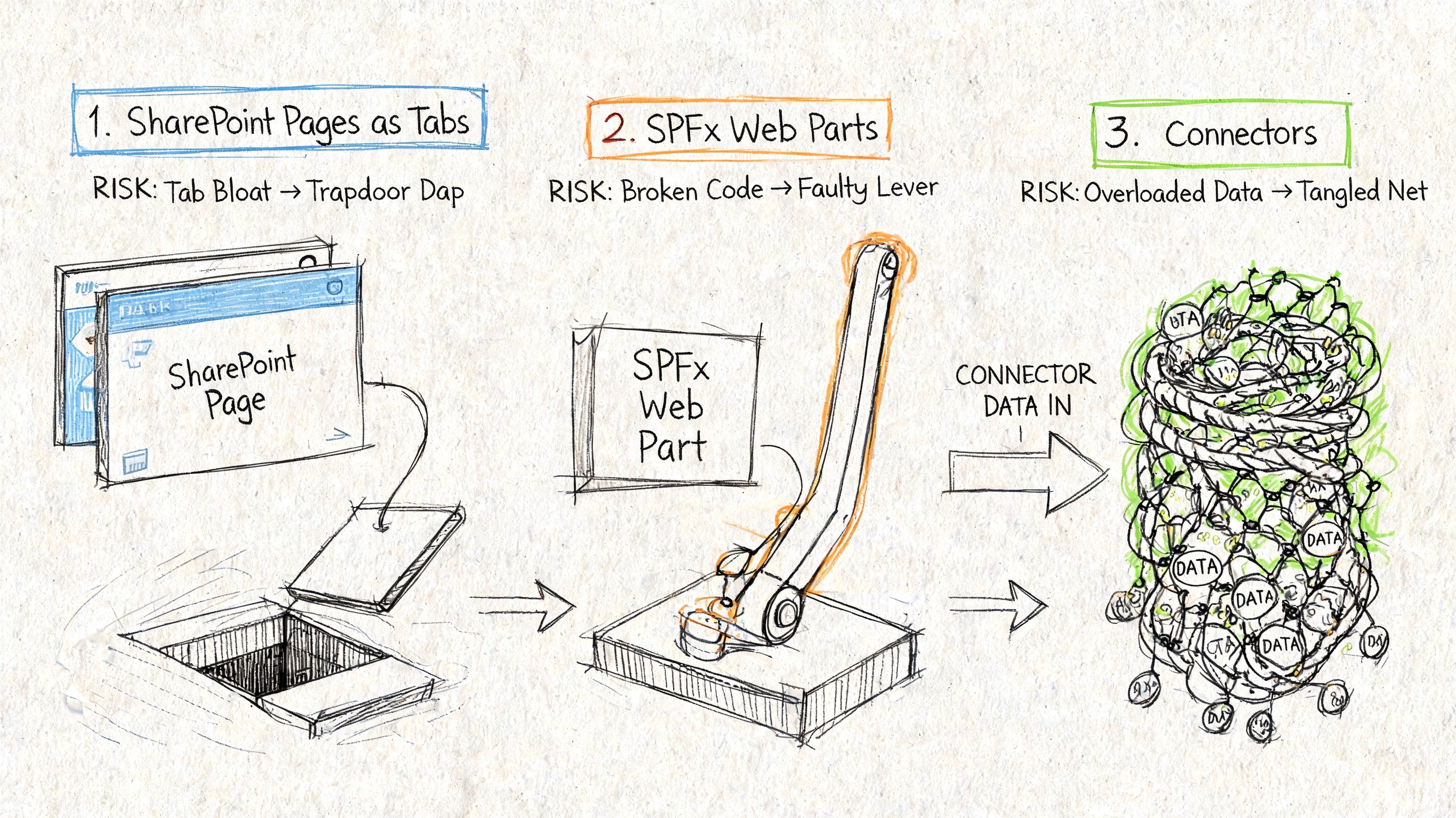
Advanced integration is where tidy rollout plans go to die. File sync and channel creation rarely trigger the midnight calls. Custom tabs, bots, SPFx web parts, Power Automate handoffs, and line-of-business connections do. Each one adds another identity boundary, another support dependency, and another place for governance to fail in public.
Tabs don’t behave the way users expect
Teams tabs are one of the easiest ways to sell the wrong solution. Project sponsors hear “put SharePoint in Teams” and assume any page can appear anywhere, for any audience, with the same behaviour users get in a browser. That assumption burns time and budget fast.
Microsoft’s guidance on integrating web apps in Teams makes the boundary clear. Supported tab patterns are narrower than many business cases assume. If your design depends on a SharePoint experience behaving like a fully shared, channel-native app, stop and redesign before users see a prototype.
We see the same failure pattern over and over. Someone promises a shared workspace experience. The tab model falls short. The team patches the gap with deep links, duplicate pages, odd permissions, and sign-in prompts that make the whole thing feel broken.
Accessibility failures turn into audit failures
Accessibility is not a polish task for the end of the build. It is where weak integration design gets exposed first.
In healthcare and public sector work, Ollo repeatedly sees the same problem during reviews and recovery engagements. Teams tabs and embedded SharePoint experiences fail basic keyboard access, label controls badly, or bury key information inside layouts that do not survive real-world use. Once that happens, the issue is no longer cosmetic. It becomes an audit, equality, and service-risk problem.
If you need evidence before you build, get a SharePoint migration assessment that tests governance and target-state risk, not another demo that shows a happy-path tab working on a clean tenant.
Bots, alerts, and app wiring inherit every backend weakness
Bots impress stakeholders because the demo is short. Production is where they start lying.
A bot that posts list-driven alerts depends on list health, app registration hygiene, permission scopes, token handling, service limits, and link reliability. If any one of those pieces is weak, the alert still fires just often enough for users to trust it, then fails when it matters most.
The usual traps show up fast:
- Broken links in notifications: Users click from Teams into SharePoint content that has moved, inherited bad paths, or lost the expected permissions.
- List and flow fragility: High-volume lists, poor indexing, and badly designed automations slow down or stop alerting.
- Identity mismatches: Teams apps, SharePoint permissions, Entra ID registrations, and delegated versus application permissions drift out of alignment.
- Support dead ends: No one owns the full chain, so Teams blames SharePoint, SharePoint blames the app, and the business gets silence.
Custom integration work is where amateur architecture becomes expensive. Treat every “small enhancement” as a governed application surface, because that is what it becomes the first time it fails under real usage.
The Ollo Governance and Rescue Blueprint
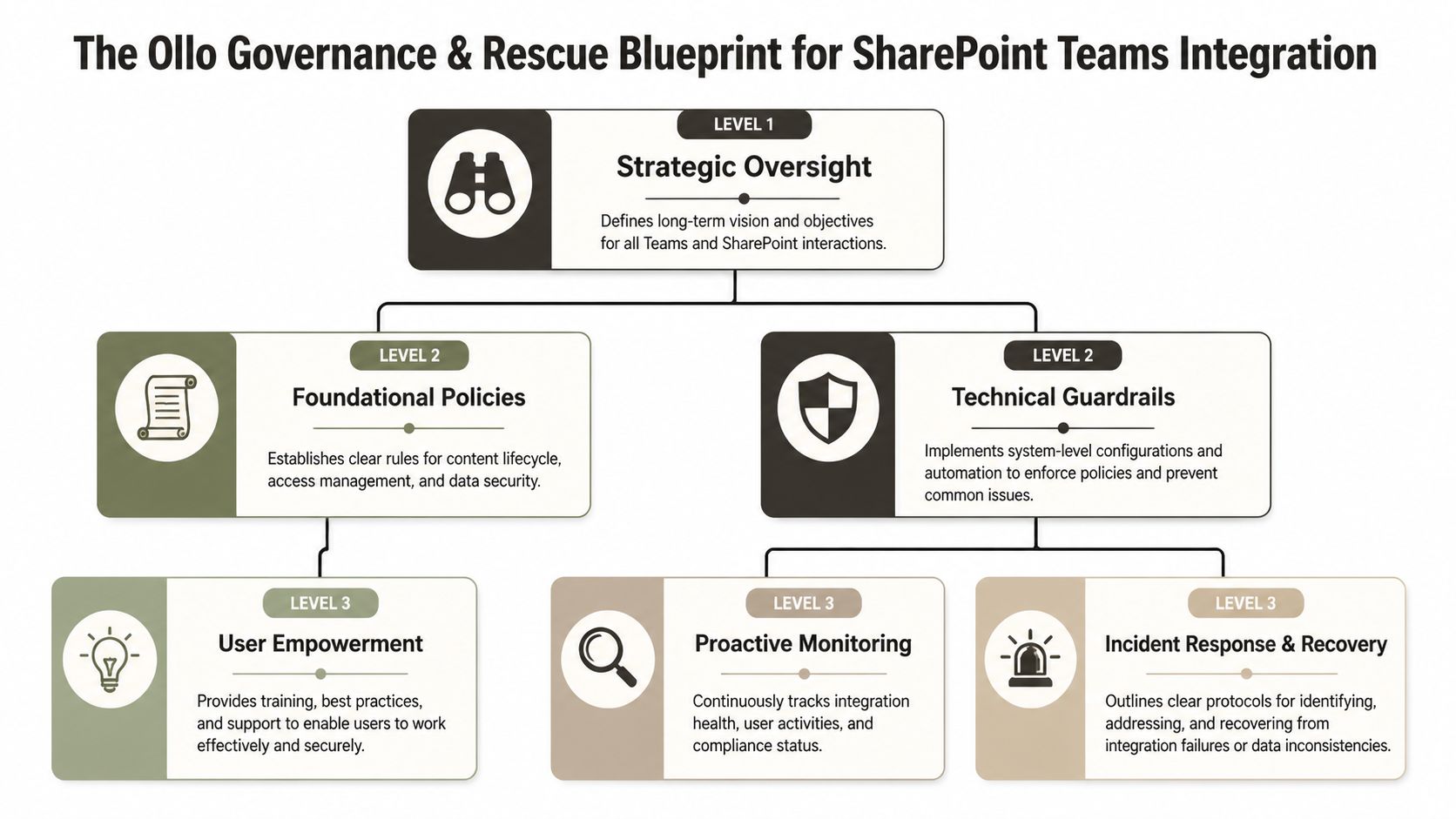
Most failed sharepoint teams integration projects share one trait. Nobody owned the platform as a governed system. One team owned migration. Another owned Teams. Another owned SharePoint. Security reviewed late. Compliance reviewed later. By then, the estate already carried the wrong shape.
A proper recovery model starts before migration and continues long after cutover.
Stage one before anyone creates another Team
You need governance design first. Not training slides. Not naming conventions alone. Real decisions about site creation boundaries, private and shared channel usage, ownership rules, sensitivity expectations, and lifecycle control.
That means deciding who can create what, where exceptions live, and how those exceptions get reviewed. If you let the platform grow first and govern later, you’ll govern archaeology, not operations.
Stage two fix the source before you move it
A dirty source estate creates a dirty target estate. Teams with broken inheritance, abandoned channels, duplicate libraries, and years of bad path design must be audited before migration starts.
This stage usually includes:
- Permission triage: Identify inheritance breaks and decide which ones are legitimate.
- Content restructuring: Reduce needless nesting and isolate risky libraries.
- Site inventory: Map parent Teams sites and child sites created by private or shared channels.
- Exception logging: Record every known deviation before the first migration pass.
Field note: If your pre-migration workshop ends without a written exception register, your team isn’t ready.
A serious SharePoint migration assessment should expose these faults early. If it doesn’t, it’s theatre.
Stage three execute with scripts, not hope
Experienced operators differentiate themselves from enthusiastic admins through their approach to enterprise jobs. Such tasks demand controlled execution. That means ShareGate where appropriate, wrapped in custom PowerShell and PnP logic that handles batching, sequencing, validation, and remediation.
Not every object should move the same way. Not every site should migrate in the same wave. Not every permission issue should be solved during transit. Mature execution accepts that and plans around it.
Stage four harden the target or repeat the same mistakes
Post-migration hardening matters as much as the move. If your Entra ID model remains broad, your Team ownership remains chaotic, and your SharePoint sites remain weakly classified, you haven’t solved anything. You’ve relocated the problem.
The target state needs zero-trust thinking. Tight ownership. Controlled app access. Clear operational monitoring. A rescue without hardening is just a delayed second incident.
The Only Real Risk-Reduction Strategy
Your real choice isn’t between SPMT and ShareGate. It’s between managed risk and unmanaged risk. Treat sharepoint teams integration like a routine IT task and you’ll inherit the failure modes that everyone learns about too late.
If your team is writing custom automation around migration, validation, or remediation, get independent scrutiny on the code and process. Even a focused review such as an AI code security audit can expose control gaps before those scripts touch regulated content.
The cost of failure isn’t just a delayed programme. It’s data loss, broken compliance posture, and a collaboration platform your users stop trusting. If your environment is complex, your only sane move is to bring in specialists who’ve already paid for these lessons on somebody else’s project.
If your organisation is planning a high-stakes Microsoft 365 move, talk to Ollo. We handle the ugly tenant-to-tenant consolidations, Teams-SharePoint rescue jobs, and zero-trust redesigns that internal teams usually inherit too late.

















