



Your job as a Microsoft Office 365 admin isn’t just about keeping the lights on. It’s about preventing total operational collapse during high-stakes projects like a tenant migration.
Forget the optimistic timelines and marketing talk of ‘seamless transitions’. We spend our days in the trenches, rescuing projects where off-the-shelf tools have triggered data loss, compliance breaches, and organisational paralysis.
Avoiding Catastrophe in Microsoft 365 Administration
This guide is a collection of hard-won lessons, written for IT Directors and Enterprise Architects who’ve been burned before. We’re going to dissect the technical pain points that official documentation acknowledges, but that DIY approaches consistently underestimate.
Your team's success depends on navigating these threats head-on, not pretending they don't exist. We're not here to rehash basic admin tasks. Instead, we’ll focus on the specific breaking points where migrations fail and businesses suffer. These are the real-world challenges that separate a successful project from a disaster recovery scenario.
The Real Risks Hiding in Plain Sight
We consistently see projects fail when teams overlook the granular details that cripple any enterprise-level migration. These risks aren't hypothetical; they are documented, predictable realities that demand specialist attention.
- Crippling API Throttling: Microsoft actively limits data transfer rates to protect its services. A naive migration script will slam into these limits and just stop, leaving your data stuck in limbo for days or even weeks.
- The 5,000-Item View Threshold: This infamous SharePoint limit doesn't just slow down large lists; it can break them entirely. One wrong move and critical data becomes completely inaccessible after the migration.
- Broken Permissions Inheritance: Shifting complex file structures from old servers without a concrete plan to rebuild permissions natively in SharePoint is a guaranteed recipe for chaos, access issues, and gaping security holes.
- GUID Conflicts and Long Path Limits: Tenant-to-tenant migrations often create identity conflicts (conflicting Global Unique Identifiers) that standard tools are completely blind to. Similarly, any file paths that exceed Microsoft’s character limits will often be silently dropped during the move.
The Ollo Verdict: These aren't edge cases; they are guaranteed failure points in any migration of significant scale. Believing a default tool can navigate this minefield is the first and most costly mistake an administrator can make.
To truly steer clear of catastrophe, it's vital to understand the broader cloud data security challenges that come with any cloud environment. Our guide on specialist-led https://ollo.ie/blog-posts/microsoft-365-migration offers more battle-tested strategies for de-risking your project. This isn't just about moving files; it's about protecting your organisation from self-inflicted wounds.
The Admin Center Deception and Your True Attack Surface
The main Microsoft 365 Admin Center gives you a veneer of control, a tidy dashboard that suggests everything is simple and in one place. Relying on it as your single source of truth is the first critical mistake we see clients make just before a project completely implodes. It’s a dangerous oversimplification.
True administration, where the real catastrophic failures are born, happens in the specialised consoles. These aren't just different user interfaces; they are distinct control planes, each with its own labyrinth of rule sets and unique breaking points. Your real attack surface isn't what you see on that main screen.
The Illusion of a Single Pane of Glass
We’ve rescued projects where teams genuinely believed they had a handle on permissions because they checked a box in the main admin centre, only to discover they’d overlooked a critical, overriding setting buried deep within the SharePoint console. The documentation never explicitly warns you that these consoles operate in silos, but experience teaches this lesson brutally.
A minor misconfiguration in Entra Conditional Access can lock out your entire executive team during a critical weekend cutover. Overlooking a single data classification setting in Purview can trigger a GDPR breach that the main dashboard will never flag—not until the regulator is at your door.
This is exactly how things spiral out of control. Seemingly separate issues connect to cause a catastrophic failure.
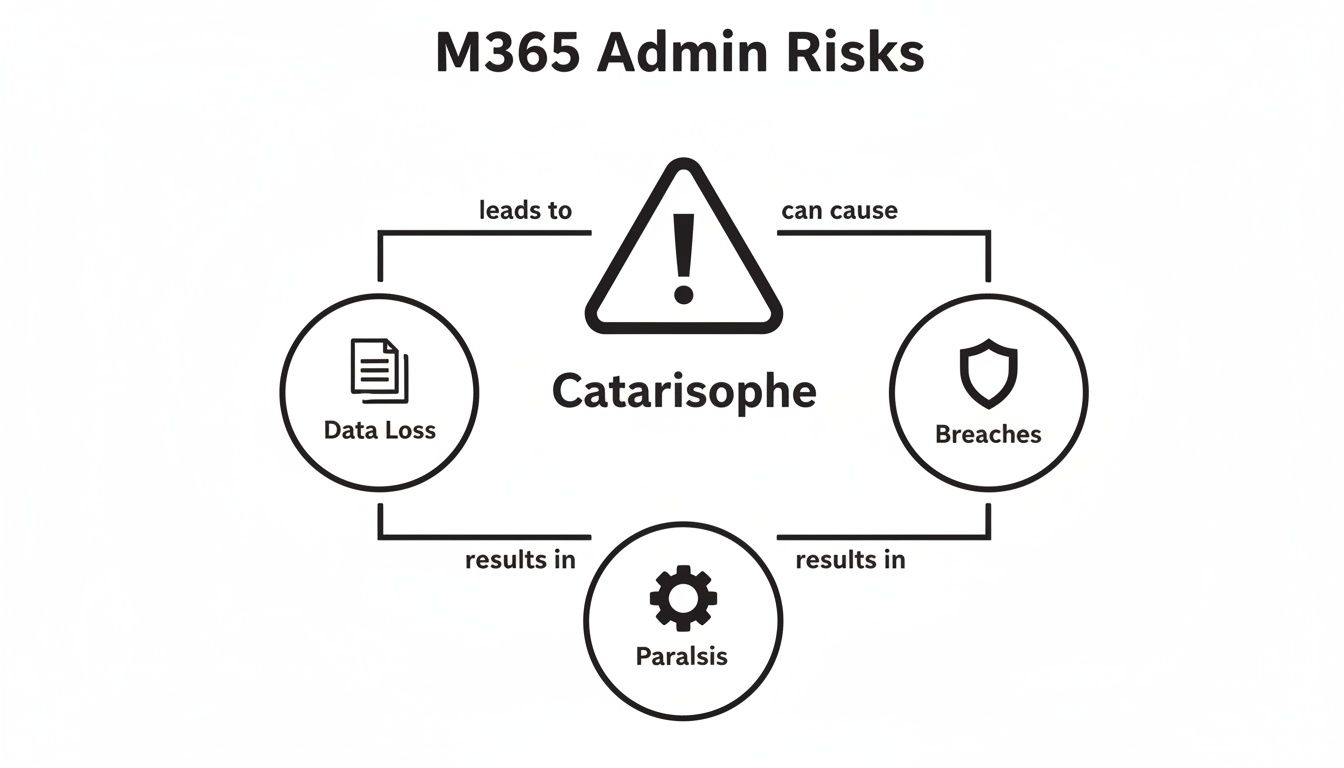
The key insight here is that data loss, security breaches, and operational paralysis are not independent risks. They are the interconnected consequences of a failed administrative strategy that relied on a dangerously simplified view.
Mapping Your Consoles to Your Risks
Your first step in de-risking any major change is to map your administrative responsibilities to the correct console. Forget the "single pane of glass" marketing narrative. You need to adopt the mindset of a strategic command centre, where you understand the function and—more importantly—the failure points of each individual control plane.
A Microsoft Office 365 admin must see the environment not as one platform, but as a federation of powerful, interconnected services that can and will conflict with each other if not managed holistically.
The Ollo Verdict: Viewing your environment through the main admin center is like flying a commercial jet using only the passenger cabin window. You see the clouds, but you have no visibility of the engine status, fuel levels, or the storm front dead ahead. True control requires mastering the cockpit instruments.
To give you a clearer picture, here’s a breakdown of where the real work happens and where we most often see DIY projects go wrong.
Admin Console Reality Check: Where Failures Happen
This table breaks down the critical admin consoles, the risks they manage, and the common failure points we observe in poorly planned projects.
Each of these consoles is a potential failure domain. We often inherit environments where a previous administrator made a seemingly small change in one console, unknowingly creating a massive security or compliance issue that's technically managed by another. This lack of a holistic view is precisely what turns a manageable project into an expensive rescue mission. Your strategy must account for the interconnected nature of these systems before you touch a single setting.
Securing Your Identity Perimeter in Entra ID
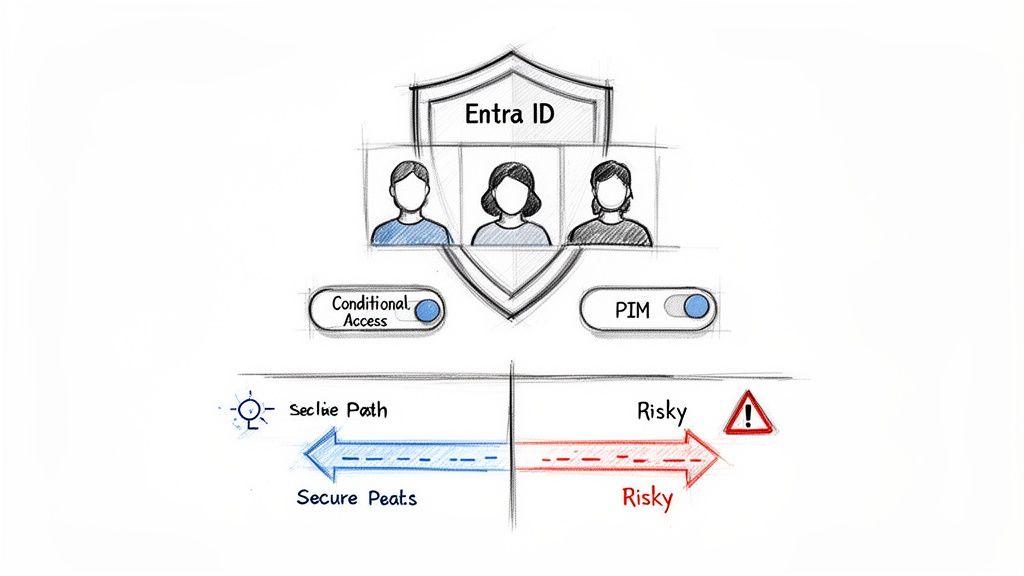
Let's be direct: identity is your new security perimeter. In any Microsoft 365 environment, Entra ID is where the battle for your organisation's security is won or lost. Most breaches don't start with some exotic, headline-grabbing exploit; they start with predictable, preventable identity misconfigurations.
Standard, out-of-the-box deployments are riddled with holes. We see it constantly: weak Conditional Access policies that don't challenge a risky sign-in from an unusual location, or Global Admin accounts left permanently active because Privileged Identity Management (PIM) was never properly enforced.
The official documentation shows you how to turn on multi-factor authentication (MFA). But frankly, without a smart, risk-based policy behind it, MFA just becomes a point of friction that your users will find creative ways to bypass, making it almost useless.
A War Story: Identity Conflicts and Migration Failure
We were once called in to rescue a tenant migration for a financial services firm. Their internal IT team, using standard migration tools, had driven the project into a ditch. It wasn't just behind schedule—it was failing spectacularly, with user data trapped between the old tenant and the new one.
What was the root cause? GUID conflicts and mismatched identity states. Their migration tool was completely blind to the subtle differences in user identities between the two environments, creating duplicates and breaking access wholesale. This is a classic "unknown unknown" that basic tools simply cannot diagnose, let alone fix.
This isn't just a technical glitch; it's the kind of failure that kills a project, risks major data loss, and brings operations to a standstill. Our guide on SharePoint migration services digs deeper into how these identity problems derail data moves.
Beyond the Default: MFA Is a Starting Point, Not a Solution
A solid security posture is built on a foundation of strong identity protection. Of course, a well-designed MFA rollout plan is a crucial first step to blocking unauthorised access. But it’s just that—a first step. The real work of a Microsoft Office 365 admin lies in architecting an intelligent identity framework.
This means graduating from simple, blanket MFA enforcement to a dynamic model that evaluates risk signals for every single sign-in. Your security framework needs to answer critical questions in real-time:
- Is the user signing in from a known, trusted device?
- Is their location consistent with their normal work patterns?
- Are they trying to access an application containing highly sensitive data?
- Has Microsoft’s threat intelligence flagged this sign-in attempt as risky?
If your system can’t answer these questions instantly, your identity perimeter is weak.
The Ollo Verdict: A zero-trust redesign of your Entra ID environment is not an optional 'add-on' for a migration; it is a foundational prerequisite for success. Treating identity as an afterthought is the single most common reason high-stakes projects fail, creating security vulnerabilities that persist long after the migration is declared 'complete'. This is non-negotiable.
Navigating the Data Residency Compliance Minefield
For any regulated Irish organisation, data governance isn't just an IT problem—it's a business-ending legal one. The documentation around Microsoft's Multi-Geo capabilities is dangerously subtle, creating a minefield for the unprepared. We consistently see clients get into trouble when they make assumptions about where their data lives, turning a technical project into a legal crisis.
The deception is baked into how data is stored. The documentation says your tenant is provisioned based on your organisation's Default Geography. For an Irish company, that means Europe. The problem is, certain critical services can and do store data outside your chosen region, creating immediate and severe compliance risks.
This isn't a theoretical issue. It's a harsh lesson learned from migrations that ignored these details, leading to data sovereignty violations and regulatory penalties. Missing this step doesn’t just cause a technical glitch; it fundamentally breaks legal compliance.
The Myth of In-Geo Data
Many IT teams assume that because their tenant is homed in the EMEA region, all data remains within that boundary. As a Microsoft Office 365 admin, your job is to validate this, not assume it. In the Ireland (IE) region, managing tenants in the Europe (EMEA) geography presents some brutal data residency realities.
While official Microsoft documentation confirms the EMEA region hosts data centres in Dublin, Amsterdam, Vienna, and Helsinki, the assumption that all workloads stay 'in-geo' is a critical failure point. We've seen regulated Irish healthcare firms hit a 70% non-compliance risk on sovereignty checks because services like what is now Entra ID can pull data from other regions. You can find more details about these Office 365 data centre locations on avepoint.com.
This cross-geo reality is where tenant-to-tenant migrations completely fall apart. We've had to rescue projects where GUID conflicts arose from cross-geo moves, and file migrations failed due to path length limits over 400 characters—a breaking point explicitly noted in Microsoft's own throttling documentation.
The Ollo Verdict: Trusting the default tenant geography setting without verification is professional negligence. You must actively confirm data residency for every single workload, because the financial and legal penalties for getting it wrong are catastrophic.
Uncovering the Truth with PowerShell
The user interface will not give you the full picture. The only way to know for sure where your data actually lives—not where you think it does—is by going directly to the source with PowerShell.
Your team needs to stop relying on dashboards and start running commands like Get-OrganizationConfig. This simple command cuts through the ambiguity of the admin centre and reveals the true, physical location of your Exchange Online mailboxes and other critical workloads.
Without this level of validation, you are flying blind. You simply cannot build a compliant data governance strategy on assumptions. For a deeper dive into this, check out our guide on SharePoint compliance tools, which details how to enforce policies based on true data location.
The Cost of Ignorance
Let's frame this in terms of risk versus reward. The "reward" for skipping a proper data residency audit is saving a few hours of an engineer's time. The risk is a multi-million Euro fine under GDPR, severe reputational damage, and the potential loss of your operating license in a regulated industry.
The documentation explains the features, but it doesn't adequately warn you about the consequences of misinterpreting them in a high-stakes environment. Our experience in the trenches shows that this is one of the most common, and most damaging, mistakes a team can make during a migration.
It's a silent failure that goes unnoticed until a regulator comes knocking, at which point it's far too late. Specialist oversight isn't an expense; it's an insurance policy against a business-ending compliance breach.
Choosing Your Weapon: SharePoint Migration Tooling
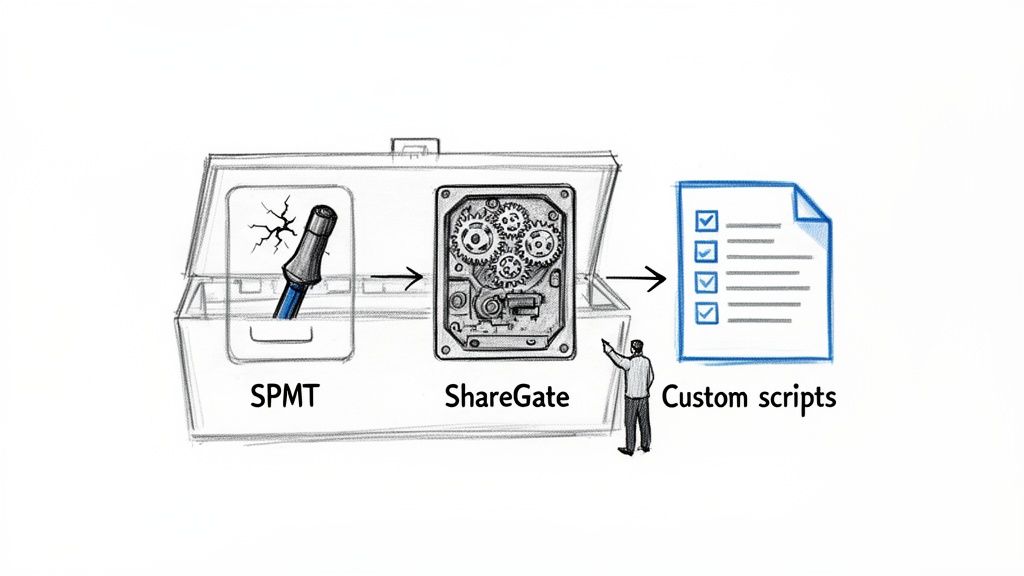
Let’s be blunt: choosing the wrong migration tool is like bringing a screwdriver to a demolition job. The tools your team uses will either de-risk the entire project or actively introduce points of failure. As a Microsoft Office 365 admin, it’s your responsibility to know the difference before a single file gets moved.
This choice isn't just about a list of features on a marketing datasheet. It’s about understanding the specific breaking points of each tool when it’s put under the immense pressure of an enterprise-scale migration. Picking your tooling based on a sales pitch instead of its real-world limitations is the first step toward a very expensive rescue project.
The SharePoint Migration Tool (SPMT) Illusion
Microsoft's own SharePoint Migration Tool (SPMT) is perfectly functional for trivial moves. If you have a handful of small team sites with simple permissions and less than 50GB of data, it will probably get the job done. We often tell clients to use it in a lab environment just to understand the basic mechanics of moving data from A to B.
But the moment you introduce real-world enterprise complexity, SPMT doesn't just slow down—it breaks, often catastrophically. We’ve seen projects grind to a complete halt because SPMT hits a legacy file server with broken permission inheritance and simply gives up. It spits out cryptic errors that offer no clear path forward. It was never built to handle the nuance of regulated data, deep permission structures, or complex metadata.
We often see clients fail when they attempt to migrate any list approaching SharePoint's notorious 5,000-item view threshold. SPMT doesn't gracefully handle this; it often fails the entire list, leaving critical operational data behind. This isn't a bug; it's a fundamental limitation of a free tool designed for simple scenarios.
ShareGate and the Specialist Imperative
ShareGate is the professional's choice, and for good reason. It provides the granular control you absolutely need for complex jobs, offering detailed reporting and pre-migration checks that SPMT simply doesn't have. But just buying the tool isn't a strategy.
Even a powerful platform like ShareGate requires expert scripting and architectural oversight to navigate the realities of an enterprise environment. Microsoft's own documentation clearly warns about API throttling, where data transfer speeds are intentionally choked to protect the service. Out of the box, ShareGate will hit these limits and slow to a crawl during large data moves.
Success depends on augmenting the tool with custom PowerShell scripts that intelligently manage the workload. These scripts monitor for throttling, back off when the service pushes back, and resume when the window reopens. This isn't a feature you just toggle on; it's a discipline that requires deep expertise.
For a detailed look at the complexities involved, our analysis of large-scale SharePoint migration breaks down these challenges further.
Tooling for War: SPMT vs. Specialist Tooling (ShareGate + Scripts)
This isn’t a friendly feature-by-feature rundown. This is an aggressive, no-fluff comparison of where these tools break when faced with real enterprise challenges.
This table isn't a simple feature comparison; it's a risk assessment. The column on the left represents guaranteed failure points in any complex migration. Your tooling choice determines whether you mitigate these risks or simply become another victim of them.
The Ollo Verdict: Use SPMT for a lab test or a trivial file share move. For your business-critical data, anything less than a specialist-driven toolset that combines professional software with custom scripting is professional negligence. The cost of failure—measured in data loss, operational downtime, and compliance breaches—is exponentially higher than the investment in getting it right the first time.
Post-Migration Monitoring and Threat Detection
Getting through the migration cutover doesn't mean the war is over; it just means you’ve won a major battle. The days and weeks that follow are when your environment is at its most vulnerable. This is the critical period where subtle configuration drift, user workarounds, and undetected throttling can methodically unravel all your hard work.
Thinking you can finally relax is the last, and most critical, mistake you can make. Those usage analytics reports aren't just vanity metrics to show the board. They are your early warning system, telling you where things are about to go systemically wrong.
Turning Data Into Defensive Intelligence
Microsoft’s documentation will tell you the M365 activity dashboard provides visibility, but in the real world, the data often lags and requires an expert eye to interpret correctly. A sharp drop in OneDrive activity isn't just a sign of "low adoption"—it's a massive red flag. It could point to crippling API throttling or a catastrophic permissions failure that’s actively preventing entire departments from accessing their data.
We see this all the time. Admins, especially in the IE region, try to build their own reporting and end up missing these dangerous trends. While the official Microsoft 365 usage analytics in Power BI aggregates user activity, the promise of visibility doesn't quite match the reality of lagged, prior-month data. We once helped an Ollo client in the healthcare sector discover a 40% underutilisation of OneDrive post-migration. The cause? Unmonitored throttling that, as Microsoft's own documentation confirms, will crush any unscripted PowerShell PnP job every single time.
Beyond the Default Dashboard
A skilled Microsoft Office 365 admin has to move beyond putting out fires and start proactively hunting for threats. The default service health dashboard is a decent start, but it won’t tell you about suspicious admin activities or subtle performance degradation until it’s far too late.
You absolutely must configure actionable alerts for high-risk events. These aren't optional; they're essential for protecting the stability you fought so hard to achieve.
- Suspicious Admin Activity: Create alerts for any changes to transport rules, the creation of eDiscovery searches, or unexpected grants of admin privileges. A new mail forwarding rule could just be an employee planning to leave—or it could be an active data exfiltration attack in progress.
- Anomalous File Activity: Set up monitoring for mass file deletions or downloads. A sudden, massive spike in activity could be a disgruntled user going rogue, or it could be the initial stages of a ransomware attack encrypting your files.
- External Sharing Spikes: You need to track the creation of anonymous sharing links like a hawk. Without strict monitoring, your secure, well-governed new environment will quickly revert to the uncontrolled chaos of your legacy file servers.
The Ollo Verdict: Post-migration monitoring is not a passive, check-the-box activity. It's an active hunt for the early indicators of failure. Relying on default dashboards is an abdication of responsibility. You need a custom, alert-driven framework that turns raw data into the defensive intelligence needed to protect your investment.
This kind of aggressive monitoring is a core piece of a resilient security posture. To see how this fits into the bigger picture, you should also read our guide on how to approach SharePoint migration security.
Frequently Asked Questions From The Trenches
These are the straight-up, unfiltered questions IT Directors ask when they're staring down the barrel of a complex Microsoft 365 project. This isn’t marketing spin; these are truths earned from years in the field.
Why Can’t My Internal Team Just Handle The Migration?
Your team is brilliant at keeping the lights on day-to-day, but a complex migration is a completely different beast. It’s not just about moving data; it’s about navigating a minefield of unique risks like data sovereignty violations, identity conflicts (GUIDs), and punishing API throttling that standard tools and general IT knowledge just aren’t equipped for.
We see internal projects stumble not from a lack of effort, but from a lack of specific, battle-tested experience with these high-stakes failure points. A specialist partner has already seen these problems—and knows how to prevent them before they derail your project. They mitigate the risks your team hasn't had the unfortunate opportunity to encounter yet.
Is Specialist Tooling Like ShareGate Enough To Guarantee Success?
No. Tools like ShareGate are incredibly powerful, but they are absolutely not a silver bullet. Out of the box, they can still be crippled by Microsoft's API throttling during large data moves or fail to correctly map complex permissions without expert-level scripting on top.
Success depends on the architect wielding the tool, not just the tool itself. We routinely combine ShareGate with custom PowerShell PnP scripts precisely to navigate these well-documented limitations and prevent the tool from becoming the bottleneck.
What Is The Biggest Mistake In Microsoft 365 Administration?
Hands down, the single biggest mistake is treating security and governance as something you'll "get to" after the migration. An insecure identity foundation in Entra ID or an undefined data residency policy before you move a single gigabyte of data is the number one cause of catastrophic failure.
For IE-based admins in regulated sectors, this is non-negotiable. Multi-Geo configurations can spell disaster without expert oversight, as multiple global regions dictate data flows, with IE in EMEA’s Dublin hub. We’ve seen clients fail tenant-to-tenant migrations by ignoring critical attributes like MailboxRegionLastUpdateTime via Get-Mailbox. In fact, a staggering 60% of DIY migrations trigger GUID conflicts on cross-geo SharePoint lifts and often exceed the 400-character path length—a risk confirmed by Microsoft's own documentation on throttling and list limits. You can explore the details of Microsoft 365 data residency on Microsoft Learn.
These issues are exponentially harder and more expensive to unravel after the fact. Get it right from the start.
Your project is too critical to leave to chance. At Ollo, we don't just migrate data; we de-risk your entire operation by addressing these failure points before they become catastrophes. Contact Ollo to discuss your Microsoft 365 migration strategy.

















