



Thinking a network drive to SharePoint migration is just a file transfer is the most expensive mistake an IT Director can make. This isn't a drag-and-drop. It's a high-stakes business risk mitigation project where underestimating the complexity of your data leads to operational chaos and serious compliance breaches.
The True Cost of a Botched Migration
Forget the vendor promises of "seamless transitions." We are called in to rescue projects that were sold on the promise of a simple tool, only to find them buried in technical debt, API throttling, and silent data loss. The biggest threat to your project isn't the technology—it’s the assumption that the process is straightforward.
When your team tries to go it alone with a handful of tools, the project almost always unravels. The first sign of trouble is usually API throttling, which brings your meticulously planned timeline to a grinding halt.
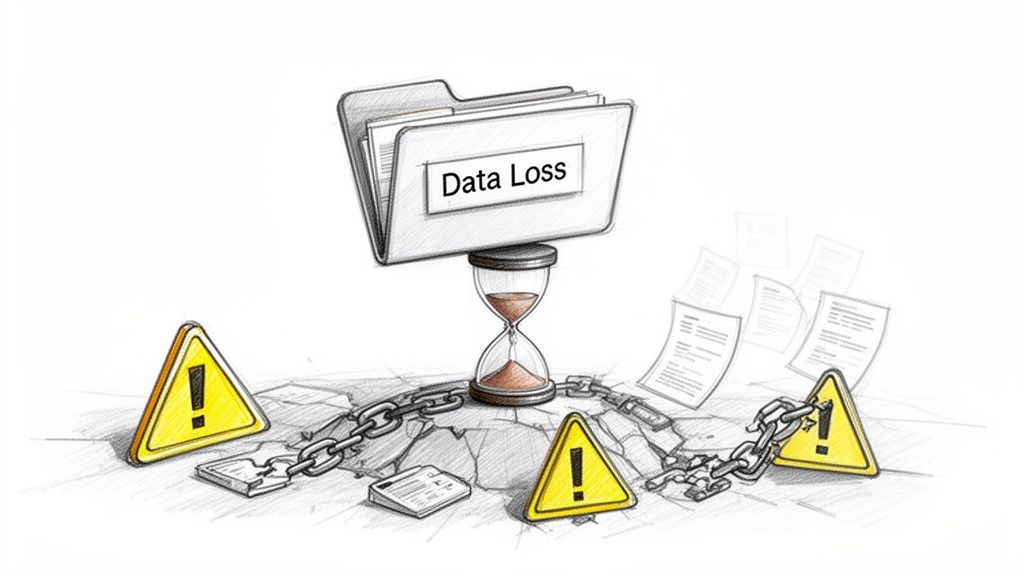
Then the data loss begins. We’ve seen pilot projects fail where 25% of the data was silently left behind because source file paths exceeded SharePoint’s hard 400-character URL limit. This is a fatal flaw most basic migration tools can't even report on, let alone fix.
From Technical Task to Compliance Nightmare
This quickly spirals from an IT headache into a direct threat to your company’s legal and regulatory standing. Orphaned data, broken permissions inheritance, and failed audit trails don’t just create a mess—they can shatter the compliance mandates your business is bound by. Missing this step doesn't just fail the migration; it breaks legal compliance.
The cost of failure goes far beyond project delays. Just last quarter, we rescued a Dublin-based energy firm from a tenant-to-tenant consolidation that went sideways. Their DIY attempt orphaned 15,000 GUIDs and cost them €45,000 in downtime alone.
Ollo Verdict: The false economy of an under-resourced migration is the most expensive decision you can make. The project isn't about moving files from A to B; it's about de-risking a critical business transformation.
The documentation says X, but in reality, a live production environment is a much harsher battleground. Microsoft’s own guidance confirms migration API throughput caps, but these are theoretical maximums you’ll rarely hit. For Irish enterprises, this is even more of a problem, as our off-peak hours align poorly with global server schedules, often resulting in painfully slow speeds.
A successful network drive to SharePoint migration demands a battle-hardened strategy, not just a software tool. It requires a forensic approach to discovery, an architectural redesign of your data, and a deep understanding of how to navigate SharePoint’s inherent limitations like the 5k list view threshold and long path limits. Anything less is a gamble with your data, your budget, and your compliance posture.
Understanding the full financial picture is critical. We've broken down the factors that influence the total project investment. You can learn more about SharePoint migration cost factors in our detailed article.
Uncovering the Skeletons in Your File Share
The discovery phase of a network drive to SharePoint migration isn't an inventory check; it's a full-blown forensic investigation. We often see clients fail when this step gets treated like a box-ticking exercise—running a basic scan that just counts files and folders.
This shallow approach completely misses the landmines buried deep within your network drives. This is the technical debt that will absolutely shatter your migration project down the line.
Your first battle is against the file system itself. A simple script can start the hunt, but your team has to know what to look for. We go on the offensive, actively searching for the specific gremlins that choke SharePoint and trip up standard migration tools.
Beyond a Simple File Count
The real analysis starts the moment you stop counting files and start dissecting their architecture. Your team must get past a high-level summary and dig into the weeds of how your data is structured. Anything less, and I guarantee you'll be blindsided by GUID conflicts and broken inheritance during the cutover.
We’ve seen migrations grind to a halt because of issues a proper forensic scan would have flagged in the first hour. The core problems are always the same:
- Excessive Folder Depth: The documentation says SharePoint has a 400-character URL limit. In reality, any file path on your network drive that sails past this will either fail to migrate or, worse, get silently truncated. This is data loss you won't discover for months. You must script a scan to flag every single path that even approaches this limit.
- Illegal Characters and Naming Conventions: Characters like
~, #, %, &, *, {, }, \, :, <, >, ?, /, |are flat-out invalid in SharePoint Online file names. A migration tool might offer to rename them on the fly, but this is a trap. It breaks embedded links in documents and completely disrupts user workflows that rely on those names. - Obsolete and Undeclared File Types: Your file shares are a digital museum. They’re full of everything from ancient
.dottemplates to massive.pstarchives and.zipfiles containing other.zipfiles. These undeclared archives can expand to ten times their original size during migration, overwhelming your storage quotas and throttling the migration APIs.
A thorough discovery is non-negotiable for a successful migration. To help you prepare, check out our guide on how a professional SharePoint migration assessment can identify these risks before they become project-killers.
The Chaos of Legacy Permissions
The single most dangerous skeleton in your file share is what I call "permission chaos." Years of ad-hoc access control have created a tangled mess of nested Active Directory (AD) groups, broken inheritance, and explicit user-level permissions.
Let me be clear: this structure simply does not map to modern Microsoft 365 Groups and SharePoint’s simplified security model.
Trying to "lift and shift" these permissions is a recipe for disaster. It doesn't just fail to secure your data in the cloud; it actively creates new security holes and a governance nightmare. We frequently encounter clients whose previous migration attempts resulted in one of two outcomes: either everyone had access to everything, or no one could access anything.
The Ollo Verdict: Attempting to replicate your nested AD group permissions in SharePoint is fundamentally flawed. It breaks the "least privilege" principle and makes auditing impossible. The only safe path forward is to flatten your security architecture.
This means abandoning that old, tangled structure and designing a new, flat information architecture from the ground up. Instead of trying to force a broken model into the cloud, you must map your data to Microsoft 365 Groups, where each group has its own SharePoint site and a clearly defined set of owners and members.
This isn't an optional step. It is the core of a secure and successful network drive to SharePoint migration. Missing this doesn't just complicate the project—it undermines the entire security posture of your new environment.
Evaluating Your Toolset and Its Inevitable Limits
This is where most network drive to SharePoint migration projects go off the rails. Your choice of migration tool isn't just a technical detail—it's a strategic decision that will either de-risk the project or become the primary source of failure.
Let's be brutally honest about the tools your team is probably considering. There's a massive gap between what a tool’s marketing claims and what it can actually handle in a high-stakes, regulated enterprise environment. This is where disasters are born.
The flowchart below shows our high-level process. Notice how it moves from a basic scan to a deep, remediation-focused design phase. Standard tools just aren't built for this; they handle the "lift and shift," but not the critical redesign work that makes a migration successful long-term.
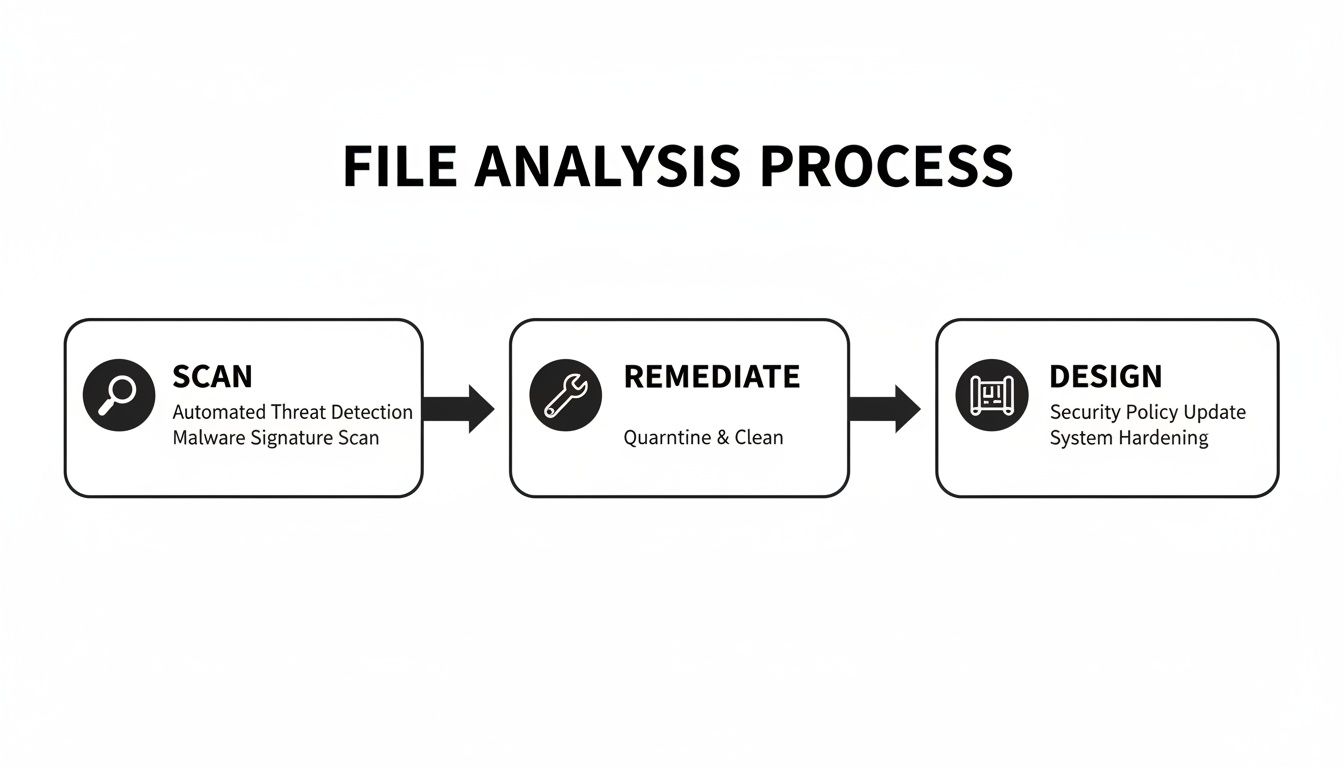
This shift from simply identifying files to actively fixing structural flaws is a step that off-the-shelf software alone just can’t manage.
The Limits of Microsoft’s Free SharePoint Migration Tool (SPMT)
Microsoft’s free SharePoint Migration Tool (SPMT) has its place. We see it as a utility for one very specific job: moving less than 50GB of perfectly clean, structurally simple data where permissions aren't a concern.
For any serious enterprise project, however, relying on SPMT is negligent. It’s what the tool doesn't do that will cripple you.
- No Real Audit Trail: When a file fails to migrate—and it will—SPMT offers a cryptic error log at best. You get no actionable intelligence and certainly no comprehensive manifest to prove to your compliance officer that every piece of data arrived intact.
- Blind to Permission Chaos: SPMT makes a token effort to map basic permissions, but it has zero capability to untangle the mess of nested AD groups and broken inheritance that litters every corporate file share. You're just pushing your security vulnerabilities directly into the cloud.
- Hits a Wall with Throttling: When Microsoft’s APIs start throttling your migration, SPMT doesn't have intelligent backoff logic. It just fails and forces you to manually restart, stretching a migration that should take days into weeks or even months.
The Ollo Verdict: SPMT is a utility for small businesses with simple needs. For an IT Director in a regulated sector, using it for a large-scale migration is an unacceptable risk. It lacks the auditing, security mapping, and performance management required for enterprise-grade work. Use SPMT for <50GB. For anything else, you need custom scripting.
ShareGate: The Professional’s Choice and Its Breaking Point
ShareGate is the undisputed professional’s choice and the core of our own toolkit. Its pre-migration analysis is robust, its error reporting is clear, and its delta sync capabilities are essential for cutover planning. It's a powerful and necessary instrument.
But it is not a "fire and forget" solution. We often see clients who bought ShareGate expecting it to be a silver bullet, only to find their project stalled. At enterprise scale, ShareGate is a powerful engine that still needs a skilled driver and a custom-built chassis to navigate the terrain.
Its breaking point emerges when dealing with the sheer volume of data and deep architectural flaws. ShareGate can report on long file paths, but it can't automatically restructure your data to fix them. It can migrate permissions, but it still requires a sound strategy to map them correctly. And while it handles throttling far better than SPMT, it still needs to be managed with precision on multi-terabyte projects, especially to avoid the 5k item threshold.
If your team is trying to get to grips with the available tools, our guide on the SharePoint Migration Tool offers some more detailed clarity on the basics.
Tooling Reality Check: SPMT vs. ShareGate vs. Ollo's Hybrid Approach
Most IT leaders are presented with a choice between a free utility and a professional tool. The reality is that for complex migrations, neither is sufficient on its own. This is how the options truly stack up against the real-world challenges you'll face.
As you can see, relying on an off-the-shelf tool alone leaves critical gaps that only become apparent when the project is already under pressure.
This is precisely where our hybrid approach becomes non-negotiable. By augmenting ShareGate with custom PowerShell PnP scripts, we automate the truly hard parts—the work that no off-the-shelf tool can handle alone. We script preemptive folder restructuring to avoid the 5k list view threshold, automate the remediation of broken permissions before migration even begins, and implement our own intelligent, package-based migration jobs.
A tool is only as good as the strategy and expertise you wrap around it. Relying on software alone is a direct path to failure.
Conquering Throttling and the 5k Item Limit
Welcome to the real technical battleground of any network drive migration. If the discovery phase is about mapping out the minefield, this is where your team has to walk through it. This part of the project is dominated by two operational killers that have crippled more migrations than anything else: API throttling and the dreaded 5,000-item list view threshold.
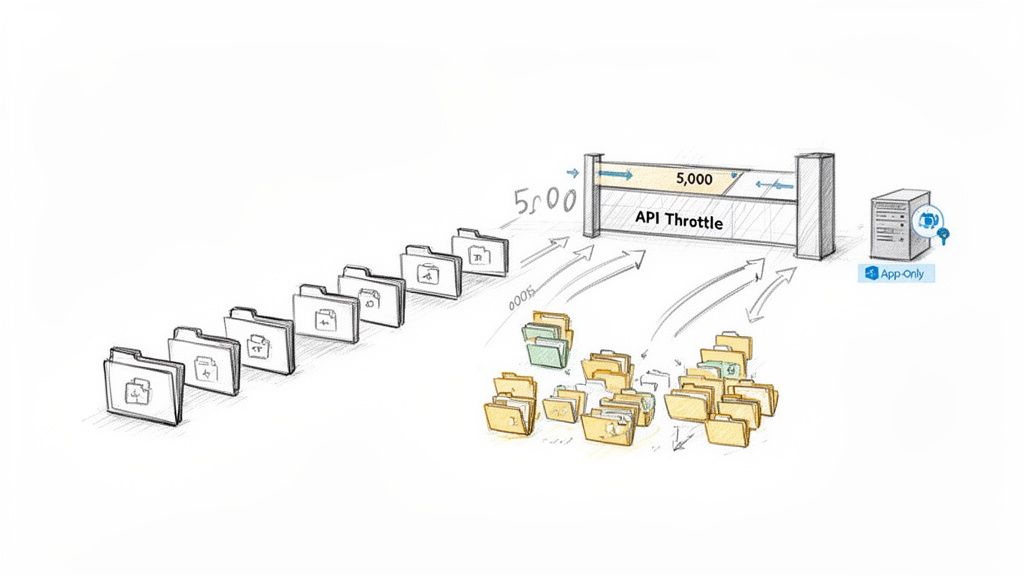
Let's be blunt. Throttling isn't a bug. It’s a deliberate feature, as Microsoft’s own documentation confirms, designed to protect the multi-tenant SharePoint Online service. They call it "service protection." We call it the primary reason a migration timeline blows out from six weeks to six months.
Your team will start the migration, hit a great pace, and then, without warning, everything will grind to a halt. Your tools will start spitting out HTTP 429 ("Too Many Requests") or 503 ("Server Too Busy") errors. This isn't a problem you can solve by just throwing more bandwidth at it.
Proactive Throttling Mitigation
We often see projects fail when teams react to throttling after it happens. By then, it’s too late—your schedule is already in tatters. Proactive mitigation is the only way to keep your momentum.
- Use Azure App-Only Permissions: Standard user-delegated permissions get throttled more aggressively. By registering a dedicated Azure AD App and giving it specific, high-level permissions (like
Sites.FullControl.All), you’re signalling to the SharePoint APIs that your traffic is from a trusted, high-volume process. This doesn't eliminate throttling, but it significantly raises the ceiling. - True Off-Peak Scheduling: Don’t just run jobs overnight. For Irish businesses, "off-peak" really means scheduling your largest jobs between 1 AM and 5 AM GMT. This avoids contention with both the European and North American tenants hitting the platform. We script our migration jobs to run in these tight, dedicated windows for maximum throughput.
- Intelligent Backoff Logic: Waiting for Microsoft to cut you off is a losing game. A smarter approach is to script your migration engine to monitor API latency and HTTP headers in real time. Before hitting the absolute limit, our scripts automatically ease off the request rate, wait for the 'Retry-After' header to clear, and then gently ramp back up.
These steps are non-negotiable for any serious network drive to SharePoint migration. Ignoring them is a direct route to project failure. Our full guide on handling a large-scale SharePoint migration dives much deeper into these architectural strategies.
Defusing the 5k Item Limit Bomb
Now for the second horseman of migration failure: the 5,000-item list view threshold. Every IT Director who has touched SharePoint knows this limit exists. What most don’t realise until it’s far too late is that it's not just a 'view' problem—it's an operational killer that cripples your document library's core functionality.
When a document library or a single folder exceeds 5,000 items, SharePoint doesn’t just stop you from seeing all the files at once. It breaks fundamental operations at the database level. Sorting, filtering, and grouping will fail with cryptic error messages. Your Power Automate flows will stop working. Search indexing becomes unreliable.
The Ollo Verdict: Migrating a 20,000-item folder from your network drive directly into a SharePoint library isn't a migration; it's an act of sabotage. You have just created a completely unmanageable data swamp that your users cannot possibly work with. The damage is done before a single person even logs in.
Fixing this after the fact is a nightmare. The only real solution is an architectural one, implemented before a single file gets moved.
You have to design your new SharePoint information architecture to prevent this problem from ever happening. This involves two critical, scripted actions that must happen pre-migration:
- Programmatic Folder Restructuring: Before you migrate, run a script against your source data to identify any folder containing more than, say, 4,000 files. The script must then automatically create subfolders (for example, by year, quarter, or alphabetically) and distribute the files accordingly. This has to be done on the source drive, not during the migration itself.
- Proactive Column Indexing: From day one, design your destination libraries with indexed columns. If you know users will need to filter by 'Project Code' or 'Status', index those columns the moment you create the site. An indexed column allows SharePoint to query over 5,000 items, but only if the view's primary filter is using that specific column.
This isn't something a migration tool does with a checkbox. It requires a deep understanding of SharePoint's architecture and the scripting expertise to execute it at scale. This is the difference between a successful migration and just creating a new set of problems in a more expensive system.
Validating the Cutover and Hardening Governance
Getting your files into SharePoint isn’t the finish line. It’s the start of the most critical—and most frequently skipped—part of the project. We’ve seen it countless times: a project is declared "complete" the moment the last byte transfers, only for the service desk to be swamped with tickets a week later.
The real measure of success isn't just moving your data. It's proving it arrived correctly and then locking it down tight.
A successful cutover is a carefully orchestrated operation, not a casual flick of a switch. It follows a strict, non-negotiable sequence to prevent data drift and give you a defensible audit trail. This is your last chance to guarantee data integrity before your users—and your compliance officers—start asking very hard questions.
The Immutable Audit Trail
Your first move is to freeze the source. Just before you run that final delta sync, you absolutely must set all the source network drives to read-only. We often see clients fail when they leave the drives writeable; users modify files that will never make it to the cloud, and you've instantly created data loss.
Once the source is frozen, you run one last delta sync with your migration tool. But you're not done. The real work begins now: running the post-migration audit scripts. This is where you generate an immutable manifest that proves the success of your network drive to SharePoint migration. This isn’t a nice-to-have; for any regulated business, it's a legal requirement.
Your audit script has to compare the source and destination on several key metrics:
- File and Folder Counts: A simple but essential check. Did everything that was supposed to move actually arrive?
- Total Data Volume: Does the total size of the migrated data in SharePoint match what was on the source drive?
- Checksum Verification: We run scripts that generate cryptographic hashes (like SHA-256) for a statistical sample of files on both ends. If the hashes match, you have mathematical proof that the file is an exact, untampered-with copy.
- Metadata Integrity: A final check to ensure key fields like 'Created By' and 'Modified Date' have been preserved correctly.
Without this manifest, you have no objective proof of success. You're flying blind, and you will be found liable when a critical file inevitably gets declared "missing."
Pivoting from Migration to Governance
The migration is the perfect—and maybe only—opportunity you'll get to impose a modern security model on data that has probably lived without one for years. Do not miss this chance.
Simply lifting and shifting your old data just creates a more expensive, cloud-based mess. You have to pivot immediately from migration to governance.
This means putting a Zero Trust security posture in place from day one. After you've validated the technical cutover, it's crucial to harden your governance by focusing on how to build a resilient GRC program. This isn't just about restricting access; it’s about applying intelligent, data-aware controls.
The Ollo Verdict: A migration project that ends at cutover is a failed project. You have simply moved your unstructured, unsecured data to a new platform. True success is defined by the governance you apply after the data lands.
This is where you bring your new, flattened information architecture to life. The security policies you apply now will define the safety and usability of your environment for years to come. At a minimum, your post-migration hardening plan must include:
- Entra ID Conditional Access Policies: Enforce multi-factor authentication (MFA) for anyone accessing sensitive SharePoint sites. You can build policies that require access only from compliant devices, effectively blocking connections from unmanaged personal laptops.
- Microsoft Purview Sensitivity Labels: You have to programmatically apply sensitivity labels—like Public, Internal, and Confidential—to your new document libraries. We script this process to make sure all data is classified based on its destination site.
- Data Loss Prevention (DLP) Policies: With your data now properly classified, you can create DLP rules that actually work. For example, you can block users from sharing documents labelled 'Confidential' with external email addresses or copying them to a USB drive.
This is the end game. It’s how you turn a chaotic network drive into a secure, compliant, and genuinely useful asset in Microsoft 365. For a deeper dive into these principles, you might find our guide to SharePoint data governance useful.
Without this final, critical step, your migration project hasn't actually reduced your risk—it has only changed its location.
Questions We Hear From the Trenches
You’ve sat through the vendor pitches and read the whitepapers. Now, let’s talk about the hard realities of a network drive to SharePoint migration. These are the direct questions we hear from IT Directors and Enterprise Architects who have been burned before and have no patience for marketing fluff.
How Long Does a Network Drive to SharePoint Migration Actually Take?
Anyone promising you a migration in a few weeks is either dealing with a tiny, pristine dataset or they’re not telling you the full story. For a mid-sized enterprise with 5-10TB of data, a properly executed project takes three to six months. This isn't an arbitrary number; it's the reality dictated by what a responsible process demands.
The timeline isn’t just about raw data volume. It’s driven by complexity and the unavoidable reality of API throttling from Microsoft's side.
Here’s where the time actually goes:
- Forensic Discovery: At least 2-4 weeks to script a deep analysis of your file shares. This is non-negotiable.
- Remediation & Architecture: Another 3-6 weeks to fix the issues we find and design a new, flat SharePoint structure that actually works.
- Phased Migration & Validation: The actual data transfer, managed around throttling, can easily take 4-8 weeks.
- Cutover & Governance Hardening: A final 1-2 weeks for validation, setting up audit trails, and implementing the security policies you need.
Skipping any of these steps to hit an aggressive, unrealistic timeline is the number one cause of project failure. We've seen it happen time and again.
Can We Just Lift and Shift Our Folder Structure to SharePoint?
You absolutely can, but let me be blunt: it is a guaranteed recipe for failure. A "lift and shift" is not a migration strategy; it's an act of moving your existing problems to a more expensive and less forgiving platform. It is the single most common mistake we are called in to rescue.
When you just copy and paste your old structure, you are actively choosing to:
- Ignore SharePoint's Strengths: You completely waste the platform's powerful metadata and search capabilities by clinging to a deeply nested folder structure that nobody liked in the first place.
- Import Your Security Flaws: All the permission chaos—the broken inheritance, the "Everyone" group access, the nested security groups—comes right along with your data. This creates a governance nightmare in the cloud.
- Break Functionality: You will inevitably collide with SharePoint's hard limits, like the 400-character URL path limit and the infamous 5,000-item list view threshold. This cripples user access before you even go live.
The Ollo Verdict: A successful migration is fundamentally a restructuring project. Lifting and shifting your broken file share architecture doesn't just fail to deliver value; it actively makes your data less secure and harder to manage.
What Is the Single Biggest Mistake You See Companies Make?
Underfunding and rushing the discovery phase. Eagerness to see progress leads leadership to push teams straight to the "moving data" part. This is a catastrophic error.
A shallow scan that only counts files and folders is worse than useless because it gives you a false sense of security.
The issues that derail migrations—illegal characters in file names, extreme path lengths, permission chaos, and undeclared archives—are almost always hidden deep within the structure. Skimping on discovery means you will pay ten times more in emergency remediation, downtime, and user frustration to fix problems during or after the cutover.
A proper, scripted analysis prevents 90% of these "surprises."
Your network drive to SharePoint migration is too critical to gamble on DIY methods or basic tools. The risks are too high, and the cost of failure is astronomical. Ollo provides the battle-hardened expertise and scripted, hybrid approach required to de-risk the entire process and deliver a secure, compliant, and successful outcome.

















