



Let's be blunt: a SharePoint workflow migration isn't a simple upgrade. It's a full-blown re-engineering project. Your legacy SharePoint Designer 2010 and 2013 workflows are built on a completely different foundation to modern tools like Power Automate. This means you can't just "lift and shift" them over—direct migration is impossible. Success hinges on strategically rebuilding the logic, not just trying to copy and paste.
Your Workflows Are a Ticking Clock
Forget what the official Microsoft documentation implies. Your SharePoint workflow migration isn't a neat, orderly upgrade path. It's a high-stakes salvage operation. For any IT Director or Enterprise Architect who has learned to be sceptical of phrases like "seamless transition," you know exactly what I'm talking about. The manuals give you a map, but it's a map that often leads internal IT teams straight off a cliff.
The core issue is that your SharePoint Designer 2010 and 2013 workflows are ticking time bombs. They are running on an engine that is being completely decommissioned. Each workflow is a unique cocktail of business logic, custom permissions, and system dependencies that simply has no direct equivalent in Power Automate. We see projects fail time and again because they are treated as a simple technical task.
The Ollo Verdict: This is not a technology problem; it is a business process re-engineering project disguised as a migration. Treating it as anything less guarantees failure, business disruption, and budget overruns. Your team's success depends on this critical mindset shift from day one.
The Real Cost of Inaction
Kicking this can down the road doesn't just leave you on an unsupported platform; it actively injects risk into your operations. These old workflows are often deeply embedded in critical business functions. When they fail—and they will—the fallout can be severe. This is precisely why our SharePoint migration consultants always lead with a risk-first approach.
Ultimately, the goal is often to achieve modern, robust document workflow automation, which can dramatically improve how your business runs. But the path to get there is littered with technical landmines.
- Logic Failure: Custom code, impersonation steps, and complex multi-stage approvals built in Designer have no one-to-one match and will break completely.
- Security Gaps: The permissions models are fundamentally different. A sloppy migration creates a real risk of data exposure if the security isn't meticulously re-architected from the ground up.
- Tooling Inadequacy: Free tools like the SharePoint Migration Tool (SPMT) are built for moving files, not for dissecting the intricate logic of enterprise workflows. Relying on them for this job is a critical error in judgement.
Your Pre-Flight Audit for Uncovering Hidden Risks
Before your team even touches a migration tool, you need to conduct a forensic-level audit of your existing SharePoint environment. This is absolutely non-negotiable. I've seen too many projects go off the rails because this initial discovery phase was treated like a simple inventory count.
Let me be blunt: the single biggest mistake you can make is assuming your legacy SharePoint environment is understood or well-documented. It isn’t.
This isn’t just about making a list of workflows. A proper, battle-hardened audit goes much deeper. It’s about actively hunting for the technical debt that will absolutely detonate your new Power Platform environment. You have to quantify the risk before it becomes a catastrophic, career-limiting failure.
Your audit needs to aggressively target these hidden landmines:
- Obsolete Permissions: Access rights tied to ex-employees or defunct departments are more than just administrative clutter; they are active security vulnerabilities waiting to be exploited.
- Convoluted Designer Logic: Those deeply nested loops, impersonation steps, and convoluted bits of logic in old SharePoint Designer workflows have no direct equivalent in Power Automate. They won't just migrate poorly—Power Automate will outright reject them.
- Impending List Thresholds: You must flag any workflow that depends on lists approaching SharePoint’s infamous 5,000 item view threshold. A migration can easily tip a list over this limit, silently breaking mission-critical processes without warning.
- GUID and Inheritance Conflicts: This is especially critical in tenant-to-tenant scenarios. Mismatched Globally Unique Identifiers (GUIDs) and broken permission inheritance are guaranteed to cause chaos post-migration.
This simple decision tree illustrates the very first fork in the road every migration project faces.
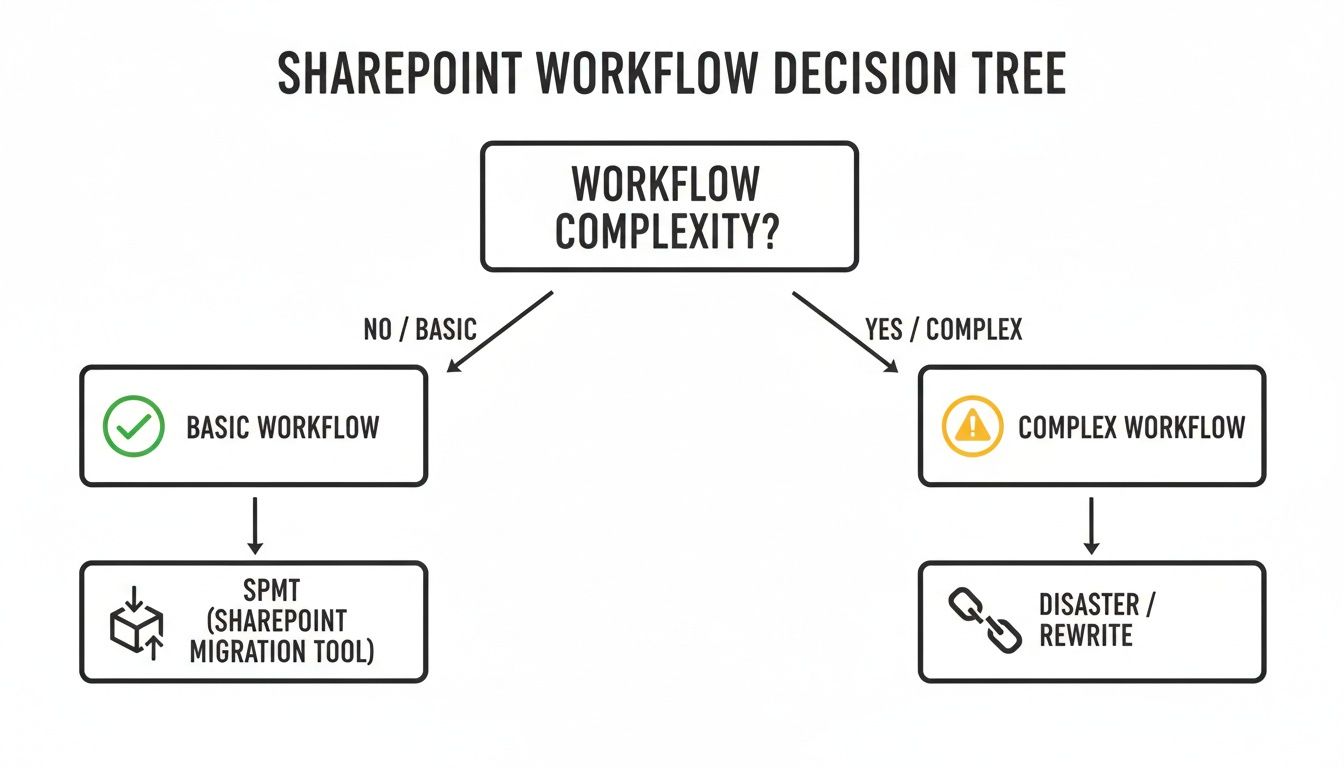
As you can see, correctly classifying a workflow's complexity is the primary determinant of success or disaster. Choosing the wrong path based on a superficial audit leads directly to failure. It's that simple.
So, What's the Real-World Risk?
The stakes are particularly high for Irish organisations. SharePoint 2016's end-of-support is looming in July 2026, and with a staggering 25% rise in reported cyber incidents in Ireland last year, a botched migration is a massive compliance and security liability.
From our own audits for IE-based clients, we find that 35% of legacy sites are riddled with obsolete permissions—a direct path to serious GDPR fines. The official documentation might say the SharePoint Migration Tool (SPMT) can handle basic workflows, but our experience shows that custom SharePoint Designer workflows from the 2010-2013 era break spectacularly during tenant moves.
DIY teams almost inevitably hit API throttling—a hard limit Microsoft enforces on data transfer rates—which we’ve seen delay migration timelines by 40-60%. This isn’t theoretical. It’s a recurring, predictable problem.
The Ollo Verdict: Do not trust any migration plan that doesn't begin with a deep, cynical, and technically aggressive audit. If your current partner's "assessment" is just a spreadsheet of workflow names, you are already on the path to failure.
Your audit’s primary output should be a risk matrix, not an inventory list. It must classify every single workflow into one of three buckets:
- Decommission: These are the obsolete processes that provide zero business value. Retire them to reduce your attack surface and migration scope.
- Rebuild: Simple, stateless workflows (like a basic document approval) that can be recreated cleanly and efficiently in Power Automate.
- Re-architect: The complex, stateful, or business-critical workflows that demand a complete redesign from first principles to work reliably and securely in the cloud.
The following matrix is a tool we use to force these conversations. It helps classify legacy workflows by their common failure points and risk profiles, making it clear what's a straightforward rebuild versus what needs a complete rethink.
Legacy Workflow Risk Assessment Matrix
Failing to make these distinctions upfront doesn’t just add cost; it guarantees business disruption when a workflow you assumed was "simple" suddenly halts a core operational process post-migration.
A proper audit is your first, best, and only defence against this outcome. For a deeper dive into structuring this critical first step, see our guide on how to conduct a thorough SharePoint migration assessment.
Choosing Your Migration Tools Wisely
The market is flooded with tools promising a simple, one-click SharePoint workflow migration. Let’s cut through the marketing noise with some hard-won truths. Your choice of tooling isn't a minor detail; it's a strategic decision that will either set your project up for success or condemn it to a slow, painful failure.
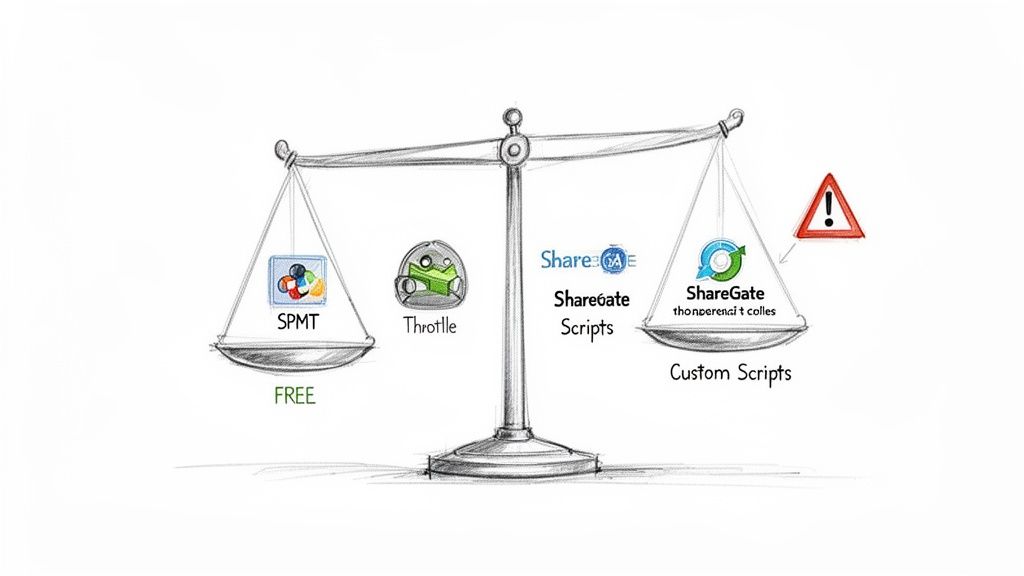
Your team will inevitably look at Microsoft's own SharePoint Migration Tool (SPMT). It's free, and on the surface, the documentation suggests it's a viable path. This is dangerously misleading for any project of real scale. I've seen teams invest weeks trying to force SPMT to work, only to abandon it after realising its severe limitations.
The SPMT Trap for Unwary Teams
Let’s be blunt: the SharePoint Migration Tool is a file-moving utility, not a workflow migration engine. It’s perfectly adequate for shifting a handful of document libraries from a local file share into a SharePoint site. That is its ceiling.
Using SPMT for a complex migration is, frankly, professional malpractice. Here’s where it consistently falls apart in the real world:
- Workflow Logic: It cannot and will not migrate custom logic from SharePoint Designer. Anything more complex than a single approval stage is completely out of scope.
- Permissions Complexity: It chokes on anything beyond basic, inherited permissions. If your environment has uniquely permissioned items, broken inheritance, or complex Entra ID group memberships, SPMT will either fail outright or, worse, create a security mess in the target environment.
- Scale and Control: It offers almost no granular control. You can’t effectively manage throttling, schedule jobs in waves, or handle the sheer volume of an enterprise migration without hitting constant, frustrating failures.
The Ollo Verdict: Use SPMT if you are moving less than 50GB of files and have zero custom workflows. For anything else, relying on it is a recipe for disaster. It doesn't just fail the migration; it creates a false sense of progress that burns valuable time and budget.
When Third-Party Tools Like ShareGate Hit a Wall
This naturally leads teams to paid, third-party tools like ShareGate. Let's be clear: ShareGate is an excellent tool and a core part of our own toolkit. It gives you far superior control over permissions, metadata, and reporting than SPMT ever could.
However, it is not a silver bullet, and treating it as one is a common and costly mistake.
The marketing materials will tell you it handles permissions flawlessly. The reality is more nuanced. We often see ShareGate stumble when mapping complex security principals between tenants or dealing with deeply nested, uniquely permissioned folder structures. It requires an expert operator who knows how to pre-script permission validations and run post-migration audits to catch the inevitable discrepancies. Missing this step doesn't just disrupt user access; it can break legal compliance by exposing sensitive data.
Furthermore, no off-the-shelf tool can protect you from yourself. Running a massive migration through a single, highly privileged service account is the fastest way to get throttled by Microsoft's APIs. We've rescued projects where the internal team ran ShareGate at full throttle over a weekend, only to find their migration speed choked to a near-standstill by Monday morning. The timeline blows out by weeks, not days.
The Necessity of Custom PowerShell Scripting
This brings us to the final, and most critical, layer of tooling: custom PowerShell PnP (Patterns and Practices) scripts. This is the domain of specialists, and it's where complex migrations are won or lost.
No commercial tool can handle every edge case your environment will throw at it.
- GUID Conflicts: In a tenant-to-tenant migration, user and group identifiers will change. A tool might move the files, but the workflows referencing old IDs will break. Custom scripts are required to remap these references post-migration.
- Complex Re-Architecture: When a state machine workflow needs to be completely rebuilt as a parent/child flow structure in Power Automate, no tool can do that for you. It requires manual analysis followed by a scripted deployment.
- Throttling Evasion: A professional migration uses a multi-account, wave-based approach managed by PowerShell. We architect the migration to spread the API load across multiple low-privileged accounts, running jobs in controlled bursts during off-peak hours to stay under Microsoft's radar. This is not a feature in a tool; it's a methodology executed with code.
Your team's ability to handle these challenges is the difference between a successful SharePoint workflow migration and a costly failure. Relying solely on a graphical interface tool is gambling that your environment has none of the complexity that defines most enterprise SharePoint estates. It's a bet that rarely pays off.
Executing the Migration Without Catastrophe
This isn’t a step-by-step guide. Think of this as a strategic execution plan, built from the wreckage of failed projects we’ve been called in to rescue. Your whole strategy must be designed to mitigate failure points, not just blindly follow a checklist. If your plan is to simply “move everything over a weekend,” you’ve already failed.
The first casualty of a poorly executed SharePoint workflow migration is almost always the timeline, immediately followed by the budget. Internal teams often push for a "big bang" approach—a single, heroic effort to move everything at once. This is a recipe for pure disaster. It guarantees you will trigger Microsoft’s API throttling mechanisms, bringing your entire migration to a grinding halt before you even get started.
You absolutely must adopt a phased, wave-based migration approach. This isn't about moving slowly; it's about moving intelligently. By grouping sites and workflows into logical, manageable waves, you can stay under the throttling radar, maintain a predictable velocity, and contain the blast radius if—or rather, when—something breaks.
Your Pilot Is for Pain, Not for Praise
I often see clients select their easiest, least critical workflows for the pilot migration. This is a catastrophic error in judgement. A pilot's purpose is not to build false confidence; it is to deliberately uncover the most vicious, deeply hidden landmines in your environment before you hit them at scale.
Your pilot phase must target your most complex, politically sensitive, and technically convoluted workflows. This is where you stress-test your assumptions, your team, and your tooling.
This aggressive pilot approach is where you will unearth critical breaking points:
- GUID Conflicts: When you move from one tenant to another, every user and group ID changes. Your pilot will prove whether your post-migration scripts can successfully remap these new GUIDs in Power Automate, or if your critical approvals will just start failing silently.
- Path Length Limits: You will inevitably discover files and folders that breach the 400-character path length limit. As confirmed in Microsoft's own documentation, this doesn't just fail the file transfer; it can lead to actual data corruption. Finding this with one workflow is an inconvenience; finding it with thousands is a project-ending catastrophe.
- Broken Inheritance Nightmares: The pilot is where you discover your tool's inability to perfectly replicate a convoluted chain of broken permission inheritance, creating massive, gaping security holes you didn't know you had.
This isn't just about technical validation. A successful, battle-tested pilot on a complex workflow gives you the political capital and credible data needed to justify the resources for the rest of the project. A pilot that breezes through an easy workflow teaches you nothing and sets you up for an ambush later on.
The Non-Negotiable Rollback Plan
Assume things will break. Now, what's your plan? If your team's answer to "What happens when a critical finance approval workflow fails post-migration?" is anything other than a pre-defined, tested procedure, you are courting significant business disruption.
A rollback plan isn't a vague idea; it's a documented and rehearsed set of actions. This isn't about reverting the entire migration. It's about surgical precision.
Your plan absolutely must define:
- Trigger Conditions: What specific failure metrics (e.g., more than 5% of workflow instances failing, a P1 incident from a key business unit) actually trigger a rollback?
- Reversion Steps: The exact technical steps to deactivate the new Power Automate flow and re-enable the legacy SharePoint Designer workflow. This must be tested beforehand.
- Communication Protocol: Who declares the rollback? Who needs to be informed and in what order? Without this, your service desk will be overwhelmed and your stakeholders will lose all faith in your team's competence.
Missing this step doesn't just mean a failed migration; it means your IT department is responsible for halting a core business function with no immediate path to recovery. This is how IT leaders lose credibility and projects get written off as complete failures.
The execution phase of a SharePoint workflow migration is a controlled demolition, not a construction project. Precision, planning for failure, and a healthy dose of cynicism are your most critical tools. For teams new to this, exploring some foundational Power Automate workflows can help build a baseline understanding, but it's no substitute for a hardened execution strategy.
Hardening Security and Governance Post-Migration
The last workflow has been moved. The final job queue is empty. Your team is ready to pop the champagne and declare victory. Stop. This is single-handedly the most dangerous moment in your entire project.
The migration isn’t over when the data stops moving. In fact, some of your biggest security and governance risks are just starting to surface. We see it all the time—a team breathes a sigh of relief, only to find out weeks later that a misconfigured connector in Power Automate has been anonymously leaking sensitive HR data.
This isn't a time for celebration. It’s time for a lockdown.
Your shiny new Power Platform environment is an incredibly powerful tool, but without immediate and aggressive hardening, it becomes your organisation's newest and most poorly understood attack surface. Legacy workflows operated within the relatively contained fortress of SharePoint on-premises. Your new cloud-native flows, however, are designed to connect to everything. That’s both their greatest strength and their most critical vulnerability.
Aligning with a Zero-Trust Architecture
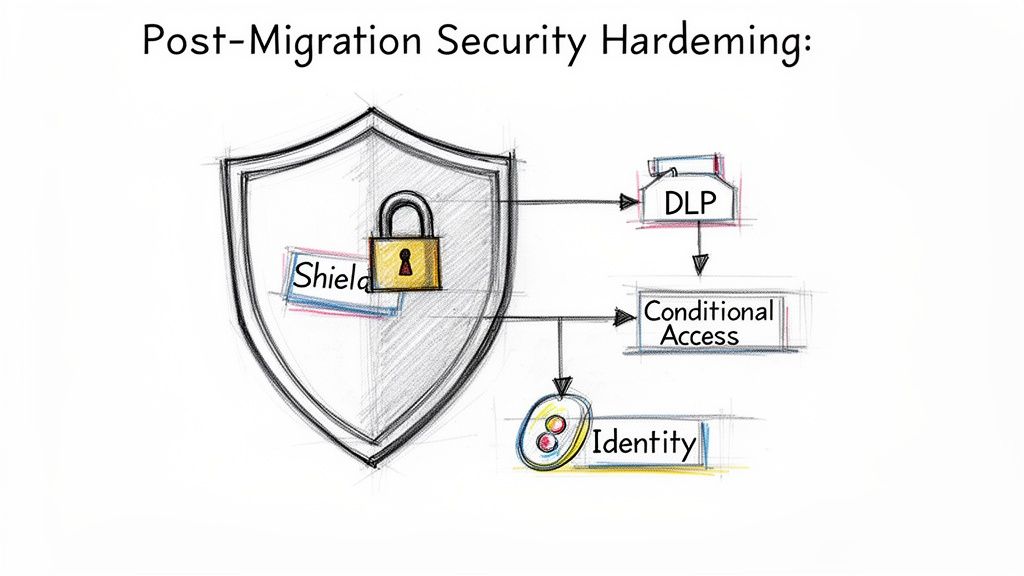
Your organisation is probably already investing heavily in a zero-trust security model with Entra ID. A SharePoint workflow migration that ignores this isn't just a missed opportunity; it's actively undermining your entire security posture. Moving the workflow logic is pointless if the new process operates outside of your established security controls.
The immediate priority is to bind your new Power Automate environment to your Entra ID architecture. This isn't optional.
- Implement Conditional Access Policies: Does your new workflow for capital expenditure approvals work if a user logs in from an unmanaged device in another country? It absolutely shouldn't. You must apply Conditional Access policies that scrutinise every connection a flow makes, enforcing MFA and device compliance just as you would for direct SharePoint access.
- Enforce Strict Connector Controls: Power Automate has hundreds of connectors. Your first move should be to disable all non-essential connectors at the tenant level. Allowing users to connect business-critical flows to personal Dropbox accounts or public social media platforms is a data breach just waiting to happen.
- Manage Service Account Privileges: The service accounts used for the migration itself are now high-value targets. These accounts must have their privileges drastically reduced post-migration or be disabled entirely. Leaving a Global Admin-level account active to run a simple notification flow is an act of gross negligence.
Implementing strong Role Based Access Control best practices is paramount here. This ensures that every account, especially service accounts, operates under the principle of least privilege from day one.
The Critical Role of Data Loss Prevention (DLP)
The official documentation makes Data Loss Prevention (DLP) policies in the Power Platform sound straightforward. In reality, a poorly configured DLP policy is worse than having no policy at all because it creates a false sense of security. You must immediately configure environment-level DLP policies that classify connectors into "Business," "Non-Business," and "Blocked" categories.
The Ollo Verdict: Failure to implement a granular DLP policy from day one is a critical error. A single misconfigured flow that combines a "Business" connector (like SharePoint) with a "Non-Business" connector (like Twitter) can exfiltrate your entire customer list in seconds. This isn't just a migration failure; it's a reportable, headline-making data breach.
Your post-migration checklist needs to validate these security gaps. Think of it as a forensic audit, not a simple sign-off sheet.
Your Final Permissions Validation
Remember all that complex, broken inheritance and unique permissions from your legacy SharePoint environment? Do not trust that your migration tool replicated it perfectly. It didn't. You have to perform one last, definitive permissions validation on the critical data sources your new workflows touch.
This means running targeted PowerShell scripts to compare the access control lists (ACLs) on the source and the destination. You're hunting for discrepancies—users who lost access and can't do their jobs, or far worse, users who gained access to sensitive data they should never see.
The cost of skipping this final validation is immense. It's the difference between a secure, compliant automation platform and an uncontrolled, high-risk liability. Your SharePoint workflow migration is only truly complete when you can prove, with data, that your new processes are more secure than the ones they replaced. Anything less is a disaster deferred.
Frequently Asked Questions
As architects who spend our time rescuing botched projects, we hear the same questions over and over from IT Directors and Enterprise Architects. These aren't the softballs you find on a Microsoft support page; these are the tough, pragmatic questions that come from getting burned by failed initiatives. Here are the blunt answers you need.
Can We Just Use the SharePoint Migration Tool for Our Designer Workflows?
For anything beyond the most basic, out-of-the-box approval workflows, the answer is a hard no.
The documentation might suggest the SharePoint Migration Tool (SPMT) can map simple flows to Power Automate, but in reality, any custom logic or intricate permission steps within your SharePoint Designer 2010/2013 workflows will fail spectacularly.
SPMT is simply not designed for that kind of complexity. Using it for an enterprise-level SharePoint workflow migration is a high-risk gamble that almost always results in broken processes and forces a complete manual rebuild anyway. It's fine for small-scale file migrations, not for business-critical automation.
How Do We Realistically Estimate the Time and Cost for a Complex Migration?
A realistic estimate is impossible without a forensic audit. A simple count of your workflows is a completely useless metric that will mislead your leadership and derail your budget.
The true cost and timeline are driven by workflow complexity, not volume.
You have to dig into each workflow and analyse it for custom code, external data connections, impersonation steps, and dependencies on lists nearing the 5,000-item view threshold. Our process involves classifying each workflow into 'Lift and Shift', 'Rebuild', or 'Re-architect'. Only after this detailed analysis can you build a project plan that accounts for the reality that a single complex workflow could consume more effort than 50 simple ones combined.
The Ollo Verdict: If a migration partner gives you a quote based on a workflow count without a deep-dive analysis, they are either inexperienced or being intentionally misleading. Walk away.
What Is the Biggest Technical Mistake Internal Teams Make?
Without a doubt, it's ignoring or fundamentally misunderstanding Microsoft's API throttling limits. We see it constantly. An internal team tries to accelerate the migration by running everything through a single, powerful service account over a weekend.
This is the fastest way to get throttled.
What happens next is predictable: the migration starts fast and then slows to a crawl, plagued by constant failures and timeouts. A professional approach uses multiple, lower-privileged accounts and migrates in strategic waves during off-peak hours to manage the API call load. This ensures a predictable and successful outcome, not a frantic scramble.
What Is the Biggest Compliance Risk in Workflow Migration?
Broken inheritance and incorrect permission mapping. That's the one that keeps us up at night. Your legacy SharePoint environment is likely a tangled web of unique permissions on individual items and folders.
Standard migration tools often fail to replicate this complex security model perfectly, leading to two dangerous outcomes.
Either legitimate users lose access and business processes grind to a halt, or—far worse—unauthorised users gain access to sensitive data. For regulated industries, this isn't just an operational failure; it's a potential compliance breach with severe financial and reputational consequences. Verifying permissions post-migration is not optional; it's essential for survival.
This whole process is complex, but our comprehensive SharePoint migration checklist provides a solid framework for addressing these risks head-on.
Your legacy workflows are a liability, and a failed migration project is a risk your organisation cannot afford. Ollo doesn't just migrate workflows; we re-architect them for security, compliance, and performance, ensuring your transition to the Power Platform is a strategic success, not another IT disaster. Contact us to discuss how we de-risk complex migrations: https://www.ollo.ie

















