



You know the scene already. A director asks for a board paper, legal asks for a hold, or a regulator asks for evidence. Someone types the obvious query into SharePoint, and the document isn't there. Your admin says search is "a bit delayed". Your project team says the migration completed successfully. Your users stop trusting the platform.
That's the problem. When SharePoint search isn't working, your tenant has already crossed from inconvenience into governance risk. In most environments, search failure isn't one broken switch. It's architectural debt surfacing under pressure.
I've been pulled into enough rescue jobs to say this plainly. The most dangerous state isn't a total outage. It's when search looks functional but returns stale, partial, or security-trimmed results that nobody notices until the wrong meeting, the wrong audit, or the wrong legal event. Microsoft documentation and related troubleshooting guidance confirm that result source misconfiguration, reindex requirements, the 5,000-item list-view threshold, and long paths or item names all play into these failures after moves and reorganisations (documented in this SharePoint search troubleshooting summary). If you're planning broader platform cleanup, this executive SharePoint migration guide gives the governance context most search incidents are missing.
Search also fails because enterprises keep treating it like a front-end convenience layer. It isn't. It's a dependency graph of permissions, indexing, metadata, result sources, and content structure. If you want a useful framing beyond Microsoft admin screens, Contesimal's enterprise search insights are worth reading. They help explain why findability breaks at the system level, not just at the query box.
An Executive Briefing on SharePoint Search Failures
Your service desk sees a ticket. You should see a signal. SharePoint search not working usually means one of three things has gone wrong in your environment: governance slipped, architecture drifted, or migration work introduced silent defects that nobody verified properly.
Vendor messaging trains teams to think search is just there by default. That's fantasy. Search quality depends on disciplined content design, predictable permissions, sensible metadata, and operational controls that survive change. Tenant-to-tenant moves, site restructures, archive projects, and permission clean-ups all put that chain under stress.
Why this becomes a board-level problem
A missing result doesn't just slow somebody down. It changes user behaviour. People create duplicate files, hoard local copies, bypass libraries, and start emailing attachments again. Compliance teams lose confidence in retrieval. Leadership loses confidence in the migration narrative.
Practical rule: If your users don't trust search, they won't trust SharePoint. Once that trust goes, adoption metrics won't save you.
The worst incidents aren't loud. They lurk after a migration or reorganisation while indexes lag, result sources drift from defaults, and broken inheritance hides records from the people who expect to find them. That's why executive owners need to treat search failure as an operational assurance issue, not a helpdesk annoyance.
The pattern we keep seeing
We often see clients fail when they assume the migration passed because files landed in the destination. Landing data isn't the same as making it discoverable. Search has to survive permissions, schema, and structure, not just copy operations.
Here is the blunt version:
| What your team says | What it often means |
|---|---|
| "The files are in SharePoint" | They may still be undiscoverable |
| "Search works for me" | Security trimming is masking a permissions defect |
| "We reindexed it" | Nobody checked the actual root cause |
| "Only one department is affected" | Broken inheritance or scope drift is likely involved |
If you're the IT Director, your question shouldn't be "How do we make the ticket go away?" It should be "What else in this tenant is stale and unnoticed?"
Your Immediate Triage Checklist The First 15 Minutes
Don't launch a war room yet. In the first quarter hour, your job is to separate a local symptom from a structural failure. Most internal teams waste time because they start with assumptions. Start with elimination.
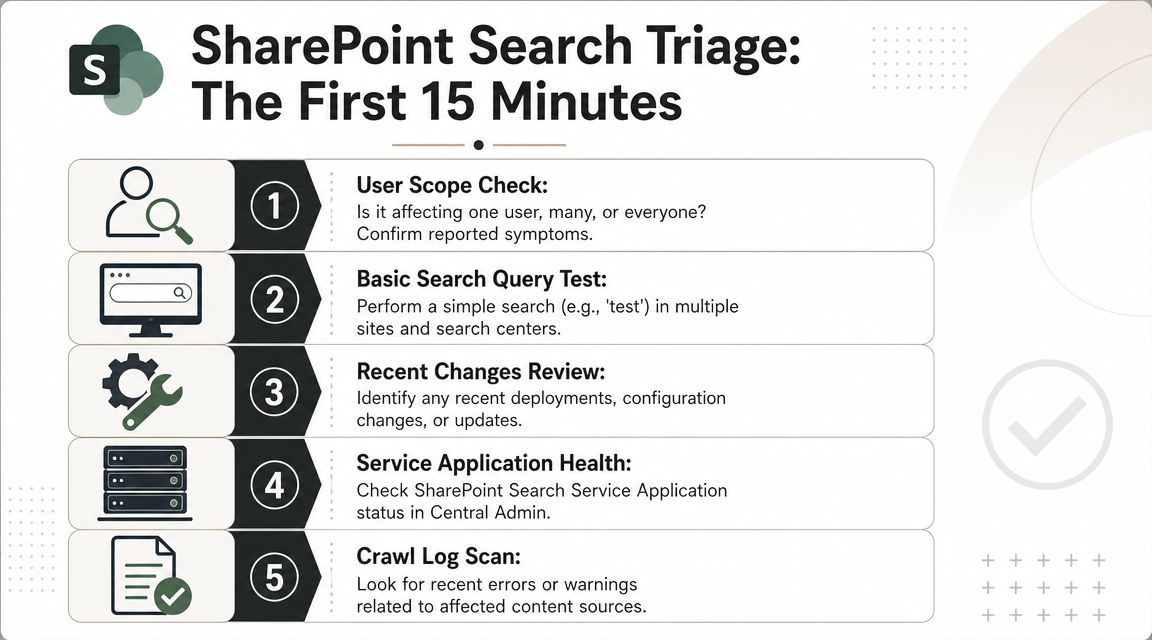
Start with scope, not theory
Ask four questions immediately:
Who is affected
- One user, one team, one site, or everyone?
- If an admin can find the item but the user can't, treat it as a permissions problem until proven otherwise.
What content is missing
- One document, one library, one content type, or broad keyword searches?
- If the symptom is narrow, don't blame the whole platform.
When did it start
- Right after a migration, permission change, site move, or search configuration tweak?
- Recent change history narrows the field faster than guessing ever will.
Where does the failure reproduce
- Test the same query in different sites and search contexts.
- If results differ by location, configuration drift is likely.
- User comparison test: Run the same query as the affected user and as a higher-privileged account. This quickly exposes security trimming and broken access paths.
- Basic query test: Search for a simple known term across multiple locations. Don't start with clever KQL or refiners.
- Recent change review: Check for site moves, permission inheritance breaks, schema edits, or deployment activity.
- Configuration check: Confirm result source settings at both scopes, then queue reindexing only if you found a mismatch.
- Admin escalation threshold: If results are inconsistent across users and sites, stop ad hoc fixes and move to structured investigation.
- Incomplete crawl activity: Content changed, but indexing didn't catch up or complete cleanly.
- Silent exclusions: Libraries or content segments were effectively left out through configuration drift.
- Delayed confidence: Users assume yesterday's migration content should already be discoverable, but the index hasn't finished reflecting the new state.
- Broken inheritance spreads over time.
- Exceptions accumulate because nobody wants to redesign access properly.
- Migrated content carries odd ACL patterns into the destination.
- Users test with privileged accounts and miss what normal users can't see.
- Confirm the symptom with a normal user account
- Validate permissions on the affected content path
- Check whether the content or field was excluded from indexing
- Inspect search configuration and schema
- Trigger targeted reindexing only where the evidence supports it
- Escalate to wider crawl or reset only as a controlled last step
- Target first: affected library, list, or site
- Verify second: user test and query confirmation
- Expand only if needed: broader scope after evidence, not before
- Record the original configuration
- Limit each change to one logical variable
- Retest after each change
- Stop if the symptom changes shape rather than resolves
Check the result source before you touch the index
Microsoft's documented first-line path for SharePoint Online search failures is to verify that both the site collection and the site or subsite use the same out-of-the-box result source, such as Local SharePoint Results. If the default is wrong, reset it and reindex. Microsoft also makes clear that you must check both levels, not just one (see the official result source guidance), a common point of failure for DIY efforts. Someone fixes one layer, declares success, and leaves the hidden mismatch in place.
If your team says "we already checked search settings", ask which level. Site collection and subsite are not the same thing.
The 15-minute incident checklist
For teams that need stronger day-to-day admin hygiene around incidents like this, these Microsoft 365 admin operational practices are the baseline your internal support model should already have.
Anatomy of a Failure Common Root Cause Categories
If the quick checks didn't isolate the issue, you're not dealing with a glitch. You're dealing with a failure chain. Microsoft community guidance makes this plain: missing results often require teams to verify the Search Schema, confirm crawl completion, inspect crawl logs, and check whether search scopes are too narrow. The same guidance also states that incomplete or failed crawls can directly cause outdated or missing results, and that excluded columns won't appear in results by design if a site owner has hidden them from search indexing (see the Microsoft community guidance here).
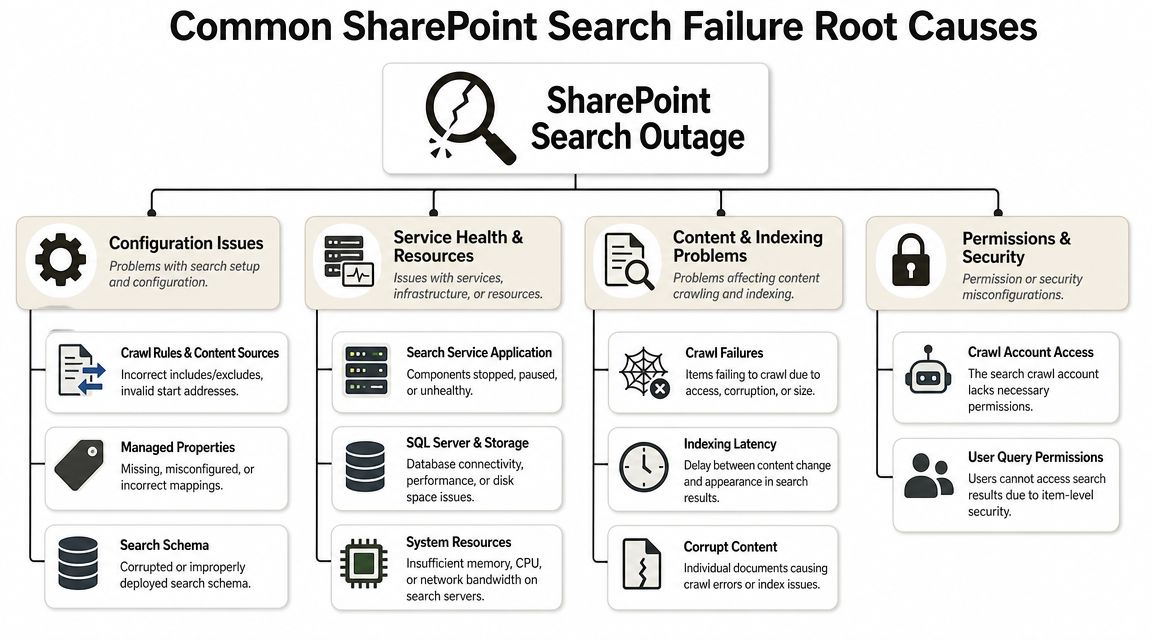
Indexing and crawl health
The documentation says to verify crawl completion and inspect crawl logs. That's correct. Reality is that many teams don't even know what changed before the crawl issue appeared. They just hit reindex and hope.
Common failure patterns include:
If you've recently moved content, rebuilt libraries, or restructured sites, this gets worse. Search then becomes a lagging indicator of migration quality.
Search schema and property design
Many "mysterious" search failures stem from issues within the search configuration. Search isn't just about files. It's about how fields, crawled properties, and managed properties line up. If your schema is wrong, your content may exist and still remain functionally invisible.
The brutal lesson from rescue engagements is simple. Metadata design done badly creates fake completeness. Users see some documents. They assume all similar documents are available. They aren't.
A short diagnostic table helps:
| Symptom | Likely architectural cause |
|---|---|
| Keyword search misses known content | Crawl issue, narrow scope, or excluded field |
| Refiners behave strangely | Property mapping or schema issue |
| Search differs by area | Result source or scope mismatch |
| Search only fails for some teams | Permissions and inheritance drift |
Architect's warning: Search schema mistakes don't always break loudly. They break credibility first.
Permissions and the "it works for me" trap
This is the most politically toxic category because it creates contradictory evidence. One user finds the document. Another user with a similar role doesn't. Management hears "search is inconsistent". That's true, but it doesn't explain why.
Microsoft documents that search only returns items a user has permission to view, so security trimming can produce different results for different users. Microsoft also notes that newly created or edited items may not appear until indexing completes, drafts can stay hidden depending on major/minor versioning, and exact columns being searched should be indexed for reliable behaviour (see the Microsoft Learn Q&A guidance).
The documentation says permissions and indexing are straightforward. Reality is uglier:
That "works for me" message from an admin is one of the least useful statements in a SharePoint incident.
For organisations tightening control after a move or a permissions cleanup, SharePoint data governance work matters because governance defects often present first as search defects.
Platform limits and structural pain
Some failures aren't bugs at all. They're the platform enforcing rules your project ignored. Long paths and item names can interfere with file operations and indexing behaviour. Large libraries become operationally fragile. The famous 5,000-item threshold gets all the attention, but teams often fixate on the threshold and ignore the indexing, permissions, and structural design choices that make libraries fail before or around that pressure point.
We often see clients fail when they migrate a messy file share into SharePoint with folder sprawl intact, then wonder why search trust collapses. The migration completed. The architecture didn't.
The Architect's Toolkit Commands and Runbooks
Tools don't rescue bad process. They just let you damage the tenant faster if you use them badly. Microsoft's own troubleshooting order is the correct one: check Search Service Application status, inspect Content Sources, review Crawl Logs, test a query, verify permissions, and only then consider an index reset and full crawl during low-usage windows. Microsoft explicitly warns that a full crawl is time-consuming and should be scheduled off-peak (see the Microsoft Learn troubleshooting guidance).
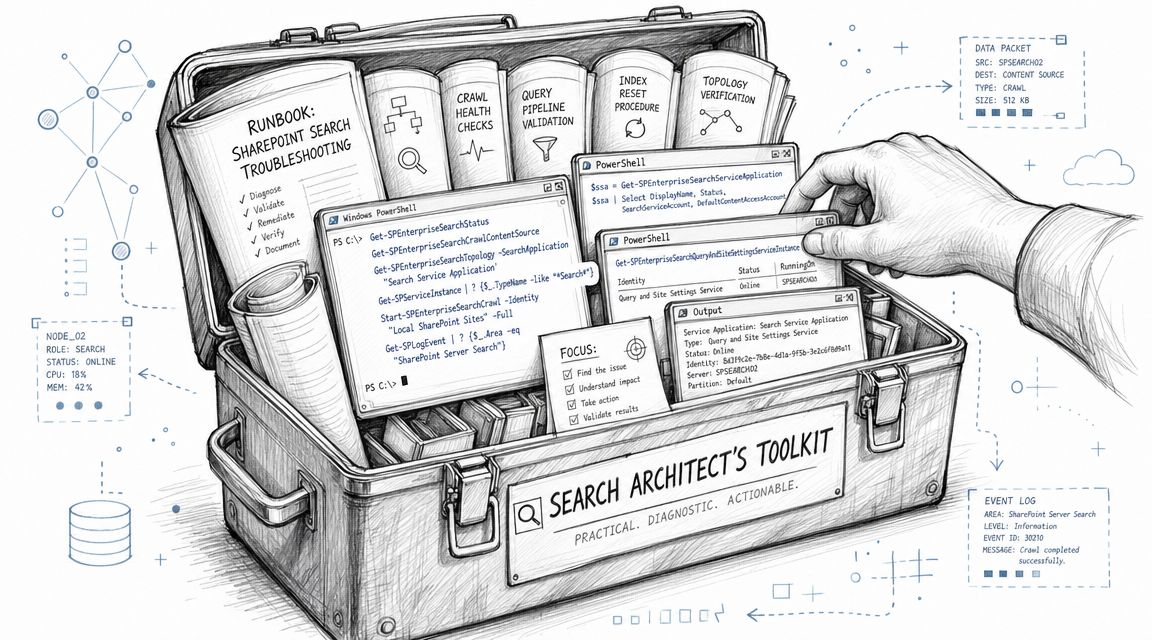
The runbook order that avoids self-inflicted damage
Internal teams love the dramatic move. Reset the index. Re-run everything. Restart services. That's how you turn a diagnosable issue into a blurred crime scene.
Use this order instead:
Useful PnP PowerShell checks
For SharePoint Online, PnP PowerShell helps you inspect the content layer without clicking through endless admin pages.
Connect-PnPOnline -Url "https://tenant.sharepoint.com/sites/YourSite" -InteractiveGet-PnPList | Select Title, Hidden, ItemCountGet-PnPField -List "Documents" | Select InternalName, TitleGet-PnPPropertyBagSet-PnPList -Identity "Documents" -NoCrawl:$falseThose commands aren't magic. They help you confirm whether a list is visible, whether fields exist as expected, and whether a library has been set in a way that blocks crawl expectations. If your team scripts heavily, document it properly. Sloppy admin scripting creates the next outage. For that discipline, it's worth reviewing Powershell documentation solutions from DocuWriter.ai so the next engineer understands what your scripts changed.
Reindex carefully and at the smallest scope first
In rescue jobs, we start with the smallest blast radius. Reindex the specific library or site tied to the symptom before you touch broader search behaviour. Broad actions make leadership feel like progress is happening. They also make rollback and root-cause analysis harder.
Here is the mindset:
A practical walkthrough can help teams visualise the discipline required:
Third-party tools and where they break
ShareGate is useful for reporting, especially when you need a quick view of permissions, structure, and migration state. It is not a substitute for architectural remediation. It shows you a mess very efficiently. It doesn't automatically untangle broken inheritance, schema drift, or search logic.
SPMT has its place for smaller, simpler moves. In enterprise rescue work, its simplicity becomes the limitation. It won't save you from poor information architecture, permission chaos, or post-migration discoverability gaps.
One factual option in this space is Ollo's SharePoint migration practice, which focuses on controlled migrations, permission reset work, and custom scripting where out-of-the-box tooling runs out of road.
Use SPMT for small and disposable workloads. For regulated, politically sensitive, or structurally messy estates, you need controlled scripting, governance checks, and someone willing to say no to bad source data.
Verification and Mitigation Confirming The Fix
A single user saying "it's back now" is not closure. It's a trap. Search incidents need verification across content, user context, and time. Otherwise you haven't fixed anything. You've just hit a temporary good state.
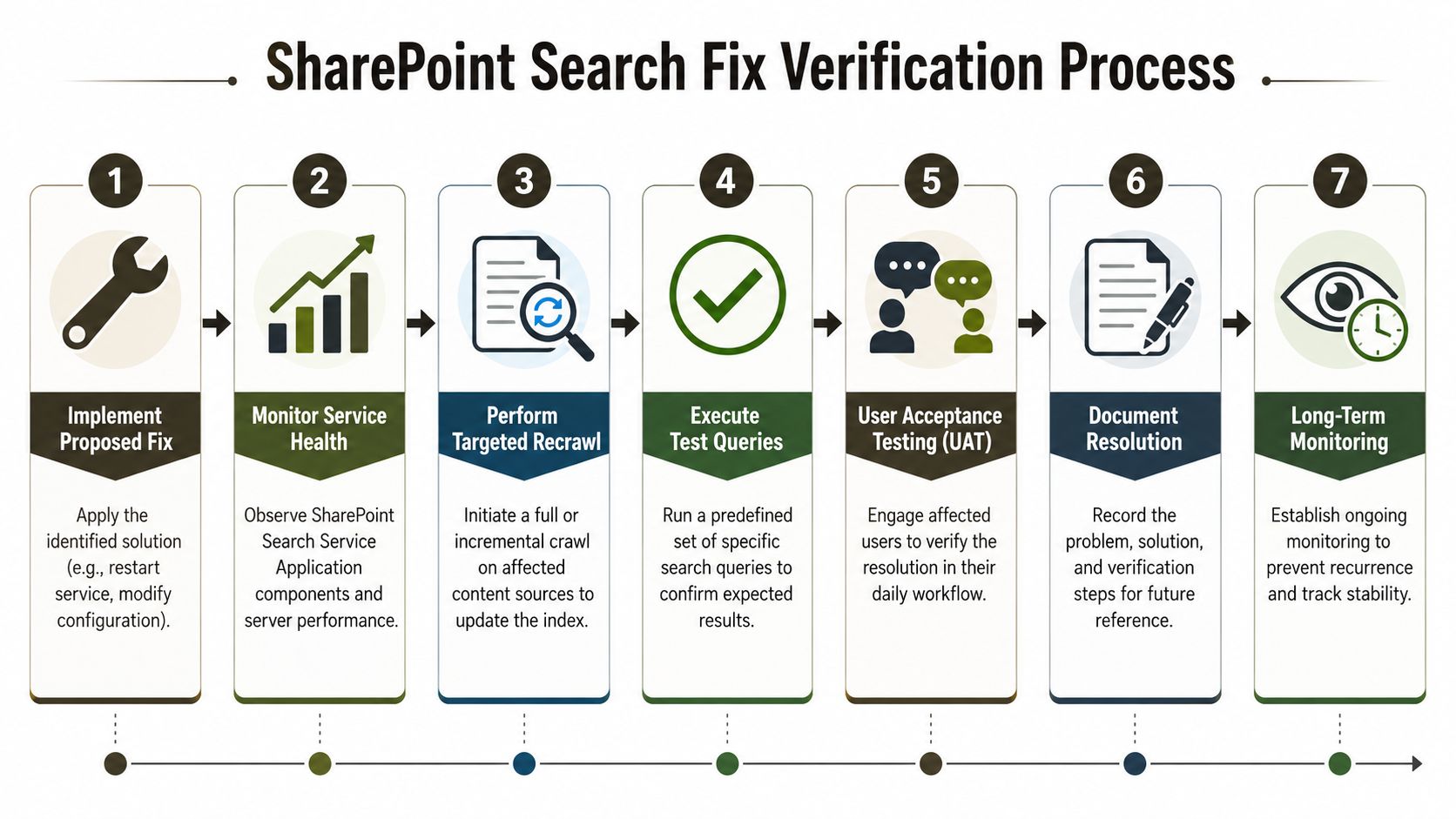
What real verification looks like
Run validation against a matrix, not a single query:
| Check area | What to confirm |
|---|---|
| User profiles | Standard user, site owner, and admin don't produce unexplained differences |
| Content types | Documents, lists, and key metadata-driven items behave as expected |
| Locations | Main site, affected subsite, and adjacent libraries return consistent patterns |
| Time | Results stay stable after reindexing and normal activity resumes |
Many search defects often reappear as soon as caches shift, content updates continue, or users test from a different permission context.
Every fix needs a rollback thought-out in advance
Schema changes, permission corrections, and reindexing actions all carry side effects. If your team can't state the rollback plan before touching production, they aren't doing controlled remediation. They're improvising.
Use this minimum standard:
"Resolved" means the right users can consistently find the right content for the right reasons.
Close the incident only when trust is restored
Your post-fix checks should include user confirmation from the people who rely on the content, not just admins with broad access. Document what failed, what you changed, and what governance weakness allowed it to happen. If you skip that, you'll meet the same incident again under a tighter deadline and worse scrutiny.
The Ollo Verdict When DIY Becomes Business Risk
Here's the hard conclusion. Ad hoc troubleshooting is acceptable when one user can't find one document and the cause is obvious. It becomes irresponsible when search failures keep reappearing, when permissions are already messy, or when your estate has recently gone through migration, restructuring, or governance changes.
Your team may be technically capable. That isn't the same as being operationally safe. Search sits on top of content structure, permissions, metadata, indexing behaviour, and change control. If those foundations are unstable, every "fix" is temporary. You aren't solving the issue. You're managing the next escalation.
The pattern is predictable. Internal teams chase symptoms. They reset, recrawl, and retest. Leadership hears that the issue is closed. Weeks later, another department reports that records are still missing, or only visible to site owners, or absent from a critical query path. At that point, DIY stops being a cost-saving strategy and becomes a governance gamble.
The Ollo verdict is blunt. If your SharePoint search problems sit alongside broken inheritance, migration fallout, long path baggage, threshold pressure, or inconsistent result sources, you need specialist remediation. Not because the platform is impossible. Because the cost of false confidence is higher than the cost of doing it properly.
If you're already seeing those warning signs, start with a structured tenant audit. That gives you an evidence-based view of whether you're dealing with a local defect or a wider discoverability failure across the estate.
If your team is still firefighting SharePoint search issues after migrations, restructures, or permission clean-ups, talk to Ollo. We handle the ugly cases where discoverability, governance, and migration quality have all become tangled together, and we do it with controlled investigation rather than hopeful clicking.

















