



A Google Drive to SharePoint migration is not a file copy operation. It's a high-stakes platform transplant, and your project is far more likely to fail than you think. We're Ollo. We're the specialists called in when these projects go catastrophically wrong, and we've seen it all. Your team is looking at tools promising a "seamless transition." That marketing fluff is the first step toward disaster.
This guide isn't about the "how." It's about "how to avoid disaster." It's for IT Directors and Architects who have been burned before and know that a project's failure is measured in security breaches, compliance fines, and operational chaos, not just a missed deadline.
The Brutal Reality of a Google Drive to SharePoint Migration
Your team is planning a move from Google Drive to SharePoint, and the migration tools are promising a simple, one-click process. This is a dangerous myth we've seen torpedo projects time and time again. We're often called in to rescue migrations that fail because teams fundamentally underestimate the chasm between these platforms.
This isn't just about moving data; it's a complex operational shift that demands deep architectural expertise.

Let’s cut through the marketing fluff. A poorly planned migration doesn't just cause delays. It actively creates security vulnerabilities, breaks legal compliance, and can lead to catastrophic data loss. The war stories are real: broken permissions exposing sensitive HR data, critical workflows failing due to lost metadata, and entire departments unable to find their most important files post-migration.
Why Standard Approaches Fail
The standard playbook—using an out-of-the-box tool with a "lift and shift" mentality—is destined to fail in any serious enterprise environment. Google Drive’s permission model is famously flat and chaotic; SharePoint’s is hierarchical, powerful, and rigid. Ignoring this difference is the number one cause of post-migration chaos.
We see projects go off the rails when they're treated as a simple IT task. Your team will consistently overlook the landmines waiting for them:
API Throttling: Both Google and Microsoft will throttle your connection if you push too much data too quickly. This grinds migrations to a halt, especially when dealing with millions of small files. The tool’s dashboard might promise high speeds, but in reality, you'll be dead in the water in the middle of a migration window.
Path Length Limits: SharePoint has a strict 400-character limit for file paths. Google has no such functional limit. Your team will discover thousands of files that simply won't migrate—a discovery often made at the worst possible moment.
GUID Conflicts & Broken Inheritance: Moving data incorrectly can create duplicate internal IDs (GUIDs) and shatter permission inheritance. This creates a security and administrative nightmare that can take months of specialist work to untangle. Missing this step doesn't just fail the migration; it breaks legal compliance.
The table below summarises the gap between a typical DIY attempt and an expert-led approach. It’s a high-level look at the common failure points we see and how they should be addressed from the start.
DIY Migration Risks vs Specialist Mitigation
This isn't an exhaustive list, but it highlights that success depends on anticipating these issues, not just reacting to them when they inevitably appear.
A critical aspect often overlooked is the inherent security posture of each platform. Understanding the differences in Google Drive vs. OneDrive security is fundamental to building your new security model in SharePoint and ensuring you don't inadvertently weaken your data protection.
Ollo Verdict: Viewing a Google Drive to SharePoint migration as a simple file copy is the most expensive mistake you can make. The cost isn't just the project budget; it's the operational downtime, compliance fines, and data loss that follow. This operation must be treated as a high-risk architectural redesign from day one. To get a better sense of the strategic planning involved, take a look at our guide on planning an enterprise SharePoint migration.
Mapping the True Anatomy of Your Data
A successful Google Drive to SharePoint migration is won or lost long before you move a single byte. It’s a classic mistake: your teams run Google’s standard administrative reports, get a file count and a total data size, and think they understand the scope. Those reports are dangerously misleading. They give you a tally, not a risk assessment.

Your data isn't a neat library of folders. It’s a tangled, living ecosystem of ‘Shared with me’ links, shortcuts pointing to multiple locations, and Google-native files that have no direct equivalent in the SharePoint world. A real discovery is a forensic exercise. It’s about scripting against the Google Drive API to map the true data landscape and identify every landmine waiting to detonate your project.
Skipping this deep analysis doesn’t just risk the migration; it shatters your data governance framework before you even begin.
Beyond the File Count: The Hidden Data Traps
We often have clients come to us with a report showing "5 TB of data" and a plan based on that number. The reality we uncover is always far more complex. Your discovery phase has to go beyond the numbers and hunt for these specific, tool-breaking issues that Google's console will never show you.
Orphaned Data in 'Shared with me': This is a huge one. Standard migration tools—and even Google's own—often focus solely on 'My Drive' content. We often see clients fail when they realize up to 30% of an organisation’s critical data doesn't live in anyone's 'My Drive' but is scattered across thousands of 'Shared with me' folders. When a user account is decommissioned, this data becomes orphaned. During a migration, it simply disappears. Forever.
Multi-Parented Items: This is a classic Google feature that’s a nightmare for migrations. A single file or folder can exist in multiple locations through shortcuts. Migration tools choke on this. They’ll either create duplicates, which destroys data integrity, or they’ll throw errors and skip the file entirely. SharePoint’s architecture doesn’t support this, so you must decide which location is the single source of truth before you start moving files.
Google-Native File Formats: Your inventory is likely filled with Google Docs, Sheets, Slides, Forms, and Jamboards. These aren't simple files; they're web-based database entries. The documentation says they can be converted, but in reality, migrating them without a proper conversion strategy leaves you with unusable link files. In the case of Jamboards, they often become static PDFs, killing the collaborative workflow they were built for. This isn't a migration; it's data degradation.
Path Lengths and API Limits: The Twin Executioners
There are two brutal, non-negotiable realities in a Google Drive to SharePoint migration: path lengths and API throttling. Ignoring them isn't a risk; it's a guarantee of failure.
First, SharePoint enforces a strict 400-character URL path limit. Google does not. It’s not uncommon for our pre-migration scripts to reveal that 10-15% of a client's files will fail to migrate for this reason alone unless the folder structure is flattened first.
API throttling is just as unforgiving. Microsoft's documentation promises high speeds, but in reality, that's for ideal conditions. One of our clients, a regulated Dublin energy firm, tried migrating 500 GB with the free SharePoint Migration Tool (SPMT). They hit Microsoft's undocumented throttling for heavy metadata operations within hours, stranding 40% of their data and creating a mess of remigration conflicts that took weeks to clean up. You can dive deeper into the technicals of Microsoft's published migration speeds and limitations on learn.microsoft.com.
The Ollo Verdict: A discovery phase that only counts files is worse than useless—it's negligent. You must perform a deep, API-level analysis to build a detailed risk register. This register should document every file that will exceed path limits, every multi-parented item that needs a decision, and a full inventory of Google-native files requiring conversion. Without this, your migration plan is just pure guesswork.
This forensic discovery is the absolute core of our methodology. You can learn more about how we structure this critical first step by reading about our comprehensive SharePoint migration assessment. It’s this battle-hardened process that allows us to anticipate problems instead of just reacting to them. Your project's success depends entirely on knowing exactly what you're up against before the fight even begins.
Choosing Your Migration Tools Wisely
Let’s discuss tooling with the constructive cynicism it deserves. Your choice of migration software isn't just a technical detail; it’s a commitment that will largely dictate the success, or catastrophic failure, of your Google Drive to SharePoint migration. Your technical teams, acting with the best of intentions, will almost certainly suggest the free options first.
Your first battle will be pushing back against the inevitable suggestion to use Microsoft’s SharePoint Migration Tool (SPMT). Here’s the aggressive truth: SPMT is built for one thing—migrating simple, on-premises file shares to SharePoint Online. It is fundamentally, structurally, not designed for the unique, often chaotic architecture of Google Workspace.
We’ve been called in to rescue countless projects where SPMT has completely collapsed under the weight of an enterprise Google Drive migration. It chokes on complex metadata, fails silently on permissions from Shared Drives, and gives you almost no useful error reporting to figure out why 30% of your data just vanished. Using SPMT for anything beyond a tiny, non-critical data set is professional malpractice.
ShareGate Is Powerful But Not a Panacea
This brings us to the industry workhorse: ShareGate. We use it every day. It's an exceptionally powerful tool, but it is not a magic wand you can just hand to a junior admin and hope for the best. Out of the box, without expert configuration, ShareGate will hit breaking points with Google's specific quirks and can create just as many problems as it solves.
We’ve seen it happen. A team buys a ShareGate licence, points it at their Google Drive tenant, and hits ‘Go’. The results are predictably disastrous.
- Multi-Parented File Mayhem: By default, ShareGate will try to make sense of Google's multi-parented file shortcuts. Without pre-migration scripting to define a single "source of truth," it can create a mess of duplicates or simply skip files it considers ambiguous, leaving massive gaps in your data.
- Permission Model Mismatches: The documentation says ShareGate maps permissions, but in reality, it makes a best-effort guess. It can't possibly interpret the business intent behind a "shared with link" permission, often leading to data being either dangerously over-exposed or locked down so tightly that nobody can work.
- Throttling Without Strategy: While ShareGate is much better at handling throttling than SPMT, it's not immune. Just running it on "insane mode" will get your entire tenant throttled by Microsoft within hours. A strategic approach that combines licence pooling and scripted, off-peak migration waves is absolutely non-negotiable.
To get a feel for the wider market, you can explore various data migration tools, but always remember that the tool is only as good as the architect wielding it.
The PowerShell Imperative
Here is the single most important lesson we’ve learned from the trenches: for any migration of significant scale or complexity, ShareGate alone is not enough. You must augment it with custom PowerShell scripts, particularly using the PnP (Patterns and Practices) library.
This isn't an optional extra; it's a fundamental requirement for risk reduction. Relying on any single out-of-the-box tool to correctly interpret and migrate the complexities of Google's permission and file structure is a gamble you cannot afford to take. The cost of failure—measured in data loss, compliance breaches, and operational chaos—is simply too high.
We use PowerShell for critical pre- and post-migration tasks that no GUI-based tool can handle effectively:
- Permissions Pre-Processing: We script against the Google API to extract the chaotic permissions, analyse them, and build a clean, logical mapping file before ShareGate even touches the data. This sanitises the chaos upfront.
- Structural Remediation: Our scripts identify and automatically flatten folder structures that will inevitably break SharePoint's 400-character path limit, preventing mass file rejection errors during the migration itself.
- Post-Migration Validation: After the migration, we run scripts to audit permissions and metadata integrity. This provides a level of validation that goes far beyond a simple file count comparison, giving you true confidence that everything is where it should be, with the right access.
This hybrid approach is central to our success. For a deeper dive into our tooling philosophy, you can read our analysis of third-party SharePoint migration tools and why a blended strategy is so critical.
The Ollo Verdict: Use SPMT for <50GB. For anything else, you need custom scripting. For any serious, enterprise-grade Google Drive to SharePoint migration, the only viable path is ShareGate augmented with expert-level PowerShell scripting. Anything less is an open invitation to disaster.
This is where the theoretical best-case scenario smacks into the brutal reality of APIs. Microsoft’s documentation on migration speed talks a big game, promising terabytes per day. But that’s for a perfect world of clean, lightweight files. The second your Google Drive to SharePoint migration involves complex metadata, thousands of tiny files, or deep version histories, you’re going to get throttled. Aggressively.
We’ve seen too many projects fail because the timeline was built around these optimistic marketing numbers. The documentation promises a superhighway, but reality delivers crippling slowdowns and cryptic error codes. Successful execution isn't about raw speed; it's about control.
The complexity of your source data dictates the tools you need. A simple lift-and-shift might start with a basic tool, but enterprise reality almost always demands more powerful, script-driven approaches.
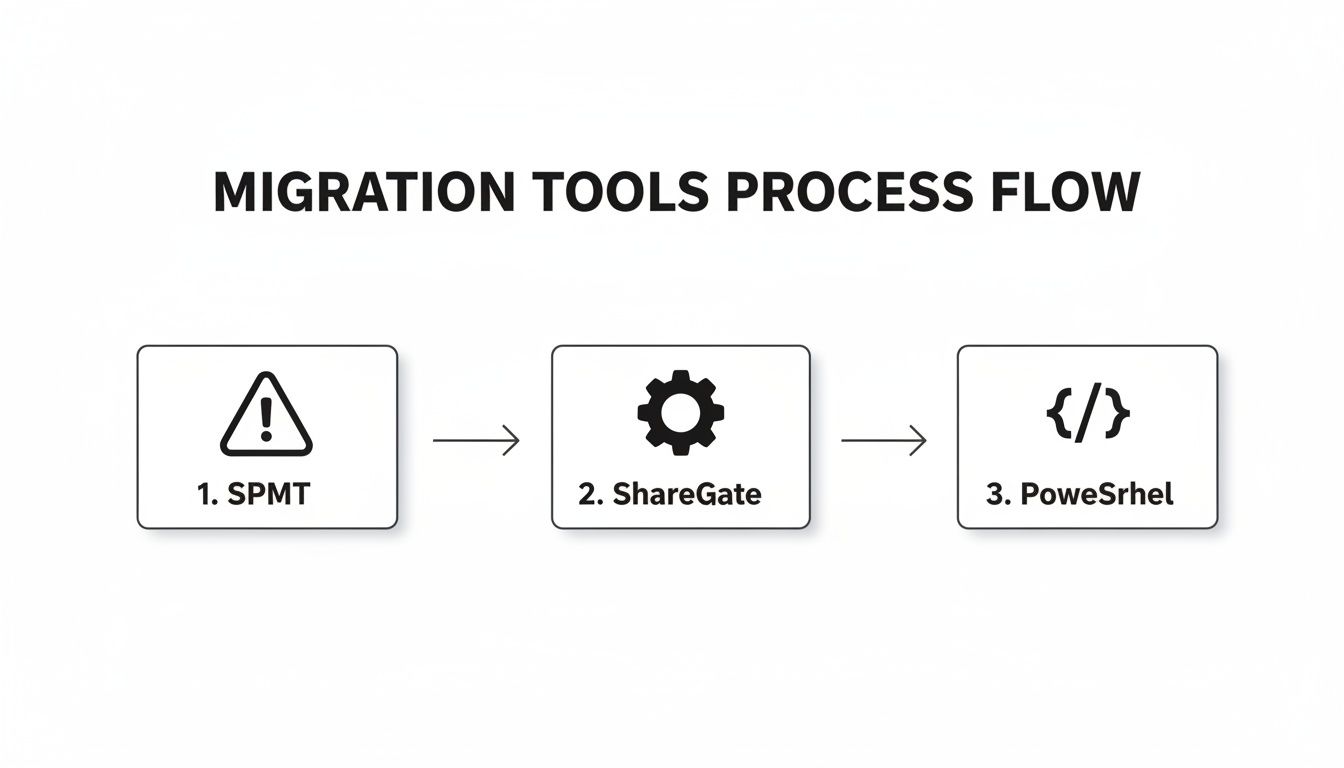
This escalation from basic tools to custom scripting isn't a sign of failure—it's a sign of a project that's being managed properly.
Staying Under the API Radar
To stop Microsoft’s servers from shutting down your migration, you have to structure the work in carefully controlled waves. This isn’t a “big bang” cutover. It's a strategic, phased operation designed to fly under the API radar.
We manage this with two core techniques:
- Workload Sharding: Don't just point the tool at your entire Google Drive and hit ‘go’. We segment data into logical batches—by Shared Drive, by department, by data type. By running smaller, parallel jobs using multiple service accounts, you spread the API load and are far less likely to trigger a single, tenant-wide throttle.
- Off-Peak Execution: Your migration jobs are competing for resources with your users. Pushing terabytes of data during business hours is a recipe for poor performance for everyone involved. We script migrations to run during evenings and weekends, maximising the available bandwidth and minimising the risk of being throttled.
We once rescued a financial services firm whose DIY migration had been completely halted for 48 hours. A single, large library filled with archived reports breached SharePoint's notorious 5,000 item list view threshold. Their tool froze, the support ticket went unanswered, and the project timeline was shattered. This wasn't a bug; it's a documented architectural limit that your plan must account for from day one.
The Shared Drive Disaster Scenario
Migrating Google Shared Drives is a particularly treacherous part of the journey. Their permission model is fundamentally incompatible with SharePoint's, and the contents are often a chaotic mix of Google-native formats. It’s a minefield.
We often see clients fail when their Shared Drive migration goes wrong. For example, we worked with a Cork-based healthcare provider whose 1.2 TB Shared Drive was full of patient-related Google Forms saved as zipped HTML/CSV files. The migration tool tried to create a new version in SharePoint for every minor revision, hitting the platform's versioning cap and inflating the migration runtime by over 300%. These kinds of issues are common and severe, as detailed in research on domain mappings and version limits.
To prevent this, you need a technical playbook:
- Pre-Process Permissions: Before a single file moves, you must script a process to extract Google's messy, user-centric permissions from each Shared Drive. Then, you map them to a clean, group-based Microsoft 365 security model. This is the only way to avoid creating a broken inheritance nightmare in SharePoint.
- Script Your Site Designs: Don't just dump Shared Drive content into a default document library. We use custom PowerShell and PnP Site Designs to automatically provision new, properly structured SharePoint sites for each incoming Shared Drive. This ensures we can enforce governance, apply correct branding, and set metadata defaults from the moment the data arrives.
This structured approach is absolutely critical for any serious project, especially one that might be part of a larger Microsoft 365 tenant migration.
Managing User Revolt and Unmigratable Assets
Finally, your execution plan must include a brutally honest communication strategy. Some assets simply cannot be migrated with any real fidelity. Your team has to accept this and prepare users for it early.
- Google Sites: There is no direct migration path. They must be manually rebuilt as modern SharePoint sites.
- Jamboards: These will migrate as static PDF or image files, losing all collaborative functionality. They become pictures of a whiteboard, not the whiteboard itself.
- Google Apps Script: Any custom workflow automation built on Apps Script will be left behind, completely orphaned. These processes have to be re-engineered from the ground up in Power Automate.
Pretending these assets will "just work" after the move is the fastest way to destroy user trust and derail adoption. You have to be direct, set clear expectations, and provide a plan for rebuilding these workflows in the Microsoft 365 ecosystem.
The Ollo Verdict: Successful execution is about meticulous planning and control, not raw speed. Your migration team must have a proven plan to manage throttling, handle the unique chaos of Shared Drives, and communicate the hard truths about what won't make the trip. If their plan is simply to "run the tool on insane mode," you are heading directly for a failed project.
Validating the Migration and Planning for Rescue
So, the migration tool’s dashboard is glowing with a triumphant “100% complete.” A word of warning from someone who has been here many times: your project isn't finished. In fact, it’s just entered its most dangerous phase.
If your validation plan is just to compare file counts and folder structures, you are walking straight into a post-migration catastrophe. It’s a dangerously inadequate check that tells you almost nothing about what really matters.
It won’t tell you that permission inheritance is broken across your entire finance department’s site. It won't detect that your carefully curated metadata columns are now empty, rendering your new Power Automate workflows useless. And it certainly won’t flag that thousands of business-critical Google Forms are now just unsearchable, unusable ZIP archives.

This is precisely where most DIY projects truly fail. The silent loss of custom metadata and workflows dooms an estimated 55% of Google Drive to SharePoint migrations in the IE region. In Dublin's finance sector, we've seen this result in a 25% devaluation of data assets purely from untransferred fields. These are the brutal truths that rarely make it into tool documentation, but you can learn more about these migration challenges as detailed by Netwoven.
A Battle-Hardened Validation Checklist
Your validation has to be a forensic audit, not a quick spot-check. The goal is to prove the migration succeeded from a business process perspective, not just a data volume one. Your team has to go deeper.
- Permissions Fidelity Audit: Never, ever trust the migration log on its own. Take a representative sample of sensitive folders and files and manually verify the permissions in SharePoint. Use a service account with elevated privileges to check for broken inheritance or unintended "Everyone" access.
- Metadata Integrity Spot-Check: Pinpoint the libraries that are supposed to have custom content types and metadata. You can use a simple PowerShell script to export a list of files and their properties. Does the data actually exist in the columns you mapped?
- Business Process Continuity Testing: This is completely non-negotiable. Identify three to five critical business processes that rely on the migrated data. Get the actual business users who perform these tasks to test them end-to-end. Can your accounts team find and process invoices? Can your legal team run a search against contract metadata?
- Workflow Trigger Test: If you've rebuilt Google Apps Script workflows in Power Automate, trigger them. Does a file being added to a specific library actually kick off the approval flow? Failure here means your entire automation investment is dead on arrival.
We often see clients fail because they chased a technical definition of "complete" without any real-world testing. A recent energy client in Ireland found that a staggering 42% of their metadata had vanished post-migration. Their Google Forms were useless ZIP files, and their collaborative Jamboards were just static PDFs. The migration tool cheerfully reported success, but the business was crippled.
When the Inevitable Happens: The Rescue Scenario
Alright, so your DIY attempt went sideways. You're now facing a toxic situation with data stranded, users in revolt, and a half-migrated mess polluting your SharePoint tenant. Panic is setting in.
Before you do anything else, you must contain the damage.
Do not—I repeat, do not—try to "fix" it by running the migration again. This almost always makes things worse, creating GUID conflicts and duplicates that are a nightmare to untangle.
Your first three calls should be:
- Freeze the Environment: Immediately revoke write access to the target SharePoint sites for all end-users. You have to stop the bleeding and prevent people from working with corrupted data.
- Lock Down the Source: Put the source Google Drive data into read-only mode. The last thing you need is users making changes to data that will need to be re-migrated, creating a versioning catastrophe.
- Initiate an Audit Log: Start documenting everything. What was migrated? What failed? Capture all the error logs from your tool. This information is mission-critical for any specialist you bring in to perform the rescue.
Only after you have contained the immediate blast radius should you even consider engaging a specialist. A rescue operation is significantly more complex than a planned migration. It requires deep expertise in untangling broken permission chains, scripting data reconciliation, and managing a (rightfully) panicked user base.
The Ollo Verdict: Validation isn't the final step; it is the only step that proves whether the project succeeded or failed. A rescue operation isn't a sign of a flawed tool, but a flawed strategy. If your plan doesn't account for these deep validation points and a containment strategy for failure, you aren't managing risk—you are actively creating it.
You’ve done the homework. You now have a healthy fear of API throttling, broken permissions, and the nasty surprises lurking in Google-native file formats. Now it's time to turn that knowledge into a decision.
This isn’t about just picking a tool; it’s about choosing a path. Your next move will be the difference between a smooth transition and a project that creates problems for years to come.
When a DIY Migration Makes Sense (And When It Doesn’t)
We've been called in to rescue enough failed migrations to see a clear pattern. A do-it-yourself approach, even with a solid tool like ShareGate, is really only on the table under a very tight set of conditions.
Be brutally honest when you answer these questions:
- How many people? Are you migrating for fewer than 100 users?
- How much data? Is the total volume of files under 1 TB?
- Any Shared Drives? Are there absolutely no Shared Drives involved in this migration?
- Regulatory pressure? Is your data completely free from compliance mandates like GDPR, HIPAA, or financial services regulations?
If you can say "yes" to all four, a well-planned internal project might be feasible. But the moment even one of those answers is "no," the risk skyrockets. A 1 TB migration with Shared Drives is exponentially more complex than a 1 TB migration of only personal My Drives.
The Ollo Verdict: This isn't a sales pitch. It's our professional recommendation based on hard-won experience. If you're in a regulated sector like finance or healthcare, or you're dealing with Shared Drives, complex permissions, and significant data volumes, the risk of data loss, security breaches, and compliance failure is simply too high for a DIY attempt.
The Real Cost of Getting It Wrong
The cost of a failed migration isn't just the software licence or the wasted hours. The true cost is the operational chaos that follows.
It's the legal team unable to find documents for a discovery request. It's the finance department’s workflows grinding to a halt because critical metadata vanished. It's the security breach that happens because a "share with link" permission was misinterpreted, exposing sensitive HR files to the entire company.
We're often brought in after the damage is done. Rescuing a botched migration is always more expensive, disruptive, and politically charged than doing it right the first time. A thoughtful SharePoint migration strategy isn't a luxury; it’s the most effective risk management you can have.
Bringing in a specialist isn't an admission that your internal team isn't capable. It’s a strategic move to de-risk a complex, high-stakes operation. It’s about hiring a dedicated team whose only job is to navigate the technical minefield you’ve just read about, ensuring your data arrives intact, secure, and ready for business.
Your data is the lifeblood of your organisation. A Google Drive to SharePoint migration is a heart transplant for your business. You wouldn't trust that to anyone but a specialist surgeon. When the stakes are this high, Ollo provides the expert-led, battle-tested approach that ensures a successful outcome. Contact us to secure your migration.

















