



You’re staring down a migration of your company's on-premise file shares into Microsoft 365. Your management sees a simple "lift and shift" to the cloud. You, as an IT Director or Architect who has been burned by failed projects before, know it's a minefield. You’re right to be skeptical. Most DIY file share migrations don't just fail; they detonate, taking data integrity, security, and project timelines with them.
A successful migration isn't about moving files. It's a high-stakes surgical operation built on a battle-hardened strategy that anticipates disaster and neutralizes the threats before they can materialize.
Why Your Migration Is Already Primed for Failure
Let’s be direct. The standard playbook for an on-premise file share migration is a recipe for disaster, especially if you’re in a regulated industry. You’ve probably been told that free tools like the SharePoint Migration Tool (SPMT) offer an easy path. In an enterprise context, this advice isn't just wrong; it's negligent.
At Ollo, we’re the team brought in to rescue projects that have hit a wall. The points of failure are brutally consistent. We see these disasters unfold time and again because proper cloud migration planning was traded for wishful thinking. A real plan starts by confronting the harsh realities that generic advice conveniently ignores.
The Three Pillars of Failure
Your project is at risk from day one if your plan doesn't aggressively counter these three realities:
- Your Source Environment Is a Minefield: Let's be honest, your file shares aren't neat libraries. They're a decade-old tangle of broken permission inheritance, rampant data duplication, and impossibly long file paths that will instantly break SharePoint's 400-character path limit.
- 'Out-of-the-Box' Tools Will Break: Free tools like the SPMT simply aren't built for enterprise complexity. They choke on large volumes of data, offer no real control over mapping complex permissions, and provide cryptic error logs when—not if—they fail. Relying on them for a business-critical migration is a catastrophic misjudgment.
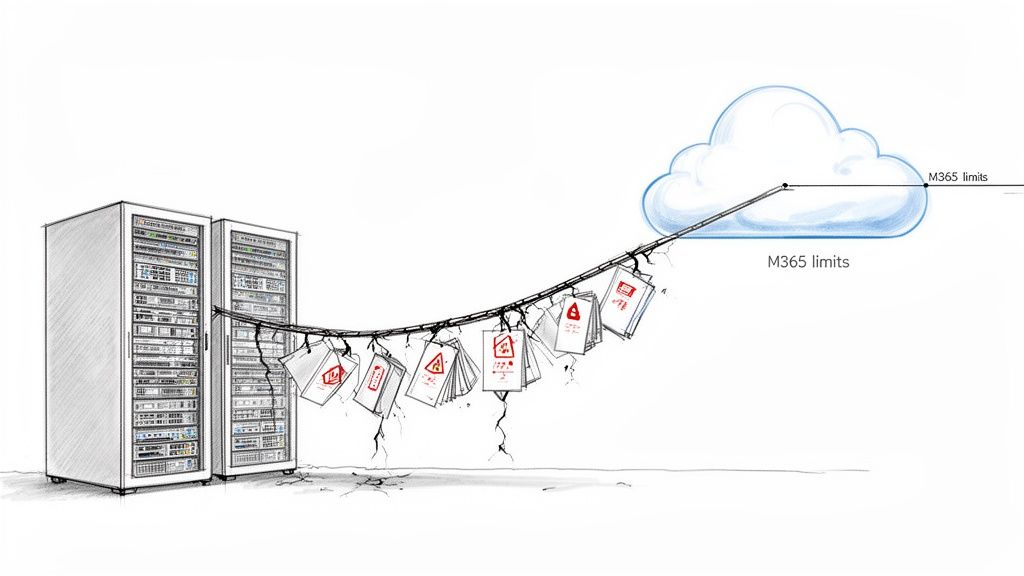
- Microsoft 365 Is Not an Infinite Bucket: The platform actively defends itself against being overloaded. Your migration will slam into non-negotiable technical ceilings like API throttling, which craters data transfer speeds, and the infamous 5,000-item list view threshold.
This isn't about 'if' your DIY migration will hit a wall; it's about when, and what the cost will be to your data integrity and compliance posture. The documentation says these limits exist, but the standard approach is to pretend they don't until it's too late.
A failed project means more than just delays—it means lost data, broken business processes, and gaping security holes. For anyone managing these complex environments, understanding the destination is just as critical as the journey. Our guide on the Microsoft 365 administrator role gives a clear-eyed view of the expertise required to manage the platform you're moving to.
The Brutal Reality of Discovery and Remediation
The single biggest risk in your file share migration isn’t waiting for you in the cloud. It’s the digital hornet’s nest you’re about to poke on your own servers. We often see clients fail when they completely underestimate this phase, treating it like a simple file-counting exercise. That’s a catastrophic mistake.
This part of the project isn’t an inventory; it's an aggressive forensic audit. The goal is to find every single landmine buried in your file shares before they detonate inside SharePoint Online. Your team’s job is to map out the organised chaos that has festered for the last decade.
Moving Beyond Simple File Counts
Running a basic dir /s command or glancing at a TreeSize report won't cut it. Your team needs to actively hunt for the specific technical gremlins guaranteed to break your migration and poison your new SharePoint environment from day one.
Here’s what you must find:
- Path Length Violations: Microsoft’s documentation is crystal clear: the entire decoded file path—including your tenant name, site, and file name—cannot exceed 400 characters. We routinely uncover thousands of files nested so deep in legacy folder structures that they are guaranteed to fail. You have to find these before you even think about moving them.
- Chaotic Permissions: Your file shares are almost certainly littered with rogue ACLs (Access Control Lists). Think permissions granted to “Everyone,” “Authenticated Users,” or, worse, individual accounts of employees who left the company years ago. Simply lifting and shifting this mess means you’re importing a decade of security vulnerabilities directly into Microsoft 365.
- Broken ACL Inheritance: This one is a silent killer. Years of ad-hoc permission tweaks create a tangled web where folders no longer inherit permissions correctly from their parent. Standard migration tools often misinterpret these exceptions, leading to a post-migration nightmare of either wide-open sensitive data or users locked out of their own critical files.
- Rampant File Duplication & ROT Data: You don't have 5 TB of unique, valuable data. What you likely have is 3 TB of useful information and 2 TB of redundant, obsolete, and trivial (ROT) copies. Migrating all this junk is a waste of time and money, and it pollutes your clean new environment from the second you arrive.
We’ve seen clients get burned by trusting a migration tool’s pre-flight report without doing their own deep analysis. The tool might flag a long file path, but it won’t tell you it’s for a critical legal document that can’t be renamed, creating a massive business roadblock that stops the project cold.
The Harsh Necessity of Remediation
Once you have this map of your data chaos, the real work begins. Remediation isn't a technical task; it's a political one. You have to get business units to confront their data hoarding and make tough decisions. This is where most internal IT teams hit a wall. You must secure a clear mandate to not just recommend, but enforce remediation.
This means getting departments to:
- Flatten Deeply Nested Structures: Archive or reorganise folders that violate the path length limits.
- Approve New Permissions: Decommission archaic security groups and define a clean, role-based access model.
- Declare Data Ownership: Make the business accountable for finally deleting redundant and obsolete data.
Missing this step doesn't just fail the migration; it breaks legal compliance. Once these vulnerabilities are found, they must be handled according to your vulnerability management best practices. An expert-led process turns this painful audit into a powerful lever for positive organisational change. It’s exactly why we have a detailed guide on how to conduct a proper SharePoint migration assessment—it's the only way to get ahead of these risks.
The Ollo Verdict: Discovery and remediation are non-negotiable. Attempting this with surface-level tools or without a rock-solid mandate from leadership is a false economy that all but guarantees you will drag your biggest security risks into the heart of your new cloud workspace. Get it wrong, and your project is over before it even starts.
Choosing Your Weapon: Migration Tools Are Not Created Equal
Your choice of migration tool will absolutely define the ceiling of your success. As an IT Director, you’ve been burned by vendor promises before. Let's cut through the marketing fluff and talk about the real-world breaking points.
Your decision process for a tool has to be just as rigorous as your data discovery. The problems you uncover during discovery are the exact things that will instantly break a simplistic tool.
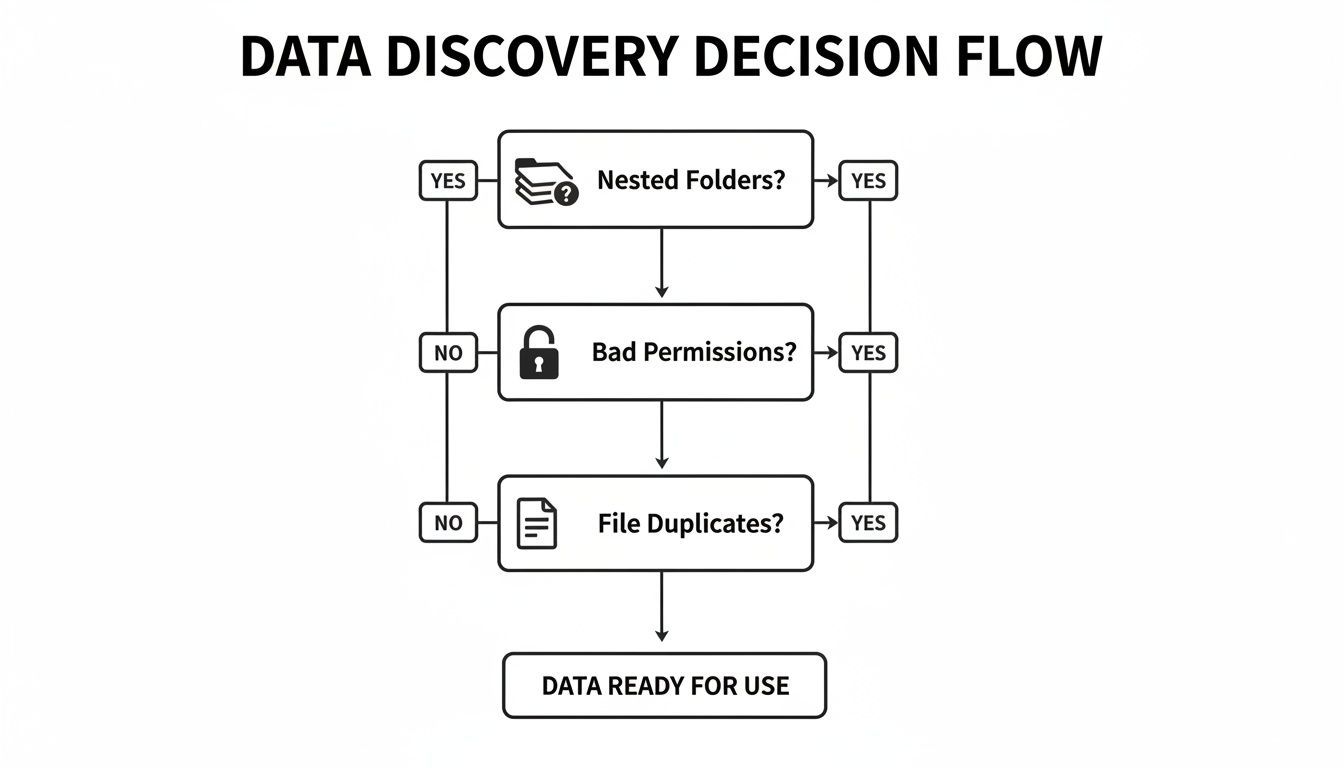
Common problems like deeply nested folders, tangled permissions, and rampant file duplication aren't just inventory items to be counted. They are roadblocks that demand very specific tool capabilities to get past.
Migration Tool Reality Check: SPMT vs ShareGate vs Custom Scripts
Let's be brutally honest about where each migration tool hits a wall. This isn't about marketing features; it's about the critical failure points that can derail your entire project.
| Failure Point | SPMT (SharePoint Migration Tool) | ShareGate | Ollo's Approach (ShareGate + PowerShell PnP) |
|---|---|---|---|
| Complex Permission Transformation | Fails spectacularly. Attempts a direct 1:1 map, which is what you're trying to escape. Broken inheritance is migrated, not fixed. | Good for standard NTFS to SharePoint mapping. Can struggle with highly custom, multi-domain permission scenarios that need transformation, not just mapping. | Surgical. We use PowerShell to remap, transform, and validate complex permissions, ensuring a clean, modern structure in Microsoft 365, not a "lift and shift" of old problems. |
| Path Length & Character Issues | Hard stop. Hits the 400-character limit and fails the file. The error logs are cryptic and require manual, file-by-file investigation. A project killer. | Excellent. Automatically shortens folder names and fixes invalid characters during migration, flagging changes for review. A core strength. | Proactive & Comprehensive. We use ShareGate's auto-remediation and supplement it with custom PowerShell reports to handle edge cases and provide a full audit trail of every single file and folder name change. |
| Throttling & Performance at Scale | Unpredictable and unmanageable. Throttling can bring it to a standstill with no way to control the timing or intensity of migration jobs. | Very good. Manages throttling intelligently and allows for job scheduling. However, performance can become unpredictable with millions of tiny files without expert job batching. | Orchestrated. We leverage ShareGate's engine but strategically batch and schedule jobs based on tenant performance data. We use PowerShell to monitor throttling in real-time and adjust on the fly. |
| Post-Migration Cleanup & Fixes | Non-existent. It’s a one-way tool. If something is wrong after the migration, your only option is to delete and try again. | Not its core function. It can report on issues, but it can't programmatically fix thousands of items with incorrect metadata or broken permissions post-migration. | Essential. This is the entire point of PowerShell PnP. It’s our scalpel for fixing issues like broken inheritance or GUID conflicts at scale—tasks impossible with a GUI tool. |
This isn't about one tool being "bad" and another being "good." It’s about understanding that a complex migration is not a one-tool job. Relying on a single solution, especially a basic one, is a recipe for failure.
SPMT: The Free Tool That Costs You Everything
Microsoft’s SharePoint Migration Tool (SPMT) is free. The documentation says it's for ‘simple’ migrations. The reality is that it’s for a quick test run on a non-critical folder that’s under 50 GB. Anything more is a gamble you are almost guaranteed to lose.
SPMT breaks predictably and catastrophically in real-world enterprise scenarios:
- Permission Nightmares: It has no sophisticated way to translate your complex, nested NTFS permissions into a clean SharePoint model. It doesn't flag broken inheritance; it just migrates it incorrectly, leaving you with a security mess.
- Path Length Failures: The moment SPMT encounters a file path over the 400-character limit, it doesn’t just flag it—it fails the file. Your team will waste days trying to decipher the cryptic logs, one painful file at a time.
- Useless Error Reporting: SPMT’s reporting is completely inadequate for an enterprise project. You get basic success/failure counts, not the granular, actionable intelligence you need to figure out why a batch of 20,000 files failed. This lack of insight grinds projects to a halt.
The Ollo Verdict: Use SPMT for <50GB. For anything else, you need custom scripting. Using SPMT for your actual business-critical migration isn't a cost-saving measure; it's an acceptance of project failure. See our full breakdown in our detailed analysis of the SharePoint Migration Tool.
ShareGate: The Enterprise Standard with Blind Spots
Next up are the enterprise-grade tools like ShareGate. Let's be perfectly clear: ShareGate is a powerful and essential part of our toolkit. Its pre-migration analysis is fantastic, and its core migration engine is robust. We use it on every single project.
However, we often see clients fail when they treat it as a fire-and-forget solution. Its breaking points emerge at the extreme ends of enterprise complexity. While it handles standard permissions well, it struggles with convoluted, multi-domain structures that require surgical transformation. Critically, it’s not designed to programmatically fix thousands of issues after the migration is complete.
PowerShell PnP: The Non-Negotiable Scalpel
This is where an internal team's reliance on GUI-based tools fails them. When you discover thousands of files were assigned the wrong Content Type post-migration, or that a user ID (GUID) conflict has severed permission inheritance on a critical departmental library, ShareGate can't fix it for you. You need a scalpel.
This is the non-negotiable role of custom PowerShell PnP (Patterns and Practices) scripting. It is the only way to perform complex, large-scale corrections after the fact.
We use PowerShell scripts to:
- Fix Broken Inheritance: Programmatically scan and reset broken permission inheritance caused by migration anomalies.
- Manage GUID Conflicts: Identify and resolve conflicts where an on-premise user or group ID clashes with an existing ID in your Microsoft 365 tenant—a frequent source of access denial.
- Bulk-Update Metadata: Apply correct metadata or change Content Types across entire site collections, a task impossible to do manually at scale.
A multi-tool strategy isn't a luxury; it's the only real risk-mitigation approach for a serious enterprise migration. Relying on one tool is a direct path to data loss and compliance breaks. This is the difference between a DIY attempt and a specialist-led execution.
Navigating SharePoint’s Throttling and Technical Ceilings
If you thought auditing your file servers was the hard part, welcome to the real boss battle. Many people think moving to Microsoft 365 is like pouring data into an infinite bucket. It’s not. It’s an actively defended service. The documentation says it will defend itself, but in reality, it's far more aggressive than you'd expect.
Your project's timeline hinges on how you navigate the two biggest killers of migration speed: API throttling and the infamous 5,000-item list view threshold. Get this wrong, and your project doesn't just slow down. It fails.

The Great Throttling Miscalculation
Let's talk about speed. It’s easy to calculate a timeline based on your network bandwidth, but that number is a fantasy. The real bottleneck isn't your internet pipe; it's the SharePoint Migration API, which deliberately slows you down to protect the service for all tenants.
Microsoft’s official SharePoint migration speed guide confirms what we see in every poorly planned project. When you’re moving millions of tiny 50 KB files, throughput can crater to a disastrous 250 GB/day. We often see DIY projects grind to a halt when they hit this wall.
The mistake is assuming all data is equal. A single 10 GB video file migrates exponentially faster than ten thousand 1 MB documents. The API punishes you for the number of operations, not just the volume of data.
The Technical Ceilings That Break Your Project
Beyond throttling, your migration will slam into hard limits baked into SharePoint’s architecture. These aren’t bugs; they are documented constraints your team must design around from day one.
- The 5,000-Item List View Threshold: This is the most notorious limit. Once a library view, folder, or query exceeds 5,000 items, SharePoint starts blocking operations to prevent database locking. Migrating 20,000 files into a single folder doesn't just create a slow user experience; it breaks indexing, filtering, and automated workflows.
- Unique Permission Scope Limit: SharePoint allows a maximum of 50,000 uniquely permissioned items per list or library. If your on-premise shares have a chaotic mess of item-level permissions, you will hit this ceiling fast, and the migration will stop dead.
- File and Folder Count Limits: A single migration job using the API cannot contain more than 1 million files or folders, and its total size shouldn't exceed 1 TB. We've seen teams try to migrate an entire 5 TB department share in one go, only for the job to fail repeatedly with cryptic errors.
Ignoring these documented limits is the number one cause of failed projects we're called in to rescue. For a deeper dive, our guide on executing a large-scale SharePoint migration details how we structure projects to stay within these boundaries.
The Ollo Verdict: How to Avoid Disaster
You cannot brute-force your way through these limits. Success requires a more surgical approach.
This is how we ensure velocity without triggering the tenant's defence mechanisms:
- Job Orchestration: We never migrate "a folder." We analyse the source and create dozens of smaller, targeted migration jobs, structured to stay well under the 1 million item count, strategically mixing large and small files to balance the load on the API.
- Phased and Incremental Passes: We perform an initial bulk migration, followed by multiple incremental passes. This minimises the data that needs to move during the final cutover and reduces pressure on the API.
- Intelligent Scheduling: We run heavy migration jobs outside of your business hours. This not only avoids impacting your users but also means we’re not competing with your own tenant’s daily activity for API resources, leading to less throttling.
Your team can't just "wing it" when it comes to these limits. Without the experience to structure jobs correctly, you are simply hoping for the best. Hope is not a migration strategy. This is the point where a DIY approach becomes a significant business risk, and a specialist-led execution becomes the only safe pair of hands.
Post-Migration Governance: Winning the Battle After the War
Getting your files into Microsoft 365 isn't the finish line. We see it all the time: the project team breathes a huge sigh of relief, and then the real problems begin. The work isn't over; it's just entered its most critical phase.
A migration means nothing if users can’t find their files, permissions are a mess, or you can’t prove data integrity to your auditors. The hours immediately following your go-live are where you either lock in your success or watch it all unravel.
The First 72 Hours: Validation and Rollback Triggers
The moment the final migration pass completes, your team needs to be ready with a pre-defined validation plan. This isn't the time for hope; it's the time for checklists.
First, you run the numbers. Use scripts to immediately compare file and folder counts between the old server and the new SharePoint sites. Any discrepancy over 0.1% is an immediate red flag.
Next, you verify permissions on your most sensitive data. We use PowerShell to programmatically export the ACLs from high-stakes folders like Finance or Legal and compare them line-by-line against the new SharePoint library permissions.
Finally, bring in the humans. Have pre-selected power users try to perform their day-to-day tasks. If they can’t work, the migration has failed, period.
The Ollo Verdict: You must define your rollback triggers before you start. What's the acceptable threshold for a data mismatch or permission errors? If validation fails and you can't fix it within a pre-agreed window (say, four hours), you need the confidence and the procedure to hit the abort button and revert to the on-premise shares. Hesitating here turns a recoverable problem into a business-wide disaster.
From Archaic Folders to Modern Governance
Validation proves you moved the data correctly. Governance ensures it stays secure and useful. Your old file share security model, built on a brittle foundation of nested folder permissions, is completely obsolete in the cloud. Simply lifting and shifting those permissions is one of the most common—and costly—mistakes we see.
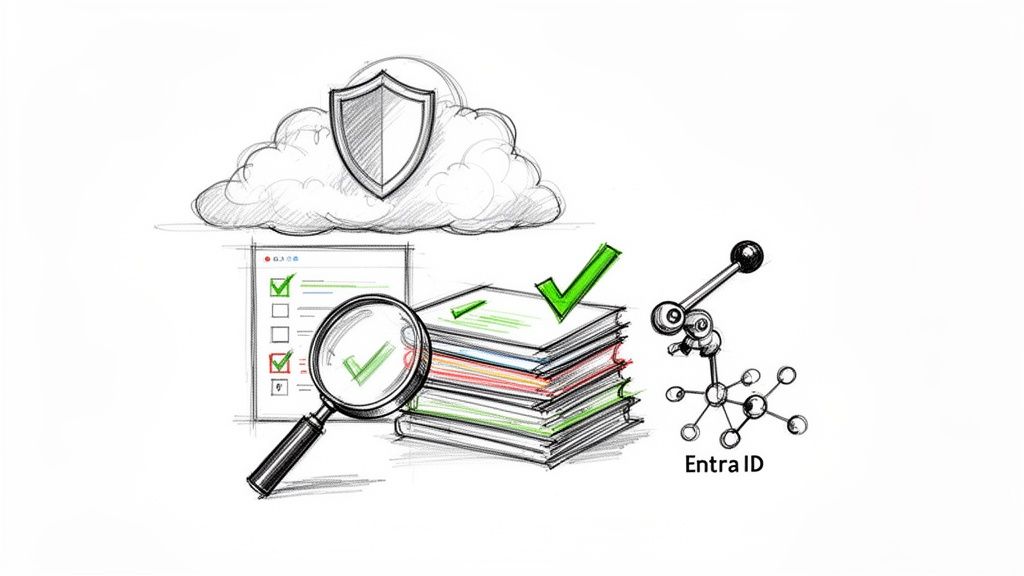
The real return on this project comes from moving to a modern, attribute-based access control (ABAC) model powered by Entra ID. This is how you build a defensible information architecture:
- Microsoft Purview Sensitivity Labels: You have to move beyond just who can get in. Labels like 'Confidential – Finance' can enforce encryption, apply watermarks, and block sharing.
- Data Loss Prevention (DLP) Policies: This is your automated backstop against mistakes. Configure DLP policies to actively scan for and block the sharing of sensitive information, like credit card numbers, before it leaves your control.
- Retention Policies: Put a stop to data sprawl before it starts. Apply retention and deletion policies based on data type and regulatory needs. This isn't just about spring cleaning; it’s a legal necessity.
Migrating your files without implementing this governance framework isn't a digital transformation; it's just moving your mess to a more expensive location. Our guide to SharePoint data governance is essential reading.
IT leaders in regulated industries should take particular note. In finance, where Entra ID zero-trust is mandatory, we've seen 50% of permissions break due to unhandled GUID conflicts. Don't gamble with your compliance; Ollo's approach is your risk shield. You can learn more about these persistent challenges from expert SharePoint analysis.
This shift from reactive permission patching to proactive, policy-driven governance is what separates a successful project from a ticking time bomb. It's also where a specialist is essential to translate business rules into technical security controls that actually work.
Frequently Asked Questions
As an architect who gets the call when a high-stakes migration is going sideways, I’ve heard all the tough questions from IT Directors and Enterprise Architects. Here are the straight-up answers you need.
Why Can't My Internal Team Just Use SPMT for the Migration?
Your internal team might be brilliant, but giving them Microsoft's SharePoint Migration Tool (SPMT) for an enterprise migration is like sending a soldier into battle with a penknife. We are constantly brought in to rescue projects where SPMT has failed spectacularly. It has no sophisticated way to map your tangled legacy permissions. It simply chokes on the long file paths and broken permission inheritance that I guarantee are lurking in your file shares.
Using SPMT for a business-critical migration isn’t a knock on your team’s skill; it’s a catastrophic mismatch of tool to task. You're setting them up for failure and exposing the business to massive data integrity and compliance risks.
How Long Does a Realistic On-Premise File Share Migration Take?
Forget any timeline you’ve calculated based on data volume alone. I’ve seen a 10 TB migration take three months and a chaotic 2 TB project drag on for over six. The real driver of your schedule is complexity: the depth of your nested folders, the chaos of your permissions, and the volume of ROT data that has to be cleaned up first.
Done properly, discovery and remediation alone can easily burn 4-6 weeks. The migration itself, executed in careful, phased waves, will likely take another 4-8 weeks. Budget 3-6 months for a complex migration. Anyone promising it in a few weeks is dangerously inexperienced.
What Is the Single Biggest Mistake You See Companies Make?
The most common and costly mistake is rushing into the migration without a brutal, honest, and thorough discovery and remediation phase. Leadership gets impatient and pressures the team to "just move the data," so they skip the painful but essential audit of their own file shares.
What happens next is predictable. They migrate terabytes of useless ROT data, import a decade of tangled permissions, and immediately slam into SharePoint's documented technical limits, like the notorious 5,000-item list view threshold.
This doesn't just fail the migration; it pollutes your pristine Microsoft 365 environment from day one. Skipping this step doesn't just break the project—it can break legal and compliance obligations.
Your on-premise file share migration is a high-stakes operation where a DIY approach introduces unacceptable risk. At Ollo, we specialise in executing these complex projects with the precision and risk-mitigation strategy they demand.
Contact Ollo today to secure your data and ensure your migration succeeds

















