



Your team signed off the OneDrive rollout. The migration workbook says complete. Then the actual project starts.
Finance loses access to a live report because a policy exception never got documented. An old contractor link is still active because nobody built expiry and review into the sharing model. Branch offices start complaining that sync traffic is hammering the line during business hours. We often see clients call for help at exactly this point, after the “successful” deployment has already created governance debt.
That's the problem with most OneDrive for Business best practices content. It reads like a clean checklist written for a tidy lab environment. Your estate isn't tidy. It has leavers, mergers, inherited permissions, old file structures, unmanaged devices, and users who will click Share before they ask IT.
Microsoft's own guidance already tells you OneDrive for Business is personal work storage, not a project repository, and that each user gets 1 TB by default, with 5 TB per user available for tenants with at least five licensed users, and more by request. The documentation says it's flexible. In reality, if your teams dump department-owned records into personal OneDrive accounts, you create ownership drift, orphaned content, retention mess, and eDiscovery exposure.
This isn't a generic checklist. It's a field guide for not getting burned.
1. Implement Zero-Trust Access Controls with Conditional Access Policies
If OneDrive access still depends on “user has the password and MFA passed once,” your control model is weak. The risk doesn't sit in the product. It sits in user behaviour, stale sessions, unmanaged devices, and broad sharing settings that nobody tightened before adoption.
Near the start of the rollout, anchor the security model in policy. Microsoft's admin ecosystem and independent guidance both point to controlling OneDrive through the SharePoint admin centre and policy layers such as external sharing control, unmanaged-device blocking, idle session sign-out, and retention settings in this OneDrive security guidance. The documentation says the controls exist. Reality is that most tenants leave them half-configured.
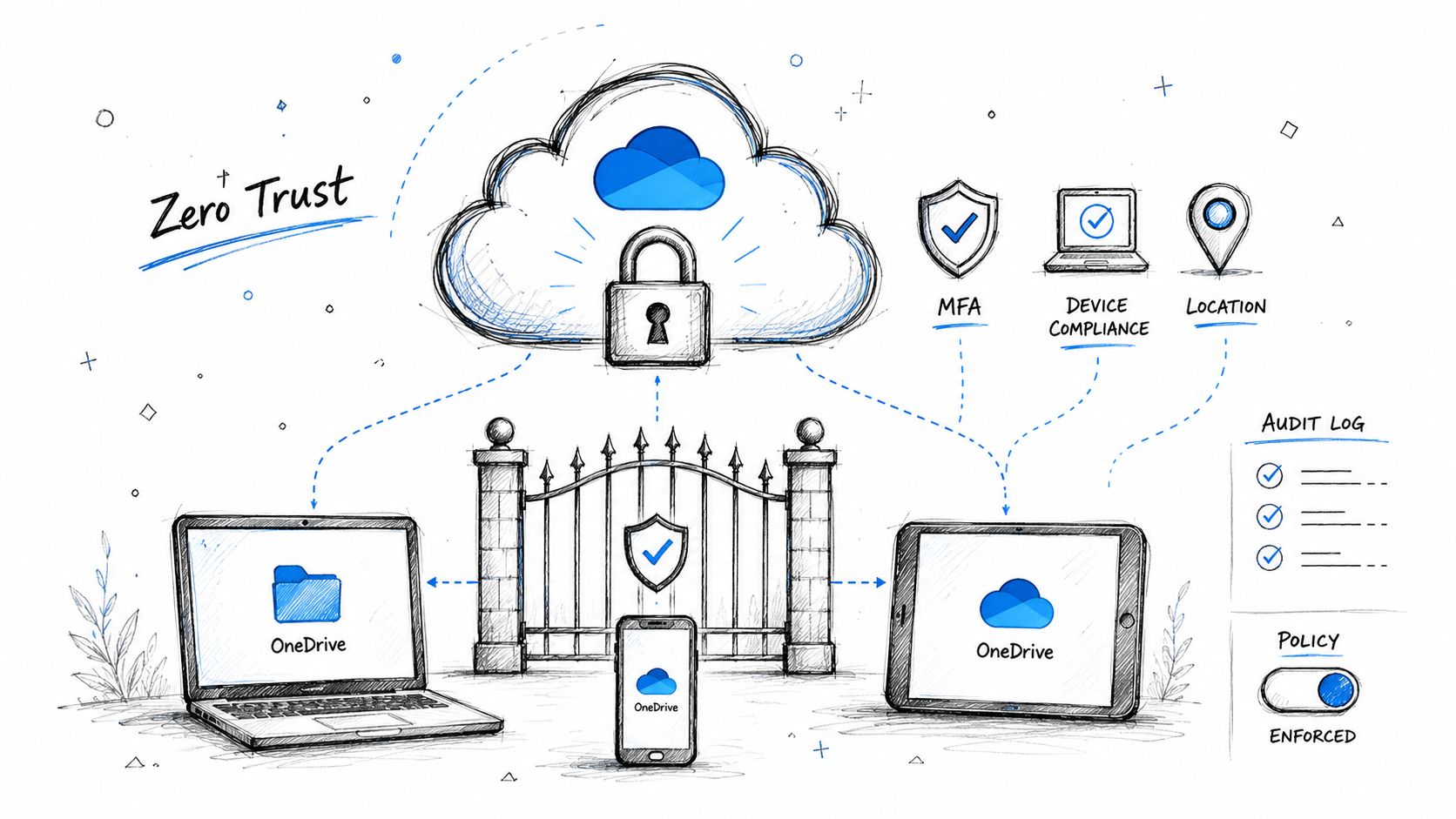
We often see clients fail when they treat Conditional Access like a switch instead of a dependency map. They block unmanaged devices, then discover migration accounts, automation identities, VDI sessions, and legacy app paths all got caught in the blast radius. That's not security maturity. That's self-inflicted outage.
Build controls before adoption
Your team needs a policy set that checks device state, session risk, and location before access. Then you need an exclusions register with owners and end dates. If you don't document exceptions, they become permanent.
- Whitelist operational identities: Protect migration and automation accounts from accidental lockout, then set review dates.
- Test real access paths: Validate VPN, VDI, branch access, mobile access, and browser sessions before enforcement.
- Review sign-in patterns: Blocked access that nobody investigates will turn into shadow IT.
Practical rule: Every Conditional Access exclusion is debt. Put an owner and a sunset date on it.
If you need a clean reference point for designing policy structure, Ollo's write-up on Conditional Access policies for Microsoft 365 is the right place to start. The Ollo verdict: basic Conditional Access works for simple estates. In a regulated tenant, you need policy design, exception management, and operational testing, not just toggles.
A quick explainer helps non-security stakeholders understand what you're enforcing:
2. Enforce Data Loss Prevention Policies with Sensitivity Labels
DLP without classification discipline is how IT teaches users to work around security. You block legitimate files, create noise, and push people to consumer tools or personal mail.
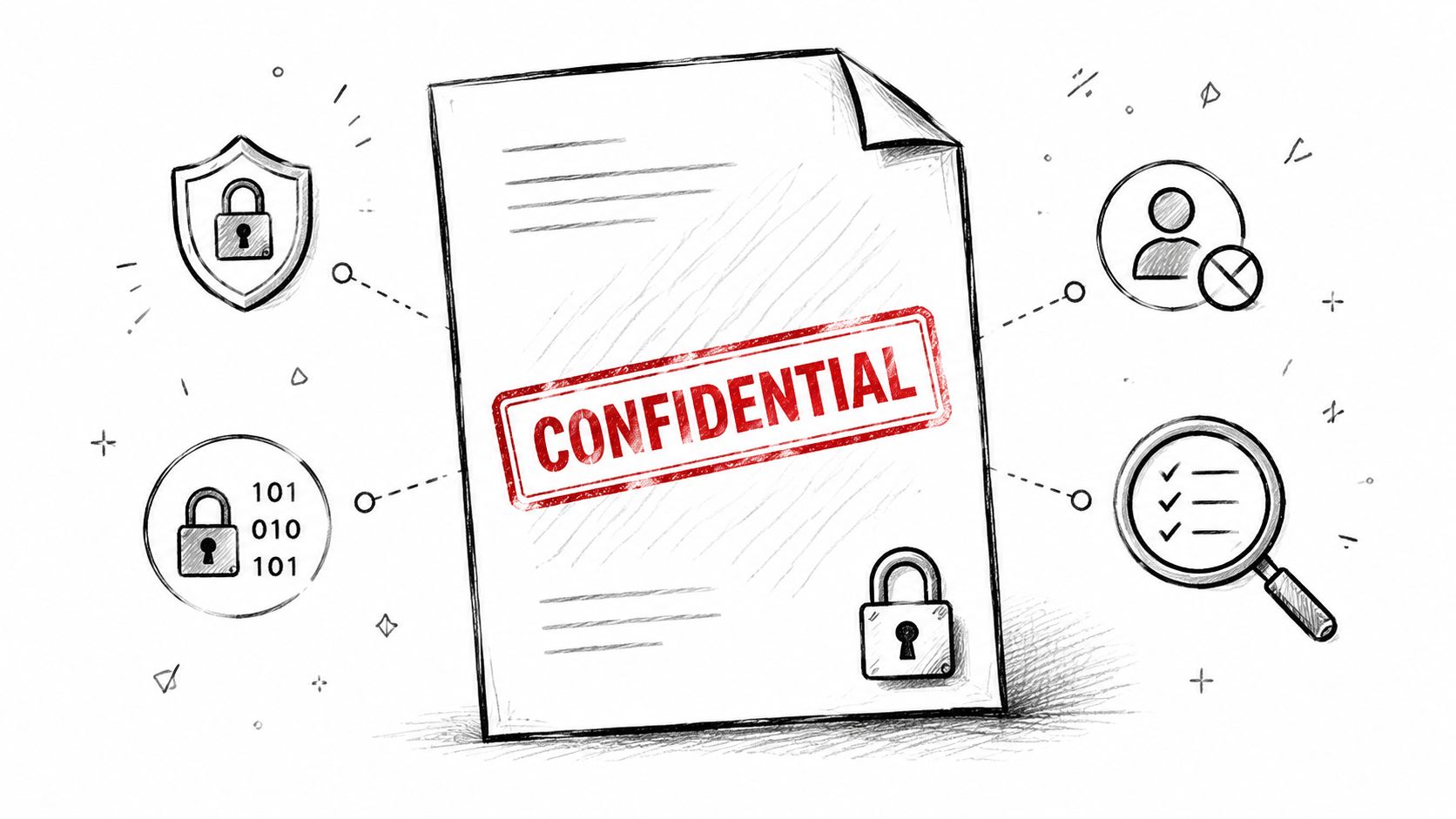
The right model starts with labels that mean something in your organisation. Internal. Confidential. Restricted. Then you apply DLP policies to those classes and to known high-risk content patterns. If you skip the taxonomy work, your controls will punish the wrong users and miss the wrong files.
We often see clients deploy DLP in blocking mode too early. Support tickets spike. Compliance assumes the policy is working because alerts exist. In practice, users just rename files, move data elsewhere, or stop collaborating inside governed channels. That's a failed rollout wearing a compliance badge.
Start in audit mode, then tighten
Run DLP in observation mode first. Find what users store and share. Then tune policies around your real documents, not an abstract template.
- Scope high-risk content first: Focus on the data that would hurt you in an audit, dispute, or breach.
- Train users on labels: Unlabelled content often becomes the blind spot that breaks your control model.
- Separate cloud and endpoint enforcement: Browser restrictions, clipboard control, printing control, and device copy restrictions need endpoint management as well.
Security policy has to match user workflow. If it doesn't, users route around it.
Ollo has a practical guide to data loss prevention in Microsoft 365 that addresses the policy side often underestimated. The Ollo verdict: DLP is useful only when classification, exceptions, and user education are designed together. Otherwise it becomes expensive theatre.
3. Implement OneDrive Sync with Known Folder Move and Access Control
Known Folder Move looks harmless on paper. Redirect Desktop, Documents, and Pictures into OneDrive, protect the user, move on. In reality, this is one of the fastest ways to overload endpoints and WAN links if you roll it out like a blanket policy.
The issue isn't the feature. The issue is volume, path quality, local disk space, sync behaviour, and user estate variation. We often see clients fail when they turn on KFM for everyone at once, then discover old laptops, deep folder structures, build artefacts, PST files, and massive media folders all trying to sync at the same time.
Sync is an infrastructure event
Treat KFM like a controlled deployment, not a checkbox. Pilot it on representative users first. Your finance laptop, engineering workstation, clinical shared device, and VDI session do not behave the same way.
Microsoft Learn confirms that Microsoft 365 migrations and file movement have hard technical limits around file-path and URL length, item and partition handling, and service-side throttling in Microsoft's organisational readiness guidance. The documentation says these constraints exist. Reality is that DIY projects ignore them until sync starts failing, with problems not immediately evident.
- Pilot by user type: Test different departments and hardware profiles before wider rollout.
- Exclude junk early: Temporary folders, application caches, build output, and other non-record content shouldn't enter OneDrive sync.
- Control sync scope: Personal OneDrive content is one thing. Dragging shared libraries into broad sync without governance is where support queues fill up.
Your team also needs to tackle path depth before sync starts. Ollo's breakdown of file path and OneDrive sync failures speaks directly to the technical mess we see in live estates. The Ollo verdict: use KFM in stages, with path remediation and endpoint controls already in place. If you don't, you won't get a backup strategy. You'll get a sync incident.
4. Establish Proper Site and Folder-Level Sharing Permissions with Inheritance Controls
The documentation encourages inheritance because inherited permissions are easier to manage. That advice is correct. The problem is that users break inheritance the moment collaboration gets messy.
A contractor needs one folder. A manager shares a file with a personal exception. A departed user owned content that nobody rehomed. Years later, your tenant contains unique permissions nobody can explain and external access nobody can justify. We often see clients fail when they assume OneDrive sharing remains simple over time. It doesn't.
Broken inheritance becomes audit pain
You need a sharing model that prefers group-based access and minimises one-off grants. Share to groups where possible. Keep exceptions visible. Review them on a schedule. If your auditors ask who can access regulated files and your answer depends on manual file-level archaeology, your governance model has already failed.
Use a reporting tool or PowerShell to identify where inheritance has broken and where external users still exist. Then force business owners to justify each exception. If they can't, remove it.
- Prefer group-based sharing: Individual grants are harder to review and easier to forget.
- Expire external access: Temporary collaboration should have an end date, not an indefinite permission trail.
- Review leavers aggressively: A departed user's OneDrive is one of the most common sources of orphaned access.
When permission history depends on memory, nobody owns the risk until legal asks for evidence.
OneDrive for Business best practices stop being administrative hygiene and start becoming compliance control. Missing this step doesn't just create clutter. It undermines defensible access management.
5. Deploy OneDrive as Part of Tenant-to-Tenant Migration with GUID Conflict Resolution
Tenant-to-tenant work is where optimistic migration plans go to die. If your team thinks OneDrive migration is just copy, remap, and cut over, they haven't hit GUID conflicts yet.
In consolidations, mergers, carve-outs, and regional tenant redesigns, OneDrive isn't just moving files. You're moving identity-linked content, permissions, ownership, sharing artefacts, and references bound to object identities. We often see clients fail when they discover too late that the same person exists across tenants with different identifiers, different memberships, and different sharing history.
Tool choice matters more than the licence page
SPMT has a place. It is not the answer for complex identity-heavy tenant consolidation. ShareGate helps, but even that won't save a badly prepared mapping model. Your team needs pre-migration analysis, conflict identification, scripted remediation, and permission validation after cutover.
Microsoft's own guidance confirms that migration risk is shaped by technical limits such as path constraints and service throttling. In real projects, GUID and identity alignment adds another layer of failure that consumer-style migration thinking won't survive.
- Audit identity before data: Export users, UPNs, and ownership mappings before you move a single file.
- Preflight path issues: Deep hierarchies and long file paths become migration failures later if you leave them untouched.
- Validate post-cutover access: A successful transfer means nothing if the user can't open the content with the right inherited permissions.
If your programme includes consolidation work, read Ollo's guide to Microsoft 365 tenant migration and compare that with broader insights from Modernization Intel. The Ollo verdict: use SPMT for small, low-risk jobs. For tenant consolidation, identity remapping and scripted remediation are mandatory.
6. Monitor OneDrive Storage Quota and Implement Tiered Storage Policies
A quarter-end storage alert is a bad time to discover your users have turned OneDrive into an unofficial records system. By then, sync complaints are rising, restore requests are harder to untangle, and your service desk is cleaning up a governance failure disguised as a capacity problem.
As mentioned earlier, Microsoft's admin guidance is clear that OneDrive is personal work storage. Treat it that way. Drafts, working files, and individual collaboration belong here. Department-owned records, shared operational data, and anything that must outlive the employee do not.
Quota policy needs business rules behind it
IT Directors get into trouble when they hand out larger quotas to stop complaints. That decision usually hides the underlying issue. Users are storing team content in personal locations because nobody enforced content placement, ownership, or archival rules.
The result is predictable. Leavers still own active business files. Legal hold scope becomes messy. Retention decisions get applied inconsistently because the wrong content lives in the wrong service.
Set storage tiers by role and data pattern, not by who shouts loudest. A design engineer, finance lead, and field operations manager do not create the same file volume or risk profile. Review growth trends, find abnormal usage early, and force shared records into SharePoint or another controlled repository before they become business-critical inside personal storage.
- Assign quota by role: Base limits on actual work patterns and approved data types.
- Track leavers' content aggressively: Orphaned OneDrive data often contains live business dependencies.
- Move shared records out of personal storage: Ownership, retention, and access control break when team data sits in OneDrive.
- Flag abnormal growth: Sudden spikes usually point to backup misuse, duplicate sync behaviour, or users bypassing agreed storage locations.
This is one of the places where standard guidance falls short in enterprise environments. The admin portal shows consumption. It does not fix bad information architecture, weak lifecycle policy, or years of users treating personal storage as a departmental file share.
The Ollo verdict: quota increases are a temporary painkiller. Tiered storage policy, enforced content placement, and cleanup of high-risk OneDrive accounts are what stop the repeat incident. If you skip that work, storage sprawl turns into a compliance and recovery problem with your name on it.
7. Enforce OneDrive-Only Access Policy with Blocking Legacy Protocols
Security teams often congratulate themselves for rolling out Conditional Access while old access methods keep slipping underneath it. That happens because legacy access paths and undocumented integrations survive every “modern workplace” project longer than anyone admits.
Your problem isn't only user sign-in. It's old scripts, old sync habits, old connectors, and old file access assumptions. We often see clients fail when they lock down browser and mobile access but leave a forgotten dependency pulling or pushing data through methods that don't honour the same controls.
Find the bypass paths first
Before you block anything, inspect actual usage. Sign-in patterns, service dependencies, backup jobs, and old automation all matter. If your line-of-business application still depends on something nobody documented, the outage will land on your desk five minutes after enforcement.
This is one of the least glamorous parts of OneDrive for Business best practices, but it's one of the most important. A policy that users can bypass through old access paths isn't a policy. It's a diagram.
- Audit real protocol use: Don't rely on architecture documents. Check live activity.
- Replace old integrations deliberately: Migration from old methods needs a remediation plan, not a switch-off memo.
- Keep exceptions under review: If a legacy path must remain temporarily, track it like a risk acceptance.
The Ollo verdict: block legacy access, but only after you've identified what still depends on it. Blind enforcement creates outages. Delayed enforcement preserves risk. Specialists earn their keep in that gap.
8. Implement Version History Management and Retention Policies for Compliance
Version history saves users. It also preserves material they thought they had removed. That matters a lot more in regulated environments than generic admin articles tend to admit.
A draft contract with redlined terms, a spreadsheet with sensitive values that were “deleted,” an early patient note exported to the wrong place. If the file still carries version history, the organisation may still hold that data. We often see clients fail when they assume deleting current content solves the compliance problem. It doesn't.
Retention needs a legal model, not a default
Versioning and retention have to work together. Legal hold, deletion obligations, records classification, and recovery expectations all pull in different directions. If nobody defines the hierarchy of those rules, your admins will improvise and your compliance team will inherit the consequences.
Microsoft also makes clear that OneDrive works best alongside SharePoint for business file storage in Microsoft's file storage and sharing setup guidance. That matters here because team-owned records and defensible retention generally belong in repositories with stronger organisational control.
- Define retention by content type: Not every file deserves the same version history treatment.
- Coordinate with legal hold: Recovery and preservation requirements override convenience.
- Review old versions of sensitive files: Hidden history is still discoverable history.
Deleted from the latest version doesn't mean deleted from the tenant.
The Ollo verdict: if your retention model doesn't explicitly account for version history, you haven't finished the compliance design.
9. Establish OneDrive External Sharing Governance with Time-Limited Access Links
External sharing is where convenience becomes exposure. A user sends a link for a contractor, auditor, partner, or agency. The work ends. The link survives.
This is one of the most common governance failures we see after “completed” migrations. Nobody built link expiry, business justification, or regular review into the rollout. Then years later, sensitive content still sits behind permissions nobody remembers granting.
The broader market context matters here. In the workplace, Microsoft OneDrive was used by 51% of organisations, ahead of Google Drive and Dropbox at 34% each in a Spiceworks survey. That tells you OneDrive is already a standard endpoint in many estates. The failures come from governance, not unfamiliarity.
Default sharing is not a strategy
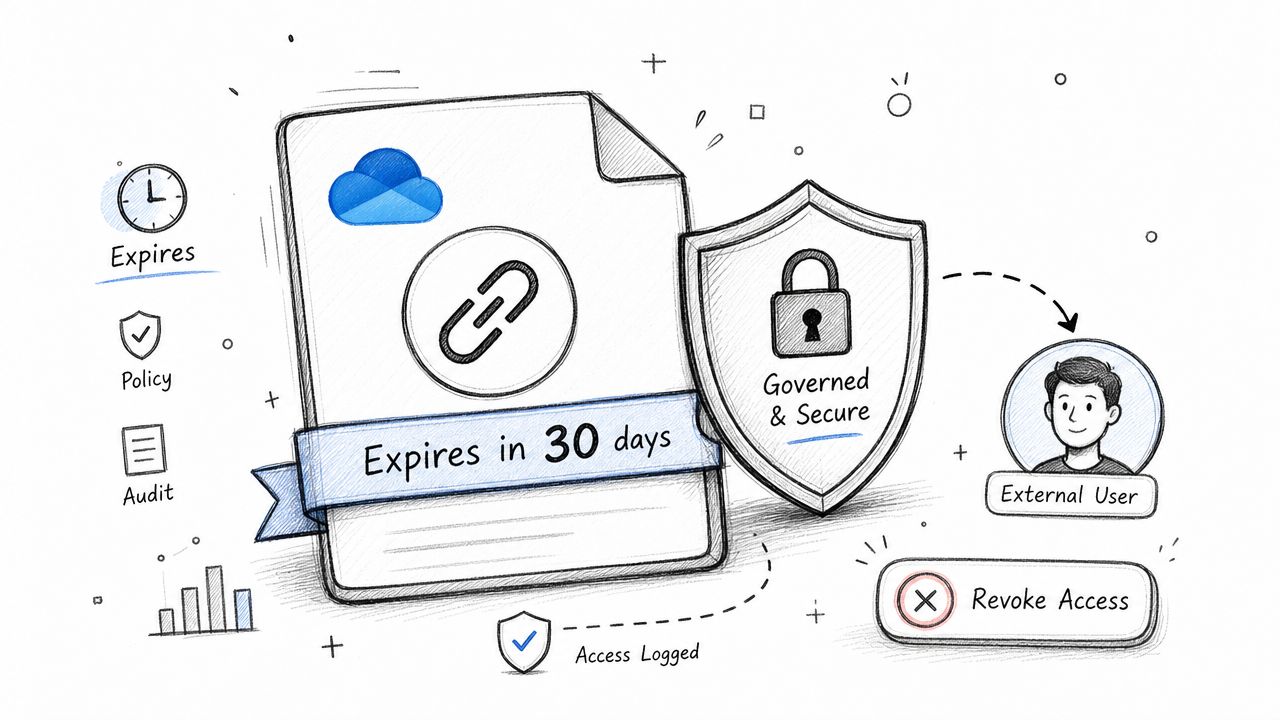
Require authenticated access for external users where possible. Set link expiry by default. Review active external access regularly. If someone wants a long-lived exception, make them own it in writing.
- Expire links automatically: Temporary collaboration should expire unless somebody renews it.
- Require authentication: Anonymous links are too loose for anything sensitive.
- Report external access: Compliance teams need visibility, not assumptions.
The Ollo verdict: if your tenant still allows old external links to linger without review, your sharing model is incomplete. Fixing that after an incident is far more painful than designing it upfront.
10. Integrate OneDrive with Advanced Threat Protection and Malware Scanning
OneDrive is a content platform. That means users will upload whatever reaches them first, including malicious files disguised as normal work. If your defence assumes basic detection is enough, you're trusting luck.
We often see clients fail when they rely on default scanning expectations that don't match their threat model. A suspicious file gets shared internally, a user opens it from a familiar location, and the incident response team learns too late that “stored in Microsoft 365” was mistaken for “safe by default.”
Detection needs workflow and response
Threat protection only helps if quarantine, review, release, and escalation paths are defined. If security can't see what was blocked, if users can override controls casually, or if suspicious files sit unreviewed, the tooling becomes another half-finished control.
This is also where broader recovery planning matters. Microsoft's guidance notes that unmanaged-device restrictions can take up to 24 hours to activate and don't affect devices already signed in. That means some control changes are not immediate enough for incident response. Your response plan has to assume lag and include containment options beyond policy edits.
- Quarantine suspicious uploads: Security needs a hold-and-review path.
- Define override authority: Don't let ad hoc approvals undermine scanning controls.
- Test response, not just detection: A policy that detects malware but stalls remediation still leaves you exposed.
If your Microsoft 365 security stack includes Defender, Ollo's guide to Microsoft Defender for Office 365 is a useful operational reference. The Ollo verdict: malware scanning is necessary, but it only reduces risk when paired with incident workflow, access control, and recovery planning.
OneDrive for Business: 10 Best Practices Comparison
| Solution | Implementation Complexity 🔄 | Resource Requirements ⚡ | Expected Outcomes ⭐📊 | Ideal Use Cases 💡 | Key Advantages ⭐ |
|---|---|---|---|---|---|
| Implement Zero-Trust Access Controls with Conditional Access Policies | High, complex Entra ID + Intune tuning; 3–6 months | Intune/Entra licenses, identity/security team, MFA/phishing‑resistant creds | Strong access control, reduced lateral movement, audit evidence for compliance | Regulated sectors (Finance, Healthcare, Energy); remote workforce | Continuous verification, legacy auth blocking, audit trails |
| Enforce Data Loss Prevention (DLP) Policies with Sensitivity Labels | Medium–High, policy rules + cultural rollout; 6–12 months | M365 compliance features (DLP/labels), training, classification tooling | Prevents accidental exfiltration, encrypted sensitive files, forensic logs | GDPR/HIPAA/PCI environments; PHI/PII/financial data handling | Automatic enforcement, encryption, reduced data leakage |
| Implement OneDrive Sync with Known Folder Move (KFM) and Access Control | Medium, pilot, network and endpoint tuning; 4–8 weeks | Network bandwidth planning, Intune, endpoint resources, monitoring | Automatic backups, offline access, fewer recovery requests; possible perf impacts | Hybrid work, desktop backup, remote workers with offline needs | Automatic backup/sync, improved user productivity |
| Establish Proper Site and Folder-Level Sharing Permissions with Inheritance Controls | Medium, audit and cleanup, governance design | Admins, audit tools (ShareGate/PnP), governance processes | Predictable permissions, fewer orphaned external accesses, easier audits | Large orgs with many sites; regulated industries needing strict access control | Simplifies audits, revokes access on exit, reduces permission sprawl |
| Deploy OneDrive as Part of Tenant-to-Tenant Migration with GUID Conflict Resolution | High, deep pre-migration analysis; 3–6 months planning | Migration tooling (ShareGate/PowerShell), migration specialists, test tenants | Consolidation with preserved metadata/permissions when successful; migration risk if wrong mapping | M&A, tenant consolidation, large-scale migrations | Tenant consolidation, version/permission preservation when done properly |
| Monitor OneDrive Storage Quota and Implement Tiered Storage Policies | Low–Medium, alerts, tiering, cleanup automation | Reporting tools, storage automation, budget planning, admin oversight | Prevents quota exhaustion, predictable storage costs, retention alignment | Large user bases, data retention requirements, high growth orgs | Controls costs, reduces help-desk incidents, enforces retention |
| Enforce OneDrive-Only Access Policy with Blocking Legacy Protocols | Medium, audit then phased blocking; manage exceptions | Entra ID config, admin time, migration for legacy apps | Reduced attack surface, enforces modern auth and conditional access | Environments with legacy clients; security-sensitive organizations | Prevents bypass of security controls, reduces vulnerability vectors |
| Implement Version History Management and Retention Policies for Compliance | Low–Medium, configure retention and cleanup, legal coordination | Admin policies, PowerShell automation, legal/compliance input | Reduced storage from versions, support GDPR/retention requests, auditability | GDPR/HIPAA compliance needs, legal hold scenarios, firms with heavy edits | Storage optimization, compliance for deletion requests, audit trail |
| Establish OneDrive External Sharing Governance with Time-Limited Access Links | Medium, policy config, audits, user education | Admin configs, audit reports, user training, sensitivity labels | Reduced long-term external exposure, time-limited collaboration, auditable links | Contractor/vendor collaboration, audits, regulated external sharing | Time-limited access reduces exposure, provides audit trail |
| Integrate OneDrive with Advanced Threat Protection (ATP) and Malware Scanning | Medium, enable/tune detonation and quarantine workflows | Defender licensing, security analysts, sandbox capacity, tuning | Detects/quarantines malware (including behavioral/zero-day), prevents spread | High-risk environments, ransomware/malware prevention via file sharing | Behavioral detection, sandbox detonation, integrated threat intel |
Your Verdict. DIY Risk vs. Specialist Remediation
By now the pattern should be obvious. OneDrive for Business best practices aren't hard because the product is obscure. They're hard because the defaults don't match enterprise reality.
Microsoft gives you the platform. It does not give you a finished governance model, a migration runbook for identity conflict, a remediation plan for broken inheritance, or a clean answer when your users have already filled personal OneDrive accounts with business-critical shared data. The documentation says OneDrive is for storing, protecting, and sharing files across devices. That's true. But the same documentation also makes clear that OneDrive works best as personal work storage and alongside SharePoint for business file storage. Ignore that distinction and your team will spend the next year untangling ownership, retention, and eDiscovery problems.
We often see clients fail when they assume deployment success equals operational safety. It doesn't. The migration can complete and still leave you with oversharing, path failures, throttling problems, stale external links, unmanaged-device exposure, and leaver-related data loss. Missing these steps doesn't just create support tickets. It breaks legal compliance, weakens incident response, and turns future audits into expensive reconstruction work.
That's also why DIY usually looks cheapest right up until the first serious exception. Once you hit tenant consolidation, identity remapping, permission repair, or regulated retention design, generic tooling and generic advice stop being enough. SPMT has its place. ShareGate has its place. Neither replaces architecture, preflight analysis, scripted remediation, and post-cutover validation.
There's also a strategic point many IT leaders miss. OneDrive is already common across business estates, and that means your challenge probably isn't user familiarity. It's control maturity. The organisations that struggle aren't the ones who chose the wrong logo. They're the ones who let users define data ownership, link lifespan, sync scope, and sharing rules by accident.
If you're also dealing with licensing, visibility, and cloud control as part of a broader Microsoft 365 programme, this external guide to cloud SAM in 2026 is worth reading alongside your governance planning. It won't fix your OneDrive architecture, but it will help frame the operational discipline modern cloud estates demand.
Ollo is one relevant option if your environment includes regulated data, tenant-to-tenant complexity, inherited SharePoint baggage, or a migration that has already started to go wrong. Their published material focuses on OneDrive and Microsoft 365 migration risk, and their approach aligns with what reduces exposure in the field: ShareGate where it fits, custom PowerShell PnP where it doesn't, and zero-trust design before user adoption.
Your real best practice is simple. Recognise the point where internal effort stops being cost control and starts becoming unmanaged risk. If your data matters, your estate is messy, and failure isn't acceptable, treat expertise as a control, not a luxury.
If your team is planning a OneDrive rollout, tenant consolidation, or remediation project and you want a specialist view before problems become incidents, speak with Ollo. They work on Microsoft 365 and SharePoint migrations where governance, identity, and compliance risks can't be left to trial and error.

















