


DIY scripts look clever right up until they hit API throttling, the 5,000-item list-view threshold, broken inheritance, long path failures, or an auditor who wants evidence the team never captured. Microsoft's own PowerShell guidance already shows you the shell can do real work, from object pipelines to file analysis and controlled administration, but the documentation says nothing about the disaster you inherit when your migration script has no guardrails. We often see clients fail when they treat PowerShell scripting examples as throwaway snippets instead of production control planes. That's how migrations stall, permissions leak, and compliance teams get dragged into a mess they never approved.
Here are eight battle-tested PowerShell scripting examples that survive real migration pressure, plus the hard line on when you still need specialist oversight. If your team is touching SharePoint, OneDrive, Entra ID, or tenant-to-tenant consolidation, you need controlled execution, not enthusiasm.
1. PnP PowerShell Batch API Migration with Throttling Resilience
The first script that earns its keep is the one that keeps a migration alive when Microsoft Graph starts pushing back. Microsoft documents PowerShell as an object-based administration layer, and it does handle repeatable estate work, but large migrations still run straight into throttling and quota contention the moment teams start hitting SharePoint at scale. Microsoft's own scripting examples show the object pipeline pattern, and Microsoft's Measure-Object guidance shows the shell can quantify what you are moving before production traffic gets touched. That is the right posture for any batch migration Microsoft administration scripting samples and Microsoft's Measure-Object example set.
A production-grade wrapper around PnP Core SDK needs exponential backoff, request queuing, and retry logic that reacts to 429 responses instead of repeating failed calls on autopilot. We often see clients fail when they push fixed batch sizes into a throttled tenant and blame “network instability.” The underlying problem is bad control logic, and it shows up fast in tenant telemetry.
The script also needs deterministic logging. If you cannot prove which request failed, how many retries happened, and where the job paused, you do not have a migration control plane.
Practical deployment rule
Start with 10 items per batch, then raise the batch size only after you have seen no throttle errors for 1 hour. Pre-test with 10% of your data, schedule the run for 2 to 4 AM UTC, and cache directory listings in local JSON so the script does not query the same SharePoint folder twice. If your operators still need live visibility, query the Azure Table logs for the migration job instead of guessing whether the run is healthy.
Practical rule: If the script cannot back off cleanly, it is not a migration script, it is a denial-of-service event with better branding.
Ollo verdict. Use this pattern for high-volume SharePoint moves and regulated audit trails. If your team cannot prove retry behaviour, immutable logging, and quota-aware batching, bring in Ollo to build the control plane. A stalled migration does not just waste time, it creates a compliance incident when business owners keep asking where the files went.
2. List View Threshold Compliance Script
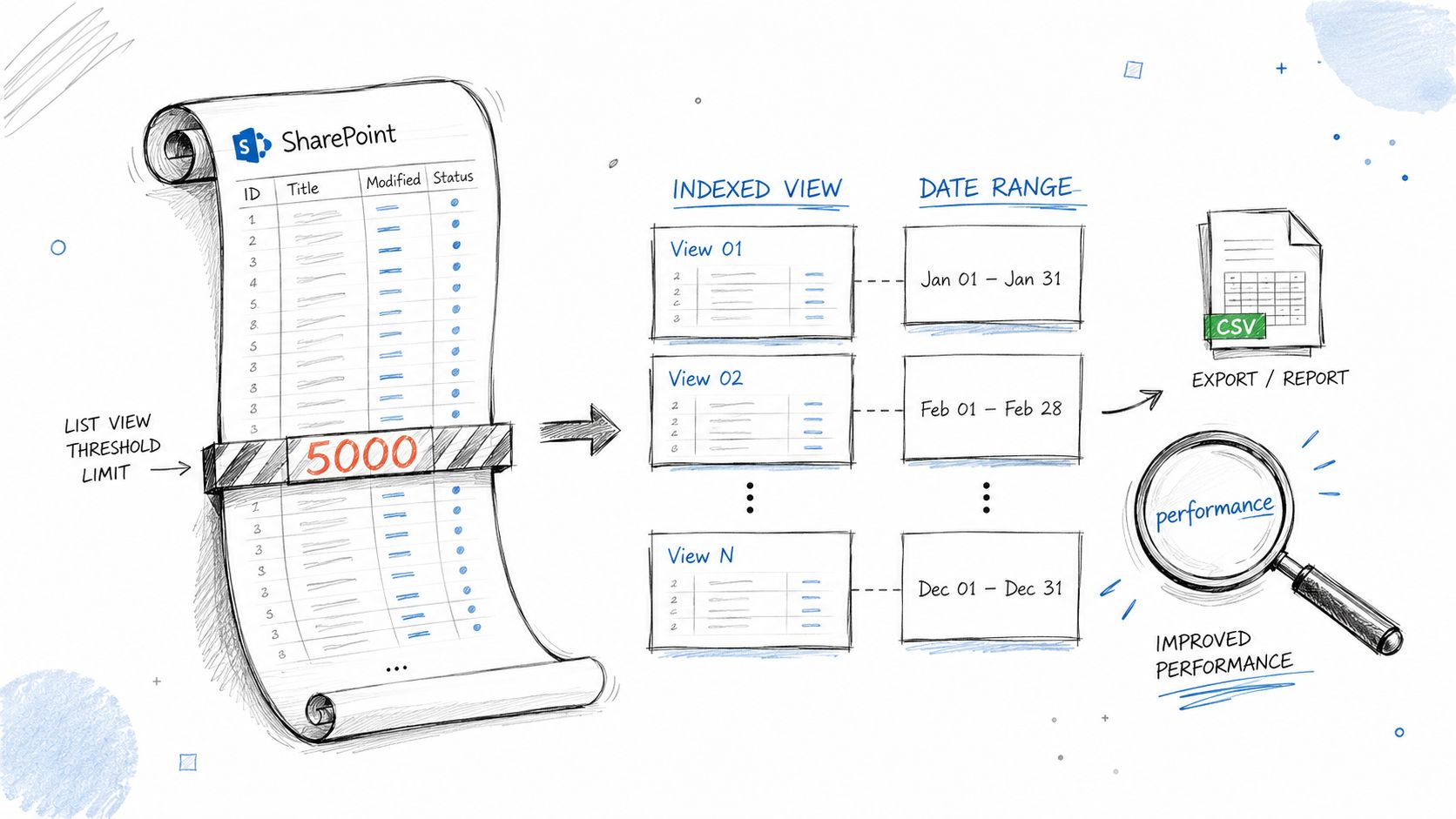
The 5,000-item list-view threshold is not theory, and it is not a minor warning. SharePoint will choke on oversized lists the moment someone runs a broad query against them, and the failure usually shows up after the project team has already committed to the move. A proper compliance script scans lists before cutover, flags anything that will break under load, and forces the governance decision while there is still time to fix the design. Microsoft's sample workflows and object-based admin patterns are still the right reference point for repeatable PowerShell work, because this job depends on structured queries, clean output, and no guesswork.
The script should identify index gaps, split content into indexed views, and generate a pre-migration compliance report that business owners can review. Teams get burned when they try to move a huge list and assume SharePoint will sort out the performance later. It will not. The list becomes slower to query, harder to support, and harder to explain when auditors ask why the migration plan ignored a known limit.
What to do before cutover
- Find the trouble early: Run the scan well before cutover so business owners can approve the indexing plan instead of reacting to a live outage.
- Index primary filters: Build indexed views around the query patterns users rely on, not the ones someone hopes they use.
- Test before production: Validate performance in staging, then run
Measure-Command { Get-PnPListItem -List ListName -PageSize 5000 }to see how the query behaves before you commit. - Archive, don't delete: Move old content to a separate read-only list rather than deleting items just to get around the threshold.
The documentation says the limit can be worked around. In practice, you need a data governance decision, or you will spend months cleaning up performance fallout and defending the migration plan to senior management.
If the list risk is tied to permissions, content sprawl, or access cleanup, use the SharePoint permission migration guide to keep the remediation work aligned with the wider migration plan.
Ollo verdict. Use this script to expose list risk early. Regulated content makes bad list design expensive fast. It can delay the project, trigger audit questions, and force emergency remediation. That is not an admin task. It is a migration risk decision, and Ollo should own it.
3. Broken Inheritance Detector and Remediation Script
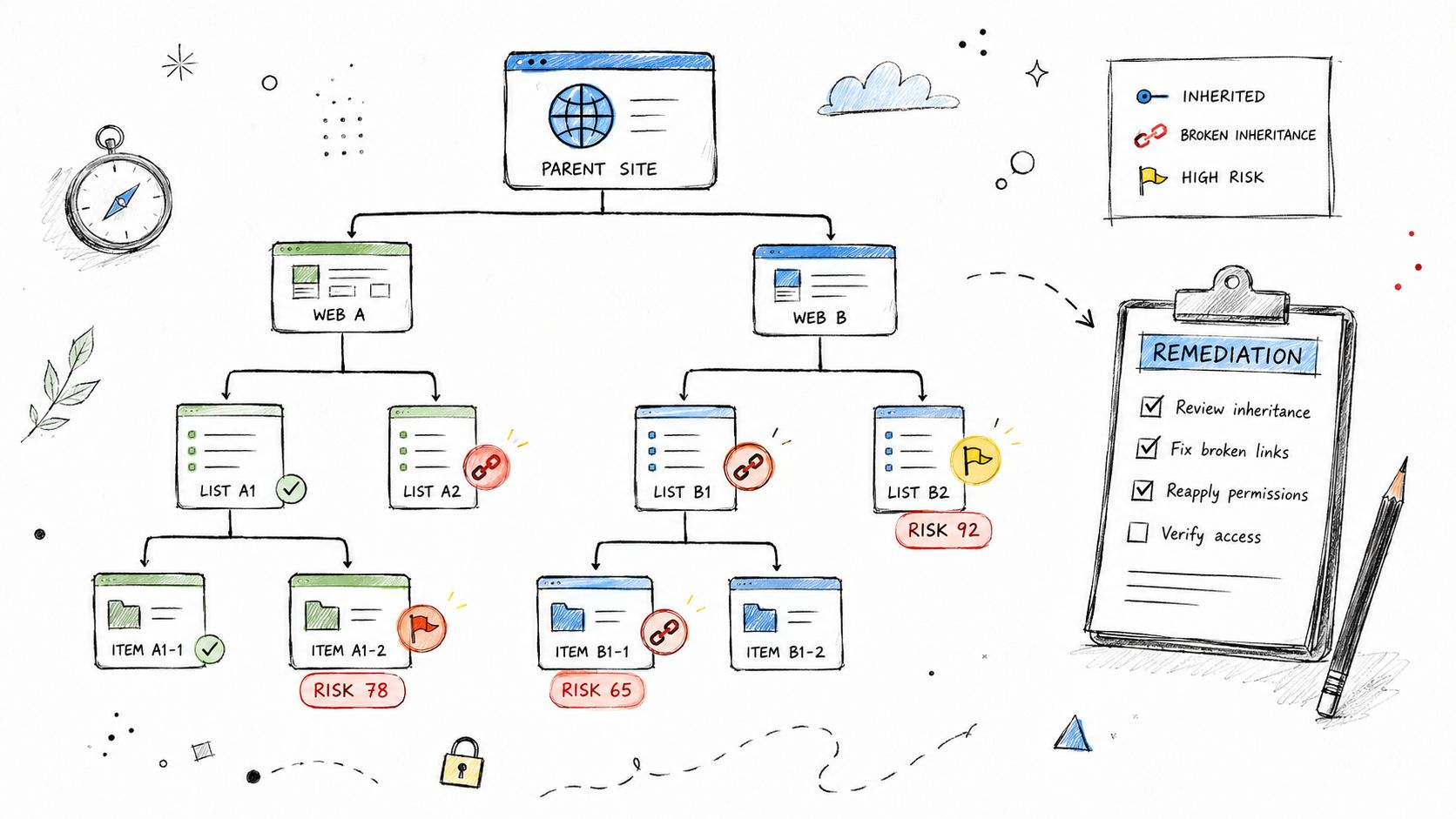
Permission drift is where SharePoint migrations turn toxic. Microsoft's PowerShell samples show that admin work should stay object-based, which matters here because file-and-folder permission sprawl is exactly what breaks naive scripts. A broken inheritance detector crawls the site hierarchy, identifies where unique permissions diverge, scores the risk, and either re-enables inheritance or maps the exceptions into a clean RBAC model. If you try to fix this by hand, you'll miss something. If you try to automate it without simulation, you'll break access for the wrong people.
Many teams encounter significant problems. We often see clients fail when they discover, too late, that former employees still have access through orphaned permissions, and nobody can explain why those permissions survived three reorganisations and a tenant split. Microsoft-adjacent best practice still points to source-side filtering and validation, and that's the correct posture here, because you need to understand the permission graph before you touch it governed automation guidance for regulated tenants.
Export the broken-inheritance report to Excel, then force business owners to review high-risk items before auto-remediation. If they won't sign off, stop and escalate.
Run the script in -DryRun $true mode first, test one site collection, not the entire farm, and validate the result by having a sample user try to access a previously unique-permission item. That's how you catch a silent denial before the service desk does.
For a practical permission-migration playbook, use Ollo's SharePoint permission migration guidance once, and only once, in the remediation workflow. It belongs there because broken inheritance is not just a technical problem, it's a governance problem.
Ollo verdict. Use automation to clean up inheritance, but don't trust it blindly. If your estate has deep permission sprawl, every missed exception can become a breach investigation, a legal-compliance issue, or a user-access outage. That risk belongs with a migration specialist, not a hopeful admin.
4. Long Path and Filename Normalization Script
Path-length failures are the kind that make executives lose confidence fast because users only notice them after the cutover. Microsoft documents hard path-length constraints in migration scenarios, and the right PowerShell script finds files that will fail before they hit SharePoint or OneDrive. The script should identify paths beyond safe thresholds, apply semantic abbreviations, update references in links and metadata, and write a mapping file so people can still find the renamed content. That is the difference between a controlled remediation and a pile of missing files.
Clients often fail when they rename files manually before automation runs. The script then detects the same item again and double-renames it, which is how you create chaos with a straight face. Use the shell to detect, transform, and log. Don't let humans freehand this at scale.
Run the rename in a controlled sequence
- Review mappings first: Give the auto-generated abbreviation list to key users before you apply it.
- Validate in staging: Open linked documents and confirm every shortcut still works after the rename.
- Check Unicode early: Use
Get-ChildItem | Where-Object { $_.Name -match '[^\\x00-\\x7F]' }to catch special characters before they break the move. - Publish the guide: Send a Before → After reference sheet to users 2 weeks pre-migration.
Practical rule: Never rename the same file twice. If your process can't guarantee idempotence, it's not fit for production migration.
For teams dealing with deep file-system sprawl, the old file-path wall becomes a user-support event the minute the move ends. Ollo's file path and OneDrive sync failure guidance gives the right framing for operational cleanup, and you should treat it as part of the migration design, not an afterthought.
Ollo verdict. Use semantic renaming with mapping files for long path estates, but only under controlled governance. A bad rename does not just fail the move, it breaks discoverability, creates support tickets, and can trigger regulatory review if evidence files become unreachable.
5. GUID Conflict Resolution and Duplicate Content Detector
Tenant consolidation loves to expose ugly identity collisions. A GUID conflict script pre-scans source and target environments, identifies collisions, and recommends whether to merge, renumber, or quarantine the content. It can reassign GUIDs where safe and keep rollback mapping for forensic review. That rollback file matters, because once you change identity references in SharePoint or related workflows, you need to prove what changed and why.
This is one of those areas where the documentation gives you just enough rope to hang the project. We often see clients fail when they merge duplicate items manually before the script runs, then wonder why the automation double-merges or misses the original relationship graph. That is exactly how you corrupt permission inheritance and workflow references at the same time.
Use immutable storage for GUID mappings. Validate reassignment on 1% of data first, then check Power Automate workflows after the change, because a workflow that points at the wrong item is still a failure even if the migration dashboard says “complete.” Document every resolution decision in the Migration Control Log and keep it audit-ready.
For a deeper duplicate strategy reference, pair the internal migration runbook with Ollo's duplicate content detection guidance and the broader practical duplicate detection strategies. Keep the latter as supporting reading, not as a substitute for control design.
Ollo verdict. Use this script before any tenant merger or shared-library consolidation. If GUIDs collide and you guess your way through it, you risk broken access assignments, workflow failures, and legal review of contract documents. That's not a cleanup task, it's a controlled migration decision.
6. Zero-Trust Entra ID Sync Validation and Deprovisioning Script
Access control drift is where regulated migrations get messy. A zero-trust validation script compares Entra ID objects against SharePoint permission assignments, flags orphaned users, and triggers deprovisioning before the move. That is the discipline you need when identity sprawl and stale permissions are already part of the environment. Microsoft's PowerShell samples already show object-driven administration across files, services, registry, and event logs, and that same object discipline is what keeps identity work sane at scale.
Run this 30 days before cutover and put the deprovisioning step in the runbook, not in a side note. Generate a reconciliation report for HR, because if terminated users still show up in SharePoint permissions, the migration is not clean and the control gap is on you. Test the script against a sample contractor group first, then verify that access is revoked and the audit log is generated. If your Entra ID to on-prem AD sync is unhealthy, fix that before you touch the migration wave.
If a terminated user still has access on migration day, the problem is already bigger than SharePoint. It becomes a security issue and a compliance issue at the same time.
Ollo's Microsoft Entra ID guidance belongs in your planning pack because identity cleanup is part of migration safety, not a separate workstream. Keep the logs immutable. Auditors do not care that the command completed, they care that you can prove enforcement, prove timing, and prove who approved the change.
Ollo verdict. Run this script before any regulated migration. Skipping it leaves ghost users in place, weakens access control, and creates legal exposure. If your team cannot validate sync health, deprovisioning, and audit trails together, bring in Ollo.
7. Large File Optimization and Chunked Upload Handler
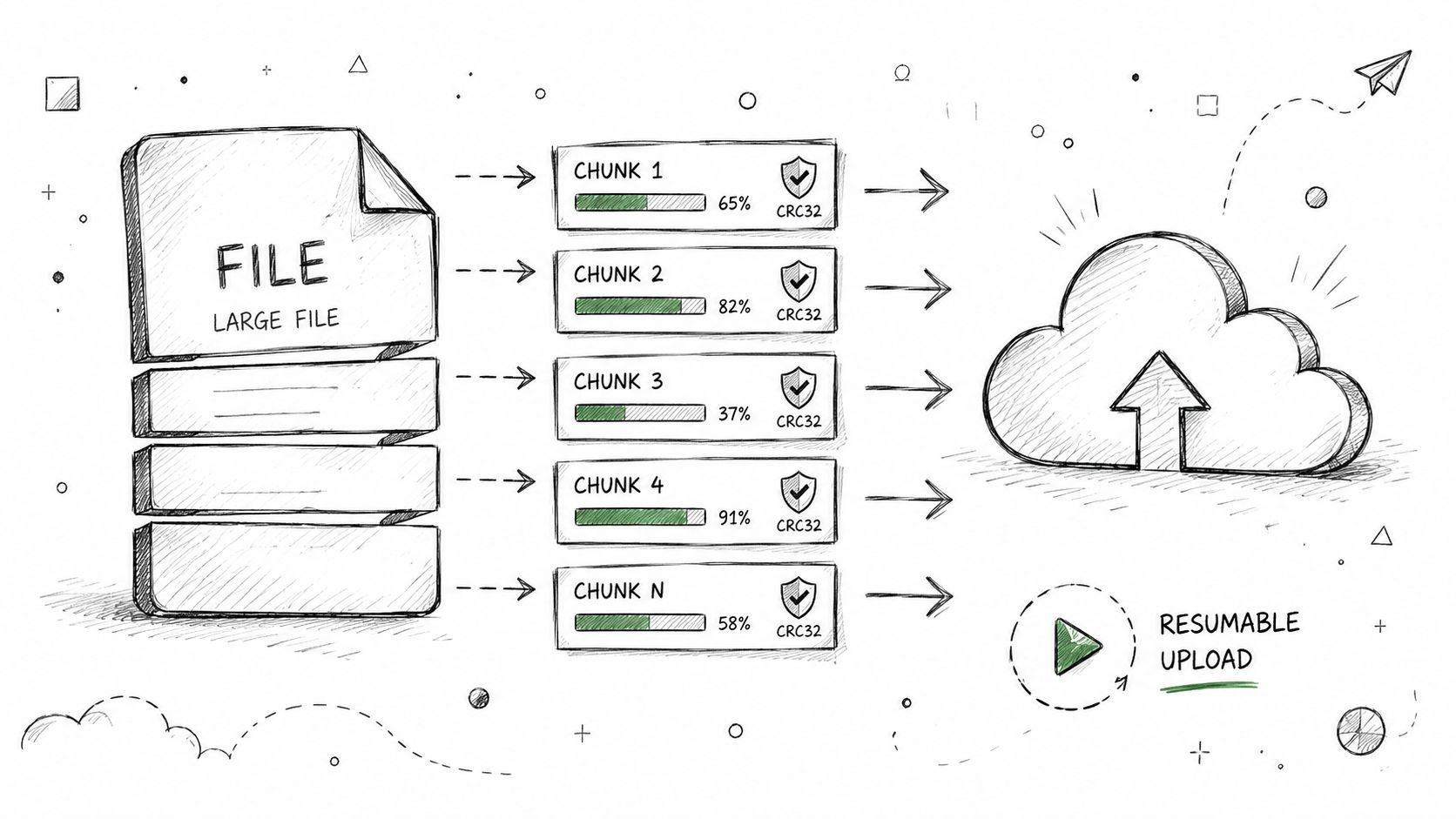
Large files punish naive migration tools. Microsoft documents migration constraints around path handling and similar hard limits, and the only safe answer for monster CAD, media, or research payloads is a chunked upload handler with resumable logic and checksum validation. This script should detect large files, split them into chunks, resume after interruptions, and compare hashes after upload. If the checksum fails, the file never counts as migrated.
I have seen too many teams blame “cloud instability” after a massive transfer dies halfway through a weak connection. The tool was the problem. Use chunking, schedule the job off-peak, and verify integrity at the end. Anything less is wishful thinking dressed up as automation.
Make the upload survivable
- Test one file first: Tune the chunk size on a single large file before you launch the full batch.
- Watch bandwidth use: Increase the chunk size if you see less than half of network capacity being used.
- Run overnight: Schedule during 2 to 6 AM so users don't fight the upload for bandwidth.
- Prove integrity: Compare
Get-FileHash -Path source.bin -Algorithm SHA256against target metadata after upload.
Practical rule: If you don't verify hashes after upload, you don't know whether the file arrived intact.
Use Ollo's file upload handling guidance as the reference point for the path and size problems that usually appear together. For large technical datasets, that distinction decides whether the move finishes cleanly or leaves a support queue full of broken references.
Ollo verdict. Use chunked uploads for oversized files and anything business-critical that cannot tolerate retransmission loss. A failed upload wastes hours, burns confidence, and can leave your archive non-compliant if integrity never gets proven.
8. Metadata Mapping and Custom Column Migration Script
Metadata loss is the quiet failure that makes users say the migration “worked” while the business says it didn't. A proper metadata mapping script enumerates custom columns, checks source-to-target compatibility, transforms data types where needed, and writes a mapping document with validation reports. PowerShell fits this job because custom columns are structured objects, not text you scrape and hope to clean up later.
This script stops silent data loss before it spreads into search, filters, and compliance queries. I have seen migrations fail because managed metadata term sets were missing in the target, or lookup columns still pointed at lists that had been renamed during the move. The content may transfer, but the metadata does not transfer itself, and if you skip the transformation step first, you leave broken references behind.
Use Get-PnPField | Select Name, TypeAsString | Export-Csv metadata.csv to export the schema, then review the mapping with content owners before migration. Test the transformation on a sample list of 1,000 items in staging, and verify the target term store exists with Get-PnPTerm -TermSet TermSetName before the first production run. After migration, spot-check readable metadata with Get-PnPListItem -List ListName | Select Fields.
Keep Ollo's SharePoint metadata migration guidance in the runbook. It gives your team the evidence trail auditors expect when term stores, lookup relationships, and custom field types change.
Ollo verdict. Use this script on every serious SharePoint migration. If metadata transforms fail, you do not just lose labels, you lose search fidelity, reporting accuracy, and user trust. That is a business risk, not a technical nuisance.
8-Point PowerShell Script Comparison
| Tool | 🔄 Implementation Complexity | ⚡ Resources & Efficiency | ⭐ Key Advantages | 📊 Expected Outcomes | 💡 Ideal Use Cases |
|---|---|---|---|---|---|
| PnP PowerShell Batch API Migration with Throttling Resilience | High, custom wrapper, realtime quota & retry logic; non-trivial setup | Requires PowerShell 7+, Azure Storage for logs, job pooling; monitoring adds ~5–10% latency | ⭐⭐⭐⭐ Recovers from 429s, reduces migration time 40–60%, audit-compliant logs | Fewer throttling failures, faster large-scale migrations, auditable trails | Large tenant-to-tenant or on-prem→cloud migrations in regulated environments |
| List View Threshold Compliance Script (5000-Item Limit Breaker) | Medium, list scanning, creating indexed views, automated split strategies | PowerShell 7 async; reindexing windows (hours for very large lists) | ⭐⭐⭐ Prevents post-migration query failures, produces board-ready compliance reports | Avoids threshold-related outages and costly post-migration remediation | Environments with very large lists (asset tracking, ledgers, logs) |
| Broken Inheritance Detector and Remediation Script | High, deep crawl, permission analysis, simulation and remediation steps | Long runs for large farms (12–24h); requires Entra ID cleanup; performance impact during crawls | ⭐⭐⭐⭐ Eliminates permission debt, reduces support tickets, provides compliance evidence | Significantly fewer unexpected access-denied incidents and lower permission support costs | Multi–site collections or orgs with widespread ad-hoc permissions |
| Long Path and Filename Normalization Script (Preventing 260-Character Failures) | Medium, recursive path analysis, semantic renaming, reference updates | Staging tests, mapping file generation, human review of abbreviations; watch version limits | ⭐⭐⭐ Prevents silent "file not found" failures and preserves links when updated | Fewer orphaned files and link errors; improved post-migration discoverability | Environments with long paths, non‑ASCII filenames, or strict audit requirements |
| GUID Conflict Resolution and Duplicate Content Detector | High, GUID enumeration, collision scoring, possible reassignment with rollback mapping | PnP API calls, long maintenance window for large reassignments; immutable audit storage advised | ⭐⭐⭐⭐ Prevents link corruption and orphaned permissions; reduces duplicate storage | Maintains link & permission integrity; lowers storage bloat from duplicates | Tenant consolidations / mergers where target has pre-existing data |
| Zero-Trust Entra ID Sync Validation and Deprovisioning Script | Medium–High, directory enumeration, cross-checks, deprovision workflows | Requires Entra ID permissions/app consent, HR validation, integration with AD sync | ⭐⭐⭐⭐ Enforces least-privilege, removes orphaned accounts, produces immutable audit logs | Reduced breach vectors and cleaner permission sets pre-migration | Regulated sectors (Finance, Healthcare, Energy) or orgs with large workforce churn |
| Large File Optimization and Chunked Upload Handler | Medium, chunking, resumable sessions, checksum validation, parallelism | CPU for checksums, bandwidth planning; chunk overhead 8–12%; App Insights for telemetry | ⭐⭐⭐⭐ Handles very large files with resumable uploads and integrity validation | Fewer failed uploads, faster completion for large datasets, auditable integrity checks | Media, CAD, research data sets and any files >1 GB |
| Metadata Mapping and Custom Column Migration Script | Medium, field enumeration, type validation, transformations, term store sync | Staging dry-runs, term-store creation, coordination to pre-create lookup lists | ⭐⭐⭐ Prevents silent metadata loss, automates validation and term mapping | Preserved metadata fidelity and fewer discoverability/search issues post-migration | Migrations with managed metadata, complex lookups, or custom column schemas |
Your Migration War Chest
These eight PowerShell scripting examples are not optional if you care about auditability, rollback discipline, and operational control. Microsoft already documents the foundations, object pipelines, Measure-Object, structured administration, and the hard limits that trip teams up in SharePoint and migration work. The gap is not syntax. The gap is governed execution, because the moment you combine throttling, broken inheritance, long paths, GUID conflicts, metadata mapping, and identity sync, you need a migration control plane, not a bag of scripts.
Your team can absolutely automate reporting, remediation, and validation with PowerShell. Microsoft makes that clear in its own examples, including Get-CimInstance queries exported to CSV, inventory-style file analysis, and object-driven administration. But the same foundation also exposes the risk: if you don't engineer for throttling, thresholds, path length, and identity drift, the script becomes part of the failure. We often see clients fail when they assume tools like SPMT or ShareGate can carry every edge case on their own. They're useful. They are not magic.
Use SPMT for small, straightforward moves where the content shape is clean and the risk is low. Use ShareGate when you need broader migration handling and reporting. For anything with hard compliance exposure, broken inheritance, GUID collisions, large-file edge cases, or custom metadata, you need custom PowerShell plus specialist oversight. That's the Ollo line. If the migration touches regulated data, the cost of a mistake includes rework, audit escalation, user downtime, and in some cases legal exposure. Don't turn a controlled migration into an incident because somebody wanted to prove they could do it in-house.
Build these scripts into your runbook, log every decision, and validate every high-risk transformation before cutover. Then call Ollo. We'll help you find the failures your team can't see yet, and we'll keep those failures from landing on your production estate.
A CTA for Ollo.