



Let's be blunt: a SharePoint 2010 migration isn't an upgrade. It's a high-stakes rescue mission for a platform that Microsoft stopped supporting years ago. This is about moving your critical data, permissions, and business functions from a vulnerable, obsolete environment to a modern platform like SharePoint Online or SharePoint Server Subscription Edition.
The goal here isn't a technical refresh; it's to escape massive security and compliance liabilities before they cause catastrophic business disruption.
Why Your SharePoint 2010 Migration Is a Ticking Clock
Your SharePoint 2010 environment is no longer just 'legacy'—it's a quantifiable business liability. With Microsoft's end-of-support long in the rearview mirror, every day you wait just compounds your security vulnerabilities and regulatory risks under mandates like GDPR. We're not here to talk about an IT project. We're confronting the uncomfortable truth of navigating a technical minefield.
We consistently have to rescue clients who bought into the marketing hype of a "seamless transition," only to discover their reality. Years of accumulated custom solutions, broken permission inheritance, and forgotten content make this a perilous operation. The documentation says out-of-the-box tools like Microsoft’s SharePoint Migration Tool (SPMT) can help, but in reality, they buckle under this kind of real-world complexity, leaving your business exposed.
The Scale of the Legacy Problem
If you think you're the only one still running on this old platform, you're not—and frankly, that’s part of the problem. As of early 2025, regional data from Ireland showed that over 65% of mid-size enterprises were still operating on-premises SharePoint Server.
This means two out of every three of your peers are running legacy infrastructure with escalating security risks. It's creating a perfect storm for failed migrations when they are inevitably forced to act.
This guide frames your migration not as an IT task, but as a critical risk-mitigation exercise. We'll share our battle-hardened, cynical approach—because it's the only way to truly protect your organisation from:
- Data Loss: Often caused by silent GUID conflicts or failed file path remediation that standard tools don't report.
- Compliance Penalties: Stemming from improperly migrated permissions that break GDPR and other mandates.
- Operational Chaos: When critical business workflows built on deprecated technology suddenly break post-migration, grinding your business to a halt.
The cost of failure goes far beyond your initial project budget. As you start planning, it's vital to understand the real financial implications of both the project and the risks of doing nothing. You can find a detailed breakdown in our article on evaluating SharePoint migration costs. This is about making a calculated investment now to avoid a much larger, uncalculated disaster later.
Conducting A Brutally Honest Discovery And Inventory
Before your team even thinks about moving a single file, you have to conduct a forensic-level discovery of your SharePoint 2010 farm. We’ve seen far too many projects fail because this phase was treated like a simple asset count. This isn’t about counting sites; it’s about uncovering the years of hidden technical debt that will absolutely derail your SharePoint 2010 migration.
Your first, non-negotiable mission is to hunt down every last custom solution, workflow, web part, and event receiver lurking in your environment. The official documentation might point you towards a tool like the SharePoint Migration Assessment Tool (SMAT). In reality, it barely scratches the surface. Sure, it will spit out some log files, but it won’t tell you the business impact of a deprecated workflow or expose the tangled mess of broken permission inheritance you know is hiding in there.
Uncovering The Skeletons In The Closet
Your inventory needs to be brutally honest. We get our clients to classify every single customisation into one of three buckets. There's no grey area here.
- Retire: These are the obsolete functions and forgotten projects that get left behind. Getting a business owner to formally sign off on this is essential.
- Rebuild: This is custom code that simply won’t work in SharePoint Online. Rebuilding usually means using the modern Power Platform (Power Apps, Power Automate), but make no mistake—this is a full development project, not a simple copy-and-paste job.
- Replace: Sometimes, a third-party app from the marketplace offers a much more robust and supportable solution than trying to rebuild something from scratch.
This classification process alone is an eye-opener. It exposes the true scope and cost of the project, taking it far beyond a simple "lift and shift." It’s this level of detail that draws the line between a predictable, successful project and a chaotic, budget-burning failure.
Next, your team needs to audit the data itself. This means hunting down orphaned sites, mapping out convoluted user permissions to expose the inevitable broken inheritance chains, and flagging every single list and library that even comes close to the official Microsoft limits. If you're looking for a more detailed framework, you can find out more about our comprehensive SharePoint migration assessment methodology.
The Ollo Verdict: Relying on basic, GUI-based tools for discovery is a high-risk gamble. We've seen it lead to catastrophic project failures. Your technical team must get their hands dirty with custom PowerShell scripts, particularly leveraging the PnP framework, to create a realistic inventory of problems, not just a list of assets. Anything less is professional negligence.
DIY Tools Vs Specialist Scripts A Reality Check
The free tools Microsoft provides are fine for a five-person company with ten document libraries. For a proper enterprise environment, they are dangerously inadequate. They create a false sense of security by flagging surface-level issues while completely missing the project-killers buried deep in your farm’s architecture. This is what we see time and time again.
The gap between what the simple tools see and what's really there is where migrations go to die. Your team has to go deeper.
This graphic illustrates the proper flow, where deep discovery is the critical first step before you even think about the cloud.
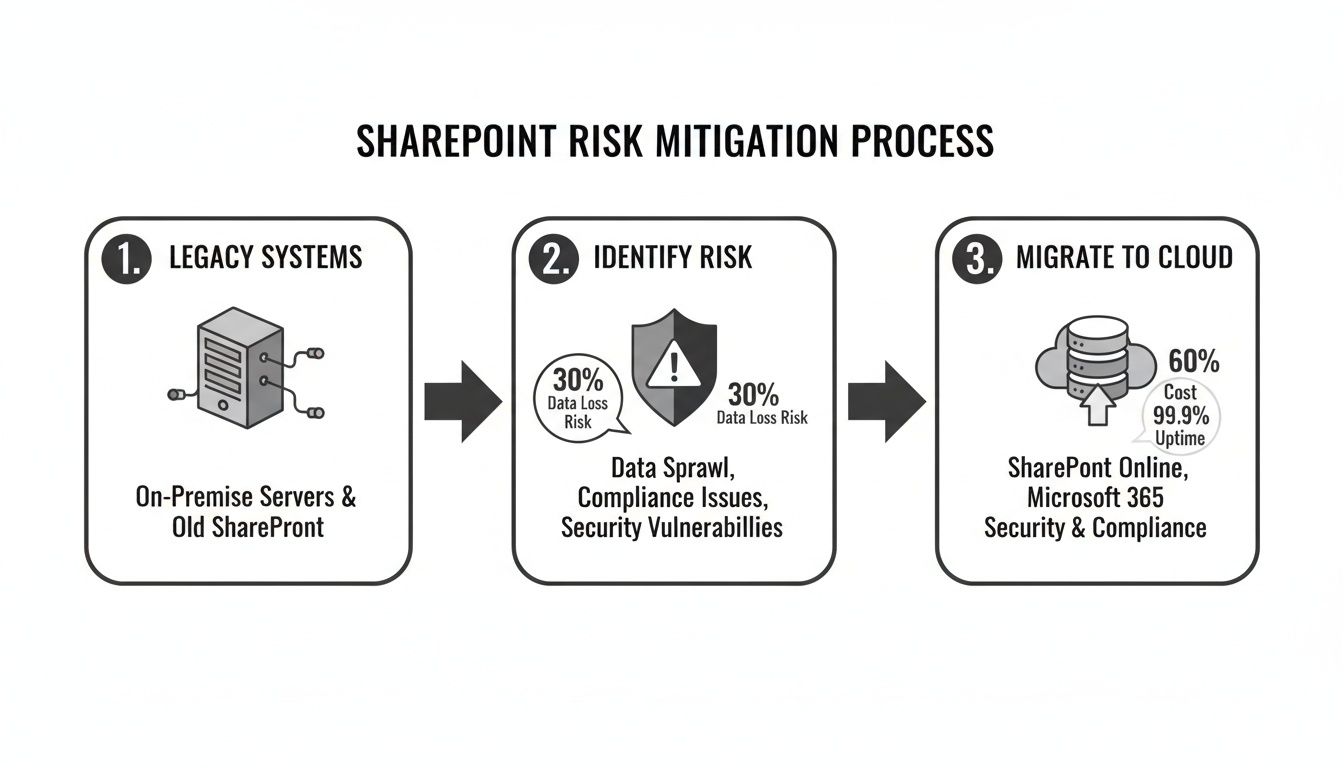
The key insight here is that a successful migration isn't a direct path. It requires a dedicated risk identification and remediation phase before any data moves.
Your discovery must be an adversarial process, actively looking for what’s going to break. For instance, a standard tool might flag a large list. Our scripts, however, will cross-reference that list with its usage analytics, custom views, and any integrated workflows to determine if hitting the 5,000-item list view threshold will just be a minor headache or completely sever a critical business process. Missing this step doesn't just fail the migration; it breaks legal compliance if that list is tied to auditable records.
This brutal honesty is the only foundation for a predictable, successful SharePoint 2010 migration.
Winning The Technical Battles Before You Migrate
A successful SharePoint 2010 migration isn't won when you start copying data. It's won months earlier, in the trenches, cleaning up the technical mess that’s accumulated over a decade. This is the pre-migration remediation phase, and skipping it is the single most common reason we get called in to rescue failing projects.
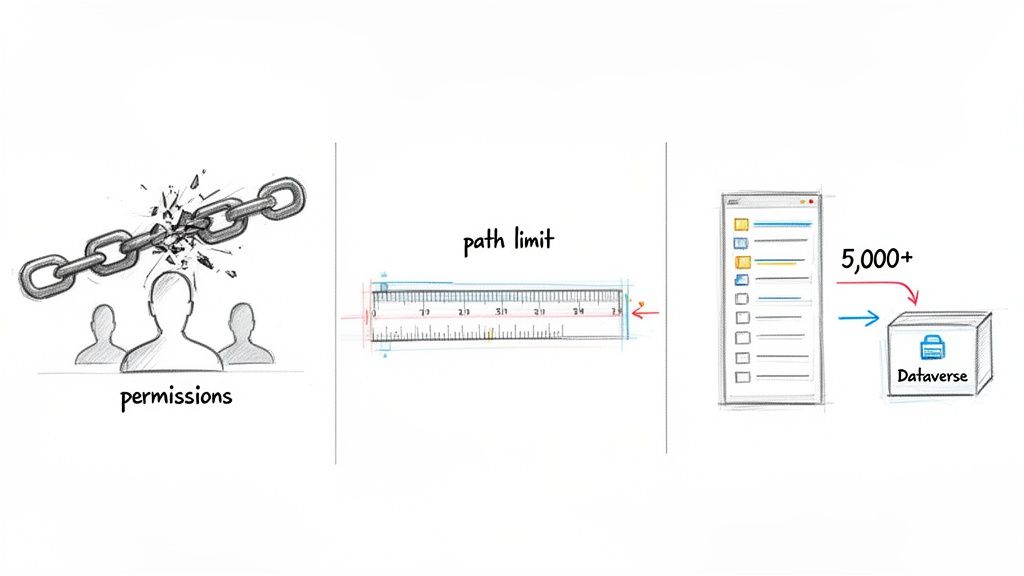
Your old SharePoint 2010 environment is a minefield of broken inheritance, impossibly long path limits, and bloated lists. To think a migration tool will magically fix all of this is dangerously naive. You have to neutralise these threats before they detonate your entire project.
Migration Killer 1: Fixing Broken Permission Inheritance
Let’s be blunt. Your biggest security risk isn’t some external threat; it's the chaotic, indecipherable web of broken inheritance lurking inside your SharePoint 2010 farm. Years of one-off access grants and convoluted permissions have created a compliance nightmare. Just mapping these old permissions to SharePoint Online isn't a fix—it's just moving the disaster to a new building.
We often see clients fail when they treat permissions as a simple “lift and shift” exercise. Their tools migrate the data, but they also migrate a decade of security holes. In the modern, shared-by-default world of Microsoft 365, that's a catastrophe waiting to happen.
The only safe approach is a complete teardown and rebuild of your security model.
- Extract All Permissions: First, you need to see the full extent of the damage. Your team must use PnP PowerShell scripts to recursively export every single explicit permission on every list, library, folder, and item. Be warned: the resulting dataset will be horrifyingly large and complex.
- Analyse and Remodel: Don't even think about replicating the mess. Instead, map your business structure to modern Microsoft 365 Groups. This forces you into a clean, group-based security model that is actually auditable and manageable long-term.
- Remediate Before You Migrate: While it's sometimes possible to clean up permissions in the source environment, it's often too risky. The safer bet is to apply your new, clean security model to the destination site structure before any data gets moved over.
Skipping this doesn't just complicate your migration; it can break legal compliance with GDPR and create a data governance black hole. To navigate this complexity, a solid foundation in successful project management is absolutely essential to keep these critical remediation tracks on schedule.
Migration Killer 2: Conquering Long Path Limits
SharePoint 2010 was incredibly forgiving when it came to file paths and characters. SharePoint Online is not. The documentation is crystal clear: there's a hard limit on the total decoded URL length. Any files that exceed this limit won't just fail to migrate; they can crash entire migration batches, corrupting your logs and making it impossible to tell what was copied and what was left behind.
The War Story: A financial services client's migration was failing with cryptic errors. Their tool kept reporting success, but thousands of files were missing. Our custom scripts quickly uncovered the root cause: over 30,000 files with path lengths exceeding the SharePoint Online limit, buried deep inside hopelessly nested folders. The migration tool wasn't just skipping them; it was failing the entire job without a clear error.
Your team has to find and fix these problems proactively. Relying on a tool's "pre-scan" report is not enough. You need to script a solution that recursively scans every single file path, identifies the offenders, and either automatically renames them or flattens the folder structure. This is not an optional step. It's a mandatory prerequisite.
Migration Killer 3: Taming The 5,000-Item List View Threshold
The 5,000-item list view threshold is the most infamous limit in SharePoint, and for good reason. The official Microsoft Learn documentation confirms it's not a suggestion; it's a hard architectural boundary. Crossing it doesn’t just slow down a list—it breaks views, filters, and any connected workflows, grinding entire business functions to a halt.
Standard advice like "create indexed columns" is woefully inadequate in a SharePoint 2010 migration. You are often dealing with lists containing hundreds of thousands, sometimes millions, of items. Your team needs a much more aggressive architectural strategy.
- Break It Up: For massive lists that are effectively acting as document archives, you need to architect a solution that splits them into multiple, smaller libraries. A common approach is to break them down by year, quarter, or business category.
- Re-architect with Dataverse: If the list is the backbone of a business application, it was probably the wrong tool for the job in the first place. This migration is your chance to rebuild it correctly. Modernise it as a proper Power App using Microsoft Dataverse as the scalable backend. Dataverse is built from the ground up to handle millions of records without the performance degradation you see in SharePoint lists.
For a deeper dive into this kind of advanced planning, you can explore our guide to managing large-scale SharePoint migrations.
The Ollo Verdict: Ignoring these three technical battles is not a cost-saving measure; it's a guarantee of project failure, data loss, and serious compliance breaches. The pre-migration remediation phase is where the war is truly won.
Executing The Migration To Avoid Throttling And Data Loss
This is the point where most “push-button” migration tools fall flat and projects grind to a halt. As soon as you begin moving data from your old SharePoint 2010 environment, your biggest enemy isn’t the sheer volume of data—it’s API throttling. Microsoft is very clear in their own documentation: SharePoint Online will actively slow down, or “throttle,” any migration traffic that goes over its resource limits. Trusting a tool’s default settings to handle this is a recipe for disaster.
During the actual migration, especially when you're moving large amounts of your data, you're almost certain to hit these limits. Knowing how to deal with this is non-negotiable if you want to avoid data loss. For a deeper technical dive, there’s an excellent guide on addressing resource rate limits that I’d consider essential reading for your migration team.
We’ve seen it happen countless times. A team kicks off a huge migration job right in the middle of a business day. Within minutes, they trigger the throttling limits. The migration slows to a crawl, jobs start failing with cryptic "503 Server Busy" errors, and the whole project timeline unravels. This isn't just an inconvenience; it can corrupt entire batches of data, leaving you with an incomplete and untrustworthy migration.
Battle-Tested Throttling Mitigation Strategies
Simply relying on a single tool's settings isn't a strategy; it's a gamble. A successful enterprise SharePoint 2010 migration demands a layered, proactive approach to manage the workload and stay under Microsoft's radar.
Our approach isn't based on marketing brochures. It's built on hard-won lessons from being in the trenches.
- Time-of-Day and Weekend Execution: This is your first and most basic line of defence. We always schedule the heaviest data transfers to run overnight and across weekends. This is when tenant activity is at its lowest, minimising the risk of you competing with your own users for API resources.
- Payload Size Management: Don't even think about trying to move terabytes in a single go. We break every migration into small, manageable batches, often organised by department or site collection. Smaller, controlled jobs are far less likely to set off throttling alarms.
- Multiple Migration Accounts: This is a crucial technique that most teams completely miss. Instead of funnelling all jobs through a single, powerful admin account, we use a pool of dedicated migration user accounts. By spreading the API call load across multiple accounts, we effectively multiply the available API quota. This allows for dramatically higher throughput without getting throttled.
These aren't just "nice-to-have" options. For any migration involving more than a few gigabytes of your data, these are absolutely mandatory procedures.
The Ollo Verdict: Use SPMT for a single, tiny site under 50GB that has zero customisations and no business-critical urgency. For any serious enterprise migration, you need a managed approach using robust tools like ShareGate combined with custom PnP PowerShell scripting to actively control throttling and guarantee data integrity.
The Catastrophic Risk of GUID Conflicts
While throttling is the most visible enemy you'll face, there’s a much more subtle and dangerous threat lurking in your data: GUID conflicts. Every list, library, and site in SharePoint has a globally unique identifier, or GUID. When you start consolidating sites from your SharePoint 2010 farm—say, merging several departmental sites into a new SharePoint Online hub—you run the risk of a catastrophic collision.
If two lists from different source sites just so happen to share the same underlying GUID, the migration tool might not see them as two distinct things. The result? The content of the second list completely overwrites the content of the first. There's often no warning, no error message. Your data is just… gone. Silently replaced.
We were once called in to rescue a project where a company had consolidated their regional sales sites. Weeks after their "successful" migration, they realised that an entire quarter's worth of contract data from one region had been completely overwritten by data from another. The business impact was devastating, and the original data was gone for good.
This is a scenario where standard tools offer you zero protection. You simply cannot trust an out-of-the-box tool to catch this. The only way to prevent it is with custom scripting. Before we even think about moving a single file, we run scripts that identify any potential GUID conflicts across the entire migration scope. When conflicts are found, we programmatically remap the identifiers in the destination before the copy begins. To get a better sense of how automation prevents these kinds of manual errors, check out our post on implementing SharePoint migration automation.
Executing the migration is a technical battle of precision and control. Failing to actively manage throttling or prevent GUID conflicts doesn't just delay your project; it actively destroys your data and undermines the entire business case for migrating in the first place.
Your Cutover Plan: The Final Line of Defence
The final cutover isn’t a finish line. It’s a high-stakes, controlled demolition that demands military precision. I’ve seen more than a few companies call us in a panic to rescue them from the aftermath of a ‘big bang’ cutover—a single, irreversible event with no fallback plan. When it fails, and it often does, the business grinds to a halt.
This isn’t theory. This is what separates a managed, predictable event from a career-limiting weekend of chaos. Your cutover plan is the final line of defence for your SharePoint 2010 migration.
A Controlled Transition, Not a Big Bang
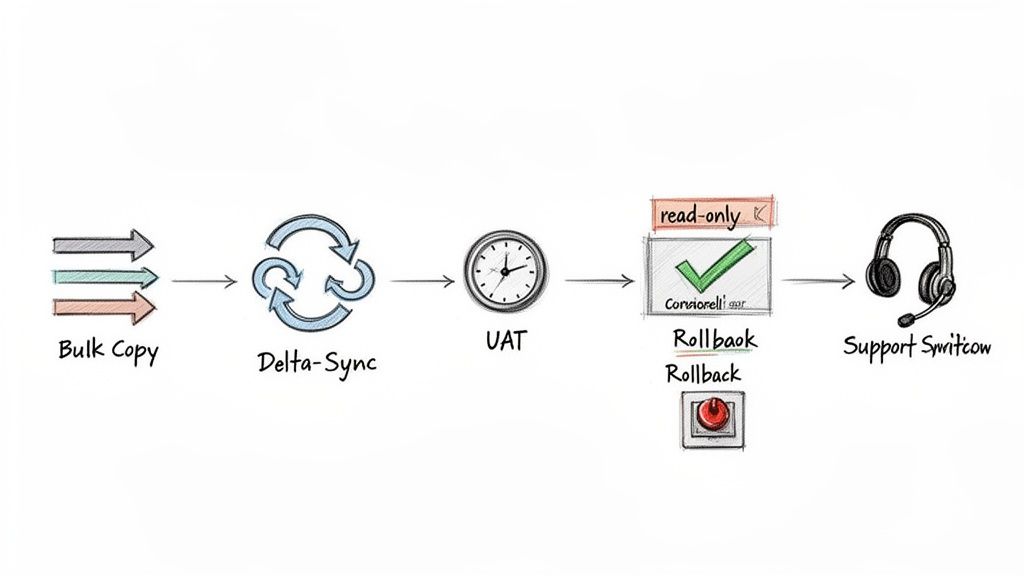
The myth that you can just flip a switch and go live in SharePoint Online is dangerous. A successful cutover is a carefully choreographed sequence of events, all designed to minimise the outage window and validate data integrity before your users ever touch the new system. We don’t gamble with our clients’ data.
Our strategy is built on a phased approach that starts weeks before the final go-live.
- Delta Sync Strategy: We kick off the bulk data copy while your SharePoint 2010 farm is still live and operational. This moves the vast majority of your content—often over 99%—to the destination in the background, without disrupting your day-to-day business.
- Incremental Syncs: In the days leading up to the final cutover, we run incremental syncs. These jobs only copy files that have changed since the last sync, which dramatically shrinks the amount of data that needs to be moved during the actual outage window.
This method transforms the final cutover from a frantic, multi-terabyte data haul into a quick, final synchronisation. The business outage is then measured in hours, not days.
User Acceptance Testing: The Ultimate Sanity Check
You cannot trust a tool’s log file to tell you a migration was successful. I've personally seen “100% successful” migrations where critical business processes were completely broken. The only true validation comes from the people who use the data every single day.
This is exactly why we insist on a formal User Acceptance Testing (UAT) phase.
We create a read-only copy of the migrated environment and give a curated group of your power users early access. Their mission is simple: try to break it. They must validate their critical business processes, check complex files, and confirm permissions are correct. Their feedback is not a suggestion; it is a go/no-go gate for the project.
This isn’t just about finding a few missing files. It’s about confirming that a crucial financial report built on a linked Excel sheet still works, or that a quality control process reliant on specific metadata still functions. Finding these issues during a structured UAT is a win; finding them after go-live is a disaster. A solid SharePoint migration checklist is an invaluable resource for structuring this UAT phase to ensure nothing gets missed.
Your Rollback Plan: The Escape Hatch
Hope is not a strategy. You absolutely must have a clearly defined, pre-agreed rollback plan. Before we even begin the final cutover, we define the exact triggers that would force us to abort the go-live and revert to the old system. This isn't an admission of failure; it's a mark of professional maturity.
Your rollback plan has to be specific and technical. It should include:
- Specific Triggers: Define what constitutes a critical failure. For example, a >5% data validation failure rate during spot-checks, the failure of a top-tier business application, or the discovery of a critical security flaw.
- Technical Steps: Document the exact procedure to re-enable the SharePoint 2010 environment. This includes things like removing the read-only locks on the source databases and updating DNS to point users back to the old farm.
- Communication Cascade: Who makes the call? How is it communicated to stakeholders and the entire user base? This must be decided beforehand, not in the middle of a crisis.
Without this plan, your team will be left scrambling and trying to make high-stakes decisions under immense pressure.
Post-Migration Hyper-Care
The job isn’t done when the system goes live. The first 48-72 hours post-migration are absolutely critical. No matter how perfect the plan, your users will encounter issues—broken personal bookmarks, confusion about the new interface, or minor permission glitches.
This is why we deploy a hyper-care team. This is not your standard helpdesk. It’s a dedicated team made up of the migration specialists who executed the project, on hand to provide immediate, expert-level support. They understand the nuances of the migration and can resolve issues in minutes, not days.
This rapid response contains user frustration and builds confidence in the new platform, turning a potentially chaotic transition into a supported and managed change.
The Hard Questions About Your SharePoint 2010 Migration
You’re the one on the hook for this project. When the SharePoint 2010 migration goes over budget or sideways, all eyes will be on you. So, before you commit a single euro, you need straight answers to the tough questions—not the usual marketing fluff from a tool vendor.
These are the questions we hear in boardrooms every week. Here are the brutally honest answers you deserve.
Can't We Just Use The Free SharePoint Migration Tool (SPMT)?
You can, but for any business with real complexity, it's an incredibly high-risk gamble. The official documentation is clear: SPMT is designed for simple, non-customised sites. It has no real way to handle large-scale API throttling, fix broken permissions, or solve the catastrophic risk of GUID conflicts.
We're often called in to rescue projects that are failing because a team underestimated their technical debt and thought a free tool would be enough. For any regulated or serious enterprise, relying only on SPMT is like trying to perform surgery with a blunt instrument. It's not a question of if it will fail, but how badly.
What Is The Single Biggest Risk In These Projects?
It's not the data transfer. It’s the 'people and permissions' problem that has been festering for over a decade. The technical job of copying files is a known challenge. The biggest failures we see come from not properly analysing and redesigning the ancient, broken inheritance in your SharePoint 2010 farm.
The War Story: We had a client whose 'successful' migration turned into a security nightmare. They used a simple lift-and-shift approach, and it replicated every instance of broken inheritance and convoluted SharePoint group directly to Microsoft 365. The result? Sensitive HR and financial data was exposed to the entire organisation. Simply migrating permissions as-is is a critical failure of governance and a massive data leakage risk.
A successful migration puts a complete security model redesign front and centre, long before a single byte of your data is moved.
Our SharePoint 2010 Has A Lot Of Custom Code. What Happens To It?
It doesn't migrate. Let me be perfectly clear: SharePoint 2010 farm solutions and sandboxed solutions are fundamentally incompatible with SharePoint Online. They will break. Every single customisation has to be inventoried and analysed by a senior developer, not just flagged by some automated report.
Once you have that analysis, your team faces three paths for every customisation:
- Retire: The function is obsolete and can be decommissioned (after getting business sign-off, of course).
- Rebuild: The function is business-critical and has to be completely rebuilt using modern tools like the Power Platform. This isn't a migration task; it's a separate development project.
- Replace: A third-party SaaS application can replace the functionality, often more securely and with better features.
This analysis and redevelopment work is often the most time-consuming and expensive part of the whole project.
How Long Should A SharePoint 2010 Migration Realistically Take?
Anyone who gives you a timeline without doing a deep-dive discovery is selling you snake oil. For a typical mid-sized enterprise (1,000-5,000 users) with a moderate amount of data and customisations, a realistic timeline is 6-12 months.
That usually breaks down like this:
- 2-3 months for forensic discovery, remediation planning, and security design.
- 3-6 months for the actual migration execution, done in waves, including user acceptance testing.
- 1 month for the final cutover and post-go-live support.
Trying to rush this process is the number one cause of failed projects and blown budgets. A compressed timeline doesn't save money; it guarantees you'll spend far more cleaning up the inevitable mess.
The risks in a SharePoint 2010 migration aren't theoretical. They are complex technical realities that demand specialist expertise. If your data is critical and your organisation can't afford the operational chaos of a failed migration, a DIY approach simply isn't a viable option.
At Ollo, we've guided some of Ireland’s most complex organisations through these exact challenges. Our expertise is in mitigating risk, not just moving files. Contact us to discuss how we can de-risk your migration and make sure it succeeds the first time.

















