



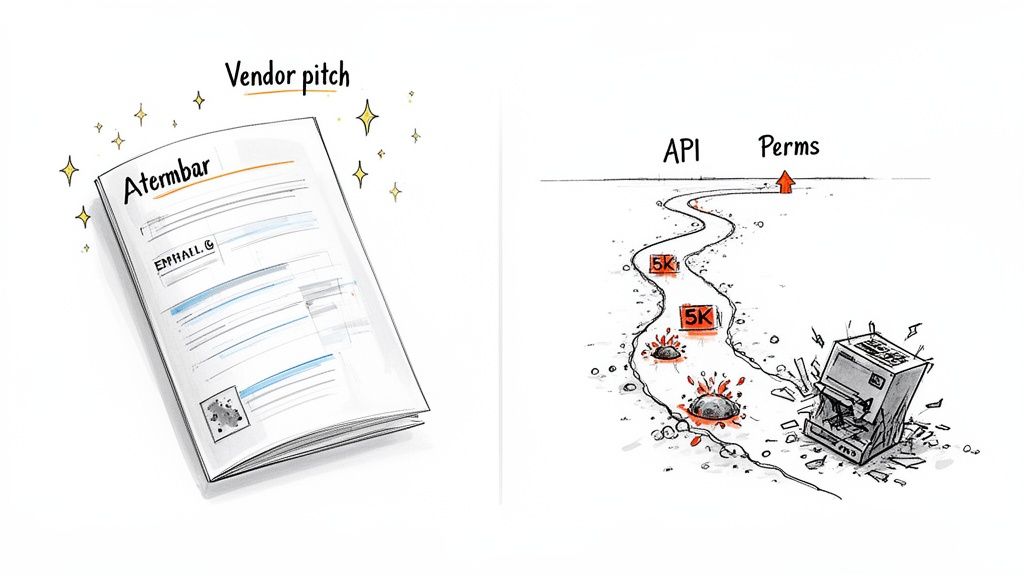
Let's be direct. The glossy brochures from software vendors promising a 'seamless' SharePoint migration were not written for your high-stakes, real-world enterprise environment. They are designed to sell licenses, not to help you navigate the actual minefield of a complex data move.
This playbook is not a how-to guide. It’s a "how to avoid disaster" manual. It tears down the sales-pitch myths and confronts why treating SharePoint migration automation as a simple IT task is one of the most expensive mistakes your organization can make.
Your First Costly Mistake Is Trusting The Hype
As a Senior Cloud Migration Architect, I've seen too many well-intentioned projects go completely off the rails. It's almost never because the team is incompetent. They fail because they believed the marketing hype over hard-won battlefield intelligence.
Those "easy-to-use" tools and "seamless transition" promises were never meant for your complex, regulated, and often decade-old data landscape. We often see clients fail when they underestimate what I call the "trifecta of pain" that derails enterprise migrations. This isn't just about scaring you; it's the reality check you need before you write the first line of a script.
The Inescapable Technical Hurdles
Your first, and most common, obstacle is API throttling. Think of it as Microsoft's bouncer, actively stopping your migration scripts from overwhelming the service. Naive automation hits this wall almost immediately, turning a project planned for a weekend into a multi-month crawl.
Then comes the infamous 5,000-item list view threshold. The official documentation downplays it, but in reality, any attempt to query, filter, or migrate a library exceeding this limit will simply fail. It doesn't just slow you down; it breaks your automation entirely unless you have scripts specifically designed to dismantle and reassemble these massive lists.
And finally, the real nightmare: broken permissions. A single misconfiguration in your automation doesn't just cause a file transfer to fail. It can expose sensitive financial or HR data across the entire organization, creating a legal and compliance crisis overnight.
The Ollo Verdict: The cost of failure here isn’t just about budget overruns. Missing this step doesn't just fail the migration; it breaks legal compliance. A botched migration with broken permissions can trigger a full-blown GDPR investigation, turning a technical project into a business-threatening liability.
Microsoft's own documentation might promise 4-6 hour read-only windows for some SharePoint site moves, but we've seen search index lags stretch that out for days. This can cripple document integrity for time-sensitive compliance data.
Too often, we see DIY automation—using the SharePoint Migration Tool (SPMT) or basic PowerShell—ignore this. They hit those API throttling walls, and timelines balloon from weeks to months.
The tools themselves have their limits. While we'll cover a deeper comparison of third-party SharePoint migration tools later on, it's crucial to understand now that no off-the-shelf product is a silver bullet. Your success depends entirely on anticipating these failures, not just reacting to them.
The Uncomfortable Truth About Your Migration Tools
Every IT Director I talk to has a preferred set of tools for SharePoint migrations. The conversation almost always lands on one of three options: Microsoft’s free SharePoint Migration Tool (SPMT), a third-party beast like ShareGate, or getting your hands dirty with custom PowerShell PnP scripts. The first mistake is thinking these tools are interchangeable. The second, and more costly mistake, is assuming the most expensive option is automatically the safest.
Each one has a very specific, and often unadvertised, breaking point. Your job is to know that point before it blows up your project timeline, your budget, and your compliance status.
Enterprise Migration Tool Reality Check
Let's break down the real-world implications of these breaking points.
SharePoint Migration Tool (SPMT): The “Free” Option
Microsoft's SPMT is competent for one specific job: moving a small, uncomplicated file share or a basic SharePoint Server site to SharePoint Online. We tell clients it’s a viable choice for a departmental site under 50GB with out-of-the-box permissions.
The minute your needs get more complex, SPMT becomes a liability.
- Tenant-to-Tenant Migrations: It was not built for this. The documentation says it works, but in reality, you will face silent GUID conflicts and identity mapping failures that leave your data unsecured.
- Long File Paths & Special Characters: SPMT frequently chokes on file paths that go over the 256-character limit or contain characters SharePoint Online deems invalid. It doesn't fix them; it just fails the transfer, leaving gaps in your migrated data.
- Complex Permissions: Forget migrating sites with broken permission inheritance or custom SharePoint groups. The tool will either flatten your permissions into a simplified mess or fail the items, leaving a security disaster for you to clean up manually.
The Ollo Verdict: Use SPMT for small, non-critical moves from file shares. For anything involving tenant-to-tenant complexity, significant data volumes, or regulated content, relying on SPMT is a high-risk gamble that rarely pays off.
ShareGate: The Enterprise Standard
ShareGate is a powerful instrument; there's a reason it’s the undisputed leader. But we see too many clients treat it as a "fire-and-forget" solution, and that's where things go horribly wrong.
ShareGate's greatest strength—its incredible speed—is also its greatest weakness in inexperienced hands. It is designed to push the Microsoft Migration API to its absolute limit. Without careful batch management and a deep understanding of your tenant's specific throttling profile, you will hit performance walls. Your project timeline will simply evaporate.
It's also not a magic wand for sorting out a decade of complex permissions. While vastly better than SPMT, it can still misinterpret unique permission structures found in highly customized environments, especially with broken inheritance. This requires manual pre-migration analysis and, critically, post-migration validation scripting to ensure your compliance posture hasn't been compromised.
PowerShell PnP: The Ultimate Control
For true SharePoint migration automation and the highest degree of control, nothing beats building your own tooling with PowerShell PnP and the underlying APIs. This approach lets you create a migration pipeline that is perfectly engineered for your environment. You can script pre-flight checks that automatically fix long file paths, intelligently restructure sites on the fly, and build sophisticated retry logic with exponential backoff to gracefully handle API throttling.
However, this power comes with immense responsibility. A poorly written script doesn't just fail; it can corrupt data or, even worse, incorrectly apply permissions across your entire tenant on a massive scale. Building a resilient, enterprise-grade PowerShell automation pipeline isn't a side project for a junior admin. It's a serious development effort that demands senior expertise, which is why most successful enterprise migrations depend on specialist teams.
The reality of this is particularly sharp in the Irish market. As of early 2025, our data showed that over 65% of mid-size enterprises in Ireland were still running on-premises systems—a ticking time bomb in a GDPR-strict region. We often see projects derail when leadership treats this migration as a simple IT checkbox, ignoring the brutal reality of Microsoft's API throttling. You can read more about navigating the complexities of SharePoint Online migration performance on our blog.
Choosing your tool isn't about picking the one with the most features; it's an exercise in risk management. The wrong choice doesn't just lead to a failed project—it can lead to a critical data breach. The safest path is realizing when an off-the-shelf product isn't enough, and a custom-engineered automation solution is the only way to guarantee a successful, secure outcome.
Architecting An Automation Pipeline That Will Not Fail
Automation isn’t a script you run once. The idea of ‘fire-and-forget’ automation is a myth sold by software vendors. In the real world of enterprise migrations, genuine automation is a resilient, multi-stage pipeline built with the expectation of failure. This is exactly where most internal teams get it wrong—they script for a perfect run, while we engineer for recovery.
Your pipeline can't just be a dumb file-mover. It has to be an intelligent system that actively diagnoses problems, fixes what it can, and validates data integrity from beginning to end. We've been called in to rescue far too many projects that went off the rails because the automation was brittle, blind, and built on misplaced trust in a single tool.
Pre-Flight Checks: The First Line of Defence
The migration itself should be the last, almost boring, step. The real work happens long before you move a single byte of data. Your first automation task must be a series of aggressive pre-flight checks, executed via PowerShell PnP scripts, to hunt down the problems you know will break standard tools.
Time and again, we see clients hit a wall because they started the migration without first running scripts to find and fix these predictable issues:
- Excessive Path Lengths: Don’t wait for your migration tool to choke on a file path that’s too long. A pre-flight script must crawl every single file, flag anything approaching the SharePoint Online character limit, and automatically rename or restructure it before a migration package is even created.
- Invalid Characters: Similarly, characters like
~,#,%,&,*,{, and}are illegal in SharePoint Online file names. A script must find and replace these automatically. Trying to do this manually across millions of files is not an option. - Large List & Library Analysis: The infamous 5,000-item view threshold isn't just a migration headache; it's an operational one waiting to happen. Your scripts must identify every list and library that blows past this limit. This allows you to plan a solution—like breaking a huge library into several smaller ones—before it cripples both the migration and your users' future experience.
Building An Intelligent Migration Engine
Once you've sanitized the source data, you architect the migration engine. This isn't about pointing a tool at a source and destination. It’s about building a process that respects Microsoft’s operational limits and reports its own failures with precision.
Forget dumping all your sites into one giant migration job. This is a rookie mistake that guarantees throttling. Instead, your automation must intelligently group sites into logical batches. This allows you to run smaller, high-priority sites first and tackle the massive, complex ones during off-peak hours.
The process below shows how different tools fit into a multi-stage migration strategy.
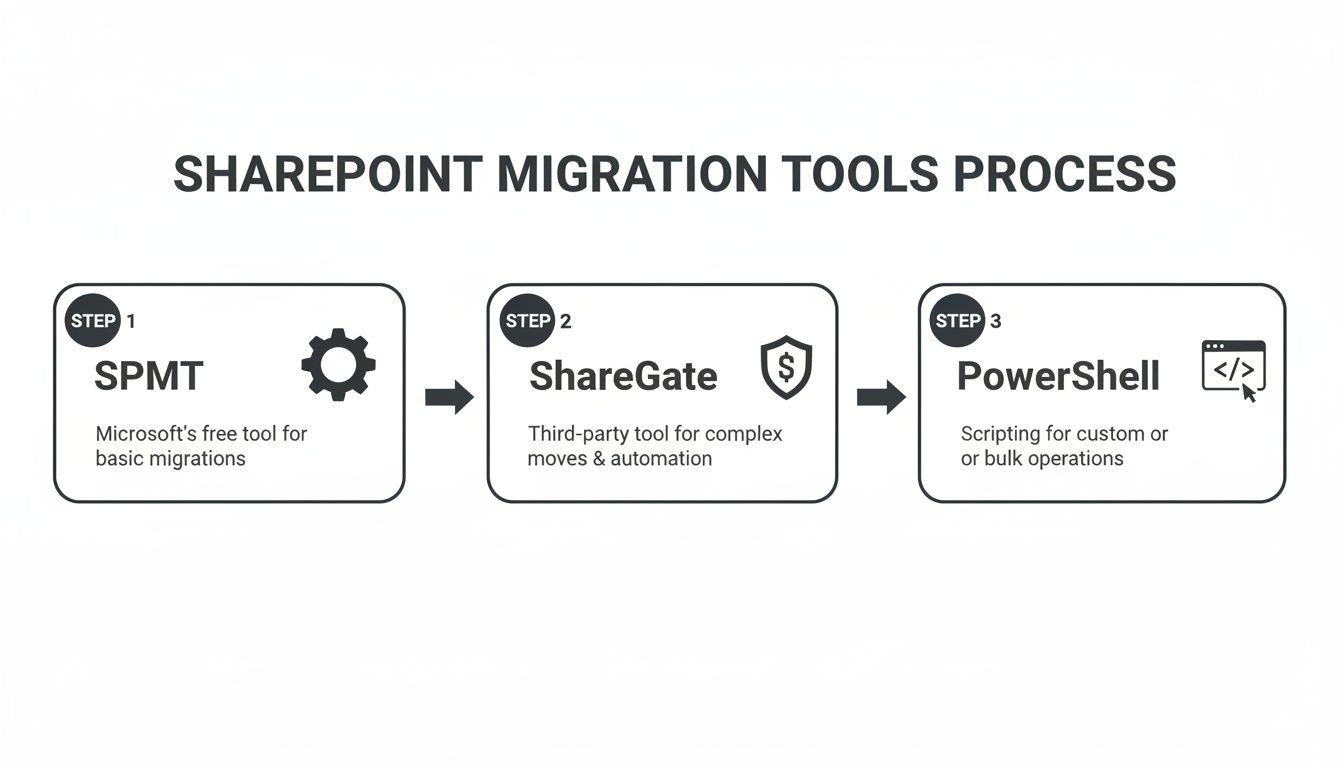
The key insight is that these tools aren't mutually exclusive. They represent stages in a maturing automation capability, with PowerShell PnP providing the ultimate control needed for enterprise-grade resilience.
Crucially, your automation must include intelligent retry logic with exponential backoff. When Microsoft’s API throttles your connection (and it will), a naive script simply fails. A resilient one pauses, waits for a calculated period, and then retries. This is a fundamental principle of working with any large-scale cloud service, yet it’s consistently absent in DIY migration scripts.
The Ollo Verdict: A pipeline without robust, structured logging and exception handling is worse than no automation. Your scripts must generate detailed logs that don't just say "file failed," but provide the exact error code, item ID, and source path. A critical error, like a permissions failure on a sensitive finance folder, must trigger an immediate alert so your team isn't left chasing ghosts in a sea of meaningless log files.
Building this kind of robust pipeline is a significant software engineering task. As you map out your automation, understanding the principles of software documentation automation can be invaluable. Ultimately, the goal is a system so reliable that the final migration becomes the most predictable part of the project. We outline what this transition looks like in our guide on moving from manual processes to a fully automated migration story.
Identity And Permissions: Your Biggest Compliance Risk
Let's get straight to the point: the data will probably migrate. What will get destroyed, however, are your permissions.
This is the single most dangerous point of catastrophic failure in any SharePoint migration. I've seen it turn multi-million euro technical projects into legal disasters overnight.
Data gets moved; permissions get shattered. A single broken inheritance on a site containing sensitive HR or financial data can expose it to your entire organization. This isn’t a technical glitch; it’s a compliance breach waiting for a GDPR fine. Your team's ability to prove who can access what, before and after migration, is non-negotiable.
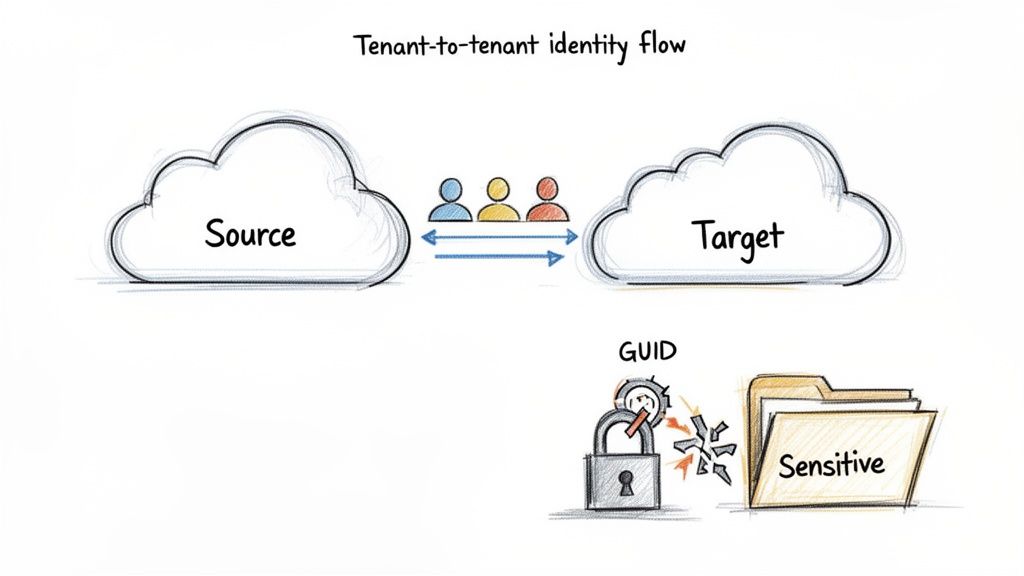
We often see clients stumble when they trust their migration tool to "just handle" permissions. This is a naive and dangerous assumption, especially in a tenant-to-tenant migration where the underlying identity systems are separate.
The GUID Conflict Nightmare
Every user and group in Microsoft 365 has a unique identifier, a GUID. When you migrate a file, SharePoint records permissions against that user's GUID, not their name ("jane.doe@company.com").
Here's the problem: in a tenant-to-tenant migration, Jane Doe has a different GUID in the source tenant than she does in the target.
Standard tools, even powerful ones like ShareGate, try to map these identities. But what happens if Jane's account doesn't exist in the target yet, or if there's a naming conflict? The tool often maps the permission to an "Unresolved User" or, worse, drops it entirely.
The War Story: We were called in to rescue a financial services migration where the internal team relied on their tool's default user mapping. They discovered weeks after cutover that permissions on thousands of critical audit documents had reverted to the parent site's permissions, making them accessible to hundreds of unauthorized employees. The cost of remediation dwarfed the original project budget.
This isn’t a theoretical risk. It is the predictable outcome of not treating identity as a separate, critical workstream in your SharePoint migration automation plan.
The Only Safe Strategy: Pre-Creation And Validation
You cannot leave identity mapping to chance during the migration. The only way to mitigate the risk is to handle it before you move a single file.
Your automation pipeline must include these non-negotiable steps:
- Export Source Identities: Script the export of all users, Microsoft 365 Groups, and security groups from the source tenant that have permissions in the sites you're migrating.
- Pre-Create in Target Entra ID: Use this export to programmatically pre-create every single user and group in the target Entra ID. This ensures that when the migration tool looks for a matching identity, one already exists.
- Generate a Mapping File: Create a definitive CSV mapping file that explicitly links every source GUID to its corresponding target GUID. This file becomes the 'source of truth' for your migration tool, overriding any automated guesswork.
This pre-creation process is fundamental. We have a detailed article you can reference to understand the complexities of managing SharePoint migration permissions.
Your Most Critical Script: Post-Migration Validation
Finishing the migration is not the end. Your final, most critical, script is the one that validates the outcome. You must be able to prove that the permissions in the target match the permissions from the source.
Relying on a tool’s success report is not proof. The only way to do this is with custom PowerShell PnP scripting.
- Export Source ACLs: Before the cutover, run a script that recursively exports the Access Control Lists (ACLs) for every file and folder in the source.
- Export Target ACLs: After the migration is complete, run a parallel script to export the ACLs from the newly created target sites.
- Generate a Differential Report: The final step is a script that compares these two exports line-by-line. The output must be a report that flags every single discrepancy—every missing user, every incorrect permission level, every instance of broken inheritance.
The Ollo Verdict: If your migration partner cannot produce a differential permissions report, they cannot guarantee the security of your data. A green checkmark in a migration tool's dashboard is not a compliance audit. Getting permissions wrong doesn't just delay a project; it invalidates it and creates a clear and present danger to your business.
Executing The Cutover Without Wrecking The Business
The final cutover isn’t some routine IT task you knock out over a weekend. We’ve seen it time and again: projects that were 99% successful get derailed in the final hours because the team treated the cutover like flicking a switch.
This is a military-style operation where every minute of downtime costs money and every mistake shatters user trust. Your entire SharePoint migration automation effort builds up to this one event. A failure here can bring the business to a grinding halt.
The Delta Sync And The Read-Only Illusion
For weeks, your automation pipeline should have been running incremental or "delta" migrations. The final cutover kicks off with one last delta sync, right after you make the source environment read-only. This is where things can go wrong fast.
Setting an entire on-premises farm to read-only sounds simple, but it’s often technically complex. If you get it wrong, users will keep creating new data in the old system—data that will be lost forever.
More importantly, your communication plan is everything here. You have to tell users exactly when the freeze is happening. If you don't manage those expectations, you'll be swamped with helpdesk calls from people who think the project is failing before it's even complete. To ensure a smooth transition, it's crucial to follow established data migration best practices for execution.
The Search Index: The Invisible Threat
Once you point everyone to the new SharePoint Online environment, your work is far from over. The most overlooked post-cutover disaster we see is the search index lag.
Even after every file is migrated, Microsoft's search crawlers need time to index all that new content. The documentation might suggest a few hours, but for a large-scale migration, the reality is often 24 to 72 hours or even longer.
The War Story: We were called in to rescue a major legal firm after their go-live. On Monday morning, their lawyers, who live and die by search, couldn't find critical case files. The data was there, but because the index hadn't caught up, it was effectively invisible. The firm was on the verge of declaring a major incident, all because their previous partner failed to warn them about the real-world search lag.
This delay isn’t just an inconvenience; it can cripple business processes. Your communication plan must warn business leaders about this. You have to set clear expectations that search functionality will be degraded for a period after the cutover.
The Non-Negotiable Rollback Plan
This is what separates professional migration architects from hopeful amateurs. You must have a documented, tested, and approved rollback plan. Period.
If you run into a show-stopping failure after the cutover—a catastrophic permissions issue, a major data validation failure—you don't have time to "figure it out" on the fly. You need a step-by-step procedure to reverse the cutover and get service restored at the source.
Your rollback plan must detail:
- DNS Reversal: The precise steps to change DNS records back to the source environment.
- Source Reactivation: How to remove the read-only locks on the source sites.
- Communication: A pre-written communication draft to inform users that you are rolling back.
Skipping this step is an act of gross negligence. The one time you need it and don't have it will be a career-limiting event. For any large-scale SharePoint migration, a rollback plan is your only insurance policy.
The Ollo Verdict: The cutover is a test of your planning, not your technology. If your migration partner dismisses the search index lag or doesn't present a tested rollback plan, they are not preparing you for reality. They are setting you up for failure.
Questions You Should Be Asking Your Migration Team
An enterprise migration is far too complex to leave to vague promises. The difference between a smooth project and a career-limiting disaster often boils down to the questions you ask before any work starts.
Use these questions to challenge your internal team or any potential migration partner. Their answers will tell you whether they’re prepared for a high-stakes migration or just walking into an ambush.
How Will You Handle API Throttling and The 5,000-Item List View Threshold?
This is the ultimate test of experience. If you hear anything like, "The tool will manage it," you should be deeply concerned. That isn't a strategy; it's a prayer. A vague answer signals a team that has never been burned by Microsoft's throttling on a real project.
A battle-hardened team will talk specifics. You need to hear them mention:
- Proactive Batch Sizing: A clear plan for breaking the migration into smaller jobs to stay under Microsoft's radar.
- Intelligent Retry Logic: A commitment to using scripts with exponential backoff, which gracefully handles throttling events instead of just failing.
- Pre-emptive Remediation: A process for running pre-flight scripts to find and fix oversized lists and libraries before they have a chance to break the migration.
Anything less shows a reactive approach that will leave your project timeline at the mercy of Microsoft's servers.
What Is Your Strategy for Validating User Permissions Post-Migration?
"The tool generates a report." This is the most dangerous answer you can get. A generic "success" report isn't proof of security or compliance. It’s just a checkbox. The risk of a single broken permission exposing sensitive company data is far too high to accept such a flimsy assurance.
A robust answer must involve custom scripting and a commitment to providing empirical evidence.
The Ollo Verdict: A proper validation strategy is non-negotiable. It requires custom PowerShell scripts that export the source Access Control Lists (ACLs) and compare them, line-by-line, against the target ACLs. The output must be a differential report that explicitly proves permissions were mapped correctly, especially for sites with broken inheritance.
If a partner can't provide this, they can't guarantee the security of your data after the move. It's that simple.
What Does Your Rollback Plan Look Like If The Cutover Fails?
"We'll figure it out if it happens" is a direct admission of inexperience and a recipe for absolute chaos. Hope is not a strategy. The final cutover is a point of no return unless you've already built a way back.
The only acceptable answer is a documented, step-by-step procedure that has been rehearsed. The plan must be specific, detailing exactly how to revert DNS settings, set the source sites back to read/write mode, and what the user communication will be. A critical part of this is understanding the initial groundwork, something we cover in our guide to running a proper SharePoint migration assessment.
If a prospective partner hesitates on this, they are not taking your business continuity seriously. They are gambling with your operational stability, and when it comes to a large-scale SharePoint migration automation project, that's a bet you can't afford to let them make.
At Ollo, we don't just plan for success; we engineer for failure. Our entire methodology is built on battle-tested automation, validation, and risk mitigation to ensure your complex migration is secure and successful. If you're facing a high-stakes SharePoint project, talk to the team that treats your data with the seriousness it deserves. Learn more at https://www.ollo.ie.

















