



Your team already has a “migration plan”. It sits in a project folder, looks organised, and gives leadership a false sense of control. It says things like install the tool, scan the source, run a pilot, migrate in phases, validate access.
That document will not protect you.
SharePoint migration documentation only matters when it holds up under failure, audit, and legal scrutiny. If your documentation cannot tell you which libraries will fail, which permissions will break, which paths exceed limits, who signs off rollback, and how you prove chain of custody after cutover, then you do not have a migration plan. You have a checklist.
I have seen too many IT teams trust generic guidance, then spend months cleaning up preventable damage. The pattern repeats. The documentation says one thing. Production reality does something else. Your users lose access, your compliance team starts asking questions, and your project board wants to know why “green” status turned into a rescue operation.
Why Your SharePoint Migration Plan Is Already Doomed
Monday morning. Your executive sponsor wants a cutover date. Your compliance lead wants proof of custody for regulated files. Your service desk wants the support script for broken access. Your project plan has none of it.
That is how SharePoint migrations fail before migration day.
Your team is not short on tasks. Your team is short on evidence. A plan that says scan, pilot, migrate, validate gives leadership a neat timeline and gives nobody a defensible record of what was assessed, approved, excluded, remediated, or rolled back. In an enterprise migration, that gap becomes a legal problem, an audit problem, and then an operational mess.
I have watched self-managed projects stall for months for reasons the original plan never documented. Delta passes keep finding old changes. Version history bloats transfer windows. Permission repairs pile up after test users report missing access. Nobody can prove whether a failed library was skipped by design or lost by accident. Once that starts, status reports become fiction.
Process discipline matters because migration documentation is evidence, not admin overhead. If your team needs a sharper standard for documenting IT processes, read that first. Then build migration records that can survive an audit, an incident review, and a hostile steering committee.
A checklist hides key breaking points
Generic plans usually record activity. They do not record accountability or failure conditions.
Your documentation should answer questions like these before anyone approves production cutover:
- What breaks first: long paths, broken inheritance, legacy workflows, API throttling, orphaned identities, or unsupported customisation.
- What proof do you have: scan outputs, exception logs, remediation owners, approval dates, rollback criteria, and sign-off records.
- What happens under failure: who restores source access, who pauses sync, who informs users, who signs legal and compliance acceptance, and who owns the final go or no-go call.
If those answers are missing, your plan is already weak. That failure pattern shows up repeatedly in why enterprise Microsoft 365 projects fail long before the technology does.
Key takeaway: Your SharePoint migration plan should read like an audit file, an incident pack, and a technical decision log. If it cannot stand up in front of compliance, legal, and operations on the worst day of the project, it will not protect your team.
The Pre-Migration Inventory Your Project's Foundation
Your inventory must identify threshold breaches before any tool touches production content.
Treat it like evidence collection, not admin housekeeping. This document is what you hand to security after a permission failure, to legal after a records dispute, and to the steering committee when someone asks why a business-critical library was excluded from cutover. If your team only records site URLs, owners, and storage size, you are not preparing for migration. You are preparing for an argument.
What your inventory must capture
An effective inventory is more than a site list. It should record the conditions that break migrations, trigger audit questions, or force redesign work late in the project.
Document these fields for every site, library, or content set in scope:
- Site and library scope: source URL, likely target, owner, business criticality, and migrate, archive, or dispose decision.
- Threshold breaches: lists or libraries that exceed platform limits and will need restructuring, staging, or exception handling.
- Path risks: files and folders with path lengths that will fail or require remediation before migration.
- Permission complexity: broken inheritance, item-level permissions, orphaned users, unresolved groups, and unclear ownership.
- Functional dependencies: workflows, custom forms, legacy web parts, scripts, and integrations that users assume will keep working.
- Content quality issues: duplicates, stale files, abandoned team spaces, poor naming, and bloated version histories.
Weak projects expose themselves at this point. "Migrate everything" usually means nobody made a defensible decision.
What usually gets missed
Teams read the platform limits and move on. That is a mistake.
The failure does not start with the limit itself. It starts when nobody assigns an owner to resolve the exception. A library with sensitive records and broken inheritance is not a scanning result. It is a decision point that needs named approval from the business, security, and the migration lead. If that approval is missing, your documentation will collapse under audit pressure.
Your inventory should also show what you already know will not migrate cleanly. Hidden customisations, old InfoPath forms, unsupported workflows, and unmanaged permissions should sit in the register as open technical risks, not as surprises discovered during pilot testing.
A workable inventory template
Use a register that reads like an engineering defect log.
| Inventory field | Why it matters |
|---|---|
| Source site or library | Defines the exact migration scope |
| Business owner | Prevents orphaned content from drifting into cutover |
| Item volume band | Flags threshold and batching problems early |
| Path-length status | Exposes preventable file and folder failures |
| Permission model | Shows inheritance breaks and access risk |
| Workflow or custom dependency | Identifies process failure before users do |
| Archive, redesign, or migrate | Forces a documented governance decision |
| Exception owner | Assigns responsibility before the tool run starts |
| Validation owner | Assigns post-cutover accountability |
What your team should do before tool selection
Do the assessment first. Tool selection comes after you know what you are dealing with.
If you need a practical model, review this SharePoint migration assessment guide and build your inventory around exception handling, not just discovery. Then sort each content set into three groups:
- Low-risk and straightforward
- Complex and tool-dependent
- Redesign-first or unsuitable for direct migration
That classification should drive funding, sequencing, testing depth, and sign-off.
Practical advice: If your inventory does not produce an exceptions register, an archive decision log, and a list of business-owned remediation actions, it is incomplete.
Your inventory is the foundation for legally auditable migration documentation. If it is shallow, every schedule, estimate, mapping document, and cutover plan built on top of it will fail when the project hits real friction.
Mapping the Battlefield Site Permission and Content Mappings
Cutover weekend ends. Monday morning starts. Legal cannot find a records library, Finance can see an HR folder, and three business owners insist their content was never meant to move into the same site. That failure usually starts here, in the mapping document your team treated as a spreadsheet exercise.
Mapping determines the future control model of the estate. You are not just matching source to target. You are defining what content survives, who can access it, what keeps its compliance meaning, and what must be retired with a signed decision behind it. If you cannot defend those decisions to audit, security, or legal, your documentation is weak.
Site and library mapping sets the operating model after cutover
Do not default to one-for-one migration. That is how old sprawl becomes new sprawl.
Your mapping document needs to show deliberate structural decisions across the estate:
- what stays intact because the business process still works
- what gets merged because duplicate sites created duplicate risk
- what gets split because access boundaries or ownership are wrong
- what moves to archive because it should remain discoverable but not active
- what gets disposed of because no owner can justify retention
Record the decision, the business owner, the approval date, and the reason. That turns a migration worksheet into legally auditable documentation. Without that trail, every missing file becomes an argument after cutover.
Permission mapping is where migrations fail
You will find permission debt. Every mature SharePoint estate has it.
In rescue work, pre-migration reviews regularly surface broken inheritance, obsolete AD groups, disabled accounts, service identities nobody can explain, and sharing links that bypass the model shown on paper. Teams that discover this during testing are late. Teams that discover it after cutover have created an access incident.
Your permission mapping should document four things clearly:
- Legacy principal mapping. Old AD groups, disabled users, service accounts, external users, and direct user permissions.
- Target identity mapping. Microsoft 365 Groups, Entra ID groups, SharePoint groups, and the target role each one should hold.
- Inheritance exceptions. Every broken inheritance point, why it exists, whether it stays, and who approved it.
- Validation rules. The named users and business roles your team will test after cutover to prove correct access and denied access.
Be strict here. If your team cannot explain why a library has unique permissions, remove them or document them. Anything in between becomes a support queue, a security problem, or both.
If you need a more detailed model for documenting access changes, use this guide to SharePoint migration permissions mapping and validation.
Content and metadata mapping decide whether information still works
Users do not care that the migration job finished. They care that search returns the right files, filtered views still make sense, retention applies correctly, and reporting does not collapse because columns were renamed or flattened without thought.
That is why metadata mapping belongs in the same control set as permission mapping. A document with the wrong content type or missing managed metadata may still exist, but from a governance perspective it is damaged.
Document the following at minimum:
| Mapping element | What to record |
|---|---|
| Source content type | Current business purpose and owner |
| Target content type | Kept, replaced, or redesigned structure |
| Source column | Name, type, required status, allowed values |
| Target column | Destination field and exact mapping rule |
| Transformation logic | Merged values, renamed fields, format changes |
| Exception handling | Null values, invalid values, truncation, rejected records |
| Governance impact | Retention, sensitivity, search, reporting, workflow dependencies |
Add one more column if your team is serious. Include the approver for each non-standard mapping decision. That closes the audit gap generic migration plans ignore.
Compliance failures usually come from the overlap
Permission mapping and metadata mapping fail together.
A site can have the correct members and still expose regulated content if a sensitivity label no longer applies. A records library can keep every file and still fail discovery if content types were collapsed into a generic document model. Item-level permissions can survive the move and still lock out the business because the identities behind them no longer exist in the target tenant.
That is the battlefield. The breaking points are specific, technical, and easy to miss if your team relies on tool exports instead of controlled mapping decisions. Build the document as if Legal will read it, Security will test it, and an auditor will ask who approved every exception. Because on troubled enterprise migrations, they usually do.
Choosing Your Weapon A Brutally Honest Tool Comparison
Your team is three weeks from cutover. The demo migration looked fine. Then the full estate hits. Long paths fail. Permissions come across half-broken. Version history behaves differently across libraries. The business hears "mostly migrated" and Legal hears "we cannot prove what happened to the missing records."
That is why tool selection matters. Not because one product has a prettier dashboard, but because your documentation has to stand up when the migration does not behave neatly.
SPMT works for basic moves, not messy estates
SPMT is fine for small batches, simple sites, and low-risk content. Use it for straightforward work and keep your expectations under control.
Do not use it as cover for a complicated enterprise migration.
In rescue work, we regularly inherit projects where teams assumed the free Microsoft tool would handle deep folder structures, problematic paths, legacy permissions, and large libraries without much planning. It does not. The tool can move content. It does not document your exception decisions, explain why access changed, or produce the kind of evidence an auditor or internal risk team will accept without questions.
That gap matters more than the move itself.
ShareGate gives you more control, but your architecture still decides the outcome
ShareGate is a stronger operational tool. You get better visibility, better delta handling, and better control over how jobs are staged and reviewed. For many mid-size and large migrations, that alone makes it the safer choice.
It still will not rescue a bad design.
If your source estate has broken inheritance everywhere, duplicate identities, inconsistent metadata, and site structures that need redesign, ShareGate will expose those problems faster. It will not solve them for you. Your team still needs documented mapping rules, named exception owners, and a record of every decision that changes how content, permissions, or ownership will work in the target.
If you are comparing products, this breakdown of third-party SharePoint migration tools is a useful starting point.
Custom scripting earns its place when the migration has legal or identity risk
Regulated content changes the standard. Tenant-to-tenant moves change it again. Add Entra ID redesign, zero-trust access changes, or cross-domain identity remediation, and generic tooling stops being enough on its own.
At that point, you need scripted control. PnP PowerShell, targeted remediation scripts, repeatable validation routines, and logging built around your estate. You also need documentation that shows what the script changed, why it changed it, who approved it, and how your team verified the result.
That is not overengineering. That is what keeps a difficult migration defensible.
Migration Tool Reality Check: SPMT vs. ShareGate vs. Ollo Custom Scripts
| Capability | SharePoint Migration Tool (SPMT) | ShareGate | Ollo Custom Scripts (PnP) |
|---|---|---|---|
| Small, simple site moves | Suitable | Suitable | Possible, usually unnecessary |
| Detailed exception handling | Limited | Stronger | Built to requirement |
| Delta migration control | Basic | Strong | Customised |
| Complex permission remediation | Weak | Better | Deep control |
| Tenant-to-tenant identity remap | Limited | Better | Built for edge cases |
| Throttling mitigation | Limited | Better operational control | Scripted batching and support-ticket-led planning |
| Audit-grade documentation | Basic reports | Better reports | Custom evidence packs and validation logs |
| Fit for regulated enterprise estates | High risk | Sometimes | Appropriate when complexity demands it |
The verdict
Use SPMT for low-risk migrations where the business can tolerate a simpler evidence trail.
Use ShareGate when you need better operational control and clearer reporting.
Use custom PnP scripting when the migration has compliance exposure, identity complexity, or redesign requirements that cannot be reduced to a standard tool job. That is where Ollo operates, combining ShareGate with custom scripting and audit-focused reporting for complex Microsoft 365 migrations.
Tool choice is really evidence choice. The harder question is not "Can this tool move the files?" It is "Can your team prove what changed, what failed, who approved the exception, and why the target state is acceptable?" If your documentation cannot answer that, you picked the wrong weapon.
The Pilot Runbook and Rollback Procedure
A pilot without a runbook is just a rehearsal with no script.
That sounds harsh. It is still true. If your team cannot tell you who does what, in what order, with what evidence, and what triggers rollback, then your pilot proves very little.
Your runbook must be minute-by-minute
A proper migration runbook is operational control written down. It should include:
- Pre-cutover controls: freeze window, source read-only status, support desk briefing, stakeholder comms.
- Execution steps: exact migration job, operator, expected output, validation checkpoints.
- Exception handling: what to do if a batch stalls, reports failures, or returns permission errors.
- Post-cutover tasks: access validation, user smoke tests, business sign-off, source retention status.
Do not leave “run validation” as a single line item. Document the actual validation activity. Which script runs. Which report gets checked. Which owner signs it off.
Your rollback plan must be tested, not admired
Leaders always ask the same question when they have seen one failed migration before. What happens if this goes wrong?
Your rollback procedure must answer in blunt terms:
| Rollback element | Required detail |
|---|---|
| Trigger | What failure condition forces rollback |
| Decision owner | Who makes the go or no-go call |
| Technical actions | How source access is restored and target access is restricted |
| Communications | Who tells users, management, compliance, and support teams |
| Evidence | What logs prove the rollback happened correctly |
The point of rollback documentation is not pessimism. The point is control. If your team cannot roll back safely, then your cutover decision is reckless.
The trap many teams walk into
They test the happy path.
Then production introduces failed permissions, late content changes, or a subset of users who cannot access regulated libraries. The “pilot” was not representative, and the runbook has no branch logic for real exceptions.
This is why rollback planning should happen early, not the night before cutover. If you want a practical view of what that should include, review https://ollo.ie/blog-posts/share-point-migration-rollback
Hard lesson from the field: The pilot is not there to prove the tool works. It is there to prove your documentation survives real-world variance.
A Practical SharePoint Migration Risk Register
The cutover weekend looks fine until Monday morning. Legal cannot access a matter workspace. Finance sees records it should never see. The migration dashboard says 98 percent completed, but nobody can prove which 2 percent failed or whether regulated content was affected.
That is what a weak risk register buys you.
Many PMOs treat the risk register as paperwork for status meetings. In a SharePoint migration, it is part of your audit trail. If your documentation cannot show what you expected to break, how you planned to detect it, who owned the response, and what evidence proves the control ran, your project is exposed technically and legally.
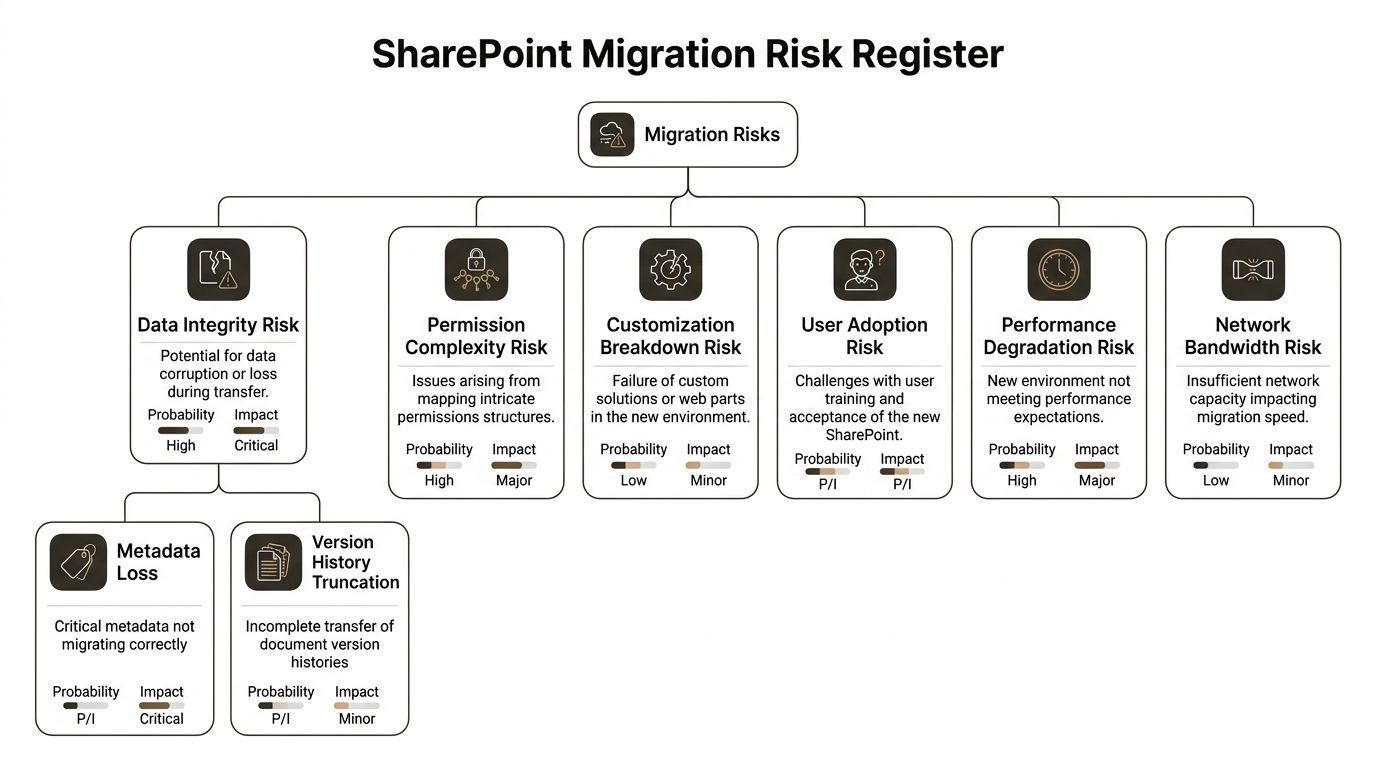
If your PMO needs a broader framing for enterprise risk thinking, this write-up on proactive risk and mitigation strategies is a good companion. Your SharePoint register still needs to get much more specific than that.
Risk one. API throttling and partial completion
Throttling is not just a speed problem. It creates misleading success reports, repeated retries, and batches that finish in an unknown state.
Your register should document the conditions that trigger intervention, the monitoring method, and the evidence your team will retain. Write down batch size rules, concurrency limits, retry thresholds, and the point at which the migration lead pauses execution. If those controls live only in an engineer's head, they will be applied inconsistently under pressure.
Mitigation documentation
- pre-migration segmentation of large libraries and high-churn content sets
- execution rules for batch order, concurrency, and pause conditions
- support escalation path, including who opens the case and what evidence is attached
- reconciliation report showing attempted items, completed items, retried items, and unresolved failures
Risk two. Broken inheritance and permission drift
Enterprise migrations often fail.
A site with years of one-off permission changes will not survive a move cleanly unless your team documents every exception that matters. You need the source location, the current access model, the approved target model, the business owner, and the post-cutover validation step. Without that record, your team ends up arguing about whether access changed by design, by accident, or by tool limitation.
Generic migration plans say "validate permissions." That is too vague to survive an audit.
Risk three. Identity and GUID mismatches
Tenant-to-tenant work and Entra ID redesigns expose a class of failure that generic checklists barely touch. References to users, groups, ownership, and sharing history can break even when the content itself lands where expected.
Your risk register should name:
- the sites, libraries, or workloads affected
- the identity objects being remapped
- dependencies on group recreation or account matching
- the validation test that confirms access after cutover
- the escalation owner for access denials, orphaned ownership, or failed sharing behaviour
If you do not document this at object level, your helpdesk becomes the discovery process.
Risk four. Path and naming failures
As noted earlier, SharePoint Online has hard limits around path and naming behaviour. Teams that ignore this always pay for it late.
Do not write "clean up long paths" and call that risk management. Record the scan method, the exception owner, the target naming rule, and the decision for each outlier. If a folder tree must be flattened or renamed, capture who approved it and when. That matters later when users ask why links changed or why a document library no longer mirrors the old file share.
A practical entry should also reference the script or report used to find the issue. If your team uses Get-PnPListItem or another audit method to identify problem paths, record that in the evidence field.
A risk register your team can use
| Risk | Probability | Impact | Early warning | Mitigation | Evidence owner |
|---|---|---|---|---|---|
| API throttling and partial completion | High in large batches | Critical | Retry spikes, slowing throughput, inconsistent completion counts | Segment content, control concurrency, define pause thresholds, retain reconciliation logs | Migration lead |
| Broken inheritance and permission drift | High in legacy environments | Critical | Permission exceptions in discovery output, unexplained access changes in pilot | Maintain permission exception register, approve target model, validate against mapped owners | Security lead |
| Identity and GUID mismatches | Medium to high in tenant-to-tenant or identity redesign work | Major | Access denials, orphaned ownership, failed group mappings | Document remap logic, recreate dependencies, run access validation by scenario | Identity lead |
| Path and naming failures | High in deep folder structures | Major | Scan exceptions, failed item processing, user reports of missing files | Pre-cutover path audit, approved rename rules, exception log with owner sign-off | Content owner |
A good risk register changes behaviour. Your team stops writing vague risks for governance theatre and starts documenting the exact failure points that derail SharePoint migrations in production. That is the difference between a project file and a legally auditable migration record.
Proving Success With Validation and UAT Matrices
A migration is not successful because the target site opens.
It is successful when your team can prove, with evidence, that content, permissions, structure, and business-critical behaviour survived the move. If your post-cutover statement is “users seem happy so far”, you do not have assurance. You have anecdote.
Technical validation must be binary
Your validation matrix should not ask broad questions. It should test specific outcomes and record pass or fail.
Build a technical matrix that checks:
- file and folder counts
- critical library presence
- metadata field population
- permission assignment against the approved map
- sensitivity and retention behaviour where applicable
- exceptions carried forward for agreed remediation
Use scripts where possible. Human spot-checking has value, but it misses edge cases and creates arguments later because nobody can prove what was tested.
Validation rule: If a control matters enough to mention during planning, it matters enough to test and document after cutover.
UAT needs scenarios, not vague requests
Do not ask business users to “have a look around”.
Give them structured tasks tied to real work. Your UAT matrix should contain named users, mapped test cases, expected results, and sign-off status.
Examples of useful test cases:
| UAT test | Expected result |
|---|---|
| Open a critical Excel file and edit it | File opens, saves, and remains in expected library |
| Browse a regulated library | Correct folders, metadata, and permissions appear |
| Search for a known record | Result appears with expected title and metadata |
| Access a restricted document | Authorised user succeeds, unauthorised user fails |
| Check a labelled policy file | Correct sensitivity or retention behaviour appears |
Sign-off must be formal
Your project documentation needs named approvers from IT, business ownership, and where necessary, compliance or security.
That sign-off should state what was validated, what exceptions remain, and whether those exceptions block production closure. If you skip this, unresolved defects become political arguments later.
What many teams get wrong
They validate volume and forget usability.
Or they validate user access and forget metadata.
Or they let one enthusiastic power user “confirm all looks good” and call that UAT. That is not defendable. A proper matrix turns opinion into evidence.
Rescue Notes For Tenant-to-Tenant and Entra ID Redesigns
Cutover weekend looks clean. Files are present. Sites open. Then Monday starts.
A finance approver loses access to a records library. A departing executive still owns dozens of sharing links under an old UPN. Power Automate flows fail because they still trust the source tenant. Security signs off on the identity redesign, but nobody can prove how old groups were translated into the new access model. That is how rescue projects begin.
Standard migration plans do not protect you here. Tenant-to-tenant moves and Entra ID redesigns change identity, policy, ownership, and trust relationships at the same time. If your documentation only tracks copied content, you have no audit trail for the decisions that matter when access breaks, regulators ask questions, or rollback becomes necessary.
Identity redesign is a common failure point because legacy groups, inherited permissions, guest access, service accounts, and app dependencies rarely map cleanly into a new tenant or a cleaner Entra ID model. Generic migration tools do not solve that. They move objects. Your team still has to document what changed, what could not be preserved, who approved the exception, and how you will defend that decision later.
What rescue documentation must include
For tenant-to-tenant work, record these items in a form your security, compliance, and operations teams can audit:
- User and group remapping register: source identity, target identity, unresolved object, decision owner, and status
- Domain and UPN change impact log: file sharing behaviour, link break risk, ownership changes, alerts, and notification dependencies
- Application dependency record: Power Platform components, service principals, Entra app registrations, third-party integrations, and tenant-bound automation
- Permission translation decisions: where inheritance was flattened, where access was reduced, where access could not be reproduced safely, and who approved that outcome
- Guest and external access exceptions: invited user history, B2B re-invites, blocked domains, and any site that changed exposure level after cutover
For Entra ID redesigns, document the actual translation from the old access model to the new one. Show how distribution lists, mail-enabled security groups, SharePoint groups, nested AD groups, and direct permissions were handled. Show where conditional access changed user experience. Show where least-privilege design removed access people previously had. If you cannot show that chain clearly, you cannot defend the redesign.
Questions your team should ask any migration partner
Ask for evidence, not confidence.
- How do you document object ID and GUID changes that affect permissions, apps, and automation?
- How do you detect and record broken inheritance after cutover?
- What deliverable shows every permission structure that was changed deliberately?
- How do you handle identities or groups that cannot be mapped one-to-one?
- What is the rollback process if identity mapping, external sharing, or app trust fails?
- What audit record do you leave behind for compliance review six months later?
High-level answers are a warning sign. If a partner cannot show you sample documentation, they are asking you to trust a process they cannot prove.
A short explainer can help your stakeholders understand the kind of complexity involved:
The ugly truth about rescue projects
Teams get into trouble when they treat the migration and the identity redesign as separate workstreams with separate paperwork. That split creates the audit gap. The content move carries permissions, ownership, and sharing history with it. The identity redesign changes what those permissions mean, who those identities belong to, and which controls now apply.
Your documentation needs a reconciliation layer that ties those records together. Site mappings, group mappings, exception decisions, app dependencies, validation outputs, and rollback triggers must point to the same authoritative record set. Otherwise you end up with access denials for legitimate users, excessive access for the wrong users, and no defensible explanation for either.
If your SharePoint migration documentation does not stand up to audit, rollback, and identity failure, your project is exposed before cutover starts. Ollo works on complex Microsoft 365 migrations where the deliverable includes moved data, decision records, control evidence, and remediation logic for regulated organisations.

















