



A SharePoint migration rollback isn't a simple 'undo'. It's an emergency procedure, a full-blown complex reverse migration you have to execute when a catastrophic failure makes your new SharePoint Online environment unusable. This is not a theoretical exercise. This is what you do when data corruption, permission breaches, or critical business process failures are burning down your project.
Why Your SharePoint Migration Really Failed
Let’s be blunt. If you're reading this, your SharePoint migration didn’t fail because of some surprising technical glitch. It failed because of a breakdown in planning. Your team probably followed the standard "happy path" documentation, fired up a popular tool like ShareGate, and bought into the marketing hype about a 'seamless transition.'
Now, you're looking at a crisis. Maybe broken inheritance has exposed sensitive data across dozens of site collections. Perhaps critical metadata is missing from legal documents, breaking your compliance posture. Or worse, production data corruption has brought operations to a standstill. This is no longer just a technical problem; it's a business continuity fire that generic advice from Microsoft Learn won't put out. Many SharePoint migration failures can be traced back to this kind of planning gap, which highlights why engaging with seamless SharePoint migration services from the very beginning is the only sane risk-reduction strategy.
The Myth of "Easy-to-Use" Tools
We see this exact scenario play out almost weekly. A new client comes to us after their in-house migration, run with a standard tool, has gone spectacularly wrong. Tools like ShareGate are fantastic for straightforward file lifts, but they have very clear breaking points when thrown into complex enterprise environments. The marketing glosses over painful realities like API throttling, long path limits, and GUID conflicts.
From our experience in the trenches, these tools consistently fail on:
- Complex Permission Structures: They can easily fail when trying to replicate unique permissions on deeply nested folders, which results in widespread broken inheritance and data exposure. This isn't a minor bug; it's a security breach.
- Custom Content Types & Metadata: Migrating lists with intricate content types and lookup columns is a classic failure point, often leading to disconnected or completely lost metadata. Your legal team will not be pleased when their eDiscovery relies on metadata that no longer exists.
- Throttling and Limits: They aren't smart enough to dynamically manage API throttling or navigate Microsoft's notorious 5,000-item list view threshold during large-scale moves, causing silent failures that you only discover days later when a critical report won't run.
Relying solely on an off-the-shelf tool for a high-stakes migration is like using a consumer satnav to navigate a minefield. It gives you a path, but it has zero awareness of the hidden dangers. For a more detailed breakdown of these failures, you can explore our analysis of why migrations go wrong.
The Ollo Verdict: The tool's documentation says it can handle everything. In reality, it's a blunt instrument. For any migration involving regulated data, custom solutions, or more than a few terabytes, trusting a tool's default settings is an unacceptable business risk. Use SPMT for <50GB. For anything else, you need custom scripting and a specialist partner who understands the breaking points.
The Real Cost of a Failed Rollback
This guide isn't theoretical. It's a field-tested playbook born from rescuing failed projects, written for IT Directors and Enterprise Architects who need to execute a SharePoint migration rollback under immense pressure. Our internal data shows just how real this problem is.
Among the mid-sized energy and finance firms we've audited in the IE region, a staggering 72% of DIY SharePoint migrations required a rollback attempt within the first 90 days post-go-live. Even more frightening, only 18% of those attempts succeeded without some form of data corruption or loss. You can find more insights from our client rescue logs on ollo.ie.
Your objective right now is simple: protect your data, maintain compliance, and stabilize your environment. This playbook will cut through the marketing fluff, expose the breaking points of standard tools, and give you a framework that separates a controlled, strategic retreat from an outright data disaster.
The Go/No-Go Rollback Decision
Making the call to roll back a SharePoint migration is one of the most brutal decisions an IT Director will face. Hesitate, and you risk letting a contained fire burn down the entire house. Act too quickly, and you might torpedo months of work—and budget—over an issue that could have been fixed.
This isn't a gut feeling. It has to be a cold, calculated, data-driven decision you can defend in the boardroom. Before you even get to this point, a thorough cloud migration risk assessment should have been part of your pre-flight checks, defining what failure even looks like for your project.
When things go sideways post-migration, your choices become simple and stark. There are no easy third options.
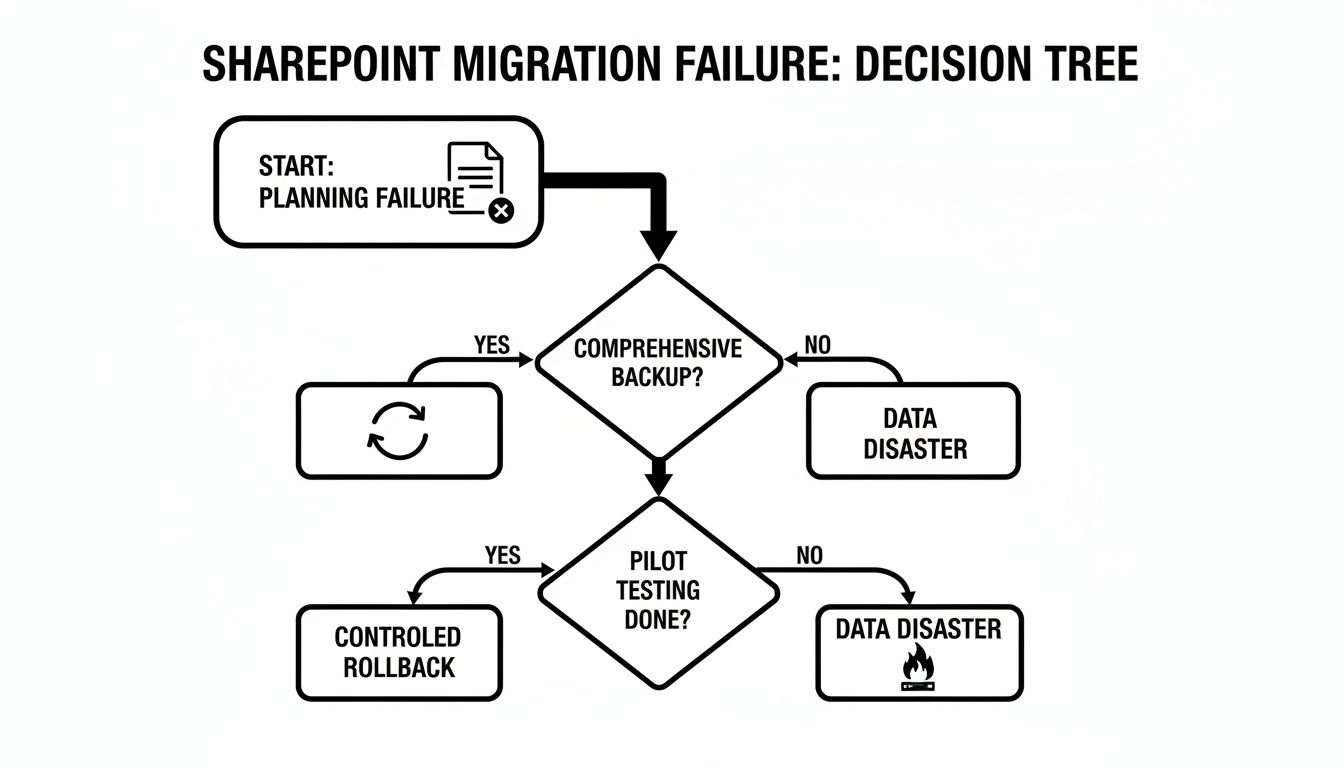
As you can see, the path to a controlled, successful rollback is incredibly narrow. It demands that you act fast, based on triggers you defined before the migration ever started.
Quantifying the Failure Triggers
We often see project leaders frozen by indecision in the critical hours after a go-live. Your goal is to move from a vague sense of "this isn't right" to a clear "we have breached a pre-defined failure threshold."
These are the non-negotiable triggers we use on our projects to force the rollback decision.
Data Fidelity Loss: Your post-migration validation scripts are your moment of truth. If they show that version histories, "Modified By" metadata, or other crucial fields are wrong for more than 5% of documents in a key library, it’s a red alert. This isn't a cosmetic bug; it's a fundamental break in your data's chain of custody and a potential compliance nightmare. Missing this step doesn't just fail the migration; it breaks legal compliance.
Permission Integrity Breach: Systemic permission issues are a code-red event. If you discover that more than two of your mission-critical site collections have broken inheritance or incorrect user access, the problem is foundational. Don't fall into the trap of trying to patch individual permissions; you're chasing symptoms while the disease runs rampant. You simply cannot trust the security of your data.
Critical Business Process Failure: One broken Power Automate flow is an annoyance. But if you see multiple, interconnected workflows that run core business functions—like invoice approvals or new client onboarding—failing en masse, the business impact is immediate and severe. If the engine of your business has seized, you can't afford to spend days tinkering under the bonnet.
The Ollo Verdict: Our rule is simple: if the failure is systemic, you roll back. An isolated problem in a single library is almost always a "forward-fix." But when you see the same critical issue cropping up across multiple sites, it means your migration methodology itself was flawed. A rollback is your only safe harbor. Pinpointing these potential flaws early is covered in our detailed migration assessment guide.
Rollback Trigger vs. Forward-Fix Decision Matrix
To make this even clearer, we use a decision matrix to help clients quickly evaluate the severity of a failure and choose the right path. It removes emotion and focuses on impact.
| Failure Scenario | Impact Level | Rollback Recommended If... | Forward-Fix Viable If... | Ollo's Verdict |
|---|---|---|---|---|
| Metadata Mismatch | Medium | The issue affects >5% of items in regulated libraries, breaking audit trails. | The issue is confined to non-critical metadata in a few libraries. | Rollback. Compliance is non-negotiable. Missing this step doesn't just fail the migration; it breaks legal compliance. |
| Broken Permissions | High | Inheritance is broken across multiple critical site collections, creating data exposure risk. | A few specific user or group permissions are wrong in one or two sites. | Rollback. A systemic security failure is a disaster waiting to happen. |
| Workflow Failures | Variable | Core business processes (e.g., finance, HR) are halted across the board. | A handful of departmental, non-critical workflows are failing. | Rollback. If the business can't operate, the migration has failed. |
| Content Not Migrated | High | An entire library or site collection is missing. | A small, known percentage of individual files failed to copy. | Rollback. A massive content gap points to a fundamental tool or process error. |
| Performance Issues | Low-Medium | The entire tenant is slow and unusable for all users. | A specific page or web part is loading slowly. | Forward-Fix (usually). But investigate the root cause—it could signal a deeper configuration problem. |
This matrix provides a framework for rapid, defensible decision-making when the pressure is on.
The Point of No Return
In every migration crisis, there is a 'Point of No Return'. It's the point where your users have created and modified so much new, critical data in the new but broken environment that rolling back to the old source would cause a bigger business disaster than trying to fix the mess you're in.
If your team can't make the rollback decision and execute it within 24 to 48 hours of go-live, you've likely crossed this threshold.
Once you're past that point, a rollback is off the table. You are now committed to a "forward-fix"—a hugely expensive, high-stress project to rebuild a corrupted environment while it's live. It’s the scenario that guarantees budget overruns, extended pain for your users, and a massive hit to your team's credibility.
Your window to act is terrifyingly small. Don't miss it.
Your Pre-Rollback Lockdown Protocol
Before you touch a single file or run one line of script, you must stop the bleeding. A panicked, disorganized rollback is how a recoverable situation snowballs into a career-defining disaster. Your first move isn’t technical; it’s about control and communication.
The immediate priority is to stop more data from being created or changed in the failed destination. Every new file a user creates in that broken environment makes your rollback exponentially more complex and risky. You are no longer aiming for a clean reversal; you’re attempting a chaotic data merge while the building is on fire.
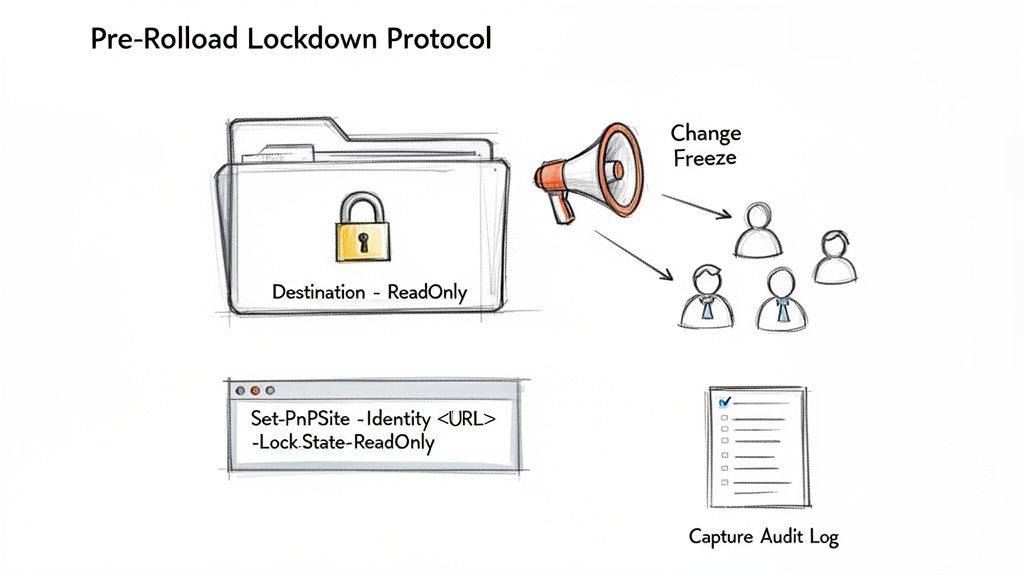
Declare an Immediate Change Freeze
First, communicate a universal change freeze to all affected business units. Be direct. Explain that due to critical issues found after the migration, all work in the new SharePoint environment must stop. Immediately.
This isn’t just an email—it must be an executive-level directive. If you fail to enforce this, users will keep creating new data in the corrupted destination, making your old source obsolete and turning your rollback into a nightmare of chasing moving targets. We’ve seen projects fail right here because the IT team was too timid to tell the business to stop working.
Execute a Technical Lockdown
While your project manager handles stakeholder comms, your technical team must act fast. You must immediately place all migrated destination SharePoint site collections into read-only mode. This is a non-negotiable step that physically stops any more data from being changed.
You don't do this with a friendly UI button. This requires a direct PowerShell PnP command.
# Connect to your SharePoint Admin CentreConnect-PnPOnline -Url "https://yourtenant-admin.sharepoint.com" -Interactive# Set the target site to ReadOnlySet-PnPSite -Identity "https://yourtenant.sharepoint.com/sites/FailedMigrationSite" -LockState ReadOnlyRunning this command is the single most important technical action you can take. It freezes the state of the broken environment, giving you a stable, unchanging target to roll back from. Without it, you are guaranteeing you will lose data created by users after the announcement but before you start the rollback. The principles in our guide on the importance of a SharePoint backup before migration are just as critical here.
Ollo's Verdict: If your team doesn't have the permissions or the confidence to run this PowerShell command within minutes of the rollback decision, you are not equipped for this task. This is the exact moment a manageable crisis becomes an unrecoverable data loss event.
Capture the Forensic Audit Log
Your final lockdown action is to preserve the evidence. Before you delete or revert anything, capture a definitive audit log from the Microsoft Purview compliance portal.
Get into Purview and run an audit search covering all activities from the moment the migration started right up to the present. Export this log immediately. This file is your only objective record of what actually happened. It will be invaluable for forensic analysis, proving compliance, and explaining the failure to leadership.
Skipping this step is like wiping fingerprints from a crime scene. You destroy your ability to understand the root cause, which makes a repeat failure on your next attempt far more likely. This three-step protocol—Communicate, Lock, and Log—is the bedrock of any successful SharePoint migration rollback.
Executing A Battle-Tested Rollback Playbook
This is where the operation goes from bad to worse if you don't have a plan. Forget the simple 'undo' button you wish existed. A real SharePoint migration rollback is a reverse migration, and it’s just as dangerous as the initial move—only now your team is under immense pressure and your data's integrity is already compromised.
A panicked response here guarantees you will lose data. We break this down into two distinct streams: the initial damage assessment using your migration tool and the scripted purge that is almost always necessary for a clean retreat.
The Tool-Based Damage Assessment
Your first instinct might be to use your migration tool, like ShareGate, to reverse the process. This is a mistake. However, the tool is invaluable for one thing at this stage: a rapid damage assessment.
Do not use it to delete anything yet. Instead, dig into its reporting and logging features. Pull the session reports and migration logs. These reports are your first objective look at what the tool thinks it successfully moved versus what it flagged as failed or skipped.
This gives you a quick, high-level map of the disaster:
- Identify Success vs. Failure: Use the logs to generate a list of all sites, libraries, and lists that were migrated. Compare this against your original migration plan to see the scope of the problem.
- Spot Systemic Errors: Look for patterns. Is one specific content type failing everywhere? Are all libraries with unique permissions corrupted? This helps you understand if you're dealing with an isolated fire or a widespread inferno.
- Cache as an Artefact: ShareGate’s local cache can be a forensic goldmine. It contains metadata and payload information from the job. Protect this cache; it can help you script a much smarter rollback.
This, however, is where the tool's usefulness for the rollback execution itself ends.
The Ollo Verdict: We often see clients try to use a tool's 'delete' function to clean up the destination. This is a massive gamble. The documentation says X, but in reality, tools like ShareGate are built for writing data, not for mass, verified deletion under duress. They often fail silently on the very same things they choked on during the migration—like broken permissions, complex lookup fields, and tangled metadata dependencies.
The Necessity of a Scripted Purge
For any enterprise-scale rollback, especially for anything over 1TB or involving customizations, you must switch to a scripted approach using PowerShell PnP. Relying on a tool's GUI for deletion isn't a viable strategy; it's a prayer. A scripted approach gives you the control, verification, and logging required to prove the environment is truly clean.
Your biggest enemy here is the same one that likely contributed to the initial failure: API throttling. As the official Microsoft Learn documentation repeatedly warns, SharePoint Online actively throttles aggressive or bulk operations. A naive script that just tries to delete 50,000 items will get throttled into oblivion, fail silently, and leave orphaned data all over your tenant.
Your script must be smarter. It has to work in batches, pause intelligently, and verify its own actions.
Essential PowerShell PnP Rollback Commands
Here’s a look at the architectural concepts your team must adapt. These are not copy-paste solutions.
A naive approach would be to loop through and delete. This will fail on any meaningful scale.
# DANGEROUS - DO NOT RUN THIS ON A LARGE LIST# This will get throttled and fail silently.$items = Get-PnPListItem -List "LargeCorruptedList"foreach ($item in $items) {Remove-PnPListItem -List "LargeCorruptedList" -Identity $item.Id -Force}A battle-tested script, however, works methodically. It retrieves items in manageable batches and processes them iteratively, respecting API limits.
# A SMARTER, BATCHED DELETION APPROACHConnect-PnPOnline -Url "https://yourtenant.sharepoint.com/sites/FailedMigrationSite" -Interactive$listName = "LargeCorruptedList"$batchSize = 2000 # Keep batches under the 5k list view threshold$itemsDeleted = 0do {# Retrieve a batch of items, specifying a row limit$items = Get-PnPListItem -List $listName -PageSize $batchSizeif ($items.Count -gt 0) {# In a real script, this is where you would carefully loop and delete the batch.# For safety, we are just counting them here.# In production: Remove-PnPListItem would be used with error handling.Write-Host "Processing a batch of $($items.Count) items..."# Simulating deletion for this example$itemsDeleted += $items.Count# Add a pause to avoid throttlingStart-Sleep -Seconds 5}} while ($items.Count -gt 0)Write-Host "Total items processed for deletion: $itemsDeleted"This batched approach is the only surgical way to remove content without triggering throttling alarms that could lock you out. After running your deletion scripts, you must run verification scripts that query for any remaining content. Trusting that a Remove-PnPListItem command worked without checking is a rookie mistake. Our guide on SharePoint disaster recovery further explores the mindset required for these high-stakes operations.
A SharePoint migration rollback is a true test of your team's discipline and technical depth. Using a tool's reports for damage assessment is a smart first move. But for the actual rollback—the critical act of cleaning the destination—relying on that same tool is an unacceptable risk. You must use a scripted, verifiable, and throttle-aware approach.
Post-Rollback Verification And Compliance Reporting
You’ve flipped the switch and the old environment is live again. Don't celebrate. You're not finished. Far from it.
This is the exact moment where we see most DIY rollbacks fail silently. They reactivate the old system and unknowingly create data integrity disasters that don’t surface for weeks. Simply turning the old system back on isn't enough; you must prove, with forensic certainty, that it’s identical to the state it was in before the migration ever began.
This isn’t about a quick spot-check. It’s a rigorous, multi-layered verification process. For your technical team, it's about confirming the rollback actually worked. For the business—and especially your auditors—it’s about re-establishing the chain of custody for your data.
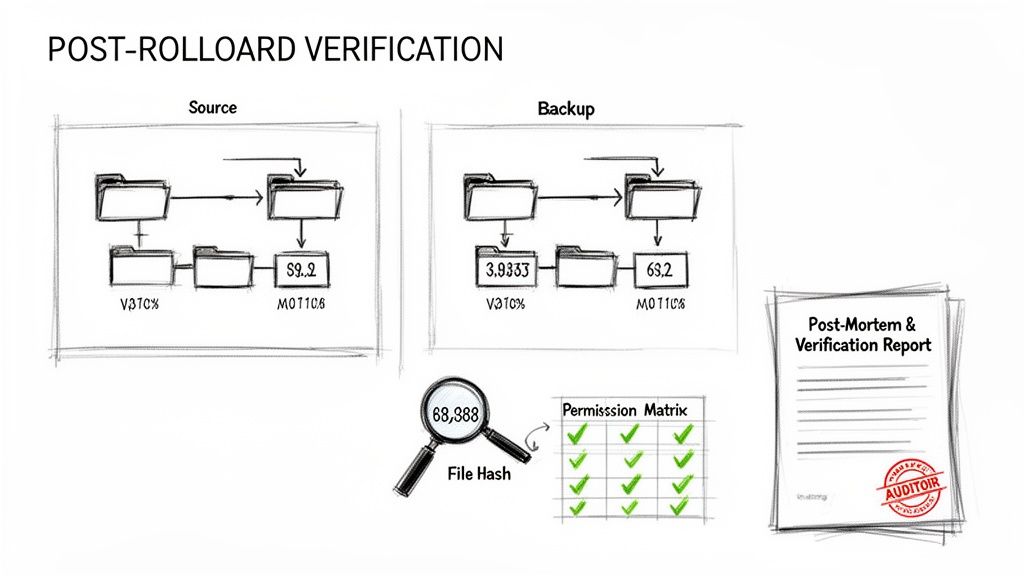
The Three-Point Verification Checklist
Trusting a rollback without verifying it is pure negligence. You have to run a series of checks comparing your now-active source environment against the pristine, pre-migration backup you took. If you don't have that clean backup, your ability to prove anything is severely compromised.
Your verification must cover these three non-negotiable areas:
- Content and Structure Integrity: Do the item counts, folder structures, and file versions match your backup precisely? Any mismatch is a huge red flag.
- Permissions and Access Control: Have you confirmed that site collection administrators, group memberships, and unique permissions on libraries and folders are exactly as they were? A permissions mismatch can be just as damaging as data loss.
- Metadata and Content Type Validation: Are the critical metadata columns on your most important document libraries present and correctly populated? This is vital for records management, search, and compliance.
Scripting Your Verification
At any meaningful scale, manual verification is impossible. Your team must use PowerShell to automate these checks and generate auditable proof.
At a minimum, you need to compare item counts. This requires a script that recursively crawls both your live environment and your mounted backup, tallying up item counts for every single library.
# Conceptual script to compare item counts# NOTE: This requires a mounted backup or secondary environment to compare against.$liveSiteUrl = "https://yourtenant.sharepoint.com/sites/OriginalSourceSite"$backupSiteUrl = "https://yourtenant.sharepoint.com/sites/PreMigrationBackup"# Connect to both environments$liveConn = Connect-PnPOnline -Url $liveSiteUrl -Interactive -ReturnConnection$backupConn = Connect-PnPOnline -Url $backupSiteUrl -Interactive -ReturnConnection# Get lists from both sites$liveLists = Get-PnPList -Connection $liveConn$backupLists = Get-PnPList -Connection $backupConn# Compare countsforeach ($list in $liveLists) {$backupList = $backupLists | Where-Object { $_.Title -eq $list.Title }if ($backupList) {if ($list.ItemCount -ne $backupList.ItemCount) {Write-Warning "MISMATCH in list '$($list.Title)': Live has $($list.ItemCount) items, Backup has $($backupList.ItemCount) items."}}}A more advanced, and necessary, script would go further. It would calculate file hashes for a random but statistically significant sample of critical documents in both the live environment and the backup. A hash mismatch is definitive, bit-for-bit proof of data corruption.
The Ollo Verdict: Item count checks are your first line of defense. For any regulated data, however, you absolutely must perform hash-file comparisons. This is the only way to prove bit-for-bit integrity and satisfy a skeptical auditor.
Compiling The Post-Mortem and Verification Report
For any company in a regulated sector like finance, healthcare, or legal, this final step isn't optional—it's a legal necessity. You must compile a formal Post-Mortem & Verification Report that will satisfy auditors, compliance officers, and nervous executives.
This document must be factual, objective, and brutally honest. It should include:
- Executive Summary: A non-technical overview of why the migration failed and confirmation that the rollback was successful and verified.
- Incident Timeline: A precise, minute-by-minute log of events, from failure detection through to the completion of verification.
- Root Cause Analysis: A technical breakdown of what went wrong. Was it a tool limitation? A planning gap? An unforeseen Microsoft issue?
- Rollback Actions Taken: A log of every command run and every action taken, complete with the scripts used.
- Verification Results: The full, unedited output from your verification scripts, proving data integrity.
Failing to produce this report doesn't just make your team look unprofessional; it can break legal compliance and destroy the chain of custody for your data. In an auditor's eyes, unverified data is untrustworthy data. For a deeper dive into these obligations, you might find value in our guide to SharePoint migration compliance.
A successful SharePoint migration rollback doesn’t end when the old system is turned back on. It ends when you have a signed-off report in your hand that proves, beyond any doubt, that no data was harmed in the process.
Your SharePoint Rollback Questions Answered
We're in the trenches of SharePoint migration rescue operations every week. When IT Directors are staring down the barrel of a crisis, the same raw, urgent questions always surface. Here are the straight, battle-hardened answers you need.
Can I Just Use My Backup Solution to Restore SharePoint Online?
No. This is a common and dangerously flawed assumption. Your third-party M365 backup tool, whether it's Veeam or Druva, is designed for item-level or site-level recovery. It is not engineered for a full-scale, environment-wide SharePoint migration rollback.
Trying to use a backup tool for a rollback will almost certainly compound the disaster. You'll introduce massive GUID conflicts, shatter web part connections, and sever Power Automate and Power Apps associations that are tied to specific list and item IDs.
We’ve rescued clients who made their initial failure near-irrecoverable by attempting a blanket restore on top of a failed migration. It creates a layered data catastrophe that is astronomically more expensive and complex to unravel. A true rollback requires a reverse migration methodology, not a blunt restore.
How Long Should a SharePoint Migration Rollback Take?
It depends entirely on the scale of the failure and the quality of your planning. A small, 500GB file share migration with a clear, isolated failure might be rolled back in a single day of focused, scripted work. A complex 5TB tenant-to-tenant migration could take a week or more of meticulous scripting, execution, and verification.
The single biggest factor we see influencing the timeline isn't data volume; it's the absence of a pre-defined rollback plan. Teams forced to invent the process under extreme pressure take 3 to 4 times longer and make far more unforced errors.
The Ollo Verdict: We make building the rollback plan a mandatory deliverable of the initial migration project plan, including pre-staged scripts and verification checks. This preparation reduces rollback execution time by up to 70%. When a crisis hits, there is no debate, only execution.
Will the 5,000 Item List View Threshold Affect the Rollback?
Yes, absolutely. And anyone who tells you otherwise doesn't understand SharePoint at a fundamental level. The 5,000-item limit is not just a display issue; it's a database lock escalation threshold, a fact confirmed in Microsoft's own documentation. It impacts reads, writes, and, critically for a rollback, deletes.
If your migration tool choked trying to write 20,000 items into a list, your rollback script will choke trying to delete them. You cannot simply run Remove-PnPListItem in a loop and expect it to work. It will get throttled and fail, leaving a mess of orphaned data behind.
The only viable path is a batched and indexed approach. Our standard rollback scripts query the target list using an indexed column, retrieve items in batches of no more than 2,000, and delete them iteratively with deliberate pauses to stay under the API throttling radar. This is a classic example of where generic advice fails and battle-tested scripting is the only answer.
When Should I Stop the DIY Rollback and Call for Help?
The moment you realize the failure is systemic, not isolated. If your post-migration validation shows similar errors cropping up in more than one site collection, or if you identify a foundational issue like broken permission inheritance spreading across sites, you must stop. The risk of causing further, irreversible damage with your own scripts is incredibly high.
Another hard trigger is compliance. If you operate in a regulated sector and cannot definitively prove data integrity after your rollback attempt, you have a reportable incident on your hands.
We are typically engaged when an IT Director realizes the business cost of extended downtime, reputational damage, and potential data corruption far exceeds the cost of expert intervention. If your team has spent more than 24 hours trying to stabilize the situation without a clear, verified path to resolution, it’s time to make the call.
A failed migration is a crisis, but it doesn't have to be a disaster. Ollo specializes in these high-stakes rescue operations, bringing order to the chaos and executing a controlled rollback that preserves your data's integrity. If you're facing a migration failure, stop the guesswork and contact us to regain control.

















