



Your SharePoint migration didn't just fail; it detonated. What was supposed to be a straightforward cutover has spiraled into a full-blown crisis, and the pressure from leadership is immense. Before your team even thinks about hitting "retry," you must perform a brutally honest post-mortem to diagnose exactly what went wrong.
This isn't optional. This is how you avoid disaster. Your goal is to recover your data, your project, and your credibility.
Conducting the Post-Mortem Your Team Is Avoiding

Right now, your team is exhausted. Users can't find their files. The temptation to just jump back in and try again is almost overwhelming.
Don’t.
Rushing back in is precisely how a migration failure evolves into a career-defining disaster. You must resist this impulse and shift your team’s focus from frantic recovery to forensic analysis. This isn't about assigning blame; it's about dissecting the technical failure with surgical precision to understand the root cause.
Your first move is to gather the migration logs from your tools—whether it’s the SharePoint Migration Tool (SPMT), ShareGate, or your own custom scripts. Now, you hunt for the real culprit, not just the loudest symptom. We often see clients fail when they fixate on network speed because their logs are lit up with HTTP 503 errors. That isn’t a network problem; it’s classic API throttling. Microsoft’s servers are pushing back, and your 10Gbps pipe means nothing.
Quick Diagnosis of Common Failure Points
To help you get started, here's a quick-reference table that maps the symptoms your team is likely seeing to the technical gremlins that are probably to blame. This is based on the rescue migrations we're called in for every week.
| Symptom Your Team Is Seeing | Likely Technical Culprit | Immediate Ollo Insight |
|---|---|---|
| The migration job runs for hours, then fails with thousands of errors. | API Throttling. Microsoft is protecting its service by slowing down your requests. | Your tool isn't smart enough to manage its own request decoration. You need an architecture with built-in retry/backoff logic, not just a faster connection. |
| Large document libraries are missing entirely or are incomplete. | The 5,000-item list view threshold. It’s a hard architectural limit in SharePoint. | This should have been caught in pre-analysis. The library needs to be restructured before migration, not during. The tool can't fix this for you. Missing this step doesn't just fail the migration; it breaks legal compliance. |
| Users are complaining they can't access files they "know" were migrated. | Broken permissions. On-prem and cloud user identity (GUID) mapping failed. | A 'lift and shift' of permissions is a myth. This is a classic sign of a poor identity mapping strategy and will result in either massive data exposure or operational gridlock for your data. |
| Paths are getting truncated; deep folder structures are a mess. | The 400-character URL path limit. Another hard limit. | Your source file paths were too long. You need a path remapping strategy, not just a file copy. This is a planning failure, not a tool failure. |
Looking at this table should give you a starting point, but a true post-mortem has to go deeper.
The Technical Breaking Points
Your investigation must push past the surface-level error codes. You need to ask the hard questions that reveal the fundamental flaws in your original plan. This is where we consistently find the real story of why a SharePoint migration failed:
Did you inventory for structural impossibilities? The documentation says to watch out for the 5,000-item list view threshold and the 400-character path limits. But in reality, did your team’s pre-flight check actually scan for and flag these hard stops, or did you just assume the migration tool would figure it out?
How did you plan to map user identities and permissions? A 'successful' data migration that leaves everyone with "Access Denied" messages is an absolute failure. This almost always points to a non-existent strategy for resolving on-prem vs. cloud GUID conflicts and mapping complex, nested, item-level permissions.
What was the strategy for tenant-to-tenant site collisions? If you were consolidating tenants, what was the plan for sites that had conflicting URLs? Standard tools don't merge them; they just halt or overwrite. This requires a clear pre-migration architectural decision.
The Ollo Verdict: A post-mortem isn't complete until you can map every major failure in your log files to a specific, documented SharePoint Online limitation. If your team can't do this, it’s a clear sign they were unprepared for the technical realities of the platform.
Understanding these points is critical because they represent systemic issues, not simple glitches. A failed migration is a costly, high-visibility lesson in the common traps that lead to modernization failures, but it also provides the raw, unfiltered data needed to build a resilient recovery plan.
To move forward, you must first fully understand why you failed. For a deeper dive into evaluating your environment before you make another attempt, our guide on the SharePoint migration assessment is a must-read.
Diagnosing API Throttling and Tool Limitations
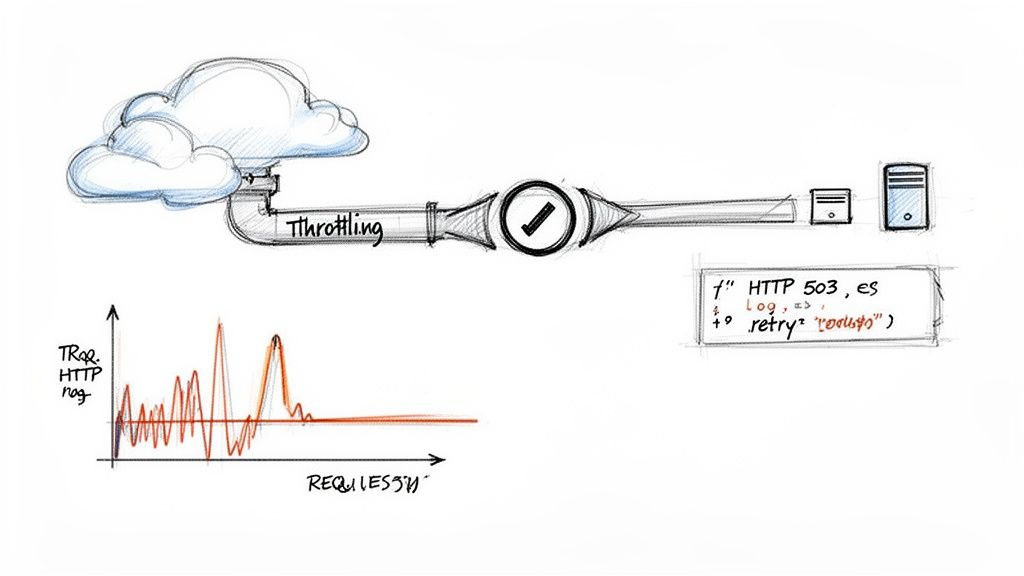
Let's get brutally honest. Your team probably looked at your company's 10Gbps internet connection and assumed the migration would be lightning fast. That single assumption is almost certainly why you're now reading an article with "SharePoint migration failed" in the title. The number one killer of enterprise SharePoint migrations is, without question, API throttling.
Your bandwidth means nothing here. The migration speed isn't dictated by your network pipe; it’s governed by Microsoft's service health and your tenant's invisible "reputation score." When your migration tool hammers the SharePoint Online APIs too hard and too fast, Microsoft simply pushes back. This isn't a bug; it's a defence mechanism to protect the entire multi-tenant environment from any single aggressive process—like your migration.
Finding the Throttling Footprints in Your Logs
If your migration speed suddenly plummeted and jobs started failing intermittently, the evidence is hiding in plain sight within your logs. You need to stop looking at network utilisation charts and start digging into the raw output from whatever tool you used. Whether it was SPMT, ShareGate, or a custom script, the digital footprint is always the same.
You are hunting for these specific error codes:
- HTTP 429 "Too Many Requests": This is Microsoft's polite warning shot. The server is telling your tool to back off and slow down. Inexperienced tools will just ignore this and plough ahead, leading directly to the next, much bigger problem.
- HTTP 503 "Server Too Busy": This is the hammer coming down. Microsoft has stopped asking nicely and has now temporarily cut you off. Your tool's logs will show a massive spike in these errors, followed by catastrophic job failures across the board.
We often see clients fail in this exact scenario. A healthcare provider in Cork learned this the hard way when their planned "quick weekend lift" of 35TB of data spiralled into a week-long nightmare. Their 8,000-user organisation banked on their 10Gbps fibre line, but by hour 12, a wall of HTTP 503 errors had throttled them down to a crawl—just 15MB/s.
Microsoft's own guidance confirms this: throughput is dictated by service limits, not your bandwidth.
Why Standard Tools Fail at Scale
This is the moment where the tools your team relied on reveal their fundamental weakness in a demanding enterprise project. They simply are not built for this kind of high-stakes battle.
SharePoint Migration Tool (SPMT)
Microsoft’s free utility is designed for the simplest "lift and shift" from a file share. The documentation says it has retry logic, but in reality, when it hits serious throttling, its only response is to try again, often even more aggressively. This behaviour can actually make things worse, digging your tenant deeper into a throttled state by repeatedly proving to Microsoft that you're a "bad actor." It completely lacks the sophistication to dynamically adjust its own request rate.
ShareGate
Now, ShareGate is a far more capable tool, and it's one we often use in our own engagements. But it is not a "set it and forget it" magic bullet. We see clients fail when they run it out of the box, as its default settings can still easily trigger throttling on a large, complex migration. Real success with ShareGate requires an expert operator who knows how to fine-tune its performance settings—adjusting concurrent requests, defining custom time-of-day throttling rules, and even running multiple migration agents from different machines to distribute the load.
Buying the right tool isn't the solution; knowing how to wield it under fire is. If your team just clicked "Start" on a multi-terabyte job, they never really stood a chance.
The Ollo Verdict: Use SPMT for <50GB. For anything else, you need custom scripting. Its inability to intelligently manage API traffic makes failure almost inevitable for any serious enterprise project. We have a detailed breakdown of why the SharePoint Migration Tool (SPMT) isn't enough for complex projects. For enterprise-grade data, you need an architecture that actively avoids throttling through intelligent batching and custom scripting—not a tool that blindly provokes it. This isn't a feature you can buy; it's a strategy you must design.
Unravelling Data Structure and Path Length Disasters
So, API throttling didn't bring your migration to its knees. The next likely culprit? Your data structure. This is where we see the most catastrophic, hard-to-recover situations—the ones that turn a migration project from a technical puzzle into a full-blown business crisis.
It's where a vague SharePoint migration failed error hides a fundamental architectural mismatch between your old system and SharePoint Online.
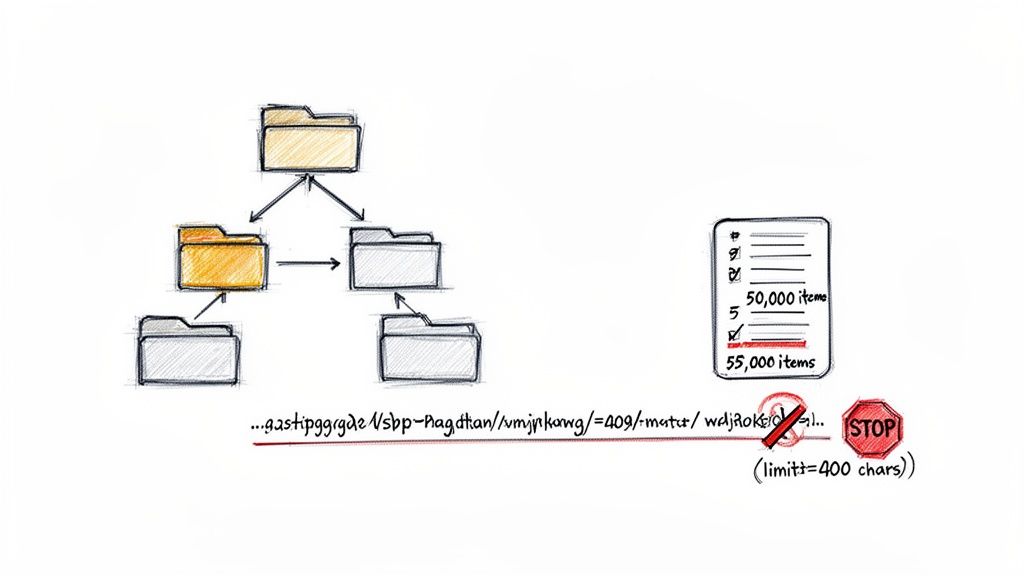
There are two main offenders here, both rooted in SharePoint’s hard architectural limits. These aren't suggestions; they are non-negotiable breaking points that no migration tool can magically fix. If these weren't identified and fixed before the cutover, it’s no wonder the project is now dead in the water.
The 5,000-Item List View Threshold Trap
The documentation says to be aware of the 5,000-item list view threshold. But in reality, this isn't just about what you can see on a screen; it's a database lock escalation limit that cripples queries and, critically, the API calls that migration tools rely on. We constantly find ourselves talking to clients whose teams tried to brute-force a SharePoint list with 50,000 or even 100,000 items.
When this happens, the migration tool doesn't just slow down. It slams into a hard wall and often halts the entire job. The error log gives you a generic failure, sending your team on a wild goose chase for phantom network issues when the real problem is structural.
We often see clients fail here. We saw this exact scenario implode a project for a Dublin-based finance house. Their migration ground to a halt over this very trap, a limit that Microsoft Learn explicitly flags as non-migratable without remediation. They were trying to move 120TB from an on-prem file server, including ancient libraries bloated with 12-year-old duplicates. Their tool, SPMT, simply choked, throwing 'file count limit' errors on over 65% of their lists and stopping its scans entirely.
The Nightmare of Long File Paths
The second structural disaster is the 400-character URL path limit in SharePoint Online. For years, your legacy on-premise file server let users create deeply nested folder structures. That "organised" chaos of folders within folders within folders has now become your migration's undoing.
Take a path like this, which is common on a file server:C:\Projects\Dublin_Office_Expansion_FY2021_Q4\Finance_Dept_Planning_Documents\Initial_Budget_Projections_and_Analysis\Draft_Versions_for_Internal_Review_Only_DO_NOT_DISTRIBUTE\Final_Approved_Version_v3_Signed_by_CFO.docx
In SharePoint Online, that path is an immediate failure. The file simply will not migrate. Period.
The standard advice to "flatten your folder structure pre-migration" sounds simple, but for an Enterprise Architect staring at terabytes of data, it’s almost insulting. Manually restructuring millions of files across thousands of folders isn't a small pre-migration task; it’s a six-month project that needs scripting expertise most internal teams don't have.
Without a scripted way to remap these paths while preserving metadata and context, you’re looking at an impossible manual clean-up. Our guide to mastering SharePoint site structure for migration digs into the architectural thinking you need to tackle this properly.
The Ollo Verdict: Structural failures are really planning failures. Believing that any tool, whether it’s SPMT or ShareGate, can automatically fix bloated lists and decade-old nested folder structures is a fool's errand. This remediation work is non-negotiable and demands specialist scripting and architectural redesign before you move a single byte. Failing to do this doesn't just put your project timeline at risk; it risks the data itself.
The Silent Killers of Data Governance
This is the kind of failure that doesn’t show up as a big red error in your migration log. Your tool might even report 100% success, but what you’ve actually succeeded in doing is creating a catastrophic data governance crisis. A SharePoint migration that fails loudly is obvious; a silent permissions disaster is far more dangerous.
We're often called into organisations post-migration where permissions are either wide open for all staff or completely locked down, blocking critical business operations. The root cause is almost always the same: a decade of broken item-level permission inheritance and a failure to map user identities correctly between the old and new systems.
Think about your on-premise environment. It's been accumulating years of "quick fix" permissions. A manager grants direct access to a specific file for a contractor. A team lead breaks inheritance on a folder for a sensitive project. These intricate, one-off permissions are a governance time bomb just waiting to go off.
The Myth of "Lifting and Shifting" Permissions
We often see clients fail because they assume a tool like Microsoft's SPMT or even a standard ShareGate setup will just copy these permissions over. This is a fatal assumption. These tools often fail spectacularly when they encounter complex, broken inheritance chains.
The documentation might say they support permission migration, but the reality on the ground is that they frequently choke on nested, item-level access rights. When they hit something they can't resolve, the tool's default behaviour is often to simply revert the content to the permissions of the parent destination library.
This leads to one of two disastrous scenarios:
- Massive Data Exposure: Sensitive HR, finance, or legal documents that had tightly restricted access on-prem are now visible to anyone with access to the parent SharePoint site.
- Operational Gridlock: Critical operational files that everyone in a department could access are now locked down, with only a handful of site owners having permission. The helpdesk phones start ringing off the hook.
Missing this step doesn't just fail the migration; it breaks legal compliance. You can learn more about establishing a robust framework in our deep-dive on SharePoint data governance.
The Ollo Verdict: Auditing for broken inheritance and GUID conflicts isn't optional; it's a non-negotiable step for any regulated industry. Relying on a tool's "permission migration" checkbox without a deep, script-based pre- and post-migration audit is a deliberate act of risk-taking.
The Tenant-to-Tenant Collision Course
This governance disaster gets even worse in tenant-to-tenant migrations, a common scenario we see as companies merge and acquire. Here, another silent killer emerges: site URL and GUID collisions.
We watched an IE-based energy firm fail spectacularly when they attempted a tenant-to-tenant SharePoint migration without addressing site collisions upfront. Microsoft's native tools simply aren't built for merging sites; they're designed to create fresh ones. The reality check came when 70% of their 28 migration jobs failed instantly due to "site already exists" errors, forcing a two-week manual cleanup of ghost sites and URL renames.
This blew their cutover timeline from a single weekend to an entire month, costing an estimated €250,000 in delayed productivity and overtime, a problem you can read more about in these insights on SharePoint migration site conflicts.
When your team tries to move a site like /sites/Finance from Tenant A to Tenant B where a site with that same URL already exists, the migration job will instantly fail. Standard tools have no capability to merge the content. This demands a specialist approach involving pre-migration URL remapping, content staging, and custom scripting to move data into the existing sites without conflict. It is simply not something your team can solve with an out-of-the-box tool.
So, your SharePoint migration has gone off the rails. You’re not just hitting a few errors; you’re staring at a full-blown project failure. The logs are a nightmare, your users are losing patience, and the thought of just hitting "run" again feels like a special kind of madness.
Let's be clear: this isn't about clicking "retry." This is a rescue mission. You've already lost time, but a fumbled recovery will cost you something far more valuable: data and your credibility.
It’s time for triage. Forget trying to fix everything in the new environment – that’s a rookie mistake that just digs a deeper hole. Instead, you need to sort every single piece of data that failed to move into one of three buckets: things to fix at the source, things you can clean up post-migration, and what we in the trenches call "lost causes" that need specialist help.
This process is critical because, as the diagram below shows, a failed migration isn't just a technical problem. It quickly spirals into a business-wide governance and security risk.
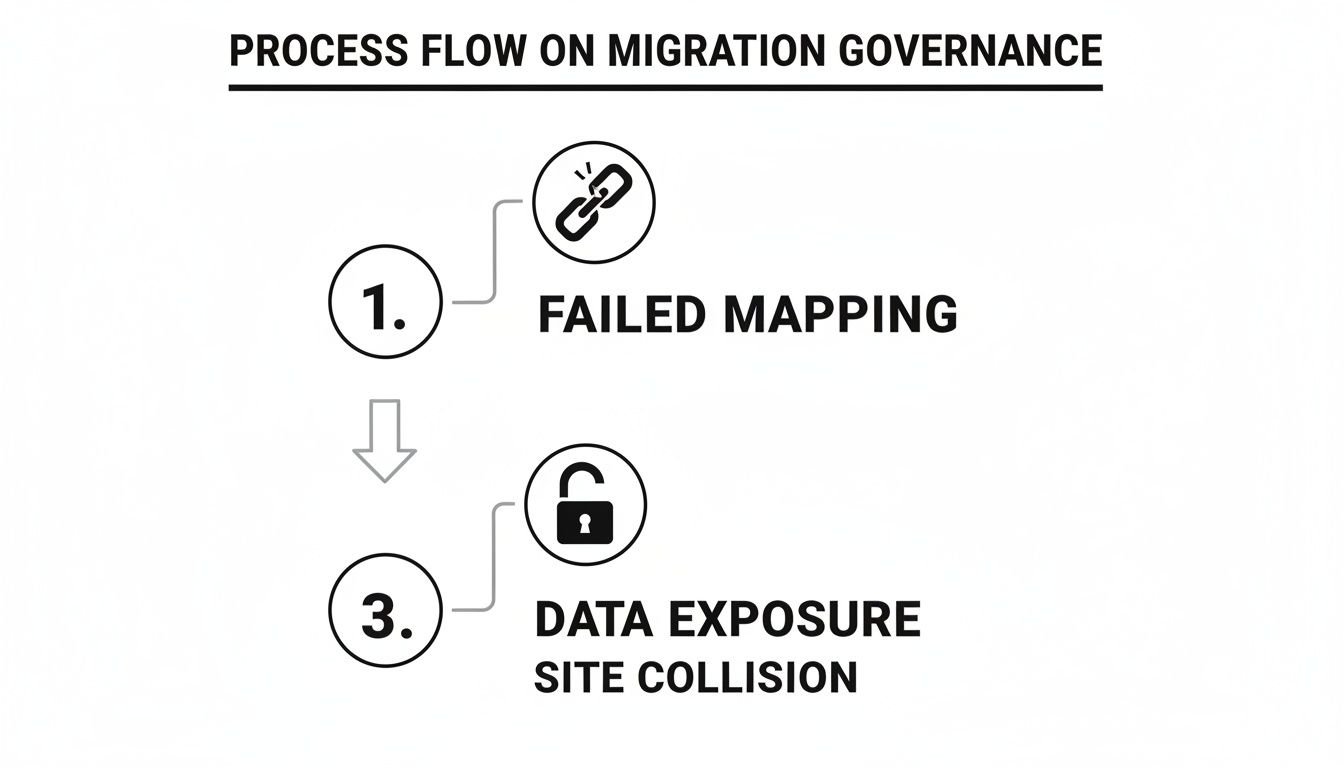
One mapping error can cascade into site collisions or, even worse, critical data being exposed to the wrong people. It shows just how fast a technical glitch becomes a major liability.
Forging a Phased Recovery Strategy
The all-or-nothing approach already failed you. A successful recovery is surgical. It means tackling specific problems with targeted solutions, not throwing everything at the wall again and hoping something sticks. Precision is now your only path forward.
Your tactical plan needs concrete workarounds for the exact problems you've diagnosed.
For Throttling & Timeout Errors: Stop trusting your migration tool's default settings. You need to take manual control. Go through the failed logs and pinpoint exactly when and where the HTTP 503 errors spiked. Then, break your source data into smaller, more manageable batches that fly under that threshold. This often means migrating a single, massive site collection over several days in controlled, deliberate bursts—not in one frantic weekend.
For Catastrophic Structural Failures: The moment you hit SharePoint's hard limits—like the notorious 5,000-item list view threshold or the 400-character path limit—you stop. Full stop. These aren't issues you can fix on the fly. The only real solution is to go back to the source environment and run PowerShell scripts to flatten deep folder structures or break up massive lists into properly indexed views before you even think about moving them again. Trying to fix this post-migration is a recipe for orphaned files and useless metadata.
For a Permissions Disaster: What if the files moved, but the permissions are a complete wreck? A full rollback is usually too disruptive to the business. This is where you get clever. Use a tool like ShareGate to run a differential report that shows you exactly what’s broken. But don't just re-run its permissions migration. Instead, use that report to feed targeted PowerShell PnP scripts that apply bulk corrections based on your intended security model. Simply re-running the tool often replicates the same broken logic that caused the mess in the first place.
The Ollo Verdict: A recovery plan that uses the exact same process as the one that failed isn't a plan—it's a prayer. A real recovery demands augmenting your migration tools with specialist scripting. Using PowerShell to intelligently chunk data or repair permissions at scale isn't a nice-to-have; it's the only way to de-risk your second attempt and regain control.
This is about acknowledging the complexity you now understand all too well. It means stopping the bleeding, creating a realistic and phased plan, and executing with a level of precision your first attempt lacked. If your team is struggling to add this level of detail to your recovery, our guide on building a battle-ready SharePoint migration project plan can provide a solid framework. The key is to move methodically, validating each small victory before moving on to the next.
When to Engage a Migration Rescue Team
Let’s be blunt. If your SharePoint migration has stalled or failed, it’s almost certainly because your organisation treated it like a simple file-copy project. It isn't. It's a complex transformation of your entire information architecture, and the failure is proof that a different class of expertise is needed.
The DIY approach, even with good tools, has already cost you time, money, and credibility with your users. You’ve reached an inflection point. The question is no longer, "How can we fix this ourselves?" The question is, "Who can guarantee this gets done right?"
Trying again with the same team and strategy is a recipe for a second, more damaging failure. The risks—data loss, compliance breaches, extended downtime—are simply unacceptable for any serious business. This isn't a time for optimism; it's a time to de-risk the project.
The Ollo Mandate
This is exactly where a specialist consultancy steps in. Our work begins where tools like SPMT and even out-of-the-box ShareGate configurations hit their limits. We aren't a software vendor. We're the team that gets called when the tools have proven insufficient and the stakes are too high to fail again.
The Ollo Verdict: If your migration failed because of throttling, the 5k list limit, path length errors, or permission chaos, your problem was never the tool—it was the strategy. A second attempt with the same approach will deliver the same disastrous results.
When a project hits these kinds of roadblocks, the most effective path to recovery is a specialised "rescue as a service" provider. These teams don't just run the software again; they bring a specific skill set focused on forensic analysis and surgical remediation.
Bringing in a rescue team isn't an admission of defeat. It's a calculated business decision to bring in specialists for a specialised problem. It’s the move you make when you need to guarantee the delivery of a secure, functional digital workplace. You tried the standard approach; it didn’t work. Now it’s time to bring in the experts who fix these specific failures for a living.
Frequently Asked Questions After a Failed Migration
When a migration goes south, the questions start flying. The project's on fire, and senior leadership wants to know what happened and how you’re going to fix it—fast.
Here are the straight answers to the tough questions IT Directors and Enterprise Architects ask when they’re staring down a failed project.
Can We Just Buy ShareGate and Fix This Ourselves?
It’s a fair question. ShareGate is an excellent tool; we use it ourselves as part of a much larger, purpose-built toolkit. But it's not a magic wand that fixes a broken project.
We often get called in after a company has bought the tool, hoping for a quick fix, only to end up with what I call a "more organised failure." The tool alone can’t solve the deep-rooted architectural problems that caused the failure in the first place—things like massively nested folder structures, GUID conflicts from a previous botched attempt, or sprawling custom permissions that don't map cleanly.
Think of it as a surgeon's scalpel. In the right hands, it's a precision instrument. Without the expertise to configure it to navigate throttling, script around its limitations, and correctly remap complex metadata, your second attempt will hit the exact same walls as the first.
Will Rerunning It on a Bank Holiday Fix Throttling?
It’s highly unlikely to be the silver bullet you’re hoping for. While running the migration during "off-peak" hours can offer a little breathing room, it doesn't solve the core issue.
Microsoft’s API throttling isn’t just about your tenant's activity. It’s a dynamic system that balances the load across the entire geographical service fabric. Even on a quiet Sunday, a large, aggressive data push from your end can still trigger a wall of HTTP 503 errors if the migration architecture isn't designed to handle it gracefully.
The Ollo Verdict: Beating throttling isn't about finding a quiet time slot. It’s about strategy. True success comes from a combination of intelligent batching with PowerShell, deploying multiple migration agents to work in parallel, and performing incremental passes. It's a migration strategy, not just a change in schedule.
How Long Does a Migration Rescue Mission Take?
There's no one-size-fits-all answer here. The timeline is dictated entirely by the scale of the failure and the complexity of the data.
A rescue mission always starts with a rapid but deep discovery phase, which typically takes 1-2 weeks. This is our forensic diagnosis—we dig into logs, analyse the source and target environments, and pinpoint the exact root causes.
From there, we build a tailored remediation plan.
- A smaller, more straightforward rescue might take 4-6 weeks to execute properly.
- A large-scale recovery involving terabytes of data, a permissions disaster, or deep structural problems could take 3-6 months.
Our priority isn't just speed; it's precision. We focus on guaranteeing a secure, verifiable migration with zero data loss on the second attempt. This is about getting it right, once and for all.
A failed migration is a serious business risk. Trying to fix it with the same tools and approach that failed the first time isn't a strategy—it's a gamble.
At Ollo, we don't just run tools; we re-architect your migration for success. We’re the specialists who get the call when the stakes are too high to fail a second time. If you need to de-risk your project and guarantee a successful outcome, it's time to talk to us.
Learn more at https://www.ollo.ie.

















