



Let's be blunt: a standard SharePoint backup before migration is dangerously inadequate for any serious enterprise. You've probably been told to just run a tool and trust the process. This is the kind of advice that leads directly to project failure, data loss, and massive compliance headaches.
A proper backup isn’t just about copying files. It’s about preserving the entire ecosystem of your corporate memory—the intricate web of metadata, version histories, permissions, and legal holds that give your data its context and value.
Why Your Standard SharePoint Backup Strategy Is Flawed
We get called in to rescue projects far too often where IT Directors followed the official documentation perfectly, only to face a catastrophe. They trusted a tool's "success" report while their corporate data was being silently corrupted or lost in transit. The generic advice you find online simply doesn't account for the messy reality of complex, legacy SharePoint environments.
The war stories are remarkably consistent. We often see clients fail when a project team uses an off-the-shelf tool, gets green checkmarks across the board, and confidently decommissions the old farm. Weeks later, the legal department can't find a specific version of a document that's under a litigation hold. Or a critical business process breaks because a list vital to a Power Automate flow was silently truncated during the export.
This isn't a hypothetical risk. It happens all the time.
The Tool-Based Illusion of Safety
The documentation for tools like the SharePoint Migration Tool (SPMT) or even more robust platforms like ShareGate presents a clean, linear process. But in reality, these tools are built for the 80% of simple scenarios, not the complex 20% that define most enterprise environments. They are brittle and will break when they encounter real-world complexity.
We see clients stumble when they blindly trust these tools to handle things like:
- API Throttling: Microsoft actively throttles migration traffic to protect service health for all tenants. A simple tool will either fail, time out, or worse, silently skip files and report success. Your backup process absolutely must have sophisticated retry logic and throttling management built-in.
- The 5,000-Item List View Threshold: The documentation says this is a "view" limit, but in reality, it's a hard architectural breaking point. When a tool tries to export a list with 50,000 items, it can trigger database locks on your source farm or just fail outright during the backup process, often without a clear error message.
- Broken Permission Inheritance: Years of ad-hoc permissions management leave behind a tangled mess of broken inheritance and unique, item-level permissions. Most tools simply cannot back up and restore these complex Access Control Lists (ACLs) accurately, leading to huge security gaps after you go live.
The Ollo Verdict: Use SPMT for <50GB. For anything else, you need custom scripting. A generic migration tool for your pre-migration backup is like using a consumer-grade hard drive for enterprise archiving. It works until it doesn't—and when it fails, the consequences are catastrophic. Your backup is not a "copy-paste" job; it's a forensic export. For a detailed breakdown of a robust approach, explore our complete SharePoint cloud migration strategy.
Risk vs Reward Quantified
Choosing the right backup strategy is fundamentally a risk management decision. This needs to be integrated with your broader IT planning, as many of the same principles apply to successful data center migration best practices, where meticulous planning is what prevents failure. The cost of a botched SharePoint backup isn't just project overruns; it's a direct hit to your business operations, compliance posture, and legal standing.
Thinking about the risks in concrete terms helps clarify the choice. We often see a massive gap between the common, tool-first approach and what an enterprise-grade migration truly demands.
Risk Matrix: Common Approach vs. Enterprise Mandate
| Technical Risk | The Common (and Flawed) Approach | The Enterprise Mandate |
|---|---|---|
| Data Fidelity | Trusting a tool's final file count. Ignores the loss of version history and crucial metadata. | A full-fidelity export, often using custom PnP PowerShell scripts to preserve every single version and metadata field. |
| Permissions | Assuming the tool will map permissions correctly and hoping for the best. | A pre-backup audit of all unique permissions, with a scripted export and a plan for post-restore validation. |
| Large & Complex Objects | Hitting throttling or list view limits and either accepting data loss or declaring those items "un-migratable." | Proactively identifying large lists and complex sites, then using specialised export patterns to handle them without data loss. |
| Legal Holds | Ignoring eDiscovery status entirely, risking spoliation of evidence and serious legal penalties. | Scripting the export to capture and validate legal hold metadata as a priority one task, ensuring chain of custody. |
The difference isn't just academic; it's the difference between a successful migration and a costly failure. The enterprise mandate isn't about being difficult—it's about acknowledging the reality of what's at stake and planning accordingly.
Conducting A Forensic Pre-Migration Inventory
This is where your migration fails. It happens right here, long before you ever move a single byte of data.
We're consistently brought in to rescue projects where a superficial inventory—one that just counts terabytes—led to catastrophic failure. A generic tool’s dashboard telling you that you have 5TB of data is utterly worthless.
What it won't tell you is that a critical chunk of that data sits in a site with thousands of broken permission scopes, making a clean SharePoint backup before migration impossible without serious manual work. You have to move beyond just quantifying volume and start quantifying complexity.
This is the common, flawed path we see organisations take when they trust a tool's high-level summary without understanding the mess underneath.
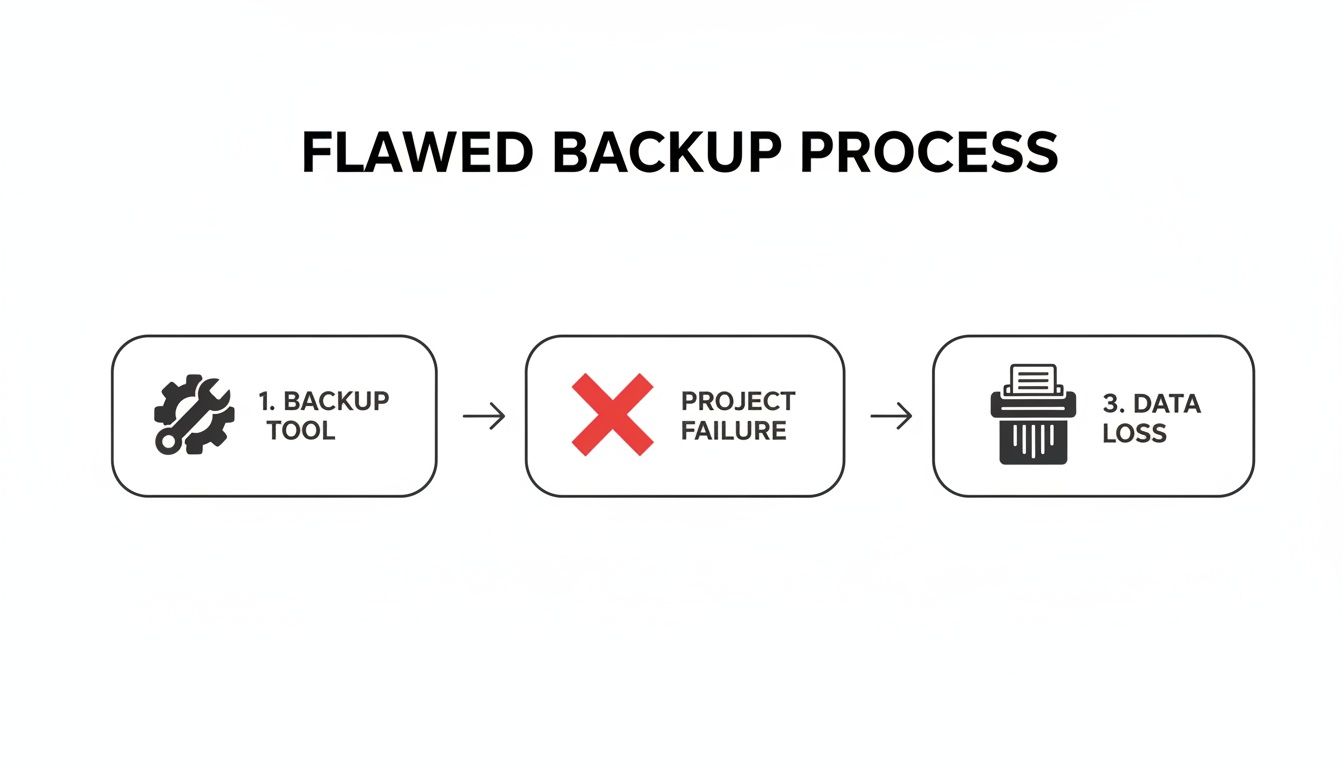
Relying on a simple crawl without a deep, forensic understanding of your source environment is a direct route to project failure and, in the worst cases, irreversible data loss.
Beyond The Dashboard: What To Hunt For
Your inventory has to be a forensic investigation. The goal isn't just to see what you have, but to build a "data manifest" that uncovers every potential landmine waiting to blow up your project.
Standard tools won't proactively flag the real disasters. Your team needs to actively hunt for them. We use a battery of targeted PnP PowerShell scripts to force-discover the issues we know will cause pain later.
Your inventory isn't finished until you have a definitive, quantified list of:
- Sites with Broken Permission Inheritance: Every single site where permissions don't inherit from the parent adds complexity and risk. You need a precise count of these unique Access Control Lists (ACLs), because each one is a potential point of failure for your backup and restore process.
- Lists Exceeding the 5,000-Item List View Threshold: The official documentation calls this a "view" threshold, but in our experience, it’s an architectural breaking point. We’ve seen backups repeatedly fail or, even worse, silently truncate data when trying to export lists containing 20,000+ items.
- Deeply Nested File Paths and Long Filenames: On-premises SharePoint is far more forgiving with path lengths than SharePoint Online. Your inventory absolutely must flag every file path that exceeds the 260-character limit and file names with GUID conflicts, as these files will simply shatter on arrival in the cloud if not remediated first.
- 'Dark' Sites and Orphaned Data: These are the forgotten site collections that no one on your current team owns or manages. They are often ticking compliance time bombs, full of unmanaged sensitive or regulated data.
The Ollo Verdict: A pre-migration inventory isn't about looking; it's about hunting. A simple crawl is insufficient. You need an aggressive, script-driven analysis to build a manifest of risks, not just a list of files. You can find more details on this forensic approach in our SharePoint migration assessment guide.
Quantifying The Unseen Risks
This kind of meticulous, forensic approach has a lot in common with the best practices for How to Conduct Internal Audits. It’s not just about technical prep; it's about protecting the business from serious legal and regulatory exposure.
Your inventory has to explicitly account for these high-stakes items. For instance, you must identify every piece of data currently under a legal hold or subject to specific retention policies. A standard backup often ignores this critical metadata.
Losing the legal hold status of a document during a migration isn't just a project failure; it can be considered evidence spoliation, a term that comes with severe legal consequences.
You might see performance metrics thrown around, like the theoretical possibility of moving 100GB per hour. This number is dangerously misleading. It completely ignores the real-world impact of throttling, network latency, and the immense overhead required to preserve complex permissions and compliance data.
Your final manifest should be a strategic document that maps not just data, but risk. It must detail every unique content type, every workflow dependency, and every piece of data with a special compliance status.
Without this forensic-level detail, your backup is a gamble, and your migration is destined to become another war story we get called in to fix.
Choosing Your Backup And Export Method
The market is full of tools promising a simple SharePoint backup before migration, but this is where your playbook gets real. Picking the right method isn’t about ticking off feature boxes; it's about knowing where each tool will inevitably break under pressure. Your choice here is the difference between having a genuine safety net and just performing security theatre.
We’ve seen it countless times: a client comes to us after a tool-based approach has already gone sideways. They’ve wasted weeks wrestling with a so-called “simple” export, only to find out their data was being quietly corrupted or, worse, just left behind.
The SharePoint Migration Tool (SPMT) Fallacy
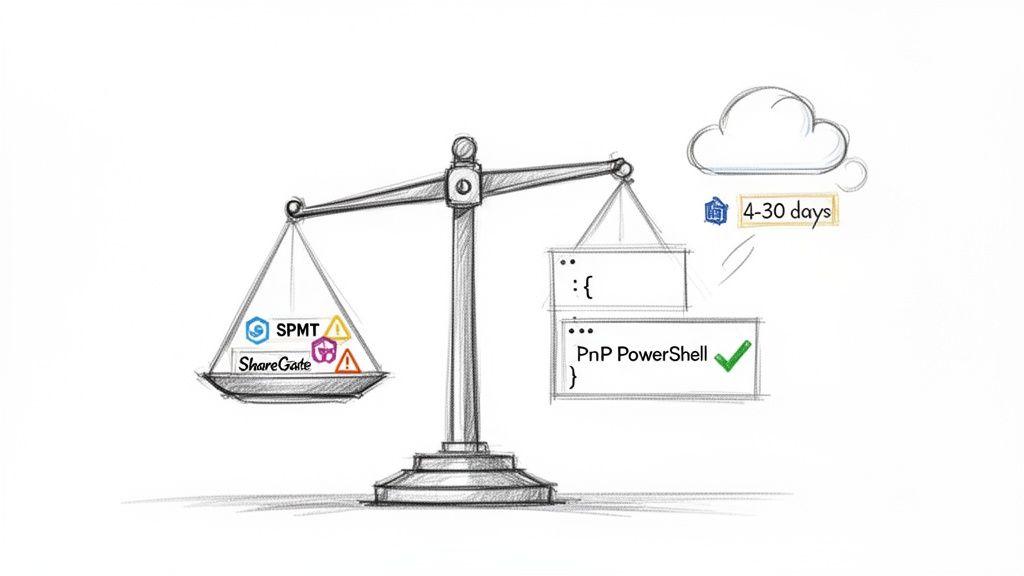
Let's not mince words: Microsoft's SharePoint Migration Tool (SPMT) is a utility, not an enterprise solution. It’s built for small, uncomplicated moves. Think of a single department site with maybe 50GB of simple files. For that kind of task, it works. For anything bigger or more complex, relying on it is a massive gamble.
The real danger with SPMT is how it's built. It uses the SharePoint Migration API, which shunts your data into a temporary Azure Blob Storage container. The official documentation from Microsoft confirms this data only sticks around for 4 to 30 days before it’s gone. Permanently. You can read more about this in Microsoft's official documentation.
That is a terrifyingly small window for any meaningful validation, especially if a project hits a snag or delay. On top of that, Microsoft doesn't publish any statistics on backup success rates, data loss during this staging process, or specific performance metrics for the IE region. This lack of transparency means you're flying completely blind.
ShareGate: The Enterprise Workhorse With Limits
ShareGate is a huge step up from SPMT, and it's a tool we use for certain jobs. It’s far more robust, with better reporting and a level of control SPMT can't touch. But you have to understand its limits in a complex enterprise backup scenario. We’ve seen it hit a wall when dealing with:
- Extreme Data Volumes: When you're talking about terabytes of data scattered across thousands of site collections, ShareGate can become a bottleneck. The overhead from its GUI-driven process can slow everything down, both the export and your team.
- API Throttling: It handles throttling better than SPMT, but in a very "noisy" or busy tenant, it will still get throttled. This can stretch out your migration window and increase the chances of timeout errors, especially on very large files or lists.
- Complex Permission Structures: If your source environment is a tangled mess of broken inheritance and unique permissions—and let's be honest, most are—ShareGate can struggle to replicate them with 100% fidelity. It does its best, but the sheer number of API calls needed can lead to failures.
The Ollo Verdict: ShareGate is an excellent tool for the migration execution phase and for simpler environments. For the mission-critical pre-migration backup of a complex enterprise estate, however, it should not be your only method. For a deeper dive, check out our guide on the SharePoint Migration Tool and its limitations.
PnP PowerShell: The Only Path to Granular Control
For any serious, high-stakes enterprise SharePoint backup, your core method has to be a scripted approach using Patterns and Practices (PnP) PowerShell. This isn't the easy route; it's the only responsible one.
A scripted export isn't a "tool" you buy; it's a surgical process that your team builds and controls from the ground up. This gives you the power to:
- Handle Errors Methodically: You can build custom logic to manage API throttling, retry failed file exports using an exponential backoff, and log every single action with precise detail.
- Preserve Metadata with Precision: You can write explicit commands to pull out and save every version, every bit of metadata, and every permission setting, storing them alongside the file in a way that can be programmatically restored later.
- Break Down Impossible Jobs: That list with 100,000 items that chokes every off-the-shelf tool? With a script, you can export it in managed batches, completely sidestepping the limitations that plague GUI-based software.
This isn’t about throwing your tools away. It’s about being realistic and admitting that when the stakes are this high, you can't just outsource control and hope for the best. A scripted backup with PnP PowerShell is the only way to create a forensically sound, fully verifiable snapshot of your environment before you touch a single thing.
Executing a Pre-Mortem Restore Test
Let me be blunt: a backup you haven’t tested isn’t a backup. It’s a liability. I’ve seen far too many teams meticulously perform the backup step, store the data somewhere safe, and call it a day. This is a fatal error in judgement.
The entire point of that backup is to be your eject button if the migration goes spectacularly wrong. If you can't actually restore from it, the whole exercise was just a pointless, time-consuming ritual. You have to treat your backup with the same scepticism you’d apply to a vendor’s promise of a “seamless transition.”
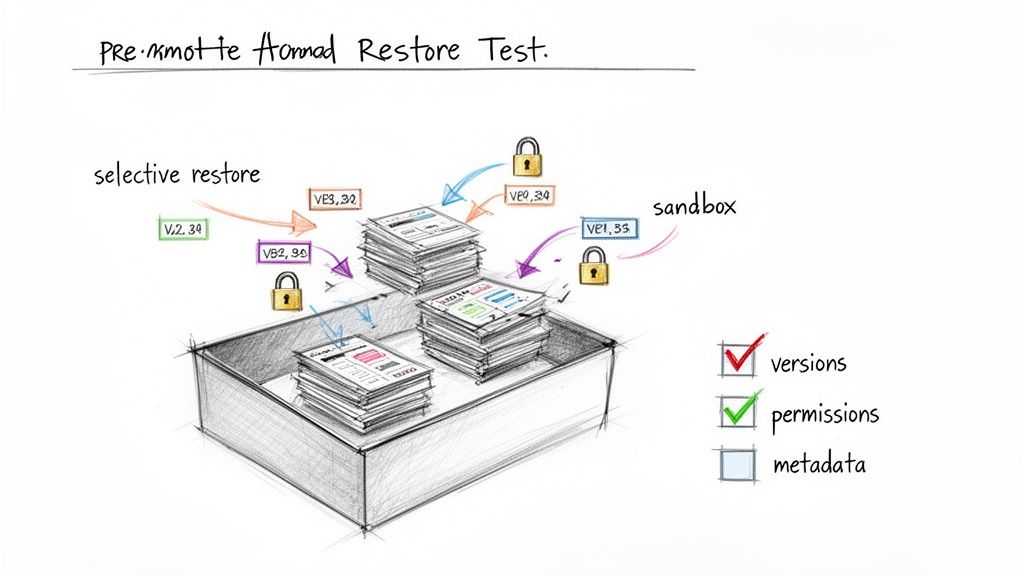
This process isn't about just checking file counts. It's a full-on "rescue runbook" drill. This means selectively restoring a known-complex site collection to a completely isolated, sandboxed environment and then forensically examining the results.
The Anatomy of a Proper Restore Test
A successful test doesn't just prove you can get files back. It proves you can restore functionality, context, and compliance. Your validation checklist needs to focus on the fiddly things that always break, not the things that are easy.
Here's what your team absolutely must verify in the sandboxed restore:
- Document Version History: Don't just check if the latest version of a file exists. Can you actually restore and open version 3 of 17? Or version 11? This is exactly where many tool-based backups fall apart, often keeping only major versions or completely flattening the history.
- Item-Level Permissions: Find a document library infamous for its convoluted, broken-inheritance permissions. Restore it and then verify those specific, one-off user permissions are still intact. If the restored library just inherits top-level permissions, your backup has failed a critical security test.
- Critical Metadata Fields: Restore a list that uses custom content types with a dozen metadata columns. Are the "Choice" fields still populated correctly? Have any "Date/Time" fields been corrupted or shifted due to timezone quirks? Has any text in "Multiple lines of text" fields been brutally truncated?
- Legal Hold and Retention Labels: For any regulated industry, this is non-negotiable. Identify a document that was under a legal hold in the source environment. Your restore test must prove that this status is preserved and auditable in the restored version. Missing this step doesn't just fail the migration; it breaks legal compliance.
The Ollo Verdict: A restore test that only confirms the existence of files is worthless. Your test must be adversarial, specifically targeting complex objects to prove fidelity. If you cannot successfully restore a site with broken inheritance and a list with 10,000 items, your backup is not viable for enterprise recovery.
From Test to Runbook
The output of this test is far more than a simple pass/fail grade. It’s the foundation of your emergency runbook. The documentation from this test—the exact scripts you used, the precise sequence of steps, and the validation checks—becomes your step-by-step guide if you have to perform a real rescue.
We've been called into projects where a SharePoint migration failed, and the team wasted critical hours just trying to figure out how to even begin the restore process from scratch. A pre-tested runbook turns that panic into a methodical, predictable, and calm procedure.
Skipping this step doesn't just introduce risk; it shows a fundamental misunderstanding of what a pre-migration backup is really for. It isn't a box-ticking exercise for a project plan. It is your single most important insurance policy against catastrophic failure, and you absolutely must prove that the policy will actually pay out.
Building Your Compliance Evidence Package
For any organisation we work with in a regulated sector like finance or energy, we have a saying: the migration isn’t truly over when the data is moved. The project is only complete when the paperwork is done.
Your auditors and legal counsel don't really care about a successful go-live; they care about the evidence trail. Without it, your successful project is just an undocumented liability waiting to be discovered.
This is where you build your ‘Compliance Evidence Package’. This isn’t a nice-to-have; it's your get-out-of-jail-free card during an audit and the core of your disaster recovery runbook. It’s the documented proof that you didn't just move files, but that you preserved your data's integrity, context, and legal status. A generic SharePoint backup before migration will not produce this evidence.
Why Standard Migration Logs Are Insufficient
Sure, your migration tool will spit out logs. Both ShareGate and SPMT generate reports showing what succeeded and what failed. I've seen clients try to present these logs to auditors, only to be sent straight back to the drawing board with a long list of deficiencies.
These standard logs are built for operations, not for forensic scrutiny. They are fundamentally insufficient for proving compliance for a few critical reasons:
- They Lack Integrity Verification: A log might tell you
Document.docxwas copied successfully, but it won't give you a file hash (like an MD5 or SHA-256 checksum) to prove the source and destination files are bit-for-bit identical. Without that, you can't prove integrity. - They Don't Capture Compliance Metadata: Standard logs almost never confirm the preservation of a document's legal hold status or the specific retention label that was applied. Proving this requires custom scripting and reporting, which is outside the scope of out-of-the-box tools.
- They Obscure Throttling and Retries: A tool might report "success" after retrying a file upload 30 times due to API throttling. An auditor is going to want to know why that file was so problematic and what risks were introduced by the repeated failures before the final success.
The Ollo Verdict: Standard tool logs are for your project manager. A Compliance Evidence Package is for your Chief Legal Officer. They are not the same thing, and confusing the two is a serious error in judgement for any regulated business.
Assembling Your Audit-Proof Documentation
Building this package requires a deliberate, scripted effort that runs in parallel with your backup and migration. Your team has to generate and collate this evidence as you go—it’s impossible to recreate it after the fact.
Your package must contain several key artefacts.
First, you need Forensic Export Logs. These aren't your tool’s logs. These are custom-generated logs from your PnP PowerShell scripts. Each entry must detail the source file, destination, timestamp, a checksum of the file, and explicit confirmation of all key metadata fields being read correctly.
Next comes the Data Integrity Report. After the backup and again after the final migration, you must run a script that performs a checksum comparison on a statistically significant sample of files. The report from this script, showing that the source and destination hashes match, is irrefutable proof of data integrity.
Finally, you'll produce a Compliance Preservation Report. This is a dedicated, scripted report that specifically targets items under legal hold or with retention labels. It has to list each item and confirm that its compliance status was identified in the source, preserved in the backup, and then verified in the final destination.
The hard truth, especially for Irish organisations in sensitive sectors, is that there is a stark lack of publicly documented failure statistics or compliance incident data for our region. Microsoft’s documentation might tell you how tools like SPMT work, but it offers no battle-hardened metrics on backup success rates. That means you carry all the risk of proving your process was sound.
This documentation is the difference between passing an audit and facing regulatory penalties. For a deeper understanding of the necessary tools, you might be interested in our guide on SharePoint compliance tools. This isn't about administrative overhead; it's the final, critical step in risk reduction.
Frequently Asked Questions From The Field
When we're in the trenches of a complex migration, the same high-stakes questions always come up. IT Directors and Enterprise Architects—often cynical from past projects that went sideways—don't want marketing fluff. They need direct, technically solid answers.
Here are the blunt responses to the questions we hear most often when planning a SharePoint backup before a migration.
Are Microsoft 365 Retention Policies A Substitute For A Full Backup?
Absolutely not. Let me be clear: relying on retention policies for a pre-migration 'backup' is a catastrophic strategic error. We see far too many organisations consider this, and it’s a direct path to an unrecoverable disaster if something goes wrong.
Retention policies were built for compliance and information lifecycle management. They were never designed for disaster recovery or migration rollbacks. They simply won't preserve the full fidelity of your SharePoint environment.
If your migration fails and you need to roll back, a retention policy leaves you with a disorganised pile of files, not a functional SharePoint architecture you can actually restore. You will lose:
- Complex Permissions: Forget about all those unique, item-level permissions and broken inheritance structures you spent years managing. They’ll be flattened and gone.
- Full Version Histories: A policy might keep a few versions for a set period, but it won’t preserve the complete historical record needed for a true point-in-time restore.
- Site Architecture: All the things that make SharePoint SharePoint—workflow states, site-level configurations, web parts, and list customisations—will vanish.
A proper pre-migration backup is a point-in-time, fully restorable snapshot of your entire environment's architecture. Confusing it with a retention policy is a risk no serious enterprise should ever take.
Is A Scripted PowerShell Backup Necessary For Under 1TB Of Data?
Data volume is a deceptive metric. The real question isn’t about volume; it’s about complexity. I’ve seen 500GB environments with thousands of sites, rampant broken permission inheritance, and dozens of lists hitting the 5,000-item view threshold that were far more dangerous to migrate than a simple 2TB file archive.
Off-the-shelf tools like ShareGate are great for many things, but they can and do struggle when they hit high numbers of unique permission scopes. Each unique permission set requires a separate API call, which dramatically increases the risk of hitting Microsoft’s API throttling limits. That leads to timeouts or, even worse, silent failures you don't discover until it's too late.
A scripted PnP PowerShell approach gives you the control to handle these complexities methodically. You can pre-process permissions, build in robust, custom error handling, and design retry logic that off-the-shelf tools simply can't offer. A well-designed script can batch exports from massive lists, bypassing the limits that often choke GUI-based software.
The Ollo Verdict: For anything more complex than a handful of simple departmental sites, the control and precision of scripting is your number one risk mitigation strategy. It’s the complexity, not the terabytes, that dictates the need for a scripted backup.
How Do We Handle SharePoint Data Already Under A Legal Hold?
This is where mistakes have severe legal and financial consequences. There is zero room for error. The legal hold status is a critical piece of metadata that MUST be preserved and meticulously documented throughout the entire backup and migration process.
First, your backup process—which will almost certainly be a custom script—must explicitly identify all content subject to eDiscovery holds. The script must guarantee that no versions are collapsed and no metadata is altered during the export.
Second, you absolutely have to perform a test restore of a representative sample of these legally held documents. This needs to happen in a secure, completely isolated sandbox environment. Your legal or compliance department must then formally verify this test to prove the integrity and chain of custody of the held data. This step is non-negotiable.
Finally, your migration runbook must include a step to reapply and verify these holds in the new target environment before a single byte of the original source data is decommissioned. Standard tools often fail at this, making a specialist, scripted approach the only responsible choice. Missing this step doesn't just put the migration at risk; it breaks legal compliance.
The complexities of a SharePoint backup before migration are not just technical hurdles; they are fundamental business risks. At Ollo, we specialise in navigating these high-stakes environments, turning that risk into a predictable, controlled process. If these challenges sound familiar, it’s time for a different kind of conversation.
Contact Ollo to ensure your migration is built on a foundation of certainty, not hope.

















