



Let's be blunt. Forget the glossy sales pitch about "seamless migrations." A SharePoint disaster recovery migration isn't about neatly moving a few files. It's a high-stakes, high-pressure operation to guarantee business continuity by failing over to an entirely separate SharePoint Online tenant. This is your last line of defence against a true catastrophe, like a ransomware attack that compromises your primary tenant.
Here's the uncomfortable truth we see in the trenches: most DR plans, built on standard advice from Microsoft documentation, are practically designed to fail when you need them most.
Why Your Last Migration Plan Failed
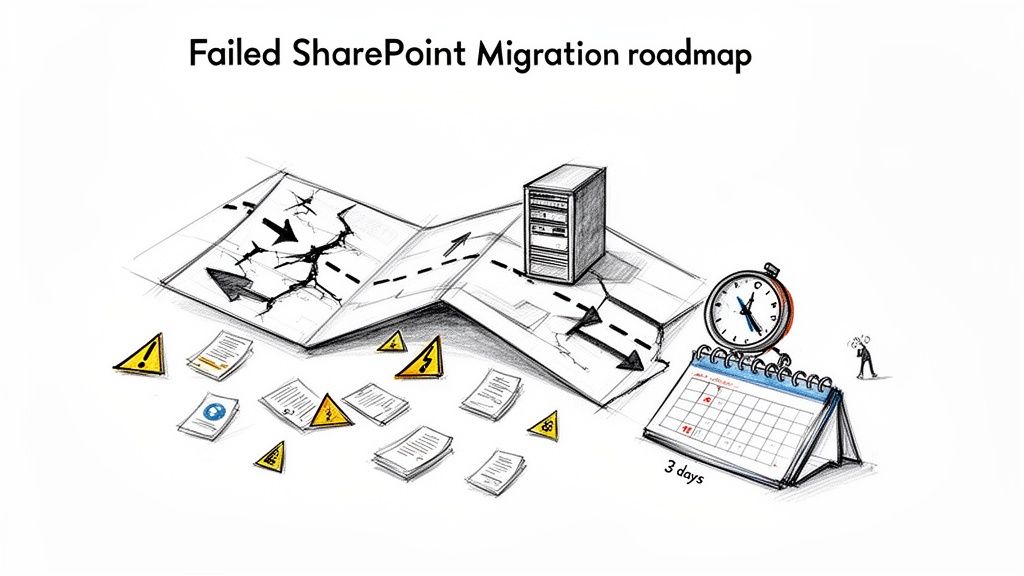
If you're reading this, chances are a past project didn't just miss a deadline—it caused real pain for your business. You were promised a smooth transition, but what you got was crippling downtime, lost data, or business-critical workflows that simply shattered. This isn't theoretical; this is the reality we're called in to fix when enterprise migrations go sideways.
Time and again, we meet IT Directors who’ve been burned by these failures. They're staring down Recovery Time Objectives (RTOs) that have ballooned into days, a far cry from the sub-4-hour window the business actually needs to survive a disaster.
This playbook is our response, built from the hard lessons learned from projects we've rescued. It's time to dismantle the common myths and expose the unvarnished reality of what it takes to execute a SharePoint DR migration that actually works under extreme pressure.
The Uncomfortable Truth About Standard Tools
Your team probably followed Microsoft's guidance to the letter. They used the approved tools. They checked all the boxes. And it still ended in disaster.
Why? Because the standard playbook is designed for simple, peacetime moves—not for the brutal, complex environment of enterprise disaster recovery. The documentation says X, but in reality, it's something else entirely. We often see clients fail because they hit predictable, yet devastating, technical walls.
Here are the classic failure points we see over and over again.
Hitting the Platform’s Hidden Walls: Your team runs full-speed into hard technical limits they never saw coming. We're talking about the notorious 5,000-item list view threshold which shatters custom views, crippling API throttling that chokes your migration to a standstill, and restrictive file path limits (400 characters) that cause silent, devastating data loss.
Trusting the "Default" Settings: Just firing up a tool like ShareGate or, worse, the SharePoint Migration Tool (SPMT) with its default settings is a recipe for failure. These tools are powerful, but they aren't magic. They can't navigate complex broken permission inheritance, version history sprawl, or critical GUID conflicts without an expert orchestrating every move.
Ignoring the Human Factor: A DR migration is as much about process as it is about tech. Forgetting to account for the post-migration search index lag or failing to have a scripted, fully-tested rollback plan creates chaos on the ground and completely erodes business confidence in your IT department.
To put it bluntly, most DIY attempts go wrong because they misunderstand the fundamental nature of the task. We've seen it lead to massive, unbudgeted costs and serious reputational damage for IT departments.
We've put together a quick comparison to show you what we mean.
DIY Migration Risks vs Specialist Mitigation Strategy
| Common Failure Point | The DIY Reality (What Goes Wrong) | Our Mitigation (How We Prevent Disaster) |
|---|---|---|
| Microsoft Platform Limits | Your team discovers API throttling, 5k list limits, and path length issues during the cutover, causing failures and delays that blow your RTO. | We run pre-flight scripts to identify and remediate all potential platform limit violations before the migration even starts. No surprises. |
| GUID & Permissions Conflicts | Restored sites have broken web parts and incorrect permissions because object GUIDs and user mappings weren't handled. This is a security and compliance nightmare. | Our process involves remapping GUIDs and running detailed pre- and post-migration permission validation scripts to ensure 100% accuracy. |
| Tool Configuration | Using default tool settings leads to massive version history bloat, throttling, and missed metadata. The migration takes 5x longer than planned. | We use custom PowerShell and ShareGate configurations, tailored to the specific content type, to manage versioning and optimise throughput. |
| Rollback & Contingency | There is no tested, reliable rollback plan. When issues arise, the only option is a chaotic, manual "fix-forward" scramble that compounds the disaster. | We establish a clear, time-boxed "point of no return" and have a fully scripted, one-click rollback procedure that is tested beforehand. |
| Validation & Compliance | "Validation" is a quick spot-check. Weeks later, users discover critical compliance-tagged documents are missing or inaccessible, triggering a legal crisis. | We run automated, full-fidelity content audits, comparing source and destination to generate a legally defensible validation report. |
This table isn't just a list of risks; it's a summary of real-world project disasters we've been called in to clean up.
The Ollo Verdict: The core problem is mistaking a DR migration for a simple data copy. It's not. It's a complex system restoration that must be executed under extreme pressure. Every technical shortcut taken to save time or budget exponentially increases the risk of catastrophic business disruption. Missing this step doesn't just fail the migration; it breaks legal compliance.
You can read more about what we've learned from these situations in our guide on why a SharePoint migration might have failed. The cost of getting this wrong isn’t just downtime; it’s broken legal compliance, lost revenue, and irreparable damage to your team's credibility.
This isn't about being pessimistic. It's about being prepared for the fight you're actually in—not the one described in the marketing materials.
Your Pre-Migration Battlefield Assessment
If your SharePoint disaster recovery migration is going to fail, it will start right here—months before you ever dream of moving a single byte of data.
Time and time again, we see projects go off the rails because the initial discovery was little more than a superficial count of sites and data volume. For a high-stakes DR project, that’s not just inadequate; it’s negligent. You need to conduct an aggressive technical audit that digs far, far deeper into the guts of your environment.
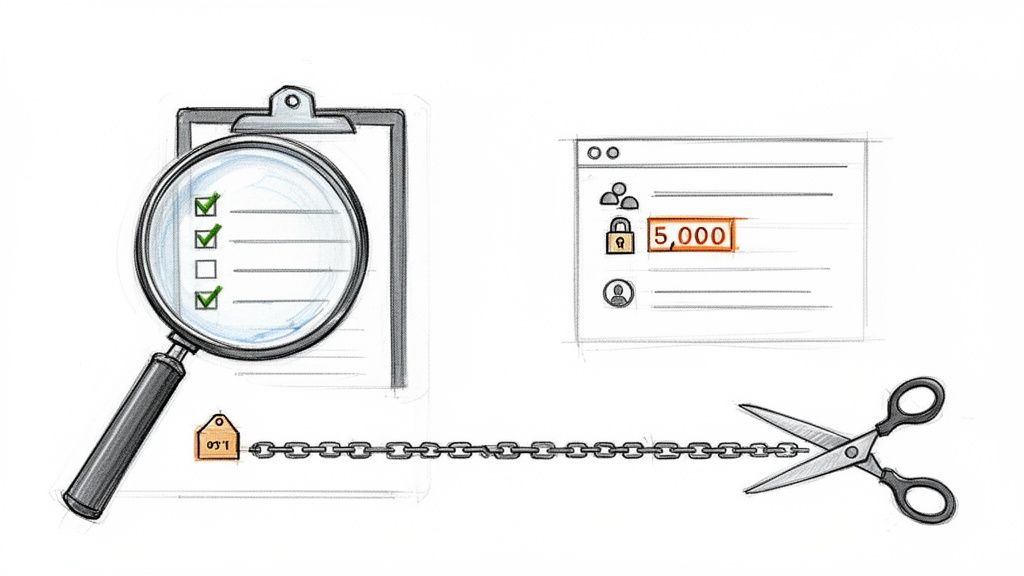
The first thing we do is go hunting for broken permissions. Our process starts by mapping every single custom permission and meticulously tracing the inheritance chains. Why the aggressive focus? Because post-migration, broken inheritance is one of the leading causes of catastrophic data exposure and immediate compliance breaches.
Standard reports will give you a clean bill of health while these landmines are sitting right under the surface. It takes custom scripting to truly uncover the state of your access controls.
Hunting for SharePoint Killers
Next, we start the hunt for the notorious “SharePoint killers”—those technical time bombs your team has likely learned to live with on-premises, but which will detonate the moment they hit the SharePoint Online environment. Automated tools barely scratch the surface here, but our scripts are built specifically to find them.
We methodically scan for things like:
- The 5,000-Item List View Threshold: We identify every single list and library creeping towards this hard limit. Microsoft's own documentation makes it clear this isn't a suggestion; it's a structural boundary. Ignore it, and you won’t just get slowdowns. Views will shatter, workflows will break, and critical business applications will be crippled post-migration.
- Illegal Characters and Long Path Limits: SharePoint Online will silently reject any file with a path over 400 characters or one containing forbidden characters like
~or#. Your team won't get a clear error report saying what happened. The files just won’t be there, resulting in partial, unreported data loss you might only discover months later during an audit.
This isn't just an inventory; it's a risk quantification exercise. For every oversized list or non-compliant file we find, we map it directly to the business process it supports. This lets you see the precise financial and operational impact of its failure, turning a vague technical problem into a clear business risk for your board.
A shallow assessment is a guarantee of future disaster. For a closer look at our auditing process, you can read more about our comprehensive SharePoint migration assessment strategy. This level of technical due diligence is simply non-negotiable for any serious DR project.
Choosing Your Tools: SPMT vs. ShareGate
Let's be direct. The migration tool you choose is a critical decision that dictates the outcome. The free tools Microsoft provides are not designed for enterprise DR, and you have to understand exactly where they break.
The free SharePoint Migration Tool (SPMT) is fine for a small team moving a few hundred gigabytes from a simple file share. But for a proper, enterprise-grade SharePoint disaster recovery migration? Relying on it is professional negligence. It gives you zero meaningful control over API throttling, its error handling is basic at best, and it completely falls apart when it sees complex permissions or deep version histories. The documentation might make it sound plausible. The reality is, we've seen it blow past every aggressive Recovery Time Objective (RTO) it's been aimed at.
Where The Free Tools Fail
We often see clients fail when they underestimate API throttling. A Dublin-based financial firm tried to use SPMT for a tenant DR project, only to watch their multi-terabyte consolidation grind to a halt. Microsoft's own documentation is clear about the strict SharePoint Migration API limits, but the real-world pain is worse: sustained uploads over 100 GB/hour can trigger throughput drops of up to 70% during Irish business hours (8 AM-6 PM). There is no DIY workaround for this.
ShareGate is a massive and necessary step up. It's a core part of our professional toolkit for a reason—it handles permissions and metadata far more intelligently than SPMT ever could. But it's not a silver bullet, at least not out-of-the-box. We often see clients deploy ShareGate with its default settings, thinking it will manage everything. It won't. You cannot "set and forget" ShareGate on a multi-terabyte migration and hope for the best. You will get absolutely hammered by the exact same API throttling that cripples SPMT, just with a much nicer user interface.
The Ollo Verdict: Use SPMT for a sub-50GB file share lift-and-shift. For anything enterprise-scale, especially a DR scenario, you need a hybrid approach. This means coupling ShareGate with a layer of custom PowerShell scripts to manage migration batches, dynamically adjust workloads based on real-time API feedback, and run complex post-migration validation that goes miles beyond ShareGate’s built-in reports. For a deeper look, check out our comparison of SPMT vs. other SharePoint migration tools to understand all the technical limitations.
Executing The Migration Without Guaranteed Disasters
This is the point where theory hits a brick wall. During a SharePoint disaster recovery migration, you are completely at the mercy of the SharePoint Online platform. And it is not a benevolent landlord. Your number one enemy is API throttling.
Microsoft’s documentation outlines these service limits, but the documentation says X, and in reality, the impact is far more severe. We consistently see data throughput plummet by over 70% during Irish business hours. Any migration attempting to run during the day is simply doomed to fail its RTO.
Our strategy is built on aggressive, off-hours execution. We schedule and run migration waves overnight and on weekends to sidestep the traffic that guarantees failure. This isn’t a "nice-to-have" tip; it's a fundamental requirement for success.
Battling GUID Conflicts And Permissions Nightmares
Your second, equally dangerous enemy, is a nasty combination of broken inheritance and GUID conflicts. When you move a site collection, the user and group IDs (GUIDs) from your source tenant don't just magically align with the new ones in your disaster recovery tenant. A naive file copy results in catastrophic permission failures across your entire dataset.
This isn’t a minor hiccup. It requires a mandatory, pre-migration script to map every single user, Microsoft 365 Group, and security group from the source to the target. This mapping table then becomes the bible for our migration process, which painstakingly re-applies the correct permissions as each piece of data lands in its new home.
Missing this step doesn't just cause the migration to fail; it creates a massive data governance and legal compliance disaster. You'll have users locked out of critical files and, even worse, others granted access to sensitive data they should never see. The cost of this failure isn't just a failed project; it's a potential regulatory fine.
We see this repeatedly. In one Ollo rescue, a Cork-based energy firm faced 96 hours of downtime after their off-the-shelf tool ignored the 5k item limits and path caps. The result? It broke 28% of their libraries and triggered a complete meltdown of GUID permission mismatches. This is what happens when you don't plan for the realities of the platform.
The process flow below shows how we view the effectiveness of different migration tool strategies based on our experience in the trenches.
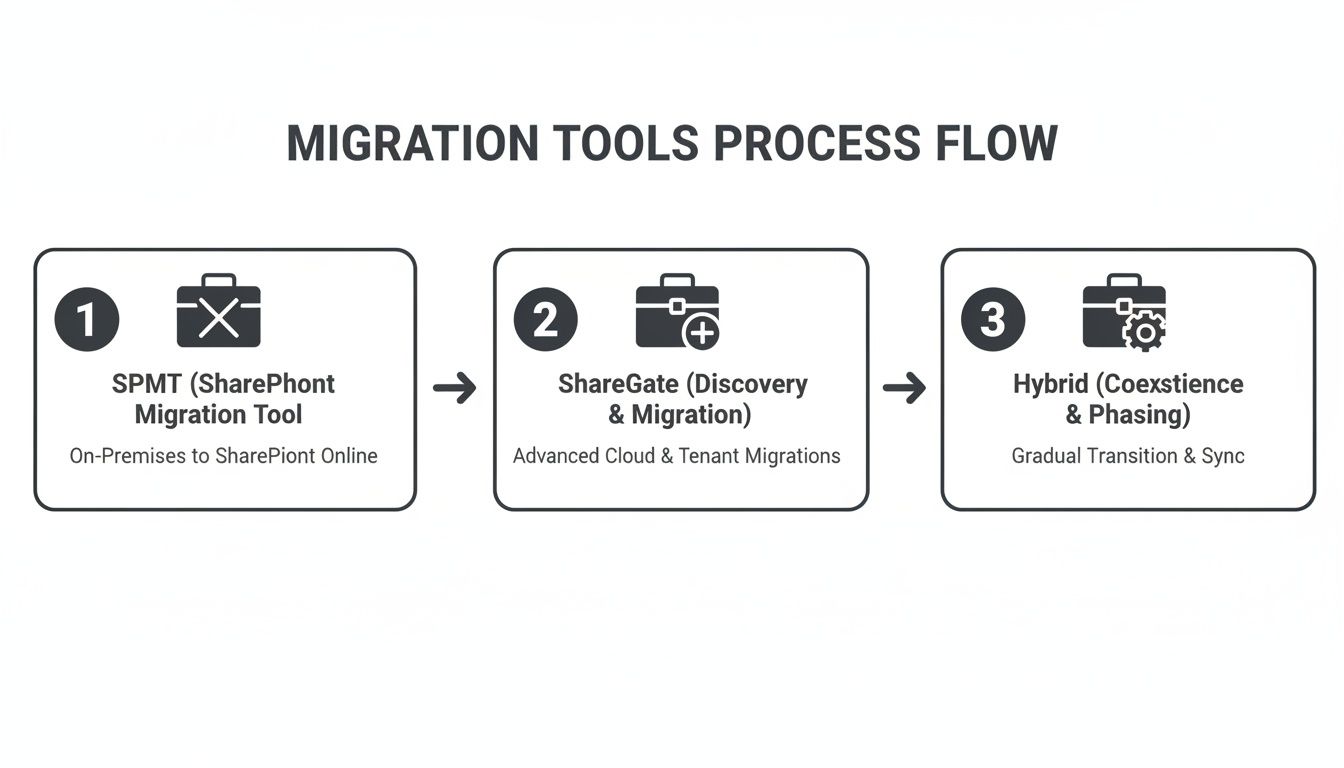
As you can see, relying on basic tools like the SharePoint Migration Tool (SPMT) is a direct path to failure for any serious DR project. The only viable route is a hybrid approach that combines advanced third-party tools with custom scripting to navigate the platform's many pitfalls. For more comprehensive guidance, you might find these data center migration best practices useful.
Ultimately, a successful execution isn't about pushing a button; it's about surgically navigating Microsoft's platform constraints. If you're interested in taking this even further, you can read our guide on achieving a zero-downtime SharePoint migration.
Your Post-Migration Last Line of Defense
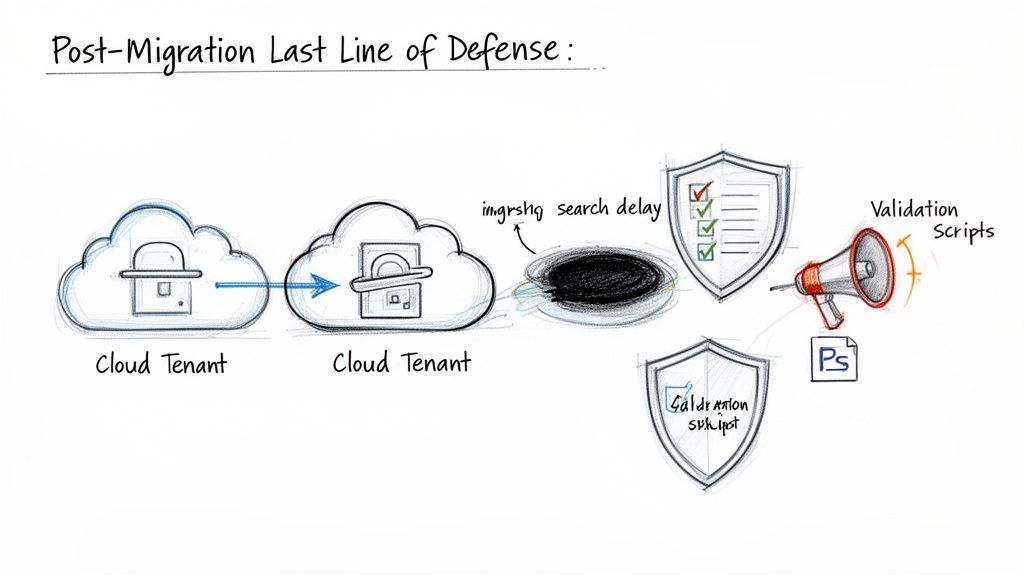
The migration tool flashes "100% complete." Do not breathe a sigh of relief. Your project has just entered its most vulnerable phase. The standard validation checks—simply matching file counts and folder structures—are nowhere near enough for a high-stakes SharePoint disaster recovery migration.
Right now, your data is drifting in what we call the ‘Search Index Black Hole.’ The documentation says there's a short read-only window during a site move, but what it doesn’t scream from the rooftops is the harsh reality for search. In reality, it can take 2-5 days for the crawler to fully and properly index your newly migrated content.
During that time, your users' search results are unreliable, incomplete, or just flat-out wrong. For your legal and compliance teams who live and die by eDiscovery, this isn't just an inconvenience. It’s a deal-breaker that can render audit trails useless.
Beyond a Simple File Count
We’ve seen this pain point trip up countless organisations. A major Irish energy provider lost access to critical compliance documents for 48 hours after a tenant-to-tenant migration triggered an unexpected search index rebuild. The documentation says intra-EU SharePoint site moves have a read-only window of just 4-6 hours, but the search crawler lag extends to 2-5 days. This lag leaves audit trails incomplete and potentially exposes firms to fines of up to 4% of global turnover under GDPR.
This is why our validation process is a multi-layered, scripted affair that assumes failure until we can prove success.
- Item-Level Metadata Audit: We don’t just count files; we run PowerShell scripts to compare item-level metadata and, crucially, version history between the source and the destination. A simple file count will never catch a broken version chain, but you can be sure an auditor will.
- Permissions Stress-Testing: We unleash a battery of automated tests against your most critical document libraries to confirm permissions were re-mapped correctly after the GUID realignment. We don't just check if a group has access; we confirm that specific users within that group have the exact read/write privileges they’re supposed to.
- Stakeholder Communication: We set up a brutally honest communication plan for that inevitable search index lag. This ensures stakeholders understand the temporary limitations and have manual workarounds for critical, search-dependent processes. No surprises, no panic for your team.
Your rollback plan must be more than just "keep the source tenant active." It must be a scripted, rehearsed procedure detailing the exact steps to redirect users, reverse DNS changes, and communicate the failure without creating further chaos. Anything less is just a vague intention.
To build a truly resilient system and reinforce your defences after migration, consider implementing comprehensive Managed IT Disaster Recovery services. For a deeper dive into common post-migration issues, you might be interested in our guide to troubleshooting SharePoint migrations.
Hard Questions About SharePoint DR Migration
As an IT Director or Enterprise Architect, you’re the one accountable for the outcome. Before you commit a single euro of your budget or a minute of your team's time to a SharePoint disaster recovery migration, you need to ask the tough questions—the ones vendors often try to sidestep.
These are the conversations that determine whether your DR plan is a genuine safeguard or just an expensive piece of corporate theatre. We know what's keeping you up at night, so here are the straight, technically aggressive answers you deserve.
Can We Really Achieve a Sub-4-Hour RTO?
For a multi-terabyte SharePoint tenant, hitting a sub-4-hour Recovery Time Objective (RTO) is technically possible, but it is fundamentally unrealistic with DIY methods or basic tools like SPMT.
The main roadblocks are non-negotiable: API throttling and the sheer volume of data. The documentation can be vague, but our real-world experience is crystal clear: you can’t brute-force terabytes of data into SharePoint Online in under four hours during a crisis. It just doesn't work that way.
Success depends entirely on a multi-threaded, pre-staged strategy. This isn't just about using advanced tools like ShareGate; it demands custom PowerShell automation, running exclusively during off-peak hours, and most importantly, a delta-sync approach.
Here’s how we make it work in practice:
- Initial Seeding: Weeks before any cutover, we begin pre-seeding the bulk of your data—all those terabytes of files and their version histories—to the DR tenant. This is a slow, methodical process designed to fly under the radar of Microsoft's throttling limits.
- Continuous Delta Syncs: Next, we run automated scripts that continuously synchronise only the changes from your primary tenant to the DR site. This means new files, new versions, and deletions are constantly being updated.
- The Cutover Event: When a disaster actually happens, the failover only needs to move the last few hours of data, not the entire dataset. This is the secret to a rapid recovery.
Without this level of expert orchestration, your team should be planning for an RTO of 24-72 hours, minimum. Anyone promising you less without this strategy is selling you a fantasy that will crumble under real-world pressure.
What Is the Single Biggest Technical Mistake You See?
Without a doubt, it's teams completely ignoring the 5,000-item list view threshold. It’s a hard architectural limit baked into SharePoint, as confirmed in Microsoft's own documentation, yet we consistently find internal teams fail to fix it before a migration.
The thinking usually goes, "It worked on our on-premises SharePoint farm, so SharePoint Online will handle it." It won't. The underlying database architecture is completely different.
When a list with 10,000 items is migrated as-is, the migration tool will likely report a success. But on the other side, views will be broken, filters will fail, and any connected Power Automate flows or Power Apps will simply stop working. The helpdesk tickets will start flooding in, and your business processes will grind to a halt.
Fixing this isn't a simple patch; it requires re-architecting your data. This often involves splitting one oversized list into multiple smaller, indexed lists and then painstakingly updating all the dependent applications and views. It's critical pre-migration work that, when missed, can completely derail a project's value and destroy user adoption.
Why Is Hiring a Specialist a Risk-Reduction Strategy, Not Just a Cost?
Because the financial and reputational cost of a failed SharePoint DR migration is exponentially higher than the investment in expertise. A failed DR event isn't just an IT problem; it's a full-blown business catastrophe.
Think about the real-world costs to your business:
- Regulatory Fines: For businesses in finance or healthcare, failing to produce records during an audit because your DR system is broken can lead to crippling fines under regulations like GDPR or HIQA.
- Crippling Downtime: Every hour your business is paralysed because your DR plan failed translates directly to lost revenue, missed opportunities, and operational chaos.
- Loss of Credibility: A failed migration shatters the business's confidence in the IT department's ability to deliver on its most critical promises. That trust is incredibly difficult, if not impossible, to win back.
Your team is highly skilled at running your existing systems. They are not, however, battle-hardened migration specialists who live and breathe Microsoft's platform limitations every single day. We've already fought these battles and solved the complex problems your team is about to discover for the first time—under immense pressure.
You aren’t just paying us to move files. You are making a strategic investment in the certainty that your business will continue to operate and remain compliant when a real disaster strikes.
A SharePoint disaster recovery migration is one of the highest-stakes projects your IT team will ever undertake. The risk of failure is simply too high to leave to chance or inexperience. At Ollo, we don’t just migrate data; we engineer resilience.
If you want the certainty that your DR plan will actually work when you need it most, contact Ollo today.

















