



Troubleshooting a SharePoint migration isn’t about firefighting errors on the day. It’s about being brutally honest about the state of your source data before you ever click “start.” I’ve seen enough of these projects go sideways to know that success hinges on a harsh pre-mortem analysis, pitting your data against SharePoint Online’s non-negotiable limits.
This means hunting down the gremlins that will absolutely break standard migration tools: API throttling, list view thresholds, broken inheritance, long path limits, and GUID conflicts.
Your SharePoint Migration Is Set Up To Fail
Let’s be blunt: your project plan is a document full of dangerous assumptions. It assumes your data is clean. It assumes your fancy migration tool can handle every weird complexity your organisation has cooked up over the last decade. It assumes your team truly understands the architectural chasm between a legacy file server and a modern cloud tenant.
As Senior Cloud Migration Architects at Ollo.ie, we’ve been called in to rescue enough projects to tell you that these assumptions are almost always wrong.
The marketing brochures for migration tools promise a wizard-driven dream. For any enterprise with more than a few terabytes of data, that narrative is dangerously misleading. This isn't a "lift and shift"; it's a high-stakes technical operation where the default setting is failure. To prevent this, you have to follow established Data Migration Best Practices from day one.
The Anatomy of Pre-Migration Failure
We often see clients fail when an IT Director gets burned because they skipped the most critical phase: the pre-migration deep scan and analysis. They dive straight into a pilot, hit immediate and catastrophic roadblocks, and then waste weeks fighting fires that should have been identified and remediated in the planning stage.
The real problem is that your on-premises environment has been allowed to grow organically for years, accumulating technical debt that is completely incompatible with SharePoint Online.
Your team’s first job isn't to configure a tool; it's to conduct a forensic analysis of your source data. This is a strict cycle of scanning, analysing the results, and then preparing the data for its new home.
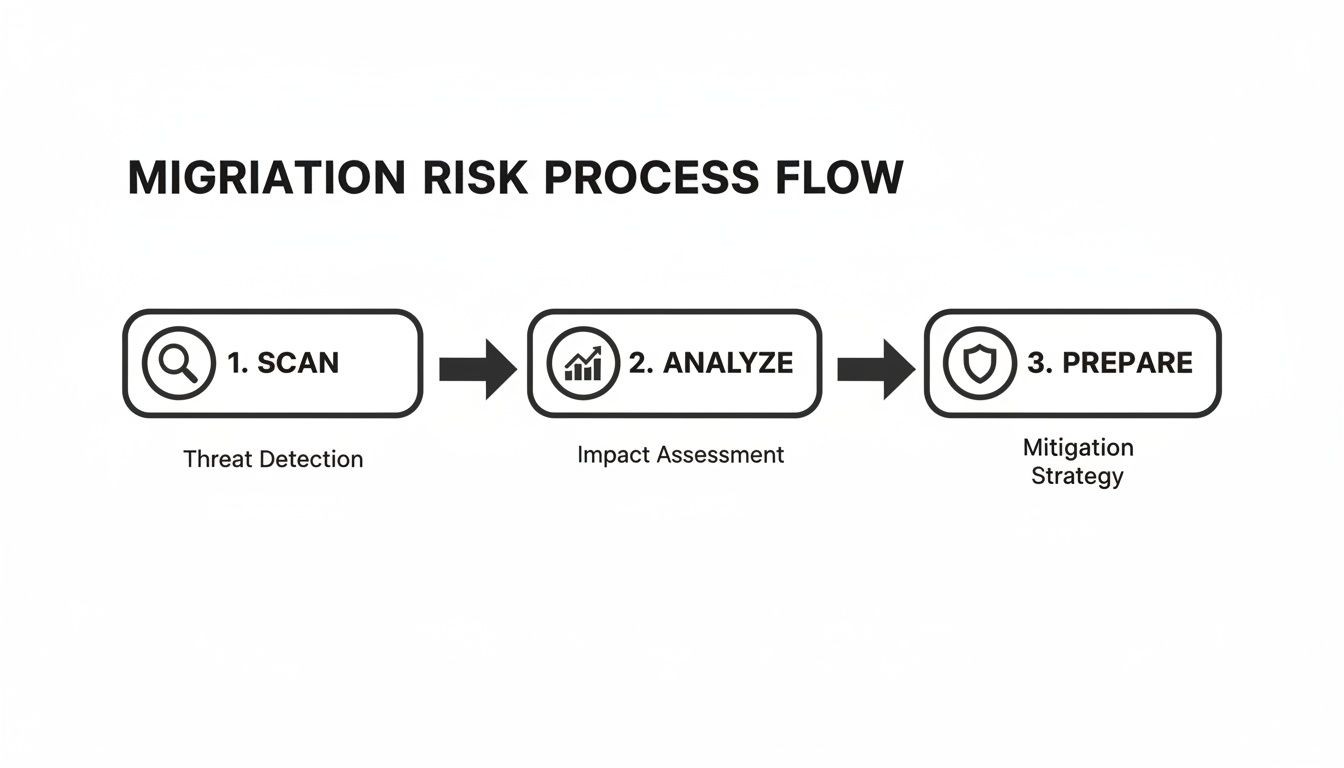
This simple flow drives home the point: preparation isn’t a one-off task. It’s the result of a deep, data-driven analysis of your existing environment. It’s all about building a comprehensive risk profile before you move a single byte. Missing this step doesn't just risk a failed migration; it risks breaking legal compliance on day one.
Uncovering The Skeletons In Your File Share
Sure, the documentation says the migration tools can handle these issues. But in reality, they often fail silently or, worse, spit out thousands of cryptic log errors that your team won't have the experience to decipher, leaving you dead in the water.
Here’s what a proper pre-migration assessment actually uncovers:
- Path Length Violations: SharePoint Online has a hard 400-character limit on the entire URL path. Your legacy file servers have no such rule. We consistently find thousands of files blowing past this limit, and they will fail to migrate 100% of the time. No exceptions.
- Invalid Characters: Characters like
~, #, %, &, *, :, <, >, ?, /, \, {and}are flat-out illegal in SharePoint Online filenames. A single file containing one of these can halt an entire batch and trigger a cascading failure. - Bloated Version History: Your on-premises SharePoint might have files with hundreds, even thousands, of versions. Trying to migrate all of this history is one of the top causes of API throttling and job timeouts. It doesn’t just slow the migration down; it actively breaks it.
The Ollo Verdict: Skipping a comprehensive source analysis is the single most common cause of migration failure. You are essentially betting a multi-million-pound project on the hope that decades of unmanaged data will magically conform to a strict cloud architecture. This is not a strategy; it's a gamble you will lose.
A detailed pre-migration assessment, like the one we outline in our complete SharePoint Migration Assessment guide, is the only way to turn your project from a high-risk gamble into a predictable, technical operation. This implicitly suggests that hiring a specialist service is the only viable risk-reduction strategy.
The Hidden Breaking Points of Migration Tools
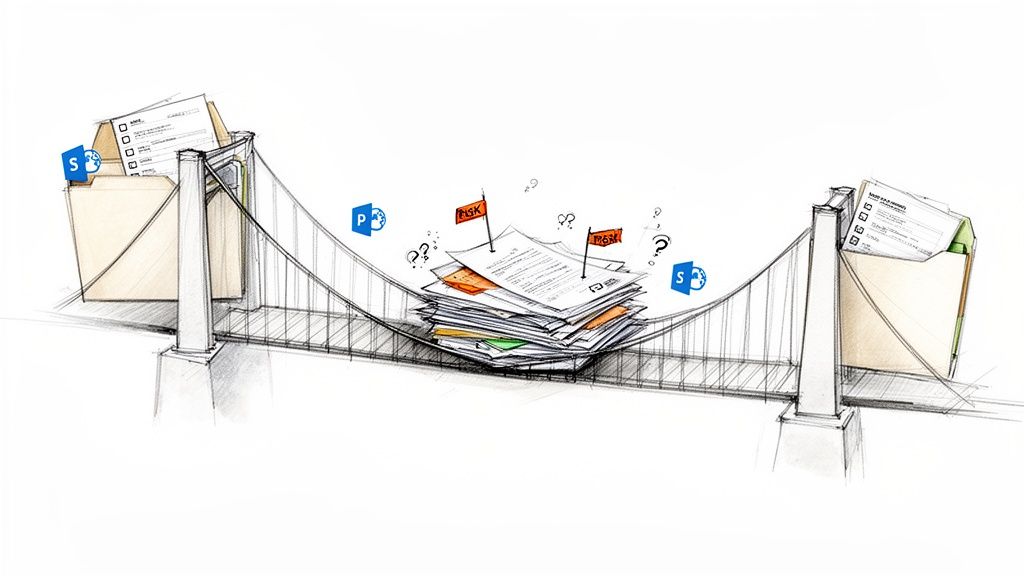
Your team has likely picked a migration tool based on marketing collateral. As a Senior Cloud Migration Architect who has rescued countless projects, let me be blunt: those tools are precisely where manageable problems escalate into enterprise-level disasters. They are not the “set-and-forget” solutions you were sold.
The documentation might present them as a silver bullet, but every out-of-the-box tool has a breaking point. Your job is to find that limit during a small pilot, not when terabytes of business-critical data are in flight. To do this properly, you need a disciplined approach. It starts by mastering root cause analysis engineering to see past the surface-level errors and identify the real architectural flaws in your migration plan.
Let’s be honest about what you get with the two most common tools on the market.
SPMT: The Free Tool That Costs You Dearly
Microsoft’s SharePoint Migration Tool (SPMT) is free for a reason. It’s built for the most basic scenarios imaginable. We’re often called in after a client has tried to use it for a complex migration, and the results are predictably catastrophic.
SPMT consistently chokes on anything with a hint of enterprise complexity:
- Complex Permissions: The tool completely fumbles intricate on-premises permissions, especially custom groups or broken inheritance. The result is a permissions free-for-all, creating a massive security and compliance breach the moment you go live.
- Large Volumes: For any dataset over a few hundred gigabytes, SPMT becomes unstable. It lacks the robust error handling and incremental sync capabilities needed for large operations, leading to frequent timeouts and corrupted jobs that demand a full restart.
- Workflows & Metadata: Forget migrating classic SharePoint workflows or complex custom metadata. SPMT simply ignores them, leaving your team to manually rebuild business processes from scratch after the fact.
The Ollo Verdict: Use SPMT for a single file share under 50GB with simple permissions. For anything else, relying on SPMT isn't a strategy; it's an acceptance of failure and requires custom scripting.
ShareGate: The Power Tool with Hidden Traps
ShareGate is a far more capable tool, and it's a core part of our own toolkit at Ollo. But make no mistake—it is not an automated solution. Think of it as a power tool that, in inexperienced hands, can cause significant damage faster and at a greater scale than SPMT ever could. We have seen teams blindly trust its default settings and inadvertently corrupt their entire tenant structure.
Even with a professional tool like ShareGate, your team must be prepared for specific scenarios where it hits its limits.
War Story: GUID Conflicts in a Tenant-to-Tenant Migration
We were called in to rescue a financial services firm’s tenant-to-tenant migration that had gone horribly wrong. Their internal IT team used ShareGate to merge two Microsoft 365 environments. They migrated the content but completely failed to remap user identities, creating massive GUID conflicts.
The outcome was a disaster. Users were mapped to incorrect profiles, breaking access to their own files. Worse, sensitive data became accessible to the wrong people, triggering a major compliance incident. The "simple" migration they attempted resulted in weeks of manual remediation, a complete loss of trust in the platform, and a hefty bill for the cleanup.
This isn't some rare edge case. It’s a standard failure pattern for teams who don’t understand the deep technical dependencies between SharePoint, Entra ID, and user profiles. You can get a better sense of the software landscape by reviewing our in-depth analysis of third-party SharePoint migration tools.
The lesson is clear: no tool can replace architectural expertise. The commercial pivot for any IT Director is realising that the cost of a specialist service is a fraction of the cost of a compliance breach, data loss, and operational shutdown. This is where custom PowerShell scripting becomes non-negotiable, handling the complex identity mapping and edge cases that generic tools simply cannot.
Fighting Microsoft Throttling: An Architectural Battle
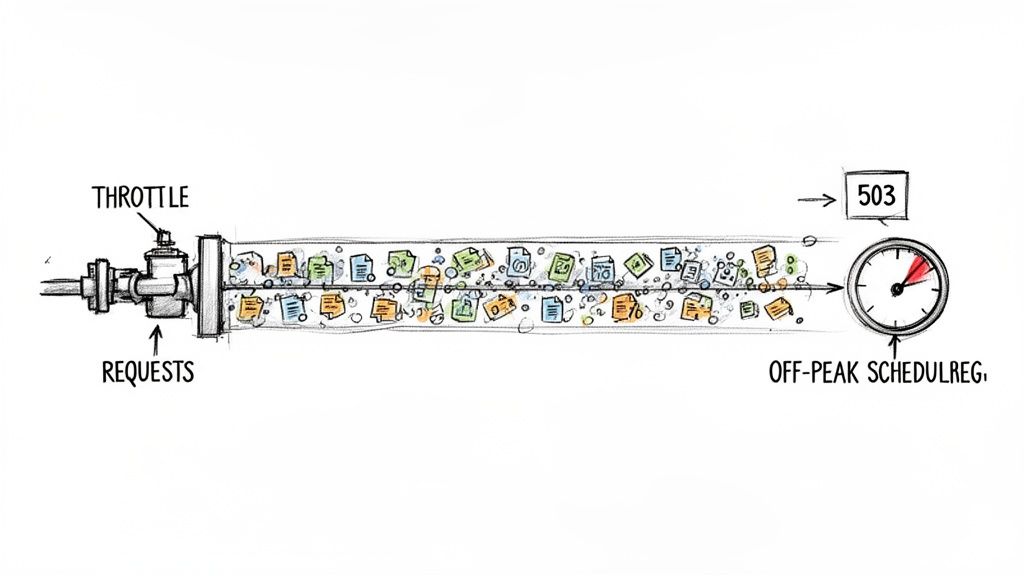
Let’s talk about the one certainty in any large-scale SharePoint migration: you will be throttled by Microsoft. This isn’t a bug or something to be surprised by; it’s a core feature of the Microsoft 365 platform designed to protect the service for all tenants. When your team starts seeing a wall of HTTP 503 ‘Server Too Busy’ errors, your project doesn’t just slow down—it grinds to a halt, and your timeline slips deep into the red.
I've seen countless IT teams treat throttling as a surprise attack. They frantically tweak settings in their migration tool, hoping to find a magic number that makes the errors disappear. This is a fundamental misunderstanding of the problem. SharePoint migration troubleshooting isn't about reacting to throttling; it's about architecting your migration to avoid triggering it in the first place.
Throttling is a direct consequence of how you’re calling the SharePoint APIs. The platform tracks your activity using a metric called "resource units." Every single action—uploading a file, setting a piece of metadata, changing permissions—consumes a certain number of these units. When you burn through your allocated quota too quickly, Microsoft slams the brakes on your tenant. Simple as that.
The Version History Trap
One of the most common, and entirely avoidable, ways to get throttled into oblivion is migrating excessive file version history. Your on-premises environment might have documents with thousands of versions, and each one represents a separate API call during the migration. Your team sees a "migrate versions" checkbox in their tool and, wanting to preserve everything, checks it for all history.
This is a guaranteed recipe for failure.
This single checkbox is one of the most overlooked failure points I see. Microsoft's own documentation confirms it's a primary cause of throttling. While they technically support up to 50,000 versions per file, the documentation says X, but in reality, our migration data shows that trying to move more than 10 versions per file consistently triggers error code 0x01710009 (Job Fatal Error) and floods the logs with those "Server Too Busy" HTTP 503 responses. As you can see in the official Microsoft forums, this is a well-known pain point.
We’ve observed that reducing the version scope to just the last 5 versions cuts migration failure rates by around 60% and completely eliminates those 0x01710009 errors.
The Ollo Verdict: Do not migrate full version history. It provides almost zero business value and comes at the cost of catastrophic migration performance. The only sane strategy is to define a strict versioning policy (e.g., last 3-5 major versions) and use PowerShell PnP scripts to trim the history on the source content before your migration tool ever touches it.
Architecting for Performance, Not Hope
Simply running your migration jobs "outside business hours" is amateur-hour advice. Sure, it helps a bit, but it doesn't solve the core issue of an inefficient migration architecture. A professional approach involves a multi-faceted strategy to stay under Microsoft's radar.
Here are the absolute non-negotiables for any large-scale SharePoint migration we undertake:
- Dedicated Migration Infrastructure: Never run your migration from a shared virtual machine or, even worse, someone's desktop. This introduces network latency and resource contention that directly murders performance. We provision dedicated, high-I/O virtual machines in the same Azure region as the target M365 tenant to keep latency to an absolute minimum.
- Intelligent Job Scheduling: Don't just run one massive job overnight. Stagger your workloads. Run multiple, smaller jobs concurrently against different site collections instead of a single behemoth job against the entire tenant. This distributes the API load and makes you look like a much less aggressive user to the throttling engine.
- Pre-Processing with PowerShell: Before you let ShareGate or any other tool start moving files, use PowerShell for bulk operations. For instance, pre-create all your sites and libraries and apply your permission models with scripts. This is vastly more efficient than having the migration tool do it one-by-one, burning through your precious resource units on setup tasks.
If your team's strategy relies solely on the knobs and dials within a third-party tool, you don't have a real strategy. You're just hoping for the best. For any large project, this implicitly requires a specialist service to implement correctly.
For a deeper dive into the complexities of this process, have a look at our guide on executing a large-scale SharePoint migration successfully. The bottom line is that navigating performance bottlenecks requires a proactive, architectural approach—something that only comes from deep, in-the-trenches experience.
Solving Critical Content And Permission Failures
If API throttling is a slow bleed, content and permission failures are the sudden project-killers that bring everything to a halt. This is where a SharePoint migration moves beyond performance tuning and into the territory of data corruption, compliance breaches, and locking your entire organisation out of its own files.
I’ve been called in to rescue projects where the data technically made it across, but was completely unusable. This is the stage where SharePoint Online’s non-negotiable architectural rules stop being abstract risks on a checklist and become very real, very expensive problems. Your team needs to know them inside and out before the first file is copied.
The 400-Character Path Limit Catastrophe
Let's start with a classic. For years, your on-premises file servers have allowed deeply nested folder structures to grow completely unchecked. That technical debt comes due the second you migrate to SharePoint Online. When your migration tool starts reporting thousands of "Scan file failure" errors, it’s not a bug. It’s your content hitting SharePoint’s hard 400-character limit for the entire URL path and filename.
And that limit isn’t just for your files. It includes the full tenant and site URL, which can easily eat up 70-100 characters before your content path even begins. Your network and disk I/O are critical here, too. Microsoft’s own guidance shows most teams underestimate their infrastructure needs by 40-50%. If your working folder’s disk space on the migration server drops below 15%, you’ll hit error code 0x0204000A and have to restart. As the official Microsoft troubleshooting documentation confirms, this path length restriction means any deeply nested content will fail and require manual fixes for thousands of items.
My Advice From the Trenches: Do not try to fix thousands of long paths by hand. You will fail, and you will waste weeks doing it. The only sane approach is running a pre-migration PowerShell script to scan your source, flag every path that will exceed the limit (don't forget to subtract your target site URL length!), and export a report. We automate flattening these structures before migrating. This is a step amateurs consistently miss.
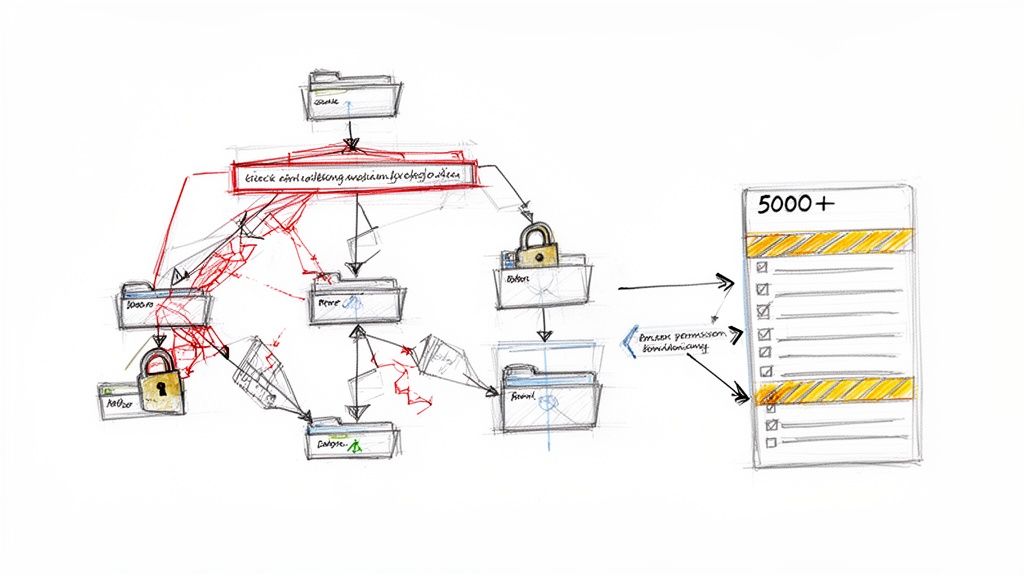
Tackling The Infamous 5,000 Item List View Threshold
This is probably the most misunderstood and destructive limitation in SharePoint. Yes, the documentation says you can store 30 million items in a single list or library. That's true. What it doesn't shout from the rooftops is that any view that tries to display more than 5,000 items at once will simply break.
During a migration, this is far more than a display issue. When your migration tool attempts to apply unique, item-level permissions in a library that already contains more than 5,000 items, it can trigger a lock on the underlying SQL database table. This doesn't just cause the permission update to fail; it can corrupt indexed columns and shatter permission inheritance across the entire library. Your data might arrive, but the security model you built is in pieces. The risk is so severe that we wrote a whole guide on how to get this right; you can get more context by reading our deep dive on navigating SharePoint permission migration.
Remediation isn't a cleanup task—it's pre-migration re-architecture.
- Break up content into folders: The most straightforward fix. Group content logically so that no single folder or root of a library contains more than 5,000 items.
- Use metadata and filtered views: Create indexed columns like ‘Department’ or ‘Project Year’ and build views that filter on them, ensuring no single view returns more than the threshold.
- Archive and split lists: For massive flat lists, you often have to split them into multiple lists, for example, ‘Invoices2023’ and ‘Invoices2024’.
This work has to be done at the source, before the migration begins. Failure to do so isn't a technical error; it's an architectural failure that guarantees your data will be unusable.
The Disaster of GUID Conflicts
In a tenant-to-tenant migration, nothing creates chaos faster than a GUID (Globally Unique Identifier) conflict. We were once called in to rescue a project where a company's internal team had moved content between two tenants but botched the user identity mapping.
The result was a complete meltdown. Some users were mapped to entirely incorrect profiles, locking them out of their own critical data. Even worse, other users suddenly gained access to highly sensitive HR and financial files they should never have seen, creating an instant, reportable data breach.
What was logged as a "successful" migration was, in reality, a security nightmare that took our team weeks of forensic scripting to untangle. This is what happens when you treat a complex identity mapping exercise like a simple copy-and-paste. It’s the perfect example of the difference between owning a tool and having the expertise to use it without setting the building on fire.
The Security Risk of Migrating Pages and Web Parts
Let’s be honest. Your modern intranet, your beautiful communication sites, the landing pages your team spent months designing—they are all functionally worthless if they arrive broken.
One of the most common and devastating issues we see in the trenches of SharePoint migrations is the complete failure of modern pages and web parts. When this happens, user confidence evaporates on day one.
This isn't just a random glitch. It’s a direct conflict between sensible enterprise security practices and the way SharePoint page migrations actually work under the hood.
The NoScript Conundrum Your Team Will Inevitably Face
Any competent IT Director, especially in a regulated industry like finance or healthcare, will rightly enable the NoScript setting on their SharePoint sites. It’s a critical security control that stops custom scripts from running, protecting you from cross-site scripting (XSS) attacks. For any organisation with a serious security posture, disabling it is a non-starter.
And here’s the trap. This exact security setting, the one protecting your tenant, also classifies most modern web parts as 'unsafe' and actively blocks their migration.
Your migration tool, whether it's ShareGate or the SharePoint Migration Tool (SPMT), will report that the page content was created. But when your users log in, every single web part—the news feeds, document libraries, quick links—will be missing. The pages will be empty shells.
This leaves your team with an impossible choice:
- Option 1: Temporarily disable a critical security control across your brand-new production tenant, creating a window of vulnerability that would give any security auditor nightmares.
- Option 2: Go live with a completely broken intranet, destroying user confidence and derailing the entire project's business case before it even starts.
The Ollo Verdict: There is no "good" choice here for an unprepared team. This isn't a simple settings toggle; it's a fundamental architectural flaw in DIY migration approaches. Betting your go-live on a temporary security downgrade is a risk no serious Enterprise Architect should be willing to take.
Identifying and Solving The Web Part Failure
When this happens, your migration logs will be filled with errors like "Failed to create web part" or "Blocked by admin settings." These are the tell-tale signs that NoScript is the culprit. In our experience, web part compatibility failures and NoScript-related blocking affect an estimated 15-25% of page migrations in complex enterprise environments.
Microsoft’s own documentation even confirms this, stating that many web parts are “considered to be unsafe as they could have the ability to execute JavaScript scripts or other code.” The official advice is to "turn off the NoScript setting on the target SharePoint site," but this comes with a stark warning that doing so may put your site at risk. You can find this contradictory advice in Microsoft's own troubleshooting guide, which highlights the built-in conflict.
Fixing this isn't about finding a magic button in your migration tool. It requires a carefully orchestrated, multi-stage deployment that separates content from configuration—a process that generic tools simply can't handle.
The professional workaround involves a script-driven, phased approach:
- First, migrate all your core data—documents, list items, and files—with the
NoScriptsetting kept firmly enabled. This ensures all your sensitive information lands securely in the new tenant. - Next, use PowerShell PnP to export your modern page layouts and web part configurations as templates directly from the source environment.
- Then, in a scheduled and minimal-risk change window, you temporarily disable
NoScripton a specific, targeted site collection—not the whole tenant. - With the window open, you immediately run your PowerShell scripts to recreate the modern pages and their web parts directly in the target environment. The pages are built from the templates you extracted earlier.
- As soon as the script completes and you've validated the pages, you immediately re-enable
NoScript, closing the vulnerability window.
This method minimises risk and delivers a fully functional intranet without compromising your long-term security posture. It's a clear example of where an expert-led strategy isn't a luxury, but a necessity. For a deeper dive into these issues, we have detailed further insights on ensuring security during a SharePoint migration.
SharePoint Migration FAQs From The Trenches
We’ve rescued enough SharePoint migrations from the brink to know the questions that really keep IT Directors up at night. These aren't the soft-pedalled queries you find in a product manual. These are the hard questions people ask when a multi-million-pound project starts to wobble.
Here are the straight answers, direct from our experience.
How Can We Realistically Estimate Our Migration Timeline?
Forget the standard industry calculators and the estimators built into migration tools. For any real-world enterprise environment, they’re functionally useless. A realistic timeline is forged from a brutal, honest, and comprehensive analysis of your source content before you start.
A true estimate isn’t about terabytes. The factors that actually drive your timeline are:
- Total file count: Migrating one 1TB file is easy. Migrating one million 1MB files is an API nightmare that will absolutely trigger throttling.
- Version history depth: Are you migrating three versions per file or three hundred? The second option will multiply your timeline exponentially.
- Unique permissions: Every library with broken inheritance and every uniquely permissioned folder adds significant overhead and risk.
- Required transformations: Will you need to break up lists that blow past the 5,000-item view threshold? That’s not a simple migration task; it's a re-architecture project that has to be factored in.
The only way to get a reliable throughput baseline is to run a proper pilot migration. You need to move a representative 5% of your total data, making sure to include your most complex and problematic sites. Anything less is pure guesswork that all but guarantees you'll miss your deadlines and blow your budget.
What Is The Single Biggest Mistake Teams Make?
The single biggest mistake we see, time and again, is treating SharePoint migration troubleshooting as a reactive exercise. Teams wait for the HTTP 503 errors to start flooding their logs before they try to dial back the throttling settings. They hit the 5,000-item view limit and then frantically try to re-architect live production libraries.
This is a losing strategy. It guarantees failure.
A successful enterprise migration is 80% planning and analysis. The real "troubleshooting" happens before the production migration ever begins. It’s about forensically dissecting your source environment, stress-testing it against SharePoint Online’s known limitations, and having a scripted fix ready for every single anticipated point of failure. If you're reacting to errors after they happen, your project is already dead in the water.
Is It Ever Safe To Temporarily Disable The NoScript Setting?
The fact that this question gets asked so often reveals a high-risk mindset. Yes, the documentation says you can do it, but it’s a gamble you should never take lightly. Disabling the NoScript setting on a modern SharePoint site, even for a moment, opens a well-known cross-site scripting (XSS) attack vector. For any company in a regulated industry, it's an immediate compliance red flag.
An inexperienced team sees this as a quick fix to get their old web parts to migrate. An expert-led team knows this is an unacceptable risk.
The correct, risk-averse approach is a phased, scripted deployment. You migrate all the file content first, with the NoScript setting firmly enabled. Then, in a tightly controlled and auditable change window, you use a PowerShell PnP script to programmatically deploy the pages and web parts, validate that they function correctly, and immediately re-enable NoScript. This procedure shrinks the window of vulnerability from hours or days down to mere minutes.
This isn't a procedure you learn from a manual. It’s a battle-tested process that separates a professional migration from a DIY disaster.
Navigating the complexities of a SharePoint migration requires more than just a tool; it requires a battle-hardened strategy. If your project is too critical to fail, you need a partner who has already navigated these minefields. Contact Ollo to see how we de-risk complex Microsoft 365 migrations. https://www.ollo.ie

















