



Your team has probably already built the spreadsheet. Source sites, target sites, owners, dates, weekend cutover, rollback notes. It looks controlled. It is not controlled.
SharePoint migration performance issues do not announce themselves politely. They show up late, under load, inside cryptic logs, after your stakeholders were told the move was routine. The vendor pitch says migration is a managed process. The field reality is uglier. You hit throttling. You hit structural limits. You hit permissions drift. You discover that a migration can “complete” and still leave you with an unusable estate.
I write this as someone who has spent too much time rescuing projects that started with confidence and ended with forensic review. Microsoft’s documentation is useful, but it also gives many IT teams a false sense of safety. The documentation tells you the platform rules. It does not carry your risk when your reporting breaks, your access model fractures, or your auditors ask why version history vanished.
If you are an IT Director in finance, healthcare, energy, or any regulated environment, treat migration as a hostile engineering exercise. Not a file copy. Not a weekend task. Not a free-tool project.
Your Migration Plan Is a Minefield Not a Map
Most migration plans fail before the first batch runs. They fail in the assumptions.
Your team assumes the source structure can move as-is. Often, it cannot. They assume standard tooling will adapt to enterprise complexity. Often, it will not. They assume Microsoft’s limits are edge cases. In practice, those limits become the project.
That is the trap. The plan looks complete because it lists activities. It does not list the hidden breakpoints that decide success. API throttling, list view thresholds, long paths, broken inheritance, and silent metadata loss do not sit neatly in project plans. They appear when volume, complexity, and poor structure collide.
We see clients fail when they treat SharePoint as a storage destination instead of a platform with hard behavioural constraints. A flat file share with sprawling folders may be ugly on-prem, but users can still browse it. Push that same sprawl into SharePoint Online without redesign and performance collapses. The migration may finish. The platform still loses.
Vendor reassurance is not a risk model
Tool vendors sell capability. They do not own your operational fallout.
Microsoft tells you what the service allows. That matters. It does not tell you what your estate will look like after years of custom permissions, legacy workflows, inherited sprawl, and inconsistent metadata collide with those rules. That gap between platform guidance and lived reality is where projects burn money.
A good general primer on Cloud Migration Best Practices is useful for leadership teams, but SharePoint is where general cloud guidance stops being enough. SharePoint punishes sloppy structure and casual assumptions faster than most platforms.
Key takeaway: If your migration strategy starts with “lift and shift”, your primary task is not migration. It is damage prevention.
What sceptical IT Directors should assume
Assume your first pass estimate is optimistic.
Assume your source contains permission anomalies nobody has documented.
Assume your smallest files will cause more pain than your biggest presentations.
Assume a tool can produce a success log while still leaving you with governance debt, search issues, and security exposure.
That sounds cynical because it is. Cynicism is useful here. It forces better questions. What throttles first. Which libraries exceed design limits. Which sites carry unique permissions. Which lists will break post-move. Which logs are detailed enough for audit. If your migration partner cannot answer those questions before cutover, they are gambling with your data.
Diagnosing and Defeating API Throttling
API throttling is not a glitch. Microsoft uses it to protect the service. Your migration is background traffic in a shared cloud platform. The service will defend itself before it protects your timeline.
Microsoft’s own guidance states that you should not submit more than 5,000 migration jobs or requests at one time because over-queuing slows migration and triggers throttling in SharePoint Online (Microsoft Learn guidance on migration speed). That is the official version.
Reality is harsher. We see clients fail when they queue far beyond what the platform will tolerate, then act surprised when 429 responses and Retry-After delays wreck the schedule. At that point, you are not migrating. You are waiting.

Practical implications of 429 and 503 errors
A 429 tells you the service has had enough of your request rate.
A 503 Server Too Busy tells you the backend cannot process your volume at that moment. Neither error is unusual in a large move. The problem is repeated volume and poor queue discipline.
The documentation says throttling can happen during peak hours or when migration settings are misconfigured. That is true. In practice, many teams create the problem themselves by launching too many jobs, running a single giant task, or letting multiple admins fire work at a single tenant without coordination.
The operational effect is simple:
- Your batches stop moving when the service starts backing off.
- Your retry windows expand because the Retry-After header tells the client to wait.
- Your forecasting becomes fiction because throughput is no longer linear.
- Your cutover risk rises because delay compounds into business hours.
If you are troubleshooting recurring stalls, this guide on https://ollo.ie/blog-posts/share-point-migration-troubleshooting is a useful checkpoint for what to inspect before you keep rerunning failed tasks.
How to see throttling instead of guessing
Do not diagnose this by looking at a dashboard that says “in progress”. Inspect the traffic pattern.
Use logging that captures status codes, retry behaviour, task counts, and timestamps. If your tool hides those details, export what it can and correlate it with your run windows. You need to know when the service started resisting you, not just when the tool admitted trouble.
For teams using PowerShell around migration activity, basic response inspection helps. Keep it simple and visible:
$log = @()foreach ($url in $siteUrls) {try {$response = Invoke-WebRequest -Uri $url -Method Head$log += [pscustomobject]@{Url = $urlStatusCode = $response.StatusCodeRetryAfter = $response.Headers["Retry-After"]TimeStamp = Get-Date}}catch {$statusCode = $_.Exception.Response.StatusCode.value__$retryAfter = $_.Exception.Response.Headers["Retry-After"]$log += [pscustomobject]@{Url = $urlStatusCode = $statusCodeRetryAfter = $retryAfterTimeStamp = Get-Date}}}$log | Export-Csv ".\spo-throttle-log.csv" -NoTypeInformationThat will not solve throttling. It will stop your team lying to itself about what is happening.
Why standard tool behaviour creates the problem
SPMT behaves like a free utility because that is what it is. It does not think like an enterprise migration architect. It pushes work until SharePoint pushes back.
ShareGate is better. It gives you more control and stronger handling than the free tool. But control without engineering discipline still fails. Most internal teams use ShareGate as a GUI with optimism attached. They do not model traffic, distribute work effectively, or isolate high-risk content into controlled waves.
A smarter operating model looks like this:
- Break the source into controlled batches based on content type and target location.
- Avoid queue flooding by limiting active submissions and watching completion before adding more.
- Run off-peak where practical because the service explicitly processes background work better then.
- Use multiple service accounts carefully to distribute activity rather than concentrate demand through one identity.
- Separate small-file-heavy content from larger files because processing patterns differ.
- Validate throughput empirically instead of trusting a broad estimate.
Practical rule: If your migration plan has no throttle strategy, then it has no schedule.
The hard truth about throughput
Many IT Directors still ask one question too early. “How fast will it go?”
Wrong question. Ask what will slow it down first. Often it is one of these:
| Failure trigger | Why it hurts |
|---|---|
| Over-queuing jobs | SharePoint starts throttling and extends Retry-After waits |
| Tiny-file-heavy batches | Processing overhead multiplies |
| Peak-hour execution | Background traffic gets less favourable treatment |
| Unbalanced task design | One oversized task or too many fragmented tasks both create drag |
| Weak source or agent performance | Reading and packaging content becomes the hidden bottleneck |
The service does not care about your deadline. It reacts to load. That is why migration architecture matters more than tool branding.
Why Your Migration Tools Will Fail at Scale
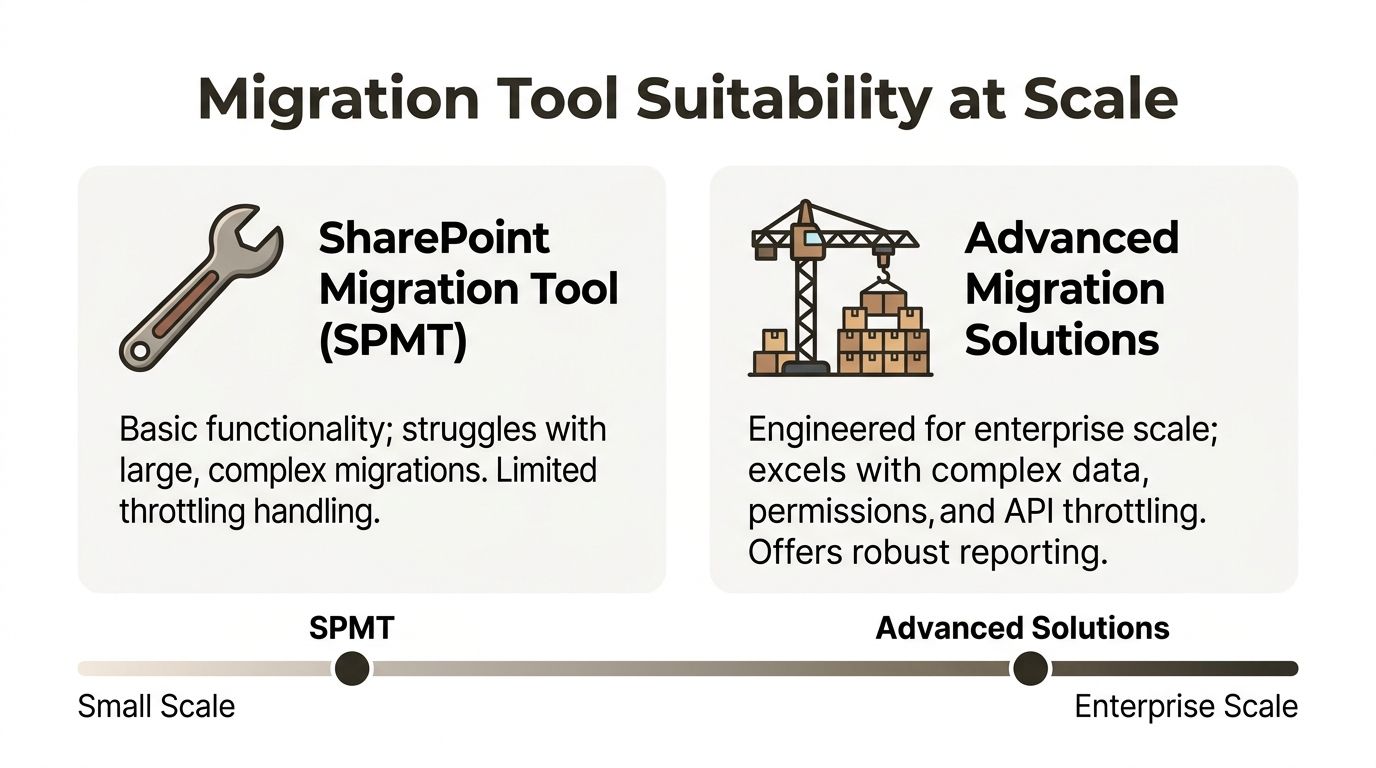
The market talks about migration tools as if choosing one solves the problem. It does not. The tool is only the mechanism. Scale failure comes from the mismatch between tool behaviour and enterprise complexity.
The free option seduces teams because it looks official and cheap. The premium option seduces teams because it looks powerful and polished. Both can still fail significantly if your estate is large, messy, regulated, or all three.
SPMT is fine until it is not
The SharePoint Migration Tool has a hard 250 GB file size limit according to ShareGate’s analysis of the Microsoft free tool, and that same discussion highlights how large files, poor network conditions, and weak hardware trigger performance problems and throttling (ShareGate on Microsoft’s free SharePoint migration tool).
That limit alone disqualifies it from many enterprise datasets. The bigger problem is not the single cap. It is the mindset it encourages. Teams think they are using the official path, so they assume the platform will adapt around edge cases. It will not.
SPMT also falls apart when the surrounding conditions are poor:
- Slow connectivity drags transfers and increases retry pain.
- Weak migration hardware turns packaging and upload into a crawl.
- Complex metadata and permissions expose the tool’s limits fast.
- Long or awkward file structures create failure handling work your team did not budget for.
If your business data sits in a regulated environment with retention pressure, audit expectations, and ugly legacy permissions, SPMT is not a serious enterprise answer.
ShareGate is the better engine, not the full solution
ShareGate is the tool serious teams often graduate to. That move is sensible. It handles far more than SPMT. It gives you operational control. It is still not magic.
The common failure mode with ShareGate is false confidence. Teams buy a stronger tool and keep the same weak migration habits. They still preserve bad structures. They still batch work poorly. They still underestimate permissions complexity. They still discover too late that tool settings cannot fix an estate that was never prepared for migration.
Broader thinking around engineering-led digital transformation becomes relevant here. Strong platforms only deliver value when engineering discipline shapes the implementation. SharePoint migration is no different. Tooling without architecture is expensive theatre.
Tool Breaking Points in Enterprise Migrations
| Failure Point | SPMT (Free Tool) | ShareGate (DIY) | Ollo (Managed Service) |
|---|---|---|---|
| Large single files | Hard 250 GB ceiling creates immediate exclusions | Better handling, but still depends on design and batching | Assessed and segmented before execution |
| Throttling control | Limited practical control | Better controls, but easy to misuse | Traffic shaped through scripting and operational discipline |
| Complex permissions | High risk in messy estates | Possible, but needs expertise | Pre-flight analysis and remediation first |
| Long path and awkward structure | Common pain point | More resilient, not immune | Structure redesigned before move |
| Reporting for audit | Basic | Better | Validation-led and defensible |
| Enterprise cutover planning | Thin | Depends on internal capability | Built around rollback, verification, and compliance exposure |
The Ollo verdict
Use SPMT for a small, non-critical move where failure will irritate users but not damage governance.
For core business data, SPMT is the wrong instrument. ShareGate is the right class of tool, but only if the team using it understands SharePoint’s behavioural limits, permission logic, and traffic patterns. Many teams lack that understanding.
Ollo verdict: Use SPMT for a single, low-risk departmental move. For enterprise SharePoint, tenant consolidation, or regulated content, relying on free tooling is reckless. ShareGate is the better engine. You still need a driver.
If you are weighing tools rather than outcomes, this overview at https://ollo.ie/blog-posts/share-point-migration-software is a useful reality check. The decision is not free versus paid. It is unmanaged risk versus controlled risk.
How Poor Data Structure Cripples Performance
The nastiest SharePoint migration performance issues frequently start before the first file uploads. They start in the source structure your users have normalised for years.
A messy file server can stay functional through sheer habit. SharePoint does not tolerate the same abuse. It has architectural boundaries, and one of the most important is the 5,000-item list view threshold. Ignore it, and you create pain during migration and after it.
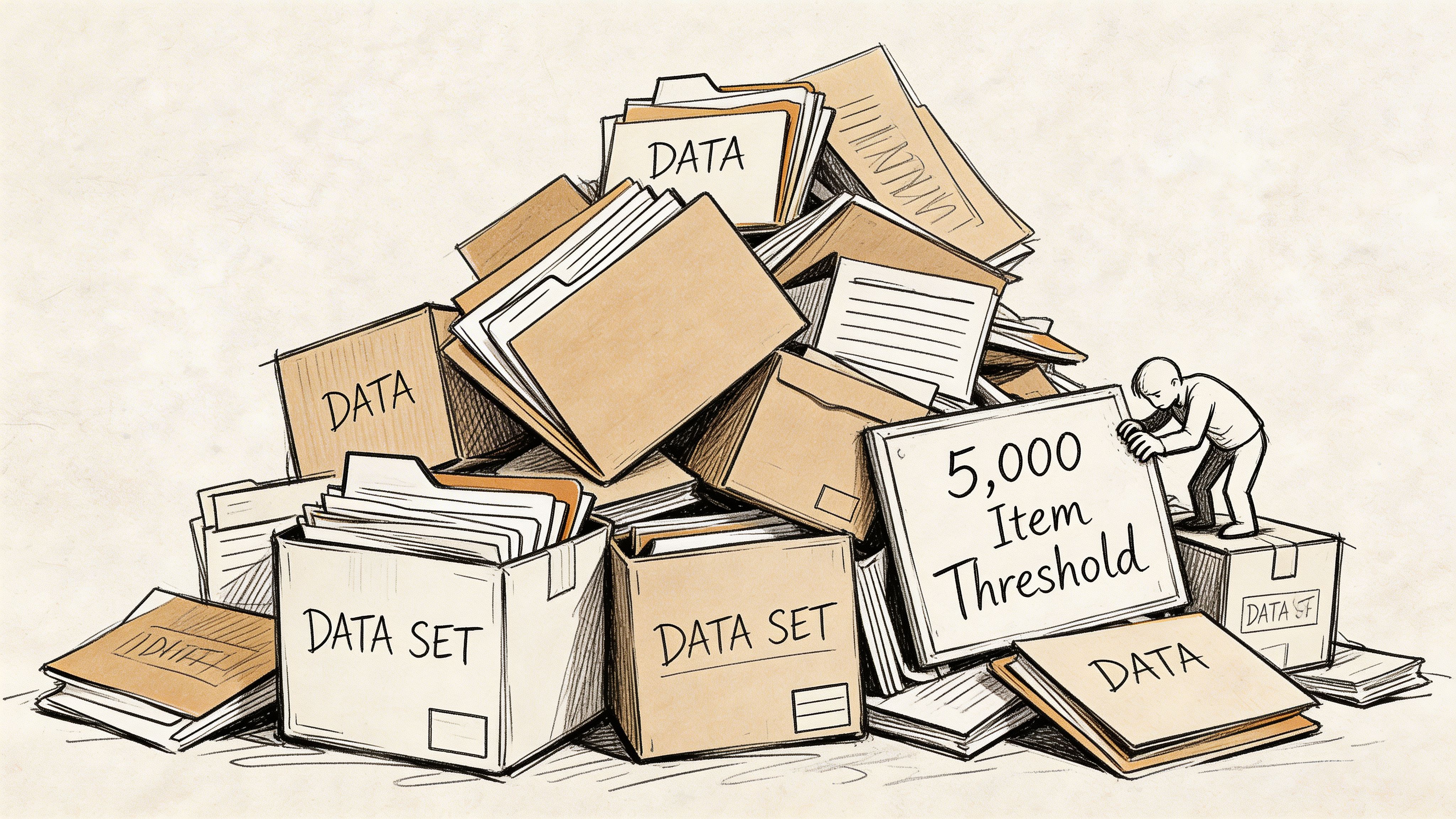
A technical review from IDM notes that SharePoint Online performs best when documents respect the 5,000-item threshold, and it also warns that each folder object adds API overhead during migration. The same piece notes that teams may waste 30–40% of migration time on folder reorganisation after the move because they ignored structure up front (technical considerations for SharePoint migrations).
That number should bother you. It means the project did work twice. Once badly, then once painfully.
The war story nobody budgets for
We frequently inherit migrations that “succeeded” technically and failed operationally.
A common pattern looks like this. The client preserved an old flat directory structure because nobody wanted to challenge business owners before cutover. Thousands of small files land in a single library or a handful of bloated folders. The migration log shows completion. Users log in on Monday and discover the library is sluggish, views choke, filters are unreliable, and day-to-day work has become an argument with the interface.
That is not bad luck. That is a predictable architectural failure.
Why small files and folder sprawl hurt more than people expect
Directors frequently worry about huge files because they look risky. Huge files are obvious. Small files are treacherous.
Each folder object requires API work. Each overloaded folder or list compounds that overhead. Flat structures from legacy file shares drag thousands of tiny objects into a platform that expects disciplined organisation. The migration engine now spends time processing structure, not just content.
The practical damage lands in three places:
- Migration throughput drops because the engine spends more time on object handling.
- User experience degrades because libraries become harder to browse and filter.
- Post-migration remediation expands because reorganising live content is its own project.
If governance matters in your organisation, that should push you towards planning first, not moving first. This is exactly why mature SharePoint data governance matters before migration, not after, and this resource may help frame those discussions internally: https://ollo.ie/blog-posts/share-point-data-governance
Run a source scan before you touch production
Do not wait for SharePoint to tell you your structure is bad. Scan the source and flag hotspots early.
A simple PowerShell approach can help identify heavy folders before you migrate:
$root = "D:\SourceData"Get-ChildItem -Path $root -Directory -Recurse | ForEach-Object {$count = (Get-ChildItem -Path $_.FullName -File -Recurse | Measure-Object).Count[pscustomobject]@{FolderPath = $_.FullNameFileCount = $count}} | Sort-Object FileCount -Descending | Export-Csv ".\folder-density-report.csv" -NoTypeInformationThis does not replace a proper architectural review. It does expose obvious time-bombs.
Practical advice: If a folder structure looks lazy on a file server, it will often perform poorly in SharePoint.
You can also use this short walkthrough as a useful companion when explaining the structural problem to stakeholders who still think “just copy it over” is acceptable.
Fix the hierarchy before migration, not after
Post-migration restructuring sounds manageable until you count the consequences. You are moving live content, retraining users, fixing links, reviewing permissions, and trying not to break reporting or automation.
A better sequence is blunt:
- Audit the source.
- Identify overgrown folders and libraries.
- Redesign the target information architecture.
- Test with representative data, especially small files.
- Migrate into the new structure.
This is one of the clearest lines between a defensible migration and an expensive cleanup exercise.
Advanced Failures GUID Conflicts and Broken Permissions
Some migration failures are loud. Others are worse because they stay quiet long enough to pass a status meeting.
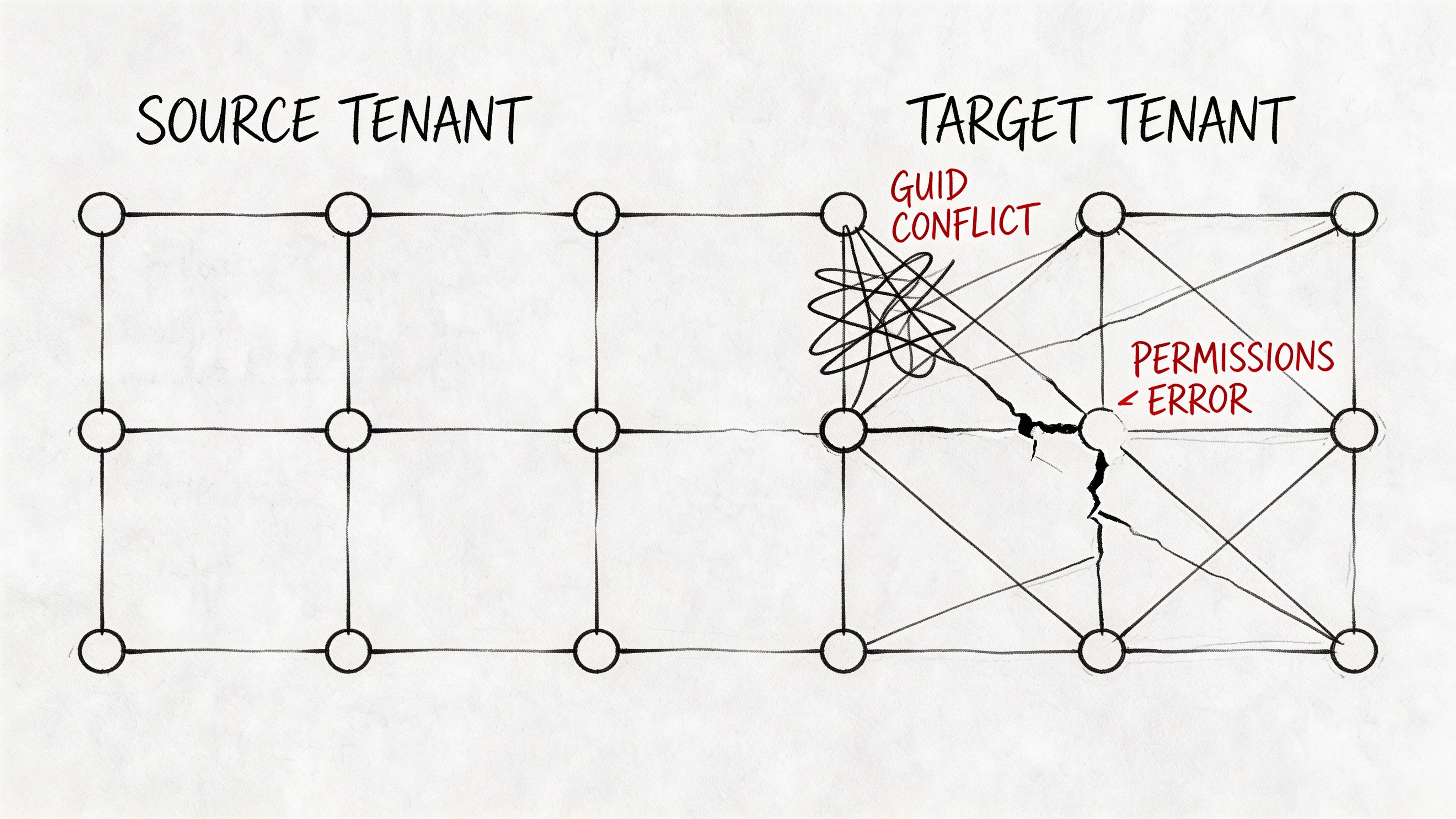
GUID conflicts and broken inheritance sit in that second category. They frequently appear in tenant-to-tenant moves, mergers, divestments, and any environment where identity, structure, and permissions have drifted over time. Basic tools do not handle these edge cases well, and the failure does not always look like a crash. It looks like missing fidelity.
Microsoft’s performance guidance for SPMT is relevant here because post-migration pain can come from what standard tooling does not fully preserve or validate. In actual projects, unaddressed GUID conflicts and broken inheritance lead to duplicate artefacts, lost metadata or version history, and logs that are too thin to satisfy audit questions (Microsoft Learn SPMT performance guidance).
GUID conflicts are not cosmetic
Every SharePoint object has identifiers. In tenant-to-tenant migration, those identities do not transplant themselves into a fresh destination without consequences.
When a tool mishandles this, you can end up with what many teams describe as ghost behaviour. Content appears duplicated, references drift, metadata no longer lines up as expected, or version chains look incomplete. Users may still find a file. Compliance teams then ask whether it is the same record with the same history and ownership context. Weak tooling and validation become dangerous then.
For a regulated organisation, missing metadata does not just create inconvenience. It undermines defensibility.
Broken inheritance creates security debt fast
The nastier issue is broken permission inheritance.
Many estates carry years of exceptions. A team site inherited from the parent until one library stopped inheriting. A subfolder got unique access for a project. A sensitive area was shared directly because someone needed speed. Those choices stack up.
Migrate that estate carelessly and one of two things often happens:
- unique permissions collapse back to parent access, exposing content too broadly, or
- the target ends up with fragmented, inconsistent permissions nobody trusts
Neither outcome is acceptable. If your organisation is pursuing zero-trust controls, this gets worse. Migration becomes the moment where your old access chaos either gets corrected or permanently embedded in the new tenant.
If permissions complexity is central to your project, this technical guide is worth reviewing as part of your planning process: https://ollo.ie/blog-posts/share-point-migration-permissions
What to validate before and after cutover
This is not a place for generic checklists. You need targeted validation.
Before migration, inspect for:
- Unique permissions at site, library, folder, and item level
- Broken inheritance chains that were created years ago and forgotten
- Content types and metadata dependencies that rely on source-specific behaviour
- Path and structure anomalies that increase the odds of malformed targets
After migration, verify:
| Validation area | What to look for |
|---|---|
| Metadata fidelity | Key fields present, correctly mapped, and searchable |
| Version history | Critical document histories intact where required |
| Access model | Unique permissions preserved or intentionally redesigned |
| Duplicate artefacts | “Ghost” content or inconsistent object references |
| Audit readiness | Logs and validation outputs strong enough to explain outcomes |
Expert warning: A migration that preserves files but breaks access logic is not a technical success. It is a security incident waiting for discovery.
Why basic logs are not enough
Many internal teams get trapped when basic logs are insufficient. The tool says complete. The log shows warnings. Nobody has time to inspect every edge case. The project closes.
Then legal asks for a version trail. Or HR finds a confidential library visible to the wrong group. Or a finance archive loses trust because duplicate records appeared during a merger. By then, the migration team is already onto the next project, and your support teams inherit the fallout.
That is why mature migrations use pre-flight discovery, targeted remediation, and post-flight proof. Not optimism. Not generic reporting. Proof.
The Ollo Verdict Your Path to a Defensible Migration
You do not have a SharePoint migration project. You have a risk concentration event.
The risks are not obscure. They are documented, predictable, and repeatedly mishandled. Queue too aggressively and the platform throttles you. Trust the free tool at enterprise scale and you hit size, structure, and reporting limits. Preserve a bad file hierarchy and you migrate slowness into your future state. Ignore GUID conflicts and broken inheritance and you create audit and security problems that only appear after everyone has declared victory.
That is why DIY is often a false economy. The savings exist only on the first line of the budget. The losses show up later as delays, remediation, user disruption, compliance exposure, and a second project nobody planned to fund.
A defensible migration does not start with tool selection. It starts with diagnosis. You need to know where your throttling risk sits, where your structure violates SharePoint’s operating model, where your permissions are already broken, and where your target design will fail under actual user load. If you do not know those things yet, you are still in the danger phase.
The sensible next step is not another internal planning meeting. It is a hard technical assessment. That is what a proper readiness review should do. Surface the failure points before they hit production. If you want that level of scrutiny, request a migration readiness audit at https://ollo.ie/free-audit
A successful migration is not the one that finishes fastest. It is the one you can defend afterwards. To users. To security. To auditors. To your own board.
If your SharePoint move involves regulated data, tenant consolidation, ugly permissions, or a history of failed attempts, talk to Ollo. We specialise in the migrations that other teams underestimate, then regret.

















