



Let's be blunt. That standard SharePoint migration timeline you found online? It's a work of fiction. It’s a dangerously simplistic plan written by marketers, not architects, and it completely ignores the messy reality of your enterprise data. We’ve seen it time and again: an optimistic 4-week fantasy quickly spirals into a 6- to 9-month nightmare, burning budget and political capital along the way.
Why? Because it fails to account for the specific technical traps that will absolutely derail your project and incinerate your budget. This isn't pessimism; it's realism from the trenches.
Why Your SharePoint Migration Timeline Is Already Wrong
That project plan you downloaded is setting your team up for failure. It’s written for a perfect world, one that simply doesn't exist inside your complex, living business environment. As senior architects at Ollo.ie, we're the ones called in to rescue projects that began with these exact timelines. We see the same catastrophic mistakes on repeat.
The plan promises a simple, straight line from A to B, but the reality is a minefield of technical debt, broken inheritance, and hidden dependencies. Your timeline is wrong because it almost certainly ignores the real-world breaking points that bring projects to a grinding halt.
The Technical Traps Your Timeline Ignores
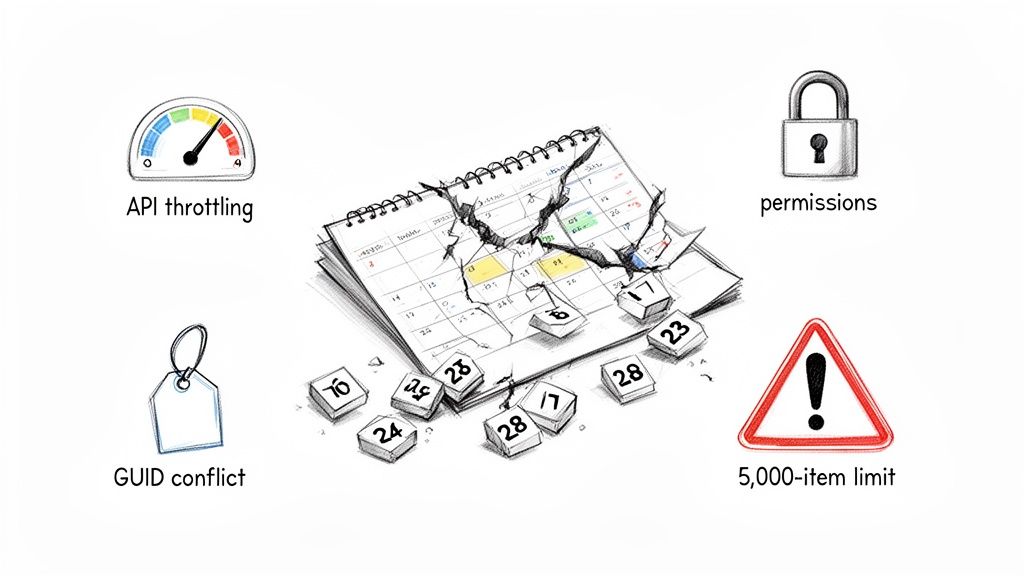
A viable SharePoint migration timeline isn't built on hope. It's built on a deep, technical understanding of what’s going to break. Your generic plan makes no mention of the following critical failure points, which we see on nearly every enterprise project.
API Throttling: The documentation says Microsoft has migration APIs. The reality is they are not an unlimited firehose. We’ve seen DIY attempts in the finance and energy sectors right here in IE stretch from an optimistic 4 weeks to over six months purely because of unmanaged API throttling. This isn't a bug; it's a feature to protect the service. Without a strategy to manage it, your timeline is pure guesswork.
The 5,000-Item List View Threshold: This isn't a friendly suggestion from Microsoft; it’s a hard limit that breaks lists, libraries, and the business processes that depend on them. Your timeline assumes you can just move data, but it fails to allocate time for the architectural remediation needed when you discover a critical business list with 50,000 items and a web of broken lookups.
Broken Permission Inheritance: Years of ad-hoc user management by your team have left a toxic trail of broken inheritance and unique permissions across thousands of files. Standard tools don't fix this; they just migrate the mess, creating a security and compliance disaster in your shiny new environment. The cost of failure here isn't a delayed project; it's a data breach.
GUID Conflicts and Long Path Limits: In tenant-to-tenant migrations, object GUIDs will clash, creating chaos. On top of that, file paths that worked perfectly fine on-premises will break SharePoint Online's character limits. Your timeline probably doesn't allocate a single hour to scripting a solution for this, but the failure will halt your migration dead in its tracks.
The greatest risk to your SharePoint migration timeline isn't the volume of your data; it's the complexity you haven't discovered yet. Failing to build your schedule around risk discovery and remediation first is the number one cause of budget overruns and failed projects.
From Fantasy to a Battle-Hardened Framework
Trusting a generic timeline won't just delay your project; it will actively sabotage it. When throttling hits, productivity plummets. When permissions fail, you're facing a potential compliance breach. Each of these "unforeseen" issues—which are entirely foreseeable to an expert—adds weeks or months of emergency work, inflates your costs, and destroys stakeholder confidence.
A realistic plan doesn't start with a go-live date. It starts with a thorough, scripted discovery designed to unearth these exact problems. Before you even think about moving a single file, you need a full, unvarnished picture of the complexity and a concrete plan to fix it. Our guide on using a SharePoint migration assessment tool is the essential starting point for this critical first step.
The rest of this guide will dismantle the optimistic fantasy and give you a battle-hardened framework in its place. We'll show you how to build a SharePoint migration timeline that anticipates disaster and positions your project for success by tackling risk head-on.
The Discovery And De-Risking Phase You Cannot Skip
Most IT leaders I talk to want to rush past the discovery phase. You're eager to see progress bars, show momentum, and get the migration done. As someone who has rescued countless failed SharePoint projects, I can tell you this is the single most critical mistake you can make.
The initial phase of your SharePoint migration timeline isn’t just about counting sites or data volume. It’s an archaeological dig to unearth the landmines buried deep within your legacy environment.
We often see clients fail when they treat discovery as a simple inventory check. A true de-risking phase goes much, much deeper.
From File List to Risk Register
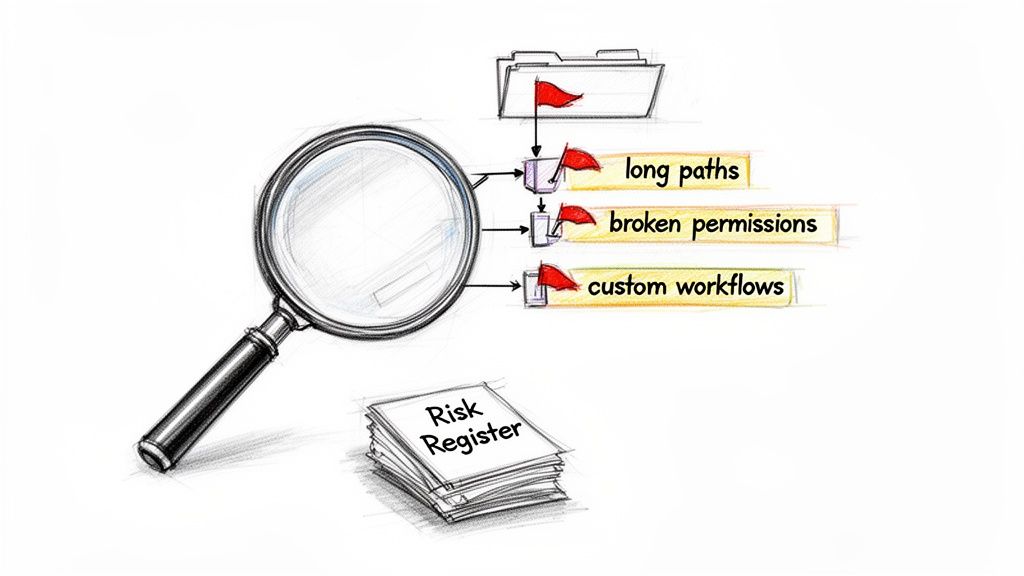
The output of a proper discovery isn't a file list; it's a Risk Register. This is a detailed, technical document that catalogues every potential project-killer before you’ve moved a single kilobyte of data. Your team must be actively hunting for the specific issues that bring standard migration tools to their knees.
We had a financial services client who learned this the hard way. They pushed ahead based on a superficial tool-based audit, only to discover mid-migration that over 30% of their legal archive was inaccessible. The files were trapped in libraries with deeply nested, broken permission inheritance. The migration ground to a halt. Their timeline was obliterated. And they were thrown into a full-blown compliance nightmare. Missing this step didn't just fail the migration; it broke legal compliance.
The documentation for a migration tool says it moves permissions. In reality, it will only replicate the chaos of broken inheritance, creating a security catastrophe in your new tenant unless you remediate it before you start.
This disaster was entirely avoidable. A proper discovery phase, using targeted scripts, would have flagged this as a critical risk within the first week. Instead, they burned budget and political capital for months. A robust vulnerability management strategy is an integral part of this, ensuring potential security gaps are closed before they become project-derailing problems.
Auditing What Tools Routinely Miss
Your team can't just rely on the GUI of a third-party tool like ShareGate. They need to get their hands dirty with PowerShell PnP scripts to interrogate the environment and expose the hidden complexities.
A common DIY "discovery" just scratches the surface, creating massive blind spots. Here’s a look at how a standard approach stacks up against a battle-hardened one.
DIY vs Ollo Risk Assessment
This isn't about being overly cautious; it's about being realistic. The "Typical DIY Approach" is a recipe for budget overruns, timeline delays, and security incidents.
Your audit absolutely must identify:
- Libraries exceeding the 5,000-item view threshold: Don't just find them. You need to know how many exist, their business criticality, and have a remediation plan ready.
- Long file paths and invalid characters: File paths that were fine on your old file server will break SharePoint Online's limits. Your team needs to script a solution to find and shorten these before the migration, not reactively during it.
- Broken permission inheritance: You need a precise map of every site, library, folder, and file that has unique permissions. This is often the most time-consuming part of remediation and cannot be skipped.
- Legacy workflows and customisations: SharePoint Designer workflows, custom InfoPath forms, or deprecated web parts will not migrate. Every single one needs to be identified, assessed, and scheduled for rebuilding in Power Automate or Power Apps.
This level of detail is non-negotiable. If your current SharePoint migration timeline has a one-week box labelled "Discovery," I can tell you now, it’s already failed. For a detailed breakdown of what this assessment truly entails, you can learn more about our approach in our complete guide to SharePoint migration assessments.
This phase transforms your timeline from a document of hope into a strategic, risk-managed plan of action.
Don't Fall For The Tooling Fallacy
Every IT Director starts with the same question: "Which migration tool is best?"
Frankly, it's the wrong question. It’s based on the dangerous assumption that a tool is a complete solution—a magic button that makes all the complexity of an enterprise migration just disappear. As architects who have been called in to rescue projects derailed by this exact thinking, we can tell you the right question is this:
"At what specific, predictable point will my chosen tool fail?"
The answer to that question will determine whether your entire SharePoint migration timeline succeeds or collapses. Tools are necessary, but they aren't architects. They are hammers, not the blueprint for the house. Believing otherwise is the tooling fallacy, and it’s a direct path to failure.
SharePoint Migration Tool (SPMT): The Small-Scale Specialist
Let's start with Microsoft's own free offering, the SharePoint Migration Tool (SPMT). The official documentation positions it as a handy utility. This is dangerously misleading for any real enterprise scenario.
We've seen clients try to use SPMT for large, complex migrations, and the results are consistently disastrous. Its job queuing is hopelessly inefficient for enterprise scale, and it constantly slams into the API throttling walls Microsoft has in place. The tool simply stops, often with cryptic errors, leaving your team scrambling.
The Ollo Verdict: Use SPMT for a file share under 50GB with zero complexity. For anything else, relying on it is professional malpractice. For your core enterprise SharePoint farm, it’s like trying to move a house with a wheelbarrow.
ShareGate: The Powerful Engine That Still Needs A Driver
ShareGate is a powerful, professional-grade tool. It’s a core part of our own toolkit here at Ollo. But it is not a 'set it and forget it' solution, no matter what the marketing implies. It’s fantastic at moving content at scale, but its intelligence has hard limits when it runs into true enterprise complexity.
Where does it break down?
- GUID Conflicts: In a tenant-to-tenant migration, ShareGate can’t automatically resolve GUID conflicts when users or groups exist in both tenants. It flags the error, but it requires an architect to write custom scripts to map and resolve these identities properly.
- Broken Permissions: It can migrate permissions, but it cannot remediate them. If you have thousands of files with broken permission inheritance, ShareGate will diligently replicate that security nightmare in your new environment. It cannot make architectural decisions for you.
- Complex Workflows: It cannot magically transform a legacy SharePoint Designer workflow into a modern Power Automate flow. It reports the failure, but your team is left to handle the complex and time-consuming work of rebuilding it from scratch.
Relying solely on ShareGate without expert oversight is a huge risk. The tool is an incredible accelerator, but it needs an expert driver who can anticipate these roadblocks and handle them with bespoke scripting and architectural redesign.
For a deeper analysis, you can learn more about the strategic use of third-party SharePoint migration tools in our detailed article.
Structuring A Pilot That Tests The Failure Points
A pilot migration should never be a simple test to see if files can be copied. That’s a pointless exercise that proves nothing.
A realistic pilot is designed to intentionally stress-test the breaking points of your chosen tool and, more importantly, your team’s ability to respond to those failures. Your pilot must include a representative sample of your worst data, not your easiest.
- Select a Site with Broken Inheritance: Choose a site you identified in discovery that is riddled with unique permissions. The goal isn't to see if the tool moves the files; it's to validate your scripted remediation plan.
- Target a Library Over the 5k List View Threshold: Pick a critical list with tens of thousands of items. Migrate it, and then test whether your remediation strategy (like creating indexed columns and new views) actually works post-migration.
- Include Legacy Customisations: Choose a site that relies on a deprecated SharePoint Designer workflow. The test is the successful deployment and execution of its replacement Power Automate flow in the target environment.
This isn't just a "pilot"; it's a dress rehearsal for disaster. It validates your remediation strategies and proves that your team, your tools, and your custom scripts can handle the real-world complexity you've already uncovered. Anything less is just setting yourself up for failure.
Managing Execution And Mid-Flight Corrections
This is where your perfectly planned SharePoint migration timeline usually shatters. The pilot is finished, and you're about to kick off the main event. We see it all the time—clients breathe a sigh of relief here, thinking the hard part is over.
In reality, the execution phase isn't about hitting "start." It’s about actively flying the plane through inevitable turbulence. Having faith in your tooling at this stage is a recipe for disaster. The real work is in constant monitoring and making mid-flight corrections when—not if—things go sideways.
Responding to Inevitable Technical Failures
A smart execution schedule isn't organised by department. It’s driven by the Risk Register you built during discovery. You always migrate the low-risk content first. The high-risk, business-critical data comes last, only after your team and processes are battle-hardened.
Even with flawless planning, the environment is dynamic. Here are the technical emergencies your team must be equipped to handle instantly:
Microsoft API Throttling: It’s not a risk, it’s a certainty. The documentation confirms this will happen. When the Migration API throttles you, your timeline grinds to a halt. An amateur team waits. A professional team has scripts on standby to immediately de-prioritise non-critical data streams and re-allocate that precious API call budget to high-priority sites.
Delta Migration Permission Failures: You run a final delta sync right before cutover. We frequently see these deltas fail to sync permissions correctly if new unique permissions were added after the initial sync. Your team can't afford to investigate this manually; they need pre-built scripts that can run a rapid permissions comparison between source and target and force a targeted sync.
GUID Conflicts in Live Environments: A new user gets created in both the source and target tenants. The next delta sync now sees a GUID conflict that didn't exist during your pilot. A tool like ShareGate will flag it, but it takes an experienced architect to resolve it without causing data loss.
The difference between a successful migration and a failed one is not avoiding problems—that’s impossible. It's about having the pre-built, scripted responses ready to deploy in minutes, not days. Waiting for an error and then figuring out a solution is how a two-day delay becomes a two-week catastrophe.
This is a good illustration of how migration tooling has evolved, moving from simple applications to more powerful platforms that still demand expert oversight.
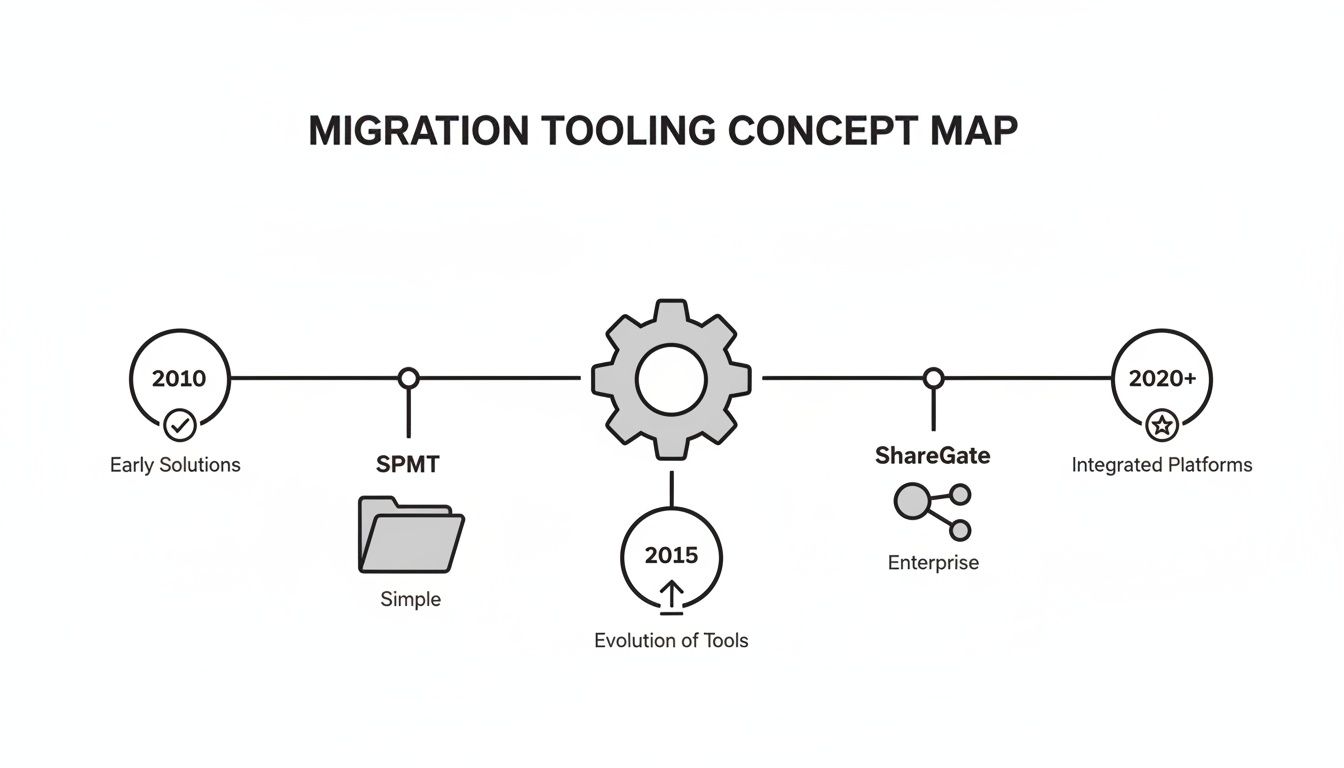
As you can see, the journey from basic tools like Microsoft's SPMT to enterprise-grade solutions like ShareGate represents a massive leap in capability. But it also underscores the need for specialised skills to manage the increasing complexity.
Real-Time Monitoring and Remediation
Passive monitoring is completely useless. You cannot afford to wait for an end-of-day report to tell you that zero bytes have moved for the last eight hours because of throttling. Your SharePoint migration timeline depends on real-time alerts and immediate action.
Your team needs alerts configured for specific failure codes. An HTTP 429 "Too Many Requests" error requires an immediate response to manage API traffic. A "503 Service Unavailable" might require pausing and re-initiating the job. Missing this doesn't just push out the project timeline; for a financial services firm, a stalled migration of regulated data could have serious compliance implications.
The entire process of a large-scale SharePoint migration is one of constant vigilance. You aren't just overseeing a data copy; you are performing open-heart surgery on your organisation's live information ecosystem. This is the only way to protect your timeline and your budget.
Validating Data Integrity Before User Cutover
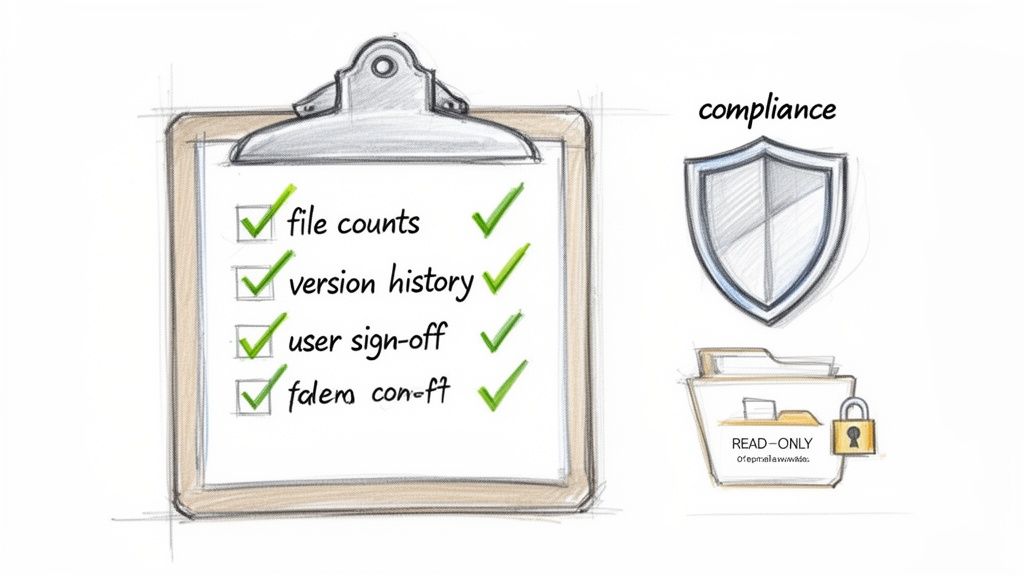
Here's the single biggest mistake we see IT Directors make: they confuse "migration complete" with "data copied." The project isn't finished when your tool’s progress bar hits 100%. It’s finished when your users can work without interruption, your data is verifiably intact, and your compliance officer signs off.
Rushing the user cutover is a catastrophic error. Firing off a "Go-Live!" email on a Friday afternoon is a direct path to a weekend of frantic support calls and a Monday morning of pure chaos. This final stage must be a managed, multi-layered validation process, not a leap of faith.
The Automated Scripting Layer
Your first pass at validation has to be automated. You simply cannot manually check millions of files. This is where your team’s PowerShell PnP scripting expertise becomes absolutely non-negotiable.
We often see clients fixate on matching item counts, but that’s a dangerously superficial metric. Your scripts must perform a much more intelligent audit.
- File Count & Size Validation: At the library level, compare item counts and total size. This is a first-pass check to catch gross errors.
- Version History Checks: Spot-check critical libraries to confirm version histories have migrated. Losing the history on regulated documents is an immediate compliance failure.
- Metadata Integrity: This is huge. Your scripts must validate that critical metadata columns have been preserved. Our guide on SharePoint metadata migration details just how easily this can go wrong.
- Permissions Audit: Run a scripted comparison of permissions on high-risk sites between the source and the target to confirm your remediation work was successful.
This automated pass is your first line of defence against tool-related failures.
The Business User Validation Layer
Once your automated checks are green, bring in the business. But don't just open the floodgates. Activate a select group of power users from high-risk departments—Legal, Finance, or Engineering.
Crucially, you do not ask them to "take a look around." Provide them with specific, workflow-based checklists that mirror their daily jobs.
Ollo Verdict: Your validation checklist should never ask, "Is your data there?" It must ask, "Can you complete Critical Business Process X?" The goal is to validate functionality, not just the presence of files.
For example, a checklist for your finance team might look like this:
- Open the "Q4 Accruals" spreadsheet in the browser. Does it render correctly?
- Go to the "2023 Audit Report" and restore a previous version.
- In the "Invoices" library, filter by the 'Status' metadata column. Do you see the expected results?
- Initiate the "New Vendor Approval" workflow. Does it trigger correctly?
This focused User Acceptance Testing (UAT) is mandatory. It is the only way to confirm that business processes, not just files, have survived the migration.
Managing the Cutover and Post-Migration Hyper-Care
With both validation layers complete, you can schedule the cutover. This needs to be a tightly orchestrated event.
- Set the Source to Read-Only: A few hours before your final delta sync, you must make the source environment read-only. This is critical to prevent lost changes.
- Execute the Final Delta Sync: Run your final synchronisation with a tool like ShareGate to capture any last-minute changes.
- Deploy Pre-Configured Redirects: Have redirects ready to go so old bookmarks point to new SharePoint Online locations.
- Communicate Clearly: Your "go-live" communication must be precise, with direct links and a clear support process.
- Initiate Hyper-Care: The first 72 hours post-cutover are the most critical. You need a dedicated "hyper-care" team—a mix of your internal staff and migration specialists—ready to provide immediate assistance.
Finally, do not let your old environment linger. Once the hyper-care period is over, have a concrete plan to decommission and archive the source data. A successful migration ends with a clean shutdown, not a slow fade.
As architects who spend our days in the trenches of SharePoint migrations, we field the same tough questions from IT Directors and CIOs almost every day. Your concerns about cost, risk, and timelines aren't just valid; they're the critical questions you should be asking.
Here are the direct, no-fluff answers you deserve, based on our experience pulling complex migration projects back from the brink.
Can We Really Do This Ourselves With a Tool Like ShareGate?
You can, but the more important question is should you? ShareGate is an excellent tool for moving content from point A to point B—we use it ourselves. But a tool is not a migration architect.
Think of it this way: ShareGate is a high-end power saw. In the hands of a master carpenter, it can build a house. In the hands of a novice, it can make a real mess. The tool won't fix broken permission inheritance, redesign your Entra ID groups for a zero-trust model, or intelligently navigate Microsoft's API throttling for you.
For any migration involving regulated data or deep customisations, going it alone with just a tool is like giving a junior admin the keys to your entire data centre. The risk of a data leak or compliance breach far outweighs the perceived cost savings.
How Long Should a Typical 1TB SharePoint Migration Take?
There is no "typical" 1TB. Is your terabyte made up of large, simple video files? Or is it 1TB of one million small legal documents, each with unique permissions, complex metadata, and a deep version history?
The second scenario is exponentially more complex and will have a vastly different SharePoint migration timeline. A timeline based purely on data volume is a fantasy.
A realistic timeline is built on complexity, dependencies, and remediation. Based on our project data, a complex 1TB migration, properly de-risked and executed, will take 8-12 weeks—not the 2-4 weeks some vendors might promise you.
What Is the Single Biggest Cause of SharePoint Migration Failure?
Hubris. Specifically, the assumption that a migration is a simple "lift-and-shift" IT task. It's not. It's a business transformation project disguised as a technical one.
The biggest failures we are called in to rescue are almost always caused by a catastrophic failure to perform adequate discovery. Teams skip the deep, scripted analysis of permissions, customisations, and workflows, assuming their tool will just handle it. It never does.
The project then dies a death of a thousand cuts. Unexpected issues, which were entirely predictable, grind progress to a halt, the budget evaporates, and user confidence is destroyed. When you're preparing for the final user cutover, you have to account for the criticality of zero downtime for migrations to avoid these exact business disruptions.
Your SharePoint migration timeline is far too important to your business to leave to chance. At Ollo, we don't just sell software or man-hours; we provide the architectural expertise to navigate the complexity, manage the risks, and deliver a successful migration that protects your data and your career.
Secure your migration by partnering with Ollo's expert architects.

















