


The most popular advice about SharePoint migrations is also the most dangerous: choose a tool, point it at the source, and let it copy the data. That approach confuses file transfer with migration engineering. SPMT, ShareGate, and custom PnP PowerShell can move content, but none of them can negotiate with SharePoint Online's service boundaries, repair a bad information architecture, or prove that every compliance control survived cutover.
We often see clients fail when they treat a migration tool as a cure-all. The first failure rarely comes from total storage volume. It comes from a path that exceeds the platform boundary, a permission model that creates too many security scopes, a GUID conflict during reprovisioning, or a list that becomes unusable when users and workflows query more than the supported view threshold. The documentation says X, but reality is Y. Teams discover those limits after inventory, remediation, mapping, and scheduling have already consumed time.
This is the central issue behind why SharePoint migration projects fail and why code becomes mandatory. A serious programme starts by identifying which failure mode arrives first, then selecting the tool, scripts, controls, and people needed to prevent it.
Why Migration Tools Fail Before Your Data Does
An enterprise migration doesn't fail because a progress bar stops moving. It fails because the destination can't represent the source safely. A tool may report that it copied thousands of files while leaving behind unusable views, unresolved identities, unsupported forms, broken inheritance, or items that never passed validation.
SPMT remains useful for straightforward file-share and SharePoint Server transfers. Microsoft's FAQ confirms that it cannot migrate content from one Microsoft 365 tenant to another, and it doesn't carry key site artefacts such as master pages, InfoPath forms, or custom New, Edit, and View forms. That makes it a poor choice for a tenant consolidation or a regulated modernisation programme where the business process matters as much as the document.
ShareGate gives migration teams stronger reporting, mapping, and operational control. It still operates inside SharePoint Online's rules. Retry logic can manage service responses, but it can't make an overlong path valid or reduce a library's unique security scopes by itself.
Custom PnP PowerShell gives you the most control over discovery, transformation, identity mapping, and validation. It also gives you the most ways to create an unmaintainable production process. A script that doesn't understand batching, throttling, retry-after behaviour, continuation tokens, and idempotent reruns will turn a platform limit into an outage.
Architect's rule: Select the tool after you map the constraints, not before. The first failed boundary determines the migration design.
Your team should therefore classify each Microsoft-documented limit as a discrete failure mode:
- Platform rejection: The service refuses the item, request, or structure.
- Operational degradation: The migration continues, but throughput and visibility collapse.
- Silent functional damage: Content arrives, while permissions, forms, views, or automation no longer work as users expect.
In regulated estates, the third category carries the greatest risk. A successful file count doesn't prove that audit access, retention handling, ownership, or business workflows survived. If your acceptance criteria measure only copied items, your project can pass technically and fail operationally.
The Hard SharePoint Service Limits Every Migration Must Respect
SharePoint Online imposes engineering boundaries that no migration product can override. Microsoft's official SharePoint Online service limits specify a 400-character maximum file path, a 250 GB single-file upload limit, a 30 million item or file capacity for a list or library, and a 50,000 unique-permission limit per list or library. Microsoft also documents a 25 TB site collection capacity and an organisational ceiling of 2 million site collections.
The 5,000-item list view threshold creates a different type of failure. It isn't a storage ceiling. Microsoft says SharePoint Online enforces it through Large List Resource Throttling to protect performance, and the threshold can't be changed in SharePoint Online. Your migration can therefore complete while users, reports, and workflows struggle to query the resulting library.
| Limit | Threshold | Microsoft Learn Reference |
|---|---|---|
| SharePoint Online file path | 400 characters | SharePoint Online limits |
| Single file upload | 250 GB | SharePoint Online limits |
| List or library capacity | 30 million items or files | SharePoint Online limits |
| Unique permissions per list or library | 50,000 | SharePoint Online limits |
| List view threshold | 5,000 items by default | Large List Resource Throttling guidance |
| Site collection capacity | 25 TB | SharePoint Online limits |
The platform enforces these boundaries because large queries, permission expansion, and nested structures create expensive work for the service. You can't solve that work by clicking a different option in SPMT, ShareGate, or PnP. You must redesign, split, clean, or transform the source before the migration reaches the boundary.
Your disposal plan also needs a defensible chain of custody. For regulated data that won't move, a practical reference on NIST standards for asset disposition can help your governance team define how obsolete material leaves the estate.
Ollo verdict: Treat every Microsoft threshold as a design input. If your inventory doesn't map paths, item counts, permissions, capacity, and views before execution, you aren't planning a migration. You're scheduling a discovery exercise during production.
SPMT Versus ShareGate Versus Custom PnP Under Real Load
Tool comparisons based on a clean lab tenant are nearly worthless. Enterprise estates contain inherited permissions, stale identities, oversized libraries, long paths, legacy forms, and content that users still depend on even though nobody documented it.
SPMT offers a low-cost route for simple source-to-SharePoint Online transfers. It becomes vulnerable when one job contains complex permissions, unsupported artefacts, or high request volume. Microsoft's migration guidance states that a site being migrated must remain at or below 5 TB or 1 million items, and Microsoft warns teams not to submit more than 5,000 migration jobs or requests at one time because background-app throttling is tighter during business hours. These are service constraints, not SPMT settings.
ShareGate wraps difficult operations in richer reporting, retry behaviour, identity mapping, and task management. That matters when a request receives a 429 response or when you need to rerun only exceptions. It doesn't exempt the destination from the 400-character path limit, the 5,000-item view threshold, or the 50,000 unique-scope ceiling.
PnP PowerShell provides the deepest transformation capability. A competent developer can drive CSV-based mappings, pre-flight scans, controlled batches, and reconciliation reports. A developer who treats SharePoint like a conventional database will create duplicate writes, poor retry behaviour, and a runbook nobody can safely operate during cutover.
| Constraint | SPMT | ShareGate | Custom PnP |
|---|---|---|---|
| Simple file-share transfer | Suitable | Suitable | Usually unnecessary |
| Identity and permission mapping | Limited for complex models | Stronger operational support | Fully configurable, requires engineering |
| Throttling response | Can stall under load | Retry and task visibility | Must implement back-off and retry handling |
| Transformation and restructuring | Limited | Available through managed actions | Maximum control |
| Cross-tenant SharePoint move | Not supported by SPMT, as confirmed in Microsoft's FAQ | Supports scenarios subject to Microsoft service boundaries | Requires a designed migration engine |
| Exception reporting | Basic migration reports | Detailed operational reporting | Whatever the runbook produces |
| Regulated cutover control | Insufficient alone | Useful component | Powerful only with tested governance |
The SPMT comparison and operational guidance is useful for understanding where native tooling fits. In a high-stakes programme, Ollo uses ShareGate and custom PnP scripts as components inside a controlled runbook, rather than treating either product as the migration strategy.
Ollo verdict: Use SPMT for a bounded, uncomplicated move. Use ShareGate when reporting, mapping, and reruns matter. Use custom PnP where transformation or reconciliation demands it. For a regulated estate, combine the tools under specialist ownership instead of asking one product to absorb every exception.
API Throttling and the 5,000 Item List View Threshold
Throttling breaks the migration run. The list view threshold breaks the destination after the run. Treating them as separate concerns is how teams declare success too early.
Microsoft documents that over-queuing migration work triggers throttling and recommends submitting no more than 5,000 migration jobs or requests at one time in its migration guidance. A bulk migration repeatedly calls the same service endpoints, so aggressive concurrency can produce 429 responses before the tenant has exhausted its storage capacity. Microsoft's cross-tenant migration guidance also warns that background-app throttling becomes tighter during business hours and cannot be disabled.
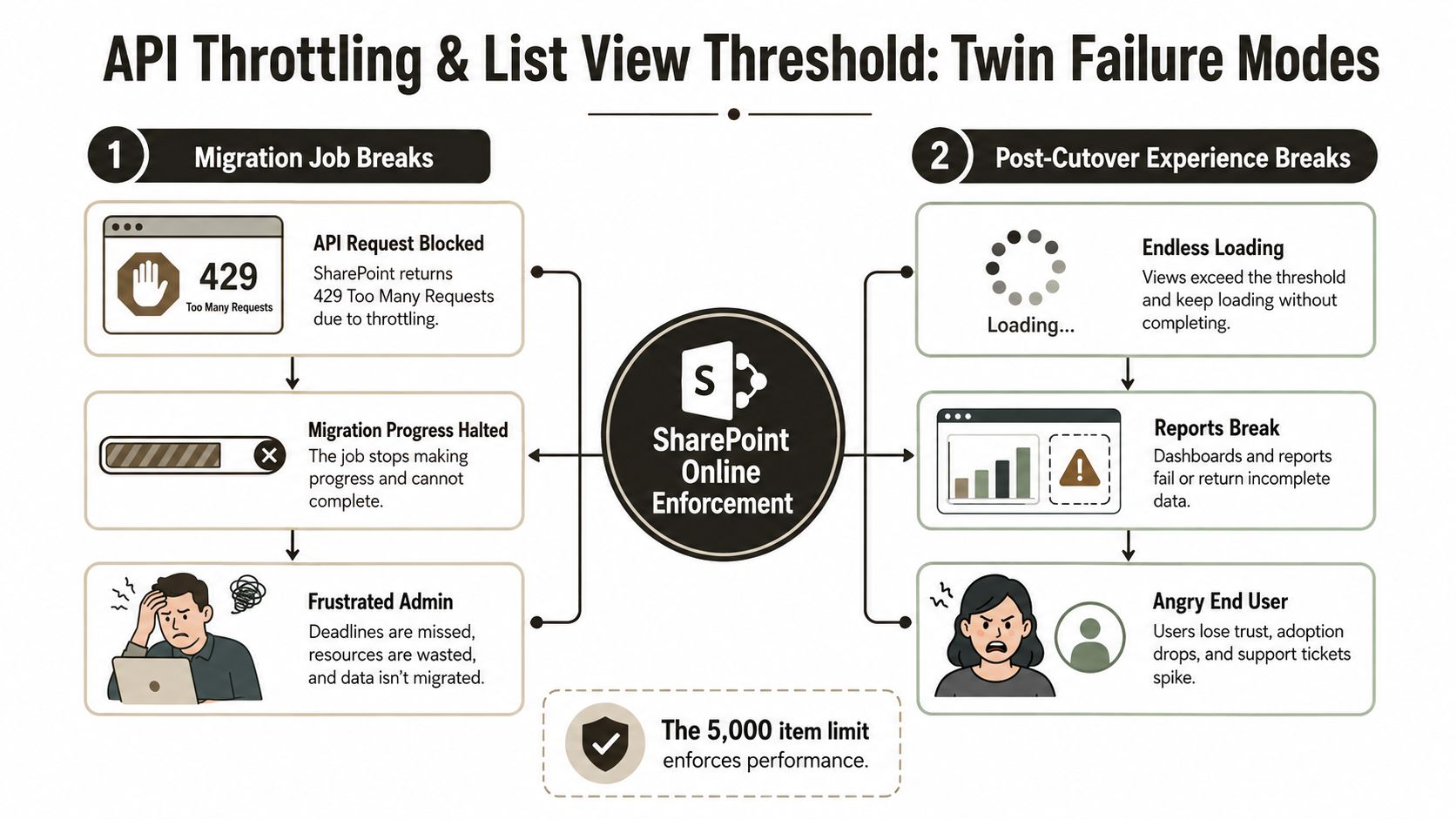
SPMT's CSV-driven process can stall when a large batch generates sustained service pressure. ShareGate can slow down, wait, and resume with clearer task visibility. PnP PowerShell can respond to 429 and 503 conditions, but only if your developers implement bounded concurrency, exponential back-off, retry-after handling, checkpointing, and safe reruns. A script that retries immediately will intensify the incident.
The destination creates a second trap. Microsoft's list view threshold guidance confirms that SharePoint Online enforces the 5,000-item default threshold to protect performance. Users may see slow or failed views even though the content exists. Your team must index appropriate columns, design filtered views, and split information architecture before cutover.
Power Automate adds another failure surface. Microsoft says the Get items and Get files Top Count can increase only up to the list view threshold, and flows fail when they attempt to go beyond 5,000 items. Filtered queries can also return no records when matching items don't appear in the first 5,000 rows, so post-migration validation must test workflow execution, not just document presence. The SharePoint 5,000-item limit guidance provides a practical reference for that assessment.
The exact response your team sees depends on the API, client, and logging layer. 429 signals request throttling, while 503 can appear when the service can't fulfil a request temporarily. Don't promise an exact ULS error string without identifying the workload and diagnostic source. Build the runbook around response handling and evidence, not a guessed log message.
Path Length, GUID Conflicts, and Broken Inheritance
A rescue migration often begins with one document set that nobody expected to matter. In a regulated tenant, that document set can contain years of nested folders, descriptive filenames, and inherited access exceptions added by different departments. The first failed item may exceed SharePoint Online's 400-character path limit, but the visible failure often appears later as missing records, confused users, or an incomplete permission review.
The path limit includes the SharePoint path, not merely the filename. Renaming the final file won't solve a structure that already consumes the available character budget. Filename normalisation also needs a controlled rule set for invalid characters, duplicate names, reserved patterns, and references embedded in workflows or reports.
GUID conflicts create a separate problem during site or library reprovisioning. A target object may look correct to a user while scripts, links, lookup relationships, or migration mappings resolve against an unexpected identifier. Broken inheritance can create a more serious compliance issue because the target may no longer carry the access model or audit assumptions that governed the source.
Rescue lesson: Never repair a failed item in isolation. Trace its path, identity, permissions, metadata, links, and automation dependencies before you rerun it.
A credible rescue runbook starts before the first upload:
- Scan paths and names: Export every path approaching or exceeding the documented boundary, then apply an approved renaming or flattening policy.
- Normalise filenames: Check source names against Microsoft's invalid-character guidance and record every transformation for audit.
- Reconcile identities: Map source users and groups to target identities before permission stamping.
- Compare inheritance: Produce a side-by-side report of inherited and unique assignments, then re-stamp the intended model.
- Validate identifiers: Track source and target GUIDs so scripts and integrations don't follow stale references.
- Run a controlled delta: Rerun only approved exceptions, then compare counts, metadata, permissions, and business-process outcomes.
| Failure Mode | Microsoft Limit | Symptom in Migration | Required Fix |
|---|---|---|---|
| Overlong file path | 400 characters | Item rejected, skipped, or mapped incorrectly | Shorten hierarchy, rename, or redesign destination |
| Oversized file | 250 GB | Upload fails | Identify an approved alternate treatment |
| Excessive unique permissions | 50,000 scopes | Permission creation fails or becomes unmanageable | Rebuild groups and inheritance |
| Large list inheritance change | More than 100,000 items prevents breaking inheritance on the list itself | Security redesign stalls | Restructure the library and apply permissions at a safer level |
| Identifier collision | No universal tool workaround | Links, lookups, or scripts target the wrong object | Maintain a source-to-target GUID map |
Identity design deserves its own workstream. The identity consolidation guidance is relevant when you need to align users, groups, ownership, and access decisions before content arrives.
Why DIY Magnifies Risk in Regulated Microsoft 365 Estates
DIY migration becomes a risk-magnification strategy when your data supports financial services, healthcare, energy operations, or public administration. The apparent saving comes from avoiding specialist tooling or consultancy support. The exposure appears later, when staff reconstruct flows, investigate missing permissions, explain incomplete audit evidence, or defend a cutover that nobody can reproduce.
SPMT's documented scope suits straightforward migrations, not estates where every document has an owner, retention expectation, access decision, and business dependency. Microsoft's FAQ confirms that SPMT can't migrate tenant-to-tenant content and doesn't carry several important site artefacts. Your team must therefore account for forms, workflows, customisations, identity mappings, and validation outside the basic file-copy task.
The compliance impact doesn't depend on whether the migration dashboard says “completed”. If retention labels, audit trails, access controls, or approval evidence don't survive in the required form, your organisation may face a control failure. FINRA, HIPAA, and the UK NHS DSPT each create governance expectations around records, access, security, and evidence, but the exact obligations depend on your organisation and processing context. Don't claim compliance from a successful transfer report.
A useful Microsoft 365 platform overview can help non-specialist stakeholders understand the wider platform, but migration governance requires a workload-specific design and evidence pack.
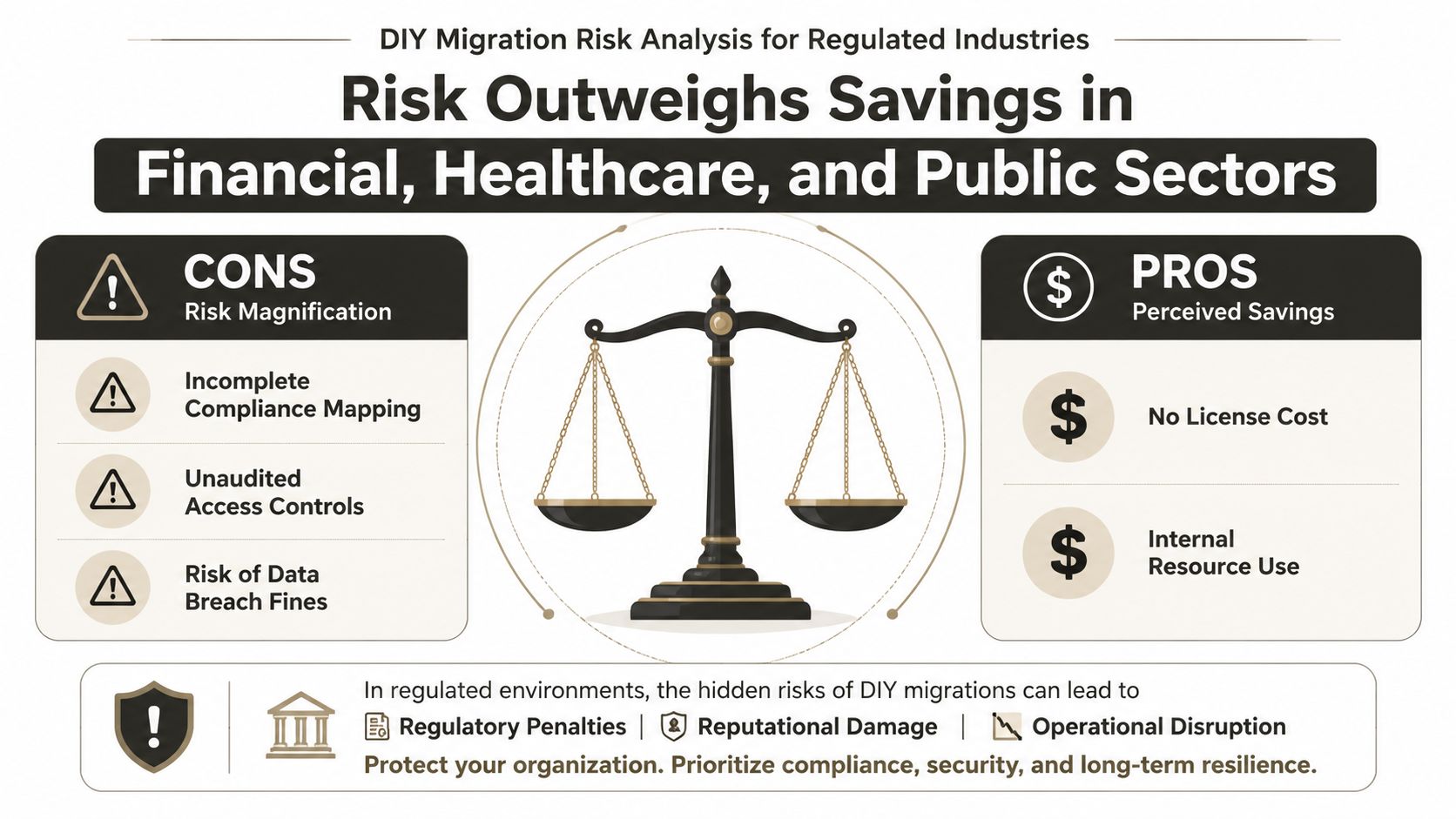
The human cost matters too. Your administrators still have to operate the source, target, identity platform, security controls, workflows, and service desk while the migration runs. When a cutover fails, those people stop planned work and start reconstructing decisions under pressure. That is not free internal resource use. It is unplanned operational exposure.
A credible specialist runbook must include:
- Acceptance criteria: Define what “migrated” means for content, metadata, permissions, search, workflows, and ownership.
- Parallel dry runs: Test the same transformations and validation controls against representative source structures.
- Exception registers: Assign each failed item a root cause, owner, remediation, and approval status.
- Named accountability: Put a person against every decision that affects retention, access, legal hold, or cutover timing.
- Evidence capture: Preserve scan results, mapping decisions, logs, reconciliation reports, and sign-off records.
The commercial choice is blunt. You can pay for engineering before the cutover, or you can pay staff to discover the same constraints during a failure while your compliance team explains the consequences.
The Ollo Verdict, Migration Checklist, and Common Questions
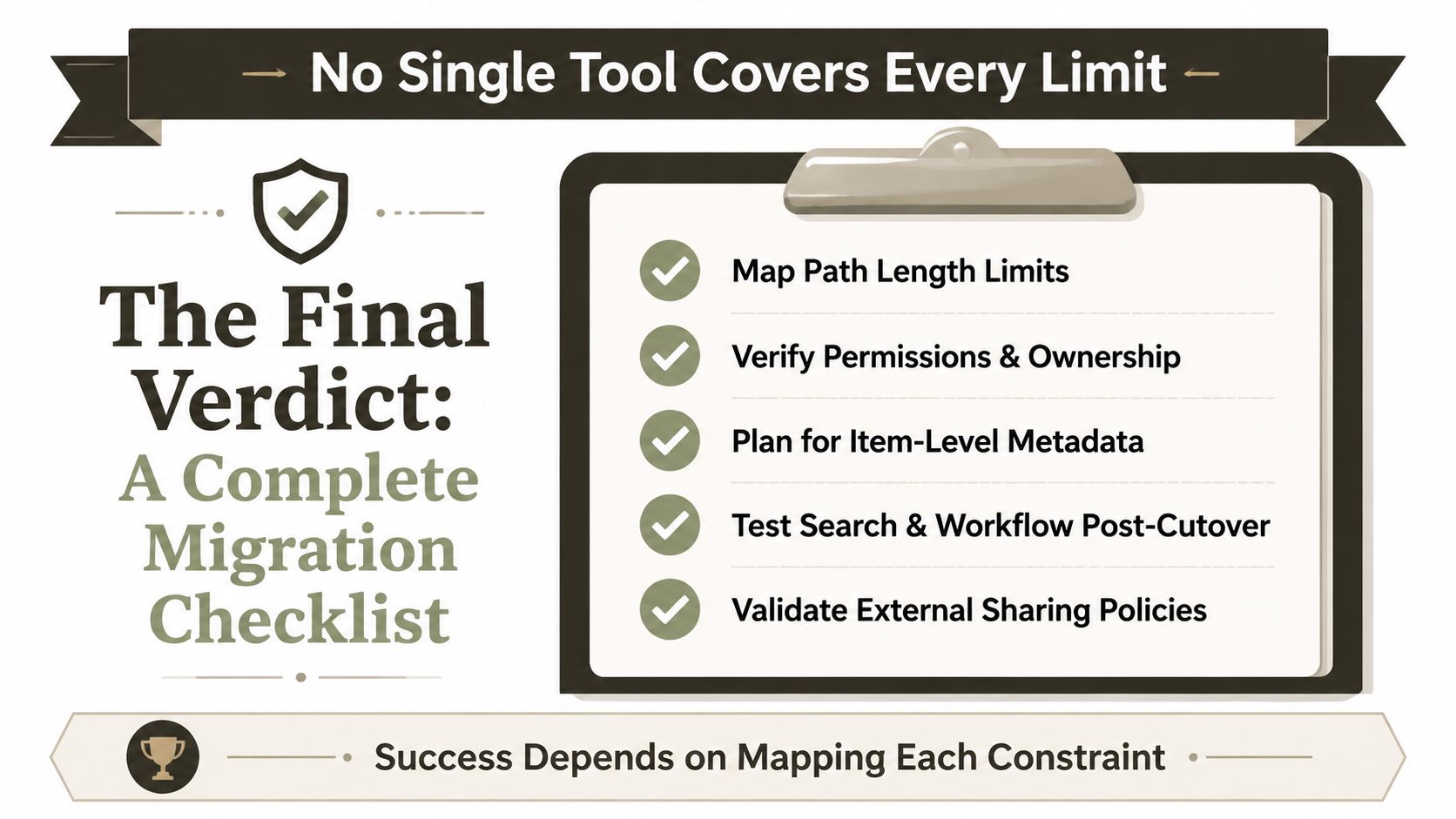
No single SPMT-class tool, ShareGate deployment, or hand-built PnP script covers every SharePoint migration tool limitation. A safe programme maps each constraint to the point where the chosen method fails, then builds a runbook that detects and handles the failure before production.
Use this sign-off checklist before scheduling cutover:
- Validate path length: Confirm every destination path remains within the 400-character Microsoft boundary, using the official service limits documentation.
- Confirm filenames: Check forbidden and invalid characters, duplicate names, reserved patterns, and references used by workflows or integrations.
- Audit large lists: Identify lists and libraries above the 5,000-item view threshold, then test indexed views, filters, reports, and automations.
- Review permission design: Count unique scopes, identify broken inheritance, and verify behaviour around libraries exceeding 100,000 items.
- Plan request volume: Keep migration batches within Microsoft's documented 5,000-job/request recommendation and define handling for 429 and 503 responses.
- Verify administration: Confirm the migration identities have the required SharePoint and Microsoft 365 permissions in both environments.
- Test delta behaviour: Document how incremental synchronisation handles changed, deleted, renamed, and newly permissioned items.
- Validate business processes: Run Power Automate, search, links, metadata, retention, and access tests after content arrives.
Can SPMT handle tenant-to-tenant moves
No. Microsoft's SPMT FAQ confirms that SPMT can't migrate content from one Microsoft 365 tenant to another. A tenant consolidation needs a different migration design, identity mapping, staged synchronisation, and workload-specific validation.
Why does ShareGate still hit the 5,000-item threshold
Because ShareGate operates against SharePoint Online, and SharePoint Online enforces that threshold to protect list and library performance. ShareGate can improve reporting, retry behaviour, and operational control, but it can't turn the threshold into a configurable storage limit. Your team must redesign views, indexing, queries, and automation.
Is DIY viable for regulated estates
It can be technically possible, but that doesn't make it a credible risk decision. If your acceptance criteria include permission fidelity, audit evidence, retention behaviour, workflow continuity, and named accountability, a specialist runbook is the only responsible mitigation. The SharePoint migration checklist gives your team a useful starting point, but complex estates still need discovery, engineering, execution, and independent validation.
Ollo verdict: SPMT is a component for bounded work, ShareGate is a stronger operational layer, and PnP is an engineering instrument. None replaces architecture, remediation, or accountable cutover management.
Ollo assesses SharePoint and Microsoft 365 estates, maps service limits, designs tenant-to-tenant and rescue migration runbooks, and combines ShareGate with custom PnP automation where the data requires it. Visit Ollo to discuss your paths, permissions, throttling exposure, and validation requirements before a migration tool turns them into a production incident.