


Your team has a SharePoint migration scheduled, the source inventory looks manageable, and somebody has already described the cutover as routine. Then one list refuses to load, a dependent lookup call times out, the migration tool retries until SharePoint throttles it, and your rollback plan becomes the only part of the project that works. The SharePoint 5000 item limit rarely destroys a project by itself. It exposes a data model that nobody tested under pressure.
Microsoft's documentation is clear. The limit protects query performance, not storage capacity. A list can hold up to 30 million items, and a library can hold up to 30 million files and folders, yet a single database operation can process a maximum of 5,000 items at one time in SharePoint Online (Microsoft's List View Threshold guidance). If your migration design ignores that distinction, your team isn't managing a technical detail. It's accepting a cutover risk that can become a compliance incident.
The Migration That Died on a Single List View
The cutover started on a Saturday because the business wanted Monday access. The migration team copied 38,000 tickets into a target SharePoint environment, watched the progress counter move, and assumed the difficult work had already happened.
It hadn't.
An Issues tracker contained a view that had crossed the 5,000-item threshold without an effective filter. The view stopped rendering. The migration script then timed out while resolving dependent lookups, because its read pattern still depended on the blocked query. Operators increased retries, the service began throttling requests, and the team abandoned the run. The rollback created a Monday-morning outage that nobody had budgeted for.

That failure pattern appears repeatedly in our work. We often see clients fail when they treat the threshold as a storage cap, then discover that the list itself remains within supported capacity while one view or query becomes unusable. Microsoft describes the List View Threshold as a performance safeguard. SharePoint Online blocks operations that cross the line instead of allowing a slow query to consume disproportionate resources (Microsoft's troubleshooting guidance).
The limit sits inside your migration pipeline
A migration tool doesn't need to copy the entire list in a single operation to encounter trouble. It may inspect views, resolve lookups, enumerate permissions, read metadata, or validate destination items. One badly designed query can interrupt the stage that follows it.
Architect's warning: A list that stores more than 5,000 items can work perfectly. A view that asks SharePoint to evaluate more than 5,000 poorly scoped items can stop your migration.
The post-mortem usually blames SPMT, ShareGate, or a PowerShell script. That diagnosis is convenient and wrong. The defect sits in the source and target design, where an unindexed view, broad filter, or lookup-heavy schema turns a supported list into an operational trap. Our guidance on failed SharePoint migrations covers the wider cutover patterns that make this kind of incident expensive.
What Microsoft Learn Actually Says About the 5,000 Threshold
Microsoft's service documentation uses a precise distinction that many project plans ignore. SharePoint Online enforces a List View Threshold of 5,000 items, and the threshold applies to the items a query or operation must process, not to the total number of items stored in the list or library (Microsoft's SharePoint Online limits).
That distinction changes the remediation. Deleting data to make a view render may destroy records without fixing the design. You need to reduce the scope of the query, index the columns used by its filters, and separate content where the business model contains different populations.
Read the wording, not the folklore
Microsoft's troubleshooting guidance describes the familiar “list view threshold exceeded” condition and points administrators towards indexed, filtered views. In SharePoint Online, the threshold remains fixed. SharePoint Server can adjust the setting through Central Administration and Resource Throttling, but that option doesn't give Microsoft 365 tenants an escape route.
The documentation also separates the threshold from other service limits. Microsoft describes an Audit Deletion Report cap of 100,000 items in the service limits material. It also explains that operations such as bulk deletion or share recalculation can trigger throttling responses when they exceed the applicable limits. Don't merge those controls into one mythical “5,000-row limit”. They govern different operations and create different failure symptoms.
| Limit | Default value | Scope | Source page |
|---|---|---|---|
| List View Threshold | 5,000 items | Items processed by a view or database operation in SharePoint Online | Microsoft List View Threshold guidance |
| Overall list capacity | 30 million items | Maximum supported items in a SharePoint Online list | Microsoft SharePoint Online limits |
| Overall library capacity | 30 million files and folders | Maximum supported files and folders in a SharePoint Online library | Microsoft SharePoint Online limits |
| Permission inheritance boundary | 100,000 items | Lists, libraries, or folders where inheritance can no longer be broken or reinstated | Microsoft SharePoint Online limits |
The practical conclusion is blunt. Storage scale doesn't make a query safe. Microsoft's documentation confirms that SharePoint Online uses Large List Resource Throttling and that the 5,000-item threshold protects performance. Your assessment must test views and operations, not just total content volume.
Why the Limit Breaks Things You Did Not Plan For
A threshold incident rarely stays inside the browser. During a migration, it can spread into APIs, validation jobs, permission changes, and audit evidence. Microsoft's documented controls define the boundary, but the migration design decides whether the result is a warning, a delay, or a failed cutover.
API throttling turns a local defect into a pipeline failure
A script may begin with a routine read, encounter a broad view, receive a slow or blocked response, then retry while SharePoint is already protecting the service. Those extra requests can throttle the job and delay unrelated content in the same migration wave.
Use bounded retries, respect service responses, and issue deliberately scoped queries. Retries do not repair a bad query. They can make its impact larger.
The risk reaches beyond one list. A migration process that repeatedly enumerates oversized result sets can consume time, trigger throttling, and leave operators guessing whether a partial copy is complete. Treat throttling as a design signal, not merely a transient tool error.
Blocked views create silent validation gaps
A browser error is visible. A validation script that skips a blocked view is more dangerous because it can report success without checking the records it could not read. That false sign-off becomes a compliance problem when the business validates only a sample of visible content.
Microsoft's troubleshooting guidance points to indexed columns and filtered views because SharePoint needs a query path that narrows the result set before processing the full population. Without that design, browser views, API reads, and CSOM calls can encounter the same underlying constraint.
Require validation to record what it enumerated, what it skipped, and why. A green job status is not evidence of complete validation.
Permissions create the second cliff
Microsoft states that once a list, library, or folder exceeds 100,000 items, administrators can no longer break or reinstate permission inheritance (Microsoft's SharePoint Online limits). This boundary matters during migration because teams often copy content first and repair security afterward. At that point, the repair may be blocked precisely when it is needed.
The failure pattern is predictable:
- Unindexed filter: SharePoint evaluates too much data.
- Broad view: The interface or migration process cannot complete the query.
- Permission repair: Inheritance changes fail after the documented boundary.
- Operator response: Administrators accelerate batches and amplify throttling.
Stop blaming the tool. The evidence points to a data-model defect, an unindexed column, an unfiltered All Items view, or a cutover plan that never tested threshold behavior. Treat the 5,000-item rule as a migration risk surface, not a list-setting detail.
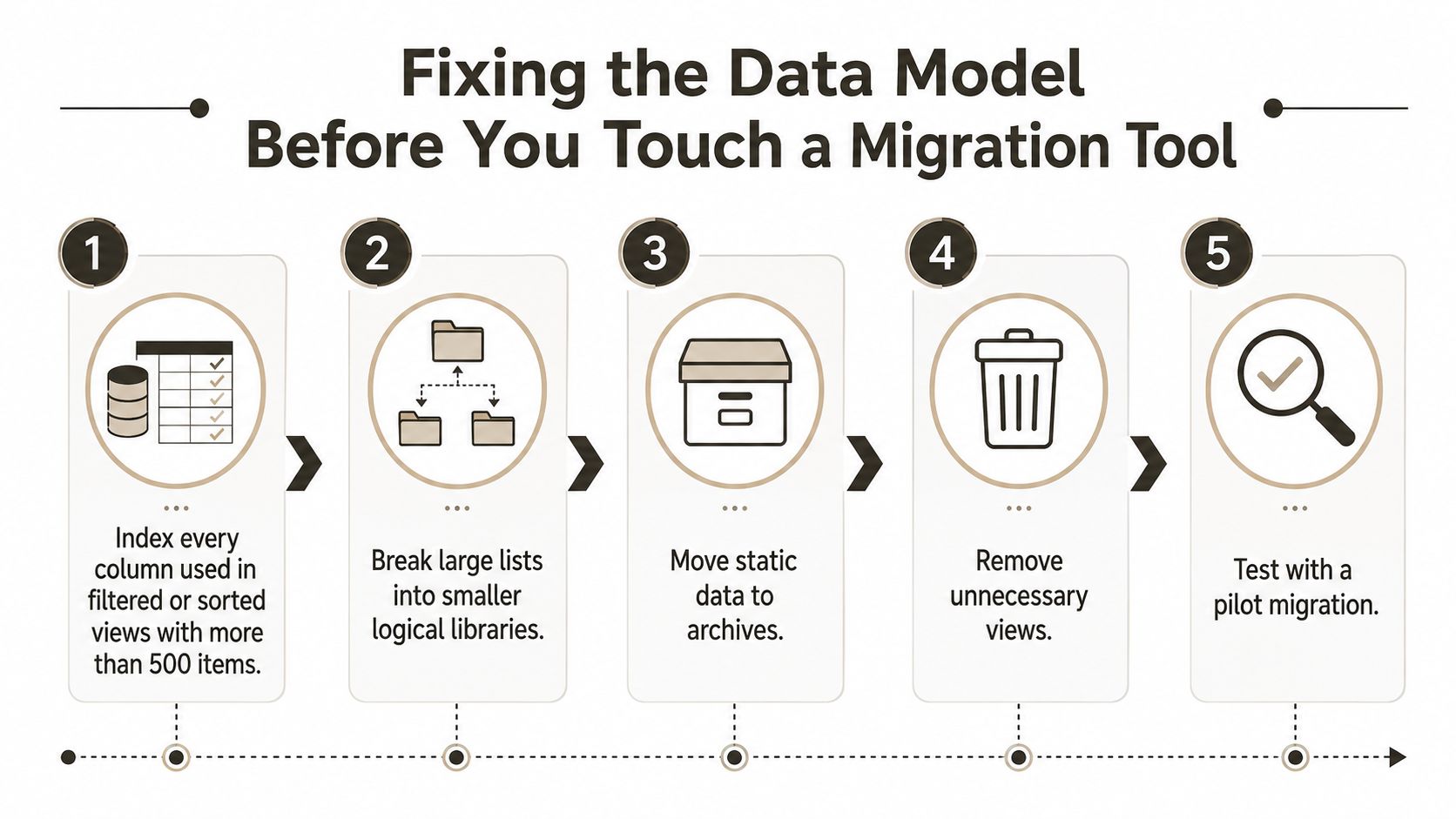
Fixing the Data Model Before You Touch a Migration Tool
Don't open SPMT or ShareGate until the target schema can survive enumeration. The order matters because each remediation removes a different failure mode.
Start with indexed filters
Identify every column used in a filtered or sorted view, then index the columns that support the access pattern. In the modern SharePoint interface, open the list or library settings, locate the relevant column, and use the indexing option available through the column settings. Verify the resulting view rather than assuming the index exists.
An index doesn't excuse a broad view. Set filters that keep each operational view below 5,000 items, using meaningful partitions such as status, region, department, or date. Microsoft's large-list guidance confirms that lists and libraries can grow to much larger capacities when users query them correctly (Microsoft's large-list guidance).
Partition the data model deliberately
If one Issues list contains open work, closed work, regional queues, and historical records, separate those populations logically. Use dedicated lists, libraries, or carefully designed folders where the folder boundary reflects how users retrieve content. Don't create folders merely to hide a performance problem.
For metadata-heavy solutions, use governed taxonomy where the business needs consistent classification. A managed metadata design can reduce uncontrolled lookup patterns, but it still requires schema testing and term-store preparation. If the structure is really relational, assess whether Dataverse or SharePoint Lists fits the workload before you migrate a database-shaped system into a flat list.
Batch every read and write
Never build a migration around one unbounded GetItems call. Use pagination, maintain a durable checkpoint, and make each batch independently repeatable. CSOM and Graph implementations need explicit query scope, retry handling, and reconciliation logic so a throttled batch doesn't create duplicate or missing records.
Use ListItemCollectionPosition for CSOM pagination where that pattern applies. For Graph payloads, control $top, $filter, $select, and $expand deliberately, and record the source identifier alongside the destination identifier to detect GUID conflicts. The exact property names and supported query behaviour require testing against your tenant and schema, not blind copy and paste from a script repository.
Test the ugly records
Your pilot should include permission breaks, lookup dependencies, long paths, missing metadata, and records that sit at the edge of each filter. A clean sample proves nothing. The testing and cutover best practices from DynamicsHub provide useful context for structuring rehearsals, acceptance criteria, and rollback decisions.
The video below provides another practical view of SharePoint migration planning. Treat it as supplementary material, not a substitute for tenant-specific testing.
ShareGate vs PowerShell PnP vs SPMT Under Threshold Pressure
Tools don't remove service limits. They expose the quality of your preparation.
ShareGate suits teams that need a visual migration interface, reporting, CSV-based imports, and incremental content handling. Its batching can make content movement more controllable, and its path handling can reduce manual remediation. It still cannot repair a destination model with bad permissions, unindexed views, lookup complexity, or GUID conflicts.
PowerShell PnP gives you the control enterprise migrations usually need. Commands such as Set-PnPList support structural work, Add-PnPListItem -Batch supports grouped writes, and custom functions can implement back-off, checkpointing, mapping, and reconciliation. That control becomes a liability when your team doesn't understand throttling or fails to make the script idempotent.
SPMT has a legitimate role in straightforward Microsoft-to-Microsoft moves. It becomes a poor choice for threshold-heavy, transformation-led migrations because it behaves more like an uploader than a sequenced remediation engine. One oversized or badly structured list can stall the job before your team reaches the records that matter.
| Capability | ShareGate | PowerShell PnP | SPMT |
|---|---|---|---|
| Content migration | Strong for managed bulk moves | Flexible, requires engineering | Suitable for supported Microsoft sources |
| Structural remediation | Limited compared with scripting | Strongest option | Limited |
| Throttle control | Tool-managed, still needs design | Script-controlled, easy to get wrong | Less suited to complex sequencing |
| Threshold-heavy lists | Viable after remediation | Strong when engineered properly | Risky for large, poorly modelled lists |
| Validation | Reporting and comparison features | Fully customisable | Basic compared with a bespoke control framework |
Use SharePoint migration tool guidance when you're evaluating scope, source types, and remediation effort rather than choosing a product by brand familiarity.
Ollo verdict: Use ShareGate for content when the model is already controlled. Use PowerShell PnP for structural remediation and custom logic. Use SPMT only for tiny pilots or simple supported moves, never as the backbone of a threshold-heavy enterprise cutover.
Sequencing a Migration Wave Without Hitting the Wall
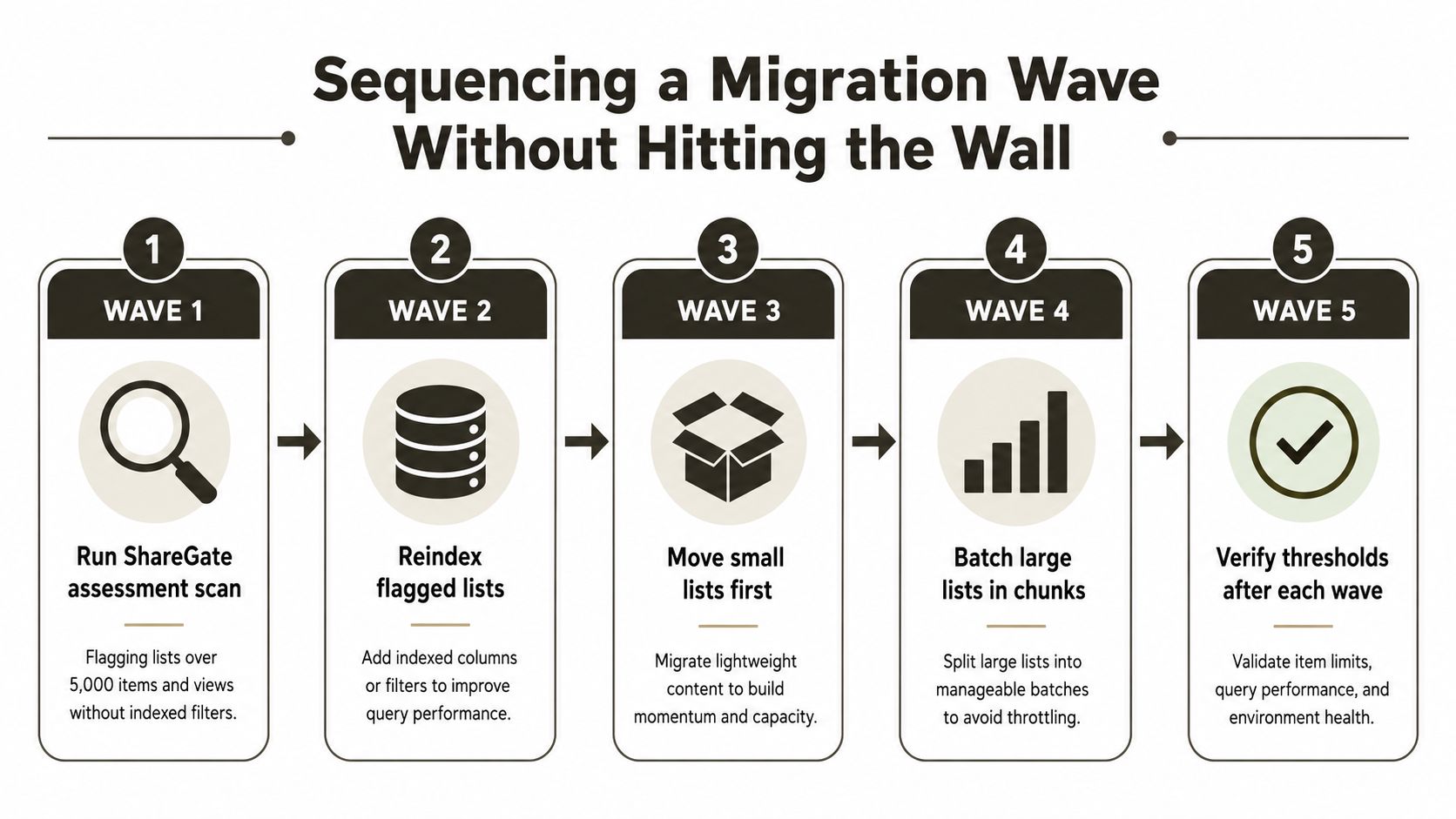
A migration wave fails when teams copy by volume instead of dependency. Start discovery by identifying lists over 5,000 items, views without indexed filters, long paths, lookup dependencies, and permission structures that could trigger throttling or block reconciliation. Microsoft's migration assessment guidance treats long URLs as scan-and-block defects that require remediation before content moves (Microsoft's long OneDrive URL assessment).
Put remediation before volume
Use the first wave to create a defect register, not to maximise copied items. Resolve path length, create indexed views, separate archival content, and document permission exceptions before production transfer. If inheritance design approaches the 100,000-item boundary, address it during modelling rather than after permissions become difficult to verify.
Start with small, low-risk lists. This tests destination structure, content types, navigation, ownership, and permissions while the rollback window remains manageable. Process threshold-heavy lists only after reconciliation controls pass. Large lists also need deliberate batch sizes and request pacing, because an overloaded migration can turn a list-view problem into API throttling and failed incremental runs.
Make every wave independently verifiable
Split large lists into controlled units. Record source and destination identifiers, then validate counts, representative metadata, permissions, and failed records before releasing the source or removing rollback access.
Assign one architect to dependency order. Use critical path analysis for migration planning to identify which list, lookup, permission, or URL defect controls the wave. Faster copying of unrelated content cannot rescue a shared dependency that fails.
When DIY Stops Being a Cost Saving and Becomes a Liability
DIY migration becomes a liability when your team treats a blocked view as an isolated technical nuisance. The failure chain is predictable: a view crosses the threshold, a large-list copy stalls, administrators increase batch pressure, SharePoint throttles the API, retries damage the incremental log, and the audit trail no longer proves what moved successfully.
That creates more than overtime. Engineers work through the weekend, procurement buys tools or licences during the incident, compliance teams lose confidence in the reconciliation evidence, and users lose access to records during a critical business period. In regulated finance, healthcare, or energy environments, missing evidence can delay legal or compliance sign-off even when the files eventually appear.
The risk is architectural
Microsoft's official documentation confirms the fixed SharePoint Online threshold, the larger storage capacities, the 100,000-item inheritance boundary, and the long-path assessment risk. Those facts leave no credible excuse for discovering the constraints during production.
A specialist engagement should produce a threshold report, documented runbooks, mapping rules, permission decisions, rollback criteria, and on-call coverage for the migration window. Ollo handles complex Microsoft 365 migrations through ShareGate and custom PowerShell PnP scripting, with the emphasis on controlled batching, structural remediation, and evidence that an auditor can inspect. Read more about choosing a SharePoint migration consultant before your team commits to a cutover date.
The argument isn't that specialist delivery costs less than DIY. The argument is that a fixed, documented engagement gives you a known risk boundary, while an improvised cutover creates unpredictable liability. Your data, users, and compliance obligations deserve a migration plan designed around SharePoint's limits rather than a tool demo.
Ollo can assess your lists and libraries for threshold exposure, long paths, permission inheritance risks, API throttling, and migration dependencies before the cutover window. Visit Ollo to arrange a technical review and get a documented remediation and sequencing plan for your Microsoft 365 migration.