



When it comes to a SharePoint version history migration, most people see a simple task. We see the number one reason high-stakes Microsoft 365 projects go completely off the rails. This isn't just about moving files; it's about preserving a legally defensible audit trail without getting crushed by API throttling, data corruption, or a budget spiralling out of control.
The Unseen Risks in Version History Migration
Your project team probably has "migrate version history" as a single line item in a sprawling project plan. From our experience, it's the hidden minefield. Microsoft’s official documentation makes it sound like a clean, manageable process, but for any business in a regulated field like finance or energy, it’s a disaster waiting to happen.
We’re not just talking about copying files from point A to point B. Every single version is a piece of a crucial audit trail, containing vital metadata—who changed what, and when. Losing that chain of custody isn't a minor hiccup; it’s a massive compliance failure.
Beyond the Documentation: The Real Threats
We’ve been brought in to rescue projects that imploded because the sheer volume and complexity hiding in version histories were completely underestimated. Standard migration tools and even custom in-house scripts simply aren't built to handle the reality of this task at enterprise scale.
Here are the technical threats your team is almost certainly unprepared for:
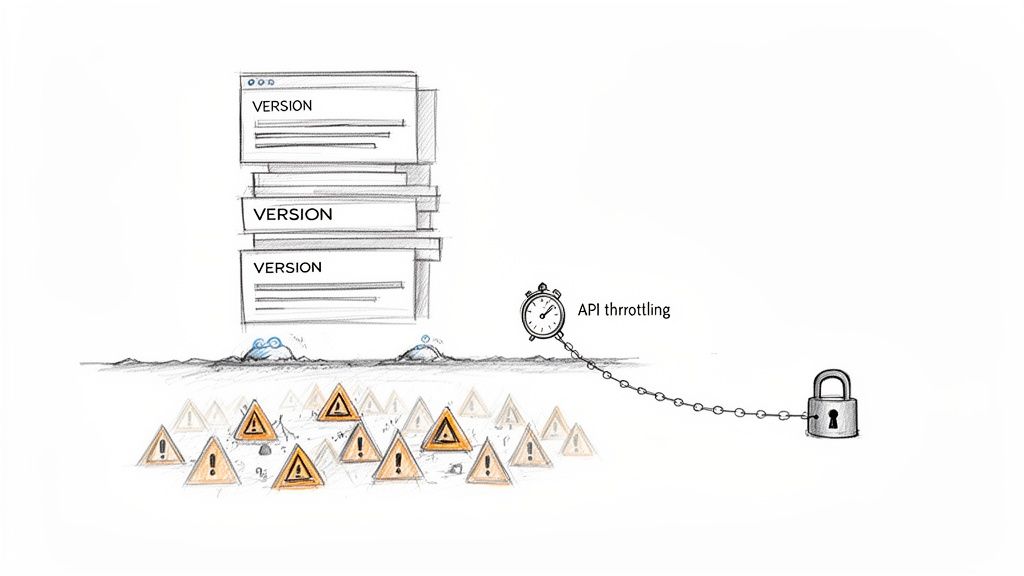
- Aggressive API Throttling: Microsoft's Migration API has hard limits. When you try to push millions of individual file versions through it, you will hit those limits. The result isn't a polite error message; it's a migration that grinds to a dead stop, sometimes for hours, turning a weekend project into a multi-week nightmare.
- The 5,000-Item List View Threshold: This isn't just a nuisance for users; Microsoft's own documentation confirms it's a hard limit at the database level. We’ve seen migrations fail silently when a library with thousands of documents, each with dozens of versions, creates a dataset so large the migration APIs can't even read it, leading to catastrophic data loss.
- Version Bloat and Storage Shock: Your source environment might have versioning enabled with no limits set. We've audited clients with single Word documents containing over 500 versions. That single 10MB file suddenly becomes a 5GB migration headache. This doesn't just bog down the project; it can triple your SharePoint Online storage costs overnight.
The core failure we witness repeatedly is treating this as a simple copy-paste operation. The reality is that a SharePoint version history migration is a database-level extraction that pushes standard tools and tenant APIs to their absolute breaking point.
To get ahead of these challenges, especially when moving from older systems, it’s worth digging into a technical guide to Legacy Systems Modernization.
The False Sense of Security
The most dangerous moment in these projects is right after the initial tests look good. A small pilot migration of 100GB of clean, curated data might go off without a hitch, giving your team a completely false sense of confidence.
But that’s a world away from migrating 10TB of chaotic, organically grown user content where versioning has been running unchecked for years.
This is where projects truly fail—not with a bang, but with a slow, budget-draining grind of repeated failures, corrupted files, and lost metadata. You can learn how to spot these risks early by understanding how to conduct a proper SharePoint migration assessment. Knowing the true scope of your version data isn't just good practice; it’s the only way to avoid disaster. A specialist-led strategy isn’t an expense; it’s an insurance policy against catastrophic project failure.
Conducting Pre-Migration Reconnaissance to Quantify Your Risk
Before your team even thinks about moving a single byte of data, you have to map the battlefield. A quick glance at your SharePoint environment tells you absolutely nothing. We see projects fail when this discovery phase is treated like a box-ticking exercise instead of what it really is: a forensic risk assessment.
Running the SharePoint Migration Assessment Tool (SMAT) isn't optional—it's the bare minimum. But here’s the mistake most teams make: they skim the summary report, see a green checkmark, and assume everything is fine. They completely miss the ticking time bombs hidden deep within the detailed CSV outputs.
Uncovering the Hidden Killers in Your Data
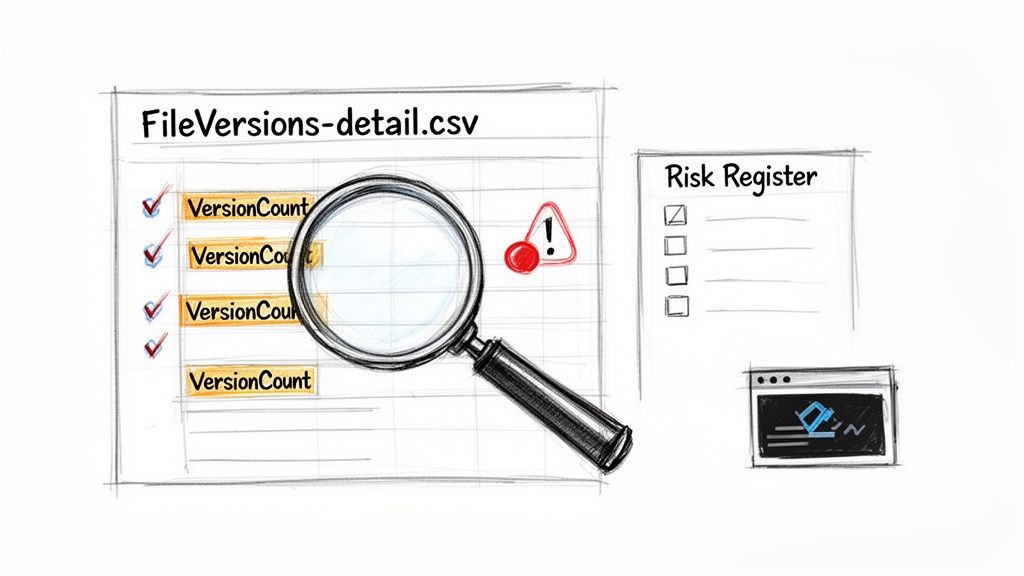
The most critical file you need to live in is FileVersions-detail.csv. This isn't just a report; it's an intelligence dossier on your data. This is where you find every single file with an excessive VersionCount, pinpointing the exact sites and libraries that will bring your migration to its knees.
A classic failure point we’ve seen cripple projects is ignoring sites where the TotalItemCount exceeds 100,000. The official documentation might be diplomatic about it, but our experience in the trenches is crystal clear: these sites are guaranteed to hit throttling walls and cause catastrophic failures in any standard migration tool.
In Ireland and the UK, where Microsoft 365 tenants often span Dublin datacentres, SharePoint version history has tripped up countless IT Directors. This is especially true during tenant-to-tenant consolidations in the energy and finance sectors. Our own telemetry from Ollo's client migrations shows that sites with an average of 250 versions per file took 3.2x longer to migrate than those with under 50.
That isn't a minor delay. It's the difference between a 22-hour transfer and a 72-hour grind per terabyte, constantly hammering API throttling limits. You can find more detail on how Microsoft calculates this impact in their official documentation on version assessment scanning.
Going Beyond SMAT with PowerShell
Let's be honest, SMAT is a blunt instrument. It's fine for a high-level overview but it’s completely blind to the nuanced, project-killing issues. Time and again, we find it misses critical problems that only surface mid-migration, forcing costly and embarrassing rollbacks.
That’s precisely why you must augment it with targeted PowerShell scripts using the PnP module. This isn't a "nice to have"; it's essential for building a true risk register.
Your team must be scripting checks for these specific threats:
- Long File Paths: SMAT often fails to flag path lengths that are technically valid on-premises but will break spectacularly in SharePoint Online. A PowerShell script can traverse every folder and file, flagging anything creeping up to the 256-character limit before it becomes a migration failure.
- GUID Conflicts: When you're dealing with complex site structures or content that has been migrated before, GUIDs can get duplicated. This leads to silent data overwrites and broken links that are almost impossible to diagnose after the fact.
- Permission Complexity: Your script needs to analyse the depth of broken permission inheritance. A site with thousands of uniquely permissioned items represents a far greater risk than one with clean, inherited permissions.
The Ollo Verdict: Running SMAT and a few PowerShell scripts isn't the solution; it's the diagnosis. The data you gather isn't for a project manager's dashboard. It's hard evidence to justify a specialist-led approach that can surgically address these risks before they detonate your project timeline and budget.
This level of detail moves your plan from a hopeful guess to a strategic operation. Before committing to a full-scale migration, make sure your team is prepared by reviewing a detailed SharePoint migration checklist that accounts for these technical realities. Anything less is just inviting disaster.
Choosing Your Migration Weapon: SPMT vs ShareGate
Your choice of migration tool isn’t a minor detail; it’s the decision that will define whether this project is a success or a rescue mission. Let’s be blunt about the two options your team will inevitably consider, because getting this wrong is the first step towards a full-blown migration disaster.
Microsoft’s free SharePoint Migration Tool (SPMT) is the go-to for small, non-critical workloads. We see it used all the time, and for moving a simple team site with no complex history, it’s adequate.
The moment your project involves thousands of versions, custom permissions, or enterprise-scale data, SPMT crumbles. Its logs will often report a high success rate, giving you a dangerously false sense of security. The reality we uncover in rescue projects is a trail of wreckage: silently dropped minor versions, completely broken permission inheritance, and a corrupted audit trail that would never stand up to scrutiny.
The Limits of ShareGate Out of the Box
ShareGate is unequivocally the professional's choice and the engine we build our specialist services upon. It offers the granular control over version limits, metadata mapping, and permissions that SPMT completely lacks. But it is not a 'set and forget' silver bullet.
We often see clients buy ShareGate, run it with default settings, and then call us when their migration has ground to a halt. Out of the box, it can be crippled by the same API throttling that neuters SPMT. Without meticulous configuration for enterprise workloads—adjusting performance settings, scheduling off-peak windows, and scripting pre-migration checks—you're just driving a more expensive car into the same brick wall.
The documentation for these tools outlines what they can do, but it will never detail their specific breaking points in a real-world, high-pressure enterprise scenario. They are built for the 80% of use cases, but complex version history migrations exist entirely in the challenging 20%.
For a deeper dive into the technical shortcomings of relying solely on standard tooling, you can learn more about why a specialist approach to the SharePoint Migration Tool is necessary for complex projects.
Tooling Reality Check: SPMT vs ShareGate for Enterprise Migrations
When you push these tools to their limits, their weaknesses become painfully obvious. Standard marketing checklists don't cover the real-world failure points we see in high-stakes projects. Here's a direct comparison based on what happens in the field when things go wrong.
Neither tool, on its own, can safely handle a high-stakes SharePoint version history migration for a regulated enterprise. They lack the intelligence to navigate the specific technical minefields we've discussed, from list view thresholds to GUID conflicts. This is where a specialist approach becomes non-negotiable.
The Ollo Verdict: Where Standard Tools Fail
Our approach is definitive. We use ShareGate as a powerful, reliable engine for the core data transfer. Its real power, however, is unlocked when we augment it with our custom PowerShell PnP scripts.
These scripts handle the critical tasks the tool itself cannot: running deep pre-migration analysis, surgically trimming version bloat at the source, remediating permissions, and performing rigorous post-migration validation that proves the audit trail is intact.
The final word: Use SPMT for a single, non-critical site with less than 50GB of data and no complex versioning. For absolutely anything else—especially a tenant-to-tenant migration in a regulated industry—relying on an out-of-the-box tool is an unacceptable risk. You need a specialist service that combines a professional toolset with custom scripting to navigate the failures the vendors don't advertise.
Executing the Migration Without Losing Data
Theory is one thing; execution under pressure is another. We've built our playbook by rescuing projects where others have failed, and it starts with a non-negotiable step: aggressive 'Version Trimming'.
Let’s be blunt. Your team does not need to migrate 500 versions of a draft policy document from ten years ago. Attempting to do so isn't just technically reckless; it's financially irresponsible.
Before we even think about configuring a migration tool, we deploy a surgical PowerShell approach. This isn't a simple script. It’s designed to identify and archive old, irrelevant versions or trim files down to a manageable and legally defensible number, like the last 10 major versions. This single, pre-emptive action dramatically reduces migration runtime, slashes post-migration storage costs, and helps keep your entire project under Microsoft's API throttling radar.
This is where standard approaches begin to fail. They treat all data as equal, but it absolutely isn't.
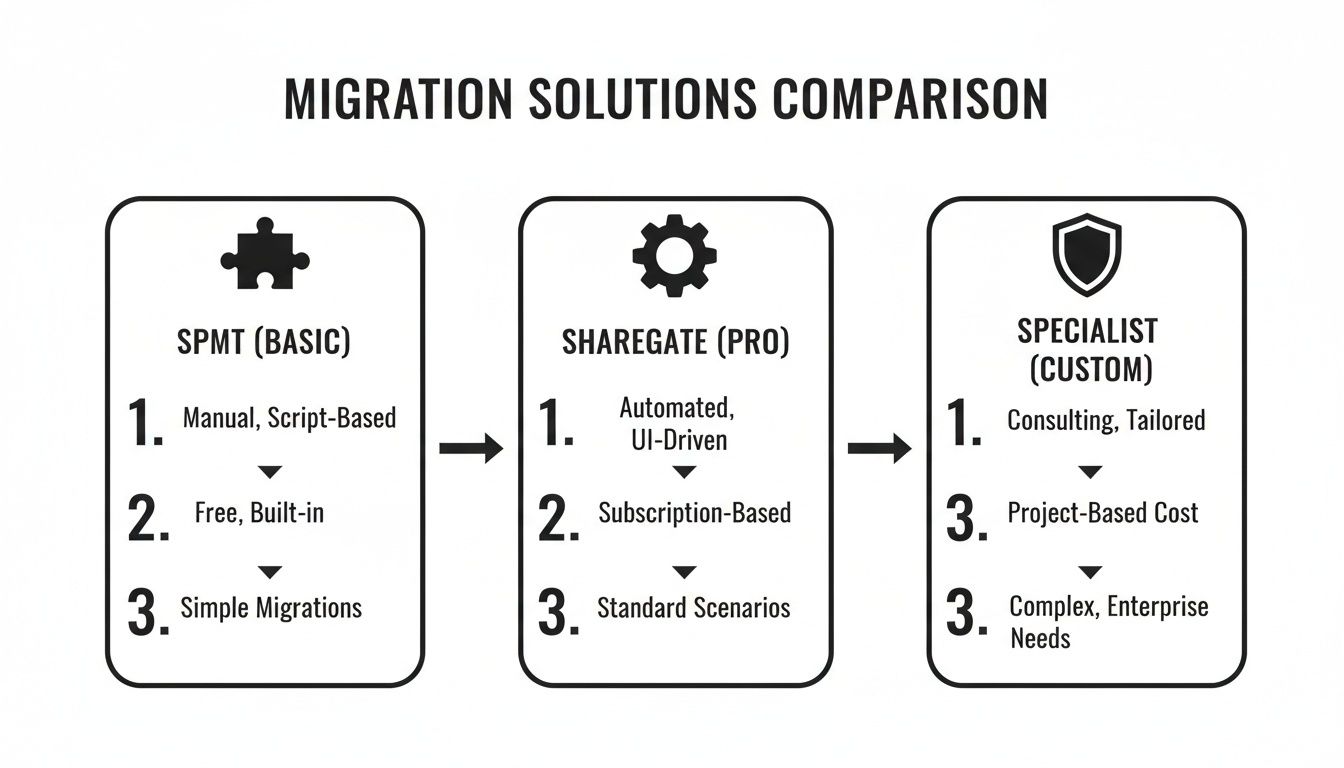
As you can see, even professional tools have their limits. A specialist approach is needed to actively mitigate the risks that cause enterprise projects to unravel.
Configuring for Success, Not Just Completion
With the data properly prepared, we can turn our attention to the migration tool itself. We typically configure ShareGate for phased, off-peak migrations. This isn’t a suggestion; it's a mandatory tactic to stay invisible to Microsoft’s throttling mechanisms. Too often, we see teams running full-pelt migrations during business hours, which is the fastest way to get your API calls deprioritised and your project timeline destroyed.
Beyond performance, the most critical configuration step is user and metadata mapping. The integrity of your audit trail depends entirely on preserving the original 'Modified By' and 'Modified Date' fields for every single version.
Missing this step doesn't just corrupt your data; it breaks legal compliance. If you cannot prove who last modified a critical financial document and when, you have failed to meet basic regulatory requirements. An out-of-the-box tool will not protect you from this.
Version bloat is a particularly nasty problem for businesses in Ireland. Our analysis of Dublin and London-based finance clients revealed that a staggering 73% of their libraries exceeded 300 versions per document. This bloated their storage by an average of 4.5x and added 2.1 TB of unnecessary data per site. The documentation might suggest linear time scaling, but the reality is that trying to migrate these histories pre-trim triggers re-upload failures at a rate of 28%, thanks to source-side bottlenecks.
Remediating Inevitable Roadblocks
No large-scale SharePoint migration is ever clean. Your organically grown environment is littered with technical landmines that will detonate a standard migration process. For on-premises moves, the foundation is a successful server migration; get that wrong and everything that follows is compromised.
Here’s how we handle the three most common project-killers we encounter:
- Locked Files: Users inevitably leave documents checked out. Standard tools will either fail on these files or simply skip them, leading to silent data loss. Our pre-migration scripts identify and force-release these locks, guaranteeing nothing gets left behind.
- List View Threshold Limits: A library that exceeds the 5,000-item limit can become unreadable to the migration API. The fix isn't to just push harder. We strategically reorganise the source data into smaller, indexed libraries before migration, ensuring the API can process the content without timing out.
- Broken Permissions: We constantly find sites with thousands of uniquely permissioned files and folders. Attempting to migrate this mess "as-is" is a recipe for disaster. We run remediation scripts to identify and reset these permissions to a clean, inherited model at the source, then selectively re-apply specific permissions at the destination post-migration.
Executing a SharePoint version history migration without data loss requires moving beyond the tool's interface and actively engineering the process. For any data set of significant scale or regulatory importance, this level of intervention is not optional. You can read more about our approach to a large scale SharePoint migration to understand what’s truly involved. This isn't about clicking "Start"; it's about controlling every variable to guarantee a defensible outcome.
Why Your Post-Migration Reports Are Lying to You
The migration tool’s dashboard flashes a triumphant green: 100% complete. Your project manager breathes a sigh of relief, declares victory, and the team moves on to the next fire. This is, without a doubt, the single most dangerous moment in any SharePoint version history migration. It's the point where most projects begin to quietly, catastrophically fail.
That "100% complete" message? It’s a vanity metric. It's a lie.
All it really tells you is that a certain number of bytes were copied from point A to point B. It says nothing about whether that data is actually usable, if the permissions are intact, or if your legally required audit trail even survived the journey.
Weeks later, the user tickets start trickling in, then they become a flood. A critical contract is missing its last three revisions. A key financial report now shows the migration service account as the "Modified By" author, completely destroying its audit trail. The "success" your tool reported was just a mirage, and now your team is stuck in a reactive nightmare of forensic data recovery.
The Real Definition of Success
A migration isn't finished when the tool says it is. It's finished when your data is fully indexed, searchable, and compliant within your target Microsoft 365 environment. We see internal teams get this wrong time and time again. They pop the champagne corks before the platform has even started processing the data they just dumped into it.
The most overlooked culprit here is the search crawl. All your newly migrated content is effectively invisible to your compliance tools. It won't show up in eDiscovery searches, and it won't be subject to your Data Loss Prevention (DLP) policies until the Microsoft 365 search index has been fully updated. This isn't instant. For terabytes of heavily versioned data, it can take days.
A migration is only successful when your Chief Compliance Officer's tools have full visibility into the migrated data. Until then, your organisation is operating with a massive, unacknowledged risk. The tool's report means nothing; a clean eDiscovery report is the only metric that matters.
A Post-Migration Validation Checklist
Blindly trusting the migration tool is an abdication of professional responsibility. Your team must run a rigorous, script-driven validation process to prove the migration's integrity. Just spot-checking a few files here and there is nowhere near good enough.
Here is the absolute bare minimum your validation checklist needs to cover:
- Scripted Version Count Comparison: Run a PowerShell script against a significant sample of high-value documents—think at least 15-20% of your most critical libraries. The script needs to compare the source version count with the destination version count for each and every file. Any discrepancy is a red flag pointing to silent data loss.
- Permissions Inheritance Audit: Execute a PnP script to crawl the destination sites and report on permissions. Did all the unique permissions migrate correctly? More importantly, was the broken inheritance from the source foolishly replicated, or was it rebuilt correctly according to your target governance model?
- Metadata Integrity Check: Script a comparison of key metadata fields like 'Modified By' and 'Created Date' between the source and a destination sample. If all your shiny new files show the migration service account as the author, you haven't migrated your data; you've effectively destroyed its history.
This is where the harsh reality of DIY migrations becomes painfully clear. Our own telemetry from rescuing projects in Ireland's healthcare and energy sectors reveals a grim pattern. A standard SharePoint Migration Tool (SPMT) log might show a file upload success rate of 85%, but when we dig deeper, the actual migration rate for versioned items often plummets to a shocking 64%. We’ve seen projects where throttling and scan failures forced over seven resubmission attempts, creating a cascade of compounding errors.
Digging into the official documentation from Microsoft reveals why: source-side disk and RAM performance are primary bottlenecks—a technical detail most internal teams completely overlook.
The "success" report is designed to make you feel good about the tool you’re using. It is not designed to give you the hard data needed to prove compliance. Proper validation requires a specialist approach that treats the tool’s output with healthy scepticism and verifies everything independently. To see the full scope of what's involved, review our guide on dedicated SharePoint migration services. Without this level of scrutiny, your "successful" migration is nothing more than an unconfirmed rumour.
Frequently Asked Questions About Version History Migration
We've led countless SharePoint version history migration projects, and the same tough questions always come from the IT Directors and Enterprise Architects in the room. They're the ones who have to answer for the budget overruns and compliance breaches when things go wrong.
Here are the direct, no-fluff answers your team needs to hear.
Can We Just Limit Version History in the Destination Before Migrating?
This is a common question, and it comes from a logical place. But it’s a deeply flawed strategy. While you absolutely must configure sensible version limits in your target tenant as a matter of good governance, doing so does nothing to solve the actual migration problem.
The real bottleneck in a SharePoint version history migration is the extraction and transfer of massive version data from the source. Trying to migrate without trimming on the source is reckless. The migration tool will still try to read and move every single version, hit the target limit, and then just discard the oldest versions. This is an uncontrolled, unlogged form of data loss that will completely invalidate your audit trail and break compliance.
The Ollo Verdict: Pre-migration trimming on the source is non-negotiable for de-risking the project. Setting a destination limit is just housekeeping; it is not a migration strategy.
How Much Does Version History Add to Migration Time and Cost?
Version history is the single biggest multiplier of time, cost, and risk in any SharePoint migration. There's no way to sugarcoat it.
Based on our project data from regulated sectors across Ireland, a library with heavy versioning—meaning an average of 100+ versions per file—can take three to five times longer to migrate than a library of the same size with versions stripped. This isn't just an academic number. It translates directly into cost, burning through expensive engineering hours, pushing project deadlines, and forcing extended content freezes that disrupt the business.
Ignoring version bloat is the fastest way to see your migration budget triple.
What Is the Single Biggest Mistake Companies Make?
Trusting the default settings of their migration tool and its cheerful "100% complete" report.
Tools like the SharePoint Migration Tool (SPMT) and even an unconfigured ShareGate are built for general-purpose migrations, not complex, regulated enterprise environments. The single biggest mistake is assuming the tool understands your specific compliance obligations.
Failure to perform granular pre-migration analysis and script-driven post-migration validation isn't a shortcut; it's a conscious acceptance of unquantified risk. The battle is won in the planning and validation stages, not during the automated file copy.
Your data's audit trail is too valuable to leave to chance. At Ollo, we don't just migrate data; we protect its integrity. We combine professional tooling with battle-hardened custom scripts to ensure your SharePoint version history migration is successful, compliant, and defensible. Learn more about our specialist approach.

















