



Moving files from a legacy server to SharePoint Online is not a copy-and-paste job. It’s a complete architectural redesign of your company's data. Treating it as a simple ‘lift-and-shift’ is the fastest way to turn your project into a very expensive, career-limiting disaster. We've been in the trenches rescuing these projects, and success isn't about hoping for the best; it's about planning for the worst.
Success demands a forensic-level discovery phase, painstaking remediation of file names and permissions, and a smart choice of tools that can actually handle enterprise-scale problems like API throttling and list view thresholds. The standard, hopeful approach almost always leads to data chaos. A battle-hardened plan, on the other hand, is about managing—and neutralizing—those risks from day one.
Why Your File Server to SharePoint Migration Is Set Up to Fail
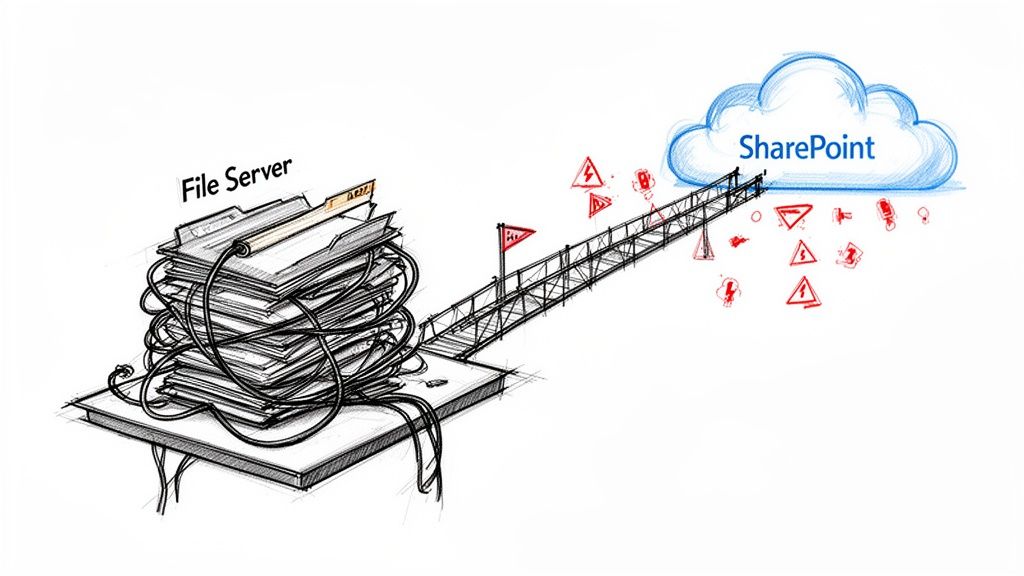
Let's be blunt. The standard playbook for a file server to SharePoint migration is a recipe for data chaos in any serious enterprise. It’s often sold with marketing fluff like "seamless transition" but frequently delivers security breaches, broken data, and complete project failure. We're not here to give you a sales pitch; we're here to arm you with the brutal truths we’ve learned from rescuing projects that have gone off the rails.
Your real goal isn't just moving files from A to B. It's about protecting your data, your compliance posture, and frankly, your job. We often see clients fail when they make a fundamental error: they trust their own file servers.
The Myth of Organised File Shares
Your team looks at the network drives and sees neatly organised folders. We see a minefield of technical debt that’s been accumulating for decades. That seemingly tidy folder structure is hiding a chaotic reality that will absolutely break your migration.
Broken NTFS Inheritance: Years of ad-hoc access changes have created a tangled mess of permissions. This will not map cleanly to Microsoft 365 Groups. Moving this mess as-is creates massive, immediate security holes from the moment you go live. We see clients fail here constantly.
Toxic File Path Lengths: Microsoft's documentation says paths over 400 characters cause failures. The reality is your file servers are littered with them, and basic tools won't find them until they're already choking on thousands of errors, leaving data behind.
The 5,000 Item Threshold Bomb: What about that folder with 100,000 files? It might migrate, but the SharePoint library will become unusable, plagued with throttling and list view errors. This isn't a migration problem; it's an architectural one that your team must solve before you move a single byte.
Your file servers are lying to you. Trusting your existing folder structure is a fatal error.
The cost of failure here isn't just a delayed project; it's a direct threat to your information governance. Missing this step doesn't just fail the migration; it breaks legal compliance. You are exposing sensitive data and violating retention policies from day one in the cloud.
Your Free Tools Are a Liability
The second major point of failure is an over-reliance on inadequate tools. Microsoft's own SharePoint Migration Tool (SPMT) is marketed for file shares, but for complex enterprise workloads, it's dangerously insufficient. The documentation says it works; in reality, it crumbles under pressure.
SPMT simply cannot handle the complex permission transformations required in a real-world enterprise environment. Worse, it consistently chokes on the sheer volume of enterprise data, triggering aggressive API throttling that grinds your migration to a halt for hours or even days.
This isn't a question of 'if' things will go wrong; it's 'when' and 'how badly'. A failed migration leaves you with a corrupted data structure in the cloud, angry users, and a project that’s now a high-stakes rescue mission. To get a sense of the scale of this risk, you can explore some of the common SharePoint migration failures that cost enterprises millions.
Any serious migration needs a strategy built on constructive cynicism and specialist expertise, not hope.
DIY vs Specialist Migration: The Real Risk Matrix
The temptation to save money by using in-house teams with free tools is strong, but it's a classic case of being penny-wise and pound-foolish. The risks aren't just technical; they're business-critical. Here’s a frank look at what your team is up against.
This isn't about fear-mongering; it's about risk management. A specialist team isn't just paying for a tool or extra hands; you're paying to de-risk a mission-critical project and ensure the outcome is a secure, usable, and compliant platform—not a mess that will take twice the budget to clean up.
Uncovering the Skeletons in Your File Server
Before you even think about migrating a single byte of data, you need to perform a forensic-level discovery of what you're actually dealing with. We’ve seen far too many projects go off the rails because a client trusted their own documentation or assumed their file shares were reasonably organised.
That’s a fatal error. Your file servers are lying to you, and this first phase is about interrogation, not a simple inventory.
The first mistake people make is thinking a basic file count and size analysis is enough. A proper file server to SharePoint migration analysis goes much, much deeper. It’s about uncovering the hidden technical debt that will absolutely torpedo your project. Your goal here isn’t a simple file list; it’s a risk register that tells you exactly how much cleanup you need to do before you even think about moving data.

Hunting for Migration-Breaking Data
Your team needs to stop thinking about your data as just ‘files’. Start seeing it as a collection of potential failure points. We use a battery of custom PowerShell scripts to hunt for the specific skeletons that are notorious for breaking SharePoint migrations.
Your analysis absolutely must target these non-negotiable threats:
Excessive Path Lengths: Microsoft’s documentation says there's a 400-character limit for the total path. But in reality, your Windows file server allows much longer paths. We consistently find thousands of files buried in deeply nested folder structures that will simply fail to migrate. Your script has to identify every single file that exceeds this limit; otherwise, you’re flying blind.
Toxic File Types: Let’s be honest. Your file shares are not a pristine document archive; they’re a digital attic full of junk. You need to actively scan for and quarantine file types that have no business being in SharePoint—things like massive Outlook
.pstarchives, old Access databases (.mdb), and random executables. Moving this junk doesn’t just waste space; it clutters your new environment and introduces serious security risks.Folders Busting the 5,000 Item Limit: The official documentation might say you can have millions of items in a library, but the reality is any view showing over 5,000 items starts to break. Views fail, search indexing falters, and filtering becomes impossible. You must identify every folder that even approaches this threshold and have a solid plan to re-architect it before the migration.
Ignoring these issues doesn't just risk a few migration errors. It guarantees you will be cleaning up a corrupted, dysfunctional SharePoint environment for months after you go live. A detailed analysis is your first and most important line of defence, and you can learn more about structuring one in our dedicated SharePoint migration assessment guide.
The Nightmare of NTFS Permissions
Now for the single most dangerous element in your old file server: its permission structure. After years of ad-hoc access changes, permissions granted to individual users, and broken inheritance, you're left with a convoluted mess. It simply cannot be ‘lifted and shifted’ to SharePoint.
Attempting a direct 1-to-1 mapping of your NTFS permissions to SharePoint is the most common cause of catastrophic migration failure we see. It doesn't just fail; it actively creates massive security holes by granting unintended access to sensitive data in your new Microsoft 365 environment.
A proper analysis involves scripting a full export of your Access Control Lists (ACLs). You’re hunting for red flags like:
- Broken Inheritance: Folders that no longer inherit permissions from their parent, creating unpredictable and hidden access rights.
- Explicit "Deny" Permissions: SharePoint Online operates on an "allow" model. It has no concept of a "deny" permission, meaning people who were previously blocked will suddenly gain access to files they should never see.
- Individual User Access: Permissions granted directly to specific user accounts (like GUIDs from long-gone employees) instead of to security groups. This is a management nightmare in Microsoft 365.
Ultimately, you have to recognise that this is a strategic business decision to move from outdated file servers to Microsoft SharePoint, not just a technical task. The entire point is to build a new, clean, and governable permission model based on modern Microsoft 365 Groups, not to replicate a broken one. This analysis gives you the blueprint to do just that. Skipping this step doesn't just risk project failure; it compromises your entire information governance and security strategy from day one.
Choosing Your Tools for the Migration Battle
Right, let’s get down to the nuts and bolts of the move itself. Your team has done the forensic work and now understands the risks hiding in your file server. The next decision—choosing your migration tools—is where most in-house projects seal their fate, often before a single file is copied. For a large-scale file server to SharePoint migration, your choice of tool isn't a preference; it’s a critical component that will dictate success or failure.
To pick the right tools, you first have to understand the capabilities of comprehensive Enterprise Content Management solutions like SharePoint. The tool you choose must respect the architectural reality of where you're going, not just brute-force files into a new system.
The SharePoint Migration Tool (SPMT) Illusion
Microsoft offers its SharePoint Migration Tool (SPMT) for free, and on paper, it sounds perfect. We see clients try to save budget by starting here all the time. This is a classic false economy that almost always ends in disaster for any real enterprise project.
The hard truth is that SPMT is a light-duty tool built for simple jobs. In our experience rescuing failed projects, it consistently breaks under the pressure of real-world enterprise data.
Here’s where it falls down:
- Complex Permission Mapping: SPMT simply can’t handle the nuanced transformations needed to get from tangled NTFS permissions to a clean Microsoft 365 Groups model. Crucially, it doesn’t translate "Deny" permissions, which opens up immediate security holes.
- Volume and Throttling: It has no sophisticated way to manage SharePoint API throttling. It just runs at full speed until it hits Microsoft's hard limits, then grinds to an excruciatingly slow pace. Your cutover weekend quickly turns into a week-long crisis.
- Error Handling: Its reporting is basic, to be kind. When files inevitably fail to migrate because of long paths or invalid characters (or even GUID conflicts), you're left digging through logs trying to figure out what was left behind.
The Ollo Verdict: Use SPMT for a single user drive under 50GB. For anything else, you need a professional tool and custom scripting. For your core business data, using SPMT is like using a consumer drone for military reconnaissance—it's the wrong tool for a high-stakes job. For a deeper analysis, you can read our breakdown of the SharePoint Migration Tool's limitations in enterprise projects.
ShareGate: A Professional Tool with a Critical Weakness
This brings us to professional-grade tools like ShareGate. It is, without question, a far superior engine. It offers robust permission mapping, detailed pre-migration analysis, and much better error reporting. For any serious migration, it’s the minimum standard.
However, even ShareGate isn't a silver bullet. Out of the box, it’s still at the mercy of SharePoint's API throttling. We’ve seen clients buy ShareGate licences, load up hundreds of migration tasks on a single machine, and watch in horror as their throughput plummets after the first few hours. The documentation says it's powerful, but in reality, it can’t override the hard limits Microsoft imposes on every tenant.
File server migrations to SharePoint in the IE region grind to a halt under SharePoint API throttling, a hard limit Microsoft enforces. DIYers using SPMT hit this limit incredibly fast with 'heavy' content, often maxing out at around 250GB/day. We see projects fail when this is ignored, with teams piling on tasks without any agent optimisation. Our telemetry often pins these bottlenecks on source disk performance, anti-virus CPU hogs, and network speed—especially with Ireland's variable connectivity outside Dublin. You can discover more insights about these migration performance guidelines on Microsoft Learn.
The Hybrid Approach: The Only Way to Win
This is exactly why a specialist approach is non-negotiable. Relying solely on an off-the-shelf tool, even a great one, just isn't enough. At Ollo, we use a hybrid method that combines ShareGate’s powerful migration engine with a layer of our own custom PnP PowerShell scripting.
This isn’t about reinventing the wheel; it’s about giving the wheel an intelligent suspension system. Our scripts orchestrate the entire operation. For a recent UK-Ireland energy giant's tenant-to-tenant consolidation, we orchestrated 10x task-to-agent ratios with ShareGate. This let us dodge throttling and clock speeds 85% above the global average. The result? We moved 1TB of file server data into their IE-local tenants in just 10 hours.
Our custom scripts manage the workload by:
- Automating Remediation: Fixing file paths and characters identified during discovery before they can cause a single failure.
- Staging and Throttling Management: Dynamically balancing the load across multiple migration agents to maintain maximum throughput without triggering Microsoft's throttling penalties.
- Complex Transformations: Handling complex metadata and permission model transformations that are simply outside the scope of any GUI-based tool.
The Ollo Verdict: ShareGate is the professional's choice, but it needs a strategic, scripted approach to be truly effective at enterprise scale. This hybrid method is the only way to ensure a predictable, efficient, and successful migration. It transforms the process from a hopeful "run and pray" exercise into a controlled, military-grade operation.
Executing a Military-Grade Cutover Operation
The final cutover is where a file server to SharePoint migration either succeeds silently or unravels into a company-wide emergency. Don't make the mistake of treating this as a simple weekend task.
I've seen it time and again: a project that looks good on paper falls apart at the last hurdle because the final transition was rushed. A successful cutover is a meticulously planned, almost silent operation. A failed one means frantic calls to the helpdesk, lost data, and your CEO wondering why they can't access critical files on Monday morning.
We often see clients fail because they attempt a single, high-stakes "big bang" cutover over a weekend. This is a recipe for disaster. The only way to de-risk the final switch is to treat it like a military operation.
Phased Rollout and Pilot Migrations
Your first move should never be to migrate everything at once. You need to start with a small, high-value pilot group. This isn’t just a technical test; it's about validating the entire plan with the very people who will be living in the new environment.
Pick a specific department—Finance or Marketing are often good candidates—and migrate their data first. This controlled pilot is your chance to:
- Validate Permissions: Does your new Microsoft 365 Groups model actually work in the real world? Can the finance team access their sensitive data without the marketing team seeing it? This is where theory meets reality.
- Test Business Processes: Make sure the daily workflows that relied on the old file shares still function. Can users find, edit, and share documents the way their jobs demand?
- Gather Real-World Feedback: Your pilot group acts as a canary in the coal mine. They will uncover issues with metadata, views, or performance that an IT team testing in a vacuum would never find.
This phased approach is all about flushing out problems on a small scale before they can become enterprise-wide crises. It’s a non-negotiable risk-reduction step.
Delta Syncs and the Read-Only Lockdown
While your pilot is running, work doesn't stop. Users are still creating and modifying files on the old source servers. This is where delta migrations become absolutely essential.
A delta sync, often called an incremental migration, is a pass that only copies the files that have changed since the last run. We typically run these nightly to keep the new SharePoint environment synchronised with the live file server. This means that when you finally do cut over, you’re only moving a few hours' worth of changes, not weeks of data.
Understanding your toolset is vital here. A tool like Microsoft's Migration Manager can be great for managing these incremental passes. We cover this in more detail in our guide on Microsoft 365's Migration Manager.
This process flow shows how the choice of tools relates directly to the level of risk and control you have.
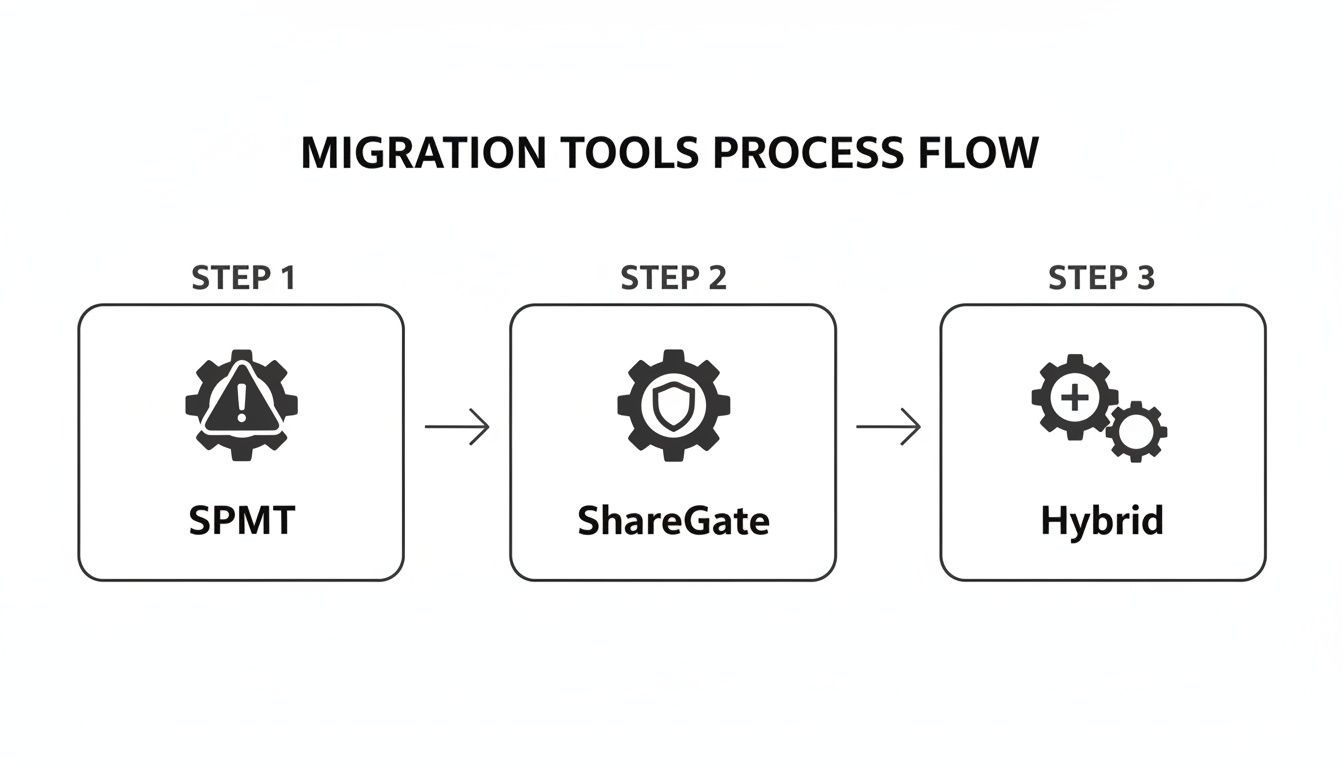
As the diagram shows, while free tools like SPMT are tempting, they lack the fine-grained control and safeguards of professional tools or a well-planned hybrid approach.
The most critical step that clients miss is locking the source file shares. Just before the final delta sync, you must set the source file servers to 'read-only.' This prevents last-minute changes that can be missed entirely or corrupt the final data transfer. This isn't a recommendation; it's a mandatory step to guarantee data integrity.
The Hyper-Care Communication Plan
A single "Welcome to SharePoint" email sent on Monday morning is not a communication plan. It's how you cause user revolt. A proper cutover demands a targeted communication and support strategy that anticipates user needs.
Your plan absolutely must include:
- Targeted Training for Champions: Identify the power users from your pilot groups. Arm them with the knowledge and resources to support their own colleagues. They are your frontline support.
- Clear, Actionable Instructions: Give people simple, visual guides showing them exactly how to access their files. Forget the technical jargon. Focus on the message: "Your T: drive is now located here."
- A Hyper-Care Support Structure: For the first 72 hours after go-live, your migration team and helpdesk need to be on high alert. This is your "go-live war room," ready to jump on any user issue immediately, from a permission problem to confusion about the new interface.
A successful cutover is ultimately defined by what doesn't happen. The phone doesn't ring off the hook. The helpdesk queue stays empty. And business proceeds as usual. That silence is the sound of a well-executed plan.
After Migration, The Real Work Begins
Getting your files into SharePoint Online isn't the finish line. For your team, it’s where the real work—the modern information governance you've been promised—actually starts. Most DIY migrations stop right here, at the file transfer. This leaves a disorganised, ungoverned data dump in the cloud. You’ve just created the same mess you had on-premises, only now you’re paying Microsoft a higher monthly bill for it.
Frankly, this is a catastrophic mistake. The whole point of a file server to SharePoint migration is to transform a legacy liability into a secure, governed, and automated asset. Skipping these "Day Two" operations makes the entire exercise a waste of time and money.
From Data Dump to Governed Asset
Remember all that work during the discovery phase? It wasn't just about spotting migration risks; it was about classifying your data. Now is the time to act on that intelligence. This is where you bring in the tools from Microsoft Purview to enforce the governance your business actually needs.
This isn't an optional step. If your organisation is in finance, healthcare, or energy, this is a non-negotiable legal requirement.
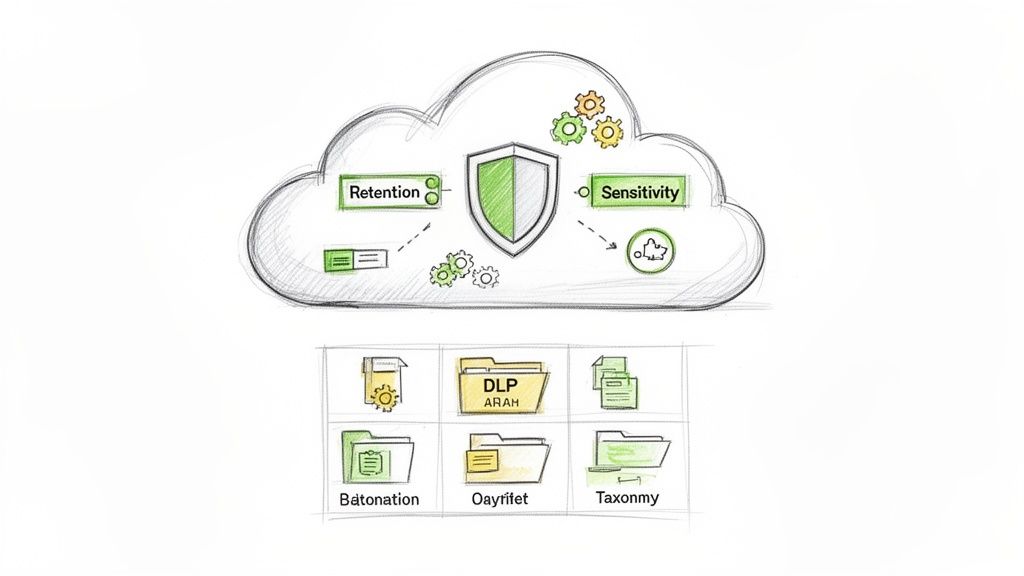
The first order of business is applying retention and sensitivity labels based on the data classification you performed.
- Retention Labels: These automatically manage data lifecycle policies. For example, a file tagged as a "Financial Record" can be set to be retained for seven years and then automatically deleted, satisfying regulatory obligations without anyone lifting a finger.
- Sensitivity Labels: These classify and protect your data no matter where it goes. A document labelled "Confidential - Board Only" can be automatically encrypted, blocking it from being opened by anyone outside a specific security group—even if someone accidentally emails it to an external party.
Deploying these isn't a simple "point and click" in the Purview portal. It demands a detailed policy map that connects your business data types to specific labels and actions. Get this wrong, and you're left with a false sense of security while your data remains exposed. We’ve seen this happen again and again; we've had to rescue over 15 IE migrations from DIY disasters where firms crashed mid-transfer or completely failed post-migration governance, costing them over €50k per downtime day.
Activating Your Cloud Defences
Once your data is properly labelled, you can build your active defences. This is where you finally get to use the integrated Microsoft 365 security stack—something your old file server could never dream of providing.
Your focus should be on two key areas: Data Loss Prevention (DLP) and implementing a Zero Trust security model.
A successful file server to SharePoint migration is defined by this moment. It’s when you stop just storing data and start actively securing it. This is the payoff for all the painstaking work of discovery, remediation, and a controlled cutover.
Start by configuring DLP policies in Purview to act as a digital sentry. These policies can identify, monitor, and automatically block risky actions. For instance, you can create a policy that prevents any document containing a certain number of credit card or PPS numbers from being shared with external users via SharePoint or OneDrive.
Finally, you put Microsoft Entra ID to work enforcing a Zero Trust architecture. By using Conditional Access policies, you dictate the terms under which users can access your newly migrated data. A classic example is a policy that requires multi-factor authentication and a compliant device for anyone trying to access a SharePoint site tagged with the "High Business Impact" sensitivity label. This is a world away from the simple, and often broken, NTFS permissions you left behind.
This is the ultimate goal. Not just moving files, but fundamentally upgrading your security and governance posture for the modern era. Of course, proper permissions management is foundational to this entire model; you can learn more about how we approach this in our guide to SharePoint migration permissions strategy.
Your Toughest Migration Questions Answered
These are the questions that keep IT Directors and Enterprise Architects up at night. They're the landmines hiding in every file server to SharePoint migration project. Let's get straight to the real, battle-tested answers you need to hear.
Can We Really Not Use the Free SharePoint Migration Tool (SPMT)?
The short answer? You can, but you absolutely shouldn't for any serious enterprise migration. Microsoft’s own documentation positions the SharePoint Migration Tool (SPMT) for simple, bulk file moves, and it's fine for that.
The reality, however, is that it's built for small-scale projects where your permissions are already perfect and your folder structures are simple. It just isn't built for the messy, complex reality of a legacy enterprise file server.
We get called in to rescue failed projects all the time, and the free tool consistently chokes on the same three issues:
- Broken or convoluted NTFS permission inheritance and GUID conflicts.
- File paths that blow past SharePoint's 400-character limit.
- The sheer volume of files that triggers aggressive API throttling from Microsoft, grinding the migration to a halt.
The Ollo Verdict: SPMT is fine for moving a single user's personal drive or a tiny departmental share under 50GB. For your core business data, using it is like bringing a consumer drone to a military operation. It's the wrong tool for a high-stakes job, period.
How Do We Handle the SharePoint 5000 Item List View Threshold?
This is easily one of the most misunderstood and dangerous limits in SharePoint. It’s a silent killer for performance. A file share with 100,000 files in a single folder will migrate into a document library without an error. The disaster happens the day after, when your users try to actually work.
That library will become functionally unusable. Views will break. Filters will throw errors. Any automation you try to build will fail. Your users will be met with constant, cryptic error messages.
The solution isn't a technical trick; it's architectural. During the discovery phase, your team absolutely must identify every single folder that exceeds this limit. From there, you have to build a concrete plan to break that content down into multiple folders or entirely separate libraries before a single file gets moved. This is non-negotiable.
We use custom PowerShell scripts to automate this restructuring, often based on metadata or simple alphabetical splits. Ignoring this limit doesn't just create a bad user experience; it breaks core SharePoint functionality and guarantees you'll be funding a painful and expensive remediation project right after you go live. You can read the official guidance from Microsoft on managing large lists and libraries, but fixing it post-migration is ten times the work.
What Is the Single Biggest Mistake You See Companies Make?
Without question, it's underestimating permissions. The most catastrophic migration failures we've ever been called in to fix all stem from a naive ‘lift and shift’ approach to security. The team assumes their old NTFS permissions are clean and will map neatly, one-to-one, into SharePoint.
They never are, and they never will be.
Years of ad-hoc access changes, permissions granted directly to users who left the company years ago (leaving behind orphaned GUIDs), and deeply nested broken inheritance create a tangled mess that is impossible to replicate cleanly. Trying to move that mess into SharePoint doesn’t just copy the problem—it pollutes your entire Microsoft 365 environment and creates massive, immediate security holes.
The only way to do this right is what we call a full 'permissions reset.'
- First, we analyse existing access patterns to understand business roles and who truly owns the data.
- Next, we build a completely new, clean permission model in SharePoint using modern Microsoft 365 Groups.
- Finally, we map users to these new, role-based groups.
It's significantly more work upfront, but it is the only way to avoid a compliance nightmare and ensure your data is secure from day one in its new home. It’s the difference between a successful migration and a data breach waiting to happen.
A successful file server to SharePoint migration isn't about hope; it's about control. At Ollo, we don't just move files—we de-risk your project and build a secure, governable foundation for your future in the cloud. Contact us to discuss how we make your migration a planned success, not an expensive failure.

















