



The most popular advice about hybrid work Microsoft 365 setup is also the most dangerous. Enable Teams, switch on OneDrive, migrate a few folders, let users “adopt organically”. That's how you create an expensive compliance problem with a chat client attached.
We often see clients fail when they treat hybrid work as a software rollout instead of an access-control redesign, data-governance rebuild, and endpoint-management programme. The mess usually starts the same way. Identity gets synced but not secured. SharePoint gets used like a file server. Teams gets provisioned faster than anyone can govern it. Then permissions sprawl, broken inheritance appears everywhere, unmanaged devices start syncing sensitive files, and your compliance team discovers the architecture after the damage is done.
Microsoft's own hybrid guidance is more disciplined than most project plans. It recommends a layered setup that starts with MFA, remote access to on-premises apps, security and compliance services, endpoint management, then productivity apps and training, as shown in Microsoft's hybrid work guidance. The documentation says the stack is sequential. Reality is harsher. Skip the first layers and you don't get a faster rollout. You get a brittle estate that leaks data and breaks under normal use.
Stop Treating This Like a Software Rollout
The phrase “hybrid work setup” sounds harmless. It isn't. Your perimeter has already dissolved, your users work across personal and managed devices, and your collaboration traffic no longer stays inside a building you control.
Microsoft reported that hybrid work rose seven points year-over-year to 38%, and 53% of people were likely to consider transitioning to hybrid in the year ahead, according to the Microsoft Work Trend Index. That matters because the operating model changed faster than most governance models did. Many IT teams still deploy Microsoft 365 as if people sit on one network behind one firewall with one approved laptop.
That model is gone.
The failure pattern is predictable
The failures aren't mysterious. They repeat because teams keep making the same assumptions.
- Identity first gets ignored: Admins sync users and call it done. They don't build Conditional Access properly, they don't lock down admin privilege, and they don't treat sign-in risk as the first control plane.
- SharePoint becomes a dumping ground: Legacy folder structures get lifted straight into libraries. Then list view thresholds, long paths, ugly search results, and permission exceptions start choking day-to-day work.
- Devices get handled last: BYOD access appears before device compliance does. That means your “secure cloud” now depends on the least-governed endpoint in the estate.
- Adoption gets delegated to hope: Users create Teams for everything, nobody owns lifecycle, and legal retention gets bolted on after people have already scattered data across chats, channels, and personal OneDrive.
Practical rule: If your hybrid work Microsoft 365 setup starts with apps instead of controls, you're already behind.
What this actually is
This is a business continuity and risk programme. Your Entra ID design, Intune compliance model, SharePoint information architecture, and migration method all decide whether the environment stays supportable six months later.
The documentation tells you what features exist. It doesn't tell you how ugly things get when a regulated organisation lets a generalist team improvise through API throttling, broken inheritance, GUID conflicts, and unmanaged device access. We've seen enough rescue work to say this plainly. Shortcuts don't save budget. They defer failure until the environment is full of production data and political pressure.
The Identity Battlefield Architecting Entra ID for Zero Trust
DIY hybrid projects usually fail here first.
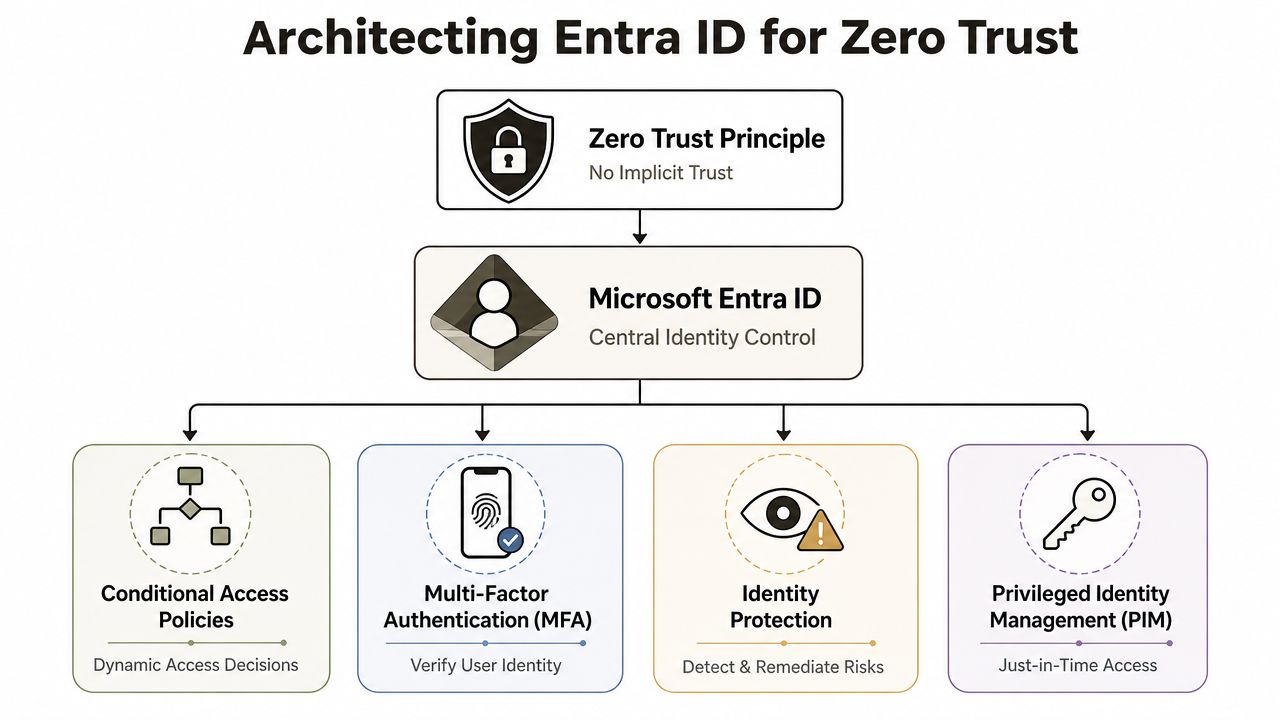
Entra ID is where regulated organisations either impose control or create a polished-looking mess with valid credentials, excessive access, and no clean way to contain an incident. Microsoft gives you the parts. It does not give you a safe design for your specific mix of legacy authentication, compliance obligations, privileged access, and line-of-business dependencies. Treating that gap like a checklist item is how teams end up loosening policy in production because they never tested the ugly edge cases.
Start with sign-in control, not directory sync
A synced directory is not an identity strategy. It is table stakes.
The common amateur move is predictable. Sync users from on-premises, switch on MFA, create a few broad Conditional Access policies, then declare Zero Trust "in place". In a regulated environment, that approach breaks the moment a privileged account is overexposed, a legacy protocol stays active for one forgotten workflow, or an unmanaged device gets a clean path to sensitive data.
Your design should enforce policy at the point of access:
- MFA for all interactive sign-ins: No exceptions for convenience.
- Conditional Access based on device compliance and app sensitivity: Managed device requirements should tighten as data sensitivity rises.
- Separate admin identities: Daily accounts should not carry standing administrative privilege.
- Risk-based sign-in handling: High-risk sessions need stronger controls, forced remediation, or outright blocking.
- Legacy authentication shutdown: If old protocols remain available, attackers will use them.
If your team needs a useful outside perspective on why centralised identity matters in distributed environments, SnapDial's UCaaS login insights make the broader operational case well. Different platform, same operational problem. Fragmented identity creates avoidable risk and support debt.
Required controls
You do not need dozens of policies. You need a small set that is tested, documented, and hard to bypass.
| Control area | What to enforce | Why it matters |
|---|---|---|
| User sign-in | MFA and Conditional Access | Cuts off weak-password abuse and casual account takeover |
| Device trust | Access based on compliance and managed state | Stops personal or unhealthy devices from becoming a data exit route |
| Admin privilege | Privileged Identity Management and role separation | Shrinks the blast radius when an admin account is compromised |
| Session control | App restrictions and session limits where required | Reduces uncontrolled downloads, copy-out, and persistent risky sessions |
A compromised cloud account is not a minor support issue. It is an internal breach performed with approved access.
Where tool-led designs fall apart
Regulated tenants face significant detriment. A migration tool can move identities and a consultant with a generic runbook can switch on policies, but neither one understands the political and technical cost of getting exclusions wrong.
We keep seeing the same failure pattern. Broad access policies get applied to everyone. Emergency exclusions pile up because line-of-business apps were never assessed properly. Service accounts stay messy. Legacy authentication remains enabled "for now". Then one executive, one shared device, or one vendor workflow breaks, and the internal team weakens controls across the tenant instead of fixing the dependency. That is not Zero Trust. That is panic-driven exception management.
Privileged access causes the most expensive incidents. If admins browse, read email, and perform privileged tasks from the same identity and endpoint, you have already accepted unnecessary risk. Stolen tokens, consent phishing, and session hijack attacks do not care that your project plan says MFA is enabled.
For a more detailed view of the control model, our guidance on Microsoft Entra ID architecture explains what should be in place before broad collaboration access goes live.
Taming the Data Sprawl with a SharePoint IA That Works
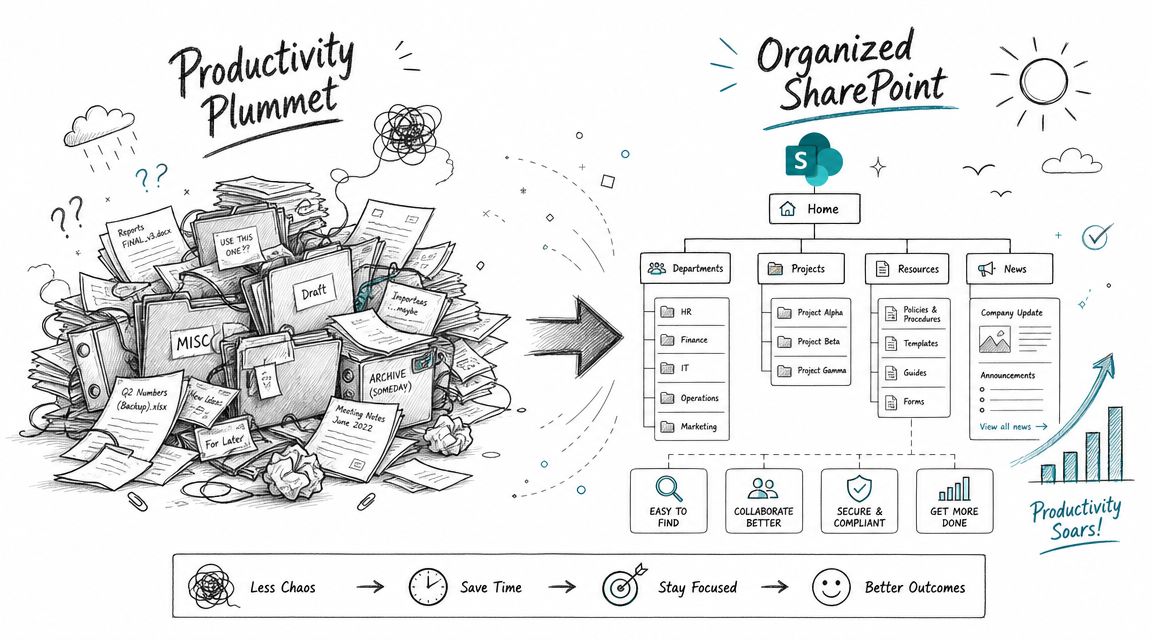
The classic DIY mistake is simple. Somebody points a migration tool at a file share, recreates the folder tree in SharePoint, and calls that “modern work”. It isn't modern. It's a badly relocated file server with worse search and more places to hide broken permissions.
Microsoft's research showed that time spent in Teams meetings more than doubled to 2.5x, average meeting length rose from 35 to 45 minutes, and there were 42% more chats per person after hours in the Microsoft Work Trend Index visual guide. That increased activity directly stresses your information architecture. More chats, more meetings, more shared files, more ad hoc collaboration. Without a controlled plan, volume turns into permission sprawl and governance failures like broken inheritance.
The failed migration we keep seeing
A regulated client arrives with years of nested folders, duplicated departmental shares, and permissions nobody fully understands. Their internal team uses SharePoint like a destination disk. They create huge libraries, preserve every subfolder, and copy over years of permission exceptions because “the business needs it exactly as-is”.
Then the cracks appear.
- List view thresholds create ugly user experiences in oversized libraries. Microsoft Learn confirms the 5,000 item threshold issue that planners must respect.
- Long path structures cause migration and sync pain. Microsoft documentation also confirms path length constraints that punish extensively nested structures.
- Broken inheritance spreads subtly because people keep fixing access one folder at a time.
- Search quality collapses because the structure reflects historic storage habits, not how users access information.
The documentation says use sites, libraries, metadata, and hubs. In reality, most organisations need someone to force the hard decisions before migration starts.
The model that holds up
A durable SharePoint design usually looks more like a hub-and-spoke estate than a giant content swamp.
Use this pattern:
- Communication sites for publishing: Policies, leadership content, controlled intranet material, reference information.
- Team sites for working content: Departmental collaboration, project delivery, operational documents, task-focused content.
- Separate libraries by function and sensitivity: Don't dump records, drafts, and active collaboration into one library because it feels simpler.
- Metadata where retrieval matters: Use folders sparingly. Use metadata where classification, filtering, and retention need to work.
If you're aligning architecture with security principles, understanding Zero Trust security is useful context. The key point applies directly to SharePoint. Access design and data design must reinforce each other. If they don't, users will work around both.
What to do before moving anything
A proper IA workshop should answer a few blunt questions.
- Who owns each site? If ownership is vague, access control will drift.
- What belongs in Teams-backed sites versus standalone SharePoint sites? Mixing them carelessly creates duplication and confusion.
- Which content types need retention or stricter handling? Missing this step doesn't just create clutter. It can break legal compliance.
- Which legacy paths should die? Not every folder deserves a new life in Microsoft 365.
Old file shares preserve history. Good SharePoint architecture preserves control.
For organisations building internal publishing and collaboration together, our work on a SharePoint Online intranet strategy is relevant because IA decisions for intranet, Teams, and document management should never happen in isolation.
The Migration Minefield Why Standard Tools Fail at Scale
Let's stop pretending tools are strategies.
Standard migration tools are useful. They are not enough. If your environment is small, your permissions are clean, and your tolerance for edge-case cleanup is high, a tool can get you over the line. In a regulated estate, with ugly source data and audit pressure, tool-only planning is where projects go to die.
Side-by-side reality
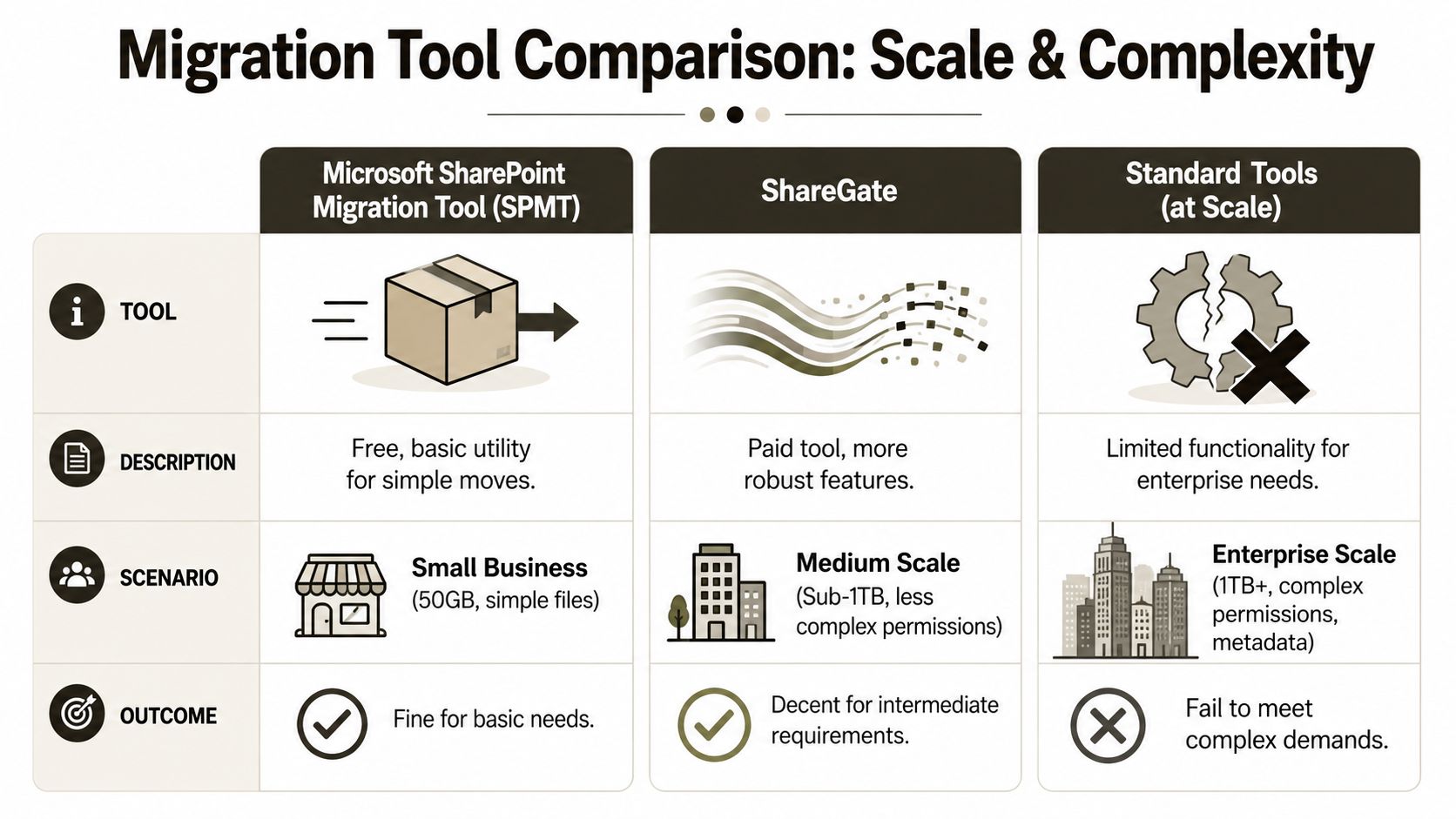
| Option | Where it fits | Where it breaks |
|---|---|---|
| SPMT | Small, basic moves with simple file structures | Limited once complexity, remediation, and validation become serious concerns |
| ShareGate | Mid-sized migrations where reporting and control need to improve | Still not enough on its own for gnarly permissions, custom remediation, and enterprise validation |
| Custom scripting with tool support | Complex, regulated, high-risk estates | Requires specialist design and execution, but that's the point |
SPMT is fine for a modest move. ShareGate is a decent tool for many sub-enterprise scenarios. Neither removes the need for source remediation, test migrations, delta logic, post-migration validation, and permissions cleanup.
Where the project slips
We often see clients fail when they trust the migration dashboard more than the source reality. A tool says “complete” and everyone relaxes. Meanwhile:
- API throttling stretches the schedule and breaks assumptions about cutover timing.
- Broken inheritance gets migrated, preserved, or worsened because nobody redesigned access first.
- GUID conflicts and object mismatches create subtle integrity problems that users discover after go-live.
- Validation gets skipped because the team spent the schedule on moving content, not proving the destination works.
If you're still carrying legacy SharePoint baggage, how to avoid SharePoint 2010 issues is a useful reminder that old platform decisions tend to survive longer than planned. Migration debt compounds when organisations treat unsupported or badly structured estates as something a wizard can clean up automatically.
The Ollo verdict
Use SPMT for very small, straightforward jobs. Use ShareGate when the estate is moderate and you still have room to correct source problems before the move. For anything materially complex, especially in regulated environments, you need scripted control around the toolset.
That usually means pre-migration scanning, structured remediation, staged batches, delta sync logic, and post-migration validation scripts. It also means knowing when the destination IA must change before you move a single file. Our article on why migration tools fail and code is mandatory covers that in more depth.
Ollo uses ShareGate and custom PowerShell/PnP scripting in those scenarios because the tool handles part of the move, while code handles the reality the tool can't interpret. That's not a preference. That's risk reduction.
Ollo Verdict: Use SPMT for very small estates. Use ShareGate for moderate complexity. For regulated enterprise migration, tools are components, not solutions. You need custom scripting and controlled validation or you're gambling with your data.
Securing the Endpoint with Intune and OneDrive Policies
Endpoint control is where regulated hybrid work usually falls apart.
DIY Microsoft 365 setups tend to focus on access first. Teams works, mail flows, SharePoint opens, and everyone declares success. Then regulated data lands on an unmanaged laptop, syncs into a personal profile, and the security team discovers that "cloud rollout" was really just broad distribution with weak controls.
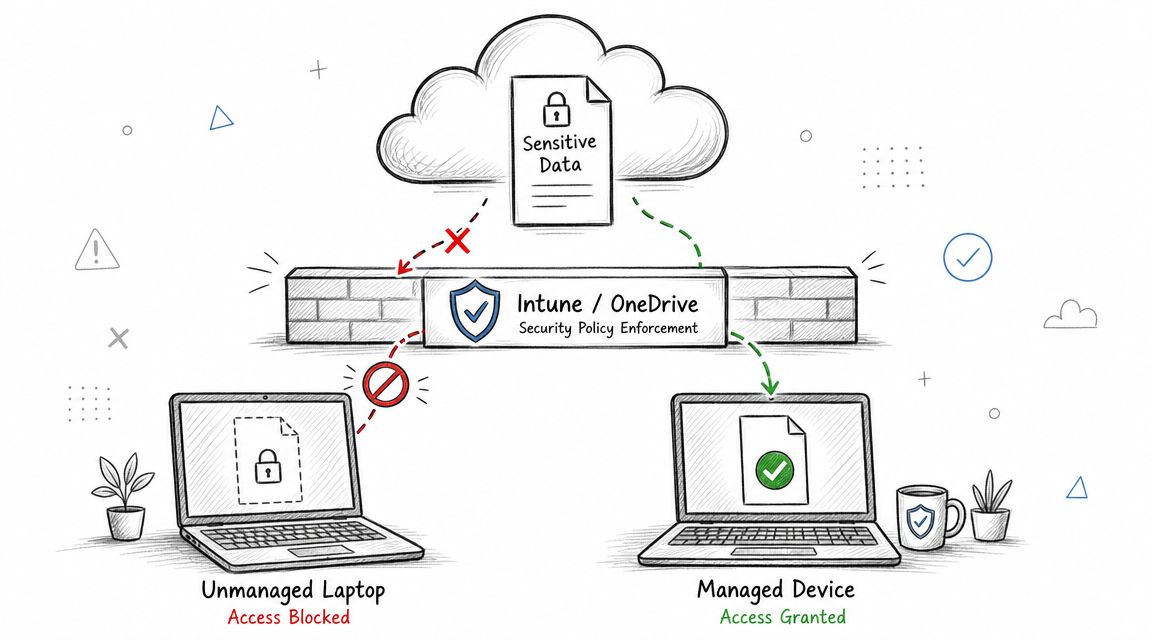
Microsoft gives you the parts. It does not save you from bad sequencing. In regulated environments, Intune, Conditional Access, and OneDrive policies have to be designed as one control plane. If different admins configure them in isolation, you get contradictions, exemptions, and blind spots. That is how sensitive files end up cached on devices nobody intended to trust.
The minimum endpoint baseline
Start with policy enforcement, not convenience.
Your endpoint baseline should combine these controls from day one:
- Compliance policies: Block access from devices that are unmanaged, tampered with, or missing required security controls.
- Conditional Access tied to compliance: Use device state to permit or deny access. Reporting without enforcement is theatre.
- App protection for BYOD: Keep business data inside managed mobile apps and stop casual copy-out to personal storage.
- OneDrive sync restrictions: Limit sync to approved tenant contexts and approved device states.
- Enrollment standards: Define who can enroll, what platform versions are allowed, and which ownership models are acceptable.
Miss one of these and users will find the gap. They always do.
OneDrive is a data movement engine
Plenty of admins still treat OneDrive as a harmless user benefit. That is a mistake. In a regulated estate, OneDrive is an endpoint data channel that needs the same discipline as email, USB control, and external sharing.
Known Folder Move is the classic example. It can improve resilience and user experience. It can also spray locally held files into the wrong place, preserve bad folder habits, and create new retention problems if you deploy it without tenant restrictions, sync rules, and device conditions. Tool-assisted setups rarely catch that because the wizard only confirms that the feature is enabled. It does not tell you whether the policy model makes sense.
A safer operating model looks like this:
| Area | Policy direction | Why it matters |
|---|---|---|
| Device enrolment | Require managed or approved access path | Prevents regulated data landing on unknown endpoints |
| BYOD access | Use app protection and limit local storage | Allows personal device access without surrendering control |
| OneDrive sync | Restrict sync to approved tenant context and compliant devices | Stops business content mixing with personal estates |
| Data controls | Align with DLP, retention, and sensitivity labels | Keeps endpoint rules consistent with information risk |
Here's a useful walkthrough on the endpoint side before you start broad rollout:
What usually gets missed
The most common failures show up in policy interaction, not in the basic setup screens.
- Compliance without enforcement: Devices get marked non-compliant, but users still reach SharePoint, Exchange, or Teams because Conditional Access was left too broad.
- OneDrive without device conditions: Sensitive libraries sync to machines that should only ever get browser-based or app-protected access.
- BYOD without app protection: Mobile access turns into unmanaged local storage with a corporate login on top.
- Enrollment without platform standards: Old operating systems and lightly managed personal devices get treated as acceptable because nobody defined the line properly.
- Policy rollout without user handling rules: Staff hit a new block, assume IT is broken, and route documents through personal email or consumer file-sharing tools.
This is the part Microsoft guidance tends to understate. The tenant can look correctly configured while still failing your control objectives. In regulated environments, that gap matters more than the admin centre screenshot.
For organisations tightening endpoint controls before wider collaboration rollout, our guide to Microsoft Intune setup and policy planning is the right starting point. If the endpoint is loosely governed, your hybrid work setup is not secure.
Beyond Setup A Roadmap for Governance and Adoption
The technical build isn't the end of the project. It's the point where entropy starts fighting back.
Often, the hybrid work bottleneck is operational. Meeting equity, asynchronous work culture, and user adoption decide whether the platform supports the organisation or frustrates it, as discussed in Microsoft's hybrid work operating model conversation. That gap is especially obvious in Irish organisations. Generic setup guides tell you what to enable. They don't tell you how to turn Microsoft 365 into a controlled way of working.
Governance has to own the estate
If nobody owns naming, lifecycle, sensitivity, and site purpose, the environment drifts fast. Teams appear for short-term work and never die. SharePoint sites outlive projects. Channels become document stores. Nobody knows which workspace is authoritative.
Your governance model should assign named ownership for:
- Teams and Microsoft 365 Groups
- SharePoint sites and hubs
- Retention responsibilities
- External sharing approvals
- Lifecycle and archival decisions
A governance committee sounds bureaucratic until you've seen the alternative. The alternative is tenant sprawl managed by whoever clicked “Create” first.
Adoption needs operating rules, not posters
Most “adoption” plans are weak because they confuse feature awareness with behavioural change. Users don't need another launch deck explaining that Teams has chat, meetings, and files. They need rules for when to use each tool and what good behaviour looks like.
That means practical standards such as:
- Use channel conversations for shared work, not private email chains.
- Use SharePoint for durable documents, not chat attachments as a records strategy.
- Use meeting recordings and notes deliberately, not by default with no ownership.
- Use async updates where possible so meetings stop eating the working week.
Hybrid work doesn't fail because the features are missing. It fails because the organisation never decided how people should use them.
The operating model that survives
A sustainable hybrid work Microsoft 365 setup has four traits.
- Clear ownership: Every workspace has a business owner and a technical policy boundary.
- Controlled creation: Users can collaborate without creating an ungoverned sprawl factory.
- Lifecycle automation: Old teams, groups, and sites get reviewed, archived, or removed.
- Measured adoption: Support focuses on workflow change, not just ticket closure.
That's where many internal projects stall. The engineers build the platform. Nobody translates it into working practice. Six months later, the tenant is full of duplicate teams, unmanaged guest access requests, confused document locations, and leadership complaints that “Microsoft 365 is messy”.
If you want the environment to stay supportable after launch, the technical controls and the adoption model have to be designed together. Our guidance on a Microsoft 365 adoption strategy focuses on exactly that problem.
If your organisation is planning a hybrid work Microsoft 365 setup and you can't afford a governance failure, a bad migration, or an endpoint control gap, talk to Ollo. We work on regulated Microsoft 365 and SharePoint programmes where risk matters more than feature demos, and we're often brought in after a DIY rollout has already started to go wrong.

















