



Let's be direct. Your last legacy system to SharePoint migration was supposed to be a straightforward IT project. Instead, it devolved into a firefight of blown budgets, operational chaos, and broken promises from vendors. You were sold a “seamless transition” but ended up with a Frankenstein’s monster of old problems festering inside your shiny new Microsoft 365 tenant.
Sound familiar? You’re not alone.
This isn’t another marketing piece pushing a generic checklist. This is a damage report from the trenches, written for the IT Directors and Enterprise Architects who've been burned before and simply cannot afford another project failure. The core problem is almost always the same: mistaking a complex systems integration for a simple file copy operation.
Most projects go off the rails because they treat this process as a "lift and shift." Your team gets fixated on moving terabytes, but they completely ignore the real threats lurking inside the data:
- Entangled Data Structures: Decades of unmanaged file shares, folders nested 20 levels deep (violating path limits), and naming conventions that make zero sense.
- Broken Security Models: A tangled mess of custom permissions, broken inheritance, orphaned SIDs, and access rights tied to employees who left the company years ago.
- Technical Debt: Piles of unsupported file types, corrupt documents, and metadata that is either missing or actively contradicts your new governance model.
The Catastrophic Cost of "Good Enough"
The real goal of a migration is to leverage the full power of a modern document management system software like SharePoint, not just to move files from A to B. But time and again, we see clients declare victory the moment the last terabyte is copied. They’ve followed the technical plan, but in reality, they’ve only moved their problems into a more sophisticated—and more dangerous—environment.
We often see clients fail when they treat post-migration clean-up as a "Phase 2" project. These projects fail at a staggering rate—north of 90%. This happens because organisations treat the migration as a logistical task. When all that legacy data—with its inconsistent properties and murky access levels—is dumped ‘as-is’ into SharePoint Online, the Microsoft Graph and Copilot immediately start indexing the chaos. You are actively poisoning your AI and compliance tools from day one.
For anyone in regulated sectors like finance, pharma, or energy, this isn't an academic point. It's a governance crisis waiting to happen. Missing this step doesn't just fail the migration; it breaks legal compliance.
The Ollo Verdict: A legacy system to SharePoint migration is not an IT task; it's a business-critical risk management exercise. A 'lift and shift' approach guarantees you will import every historical security flaw and piece of data chaos you were trying to escape.
This guide lays out a battle-hardened strategy that treats your data, security, and compliance as non-negotiable. It’s designed for leaders who need to present a risk-mitigated path forward, not just a technical plan. We'll dissect the critical failures we see every day and give you an actionable playbook to ensure you get it right this time.
Deconstruct Your Legacy System Before Moving A Single File
Here’s the single most important piece of advice for your legacy system to SharePoint migration: don't migrate anything. Not yet. Before a single file is staged, you must perform a brutal, honest audit of what your organization actually has.
I’ve seen too many projects go off the rails because a team trusted the built-in reporting from their old file server or legacy ECM.
The documentation says you can trust those reports. In reality, they lie.
The truth is, your source system is almost certainly a disaster zone of tangled folders, bizarre permissions, and data owned by accounts that haven't been active in a decade. A "lift and shift" migration based on that bad information doesn't just fail—it actively pollutes your new Microsoft 365 environment with old security risks.
Building an Inventory That Measures Real-World Risk
You cannot rely on a high-level file count. The only way to start this journey is to treat your old data like a digital crime scene and build an inventory that quantifies your actual risk. As you start to think about how to modernize legacy applications, remember that a deep, forensic understanding of your data is the only defensible first step.
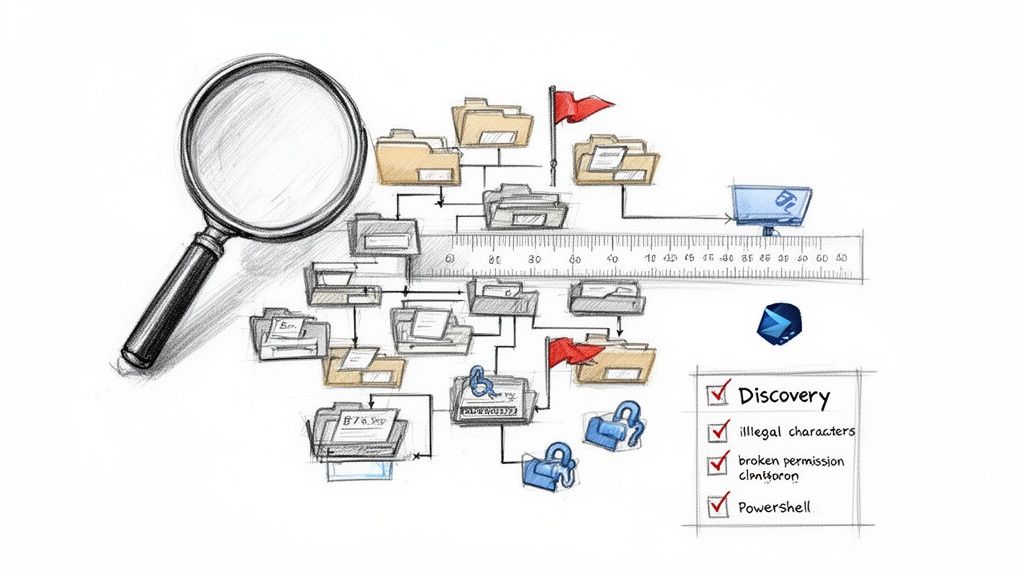
This means getting your hands dirty with targeted PowerShell scripts that crawl every dark corner of your source system. The goal isn't just counting files; it's creating a detailed risk register.
Your scripts need to hunt for and flag these specific deal-breakers:
- Path Length Violations: Every file path that sails past SharePoint Online's 400-character limit. These files will simply fail to migrate. The tool won't give you a neat warning; the item will just be missing.
- Illegal Characters: Files with names containing
~, #, %, &, *, {, }, <, >, ?, /, \, |. Your migration tool will either crash or rename them on the fly, breaking embedded links and causing absolute chaos for users trying to find their files. - Oversized Files & List View Thresholds: Any individual file exceeding SharePoint's size limits, or any folder containing more than the infamous 5,000 items, which will break views and cripple performance.
- Broken Permission Inheritance: This is the big one. You need to find every single folder or file where someone manually broke the permissions chain. Each instance is a security hole you must remediate before you migrate, not after.
From Forensic Audit to an Actionable Plan
This deep dive gives you the data you need to build a real migration playbook. Instead of a vague goal like "move the sales drive," you now have a concrete list of problems to solve.
You can now report that the "Sales" drive actually contains 7,000 files with illegal characters and 350 folders with broken permissions that expose sensitive data. This isn't an abstract headache anymore; it's a measurable risk with a clear path to remediation.
The Ollo Verdict: Blindly trusting your legacy system’s own reports is a critical mistake. You must build your own ground truth with custom scripts. The data you uncover in this discovery phase will dictate your entire migration strategy, from tool selection to your security redesign.
Skipping this step doesn't just create migration errors; it makes achieving legal and security compliance in your new Microsoft 365 setup impossible. You’ll end up migrating sensitive PII, expired records, and data with no clear owner straight into a collaborative environment. That’s not a technical hiccup; it’s a governance catastrophe. For a closer look at structuring modern content, our guide on document management system migration is a good next step. This initial deconstruction is the only way to ensure your project delivers a modernized, secure system, not just a more expensive version of your old problems.
Redesigning Your Security Model, Not Replicating It
If there's one mistake that will guarantee the failure of your legacy system to SharePoint migration, it's attempting to lift and shift your old permissions model. We see it all the time. Companies treat their existing security structure—a chaotic web of nested Active Directory (AD) groups and one-off folder permissions—like a precious asset. It’s not. It's a technical liability.
Trying to make SharePoint Online behave like your 20-year-old file server is a recipe for catastrophic failure. This isn’t about giving your old model a fresh coat of paint; it's a complete teardown and rebuild. The goal is a modern, flat security architecture built on Microsoft 365 Groups and Entra ID, not a digital museum for your old problems.
The Broken Inheritance Trap
The most dangerous baggage you're carrying from your legacy system is broken inheritance. Every time someone right-clicked a folder and granted unique access, they created a tiny hole in your security perimeter. After a decade, you’re not dealing with a few exceptions; you have tens of thousands of them.
Copying this mess into SharePoint Online is a critical error. The documentation says you can. In reality, it doesn’t just make your new environment a nightmare to manage; it actively creates thousands of potential data spillage points, stripping you of any real central control or auditability.
This is exactly why that initial forensic discovery phase is non-negotiable. Your PowerShell scripts need to do more than just find these instances. They have to map out exactly who has access to what, giving you the intelligence to design a new model instead of blindly migrating a broken one. Skipping this step doesn't just complicate things; it fundamentally breaks your ability to govern your own environment.
Shifting to a Zero-Trust, Group-Based Model
The only sensible path forward is to abandon file-level permissions entirely. You must build a new security model from the ground up, moving from that old, porous framework to a modern, zero-trust approach.
Here's what that looks like in practice:
- Microsoft 365 Groups, Not AD Groups: Forget those bloated, decade-old AD security groups. The modern approach is to create clean Microsoft 365 Groups for each team or project. Access is then granted to the Group, not to individuals. This ties permissions to a function, not a person, and keeps management centralized.
- One Site, One Permission Level: Think of a SharePoint site as a single security container. The "Finance Department" site, for instance, should have one M365 Group tied to it. Every member of that group gets the same level of access to everything inside. Simple, auditable, defensible.
- No More Nested Folders: Modern SharePoint's flat architecture, combined with metadata, makes deep folder structures obsolete. This design inherently discourages the bad habit of breaking permissions on a sub-folder, which is where most of the chaos started in the first place.
This model is clean, auditable, and managed through Entra ID. It's the only way to operate securely at scale. If you want to go deeper on this, you can learn more about SharePoint migration security in our dedicated article.
The Hidden Danger of GUID Conflicts
In more complex projects, particularly tenant-to-tenant migrations, another technical nightmare awaits: GUID conflicts. Every user, group, and object in Microsoft 365 has a unique identifier. When you merge tenants or bring users over from a different directory, those identities often don't line up.
We’ve seen migrations grind to a halt because the tool couldn't map the old user "John.Smith" to the new "J.Smith" in the target tenant. This creates orphaned data, where files are migrated but are owned by no one. Worse, it can assign permissions to the wrong people entirely, creating a massive data breach.
The Ollo Verdict: Your migration plan must include a clear, tested strategy for identity re-mapping. This almost always requires custom scripting to create a mapping table that translates old GUIDs and user principal names (UPNs) to their new counterparts. Simply trusting a tool's default mapping is a gamble you cannot afford to take.
Ultimately, this security redesign is the single most critical part of your legacy system to SharePoint migration. Getting it wrong doesn't just mean a messy SharePoint site. It means you've spent a fortune to build a prettier prison for your old problems, failing to secure your organization's data for the modern era.
Selecting Your Migration Toolkit: A Cynic's Guide
The migration tool market is flooded with vendors promising one-click solutions. Let's be blunt: this is marketing fiction. From an enterprise architect's perspective, treating any off-the-shelf tool as a silver bullet is the fastest route to a failed legacy system to SharePoint migration.
Here, we'll give you a brutally honest assessment of your options, framed by lessons learned from high-stakes projects. Your team will inevitably look at two categories: Microsoft's free offering and paid third-party software. Both have a place, but understanding their specific breaking points is what separates a successful project from a disaster.
The SharePoint Migration Tool (SPMT): When Free Becomes Expensive
Microsoft provides the SharePoint Migration Tool (SPMT) at no cost. The documentation suggests it's a viable way to move files from on-premises shares into SharePoint Online. For the simplest of scenarios, this is true.
In reality, we often see clients attempt to use SPMT for enterprise migrations, and the results are predictably catastrophic. Its limitations aren't just inconveniences; they are project killers.
- No Real Permission Transformation: SPMT cannot handle the complex security redesign we just discussed. It attempts a crude 1:1 mapping but has zero capability to transform broken inheritance or remap users in tricky GUID conflict scenarios. It will fail silently.
- Blind to API Throttling: The tool has only a rudimentary awareness of Microsoft's API throttling limits. When it hits them, it stops and retries, often leading to migrations that drag on for weeks longer than planned, with no transparency into why.
- Cryptic Reporting: When a file fails to migrate due to a long path or illegal character, SPMT's error logs are cryptic at best. Your team will burn hundreds of hours trying to decipher failure reports instead of fixing the root cause.
The Ollo Verdict: Use SPMT for a single, non-critical file share under 50GB with simple permissions. For anything else, you need custom scripting and a commercial tool. Relying on SPMT is an act of professional negligence. The "cost" of this free tool comes in the form of project delays, data loss, and the inevitable expense of a rescue mission.
Third-Party Tools: The Power and the Peril
This brings us to commercial tools like ShareGate. Let's be clear: these tools are powerful and absolutely necessary for any serious migration. They provide robust pre-migration analysis, detailed reporting, and the ability to handle large volumes of data far more effectively than SPMT.
However, even the best third-party tools have breaking points. We see clients fail when they expect the tool to be a strategist. It's not. A tool like ShareGate can report on broken inheritance, but it cannot design your new Microsoft 365 Group-based security model. It can migrate files quickly, but its performance degrades when tasked with complex, on-the-fly permission transformations across millions of items.
If you're interested in a more detailed breakdown, you can read our deep dive on the SharePoint migration tool landscape for more context.
To cut through the noise, here's a reality check on the tools you'll likely encounter.
Migration Tool Reality Check
| Tool | Advertised Strength | Enterprise Breaking Point | Ollo Verdict |
|---|---|---|---|
| SharePoint Migration Tool (SPMT) | Free, easy for simple file shares | Complex permissions, large volumes, API throttling, error reporting, no transformation logic | A liability for anything beyond a small team folder. Do not use for enterprise content. |
| ShareGate | Excellent reporting, user-friendly UI, good for bulk moves | Complex on-the-fly permission transformations at scale, struggles with extreme file counts (tens of millions) | The best heavy-lift vehicle, but requires surgical PowerShell support for complex security remediation. |
| AvePoint Fly | Strong governance features, good for multi-geo, tenant-to-tenant | Steeper learning curve, can be overkill and more expensive for straightforward legacy migrations | A solid choice for complex M365-to-M365 moves, but less focused on legacy-to-cloud than others. |
| Pure PowerShell PnP | Absolute precision, total control over logic, best for remediation | Slow for bulk data transfer, requires significant developer expertise, no user interface | Your surgical instrument. Essential for analysis, remediation, and validation. You cannot succeed without it. |
As the table shows, there's no single tool that does it all. Relying on just one is a recipe for failure.
The Only Defensible Approach: The Hybrid Arsenal
For any enterprise-grade legacy system to SharePoint migration, a single tool is never the answer. The only defensible approach is a hybrid one that combines the brute force of a commercial tool with the surgical precision of custom scripting.
This is how engineered outcomes are achieved:
Pre-Migration & Remediation (PowerShell): Your team uses custom PnP PowerShell scripts to perform the deep forensic analysis we outlined earlier. These scripts find the problems—long paths, GUID conflicts, broken inheritance—and then fix them at the source before the migration begins.
Bulk Transfer (Commercial Tool): With the data cleansed and permissions pre-staged, you use a tool like ShareGate for what it does best: moving the cleansed data and metadata from point A to point B, at scale.
Post-Migration Validation (PowerShell): After the transfer, you deploy another set of PowerShell scripts to validate the outcome. These scripts crawl the target SharePoint environment and compare it against the source inventory, verifying file counts, metadata integrity, and—most importantly—that your new security model has been applied correctly.
This isn't about choosing one tool over another. It's about architecting a process where each component is used for its specific strength. The commercial tool is your heavy-lifting vehicle, but PowerShell is your surgical instrument. Relying on one without the other is the difference between a high-risk gamble and a predictable, successful project.
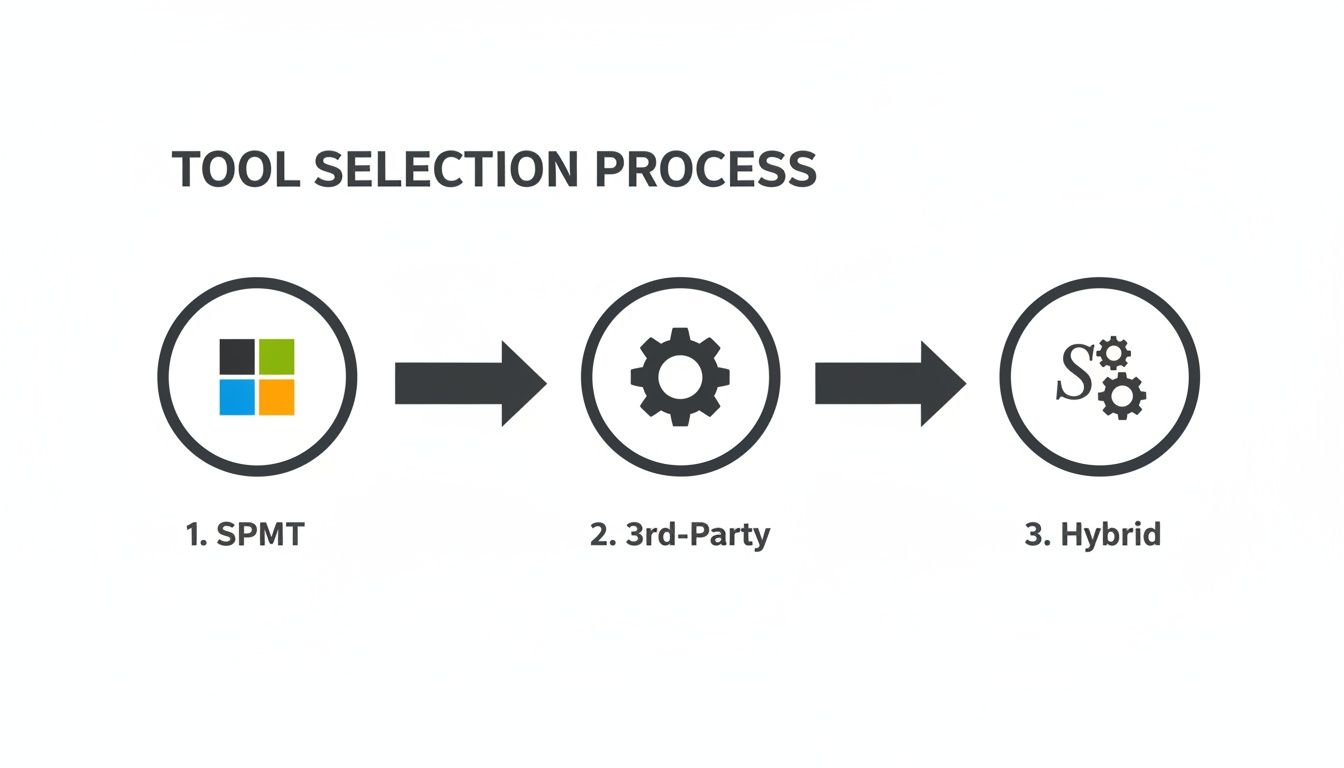
As you can see, the more complex your project gets, the less you can rely on a single tool. For any serious enterprise migration, a hybrid approach isn't just an option; it's a necessity.
Microsoft's documentation might mention API throttling, but what it doesn't convey is the sheer operational paralysis this mechanism can cause when you're staring down a deadline. Push too much data, too fast, and your migration will simply grind to a halt. It’s not a gentle warning; it’s an automated kill switch designed to protect the service for all tenants.
We often see clients fail when they treat the migration like a simple data copy, running their tools at full blast during business hours. This doesn't just slow down the migration; it degrades performance for the entire tenant, impacting your active users who are just trying to get their work done.
Working Around Throttling, Not Against It
You can't fight throttling. Don't even try. Instead, you must build your execution plan around it. This means moving beyond a simple "start and stop" mindset and adopting an intelligent, wave-based approach that respects the platform's limits.
Your migration plan must be broken down into discrete waves of content, scheduled with military precision.
- Run Heavy Lifts Off-Hours: Your primary migration engine—the one moving the bulk of the data—should run exclusively outside of core business hours. This is absolutely non-negotiable for preserving tenant performance.
- Rely on Intelligent Batching: A brute-force "all at once" approach is a surefire way to get throttled. Your scripts or tools need to be configured to package data into smaller, manageable batches with built-in pauses to stay under API request thresholds. This is a delicate balancing act that demands constant monitoring.
- Plan for a Delta Sync: Your initial bulk migration might take days or even weeks. During that time, your users will continue modifying files in the old system. A "delta" migration is critical to capture these last-minute changes just before the final cutover, ensuring no data gets left behind.
This is precisely why relying on a basic, fire-and-forget tool is so risky. You need the ability to fine-tune the migration engine's speed and intensity on the fly.
User Acceptance Testing That Actually Works
Another common point of failure is a superficial User Acceptance Testing (UAT) plan. A UAT that only asks, "Did my files arrive?" is utterly useless. It creates a false sense of security that will shatter the moment users try to actually do their jobs.
A rigorous UAT plan validates the entire experience, not just file presence. Your test group must be able to confirm:
- Permissions Are Watertight: Can users access exactly what they should? And, just as importantly, are they blocked from accessing what they shouldn't? This is the real test of your new security model.
- Metadata Is Intact: Has the critical metadata from the source system been migrated and applied correctly? Does search work as expected based on these tags?
- Workflows Actually Trigger: If you've rebuilt any business processes in Power Automate, do they fire correctly when a document is added or modified in its new home?
Missing this step doesn't just frustrate users; it can break critical business processes that depend on the right metadata or permissions being in place.
Planning the Cutover: The Point of No Return
Finally, we arrive at the cutover. Assuming this will go smoothly is a rookie mistake that can lead to operational chaos. A successful cutover should be an anticlimax, the quiet result of meticulous planning.
The Ollo Verdict: Your cutover strategy must be defined before the first file is ever moved. This includes a documented and fully tested rollback plan. Anyone who tells you a rollback plan isn't necessary is someone who has never had to execute one under pressure.
At a minimum, your cutover plan must include:
- A Hard Cutover Date: Communicated clearly, weeks in advance.
- Legacy System Lockdown: On the day of the cutover, the legacy system must be set to read-only. This stops data drift at the source and prevents last-minute confusion.
- Final Delta Sync: The final sync is run to capture any changes made between the main migration and the lockdown.
- A Documented Rollback Plan: What are the exact steps, triggers, and who is the final decision-maker to revert to the legacy system if UAT reveals a show-stopping issue?
A well-planned execution phase manages risk at every step, from API throttling to the final go-live. To see how these principles apply in more advanced scenarios, check out our guide on achieving a zero-downtime SharePoint migration.
The First 90 Days: Winning the Human Battle After Go-Live
The technical cutover isn’t the finish line for your SharePoint migration; it's the starting gun for the adoption war. I’ve seen it time and again: the most expensive migration failures don’t happen because of a lost file or an API throttling issue. They happen three months after go-live, when your teams, frustrated and confused, have quietly abandoned the new system and reverted to emailing attachments and hoarding critical files on their desktops.
A technically perfect migration is completely useless if nobody adopts it. Your focus must now shift from the technical to the human. Success isn't measured by a lack of support tickets; it’s measured when you see your teams actively collaborating in SharePoint instead of falling back into old, risky habits.
Moving Beyond “Checkbox” Training
So many organizations set themselves up for failure by treating training as a single, one-hour webinar scheduled a week after launch. This approach is doomed.
Your users, especially in regulated industries, are inherently skeptical. They've seen new systems come and go, and their default position is resistance. Showing them a generic video on how to upload a file is an insult to their intelligence. You have to answer their real, unspoken question: "What's in it for me, and how is this not going to make my job harder?"
The Ollo Verdict: If your post-migration support plan is just a shared inbox for helpdesk tickets, you've already lost. You need proactive, on-the-ground champions who make users feel empowered, not stupid.
This calls for a completely different playbook. Your plan for the first 90 days must be an aggressive, hands-on campaign of support and reinforcement.
- Deploy ‘Floor Walkers’ and Champions: For the first few weeks, you need designated experts—from your own team or a partner like Ollo—who are physically or virtually present. Their only job is to answer questions, show off role-specific benefits, and build confidence.
- Deliver Role-Specific Training: Stop showing the finance team how the marketing department uses metadata. Create short, sharp training sessions that solve a real problem for a specific team. Show finance how version history and approval workflows can eliminate the email chaos of their month-end closing process.
- Create Obvious Support Channels: Set up a dedicated Teams channel for migration support where users can get quick, visible answers. This helps everyone learn from each other’s questions and makes people feel less isolated when they get stuck.
The 90-Day Governance and Adoption Playbook
The human element is where most of these projects crumble. We have seen that organizations investing in comprehensive change management see a 94% success rate—a world away from the failure rates of those who just focus on the tech. This isn't an accident; success is driven by a deliberate, human-centered strategy.
Your focus must shift to monitoring adoption, refining governance based on real-world use, and relentlessly reinforcing the "why" behind the migration. Here’s what your plan should look like for this critical period:
- Monitor Adoption Metrics: Use the Microsoft 365 adoption reports. See who is using the platform and, more importantly, who isn't. If a whole department is lagging, dispatch your champions to provide targeted, hands-on help.
- Refine Permissions Iteratively: No security model is perfect on day one. Expect to make adjustments. Monitor access requests and usage patterns to make small, continuous tweaks to your M365 Groups and permissions.
- Relentlessly Communicate the 'Why': Constantly broadcast the wins, no matter how small. Share success stories of how a team used SharePoint to solve a real business problem. This builds momentum and starts turning your biggest sceptics into advocates.
This 90-day window will ultimately determine the ROI of your entire migration. Getting this part right is what turns a costly technical project into a genuine business transformation. For those looking to put a concrete structure around this crucial phase, we have a detailed guide on building an effective SharePoint migration training program.
A Few Questions We Hear from the Trenches
We get asked the same questions on every high-stakes migration project. Here are the two most common, with our direct, in-the-field answers.
"Can't our team just use the free SharePoint Migration Tool for this?"
It's a tempting thought. The tool is free and it comes directly from Microsoft, so it must be good enough, right?
For a tiny file share—maybe under 50GB with dead-simple permissions—you might get away with it. For any serious enterprise migration, relying on SPMT is like trying to move a house with a wheelbarrow. It is not built for the job.
SPMT completely falls apart when it meets the real world of complex permissions, broken inheritance, GUID conflicts, and API throttling. It can't perform permission transformations, offers almost no useful reporting for validation, and will choke on large volumes of data. We've been called in on more than one "rescue project" where a company tried to save money with SPMT and ended up with a stalled, half-finished migration and a data integrity crisis.
The takeaway: Using a free, basic tool for an enterprise-grade job is a high-risk gamble. The initial "savings" are almost always wiped out by the cost of fixing the mess later. This is the definition of a false economy.
"What's the single biggest mistake companies make?"
Easy. Treating the migration like a simple "lift and shift" IT task.
This is the classic blunder. Your team focuses on moving terabytes from Point A to Point B as fast as possible. What they're really doing is just migrating their old problems—chaotic folder structures, broken permissions, ROT (Redundant, Obsolete, Trivial) data—into a new, more expensive system.
When you do this, you guarantee you will achieve none of the promised benefits of moving to SharePoint. Your information chaos just gets a new address. Worse, you will face a compliance or governance crisis when you realize you can't properly secure or manage the data you just dumped into the cloud.
A successful legacy system to SharePoint migration requires battle-tested expertise, not just a tool. At Ollo, we architect risk-mitigated migrations for regulated industries. Don't gamble with your data; talk to an expert at Ollo.ie.

















