



Your team has probably already named this a OneDrive migration and dropped it into a project plan beside email clean-up, laptop refresh, and identity tidy-up. That’s the first mistake. If you’re moving regulated data, consolidating tenants, or replacing file shares with onedrive for business, you’re not running a routine IT task. You’re moving user identity, permissions, retention behaviour, external sharing exposure, sync behaviour, and business dependency all at once.
We get called in after the optimism dies. The pattern barely changes. Someone assumed the native tooling would be enough. Someone treated OneDrive like a cloud folder with a nicer icon. Someone discovered too late that users had years of inherited mess tied to personal storage that was never really personal. Then the migration stalled, access broke, auditors started asking questions, and internal trust evaporated.
If you've been burned before, your instincts are right. The documentation tells you what OneDrive can do. It doesn’t tell you where enterprise migrations usually break.
Your OneDrive Migration Will Fail If You Treat It Like a File Share
The worst rescue projects start with the same phrase. “It’s just user files.”
That line has wrecked more migration plans than any technical bug. A file share has folders, ACLs, and a rough sense of ownership. onedrive for business looks similar from the outside, but it behaves like part of a wider Microsoft 365 identity and governance stack. If your team treats it like a drag-and-drop destination, you’ll inherit chaos at cloud speed.
We often see clients fail when they migrate from legacy file servers straight into user OneDrives without auditing who owns the data, who still has access, and which permissions broke years ago. Shared departmental content ends up in personal storage. Former staff accounts leave behind orphaned files. External sharing survives in places nobody remembered existed. Then users complain that content is missing, duplicated, or visible to the wrong people.
Growth created hidden debris
OneDrive for Business launched in August 2007 and became part of the enterprise collaboration backbone long before most organisations put real governance around it. Between 2017 and 2022, OneDrive monthly active users grew by 240 percent, according to Microsoft’s OneDrive 15-year milestone update. That growth matters because it usually means your tenant contains years of accumulated user behaviour, undocumented sharing, and broken permission inheritance.
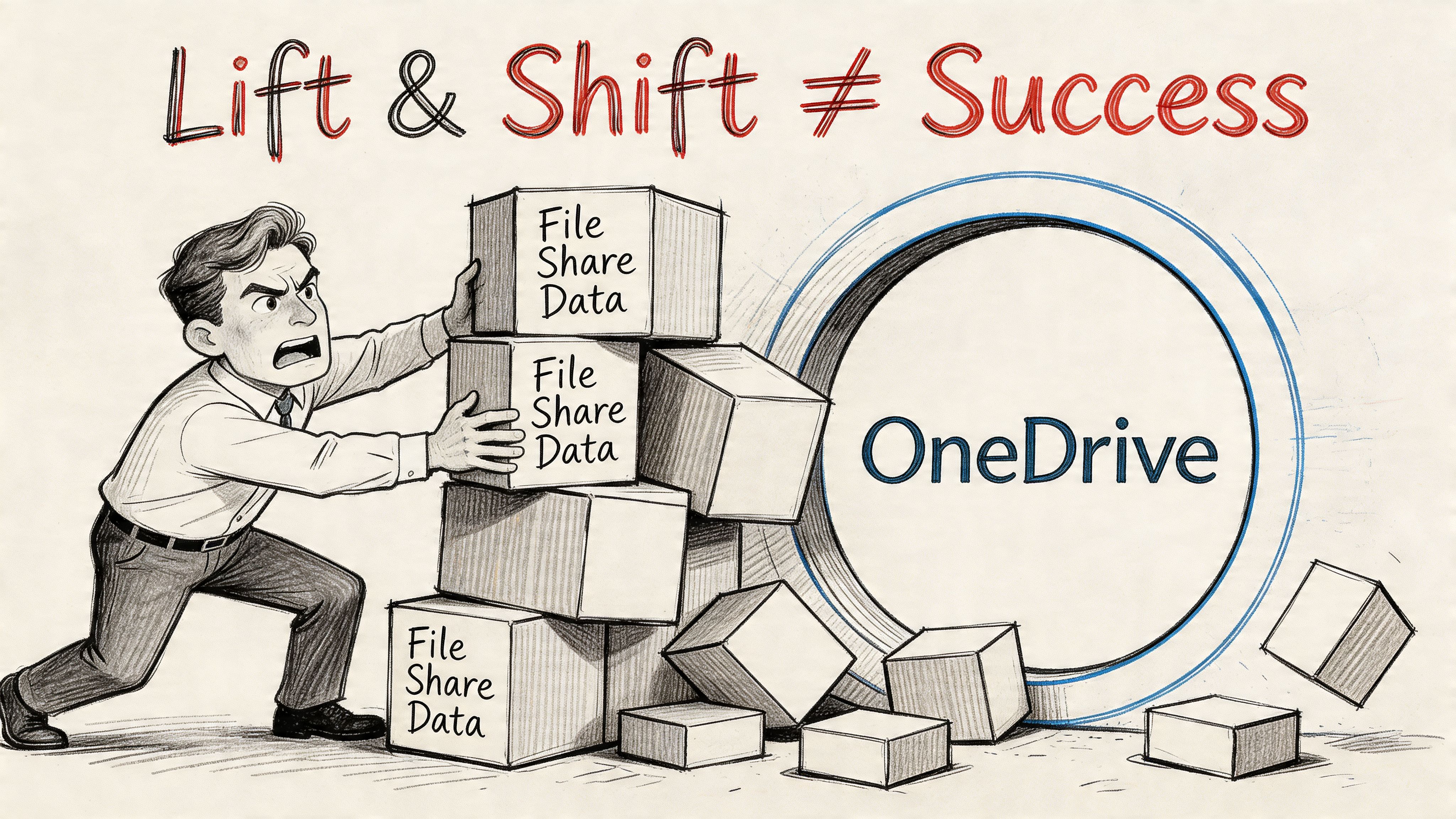
That’s why “lift and shift” is such a dangerous phrase. It pretends old problems won’t move with the data. They will.
Practical rule: If you haven’t audited permissions, ownership, and external sharing before migration, you’re not planning a migration. You’re scheduling an outage with a progress bar.
The shape of failure is predictable
The documentation says OneDrive is cloud storage. In reality, your team is walking into a dependency chain that includes identity, policy, sync behaviour, version history, and collaboration patterns users created without telling IT.
Here’s what that means in live projects:
- Legacy file structures don’t map cleanly: User-created folder trees from file servers often carry naming, nesting, and duplication issues that become operational problems after migration.
- Personal storage gets used as team storage: Staff share from OneDrive because it’s convenient. Then the business starts depending on content tied to one person’s account.
- Permissions drift over time: Nobody notices broken inheritance until access changes during migration and a sensitive folder becomes visible or inaccessible.
- DIY tooling hits architecture limits: Basic migration runs often collapse under API throttling, file handling edge cases, and volume your team didn’t model properly.
If your source is a traditional file server, the warning signs are even louder. We see the same misclassification problems in file server to SharePoint migration projects, and they become worse when teams push unsuitable content into personal OneDrive storage instead of redesigning where the data belongs.
The business risk isn’t technical
When this goes wrong, it doesn’t stay in IT. Finance loses access to working files. Legal loses traceability. HR ends up with sensitive documents in the wrong location. Operations start bypassing Microsoft 365 entirely because they stop trusting it.
That’s the key issue. A failed OneDrive migration doesn’t just move files badly. It teaches your users that your governance model can’t protect their work.
The Architecture Illusion Quotas Governance and Reality
A lot of bad migration planning starts in a spreadsheet.
Someone reads that OneDrive gives users 1 TB by default and can expand to 5 TB. They mark storage as solved and move on. That’s reckless. Storage in onedrive for business isn’t just a volume question. It’s a governance question, a provisioning question, and a timing question.
The simple headline masks a harder truth. OneDrive storage is tied to a user and governed through Microsoft 365 controls that many teams don’t activate properly before they begin moving data. If you don’t understand that, you will discover quota problems in the middle of the migration, which is the most expensive moment to learn anything.
The quota is not the architecture
OneDrive for Business provides a default 1 TB per-user allocation under standard Microsoft 365 plans. Expansion to 5 TB only happens when conditions are met, including at least five qualifying users and a user reaching 90 percent of the base allocation. It also requires administrator intervention rather than self-service, as documented in the Microsoft 365 OneDrive for Business service description.
That sounds manageable until you hit enterprise reality. Your migration team starts moving large user datasets. The target tenant hasn’t had the right storage policy actions taken in advance. A user approaches the threshold. Transfers stop. Nobody in the room owns the escalation path. Suddenly your “migration wave” is waiting on tenancy administration and support workflow.
The documentation says storage can expand. Reality says the expansion still depends on deliberate admin action and pre-migration readiness.
The limits people ignore first
These aren’t obscure edge cases. They are standard characteristics of the platform that become business risks when nobody plans around them.
- Per-user baseline matters: If your users carry large historical datasets, the default allocation becomes a migration blocker, not a technical footnote.
- Expansion has prerequisites: Teams regularly assume scaling is automatic. It isn’t.
- Deleted file retention isn’t disaster recovery: OneDrive commonly gets treated like a safety net because deleted files are retained for 93 days. That assumption collapses fast in ransomware or malicious deletion scenarios.
- File handling still has hard limits: Individual uploads are capped at 250 GB, and file names are limited to 400 characters, as summarised in ShareGate’s overview of OneDrive for Business limits and behaviour.
Governance, not just capacity
Weak planning can lead to a governance problem. A user’s OneDrive may look like “their space”, but your organisation still has to govern retention, external access, lifecycle, and fair use. If your departments have different regulatory obligations, dumping everything into standard OneDrive patterns creates policy conflict immediately.
That’s why we push governance design before movement. If your team hasn’t already defined ownership, retention behaviour, storage readiness, and access controls, the migration plan is backwards. You need the governance model first. The mechanics come second. Work like this belongs alongside broader SharePoint data governance planning, because OneDrive and SharePoint don’t fail independently. They fail together.
What I’d recommend
Use this test before approving any migration wave:
| Question | If the answer is vague | What it means |
|---|---|---|
| Do you know which users are close to quota? | “We’ll monitor it during migration” | You’re already too late |
| Have you activated the right storage policies in the target tenant? | “Microsoft handles that” | No, they don’t handle it for you |
| Do you know which content belongs in OneDrive versus SharePoint? | “Users will sort it out later” | They won’t |
| Have you modelled retention and access by department? | “That’s a post-migration task” | Then compliance is already at risk |
Ollo verdict: treat OneDrive capacity planning as a governance workstream, not an admin checkbox. If your tenant-to-tenant move includes heavy user storage, pre-flight quota validation is mandatory.
Security and Compliance The Gap Between Available and Active
Most IT leaders have already been sold the security story. OneDrive has encryption. Microsoft 365 has compliance features. The tenant is in the cloud. The box is ticked.
That thinking gets organisations into trouble. Available security controls are not the same as active security controls. Auditors care about what’s configured, enforced, and evidenced. They don’t care that a feature existed somewhere in a licensing matrix if your team never turned it on or mapped it to your obligations.

Encryption isn’t a compliance strategy
OneDrive for Business uses BitLocker disk-level encryption, per-file encryption at rest, and SSL-approved encryption in transit, but the default model relies on Microsoft-managed keys. Moving to customer-controlled encryption keys or Customer Lockbox requires specific licensing tiers and extra configuration, as noted in this OneDrive power user security checklist.
That distinction matters. In regulated sectors, key custody changes audit conversations. If your compliance team assumes all OneDrive deployments meet the same standard by default, they’re working from a false premise.
We often see clients fail when they migrate sensitive data first and ask licensing and configuration questions later. That order creates compliance debt immediately. The migration “succeeds” technically, then security review tears it apart after the fact.
Audit reality: If your migration team can’t prove which controls were active before cutover, you don’t have assurance. You have assumptions.
The dangerous gap sits in configuration
The issue with onedrive for business in regulated environments isn’t lack of security features. It’s the gap between feature availability and implemented governance. External sharing, guest access, retention behaviour, and DLP alignment don’t fix themselves because Microsoft 365 exists.
That’s why default settings are a trap. They create a false sense of readiness. Your CISO may have approved the platform, but your migration still needs control validation tied to actual business data and actual workflows.
A proper review should force answers to questions like these:
- Who can share externally right now: Not in theory. In the tenant as it exists today.
- Which users store regulated data in personal libraries: If you don’t know, you can’t govern it.
- What key management model applies to the target tenant: Default and compliant are not synonyms.
- Which controls survive tenant consolidation: Retention and access policies often need redesign, not just recreation.
Security review must happen before movement
A lot of teams still run penetration tests and security reviews after migration planning is mostly fixed. That sequence is upside down. Security validation should shape the target design, especially when the business handles sensitive financial, healthcare, or operational data. If your assurance work is lagging behind the migration plan, you’re validating the wrong thing too late. This is why infrastructure and application controls need to be reviewed in the same cycle as penetration testing and security assurance work, not treated as a separate stream that catches up later.
My opinion on default OneDrive security
Use the default platform protections as a baseline, not as evidence of readiness. If your sector is regulated, your team should assume the standard deployment is incomplete until proven otherwise.
That means:
- Validate key custody requirements before moving sensitive content.
- Review external sharing and guest access before first transfer.
- Align retention and DLP behaviour with the target operating model.
- Produce evidence your audit team can use.
Missing this step doesn’t just create technical debt. It weakens your legal and compliance position from day one.
The Migration Minefield Why Your Tools Will Break
Migration tooling demos lie by omission. They show progress bars, not edge cases. They show throughput, not blocked files. They show clean source data, not enterprise sprawl.
In live OneDrive projects, the migration doesn’t fail because the concept is hard. It fails because the source is dirty, the target is underprepared, and the tools hit limits your team didn’t test under pressure.
API throttling is not a minor inconvenience
Microsoft’s ecosystem enforces service protection and file handling constraints. In practice, heavy migrations trigger throttling long before project managers expect it, especially when teams attempt brute-force movement across large estates with no staged architecture.
That matters because throttling isn’t just slower performance. It breaks timing assumptions across the project. Cutover windows become fiction. Delta passes overrun. Validation gets compressed. Users lose confidence because dates move and nobody can explain why in business language.
We often see DIY teams respond by retrying harder. That usually makes it worse.
If your migration plan assumes consistent transfer speed across large datasets, it isn’t a technical plan. It’s wishful thinking.
Path length and file handling still bite
Mainstream content loves to say OneDrive integrates cleanly with Windows and Microsoft 365. It rarely says enough about file handling restrictions and path behaviour during migration. Official Microsoft documentation confirms path length and file handling constraints, and the practical impact becomes severe during tenant consolidation and content reshaping. That blind spot shows up clearly in this discussion of OneDrive integrations and migration risks.
The documentation says users can work around a lot of these issues. Reality says your migration team has to detect and remediate them before transfer.
The usual traps include:
- Long path structures: These often survive on source platforms for years, then fail unpredictably when mapped into the target environment.
- Locked files and sync conflicts: Third-party apps may hold file locks that interrupt movement or create partial states.
- Bad naming conventions: Legacy naming patterns don’t magically become cloud-safe because the destination is Microsoft 365.
The 5,000 item problem is still operationally real
Enterprise teams love pretending old SharePoint constraints don’t matter if they’re moving into OneDrive. They do matter. The 5,000-item list view threshold remains an operational planning issue in the wider SharePoint architecture that underpins OneDrive behaviour. If your team migrates heavily nested or badly organised content without redesign, users end up with libraries and folders that are technically present but painful to manage.
That’s not just a usability issue. It creates support load, retrieval problems, and pressure to rebuild structures after migration, which is the exact kind of rework you should have prevented before moving anything.
GUID conflicts and broken inheritance are where trust dies
Tenant-to-tenant OneDrive moves get ugly when integrations and permissions depend on tenant-specific identifiers. A connector that relied on the old tenant’s references may break after cutover even when the file appears to have moved correctly. The same applies to automations and links embedded in business processes.
Here’s the risk pattern we see repeatedly:
| Failure point | What your team sees | What the business experiences |
|---|---|---|
| API throttling | Delays and retries | Missed cutover and prolonged disruption |
| Long paths and file restrictions | Failed items | Missing content and support tickets |
| Broken inheritance | Permission mismatches | Users lose access or gain the wrong access |
| GUID conflicts | Connector failures | Automations and linked processes stop working |
| Third-party file locks | Partial transfer states | Data integrity doubts and rollback pressure |
Integrations are where hidden dependency becomes visible
A lot of OneDrive estates are woven into Slack, Salesforce, HubSpot, Zoom, Zapier, and Power Automate. Those links often depend on tenant-specific identifiers and authentication relationships that don’t survive migration intact.
That’s why generic content about migration software is dangerous. It focuses on file movement and skips workflow dependency. If you’re comparing SharePoint migration software options, don’t judge them on dashboard quality. Judge them on whether they expose dependency risk before cutover and whether your team can script remediation around what the tool misses.
Ollo verdict: your tooling will break where your architecture is weak. Use tools to execute, not to think. If your team hasn’t planned for throttling, path restrictions, list thresholds, permissions, and integration remapping, the project is already unstable.
An Honest Comparison of Enterprise Migration Tools
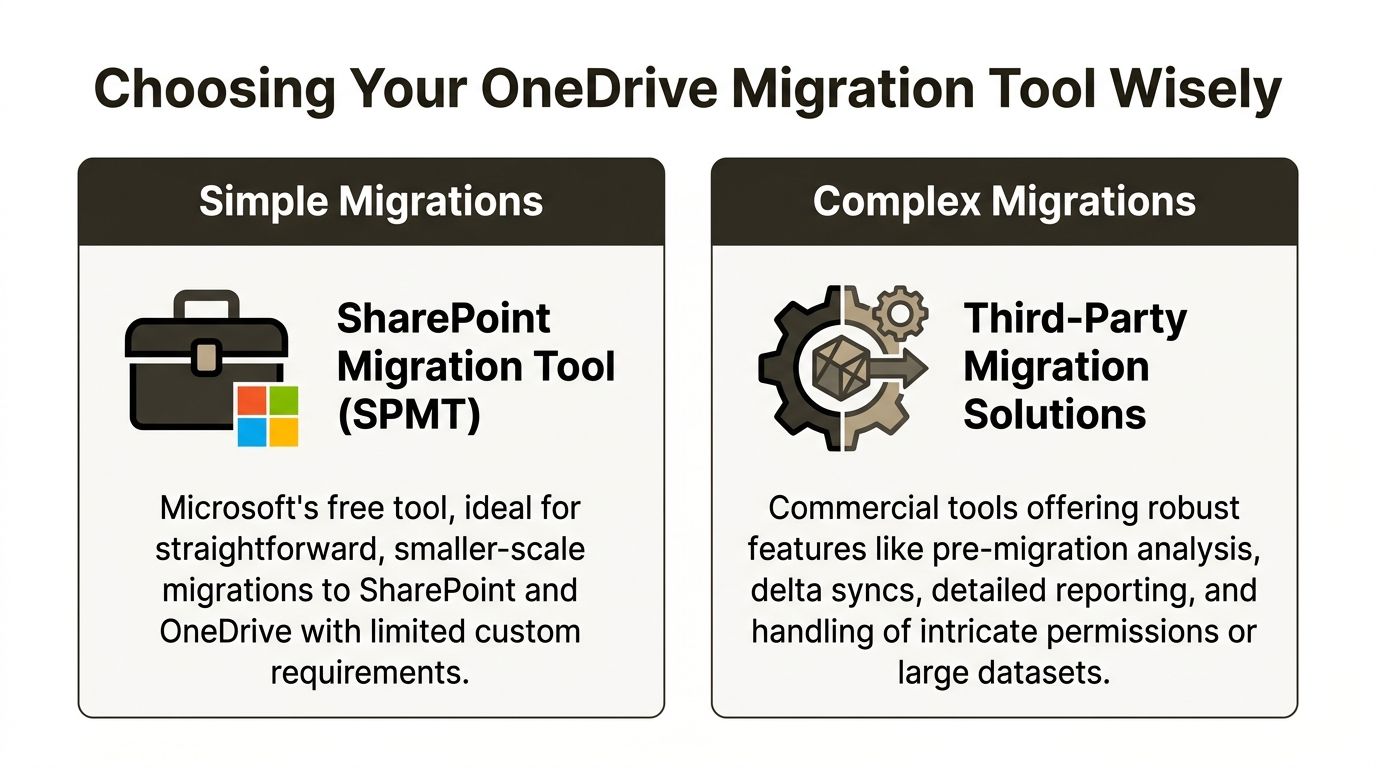
Let’s stop pretending there’s a universal migration tool for onedrive for business. There isn’t. There are tools for simple jobs, tools for structured jobs, and scripts for ugly jobs. Enterprise migrations usually contain all three.
If you choose based on licence cost or dashboard polish, you’re making a procurement decision, not an engineering one.
Where each tool actually fits
SPMT has a valid use case. It’s free. It’s native. It can handle straightforward migrations where the data is clean, the scale is modest, and the business impact of failure is low.
That doesn’t make it an enterprise answer. It makes it a starter tool.
ShareGate is far more useful in serious delivery work. It gives you better reporting, better visibility, and stronger control for many common migration scenarios. We use it ourselves because it earns its place. But it still hits limits when the source is politically messy, permission-heavy, or loaded with exception handling.
Then you hit the territory where custom scripting matters. PowerShell and PnP-based approaches aren’t glamorous. They are how you clean up what the product brochure never mentioned.
Migration Tool Reality Check SPMT vs ShareGate vs Custom Scripts
| Capability | SharePoint Migration Tool (SPMT) | ShareGate | Ollo Custom Scripts (PowerShell PnP) |
|---|---|---|---|
| Small straightforward moves | Suitable | Suitable | Overkill |
| Pre-migration analysis | Basic | Stronger | Highly adaptable |
| Complex permission remediation | Weak | Limited by scenario | Strong when designed properly |
| Tenant-to-tenant exception handling | Limited | Better | Best handled through bespoke logic |
| Third-party dependency mapping | Minimal | Minimal | Possible if scoped and scripted |
| Enterprise edge cases | Poor | Mixed | Built for the ugly parts |
| Reporting for executives and audit | Basic | Better | Depends on design, but can be tailored |
My blunt read on each option
- Use SPMT when the job is small: Clean source, low-risk users, limited complexity. If someone proposes it for a broad regulated migration, challenge them immediately.
- Use ShareGate for mainstream complexity: Strong for many tenant and content migration tasks, especially when you need reporting and repeatable administration.
- Use scripts when the estate is dirty: Broken inheritance, custom permission mapping, naming remediation, staged cutover logic, and exception handling all push you here.
One practical option in this category is specialist use of third-party SharePoint migration tools combined with scripted remediation and validation. That’s how mature teams de-risk complex projects. They don’t expect one tool to do all the thinking.
The Ollo verdict
Here it is plainly.
Use SPMT for small, low-risk migrations. Use ShareGate for structured enterprise work. For complex tenant-to-tenant consolidations, regulated data, or messy permission estates, you need custom scripting around the tooling or you will lose control of the project.
That’s not tool snobbery. It’s delivery reality.
The Ollo Blueprint for Reducing Migration Risk
Most failed migrations don’t fail in the move phase. They fail earlier, when teams skip discovery, underfund remediation, and treat validation like a formality.
A safe onedrive for business migration needs a risk system, not a task list.
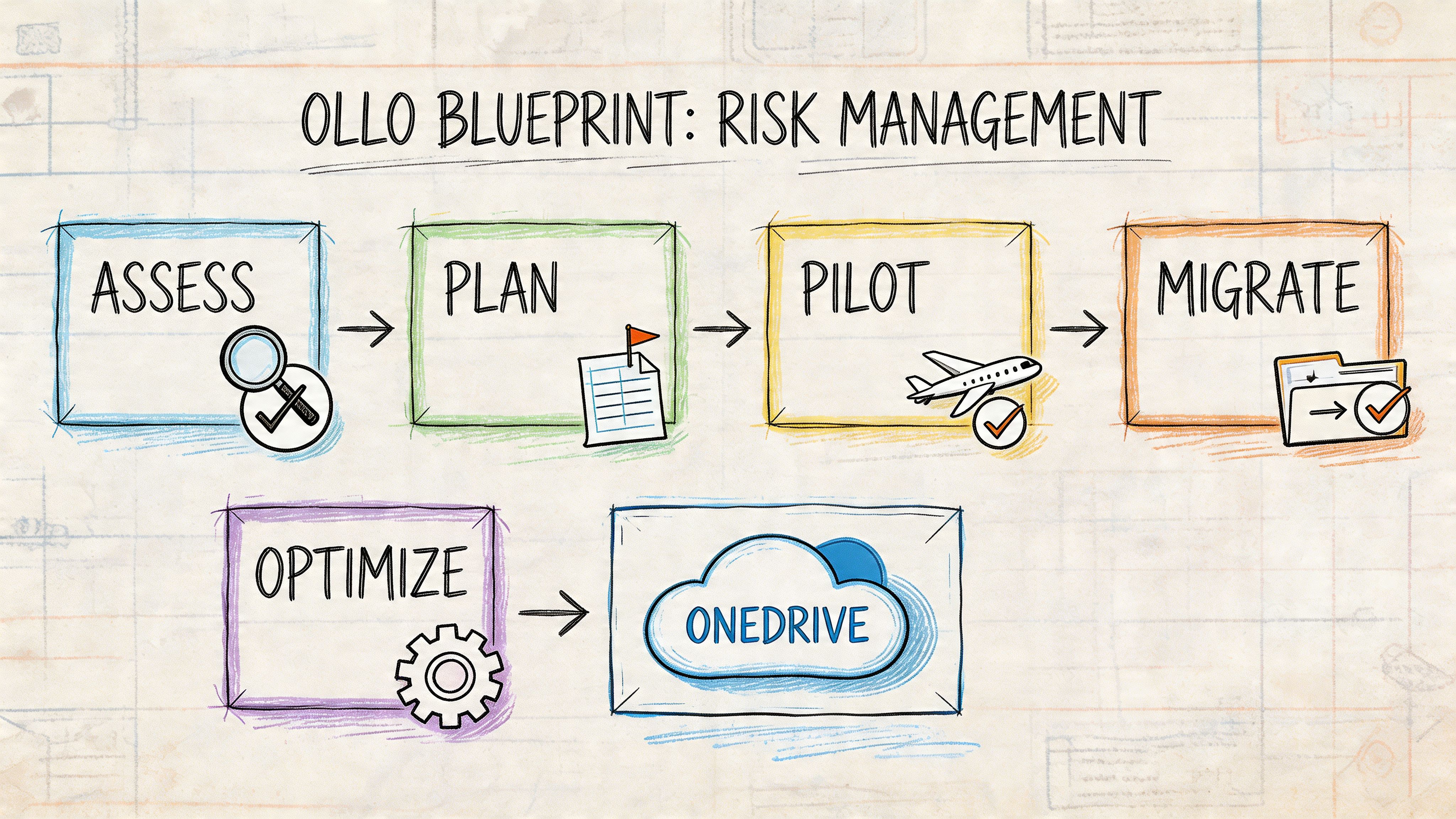
For IT Directors in regulated industries like energy, finance, and healthcare, the dangerous blind spot sits between “OneDrive can store regulated data” and “our migration process is compliant”. Mainstream guidance focuses on collaboration benefits instead of the governance framework needed to prevent data exposure during consolidation, as discussed in this overview of Microsoft 365 features and compliance gaps for smaller organisations.
Discovery has to expose risk, not just inventory
A proper discovery phase maps more than files. It identifies ownership, sharing patterns, permission inheritance, stale users, storage readiness, and dependency on automations or third-party connectors.
If your team only produces a list of folders and sizes, they haven’t done discovery. They’ve done counting.
We look for the things that kill migrations:
- Permission anomalies: Especially broken inheritance and exceptions nobody can explain
- Identity mismatches: Old users, renamed users, guest users, and unresolved mapping
- Content misplacement: Business records sitting in personal libraries
- Integration dependencies: Links, flows, or external systems that won’t survive a simple move
Remediation is where serious teams earn the right to migrate
This is the phase most internal teams try to compress because it feels slow and politically awkward. That’s a mistake. Remediation is where you rename, restructure, repermission, and reclassify before the move.
That’s also where you decide what should not land in OneDrive at all.
Field lesson: The fastest migration is usually the one where you remove bad content and bad structure before the first production wave.
A strong remediation stage should result in:
- A cleaner source with fewer transfer failures
- A target design aligned to governance and compliance
- Clear user mapping and ownership rules
- Fewer cutover surprises because the ugly exceptions were handled early
After that, a pilot can test what matters. Not just transfer success, but user access, policy behaviour, integration survival, and support impact.
Here’s a useful explainer on the delivery mindset behind that approach:
Validation is not a checkbox
A phased migration without rigorous validation is just staggered risk. Validation needs to confirm data integrity, permission accuracy, policy application, and chain of custody where regulation matters.
That means checking:
| Validation area | What must be proven |
|---|---|
| Content integrity | Files arrived complete and readable |
| Access control | The right users retained the right access |
| Governance application | Retention and sharing controls behave as designed |
| Dependency continuity | Critical workflows still function after cutover |
This is the core difference between amateur migration and engineered migration. Amateur migration celebrates moved files. Engineered migration proves the business still works.
Your Next Move Is Not a Project Plan
If your team still thinks the answer is a bigger Gantt chart, stop the project now.
You don’t need more timeline theatre. You need a hard risk review. Can your team explain how they’ll handle API throttling under load. Can they remediate broken inheritance at scale. Can they prove which integrations will fail after tenant change. Can they validate compliance controls in the target environment before the first regulated file moves. If those answers are soft, your migration plan is soft.
That’s the decision in front of you. Not DIY versus external help. Unmanaged risk versus engineered delivery.
Ask your team for evidence, not confidence. Ask for pre-flight storage readiness, permission analysis, integration mapping, and control validation. Ask what happens when the first migration wave hits a quota block, a locked file set, or a broken sharing model. If the response is “we’ll work through it”, they are describing improvisation.
Your data underpins operations, compliance, and executive trust. Treating its migration like a routine file move is how organisations create incidents they could have prevented.
If your organisation is planning a high-stakes Microsoft 365 or onedrive for business migration, talk to Ollo. We handle tenant-to-tenant consolidations, regulated-data migrations, and rescue projects where native tools and generic plans have already failed.

















