



Let's be blunt. The standard advice for a OneDrive to OneDrive for Business migration is a roadmap to disaster for any serious enterprise. You're not moving holiday photos; you're migrating regulated, business-critical data, and the process is littered with tripwires that most tools simply won't report. This isn't just an IT task; it's a high-stakes surgical operation.
Why Your Migration Is Already Doomed
Forget the promises of 'seamless transitions' and 'easy-to-use' tools you've heard before. As Senior Cloud Migration Architects, we've been called in to rescue far too many projects where those exact promises led directly to operational chaos and compliance nightmares.
Your team is likely planning this migration based on Microsoft's documentation and the marketing material from tool vendors. This is your first mistake. The documentation says X, but in the trenches, the reality is Y. We see clients fail time and again when they underestimate the brutal technical realities of moving data at an enterprise scale. These aren't minor hiccups; they are project-killing, compliance-breaking failures waiting to happen.
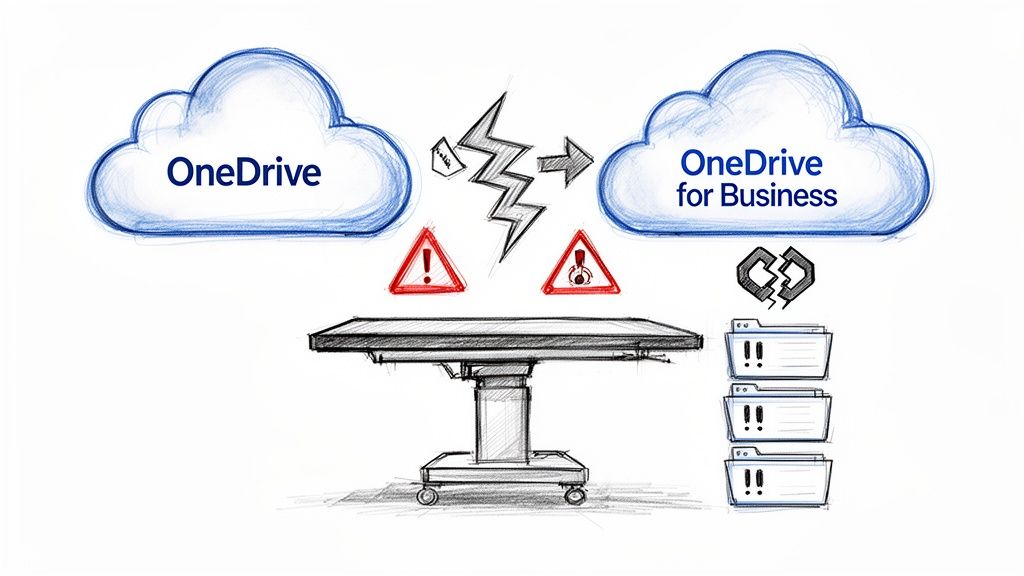
The Real-World Tripwires
Your migration plan is doomed if it doesn't have an aggressive, real-world strategy for these specific, non-negotiable technical hurdles:
- Crippling API Throttling: Microsoft's documented limits are optimistic at best. In the real world, especially in the IE region, aggressive throttling can bring your migration to a grinding halt for hours, or even days. We’ve seen it turn a two-week project into a two-month nightmare.
- The 5k Item View Threshold: This isn't just a SharePoint list issue; it critically impacts OneDrive structures. We've seen migrations fail repeatedly because a single user's folder contained over 5,000 items, causing tools like SPMT to choke and requiring manual, time-consuming repackaging.
- Silent Permission Corruption: Moving files is easy. Moving them while preserving a complex web of sharing links and permissions, particularly with 'broken inheritance', is where most projects fall apart. A mistake here doesn't just inconvenience a user; it can silently expose sensitive data, creating a massive compliance breach your CISO will hear about.
The greatest risk in a OneDrive to OneDrive for Business migration isn't the data you lose; it's the data you accidentally expose. A single misconfigured permission set can undermine your entire zero-trust architecture, and standard tools won't even flag it as an error.
Beyond OneDrive Specifics
The challenges also extend far beyond the immediate Microsoft 365 ecosystem. Successful project planning requires a broader understanding of enterprise-level hurdles that can derail your progress.
For instance, grasping general migration and scaling considerations provides a valuable strategic overlay. It helps your team anticipate bottlenecks not just in the tool, but in your network, infrastructure, and overall operational readiness.
This guide isn't about giving you a false sense of security. It's about showing you the reality behind the marketing fluff. We've seen where the standard playbook fails, and we'll equip you with the hard-won knowledge to avoid becoming another cautionary tale. Your data is too valuable, and the stakes are too high for anything less.
The Unspoken Limits of SPMT and Other ‘Easy’ Migration Tools
Let's be direct about the standard playbook for a OneDrive to OneDrive for Business migration. Your team has probably flagged Microsoft’s SharePoint Migration Tool (SPMT) as the logical starting point. It’s free, and the name certainly suggests it's the right tool for the job. And for a tiny business shifting a few gigabytes of simple files, it can work.
For an enterprise like yours, however, relying solely on SPMT isn't a strategy—it's a liability. It’s less of a migration solution and more of a diagnostic tool that will, very quickly, highlight a level of complexity your organisation can't afford to discover halfway through the project. The marketing implies a simple drag-and-drop world, but it conveniently ignores the breaking points that consistently derail large-scale projects. We're often called in to rescue migrations that have ground to a halt because of these exact 'unspoken' limits.
The Brutal Reality of API Throttling
If there’s one thing that will kill a DIY migration timeline, it’s API throttling. Microsoft’s own documentation spells out the theoretical maximums, but the reality on the ground—especially for tenants in the IE region—is far harsher. We see it constantly: IT teams build a plan based on these numbers, only to have it shatter against the unforgiving wall of API request limits.
Even the official Microsoft guidance hints at this. The documentation might dangle the possibility of 1 TB/day for medium-sized Office files, but our real-world telemetry tells a completely different story.
We've rescued projects where source-side disk I/O bottlenecks, overzealous antivirus scans hogging CPU, or under-specced migration agent VMs with less than the required 32GB of RAM have slashed those 'official' numbers by 50-70%. Your two-week migration plan just turned into a two-month recovery effort because the basic tools couldn't keep up.
Choking on Enterprise-Scale Data
Beyond raw speed, the very structure of your organisation's data will break these simplistic tools. SPMT, in particular, has a well-known but catastrophic weakness when it comes up against large libraries or user accounts.
- The 5,000 Item Limit: This isn't just a SharePoint list view annoyance. When SPMT hits a folder containing more than 5,000 items, it often chokes, fails the job entirely, or forces you to manually break the data into smaller packages. We’ve seen this bring migrations to a dead stop, forcing teams to waste days splitting a single user’s OneDrive into dozens of tiny jobs.
- Long Path and Invalid Character Failures: Your users have been creating files for years. It's a guarantee that you have file paths blowing past the 400-character limit or containing characters that SharePoint Online simply won't accept (
",*,:,<,>,?,/,\,|). SPMT will just fail these files, often leaving behind cryptic logs that take serious effort to parse and fix. - GUID Conflicts in Tenant-to-Tenant Moves: In a tenant-to-tenant migration, SPMT assigns new GUIDs to all your files. The result? Every embedded link in your Office documents breaks. Lookup columns in SharePoint fail. Your data is technically there, but functionally broken. This is a project-killing detail the documentation glosses over.
If your team is still considering SPMT, it's crucial they understand its fundamental design flaws for any enterprise-scale use. We cover this in much greater detail in our comprehensive guide on the SharePoint Migration Tool.
To put it plainly, these 'easy' tools fail because they were never built for the complexity and scale of a regulated, enterprise environment. They don't have the resilience, intelligence, or granular control needed to navigate the inevitable snags of a real-world migration. They assume a perfect world, but your data lives in the real one.
Ollo Verdict: SPMT vs. A Pro-Grade Hybrid Approach
The takeaway is clear: enterprise problems require enterprise solutions. The free tools are a starting point for discovery, not a robust vehicle for migration.
The Ollo Verdict: SPMT is only suitable for lab testing or migrating a handful of accounts with non-critical data. For any serious enterprise OneDrive to OneDrive for Business project involving regulated data, complex permissions, or significant data volumes, relying on it is an act of negligence. A hybrid approach combining a commercial tool like ShareGate with custom PowerShell scripting is the only way to mitigate risk.
Mastering Pre-Migration Discovery and Mapping
A migration's success is decided long before you move a single file. It’s in the discovery and mapping phase where we see most internal teams and non-specialist consultants sow the seeds of their own failure. Too often, projects are doomed from the start because the initial analysis was just a superficial count of files and users. For a OneDrive to OneDrive for Business migration, that approach is dangerously naive.
Your job isn't just to catalogue your data; it's to proactively hunt for the "toxic data structures" that are guaranteed to break standard migration tools and corrupt your security model. A quick scan will always miss these landmines. The deep analysis we’ve perfected from rescuing failed projects is your insurance policy against compliance breaches and operational chaos down the line.
To avoid a doomed outcome, you have to understand and apply core cloud migration best practices from the very beginning of your project, starting right here.
Beyond Counting Files: Identifying Toxic Data
Your team has to go deeper than a simple file count. We've seen organisations pour money into zero-trust architecture, only to have it all undermined because their migration plan didn't account for the ugly reality of their existing data. Your analysis must aggressively identify and flag these specific failure points.
- File Paths Exceeding the 400-Character Limit: Microsoft’s official limit is 400 characters for the entire decoded path. We guarantee your users have created deeply nested folder structures that blow right past this. Standard tools will simply fail on these files, leaving gaps in your migrated data that you might not discover for weeks.
- Invalid Characters and Legacy Naming: Years of unpoliced file creation leads to filenames full of characters forbidden in SharePoint Online (
",*,:,<,>,?,/,\,|). Every single one is a migration failure waiting to happen, and each one requires script-based remediation before you begin. - Massive File Sizes and Version Histories: A single user with a 50GB PST archive, or a designer with huge video files that have dozens of versions, can single-handedly trigger API throttling. This can bring an entire migration batch to its knees. Finding these outliers beforehand is non-negotiable.
This flowchart shows the direct path from unanalysed files to migration failure—a scenario we see play out far too often.
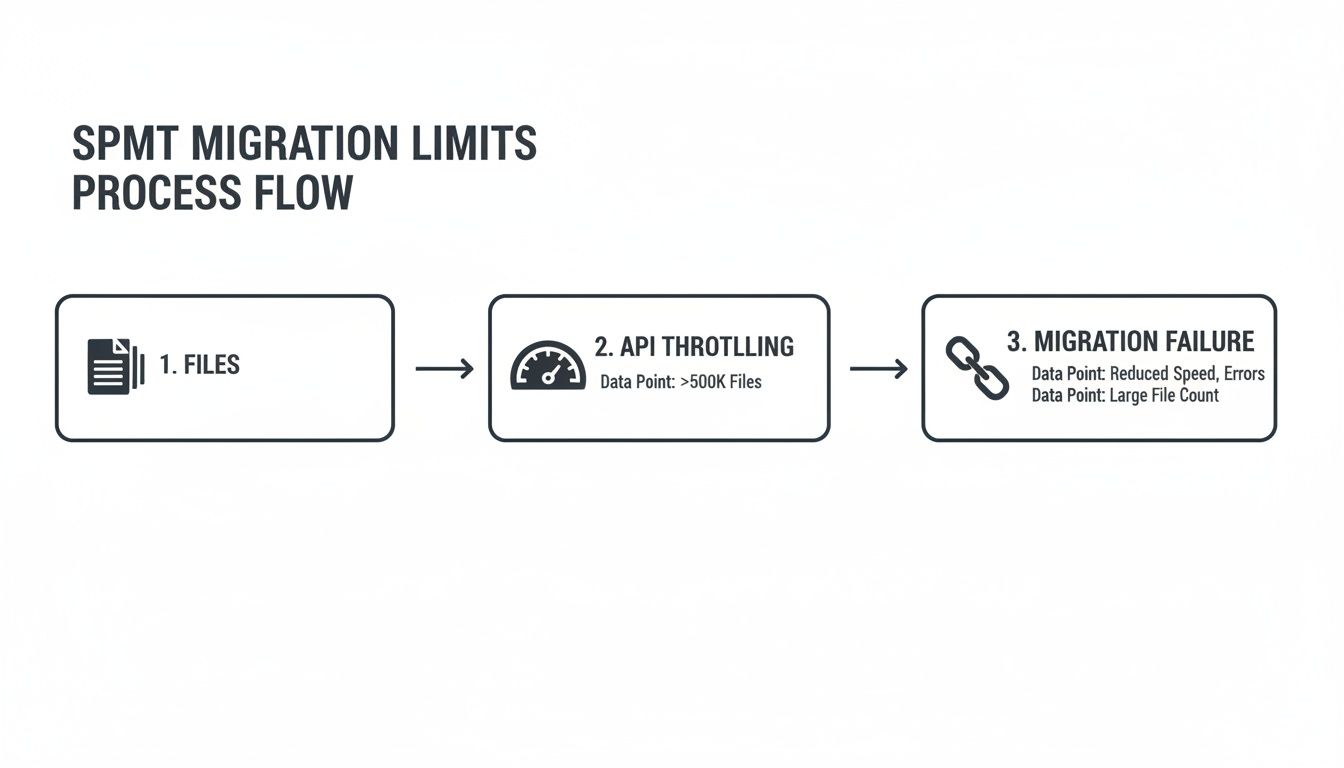
As you can see, failing to identify and deal with problematic data structures leads directly to API throttling and, ultimately, the failure of your migration job.
The Permissions Nightmare: Broken Inheritance
This is the single most dangerous and commonly overlooked risk. Your current file shares are almost certainly a tangled web of permissions. ‘Broken inheritance’—where a subfolder has different permissions from its parent—is rampant in any mature environment.
We were brought in to rescue a project for a financial services client where the previous "expert" migrated their data with a standard tool. The tool flattened all the permissions, granting thousands of users access to sensitive board-level documents. That mistake didn't just fail the migration; it created a catastrophic, reportable data breach. Missing this step doesn't just fail the migration; it breaks legal compliance.
A proper pre-migration assessment doesn't just check for permissions; it maps them. It identifies every single instance of broken inheritance and unique permissions. This is what allows you to build a remediation plan that ensures your security model is replicated perfectly in the new environment, not corrupted by it. You can learn more about the complexities involved in our in-depth guide to a proper SharePoint migration assessment.
The Ollo Verdict: Discovery Is Not Optional
Treating discovery as a box-ticking exercise is the most expensive mistake you can make. It’s not about generating a report; it’s about building a battle plan. An inadequate discovery phase guarantees your migration will go over budget, miss deadlines, and, most critically, expose your organisation to significant security and compliance risks.
A simple file and user count is only good enough for the smallest, simplest migrations. For any enterprise with regulated data, a deep, script-driven analysis of file paths, naming conventions, and—most importantly—permissions inheritance is mandatory. Skipping this step isn't a shortcut; it's a direct path to project failure and a career-limiting event for the person who signed off on it.
Executing the Migration with ShareGate and PowerShell
Alright, the discovery phase is done. You’ve mapped the terrain and know where the landmines are buried. Now comes the execution—the part where you surgically disarm those risks while moving terabytes of data. This is where we see projects succeed or fail, and it boils down to one thing: a hybrid approach.
For any serious OneDrive to OneDrive for Business project, combining a commercial tool like ShareGate for the heavy lifting with custom PowerShell PnP scripts for precision fixes isn't just a good idea; it's non-negotiable.
Relying solely on a point-and-click tool is a recipe for a painful, incomplete migration. The moment you hit a complex permissions scenario, a GUID conflict in a tenant-to-tenant move, or a business-critical workflow, the tool’s logic will fall short. This isn’t a theoretical problem; we’ve been called in to rescue projects that were supposedly “90% complete” but were crippled by these exact issues.
ShareGate for Bulk Lifting, Not Blind Trust
Let's be clear: ShareGate is a fantastic instrument. It’s built for enterprise-scale SharePoint and OneDrive migrations and excels at managing the raw throughput of data. Its ability to automatically navigate API throttling and handle massive file volumes makes it vastly superior to basic tools.
The mistake we see time and again is treating it as a “fire and forget” solution. You can't just point it at the source and destination and hope for a perfect result. Its real power isn't in the "migrate" button, but in using its pre-migration reporting to build a smarter, script-driven execution plan.
For example, a ShareGate report will flag every file with a path exceeding the 400-character limit or containing invalid characters. An inexperienced team will try to fix these manually—a soul-crushing and error-prone task. Our approach? We take that report and feed it into a PowerShell script that programmatically renames and restructures those problem files before the migration job even starts. That's the difference between proactive remediation and reactive firefighting.
PowerShell for Surgical Strikes
This is where we solve the problems that tools can't. Custom PowerShell isn't a "nice-to-have" here; it’s the only way to manage the high-risk elements of an enterprise migration. The documentation for migration tools might say they can map users and permissions, but they often stumble over the granular complexities of a real-world environment.
The most catastrophic failures we've rescued involve GUID conflicts during tenant-to-tenant migrations. Standard tools can't preserve file IDs, which breaks every embedded Office document link and corrupts lookup columns in SharePoint. We use custom PnP scripts to read the source file GUIDs and write them back to the destination, ensuring data integrity is maintained. Without this, your migrated data is functionally broken.
Our execution model depends on PowerShell to perform critical fixes that no tool can automate effectively:
- Remediating Broken Permissions: When discovery uncovers a spaghetti mess of broken inheritance, we don't trust a tool's best guess. We script the exact permissions model and apply it surgically after the files have been moved. This guarantees a perfect 1:1 match with your security requirements.
- Dynamic Throttling Management: While ShareGate handles basic throttling, we run parallel monitoring scripts that watch the Microsoft 365 health dashboard and API responses. If we see sustained throttling in the IE region, our scripts can automatically pause less critical jobs to prioritise batches for VIP users or time-sensitive departments.
- Preserving Critical Metadata: We use scripts to extract complex metadata—like unique document IDs or custom content types—and re-apply it post-migration. This ensures business processes that rely on that metadata don't suddenly break. This detail often gets missed, but you can learn more about the deep complexities of the SharePoint Migration Tool and its limitations from our other guides.
The Ollo Verdict
ShareGate is an essential part of the modern migration toolkit. It’s the right choice for moving the bulk of your data quickly and efficiently. But it's just that—a tool. It cannot reason about your unique security needs or solve complex identity mapping challenges on its own.
The real work of ensuring a secure, compliant, and truly successful OneDrive to OneDrive for Business migration happens in the scripts that run alongside it.
The verdict is simple. Use ShareGate for its raw power and reporting. But for any migration involving regulated data, tenant-to-tenant complexity, or business-critical workflows, relying on it alone is a gamble. The combination of ShareGate's horsepower and the precision of custom PowerShell scripting is the only proven way to de-risk the project and guarantee a successful outcome. Anything less leaves your business and your data critically exposed.
The Cutover Phase: Surviving the Most Critical 48 Hours
The cutover isn't the finish line. It’s the most dangerous 48 hours of your entire OneDrive to OneDrive for Business project. This is where all your planning hits operational reality, and even a tiny miscalculation can bring business operations to a grinding halt. Your team cannot afford to get complacent here.
We've seen it time and again: clients breathe a sigh of relief once the bulk of the data is synced, thinking the hard part is over. In reality, the real battle is just beginning. The moments immediately following the cutover are packed with risks that the migration tool reports and even Microsoft's own documentation tend to gloss over.
The Perils of the Read-Only Period
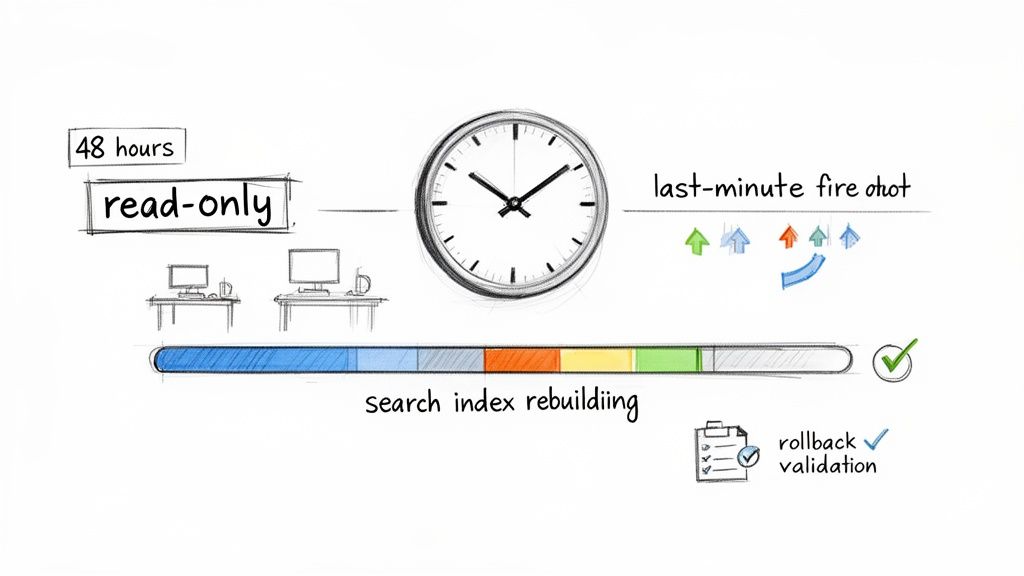
To guarantee data integrity, you have to enforce a "read-only" window on all the source OneDrive accounts right before the final switch. This is non-negotiable; it stops users from creating or changing files that your final delta sync would otherwise miss. The challenge here isn't technical—it's human. How do you communicate this to potentially thousands of users without sparking panic or overwhelming your helpdesk?
A poorly handled read-only window is a recipe for chaos. We’ve seen projects descend into versioning hell after vague communications led entire departments to save critical work to their local desktops, only to lose it when they tried to upload everything post-migration. A clear, executive-sponsored communication plan is just as vital as any script you run.
The Invisible Threat: Search Indexing Lag
This is the one that catches even seasoned IT teams off guard. Your migration tool reports 100% success. The file explorer shows the data is there. But your users are screaming that their files are "missing." Welcome to the post-migration search indexing lag.
Microsoft's documentation might suggest minimal disruption, but we’ve seen real-world operations crippled because files, while technically migrated, were completely invisible to user searches for 2-3 days. In the IE region, this SharePoint search index rebuild is a notorious bottleneck that can turn a "successful" migration into an operational disaster.
This lag isn't a bug; it's a fundamental part of the cloud architecture. After a massive influx of data, the search crawlers simply need time to process and index everything. But for users who live and die by the search bar, their data might as well not exist. This is exactly why a Friday evening cutover isn't a friendly suggestion—it's a mandatory risk-mitigation tactic, giving the index the entire weekend to catch up before business resumes on Monday. For highly complex environments, it might be worth exploring a full tenant-to-tenant migration to better manage these complexities from the outset.
Final Syncs and Validation Scripts
Just before you flip the switch, a final delta sync is essential to capture any last-minute changes made right before the read-only window began. Simply trusting a tool’s "incremental copy" feature is a gamble. We always insist on running our own PnP PowerShell scripts that perform a checksum validation to be absolutely certain.
A successful cutover absolutely hinges on validating three key things:
- File Counts: Does the source file count precisely match the destination?
- Data Volume: Does the total GB/TB of data match?
- Permissions: Did your custom scripts correctly re-apply the intended security model?
Anything less than a script-verified confirmation on all three points means you are flying blind. Your rollback plan must be tested, ready, and waiting. If validation throws up red flags, you need the discipline to execute that rollback immediately instead of trying to fix a broken migration on the fly.
Conclusion: Risk Reduction vs. Cost Cutting
We’ve walked through the technical minefields waiting for you in a OneDrive to OneDrive for Business migration. But let's be blunt. Things like API throttling, silent data corruption, and permissions errors aren't just technical headaches—they translate directly into crippling business costs. As architects who have been called in to rescue more than a few failed projects, this is our straight-talking risk analysis for you, the IT Director.
When DIY Is a Career-Limiting Move
For a very small migration—say, under 50 accounts with simple, unregulated data—a highly skilled internal team might just pull it off. If they have deep expertise with a tool like ShareGate and an almost fanatical attention to detail, it's possible. But even then, you're gambling on your team knowing every single breaking point of the tools and the platform.
The Ollo Verdict: For any migration involving more than 100 users, complex tenant-to-tenant moves, or any kind of regulated data (finance, legal, healthcare), a DIY approach stops being a cost-saving measure. It becomes a significant and completely unnecessary business risk that exposes your organisation to failure.
The Real Cost of Getting It Wrong
The price of a failed migration isn't just what you spent on the project. It’s the unquantifiable cost of emergency data recovery, the crippling fines from a single permissions mistake, and the lost productivity when your entire business can't access critical files for days on end.
These fallout costs will always dwarf the investment in a specialist service. You can see what a professionally managed project looks like by reviewing our breakdown of SharePoint migration pricing.
Think of us as your risk-reduction strategy. Your team’s job is to run the business; our job is to protect it during one of its most vulnerable transitions. We aren't just consultants throwing advice over the fence. We are the architects who have already fought these battles and won, armed with the custom PowerShell PnP scripts and hard-won experience needed to guarantee a smooth cutover.
Choosing to go it alone isn’t saving money—it’s betting your career on a project that's stacked against you from day one.
Frequently Asked Questions
We get asked the same questions on almost every initial migration call with IT leaders. Let's cut right to the chase and give you the frank, field-tested answers you need before you go any further.
What Is the Real Daily Data Transfer Limit?
Microsoft’s documentation might suggest a rosy picture of 250GB to 10TB per day, but that’s in a perfect lab with zero real-world friction. In our experience, particularly with tenants in the IE region, you should plan for 50-70% less than those optimistic figures.
This isn't just about your internet connection. We see it time and again: bottlenecks from the source hardware, under-powered migration machines, and Microsoft’s own aggressive, non-negotiable API throttling all conspire to slow things down.
The documentation says one thing, but our telemetry from rescuing failed projects shows a different reality. For projects heavy on small files with lots of metadata, even hitting 100GB/day is a major achievement that requires expert tuning and custom scripting. A DIY attempt will almost certainly crawl at a fraction of that speed.
Can I Preserve File Sharing Links and Permissions?
The short answer is no, not with the standard tools. Microsoft's own SPMT will break them all—period. It's not designed for that level of fidelity.
ShareGate does a better job, but it often stumbles over complex 'broken inheritance' scenarios or unique sharing permissions. We've seen it silently create security gaps, leaving you exposed without even realising it.
To truly preserve a perfect permission map, especially during a complex tenant-to-tenant migration, you absolutely need custom PowerShell scripts. These are critical for remapping user identities across tenants and, just as importantly, validating every single security setting after the move. Anything less is a gamble with your data compliance.
How Do You Handle Migrations Over 100TB?
A migration of 100TB or more isn't a project; it's a full-scale programme that demands military-grade planning. This requires a multi-phased approach with several migration streams running in parallel, using multiple service accounts and virtual machines to have any hope of maximising throughput.
Crucially, you must open a support ticket with Microsoft at least 30 days in advance to request that tenant-level throttling caps be temporarily lifted. If you miss this step, your project is doomed before it starts. For very large datasets, we often use Azure Data Box for the initial seeding and rely on extensive pre-migration analysis to split the data into logical, manageable waves.
Trying to brute-force a migration of this size doesn't just slow you down; it guarantees failure.
Navigating these complexities isn't a job for a generalist. At Ollo, we are the specialists who have seen where DIY projects fail and have built the battle-tested processes to ensure success. Contact us today to de-risk your migration.

















