



A secure SharePoint migration is so much more than just a file lift-and-shift. It's a complete redesign of your security, permissions, and governance. Get it wrong, and you’re looking at catastrophic data loss and compliance failures.
We have to be honest: you need to actively confront the technical breaking points—like API throttling, broken permission inheritance, and crippling list view thresholds—before they derail your entire project. Treating this like a simple IT task is the single biggest predictor of failure I've seen in my career.
The Unspoken Risks of Enterprise SharePoint Migration
Let's be blunt. Most SharePoint migration guides you'll find online promise a smooth ride but conveniently forget to mention the harsh realities that grind enterprise projects to a halt. We've been called in to rescue countless DIY projects, and the pattern is always the same: a fundamental misunderstanding of the architectural complexity involved.
Your team isn't just moving files from A to B; you're moving the operational and legal backbone of your organisation.
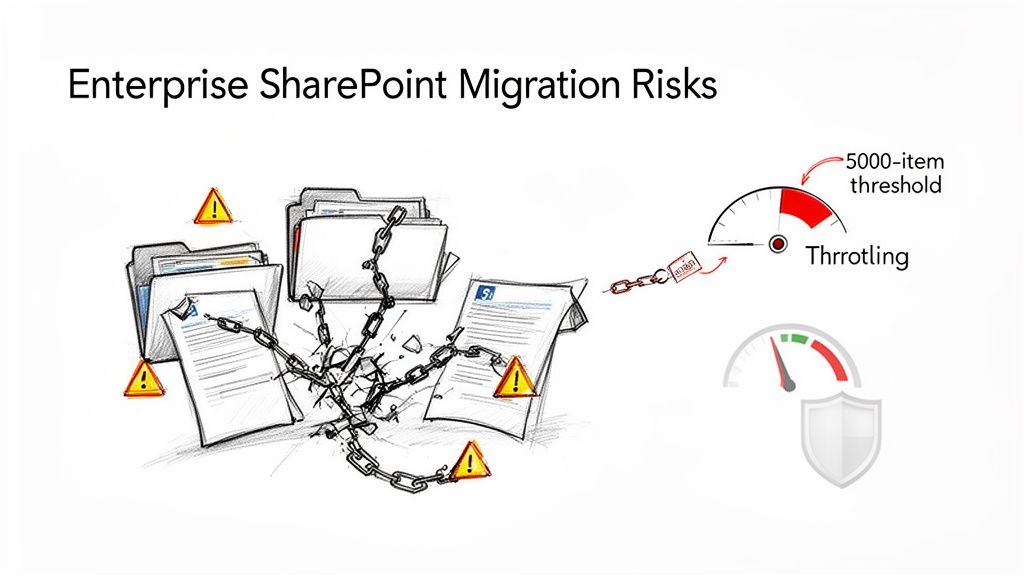
This isn't just theory. With SharePoint Server 2019's End of Life looming in July 2026, thousands of organisations are being forced into this exact migration. Many of them are completely underestimating the years of technical debt buried in their on-premises environments, leading to predictable, expensive failures.
We often see a client's initial migration attempt fall over due to broken inheritance chains and GUID conflicts—deep-seated issues that basic tools simply cannot fix. This isn’t just an inconvenience; it’s a direct path to compliance breaches and operational chaos.
Why Standard Tools Fail at Scale
The official documentation for tools like Microsoft’s free SharePoint Migration Tool (SPMT) might suggest they can handle basic file shares and simple sites. In reality, they are completely inadequate for complex enterprise scenarios. We consistently see them fail when confronted with these unavoidable realities:
- The 5,000-Item List View Threshold: This isn't just a performance recommendation; it's a hard limit that breaks migrations cold. SPMT will simply choke on any list or library exceeding this, often causing silent failures that aren't discovered until users report missing data post-cutover.
- API Throttling: Microsoft explicitly throttles migration jobs to protect the service for everyone. Your team might plan for a certain throughput, but once you exceed the request limits, your migration speed will plummet. A weekend cutover can quickly turn into a week-long outage.
- Path Length Limits: The documentation says the limit is 400 characters, but in practice, complex nested folder structures from legacy file shares will break this constantly. SPMT offers no automated way to fix this, leaving your team to manually correct thousands of individual file paths.
The Ollo Verdict: SPMT is fine for a single file share under 50GB. For anything involving complex permissions, multiple site collections, or regulated data, relying on it is project malpractice. You need a combination of a professional-grade tool like ShareGate and custom PnP PowerShell scripting to handle the inevitable edge cases.
To map out these unspoken risks, we've developed a simple framework. It contrasts the common pitfalls of a DIY approach with the battle-tested protocols we use to ensure a migration succeeds. This isn't just a checklist; it's a strategic shift in thinking.
Common Migration Risks vs Proven Mitigation Strategies
This table illustrates a fundamental truth: a successful migration is about proactive risk neutralisation, not reactive problem-solving.
Understanding these risks requires a thorough Cloud Migration Risk Assessment right at the start. This isn't about ticking boxes; it's about identifying the specific technical landmines buried in your environment. Failing to properly plan your SharePoint data governance is a critical error we see far too often, and it's one of the most expensive to fix after the fact.
Deconstructing Your Legacy SharePoint Environment
Before your team even thinks about moving a single file, you need to conduct a forensic analysis of the source environment. I've seen too many projects start on a path to failure because they began with a simple inventory or a site list export. That approach is dangerously insufficient.
Clients often trust these basic reports, only to discover their true data landscape is a minefield of technical debt accumulated over a decade.
Your real challenge isn't the visible sites; it's the hidden complexity. We're talking about unearthing deeply nested sites with broken inheritance, identifying critical business lists teetering on that infamous 5,000-item threshold, and mapping convoluted custom permissions that will shatter the moment they hit the cloud.
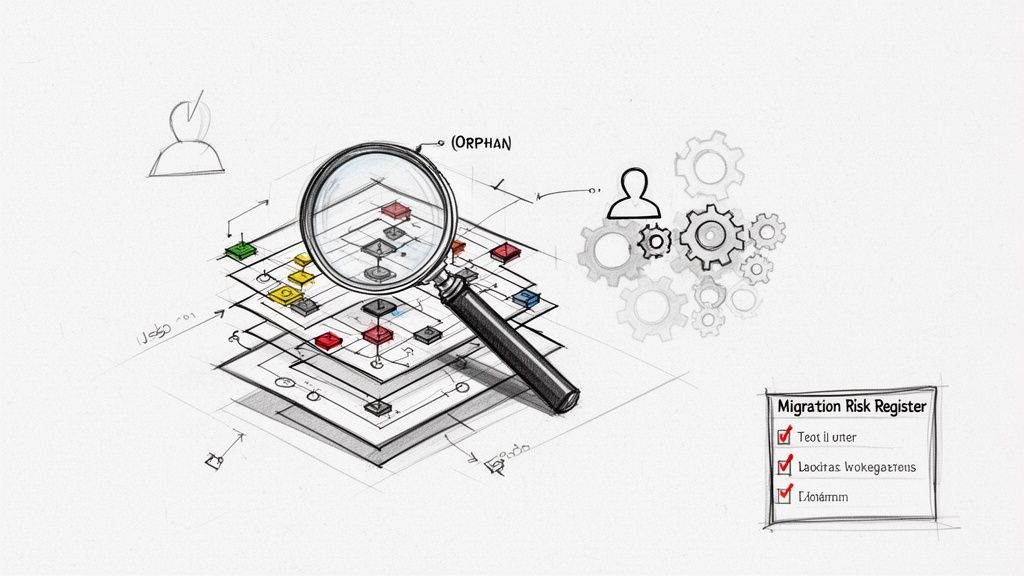
This initial discovery phase is where most DIY migrations are doomed from the start. Your team has to go deeper than a surface-level scan.
Exposing the Hidden Landmines
The official documentation might suggest you can just export a list of sites, but in reality, your biggest risks are buried where standard reports can't see them. We consistently find project-killing issues in areas that are completely overlooked in a standard check.
This calls for a targeted, script-based investigation to expose problems like:
- Orphaned User Profiles and Content: What happens to the critical project data owned by an employee who left five years ago? Their content is often tied to a disabled account, creating a permissions black hole that will cause migration jobs to fail silently.
- Legacy Workflows: Those old SharePoint Designer workflows clinging to life are ticking time bombs. They won't just fail to migrate; they can corrupt the very lists they're attached to. Your team must find these and plan to rebuild them in Power Automate.
- Custom Content Types and Solutions: That custom solution built by a contractor back in 2012 might seem harmless, but it often contains dependencies that don't exist in SharePoint Online. Trying to migrate it without proper remediation will break every single library that relies on it.
We often see clients stumble when they assume their environment is "mostly standard." Let me be clear: no enterprise environment is ever standard. A deep dive with custom PowerShell scripts is the only way to get an honest picture of what you're actually dealing with.
From File Manifest to Migration Risk Register
This forensic analysis shouldn't just produce a simple file manifest. Its real output must be a Migration Risk Register. This is a crucial shift in thinking—it moves beyond counting gigabytes and instead quantifies the business impact of failure for each dataset.
For example, a 10GB library containing active sales contracts is a far higher risk than a 100GB archive of old marketing photos. The risk register maps each piece of data directly to its business function and any relevant legal frameworks like GDPR or ISO 27001.
This process involves asking the hard questions:
- What is the operational cost if this dataset is unavailable for 48 hours? For a finance department's accruals library, the cost could be a delayed quarterly report, leading to regulatory scrutiny.
- What is the compliance penalty if the permissions on this HR data are broken? A failure here isn't just an IT issue; it's a data breach with significant legal and financial consequences.
- Which business processes depend on this specific list or library? If a critical list hits the 5k view threshold post-migration, the associated business process grinds to a halt.
Answering these questions transforms your migration from a technical exercise into a strategic, risk-managed operation. This detailed analysis forms the core of a successful project, and you can learn more about how we structure this critical first step in our complete SharePoint migration assessment guide. It’s a non-negotiable prerequisite for any secure SharePoint migration.
Architecting Your Zero-Trust Security Model
Let’s be brutally honest: lifting and shifting your old permissions isn’t a secure SharePoint migration. It's an open invitation for a catastrophic data breach.
Those legacy Active Directory groups, tangled with years of ad-hoc changes and nested permissions, are a security liability. They are not a foundation for your new cloud environment. This migration is your one and only chance to tear that entire mess down and rebuild security the right way.
You have to architect your security from the ground up on a Zero-Trust model in Microsoft Entra ID. This isn't a "nice-to-have"—it's the absolute core of a secure migration. Get this wrong, and your new environment is non-compliant from day one, exposing your organisation to eye-watering regulatory fines under frameworks like GDPR.
Moving Beyond Obsolete Permissions
The documentation might say you can map old AD groups to new Entra ID groups. Technically, you can. But in the real world, doing this directly is project malpractice. We've seen projects implode because they tried to replicate a decade of accumulated permissions chaos, importing over-provisioned access and toxic inheritance chains directly into the cloud.
Your goal is to eliminate broad, standing access entirely. A cornerstone of a secure SharePoint migration is understanding how to implement zero trust security across your new environment. It means every single access request is treated as a potential threat and must be explicitly verified. No exceptions.
This requires a fundamental redesign, not a simple mapping exercise. It means getting your hands dirty with:
- Role-Based Access Control (RBAC): Meticulously mapping actual business roles to lean, purpose-built Entra ID security groups. A "Finance-Auditors" group shouldn't get blanket "contribute" rights across the entire finance site; they should have read-only access to specific libraries, and that's it.
- Principle of Least Privilege: Every user and service principal must be granted the absolute minimum permissions needed to do their job. Nothing more.
- Just-in-Time (JIT) Access: For administrative or highly sensitive tasks, nobody should have standing access. Instead, grant it temporarily via Privileged Identity Management (PIM) so it expires automatically.
The Ollo Verdict: Do not migrate a single permission. Archive your old security model as a reference, then build a new, clean one in Entra ID based on Zero-Trust principles. For any organisation in a regulated industry, this is non-negotiable. A failure here isn't a technical setback; it's a security and compliance failure waiting to happen.
Enforcing Security with Conditional Access
Once your new identity structure is designed, you have to enforce it with policy. This is where Entra ID Conditional Access becomes your primary enforcement engine. Think of it as a security checkpoint that scrutinises every single sign-in against a set of rules you define before granting access.
We see projects create massive security holes when they fail to configure these policies correctly, leaving sensitive data wide open to unmanaged devices or risky locations. Your baseline Conditional Access policies must, at a bare minimum, enforce:
- Multi-Factor Authentication (MFA): Require MFA for all users, full stop. For anyone with administrative rights, this should be phishing-resistant MFA like FIDO2 keys.
- Device Trust: Block access from personal, non-compliant devices to sites tagged as "Highly Confidential."
- Location-Based Controls: Block sign-ins from impossible travel scenarios or unrecognised IP ranges.
Automating Governance with Sensitivity Labels
Finally, your Zero-Trust model has to extend to the data itself. You can't rely on busy employees to manually classify every single document correctly. That approach is doomed to fail.
This is where you bring in Microsoft Purview sensitivity labels to enforce data governance automatically.
When a document is labelled "Confidential - Finance," it's not just a visual tag. It's a policy container that travels with the file, automatically applying encryption and restricting sharing rights no matter where it goes. You can even configure site-level default labels, ensuring any new content created in a sensitive area inherits the correct protections from the moment it's created. We explore this in our deep dive into the right SharePoint compliance tools and how they fit into the bigger picture.
Failing to implement this trifecta—a clean identity foundation in Entra ID, strict policy enforcement with Conditional Access, and automated data governance—means your "secure" SharePoint migration has already failed before the first file is even moved.
Choosing Your Toolset and Building the Migration Runbook
Let’s be brutally honest about migration tools. Your choice isn’t just about features; it’s a direct reflection of how seriously you take the risk of catastrophic failure. The tools you pick will either be your greatest asset or the primary cause of your project’s demise.
Microsoft's own SharePoint Migration Tool (SPMT) is fine for a small, simple file share. For your complex enterprise environment, though? It’s a toy. We often see projects fail when teams trust it with anything more. It will choke on large lists, fail silently on complex metadata, and offers absolutely zero help for fixing the broken permission inheritance we guarantee is lurking in your legacy system.
The Inescapable Limits of Off-the-Shelf Tools
We use ShareGate as our baseline because its granular controls and detailed logging are non-negotiable for any serious project. It gives you the visibility needed to prove a secure SharePoint migration was actually successful. But even a professional-grade tool like ShareGate has its breaking points.
The documentation for these tools promises the world, but reality in the trenches is different. The real world of enterprise migrations is filled with edge cases that standard GUI tools were never designed to handle.
- Complex Restructuring: What happens when you need to restructure a dozen classic site collections into a modern Hub Site architecture after the move? ShareGate won’t do that for you.
- Bulk Metadata Updates: How do you bulk-update content types across 50,000 documents to align with your new governance model? A point-and-click tool becomes an immediate bottleneck.
- Custom Permission Remediation: When you find a unique, broken permission pattern affecting thousands of files, you can't click your way out of that problem.
This is where a generic, one-size-fits-all approach completely falls apart. Relying solely on a third-party tool is accepting that a percentage of your migration will inevitably fail.
The Ollo Verdict: Use SPMT for a single department's file share that's under 50GB. For anything else—anything involving regulated data, complex permissions, or tenant consolidations—you need a professional tool like ShareGate augmented with a library of custom PnP PowerShell scripts. It is the only way to surgically address the unique problems your environment will present.
Building a Runbook That Anticipates Failure
A migration runbook is not a hopeful timeline. It's a military-grade operational plan that details every sequence, anticipates every potential failure, and has a pre-scripted response for when things go wrong. We've seen projects burn through their budget and timeline because their "plan" was just a list of high-level steps.
Your runbook must be a meticulous, command-by-command script covering the entire lifecycle:
- Pre-Flight System Checks: Automated scripts that verify source and target tenant configurations, check service health, and confirm the migration accounts have the correct, least-privilege permissions.
- Pilot and Batch Migrations: Small, targeted migrations of representative content (like a site with a known large list, or a library with complex metadata) to test throughput and expose issues early.
- Delta Synchronisations: The process for running incremental syncs to capture changes made during the migration window, ensuring no data is left behind.
- The Final Cutover Sequence: The precise, timed sequence of events for the go-live weekend. This includes placing the source in read-only mode, running the final delta, and executing post-migration validation scripts.
- Rollback Procedure: The documented, tested steps to revert to the source system if a critical failure is found during validation. If you haven't actually tested your rollback plan, you don't have one.
The numbers don't lie. While 345 million subscribers have access to SharePoint, our experience in the IE region shows that DIY migrations frequently ignore the harsh realities of Microsoft’s infrastructure. We’ve seen Power Automate flows shatter and migrations crawl to a halt because teams ignored documented throttling limits, leading to crippling bottlenecks. Simply put, out-of-the-box tools like SPMT can’t handle the scale, a point we cover in our detailed analysis of the SharePoint Migration Tool.
This diagram shows a simplified flow for building security policies directly into your migration plan.
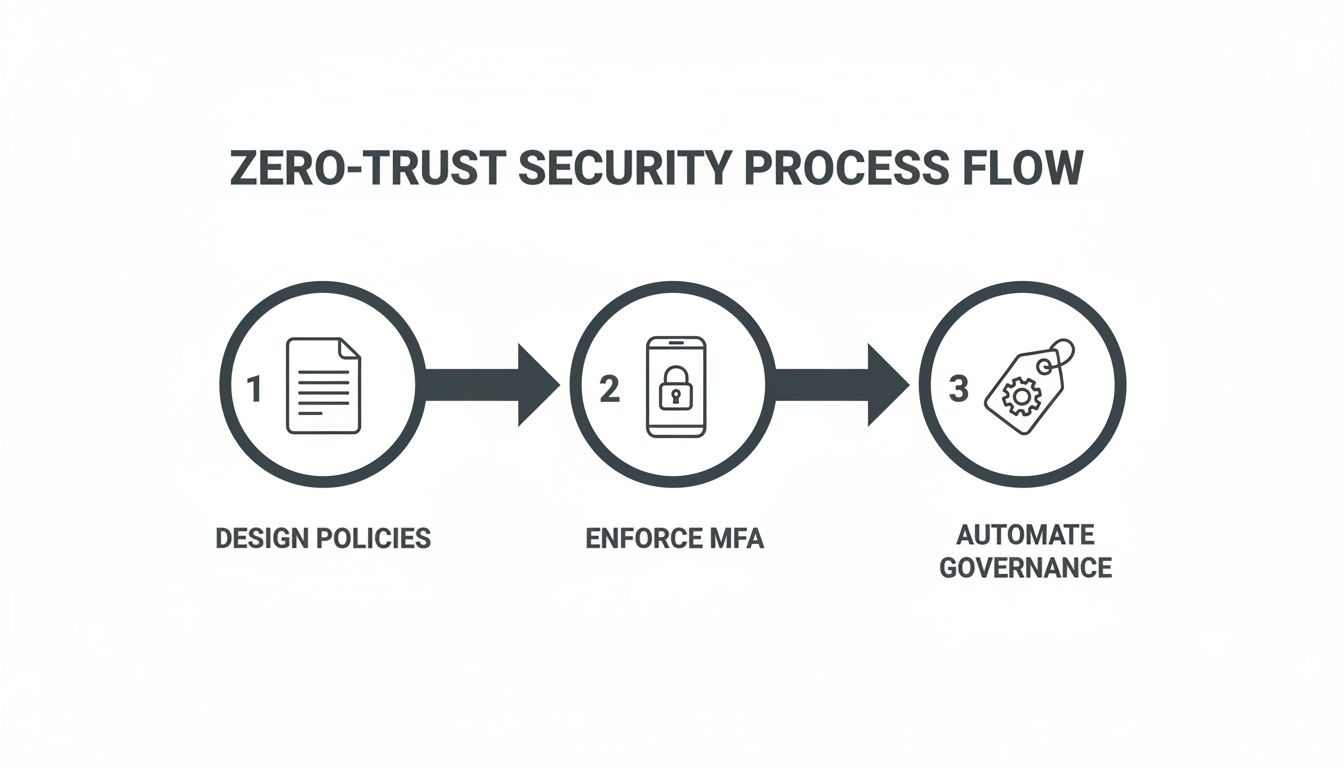
Each of these steps—designing policies, enforcing MFA, and automating governance—must be explicitly built into your runbook. Otherwise, you risk creating a security vacuum the moment you go live.
Executing the Migration and Post-Cutover Validation
The migration ‘go-live’ isn’t the finish line. Far from it. This is where the real project begins—the moment your team either validates a successful, secure migration or discovers they’ve just orchestrated a catastrophic failure.
Too many organisations breathe a sigh of relief once the final delta sync completes, completely missing the fact that the real work has just started. A quick check of file counts and folder structures is dangerously insufficient. We've been called in to rescue projects where the data looked like it had arrived, only for the client to discover weeks later that thousands of unique permissions were stripped, metadata was corrupted, and critical Power Automate flows tied to their finance department were silently failing.
This isn't a theoretical risk; it's the predictable outcome of a weak validation strategy.
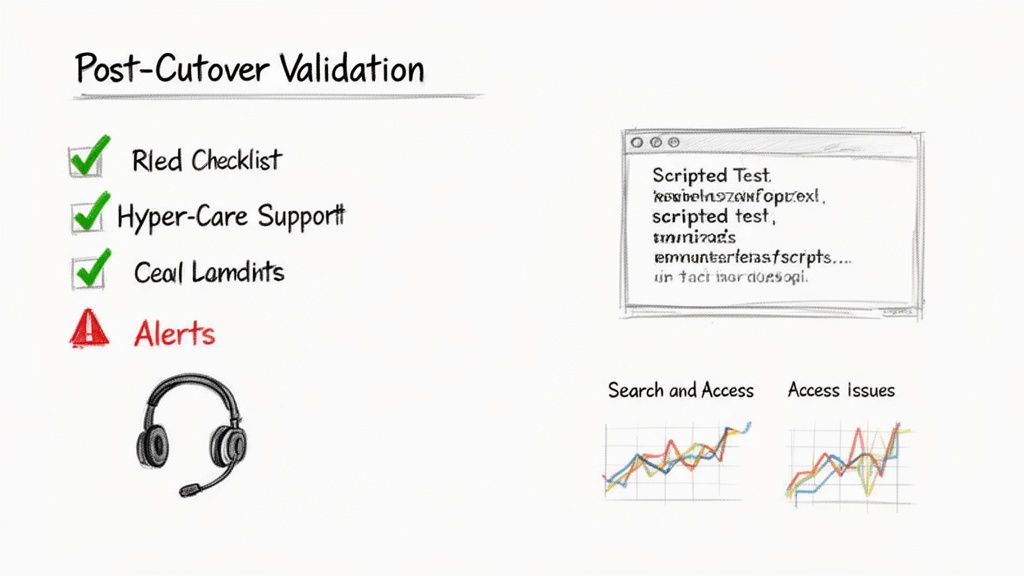
Beyond "Did the Files Copy" Validation
Your validation plan needs to be ruthless and scripted. Manual spot-checks are guaranteed to miss systemic issues. Your technical team must execute a battery of automated tests immediately post-cutover to get a true picture of the migration's integrity.
This isn’t about asking a few users if "things look okay." It's about a forensic, evidence-based confirmation that your core technical and security requirements were actually met. Your validation scripts must confirm:
- Permission Integrity: Run tests against a sample of sensitive libraries. Verify that the new Entra ID security groups were applied correctly and that no legacy, direct-user permissions were carried over.
- Metadata Fidelity: Check that critical metadata columns—the ones used for document routing and retention—were preserved. Missing this doesn't just inconvenience users; it can break legal compliance for records management.
- Version History: Validate that version histories for key documents have been maintained. Losing this is non-negotiable for organisations in regulated sectors like finance or healthcare.
- Critical Process Functionality: Test the business processes you identified back in the discovery phase. Can the invoicing Power Automate flow still read its source list? Do linked Excel files in the finance site still update?
The Ollo Verdict: If your post-migration validation plan fits on a single page and relies on manual user feedback, you don't have a plan. You have a hopeful wish. For any enterprise migration, scripted validation using PnP PowerShell is the only professionally acceptable method to certify success.
Establishing the Hyper-Care Period
Once the initial technical validation is complete, you enter the hyper-care period. This is a pre-defined window, typically one to two weeks, of heightened support and monitoring. It’s not just about having extra helpdesk staff on standby; it's about actively hunting for issues before they escalate.
During this period, your team has to be obsessive about monitoring specific performance and access metrics that act as early warning signals. Simply waiting for users to submit tickets is a reactive posture that erodes confidence. Proactive monitoring should focus on:
- Search Crawl Performance: Is the search index picking up new content correctly and quickly? Slow or incomplete search results are a primary driver of user frustration and often a sign of underlying configuration problems.
- User-Reported Access Issues: Track every single "access denied" report. A small number might be expected, but a clear pattern indicates a systemic flaw in your permissions redesign that needs immediate attention.
- Power Platform and Teams Integration: Monitor for failures in Power Automate flows or issues with files surfaced in Microsoft Teams channels. These integrations are often the first place where subtle permission or pathing issues will manifest.
Integrating with the Modern Workplace
A successful migration delivers a platform ready for modern work, not just a new place to store old files. The final step of post-cutover is ensuring your new, secure SharePoint environment integrates correctly with Microsoft Teams and the Power Platform.
Failing to do this just creates a new "wild west" of ungoverned apps and siloed data, nullifying much of the benefit of the migration itself.
You need to establish clear governance for how Teams connects to SharePoint sites, making sure the sensitivity labels and permissions you so carefully designed are respected. Similarly, provide clear guidelines and templates for using Power Automate with SharePoint lists to prevent the creation of insecure, unmanaged workflows.
Ultimately, executing the migration and validating the outcome is the final exam for your entire project. We have found that the most successful projects are those that plan for this phase with the same rigour as the migration itself. For a deeper look into the complexities of such projects, check out our guide on managing a large-scale SharePoint migration. It’s where strategy meets reality.
Frequently Asked Questions About Secure SharePoint Migration
As architects who spend our days rescuing complex migration projects, we hear the same questions over and over from IT Directors and Enterprise Architects. These aren't just technical queries; they're legitimate concerns about risk, cost, and the potential for a career-defining disaster.
Here are the straight-up answers you need before you walk into that boardroom.
Why Can’t My Internal IT Team Handle This Migration?
Your internal team is probably brilliant at keeping the lights on and managing the day-to-day operations that your organisation depends on. But let’s be clear: a secure SharePoint migration isn't an operational task. It's a highly specialised, high-stakes project that lives outside of normal IT.
Frankly, they just don't have the battle scars that come from navigating hundreds of unique enterprise environments. They don’t know where migrations typically break down because they haven’t seen it happen a dozen different ways.
Let’s get specific. Does your team have a library of proprietary PowerShell scripts ready to fix thousands of GUID conflicts at scale? Do they have established escalation paths with Microsoft Support to diagnose API throttling issues that are grinding your cutover weekend to a halt?
The official documentation might explain a feature, but it won't tell you what to do when it fails at 2 AM with your CIO demanding a status update. Using your internal team isn't saving money; it’s accepting a massive, unquantified risk to your data integrity, project timeline, and operational stability.
Is a Tool Like ShareGate Enough on Its Own?
ShareGate is an excellent, indispensable tool. Let me be clear: we use it on every single enterprise project. But the assumption that it's a 'silver bullet' solution is a dangerously flawed idea we see far too often.
Think of it this way: the tool is the engine, but you still need an experienced driver who knows the track, the blind corners, and exactly when to push the throttle or hit the brakes. ShareGate won’t architect a Zero-Trust security model for you in Entra ID. It won't redesign your information architecture to prevent future chaos.
When it runs into a truly unique enterprise problem—like a legacy workflow that needs a complete rebuild in Power Automate or a custom solution that breaks every library it touches—the tool will simply stop. That’s where expert intervention becomes non-negotiable.
ShareGate handles maybe 80% of the mechanical lifting, but the remaining 20% is precisely where a migration either succeeds or descends into chaos.
What Is the Single Biggest Technical Mistake to Avoid?
Without a doubt, the single most destructive mistake is performing a 'lift and shift' of your legacy permissions.
Migrating your on-premises Active Directory mess directly into SharePoint Online is like moving into a brand-new, custom-built house and bringing all your old rubbish with you. It doesn’t just replicate old security holes; it amplifies them exponentially in the collaborative, cloud-first world of Microsoft 365.
You are wasting the single best opportunity you will ever have to build a secure, compliant, and manageable environment from the ground up, one that’s aligned with modern security practices like the principle of least privilege.
The migration must be preceded by a full identity and permissions redesign based on Zero-Trust principles in Entra ID. Anything less isn't just a poor technical choice; it's a security incident waiting to happen. Missing this step doesn't just fail the migration; it breaks legal compliance from day one.
A secure SharePoint migration isn't built on hope; it's built on a proven methodology that anticipates and neutralises risk before it can derail your project. At Ollo, we've built our reputation on executing these complex migrations that internal teams and generic tools simply cannot handle.
If you want to ensure your migration is a strategic success, not a technical disaster, it's time to talk.
Learn more about our SharePoint Migration Services at Ollo.ie

















