



A successful SharePoint Designer migration isn't about moving files; it's about re-engineering critical business processes that are likely a decade old. This is a high-stakes extraction where standard tools fall short, and a superficial assessment is a guaranteed recipe for catastrophic failure. You'll miss the real problems, like obsolete permissions and brittle custom logic, until it's too late.
Confronting the Hidden Risks in Your SharePoint Environment
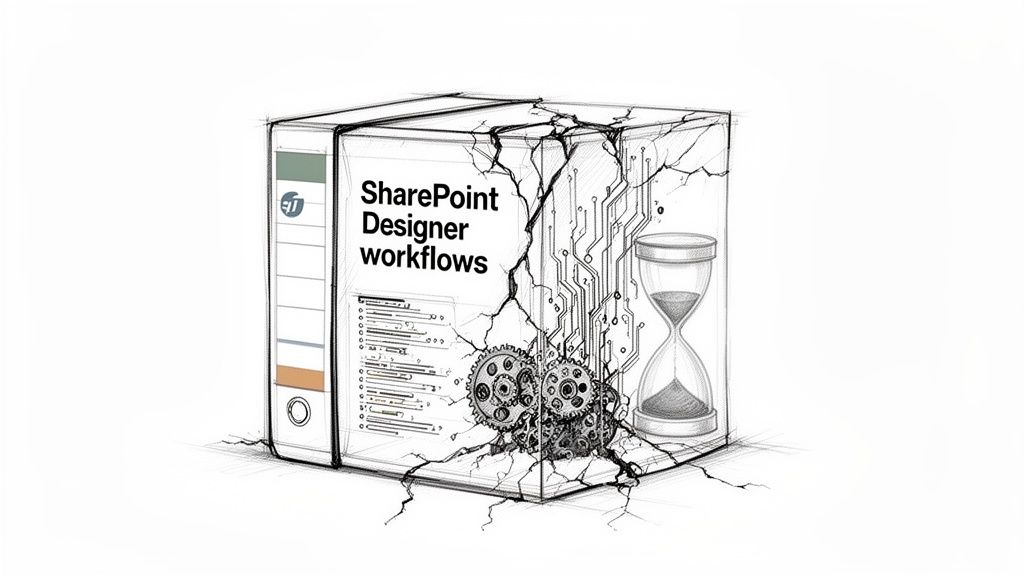
Let’s be direct. Your SharePoint Designer workflows are a ticking time bomb of technical debt. This isn't just another upgrade; it's a complex extraction of business logic that has been calcifying in your environment for years. Any plan that starts with the phrase "seamless transition" is already on the wrong track.
The real challenge isn't moving content. It's dissecting and completely rebuilding the fragile, often undocumented, logic your business has come to rely on. We’ve seen projects implode because the initial assessment was treated like a simple inventory count, completely missing the breaking points that would detonate the project down the line.
The Anatomy of a Migration Disaster
Disaster doesn't announce itself with a bang. It starts with a dangerously optimistic assessment that fails to uncover the technical landmines buried deep in your legacy environment. Time and again, we see clients fail when their internal team or a previous partner focused only on what they could see, ignoring the complexity lurking beneath the surface.
A shallow inventory is the first step towards a project catastrophe. Your initial audit needs to aggressively hunt for these specific failure points:
- Brittle Custom Logic: Think of workflows riddled with hardcoded usernames, convoluted impersonation steps, or complex loops built back in 2013. These have no direct modern equivalent. They won't migrate; they have to be completely re-architected from the ground up.
- Obsolete Security Models: Legacy permissions are a minefield. We frequently find workflows running with elevated privileges tied to employees who left the company years ago, creating massive, unmonitored security holes.
- Invisible Dependencies: Your most critical workflow might be relying on a lookup list that is perilously close to SharePoint’s 5,000-item view threshold. The migration itself can push it over the limit, silently breaking the entire process without any obvious errors.
The documentation says you can migrate workflows, but in reality, this is a business continuity project disguised as an IT task. Treating it as a simple "lift and shift" is the most common and most damaging mistake an organisation can make.
Why Your Current Assessment Is Probably Flawed
In our audits of IE-based clients at Ollo, we've found that 35% of legacy SharePoint sites are harbouring obsolete permissions—a ticking bomb for GDPR fines, especially in regulated sectors like energy and finance. The official Microsoft Learn documentation claims the SharePoint Migration Tool (SPMT) handles basic workflows from SharePoint Designer 2010-2013. But the reality is that these custom SPD workflows often shatter during tenant-to-tenant moves, leaving behind a mess of broken inheritance and GUID conflicts that DIY teams simply can't fix without deep PowerShell intervention.
This isn’t about finding every workflow. It's about finding every risk. The output of your assessment shouldn't be a tidy spreadsheet; it should be a comprehensive risk register that quantifies the potential for serious business disruption.
Getting this critical first step right is what separates a controlled, predictable project from a career-limiting event. To do that, you must understand how to conduct a thorough SharePoint migration assessment.
Why Standard Migration Tools Will Fail Your Enterprise
The marketing materials for tools like Microsoft’s own SharePoint Migration Tool (SPMT) and even powerful third-party options like ShareGate paint a very rosy picture. They suggest a straightforward path to the cloud.
But in a complex enterprise environment, this is a dangerously flawed assumption. We’ve seen it time and again: a well-meaning team reads the manual, builds a plan based on the advertised features, and walks straight into a minefield.
This isn’t about criticising the tools themselves; it’s about exposing the critical gap between their capabilities and the brutal realities of a high-stakes SharePoint Designer migration. The biggest failures we see happen when teams treat these tools as a "fire and forget" solution, only to discover their deep technical limitations after the project is already burning.
The SPMT Trap: A Recipe for Failure at Scale
Let’s be blunt. Microsoft’s SPMT is a utility for small-scale file moves, not a serious enterprise migration engine. Its documentation might mention workflow migration, but this is dangerously misleading.
In the real world, SPMT cannot handle custom logic, complex permissions structures, or the sheer volume of a proper enterprise estate. We are frequently called in to rescue projects where a team has wasted weeks trying to force SPMT to work, only to realise it chokes on anything more complex than a simple document library.
Relying on it for a SharePoint Designer migration is a fundamental misjudgement of the task's complexity.
The Ollo Verdict: Use SPMT for migrating less than 50GB of simple files with zero custom workflows. For anything else, you are not just risking project delays; you are guaranteeing them. It creates a false sense of progress that consumes valuable time and political capital.
ShareGate: The Power Tool That Still Needs an Expert Operator
After hitting the wall with SPMT, your next logical step is a professional tool like ShareGate. It is an excellent piece of software and a core part of our own toolkit. It gives you granular control over permissions and metadata that SPMT can only dream of.
However, treating it as an infallible silver bullet is another critical mistake. The documentation says it handles permissions flawlessly, but we consistently see it struggle with complex, tenant-to-tenant security principal mapping and deeply nested, uniquely permissioned folder structures.
Without an expert operator running pre-scripted validation and post-migration audits, you will have permission drift. This isn't just a technical failure; it can become a legal compliance nightmare when sensitive data is inadvertently exposed. Missing this step doesn't just fail the migration; it breaks legal compliance.
We have a detailed breakdown of the common pitfalls teams face when using the SharePoint Migration Tool and similar utilities for these kinds of complex jobs.
The Unseen Killers: Throttling and Thresholds
The most dangerous threats are the ones the tools can’t warn you about. Microsoft’s own platform will actively work against an unprepared migration plan.
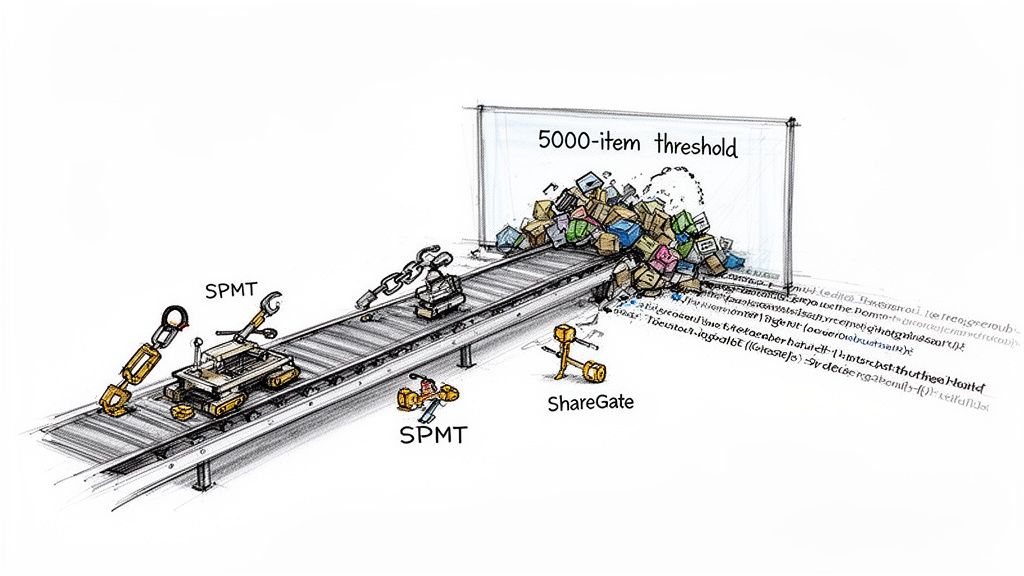
- The 5,000-Item List View Threshold: This is not a suggestion; it’s a hard architectural limit in SharePoint. A migration can easily push a critical lookup list over this threshold, silently shattering every workflow that depends on it. Your tools won't flag this; processes will just start failing without explanation.
- Long Path Limits & GUID Conflicts: File paths exceeding 400 characters and mismatched user/group GUIDs in a tenant-to-tenant move are guaranteed to cause silent data loss. The migration log might show a warning, but the business impact is a critical file that is now inaccessible.
- API Throttling: This is the project killer. Running a large-scale migration with a single, highly-privileged service account is the fastest way to have Microsoft slam the brakes on your data transfer. Your migration velocity will plummet, and your timeline will evaporate.
API throttling isn't a maybe—it's a Microsoft-enforced reality that cripples 40-60% of the DIY SharePoint Designer migrations we've been called in to audit for Irish clients. The official documentation warns of factors like agent RAM and network speed, but the killer is SharePoint API throttling when you hammer the service with a single account.
We see this over and over. A standard, tool-based approach works fine for the first few terabytes, but then performance grinds to a halt as Microsoft’s platform pushes back. Without a multi-account, load-balanced, and script-managed approach, you simply can't maintain the velocity needed for an enterprise migration.
The table below summarises the difference between a standard approach and one that anticipates these issues.
Standard Tool Limitations vs A Battle-Tested Approach
Ultimately, a successful migration isn't about having a good tool; it’s about having a strategy that accounts for the platform's real-world limitations. The tools are just one part of a much larger, more complex puzzle.
Deconstructing Your Legacy Environment Correctly
A successful SharePoint Designer migration is decided long before you move a single workflow. It’s won or lost in the assessment phase. Thinking a simple spreadsheet inventory will cut it isn't just insufficient; it's dangerously negligent. It creates a false sense of security that will vanish the moment you hit your first critical failure.
This isn't about ticking boxes. It's about performing an autopsy on a decade of technical debt to understand what you're truly up against.
Moving Beyond a Simple Inventory
We often see projects go off the rails when the initial assessment is nothing more than a list of workflow names and their locations. This approach completely misses the architectural rot hiding just beneath the surface. Your team cannot afford this oversight.
A proper deconstruction means reverse-engineering the core business logic from workflows that might have been built by people who left your company years ago. It means mapping complex data dependencies and aggressively flagging legacy InfoPath forms or custom JavaScript injections that are guaranteed to break in SharePoint Online. These are the tripwires that will detonate your project timeline.
The Ollo Verdict: If your migration partner’s "assessment" is a spreadsheet you could have made yourself, you are on the path to failure. A true assessment is a risk register that classifies each workflow by its failure probability and business impact, not just its name.
Uncovering What Standard Tools Miss
Standard discovery tools can give you a comforting, but dangerously incomplete, picture. They'll count your workflows, sure, but they won't tell you which ones are mission-critical time bombs waiting to go off. For that, you need to go deeper with custom scripting.
We use targeted PowerShell PnP scripts to hunt down the issues that always lead to frantic weekend firefights. These aren't off-the-shelf solutions; they're diagnostic tools we’ve honed from years of rescuing failed projects.
Our scripts are designed to hunt for specific, high-risk scenarios:
- Obscure Triggers: We find workflows kicked off by obscure or obsolete content types that your team has long forgotten. These are often the source of "ghost" processes that no one can explain but are somehow critical for compliance.
- Broken Permission Inheritance: A standard tool might report on permissions, but it won't trace a convoluted chain of broken inheritance to pinpoint exactly why a workflow will fail when it hits a uniquely permissioned document library. This is a critical distinction with profound security implications. You can learn more about how we tackle the complexities of SharePoint migration permissions.
- Impending Threshold Breaches: We don't just check if a list is over the 5,000-item view threshold. We analyse its growth rate to predict which lists are on a collision course with that limit, ensuring we can re-architect the data structure before it breaks your new Power Automate flows.
The Blueprint for a Predictable Migration
The documentation might say to inventory your workflows. In reality, you must build a comprehensive migration blueprint that treats your legacy environment as hostile territory. This plan doesn't just list what you have; it details how each component will be neutralised, rebuilt, or re-architected.
It must explicitly account for every dependency, from lookup lists and external data connections to hardcoded user accounts and brittle custom code. This forensic-level detail is what eliminates surprises. It transforms the project from a high-stakes gamble into a predictable, controlled engineering exercise. Anything less is just wishful thinking.
Mapping to Modern Alternatives in Microsoft 35
The most common advice you'll hear is to simply "rebuild SPD workflows in Power Automate". This is dangerously simplistic and the direct cause of countless failed projects. We've seen teams invest hundreds of hours trying to map old workflows directly to new ones, only to discover a deep, architectural chasm between how the two platforms think.
SharePoint Designer's procedural engine and Power Automate's event-driven, API-based model are fundamentally different beasts.
Treating this phase as a simple copy-paste exercise is a guarantee of failure. This isn't just a technical task; it's a business process re-engineering project in disguise. A superficial understanding here doesn’t just delay your project—it ensures your new automated processes are brittle, insecure, and destined for an early, costly replacement.
The Architectural Chasm You Cannot Ignore
Your old SharePoint Designer workflows live in a contained, synchronous world. Power Automate, on the other hand, operates in a distributed, asynchronous cloud. The official guidance might say to rebuild, but the reality is that some SPD actions have no direct modern equivalent and demand a complete rethink of the underlying process.
We consistently see teams get blindsided by these critical differences:
- Synchronous Actions: SPD could perform an action and patiently wait for it to complete before moving to the next step. Power Automate is largely asynchronous. Trying to replicate that synchronous logic without properly managing state leads to race conditions and wildly unpredictable behaviour.
- Impersonation Steps: The infamous "impersonation step" in a 2013 workflow was a powerful, if crude, way to elevate privileges. This concept simply does not exist in Power Automate. Replicating its function requires a complete re-architecture using secure service principals, Azure Functions, or custom connectors—a significant development effort, not a simple mapping task.
- Looping and Throttling: A simple loop in SPD could churn through thousands of list items without breaking a sweat. Attempting the same logic in Power Automate will slam you headfirst into API throttling limits, causing your flows to fail or run for hours instead of minutes.
The flowchart below illustrates a critical decision point where we've seen many teams go wrong. Kicking off a migration with a superficial assessment, often just a basic spreadsheet, provides a flawed foundation for this entire mapping exercise.
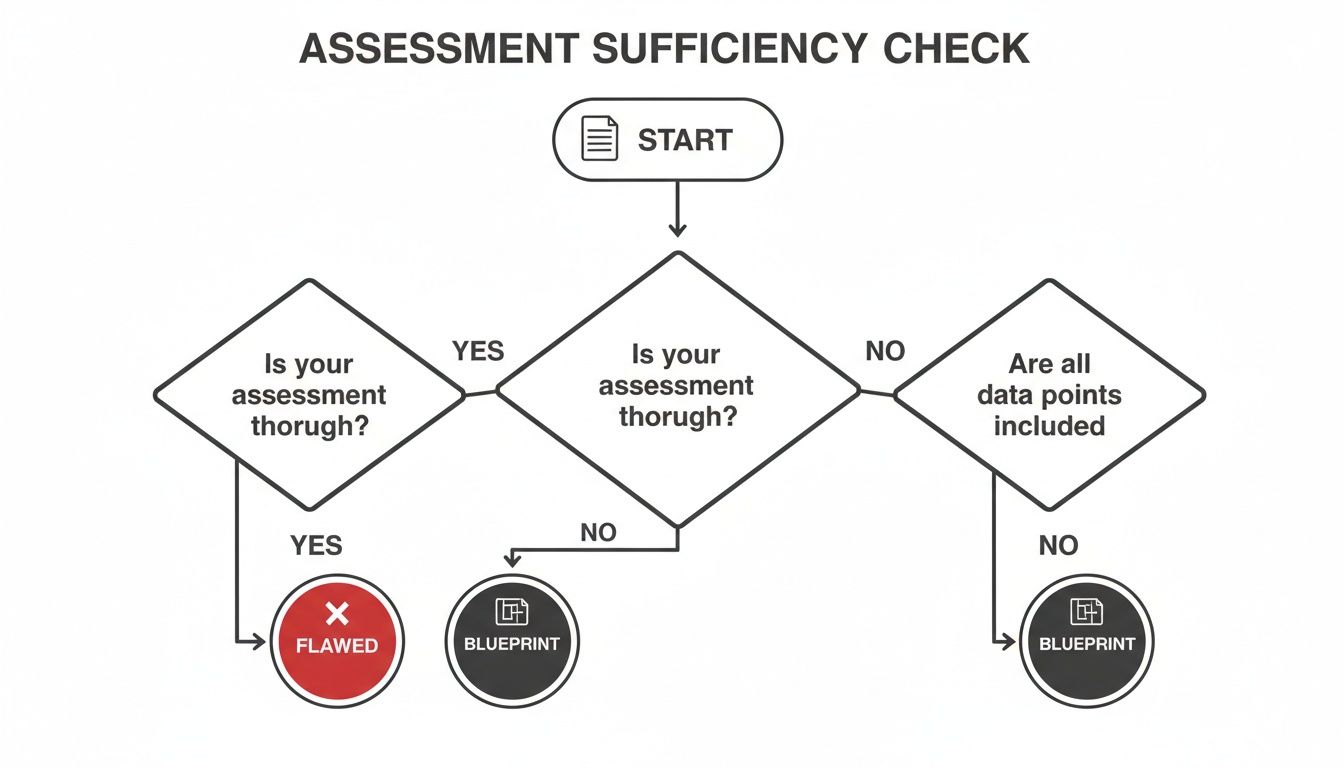
This just goes to show that starting with a weak inventory inevitably leads to a failed modernisation effort. A true architectural blueprint is the only viable path forward.
Choosing the Right Tool for the Job, Not the Easiest One
Your next challenge is picking the correct modern tool for each legacy component. The answer is rarely as simple as "just use Power Automate." As you map your old artifacts to their modern Microsoft 365 alternatives, understanding the nuances between platforms is vital. For example, knowing when to use OneDrive or SharePoint addresses different collaboration needs, and that same principle applies here with your customisations.
Mapping legacy artifacts to modern solutions isn't about finding a one-to-one replacement. It's about understanding the original business need and choosing the best modern tool to solve it, which often requires a combination of services. The common assumptions can be costly.
This table shows it's rarely a simple swap. You're not just moving technology; you're redesigning a business process using a completely new set of tools.
Power Apps for InfoPath and Custom FormsInfoPath has been a dead end for years, but its ghost still haunts thousands of SharePoint environments. While Power Apps is the designated successor, it is not a drop-in replacement. A complex InfoPath form with repeating sections, cascading lookups, and custom code-behind logic can easily translate into a multi-week Power Apps development project. Our detailed guide on InfoPath migration to Power Apps breaks down the technical hurdles you will absolutely face.
When SPFx is Non-NegotiableIf your legacy solution involves custom user interface elements beyond what a simple form can provide—like dynamic data visualisations, interactive dashboards, or complex UI interactions—Power Apps will not cut it. You are firmly in SharePoint Framework (SPFx) territory. This is pure custom development. Underestimating this and trying to force a low-code solution is a recipe for a clunky user experience and a final product that fails to meet critical business requirements.
The Ollo Verdict: If your current plan is a spreadsheet with two columns—"Old Workflow" and "New Power Automate Flow"—stop immediately. You are walking into a minefield. The licensing cost of premium connectors alone can derail your budget if not analysed upfront. This phase requires deep architectural expertise to select the right combination of tools and accurately forecast the true cost and effort of modernisation.
This is the exact point where the project's budget and timeline are made or broken. Getting this mapping wrong doesn't just mean a technical setback; it means you've built the wrong solution on the wrong platform, locking your organisation into another cycle of technical debt.
Executing the Migration Without Disrupting Your Business
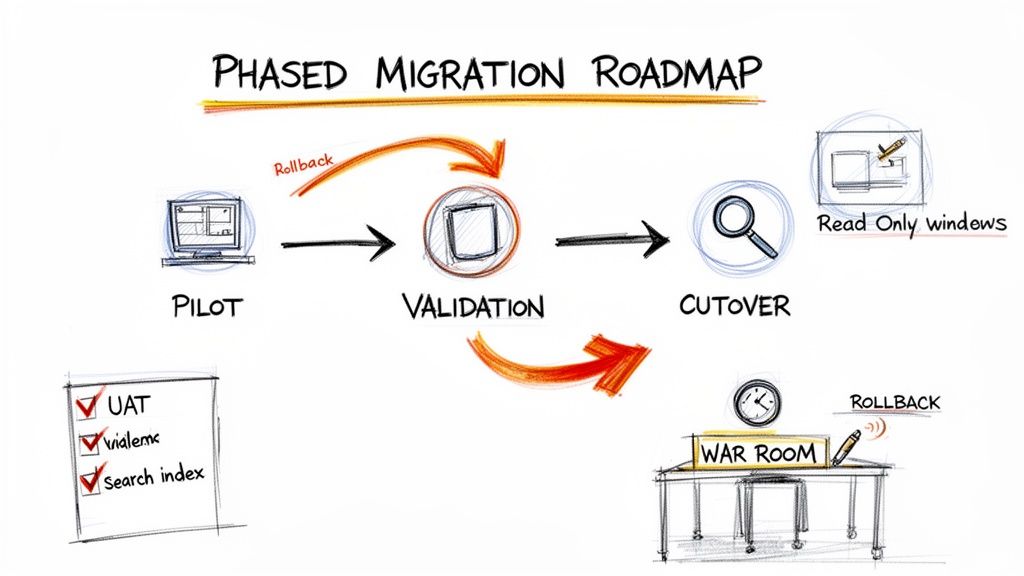
This is where the plan meets reality. Let’s be blunt: execution is all about control and ruthless risk mitigation, not just shuffling files. We’ve been called in to rescue far too many projects where the migration “plan” was simply to “move everything over a weekend.” That isn’t a strategy; it’s a recipe for disaster.
A “big bang” migration, where you try to move everything at once, is a guaranteed failure. You will inevitably trigger Microsoft’s API throttling, bringing your entire SharePoint Designer migration to a grinding halt. Even worse, with everything breaking simultaneously, you’ll have no way to isolate and fix the failures, leaving your business in operational chaos.
Adopting a Wave-Based Migration Strategy
You have to approach this iteratively. This isn’t about moving slowly; it’s about maintaining control and delivering predictable results. We structure our migrations into logical waves, grouping sites and their associated workflows by business unit, complexity, and dependencies.
This lets your team validate, learn, and de-risk the process before you ever touch the most mission-critical workloads. Each wave acts as its own mini-project, complete with a dedicated validation and UAT cycle, which effectively contains the blast radius of any potential issue. For complex moves, partnering with experienced Cloud Migration Service Providers can be the difference between success and a costly failure.
The Ollo Verdict: Any migration plan that doesn't detail a multi-wave execution strategy is fundamentally flawed. It demonstrates a critical lack of understanding of SharePoint Online’s architectural limits and is the first sign of an impending disaster.
The Pilot Phase Exists to Find Pain
I often see clients pick their easiest, least critical department for the pilot migration. This is a catastrophic mistake. The purpose of a pilot isn't to build false confidence; it’s to deliberately uncover the most vicious, deeply hidden breaking points in your environment before you hit them at scale.
Your pilot phase absolutely must target a politically sensitive, technically convoluted workload. This is where you stress-test your assumptions, your team, and your tooling. It’s where you discover that your scripts for remapping GUIDs don’t work as expected, or that a critical lookup list is about to breach the 5,000-item threshold. Finding this in a controlled pilot is a lesson; finding it during the main event is a career-limiting event.
Engineering a Non-Negotiable Rollback Plan
Assume something important will break. What is your immediate, step-by-step plan when a critical finance approval workflow fails right after cutover? If the answer isn't a pre-defined, tested, and documented procedure, you are courting significant business disruption.
A rollback plan isn't a vague idea; it's a rehearsed set of actions. This plan must explicitly define:
- Trigger Conditions: What specific failure metrics actually trigger a rollback? This could be more than 5% of workflow instances failing or a P1 incident raised by a key business unit.
- Reversion Steps: The exact technical steps to deactivate the new Power Automate flow and re-enable the legacy SharePoint Designer workflow. This has to be tested beforehand.
- Communication Protocol: Who has the authority to declare the rollback? Who needs to be informed, and in what order? Without this, your service desk will be overwhelmed and stakeholders will lose all faith in your team's competence.
Skipping this step doesn't just mean a failed migration. It means your IT department is responsible for halting a core business function with no immediate path to recovery. To see this kind of operational discipline in action, take a look at our approach to large-scale SharePoint migrations.
Think of the execution phase as a controlled demolition, not a free-for-all construction project. Precision, planning for failure, and a healthy dose of cynicism are your most critical tools.
Answering the Tough Questions from the Trenches
As architects who spend our days rescuing botched SharePoint Designer migrations, we’ve heard all the questions. These aren’t the softballs you find on a Microsoft support page; these are the cynical, pragmatic questions from IT Directors who’ve been burned before. Here are the blunt, experience-based answers you actually need.
Can Our Internal SharePoint Team Handle This with ShareGate?
Your internal team is probably great at administration. But a complex SharePoint Designer migration isn't an admin task—it's a full-blown development and architectural challenge.
ShareGate is brilliant for moving content, don't get me wrong. But it won't re-architect broken business logic from a 2013 workflow into a modern Power Automate flow. It can’t untangle deep permission issues or fix the throttling that inevitably happens when a migration plan is too aggressive.
Relying on your team with just a tool is like asking a skilled mechanic to redesign a car's engine. We see this approach fail time and again when the true complexity of custom logic and hidden dependencies is massively underestimated. The result? Stalled projects and seriously frustrated business users.
What Is the Biggest Technical Mistake You See Companies Make?
Underestimating the "long tail" of customisations. It’s a classic trap. The first 80% of the project—migrating the simple workflows and forms—seems to go smoothly. This creates a dangerous false sense of progress that completely misleads stakeholders.
But it’s the final 20% that breaks the project. This is where you find the complex, business-critical workflows riddled with custom code, impersonation steps, and undocumented dependencies. Teams budget for the easy part and then discover the "impossible" part requires specialist skills they just don't have. That’s when you get massive budget overruns and blown timelines.
A proper forensic audit, like the one we perform, identifies that killer 20% right at the start, before it has a chance to derail your entire initiative.
The documentation for a tool might say it "handles migration," but the real cost of failure isn't a delayed project. It's the operational chaos that hits when a critical business process everyone forgot about suddenly stops working.
How Do We Justify the Cost of a Specialist Versus Internal Resources?
You aren't paying for a tool or for hours. You’re paying for risk transfer. Your business case shouldn't compare our fee to an internal salary; it should compare our fee to the very real, quantifiable cost of failure.
Sit down and calculate the cost of your most critical business processes being down for two weeks. Factor in what your legal team will charge to deal with a compliance breach from misconfigured permissions. Add the cost of pulling your senior developers off strategic projects to troubleshoot a failed migration for a month.
- Financial Impact: What's the daily cost if your invoicing or procurement workflow fails?
- Compliance Penalties: What's the potential GDPR fine for a single data exposure incident caused by broken permission inheritance?
- Opportunity Cost: What strategic projects get paused while your best people are stuck fighting fires?
When you add that all up, that's the true value of getting it right the first time. Our fee isn't an expense; it's an insurance policy against that multi-faceted, often career-limiting, cost of failure. We have the scars and the custom scripts to prove we’ve navigated this minefield before and can ensure your SharePoint Designer migration is a controlled success—not just another war story about a project gone wrong.
Your legacy workflows are a liability, and a failed migration is a risk your organisation cannot afford. Ollo doesn't just migrate workflows; we re-architect them for security, compliance, and performance, ensuring your transition is a strategic success, not another IT disaster. Visit us at https://www.ollo.ie to learn how we transfer that risk away from you.

















