



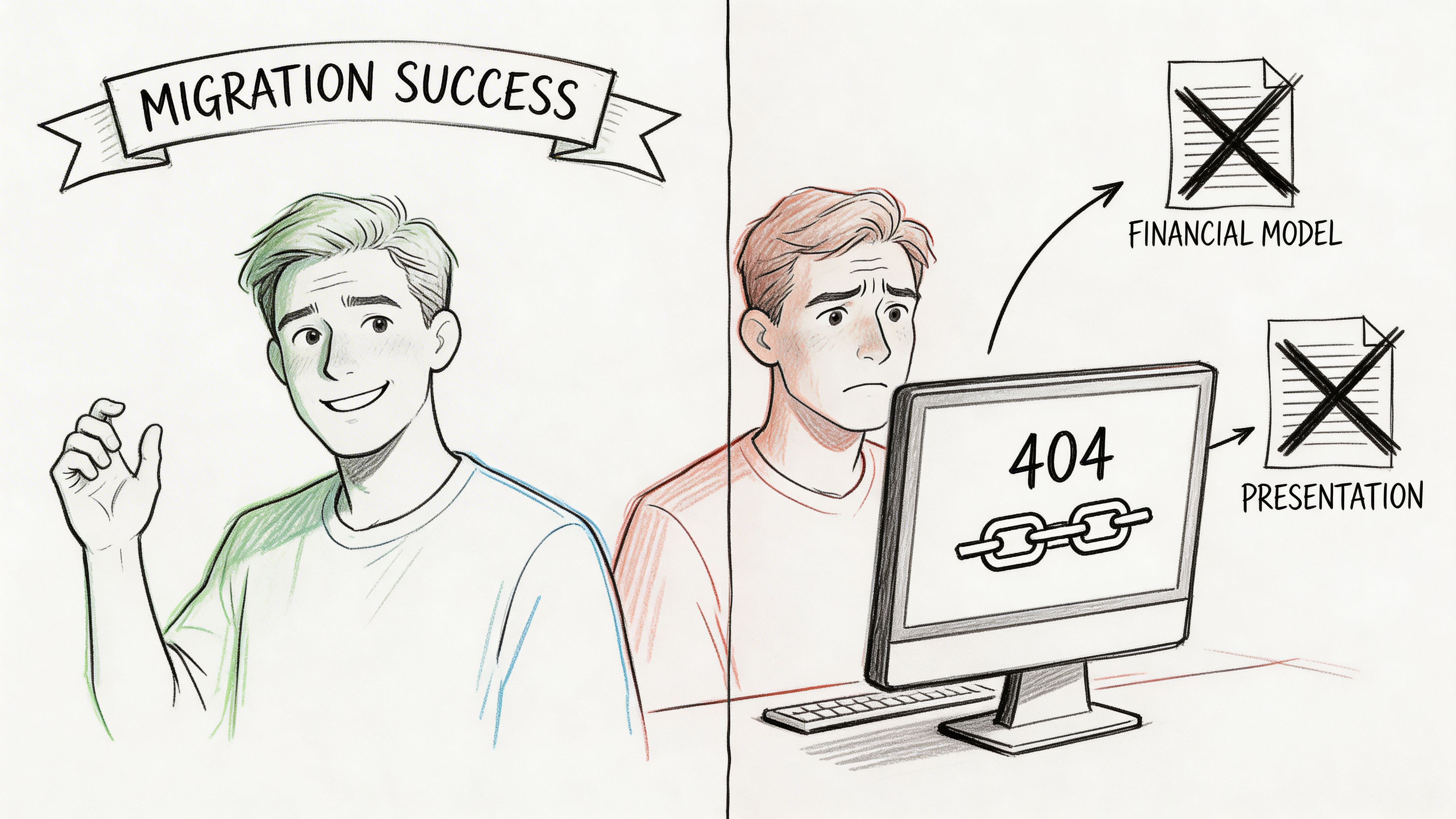
Your migration dashboard says green. The content moved. DNS changed. The new tenant is live. Your project board calls it a success.
Then Monday starts.
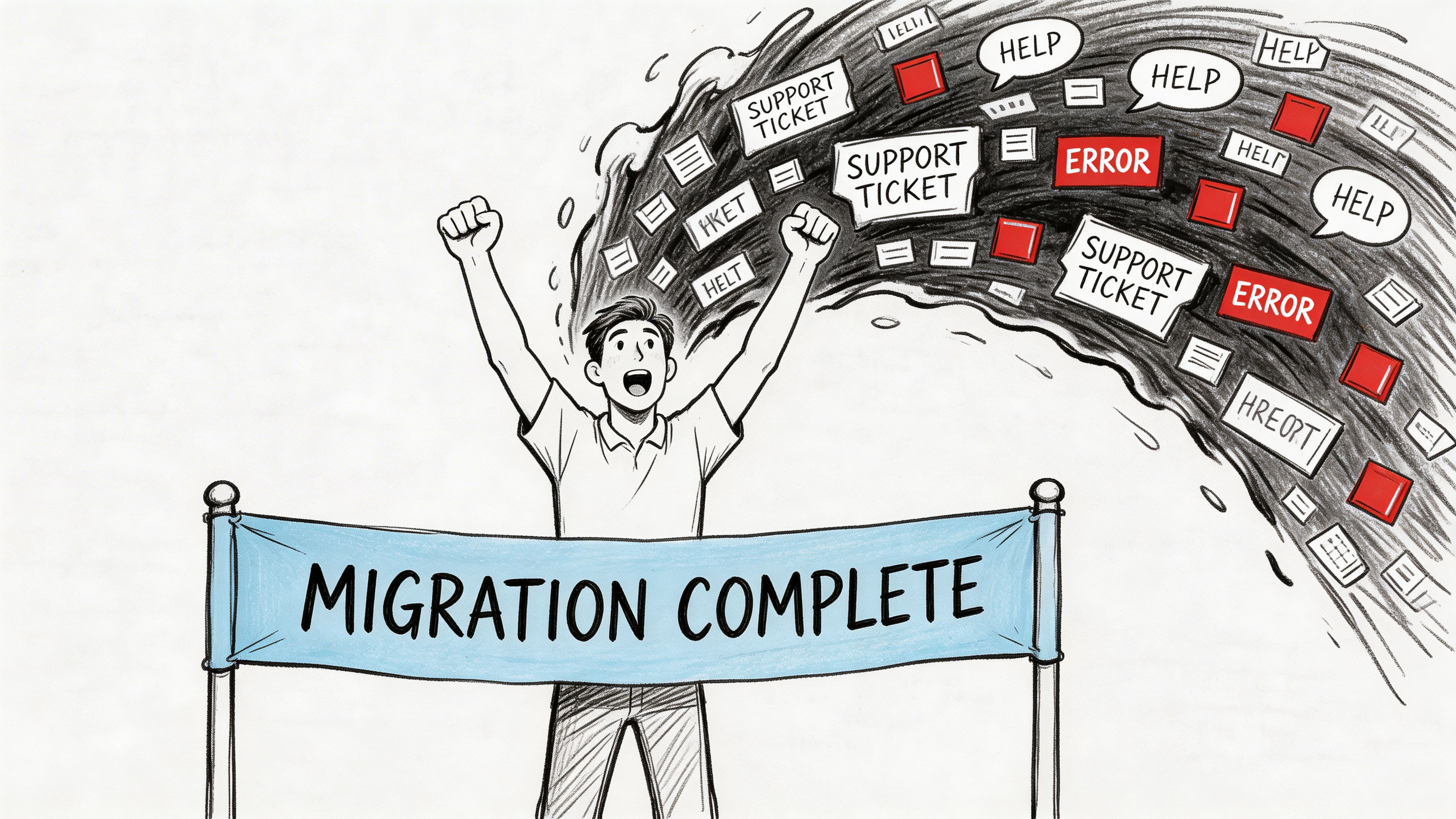
Finance opens a workbook that feeds a board pack and finds dead external references. Operations clicks a document link inside a process sheet and gets nowhere useful. A PowerPoint deck for an executive review still opens, but the embedded source behind it no longer resolves. Nobody cares that the files technically migrated. Your users care that the information architecture collapsed underneath them.
That highlights a core problem with SharePoint migration broken links. Many teams treat them like cosmetic cleanup. They’re not. They’re a business continuity issue, a data integrity issue, and in regulated environments, a compliance issue.
The Anatomy of a Migration Disaster
The failure pattern is painfully familiar.
The migration team moves libraries, checks the destination, opens a few sample files, and signs off. The tool report looks respectable. Then users start traversing the environment the way they work. They don’t browse one folder at a time. They follow chains of dependency across Excel, PowerPoint, PDFs, SharePoint pages, and old file server references buried in content nobody thought to inspect.
A good primer on the wider failure patterns sits in Pratt Solutions’ write-up on Top Data Migration Risks. It’s useful because it frames migration failure as an operational risk, not just a technical nuisance. That’s the right lens.
Success on paper, failure in production
A broken link in a collaboration site is annoying.
A broken link inside a financial model, a policy pack, or a compliance evidence trail is different. That failure changes decisions, delays reporting, and forces staff to work from stale copies. In healthcare, finance, and energy, that’s not a support ticket problem. That’s an exposure problem.
We often see clients fail when they let the migration tool define what counts as “done”. Tool completion only proves one thing. Files arrived somewhere.
It does not prove:
- Dependency integrity: Cross-file references still point to the right object.
- Access continuity: The person who needs the file can open it.
- Metadata survival: IDs, inheritance, and relationships still behave as expected.
- Operational trust: Users can rely on links inside working documents without second-guessing every click.
Broken links don’t appear out of nowhere. Teams create them when they migrate content without migrating context.
Why the usual post-migration check fails
The documentation often nudges teams toward post-migration validation. Fine in theory. Dangerous in practice.
By the time you discover link breakage after cutover, users have already started working in the new estate. They’ve opened files, shared updated versions, triggered workflows, and sent links externally. If you then begin repairing references, you’re changing live content under pressure.
That’s why a reactive approach almost always ends badly. The later you detect the problem, the more expensive it becomes to unwind.
If this sounds familiar, read https://ollo.ie/blog-posts/7-things-that-go-wrong-in-enterprise-sharepoint-migrations. It mirrors what experienced enterprise teams learn the hard way. Migrations don’t fail because one tool had a bad day. They fail because the project treated structural risk like cleanup.
Your First Line of Defence is a Pre-Migration Scan
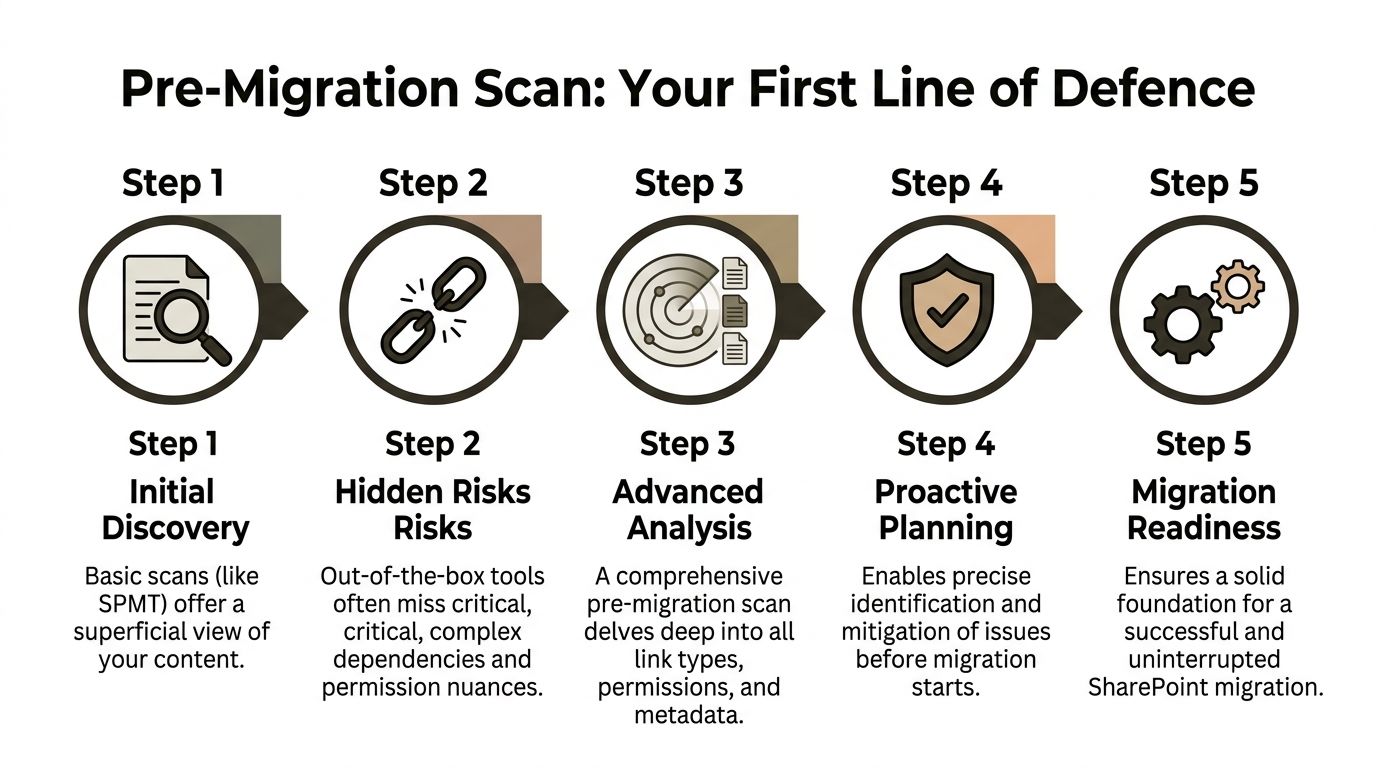
Most discovery phases are too shallow to be useful.
Teams run SPMT, export a few reports, maybe point ShareGate at a site, then assume they understand the dependency map. They don’t. The dangerous links usually sit below the surface, inside Office files, embedded objects, old UNC references, and content that standard scans never classify properly.
According to Microsoft Learn guidance discussed in this Microsoft Q&A on recent migration links lost, SPMT skips link remapping. In the field, that shows up exactly where you’d expect. Embedded hyperlinks get ignored, and a significant portion of Excel and PowerPoint files can emerge with broken links after migration. The same source also confirms two nasty blockers that wreck naive scanning plans: the 5,000-item list view threshold and the old 260-character path length limit.
What a real scan has to do
A proper pre-migration scan isn’t a crawl. It’s an extraction exercise.
You need to build a link inventory before you move anything. That means using PowerShell PnP to iterate libraries with commands such as Get-PnPListItem, then extracting references from documents and mapping source locations to target URLs in a CSV that your remediation process can use.
That inventory should classify links by type, not just by location.
- Straight hyperlinks: The obvious ones. Still worth cataloguing.
- Embedded Office references: The ones basic tools miss. These are often the first to explode after cutover.
- Legacy file paths: Old file share references and historical on-prem locations.
- ID-based relationships: Internal references that won’t survive if IDs change.
- Configuration links: Web parts, list columns, and custom components with hardcoded paths.
Practical rule: If your scan only produces a list of URLs, you don’t have a migration plan. You have a false sense of security.
How to build the inventory without fooling yourself
The methodology is blunt because it has to be.
Extract from source libraries first
Loop through document libraries with PnP, pull item metadata, and collect anything that looks like a path, link, object reference, or document relationship.Interrogate Office files, not just SharePoint objects
That means digging into Excel and PowerPoint content where links often live outside what migration dashboards report. At this point, COM interop and custom scripting stop being optional.Generate a mapping CSV
The CSV needs old path, old ID where applicable, target URL, target library, and remediation rule. If you can’t hand that file to an engineer and run deterministic replacement, it’s incomplete.Flag high-risk patterns early
Deep folder structures, inconsistent naming, odd permissions, legacy file server paths, and anything ID-driven should move to a separate remediation queue.Test the scan output on a sample set
Open the ugly files. The weird ones. The multi-tab workbook with cross-references. The PowerPoint with linked charts. The “archive” folder everybody ignores until audit season.
The traps that stop DIY teams cold
The documentation says the platform supports enterprise scale. Reality is more conditional.
The 5,000-item threshold is not a suggestion. It’s a hard stop that can halt PnP operations on badly structured libraries. If your team discovers that during migration week, they’ve already lost control of the schedule.
The 260-character path limit is just as ugly. Nested regulated content often carries long filenames, long folder names, and old conventions nobody cleaned up. When scans and downstream file handling run into that limit, they don’t fail gracefully. They fail selectively, which is worse.
A proper assessment catches this before execution. That’s why serious projects start with something like https://ollo.ie/blog-posts/share-point-migration-assessment rather than a blind run at the tool.
What to do before you move a single file
Use this as your minimum standard:
- Build a source-to-target mapping file: Every critical path needs an explicit destination, not an assumed one.
- Separate high-dependency documents: Financial models, regulatory evidence packs, and executive reporting files need their own treatment lane.
- Restructure oversized libraries first: If a library sits beyond what the platform tolerates operationally, fix the structure before migration.
- Shorten path depth: Don’t carry bad folder design into a new tenant and pretend governance will solve it later.
- Validate sample outputs manually: Open representative documents and inspect the links inside them.
The blunt truth is simple. If your team hasn’t done a deep pre-migration scan, they are not ready to migrate. They are ready to discover failure in production.
Aggressive Remediation Strategies at Scale
Once you have the inventory, you have to decide how to repair what the migration will break or has already broken.
At this stage, most enterprise programmes go soft. Somebody proposes bulk search-and-replace, someone else buys a GUI tool, and the room starts acting like link remediation is just a path update problem. It isn’t. Sometimes URL rewriting helps. Sometimes it creates a cleaner-looking disaster.
The most dangerous failure mode sits inside Excel.
Microsoft’s guidance on mapping Google source IDs in the migration spreadsheet to resolve broken links post-migration makes the critical point clearly. Source file ID mapping has to happen during migration through the MigrationSourceID property. If that doesn’t happen, cross-file workbook links can break. That’s the Formula Apocalypse. It is not a user experience issue. It is a data integrity failure. A workbook can still open and still look normal while recalculating against stale or missing references.
GUI comfort versus script control
ShareGate is useful. So are bulk replacement utilities. They have a place.
But enterprise link repair needs a hard distinction between content that can tolerate text substitution and content that depends on identity, structure, or application logic. GUI tools are strongest in the first category. They become fragile in the second.
Here’s the comparison that matters.
| Method | Best For | Enterprise Breaking Point | Ollo Verdict |
|---|---|---|---|
| SPMT | Basic file moves and light content sets | Skips link remapping, weak for embedded references | Use SPMT for small, low-risk moves only |
| ShareGate transformations | Bulk path replacement and structured migrations | Struggles when the issue is ID preservation or formula dependency | Useful as one layer, never the whole strategy |
| Replace-style search and replace | Straight URL changes in controlled content | Can’t fix embedded formulas or ID-bound references | Fine for text remediation, dangerous as a primary plan |
| Custom PowerShell with surgical updates | Complex tenant-to-tenant and regulated environments | Requires real engineering discipline | This is the only safe path once dependencies get serious |
Why simple URL rewriting fails
A lot of bad advice starts with “just replace the old path with the new one”.
That works when the link is a string and nothing more. It fails when the relationship depends on object identity, workbook dependency chains, or internal document services. You can repair a visible path and still leave the business logic broken.
That’s why remediation has to be layered.
- Use bulk replacement for obvious path shifts: Old file share paths to SharePoint URLs.
- Use scripted updates for targeted content surgery: Files with structured dependencies and predictable patterns.
- Use migration-time ID mapping where formulas depend on source identity: If you miss that window, post-fix options become ugly fast.
- Use validation against recalculation behaviour: A file opening cleanly proves very little.
If a finance workbook recalculates from stale values after migration, the project hasn’t just broken links. It has corrupted trust in the data.
The files that deserve special treatment
Not every document matters equally. Treating all files the same is another amateur move.
The following content should always sit in a protected remediation lane:
- Board and finance models: Cross-workbook references, linked schedules, and inherited assumptions.
- Regulatory evidence packs: Referenced source files that auditors expect to resolve.
- PowerPoint decks with linked charts: They often surface breakage only when someone updates the source.
- Operational templates: Forms and trackers that users duplicate constantly, spreading broken references at scale.
For these, the process has to be deliberate.
First, identify the dependency type. Second, decide whether replacement, remapping, or rebuild is the right fix. Third, test in a controlled target library before broader release. Anything less is theatre.
Scripted remediation wins where tools stop
This is why strong migration teams lean on custom PowerShell. You need deterministic logic, repeatable execution, and logs that tell you exactly what changed.
Scripted remediation lets you:
- target specific libraries, content classes, or document groups
- process in batches instead of hammering the tenant blindly
- enforce replacement rules based on context
- avoid broad edits to files that only look similar
- rerun safely when a batch partially fails
That approach also gives you auditability. In regulated environments, that matters. “The tool said it completed” is not an acceptable explanation when key reporting files stop working.
If your internal team is serious about automation, they should already be thinking along the lines in https://ollo.ie/blog-posts/share-point-migration-automation. If they’re still debating whether a manual spot-fix session will be enough, they’re underestimating the problem.
The Ollo verdict on remediation
Use GUI tools where the content is simple and the risk is low.
Use custom scripting when the environment contains regulated content, cross-file dependencies, or tenant-to-tenant complexity. That’s the line. Don’t blur it.
The documentation often implies that with enough post-migration cleanup, you can recover from almost anything. In reality, some breakage has to be prevented during migration, not repaired after. If your plan ignores that, your project carries hidden failure even when the dashboard looks clean.
Navigating Inevitable Migration Roadblocks
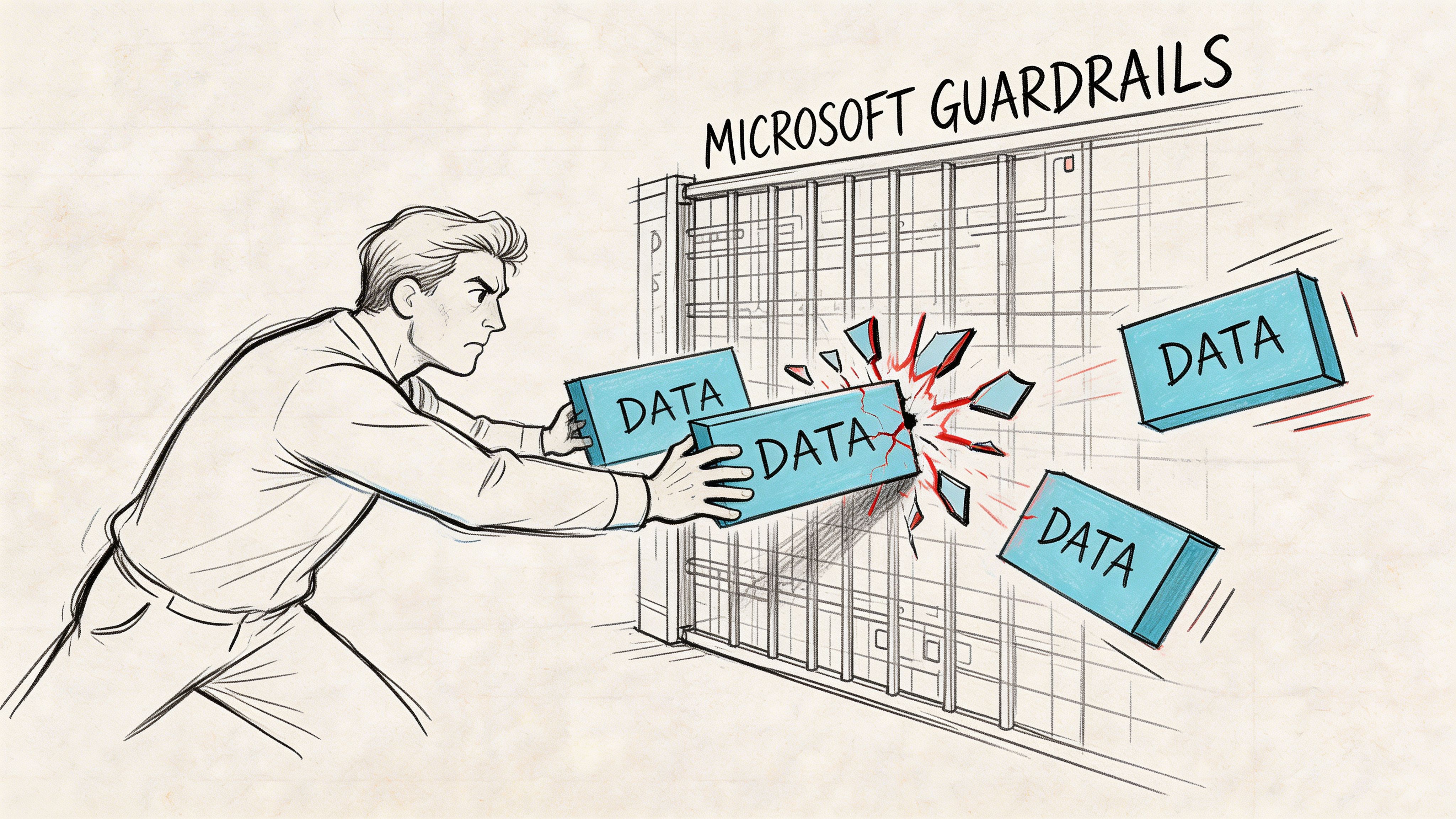
A naive migration plan assumes the main challenge is moving data. It isn’t. The main challenge is moving data through Microsoft’s operational guardrails without breaking everything attached to it.
Those guardrails are not bugs. They are service protections. Ignore them and your remediation jobs stall, your scripts get throttled, and your “weekend cutover” turns into a prolonged incident.
Microsoft’s support guidance on repairing broken workbook links in migrated files lines up with what we see in the field. Durable ID mismatches are a primary cause of link failure in tenant-to-tenant moves. Document ID Service links won’t survive unless you harvest and preserve IDs with commands such as Set-PnPDocumentId and Get-PnPListItem. The same body of guidance and field experience also exposes the other ugliness around these jobs: broken permission inheritance on many items, API throttling that can cap processing and severely limit items per hour per tenant, and DIY success can be low in Dublin financial-sector migrations when these issues pile up.
Durable IDs break more than people expect
A lot of teams don’t realise how much internal navigation depends on document identity rather than simple pathing.
If your old environment relied on Document ID Service links, then tenant-to-tenant migration can shatter those references unless you harvest IDs before cutover and build a preservation strategy around them. Standard tools often gloss over this. They move the file and leave the identity problem behind for someone else.
That “someone else” becomes your operations team after go-live.
Throttling punishes brute-force remediation
Tool vendors like to show happy-path throughput. Production tenants are less polite.
API throttling means the platform starts limiting requests when your jobs become too aggressive. You can’t unleash scripts across libraries and expect a predictable finish time. You need batch discipline, retry logic, queue control, and realistic sequencing.
A lot of broader advisory pieces on migration planning, including Buttercloud’s overview of Cloud Migration Consulting Services, are useful because they remind leaders that specialist execution matters when cloud guardrails shape the outcome. In SharePoint migrations, that principle gets very concrete, very quickly.
The roadblocks you need to plan around
These are the ones that regularly break DIY programmes:
- Durable ID mismatch: Path looks right, link still fails because identity changed.
- Broken inheritance: File exists, user gets denied, nobody spots it in a generic link report.
- Threshold collision: Large libraries hit platform limits and stop scans or remediation jobs.
- Path legacy: Old structures drag obsolete complexity into the target tenant.
- GUID conflict: Tenant-to-tenant consolidation introduces object identity confusion that tools don’t resolve cleanly.
The migration plan that says “we’ll run the tool and see what happens” is not a plan. It’s an outage with optimistic branding.
Workarounds that hold up
You need discipline, not heroics.
Use intelligent batching so remediation and validation jobs stay below what the service will tolerate. Build indexed columns and process against targeted subsets instead of giant, flat libraries. Run delta-based passes so you only touch items that changed or need review. Preserve IDs before the move when identity matters. Split large and messy libraries before the migration, not after the first throttle storm.
The short explanation in https://ollo.ie/blog-posts/share-point-migration-missing-files connects with this problem from another angle. Missing files rarely “go missing” by accident. Operational constraints and bad assumptions push them out of the migration path.
A quick visual breakdown helps if you’re aligning technical and leadership teams around these realities:
The Ollo verdict on roadblocks
Assume throttling will happen. Assume inheritance is inconsistent. Assume ID preservation needs engineering, not wishful thinking.
If your team treats these as edge cases, they will hit them live. If they design around them up front, they have a chance.
Post-Migration Validation and Governance
The migration isn’t finished at cutover. It isn’t even close.
A lot of teams stop at “files are present” and “sample links open”. That’s how they miss the nastiest class of failure. Links that technically resolve, but fail for the people who need them.
According to 2toLead’s discussion of cloud migration broken internal links, existing guidance focuses heavily on broken URLs and barely addresses the permission problem. That gap matters. In regulated sectors, a visible broken link gets reported quickly. A link that appears valid but denies access due to permission misalignment can sit undetected and create compliance risk. The same guidance also makes the ugly point many teams avoid. No mainstream tool reports on accessible versus inaccessible links post-migration. They mostly report 404s.
The silent killer is permission-based breakage
Weak validation frameworks collapse at this stage.
Your tool says the URL resolves. Great. Does the finance reviewer have access? Does the compliance lead inherit the right permission through the new Entra structure? Does the user opening a linked workbook from a dashboard hit a hidden access denied wall?
If you don’t test that, you haven’t validated the migration.
The fix is straightforward in principle and difficult in execution. You need post-migration audits that check both the URL state and the permission state. That means testing from role perspectives, not just admin context.
What proper post-migration validation looks like
Use a targeted QA model. Don’t rely on broad reassurance.
- Role-based testing: Validate links as user personas, especially finance, audit, and operational approvers.
- Dependency testing: Open linked Excel and PowerPoint assets that matter to live reporting.
- Permission equivalence checks: Confirm the move didn’t orphan access through broken inheritance or redesigned groups.
- Critical-path UAT: Focus on business processes, not random file samples.
- Exception logging: Every failed access path needs classification and owner assignment.
A link that works for admins and fails for users is still a broken link.
Governance after the fix
This part gets skipped because teams are tired by the time they reach it.
That’s a mistake. Without governance, users recreate fragile linking patterns and you inherit the same mess again. Governance should be practical and specific.
| Governance control | Why it matters |
|---|---|
| Prefer managed locations over ad hoc deep folders | Reduces future path and relocation risk |
| Limit hardcoded links in templates | Stops broken references from replicating |
| Review inheritance changes during site redesign | Catches silent access failures early |
| Maintain a dependency register for critical files | Protects finance and compliance workflows |
| Run scheduled validation on high-risk libraries | Detects drift before users escalate it |
UAT needs to be designed, not improvised
Most User Acceptance Testing is lazy. A few users click around, sign a sheet, and move on.
Serious UAT uses scripted scenarios. Ask users to complete the tasks they perform under pressure: update a monthly pack, open an evidence file from a policy link, refresh a workbook that relies on external references, access content through the security model they live under.
Governance matters just as much after cutover as before it. If your target environment lacks clear rules for permissions, templates, and link patterns, you’re only postponing the next failure. That’s why mature teams pair remediation with a governance model such as the one outlined at https://ollo.ie/blog-posts/share-point-data-governance.
The Ollo verdict on validation
Post-migration validation must prove three things. The link exists. The dependency still works. The intended user can access it.
If your current QA only checks the first one, it’s not QA. It’s optimism.
Conclusion Your Migration Is a Risk Until Proven Otherwise
If your plan for SharePoint migration broken links is “we’ll run a tool afterwards”, you’re already drifting toward failure.
The mainstream advice is too clean. It treats link breakage like a tidy post-migration task. Enterprise reality is rougher. IDs change. Formulas break. permissions drift. Large libraries hit thresholds. API throttling wrecks timelines. Users discover the damage long after the project team declared victory.
That’s why this problem has to be handled as risk mitigation, not housekeeping.
The pattern is consistent. Basic tools move files. They do not reliably preserve all the relationships that make those files usable in a live business context. GUI remediation can help with obvious path replacements, but it can’t rescue every dependency model, and it definitely can’t compensate for migration-time decisions you failed to make.
For IT Directors, the choice is not between expensive help and cheap software.
The choice is between investing up front or paying later through:
- broken reporting
- failed audits
- emergency remediation windows
- loss of user trust
- dragged-out project recovery
Your internal team may be competent. That’s not the question. The question is whether they should have to reverse-engineer Microsoft guardrails, tool limitations, permission drift, and ID preservation under live-project pressure. They shouldn’t.
The hard truth is simple. In high-stakes tenant-to-tenant migrations, especially in finance, healthcare, and energy, specialist execution is the lowest-risk option. Not because the tools are useless. Because the tools stop where enterprise complexity starts.
If you want a blunt recommendation, here it is.
Use SPMT for small, low-risk content moves. Use ShareGate as one controlled component in a wider strategy. For anything involving regulated data, cross-workbook dependencies, Document IDs, zero-trust redesign, or tenant-to-tenant consolidation, you need custom scripting, pre-migration link intelligence, and role-aware validation. Anything less is gambling with your production estate.
If your team is staring at a migration plan that feels too simple, it probably is. Ollo handles complex Microsoft 365 and SharePoint migrations for organisations that can’t afford broken links, hidden access failures, or botched tenant-to-tenant moves. If you want the risky parts surfaced before they become incidents, talk to Ollo before your cutover does it for you.

















