



Tuesday morning. Your Head of Legal opens a ticket because contracts from an old acquisition have vanished after the SharePoint migration. The dashboard showed green ticks, the migration job showed success, and your team signed off. The files are still missing.
That is how SharePoint migration missing files usually shows up. Not as a hard failure, but as a quiet one that turns into an audit problem, a legal problem, or a leadership problem.
The Post-Migration Phone Call You Never Want to Receive
The worst migrations do not explode on cutover night. They pass. Then the business starts using the new environment, and the gaps surface weeks later.
We often see clients fail when they trust the summary screen instead of the content. The migration tool says “successful”. Users say “my folder is there”. Then someone opens the folder and half the documents are gone, or the files exist but nobody who needs them can see them. Those are two different failures. Both look like missing files.
What the business hears and what IT inherited
Your users report symptoms. You inherit forensic work.
A legal team says a contract pack is missing. Finance says quarter-end support files do not match. Compliance asks why version history disappeared. None of that starts with a neat root cause in the logs. It starts with a business process failing after your project supposedly finished.
That is why generic project checklists are not enough. Broad guidance such as these cloud migration best practices is useful for governance, planning, and stakeholder control, but SharePoint rescue work gets ugly at the file, library, and permission level.
Green ticks hide red flags
The documentation says the tool completed. Reality is harsher.
A failed SharePoint migration often leaves behind all the visual signals of success. Folder structures appear. Libraries exist. Permissions look roughly right at the top level. The project board moves to done. Then users hit nested folders, legacy content types, checked-out files, and inherited security edge cases.
Key takeaway: Missing files are often not “missing” in the simple sense. They may have been dropped, hidden by broken inheritance, blocked by source-side issues, or rendered undiscoverable by bad metadata.
If your team already suspects a failed move, stop treating it like a routine support issue. Treat it like an incident. Lock down ad hoc fixes, preserve evidence, and start from a proper failure pattern review. This breakdown of a SharePoint migration failed scenario is the mindset you need before anyone starts re-running jobs and making the mess worse.
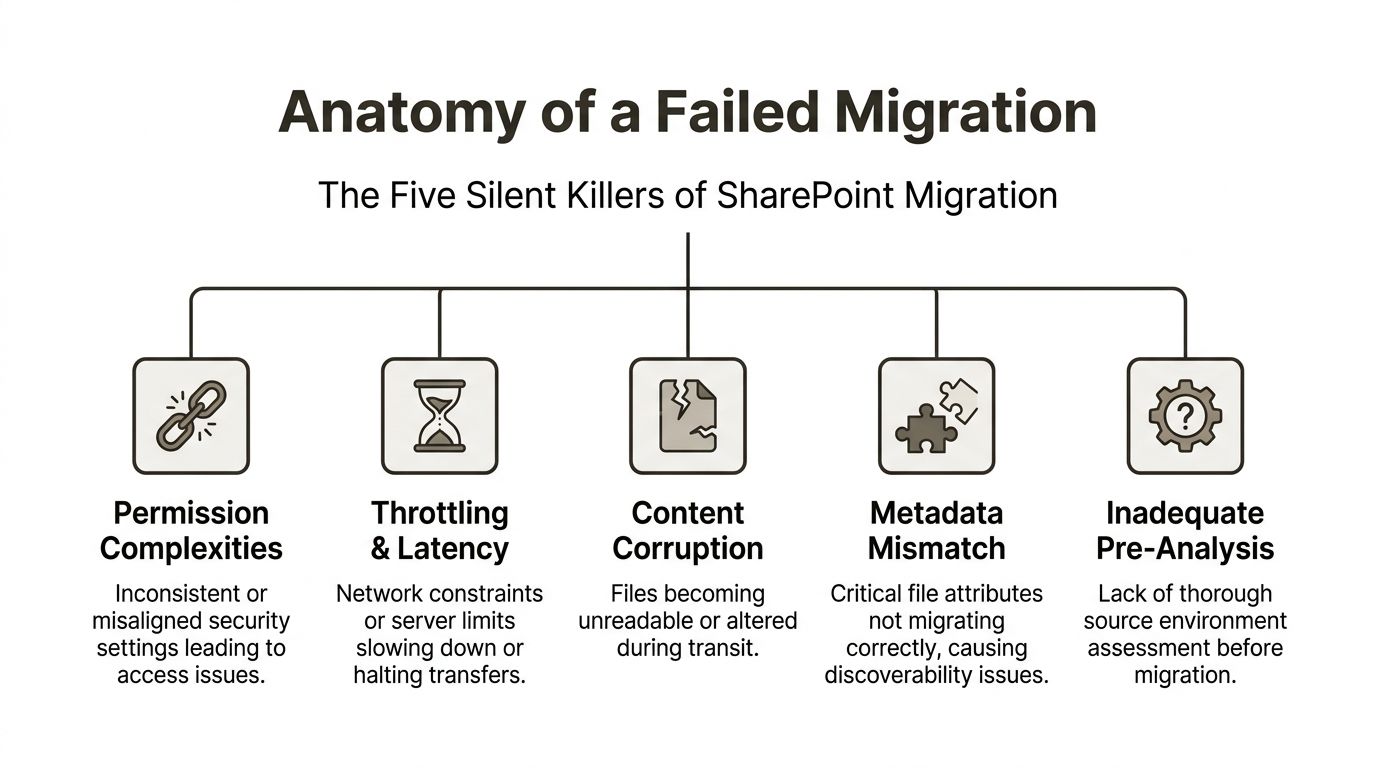
Anatomy of a Failed Migration The Five Silent Killers
Missing files are the symptom. The disease sits deeper in the migration stack.
Broken inheritance hides content in plain sight
A folder can migrate. Its documents can migrate. Users still cannot see them.
This usually happens when custom permissions, unique inheritance, or old group mappings do not survive the move cleanly. IT thinks the files are gone because users report blank folders. In reality, the content exists but the access model broke somewhere below the parent level.
In regulated environments, that is not a usability issue. It is a security incident. If the wrong people can see sensitive data, you have overexposure. If the right people cannot see critical records, operations stop.
Path limits and invalid names can drop files
Microsoft Learn confirms SharePoint path boundaries, including a maximum path length of 400 characters including extensions. In the field, we see tools struggle before that practical ceiling.
The documentation says these constraints are known. Reality is that many teams do not remediate them before migration. They let the tool discover the problem mid-run. That is how files disappear without anyone noticing until later.
A short list of common path-related failure triggers:
- Deep nesting: Old file shares often bury documents under years of folder sprawl.
- Legacy naming habits: Invalid characters and inconsistent naming hit sync and migration differently.
- Mixed source history: Renamed folders and copied structures create ugly path expansion in destination libraries.
The 5k threshold still bites
Microsoft Learn confirms the 5,000-item list view threshold. That does not mean SharePoint stops storing after that point. It means operations around those libraries become fragile if you have not designed for it.
Teams often misunderstand this limit. They think it is a view issue only. In practice, badly planned libraries around that threshold can cause nasty behaviour during migration, validation, and post-cutover access testing.
Practical advice: If your team says “the files are there, users just need a better view”, assume you have not diagnosed the underlying problem yet.
GUID conflicts and metadata orphaning break trust
Tenant-to-tenant work introduces a different class of pain. Identity mapping, object references, and metadata relationships can detach from the content itself. The files land, but the context does not.
That is where you see orphaned ownership, broken links, or records that no longer behave like records. The visible file survives. The governance wrapper dies.
If you want a broader view of where enterprise moves collapse, this analysis of 7 things that go wrong in enterprise SharePoint migrations maps closely to the rescue work we keep inheriting.
Checked-out files can block the run entirely
Some failures are not silent. They are misunderstood.
Files with no checked-in version in source SharePoint libraries block migration entirely. A Site Admin must manually take ownership and check them in. The error often suggests disabling version history migration, but in Finance or Healthcare that creates a compliance risk because the migrated files can lose the complete audit trail regulators expect, as documented in the Quest community discussion on files with no checked-in version.
Plenty of general data migration best practices tell you to validate source data before moving it. In SharePoint, that principle becomes brutally literal. If you do not inspect checked-out files, versioning behaviour, permission inheritance, and naming constraints before the first pass, your migration can fail while still looking healthy from a distance.
Why Your Migration Tool Is Lying to You
Tools do not lie on purpose. They lie by omission.

The first mistake IT Directors make is trusting the completion report more than the destination itself. If the tool says completed, the project team relaxes. That is exactly when silent loss gets buried.
The most dangerous word in migration is successful
In a documented case involving a 60GB migration, SPMT reported a successful verification despite dropping over 21,000 files (roughly two-thirds of the total data) without a warning, in a real-world report from the Spiceworks community. That is not a rounding error. That is a project failure wearing a green badge.
The documentation says Microsoft’s platform constraints exist and can be managed. Reality is that path issues and API throttling interact badly with basic tooling. Your team sees “completed”. Your users inherit the holes.
Native tooling has a place. Enterprise risk is not that place.
I will be direct. Use SPMT for small, simple jobs. A light file share, limited nesting, no compliance sensitivity, no ugly permissions, no tenant-to-tenant complexity. Fine.
Do not use it as your enterprise safety net.
Microsoft Learn confirms migration performance packaging guidance around batches such as 250 files or 100MB to 250MB per transfer to avoid throttling. In practice, when teams push enterprise volumes through basic tooling without engineering around throttling, long paths, and edge-case content, they get partial transfers and misleading confidence.
ShareGate is stronger. It is not magic.
ShareGate is the tool we prefer for serious work because it gives better control, reporting, and incremental handling. That still does not make it fire-and-forget.
A good tool in bad hands just produces better-organised failure. If nobody pre-maps identities, scripts path analysis, stages incremental passes, and validates permissions independently, the team can still break inheritance, orphan metadata, and sign off too early.
Here is the blunt version:
| Tool choice | Good fit | Where it breaks |
|---|---|
| SPMT | Basic, low-risk moves | Limited error handling, weak enterprise assurance |
| ShareGate | Complex migrations with expert control | Still fails if the operator skips pre-analysis and validation |
| Custom PowerShell and PnP scripting | Validation, remediation, edge-case handling | Requires specialist design and experience |
One practical reference point sits in this review of SharePoint migration software, especially if your team is still evaluating native versus third-party options.
The Ollo Verdict: Use SPMT for a small move. For anything with regulated data, layered permissions, or tenant-to-tenant complexity, you need expert-led execution with ShareGate plus custom scripting. The tool does not reduce risk. The operator does.
That is also where one specialist service can matter. Ollo uses ShareGate alongside custom PowerShell PnP scripts for path analysis, permission mapping, item count comparison, and checksum-based validation. That is factual scope, not sales language. It is the sort of engineering discipline basic tool runs do not provide on their own.
The Recovery Playbook Triage and Targeted Remediation
When files are missing after migration, your first instinct will be to rerun the job. Resist it.
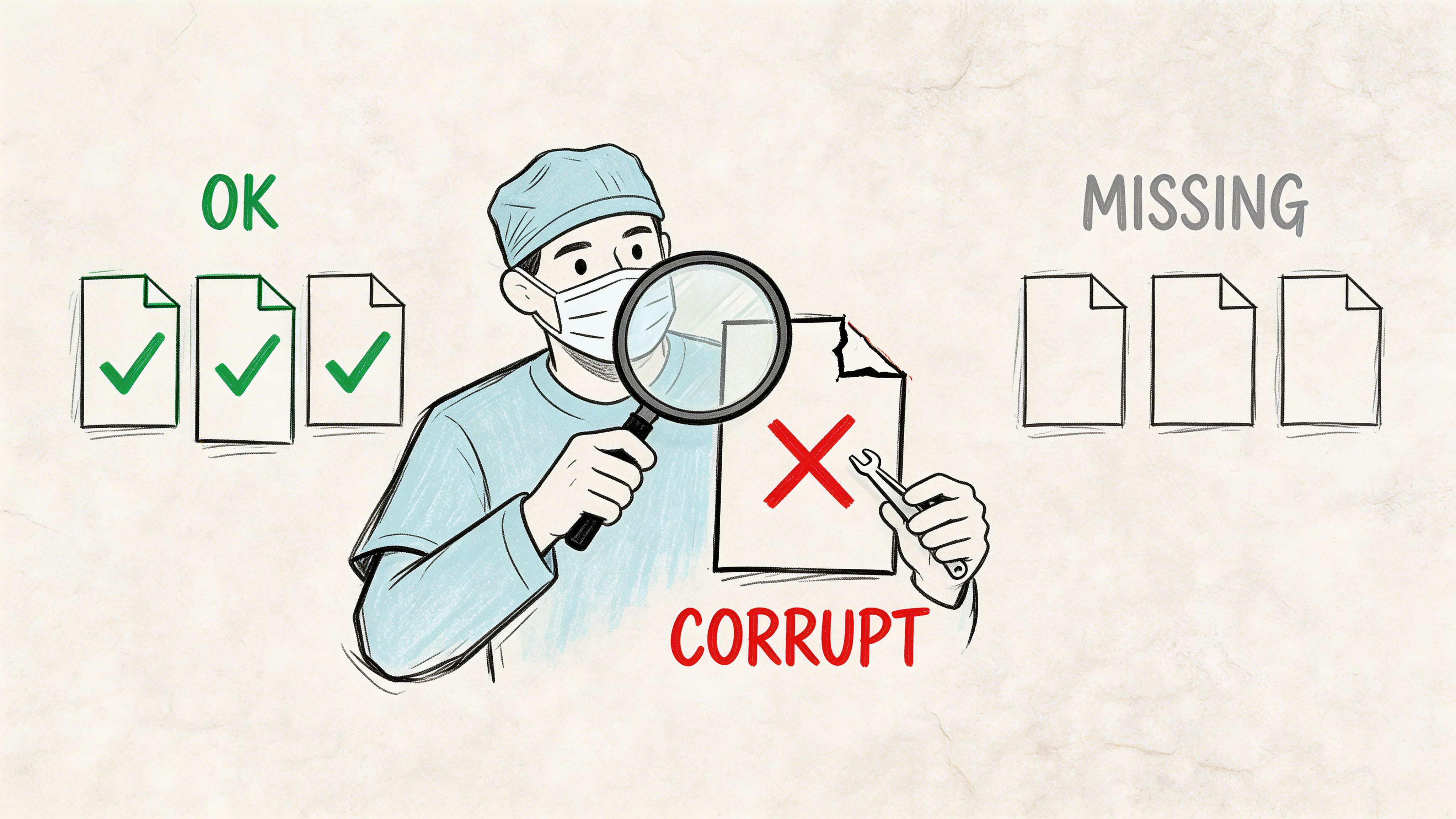
A blind re-migration can overwrite clean fixes, duplicate content, and destroy the evidence you need to isolate root cause. Rescue work needs precision.
Freeze the scene
Stop users from “tidying up” the destination. Stop admins from patching permissions in the browser. Stop well-meaning engineers from launching another bulk copy overnight.
You need to preserve the current state long enough to answer three questions:
- Was the content dropped at migration time?
- Did permissions hide the content after arrival?
- Did metadata, naming, or sync behaviour make the content appear missing?
If your team has already started firefighting manually, your forensic trail is degrading by the hour.
Build a missing-items manifest
We often see clients waste days looking at top-level counts. That tells you almost nothing.
Run a differential analysis between source and destination at folder and item level. ShareGate pre-checks can help. Custom scripts do better. You need a manifest that identifies exact folders, item counts, versioning anomalies, and permission mismatches.
A documented Microsoft Tech Community case described a migration of around 30,000 files and folders where users only discovered missing content after two weeks. In the same reporting chain, a source folder showed 195 files while SharePoint showed 160, an 18% discrepancy, with additional issues from invalid names and OneDrive sync behaviour, as discussed in the Microsoft Tech Community migration thread.
That is why your rescue starts with evidence, not assumptions.
Remediate by failure type, not by emotion
Different causes need different treatments.
- Long paths and naming failures: Fix them at source first. Rename, flatten, or restructure. Then rerun only the affected scope.
- Permission gaps: Export source permissions. Reapply through script. Do not trust manual GUI clicks across large libraries.
- Checked-out or orphaned source files: Resolve source state before retrying.
- Legacy file-type issues: Isolate them and test a controlled route rather than dumping them back into the same failing process.
For hands-on triage logic, this SharePoint migration troubleshooting reference aligns with how rescue teams should think under pressure.
Rescue rule: Re-run the smallest necessary scope. Wide reruns create new uncertainty.
A short visual explainer helps if your stakeholders need to understand why this is investigative work rather than a simple retry.
Repair permissions with script, not optimism
If users say files are missing, test whether the issue is visibility before you start copying anything.
Use exported source-of-truth permission data. Rebuild broken inheritance intentionally. Confirm access with representative business users, not only site collection admins. Admin access proves almost nothing about user reality.
A good rescue pass is surgical. It narrows scope, classifies failure types, and remediates them in the order that protects legal, financial, and operational records first.
Validation Beyond File Counts Ensuring Data Integrity
Matching file counts is not success. It is the minimum entry requirement.
A migration can hit the right count and still fail your business. Files may be corrupted, version histories may be incomplete, metadata may be wrong, and users may not be able to complete the process the content exists to support.
Count first, then distrust the count
Start with item counts because they are fast. Then move immediately past them.
Your validation model should include:
- Audit trail review: Check SharePoint audit activity around migration windows for suspicious deletion patterns or access issues.
- Hash-based sampling: For critical records, compare file hashes such as SHA-256 between source and destination on a defensible sample.
- Metadata verification: Confirm authorship, modified dates, versioning behaviour, and required columns where governance matters.
- Permission testing: Validate with actual business roles, not elevated admin accounts.
If your team only asks users whether they can “see their files”, you are not validating. You are crowdsourcing detection.
UAT should mirror business processes
Do not ask Finance to browse folders. Ask them to execute month-end tasks using the migrated repository.
Do not ask Legal to spot-check names. Ask them to retrieve contract history, verify supporting evidence, and confirm the expected record context.
That changes validation from superficial acceptance to operational proof.
| Weak validation | Strong validation |
|---|---|
| Folder opens | Business task completes |
| File count matches | File integrity and metadata verified |
| Admin can access | Real user role can work correctly |
| Random spot check | Controlled test of critical records |
What matters: Auditors, legal teams, and senior leadership do not care that a dashboard looked healthy. They care whether the migrated information is complete, trustworthy, and defensible.
Good documentation matters here because rescue and audit work both depend on traceability. If your migration records are thin, this guide to SharePoint migration documentation is the standard your team should have worked to from day one.
Integrity beats appearance
A tidy destination library can still be unfit for use. The file is there, but the version chain is broken. The document opens, but the metadata that drives retention is gone. Search returns nonsense because the migrated structure taught the platform bad patterns.
When you validate at integrity level, you stop arguing about whether the migration “mostly worked”. You either have defensible data or you do not.
The Decision Point When to Call for a Rescue Migration
There is a moment when internal persistence stops being responsible and starts becoming expensive denial.
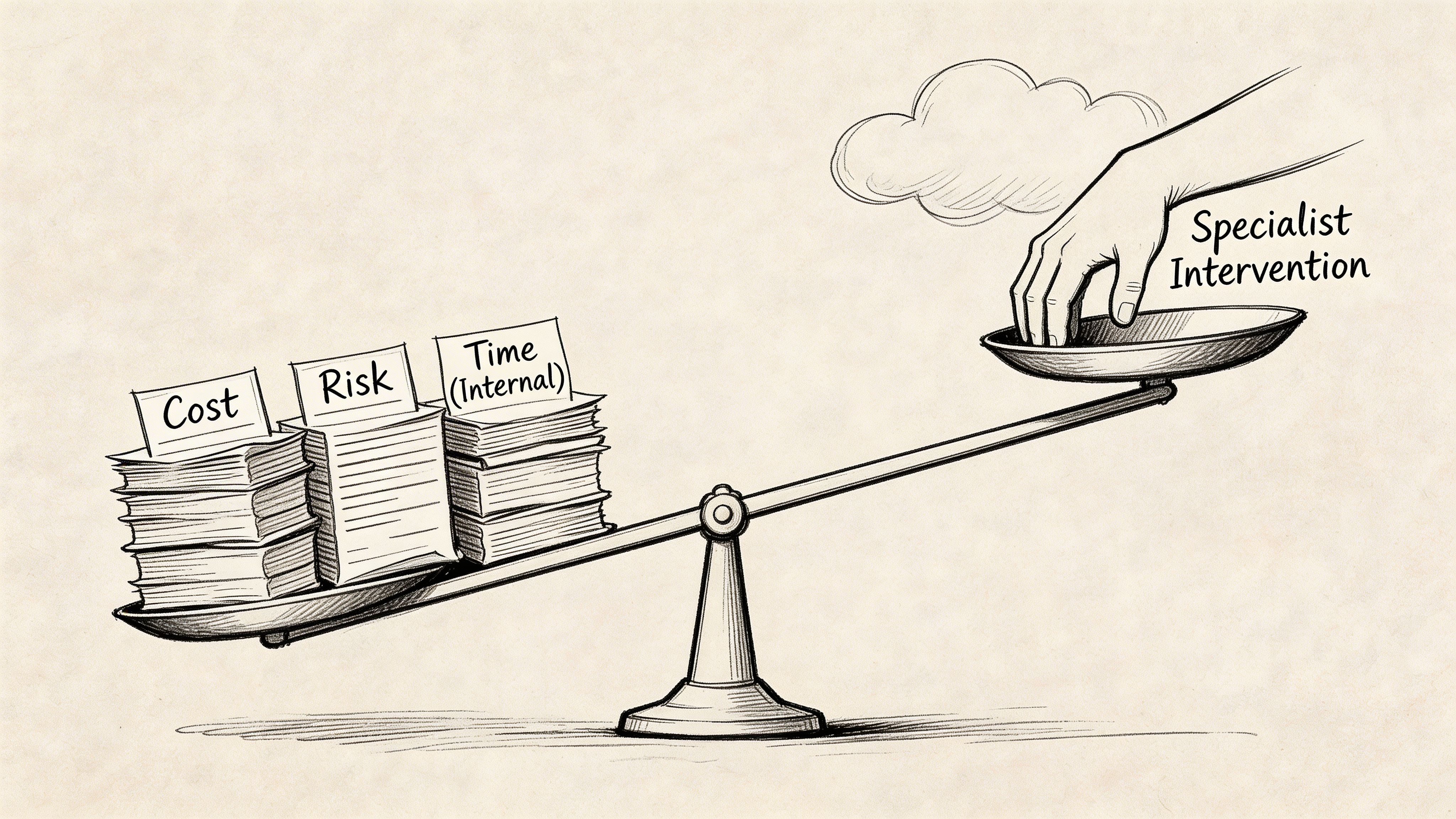
IT Directors often hold on too long because they think escalation looks like failure. It does not. Running your team into a wall while legal records stay missing is failure.
Four signals that you should stop DIY recovery
The pattern is usually obvious if you strip away emotion.
- The issue spans multiple libraries or sites: That points to a process failure, not an isolated defect.
- Sensitive records are involved: Legal, HR, finance, healthcare, or regulated operational records change the risk immediately.
- Permissions no longer feel trustworthy: Once access controls become uncertain at scale, you are dealing with both migration and security exposure.
- Your team cannot produce a clean manifest of what is missing and why: If they cannot classify the failure, they cannot remediate it predictably.
Internal effort has a hidden cost
Every extra day your admins spend guessing at SharePoint migration missing files is a day they are not doing architecture, governance, security, or operations work. Worse, they are learning under crisis pressure, in production, against regulated data.
That is not prudent cost control. That is expensive improvisation.
Rescue work is justified by risk, not pride
Here is the decision model I recommend:
| Condition | What it means |
|---|---|
| Missing files appear across several content areas | The migration method likely failed systematically |
| Version history or audit context looks incomplete | Compliance exposure is already on the table |
| Business users report inconsistent access | Broken inheritance or mapping issues need scripted repair |
| Manual fixes keep multiplying | Your team is treating symptoms, not root causes |
Decision rule: If you cannot defend the completeness, integrity, and access model of migrated data, stop patching and bring in specialist help.
This is especially true in tenant-to-tenant projects, merger consolidations, and zero-trust redesigns. Those are not good environments for trial-and-error recovery.
Frequently Asked Questions from the Trenches
Is a tenant-to-tenant migration riskier for data loss
Yes. It adds identity mapping, domain conflicts, object remapping, and GUID complexity that do not exist in a simple file share move. That is where metadata and permissions get orphaned fastest.
A tenant-to-tenant move is not just “more files”. It is more relationships between those files, users, groups, and controls.
Can we just restore the missing files from backup
Sometimes to the source. Rarely as a clean fix to the destination.
Restoring to source does not solve the migration failure that caused the loss. Restoring directly into the destination can create duplicates, conflict with post-migration changes, and break links further. Backup is a safety net, not a migration strategy.
How do you prevent SharePoint migration missing files from the start
You stop trusting tool defaults. You run pre-migration analysis against paths, permissions, checked-out files, versioning state, large libraries, and edge-case content. You remediate at source. Then you migrate in controlled passes and validate beyond counts.
That is slower than clicking through a wizard. It is also how you avoid explaining missing legal records to your board.
What is the single biggest mistake internal teams make
They sign off too early.
They accept dashboard success, top-level folder visibility, and a handful of user checks as proof. Then the hard cases surface after project closure, when rollback is harder and confidence is already gone.
If your team is already chasing missing files, broken permissions, or suspect version history, stop burning internal time on guesswork. Talk to Ollo about a rescue assessment or a properly engineered migration plan before the issue becomes an audit finding.

















