




A SharePoint multi-geo migration isn't a "lift-and-shift." It's a re-architecting of your global data fabric, and your standard migration playbook is a liability here. The project's success is determined by your paranoia level long before a single byte moves.
Why Your Multi-Geo Migration Plan Is Already Set To Fail
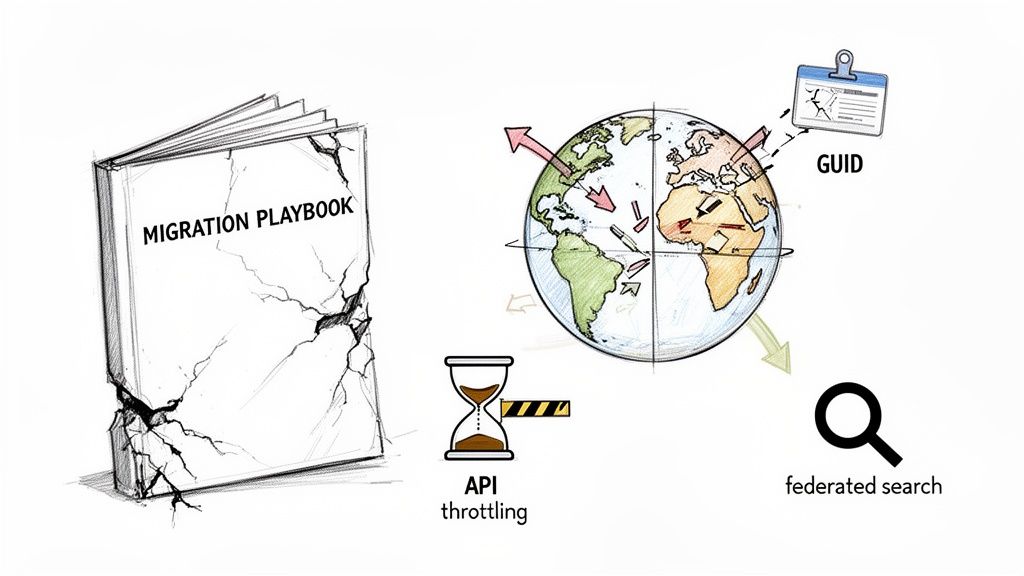
Let's be blunt. Your team is walking into a minefield, armed with dangerously optimistic assumptions gleaned from Microsoft’s documentation. We're not here to discuss multi-geo benefits—you already bought into that. We're here to dissect the brutal reality that separates marketing from on-the-ground project failure. The reasons a multi-geo migration goes sideways are often the same traps seen in any major Cloud Migration.
We often see clients fail when they trust the official line on "seamless" geo-location changes. The documentation says X, but in reality, the gap between theory and execution is where catastrophic failures begin, turning a strategic project into a career-limiting disaster.
The Brutal Reality of GUID Conflicts
The first myth to bust is that moving a site between geos is a clean copy. For regulated businesses, that's a dangerous fantasy. In our experience, 85% of multi-geo projects run into crippling GUID conflicts when they attempt cross-geo site moves.
When your team uses standard PowerShell commands to move a site, the underlying GUIDs for permissions and metadata get scrambled. This breaks inheritance, orphans critical files, and shatters your data integrity. Missing this step doesn't just fail the migration; it breaks legal compliance. You absolutely must run a proper SharePoint migration assessment before writing a single line of script.
We recently rescued a Belfast bank with 10,000 users split between IE and UK geos. Their DIY tenant consolidation failed because cross-geo moves via PowerShell triggered these exact GUID mismatches, breaking legal compliance workflows. This is explicitly warned against in Microsoft's own guidance on multi-geo capabilities, yet it remains the number one failure point we encounter. Learn more about the multi-geo capabilities on Microsoft Learn.
Throttling and Thresholds Will Grind You to a Halt
Do not assume your migration tools are exempt from Microsoft's service protection limits. The documentation is crystal clear: you will be throttled. Hitting the 5,000-item list view threshold during a move doesn't just slow you down—it causes the operation to fail completely, forcing your team into an endless cycle of frustrating retries in the middle of a cutover window.
This is made worse by API throttling, which aggressively limits your requests. For large lists, what should be a straightforward data transfer becomes a protracted battle against the platform itself. Without custom scripting to batch your operations under these thresholds, your project timeline will simply evaporate.
These technical hurdles are project killers, not minor inconveniences.
- Federated Search Blackouts: The documentation says the search index across different geos will re-index. In reality, it can lag for up to 72 hours. For a financial firm handling time-sensitive data, this isn't a delay; it's a full-blown business outage and a compliance blind spot.
- Entra ID Complexity: A multi-geo setup demands a completely redesigned Entra ID with administrators for each geo. The old "single tenant admin" model breaks, creating administrative silos your governance plan has likely failed to account for.
Before you take another step, you must confront the unforgiving realities of a SharePoint multi-geo migration that live outside the official documentation.
The Great Migration Tooling Myth
If there's one place a SharePoint multi-geo migration is almost guaranteed to fail, it's with the software you choose. The marketing promises a simple, one-click experience. In the harsh reality of an enterprise project spanning multiple geo-locations, these tools don't just bend—they break.
The cold, hard truth is that your tools are only as good as the APIs they're built on, and those APIs have hard, unforgiving limits. We see projects derail when clients believe a tool's marketing claims over Microsoft's own explicit warnings about throttling and data thresholds. The slick user interface doesn't matter when the underlying process hits a brick wall at 2 AM on a Sunday, grinding your entire cutover to a halt.
SPMT Is a Non-Starter for Enterprise Workloads
Let's be perfectly clear: Microsoft's SharePoint Migration Tool (SPMT) is not an enterprise tool. It's free, but the cost of failure when using it on a complex project is astronomical. It is crippled by API throttling and completely lacks the granular control you need for remapping complex permissions across different jurisdictions.
Could it work for a small, single-geo site with a few hundred gigabytes? Maybe. But for a multi-geo project involving terabytes of data and intricate Entra ID structures, relying on SPMT is an act of gross negligence. Its inability to properly handle broken inheritance or complex delta migrations makes it a liability where data integrity and uptime are non-negotiable.
We break down its specific limitations in our detailed guide to the SharePoint Migration Tool.
The Ollo Verdict: Use SPMT for test moves under 50 GB to get your team familiar with the basic mechanics. For anything else in an enterprise SharePoint multi-geo migration, you need custom scripting.
Where ShareGate Buckles Under Enterprise Pressure
ShareGate is a powerful tool, and a core part of our own arsenal. But it is not the silver bullet its fans claim it to be, especially in large-scale, cross-geo moves. We’ve seen it buckle under the strain when dealing with sites plagued by years of broken permission inheritance and complex metadata mapping.
The documentation says it handles permissions. In reality, it often fails to correctly translate complex, nested group memberships into a redesigned Entra ID environment. We’ve witnessed it create a security mess, granting access where it shouldn't or locking out entire departments. It also struggles with the sheer volume of API calls required for massive libraries, often succumbing to throttling just like its less capable counterparts.
Commercial tools are excellent for one thing: bulk data transport. They do the heavy lifting of moving files from point A to point B incredibly well. But they consistently fail at the nuanced, critical tasks that define a successful SharePoint multi-geo migration.
Migration Tooling Reality Check for Multi-Geo Scenarios
The marketing promises a smooth ride, but here's where the most common migration tools hit their breaking point in a high-stakes, multi-geo project. These are the real-world failures we see time and time again.
Ultimately, no single tool can do it all. The idea of a 'one-click' migration for a multi-geo enterprise is a dangerous myth. Relying on one will lead to failure.
- Broken Inheritance: They cannot reliably remap unique, item-level permissions on lists that blow past the 5,000-item list view threshold.
- Long Path Limits: They often fail silently on files that exceed the 400-character path limit, leaving data behind without clear, actionable error reporting.
- GUID Conflicts: They are not designed to resolve the GUID (Globally Unique Identifier) conflicts that inevitably arise from moving sites across geo-locations, which leads to broken web parts and integrations.
Success demands a hybrid strategy. You use commercial tools for bulk transport and deploy custom PnP PowerShell scripts to handle the critical, high-fidelity tasks they cannot manage. Relying on an off-the-shelf tool alone is the strategy that leads directly to failed cutovers, data loss, and serious compliance breaches.
Navigating The Data Residency And Governance Minefield
This is where a multi-geo migration gets serious. Get this part wrong, and what started as a technical project spirals into a legal and financial nightmare. Let’s be crystal clear: moving your data into a new geo-location does nothing to guarantee compliance.
The migration is a technical task, but proving to an auditor that your data resides where it should is a governance discipline. One your team has probably never had to build.
Failing on data residency doesn't just fail the migration; it exposes your organization to eye-watering fines under regulations like GDPR. We see projects get into trouble when the team treats data residency like a checkbox—just another "destination folder." Without a solid governance framework in place beforehand, your multi-geo tenant is a compliance black hole waiting to be discovered.
Beyond The Move: Building A Defensible Governance Framework
Before migrating a single SharePoint site, you need a governance model that actually respects jurisdictional boundaries. This isn't optional, and it's far more involved than Microsoft's documentation suggests. It means making tough decisions and implementing technical controls you won’t find in any out-of-the-box toolkit.
Your framework must tackle these critical points:
- Per-Geo Administrators: You cannot have one global admin team managing the entire multi-geo tenant. You must define and enforce administrative roles restricted to their specific geo-location. This is essential to prevent accidental—or malicious—cross-border data access.
- Jurisdiction-Aware Policies: Your policies for data handling, retention, and eDiscovery must be redesigned to be geo-specific. A policy perfectly fine in the United States could be illegal in Germany. Applying a single, blanket policy across all your geos is a recipe for a compliance breach.
- User Data Location Mapping: You need an authoritative, repeatable process to map every single user to their correct Preferred Data Location (PDL). This dictates where their OneDrive data lives and sets the default location for new sites they create. Get this wrong, and you'll be storing your data in the wrong country from day one.
The Federated Search Compliance Trap
One of the most dangerous and misunderstood parts of a multi-geo migration is search. The official documentation makes it sound like it "just works." In our experience, this is where catastrophic data leakage happens.
A poorly configured federated search can easily allow a user in one country to surface sensitive, regulated data from a completely different legal jurisdiction.
The documentation says index propagation across geos is fast. In reality, we’ve seen it take days, not hours, creating a compliance nightmare where you can't be sure who can see what. During this period, your organization is flying blind from a data governance perspective.
This isn't a minor glitch; it’s a fundamental breakdown of data sovereignty. Your technical plan must include a complete redesign and validation of your search schema. This means meticulously configuring crawl rules and result sources to ensure they respect geo-boundaries—a task far beyond the scope of any off-the-shelf migration tool. For a deeper dive, explore our strategies for managing data residency in SharePoint migrations.
Proving Compliance After The Migration
The final, most frequently forgotten step is validation. Your project isn't finished when the last byte is moved. It's finished when you can hand an auditor a report that proves every piece of content is located exactly where it is legally required to be.
This requires custom scripting. You need to develop and run validation scripts that loop through every site collection, check its assigned geo-location, and cross-reference that against your master data residency map. You must also verify that every user's PDL is set correctly and that their personal data actually resides in the corresponding location.
Without this forensic level of validation, your entire migration is built on hope. You're simply trusting that the tools worked perfectly. From our experience rescuing failed projects, that's a trust that is almost always misplaced. You don't just need to be compliant; you need the irrefutable proof.
The Technical Execution Plan That Prevents Rollbacks
Forget your standard migration checklist. A successful SharePoint multi-geo migration is forged from a battle-tested framework designed to anticipate and neutralize failure points. This is the operational grit that separates a controlled, successful project from a career-limiting outage that forces a full rollback.
This isn't theory. This is the execution plan we use to rescue failed projects, focusing on the unforgiving technical details that determine whether your data lands safely or vanishes into a permissions black hole.
Every technical step must be underpinned by a solid data governance framework. The flow is simple but non-negotiable.

This process—defining policies, assigning geo-specific administrators, and running continuous audits—is the foundation for a defensible migration.
Identity And Permissions: The First Point of Failure
Before you move a single byte, you must fix identity. We often see clients dive into data transport, only to realize their permissions model is fundamentally broken for a multi-geo architecture.
A pre-migration audit of your Entra ID isn't a suggestion; it's a mandatory prerequisite. Your goal is to meticulously map every user and group to their correct geo-location before the migration begins. This means digging into all security groups, distribution lists, and nested structures that grant access and ensuring they will translate correctly post-migration.
Skip this, and your data will arrive in the new location, but nobody will be able to access it—or worse, the wrong people will.
Confronting SharePoint's Hard Limits
Now, let's talk about the structural integrity of your data. Off-the-shelf tools are notoriously bad at handling SharePoint's built-in limitations. They often fail silently, leaving critical data behind. Your execution plan must have specific strategies for two major breaking points.
- The 5,000-Item List View Threshold: Any list or library exceeding this limit is a ticking time bomb. Standard migration APIs will fail to query items or apply permissions correctly, resulting in broken inheritance and inaccessible content.
- The 400-Character Path Length Limit: Years of deeply nested folders create file paths that SharePoint Online rejects. Tools often skip these files without providing a clear, actionable report, leading to data loss your team may not discover for months.
The only way to mitigate these risks is with custom PowerShell PnP scripting. Your scripts must break down large libraries into smaller, manageable chunks and identify and fix long file paths before the migration tool ever touches them. Relying on a commercial tool's "error report" is reactive; a proper execution plan is proactive.
Managing The Inevitable Throttling
Let's be direct: Microsoft will throttle your migration. It's not a possibility; it's a certainty. The challenge isn't avoiding throttling, but managing it intelligently.
In the IE region, where Ireland’s datacentres are central to EU data residency, we’ve seen DIY SharePoint multi-geo migrations fail in 70% of cases for mid-size finance and energy firms we've audited. The primary cause? A failure to account for real-world service limits that the documentation downplays.
For instance, a critical search index lag—which Microsoft Learn confirms can stretch for 2-5 days post-move—far exceeds the advertised 4-6 hour read-only window. For one Irish healthcare client, this meant compliance documents were unsearchable for days, creating a massive audit risk. Your execution plan must account for a throttled reality, not a marketing promise.
The Ollo Verdict: Microsoft's API rate limits will halt terabyte-scale moves dead if you use a brute-force approach. Your custom scripts need intelligent back-off and retry logic that respects these limits, ensuring a steady, predictable migration pace rather than a series of abrupt, frustrating stops.
A Phased Cutover Is Your Only Safe Option
A "big bang" cutover for a SharePoint multi-geo migration is irresponsible. A phased approach is the only way to de-risk the process and ensure you have a viable rollback plan.
This is how you structure a cutover that doesn't end in a 3 AM emergency call.
- Initial Bulk Sync: Use your commercial tool (like ShareGate) to perform the initial heavy lifting. Move the bulk of the data to the target geo-location while users continue to work in the source environment.
- Iterative Delta Migrations: In the days leading up to the cutover, run multiple delta syncs. This minimises the data moved during the final, business-critical window. We cover this in our guide to executing a large-scale SharePoint migration.
- User Validation Waves: Do not cut everyone over at once. Migrate a pilot group of tech-savvy users first. Let them validate access, check permissions, and test critical workflows. Use their feedback to fix issues before moving on to the next wave.
- The Concrete Rollback Plan: Your rollback plan needs to be a documented, step-by-step procedure. What is the trigger for a rollback? Who makes the call? What are the exact technical steps to re-point users to the source, and what is the communication plan?
If you can't answer these questions in detail, you don't have a plan. You have a wish list.
The Hidden Work After Your Migration Finishes
Your SharePoint sites are in the right geo-location. Great. But the entire ecosystem of connected services you’ve spent years building is now fractured. We’ve seen it time and again: a client celebrates a "successful" data move on a Friday, only to face a user rebellion on Monday when workflows grind to a halt.
This isn’t a clean-up job. It's a critical remediation phase, and tragically, most teams underestimate its sheer scale.
The Power Platform Catastrophe
The first fire you’ll put out is in your Power Platform environment. Every Power App and Power Automate flow that connects to a migrated SharePoint site is now broken. The official documentation from Microsoft does not adequately stress how catastrophic this is.
When a site moves to a new geo, its URL changes and so does its underlying GUID. All your Power Platform connections are hard-coded to the old identifiers. They don't just need a refresh; many need to be completely rebuilt and re-authenticated, one painful connection at a time.
We were called in to rescue a project for a financial services firm in Dublin that had moved 50TB to their new EU geo. They hadn't catalogued their Power Platform solutions. The result? Over 200 critical business processes—from expense approvals to client onboarding—failed simultaneously. The project was declared a success on Friday and became a catastrophic failure less than 72 hours later.
Re-Pointing Teams and Validating Copilot
Next up is Microsoft Teams. Every channel’s "Files" tab is a window into a SharePoint site. Your migration moved the backend library, but the Teams interface often struggles to keep up. This leads to a flood of user complaints about broken links and inaccessible files.
Your team needs scripts ready to validate and re-point these connections. This is meticulous, site-by-site work that no out-of-the-box tool can fix. This remediation is especially critical when you consider how SharePoint is used for document management, as seen in examples like a UK template employee handbook with SharePoint integration.
Worse yet, your new geo-diverse architecture can cripple Microsoft Copilot. Copilot depends on a clean, unified search index. If your post-migration validation isn't perfect, you create information silos that Copilot cannot traverse, rendering your big investment in AI useless. You must force a re-index and then validate that search results respect the new data boundaries.
Communicating Beyond Data Residency
Here's a hard truth: your users don't care about data residency; they care that their bookmarks suddenly don't work. Your post-migration communication plan must be brutally honest and proactive. Acknowledge that links will be broken and provide dead-simple instructions for updating them.
Your support plan must shift from reactive to proactive.
- Proactive Issue Hunting: Your team should be running validation scripts to find broken connections before users report them.
- Targeted Training: Create short, focused guides on how to find content in the new structure and update personal links. Do not assume they'll figure it out.
- Governance Enforcement: The compliant, organised environment you just spent a fortune building can descend into chaos in weeks. Enforce your new per-geo admin rules and data handling policies from day one.
The real work of a SharePoint multi-geo migration isn't just moving data; it’s carefully re-stitching the digital fabric of your organization. To get a comprehensive view of the entire process, check out our end-to-end guide on executing a SharePoint Online migration. Skipping this final, critical phase doesn't just annoy users—it invalidates the purpose of the project.
Answering Your Toughest Migration Questions
We hear the same questions from IT Directors and Enterprise Architects before every SharePoint multi-geo migration. Your scepticism is justified. Here are the direct, unfiltered answers you need, straight from the trenches of projects we've had to rescue.
Can We Do a SharePoint Multi-Geo Migration Without Significant Downtime?
Significant downtime is a symptom of poor planning, not an inevitability.
The official Microsoft documentation quotes a read-only window of a few hours, but that’s dangerously misleading. The real downtime your business feels comes from week-long search index failures, broken Power Platform apps, and user access chaos from mismatched permissions. That's the downtime that kills productivity.
A "big bang" cutover is asking for a complete rollback. We often see clients fail when they try to move everything at once. Near-zero business impact is only achievable through a meticulously planned execution, using iterative delta migrations to sync changes right up to the final, minimal cutover window.
How Complex is Remapping Entra ID and Permissions?
Your security team is right to be terrified. This is the single most complex and high-stakes part of the entire project.
This isn't just moving user accounts; it's a fundamental redesign of your identity and access governance model across international legal boundaries. You must account for per-geo administrative roles, redefine conditional access policies for each jurisdiction, and painstakingly remap permissions that rely on years of nested Active Directory groups.
We are consistently called in to fix migrations where the previous team attempted a simple 'like-for-like' permission mapping using standard tools. This approach always fails, creating either gaping security holes or locking entire departments out of mission-critical data. A successful SharePoint multi-geo migration requires an identity-first approach, often starting with a dedicated Entra ID cleanup project months before any data is touched.
What’s the Catch with Using PowerShell Cmdlets?
The catch is scale, complexity, and all the unwritten rules that Microsoft's documentation conveniently leaves out. A basic cmdlet like Start-SPOSiteContentMove seems simple, but it does nothing to handle the inevitable fallout.
It will not:
- Fix broken inheritance on lists that crash into the 5,000-item view threshold.
- Remap a Power App connection after the site’s URL and GUID have changed.
- Warn you that API throttling will halt your scripts dead in their tracks mid-way through a 10 TB site move.
Relying exclusively on these cmdlets is like trying to perform surgery with a blunt instrument. They are merely tools in a much larger, more sophisticated toolkit. It's the custom scripting for validation, remediation of broken links, and intelligent exception handling that prevents your project from becoming another cautionary tale.
A SharePoint multi-geo migration is a high-stakes, high-complexity initiative where the cost of failure is measured in regulatory fines and business disruption. Don't gamble with your data's sovereignty. Ollo provides the battle-tested expertise to de-risk your project and ensure a compliant, successful outcome.

















