



A shared drive to SharePoint migration is not a simple “lift-and-shift” of files. It’s a complex battle against years of digital hoarding, broken permissions, and crippling technical limits. For IT Directors and Enterprise Architects, especially in regulated sectors, treating this as a standard IT project is a direct path to budget overruns, compliance breaches, and operational chaos. You have been burned by failed projects before; this guide is about how to avoid making this your next one.
The Brutal Reality of a Shared Drive to SharePoint Migration
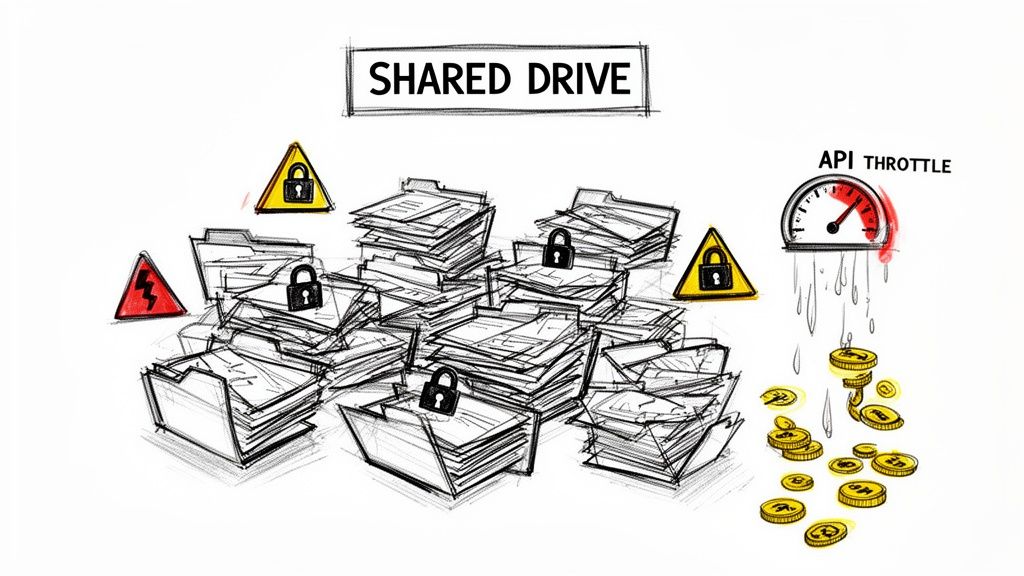
Let's be direct. Your shared drives are a minefield. They're a tangled mess of deeply nested folders, inconsistent permissions, and duplicated data that your team has been told to "clean up later" for the last decade. Now, you’re tasked with moving this digital liability into a structured, modern platform like SharePoint Online.
The common belief is that a tool like Microsoft's free SharePoint Migration Tool (SPMT) or even a paid solution like ShareGate will handle this. This assumption is where projects begin to fail. These tools are not magic wands; they are instruments that will break when pointed at the complex, messy reality of an enterprise file system. They do not understand business context, and they will not save you from a poorly conceived strategy.
Where DIY Migrations Consistently Fail
We are often called in to rescue projects after an internal team has hit a wall. The patterns are always the same, rooted in a fundamental misunderstanding of SharePoint's architecture versus a legacy file share. The documentation says one thing, but in reality, the breaking points are far harsher during a high-stakes migration.
Here are the technical landmines we see every week that derail projects:
- The 5,000 Item List View Threshold: This isn't a suggestion; it's a hard architectural limit. Your team will migrate 10,000 files into a single library, declare success, and then find the entire library is unusable because views, filters, and searches all break down. This isn't a bug; it's a design feature that you must architect around.
- Crippling API Throttling: Microsoft will aggressively throttle your migration traffic to protect the service for all tenants. Relying on a single service account for the transfer is a guaranteed way to have your migration stall for hours, or even days, with cryptic "503 Server Busy" and "429 Too Many Requests" errors. The documentation says "avoid getting throttled," but in reality, you must have a multi-account, load-balanced strategy to even stand a chance.
- Character and Path Length Limits: That meticulously organised folder structure from 2005? It very likely exceeds the 400-character path length limit. Standard tools often cause silent failures where entire folder trees are simply not migrated, and you won't discover this until a user screams that their data is missing weeks after "go-live."
- Broken NTFS Permissions and GUID Conflicts: The nested, explicit permissions on your shared drives do not map cleanly to SharePoint's model. We consistently see GUID conflicts and broken inheritance that leave sensitive data either inaccessible or, worse, open to the entire organisation. A tool will migrate the permissions you have, not the ones you need.
The Ollo Verdict: A shared drive to SharePoint migration is less about technology and more about risk management. Success is not measured by the speed of data transfer but by achieving zero data loss, maintaining security integrity, and ensuring regulatory compliance. Anything less is a failure.
The cost of getting this wrong isn't just a budget overrun; it's a career-defining event. Missing this step doesn't just fail the migration; it breaks legal compliance. In Ireland and the UK, we've seen how regulated energy and finance firms face disaster. A recent report we commissioned showed that 60% of these migrations overrun budgets by an average of 200%, often costing an extra €150,000 just for remediation.
A mid-size Dublin energy consultancy we audited provides a stark example. Their 150TB shared drive migration failed because their in-house team hit these exact limits, losing 18% of critical metadata and breaking permissions on nearly half their content. The cost of failure was not just financial; it was reputational. You can explore the technical underpinnings of these migration speed challenges in Microsoft's own documentation.
This isn’t about scaring you; it's about preparing you for the technical battle ahead. If you're planning a move, our guide on a comprehensive enterprise SharePoint migration will give you a framework for what's truly required.
Win the War Before You Fight with Discovery and Remediation
Here’s a hard truth most vendors won’t tell you: the success of your shared drive migration is decided long before you move a single byte of data. I’ve seen countless projects go off the rails because the client treated the discovery phase like a quick inventory scan. That is a catastrophic miscalculation.
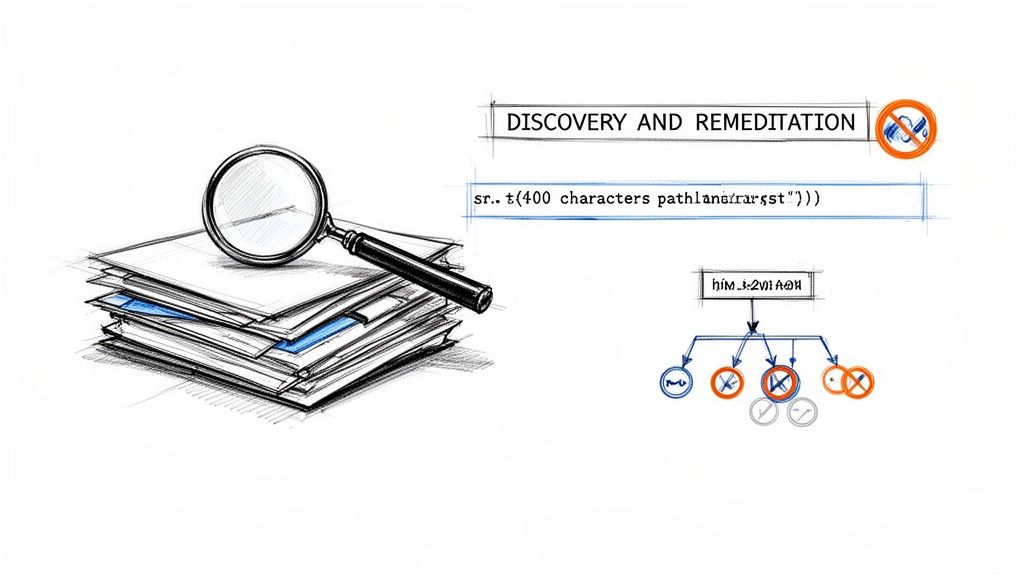
Real discovery isn’t about counting files. It’s a forensic investigation of your source environment, designed to find and defuse the landmines that have been accumulating in your file shares for years. Your first step isn’t choosing a tool; it's understanding the battlefield. This means running scripts to hunt for the very specific issues that will absolutely break your migration.
Trust me, these problems exist in your environment. After decades of use, they always do.
The Technical Killers You Must Find
A standard file scan tells you about volume and age. A forensic scan gives you a punch list of project-killers. Your team needs to actively script for and identify these issues before you even think about a migration schedule.
- Excessive Path Lengths: SharePoint has a hard 400-character limit for the total URL path. Your deeply nested shared drive folders will inevitably exceed this. A standard tool will either fail silently or, worse, create orphaned files you won't discover for months.
- Illegal Characters: Characters like
~ # % & * { } \ : < > ? / | "are forbidden in SharePoint filenames and folder names. I’ve seen a single file with a#in its name halt an entire migration batch, forcing hours of log-trawling to find the culprit. - Oversized and Zero-Byte Files: Files over the 15GB individual limit simply won't migrate. Just as problematic are the thousands of
0KBtemp files and orphaned shortcuts cluttering your shares; they add nothing but noise and risk to the process.
Ignoring this pre-emptive strike isn't a risk; it's a guarantee of failure. You must cleanse this data on the source drive. Trying to fix these issues post-migration in SharePoint is exponentially more complex and costly.
This isn't just digital housekeeping. It's a critical pre-migration security exercise. One of our finance clients discovered that 15% of their sensitive project folders had broken permission inheritance, making them invisible to audit trails. Fixing this before the migration prevented a major compliance breach.
Decoding the Nightmare of NTFS Permissions
Beyond file names and paths lies the tangled web of NTFS permissions. This is, without question, the most complex aspect of any shared drive migration. The chaotic, nested, and often broken permission structure on your file shares does not translate directly to SharePoint's user, group, and permission-level model. It's not even close.
You cannot trust what your folder permissions appear to be. You have to map them. This involves scripting to trace and document user access, identifying every single place where explicit permissions have been granted deep in a folder tree, and pinpointing every instance of broken inheritance.
A migration tool might claim to "migrate permissions," but it cannot fix a broken security model. It will simply replicate your existing chaos into the cloud, often with disastrous results.
Missing this step doesn't just put the migration at risk; it actively breaks your security posture. Sensitive HR, finance, or legal data that was previously locked down by a fragile set of nested permissions could suddenly become exposed to wider groups. This is how data breaches happen. For organisations in regulated sectors like healthcare or energy, this isn't just an IT problem—it's a direct threat to your legal and regulatory standing.
Conducting a thorough SharePoint migration assessment is the only way to map these risks before they become incidents. Any discovery process that doesn't produce a detailed remediation plan for file paths, illegal characters, and a full map of your NTFS permission model is setting your project up for failure and exposing your organisation to unacceptable security risks.
Choosing Your Weapon: A Realistic Guide to Migration Tooling
The migration tool you choose is one of the most critical decisions you'll make. It’s what separates a smooth, professional project from a costly, amateur attempt that stalls for months.
Don't buy into the marketing hype. There is no single, all-in-one solution that delivers a "seamless transition" for a complex shared drive migration. In the real world, these tools have very specific—and often painful—breaking points. An IT Director’s career can be defined by a major project failure, and overconfidence in an out-of-the-box tool is a risk you simply can't afford.
Let’s dissect the common choices with the cynical, battle-hardened perspective they deserve.
The SharePoint Migration Tool (SPMT): A Liability in Disguise
Microsoft provides the SharePoint Migration Tool (SPMT) for free. The documentation suggests it’s a viable option. The reality? For any serious enterprise workload, SPMT is a liability.
We often get called in to rescue projects where a team started with SPMT. The logic is understandable: it's free, and it's from Microsoft, so it must be the "official" way. This thinking is a trap. The tool is rudimentary, built only for the simplest of moves. Its weaknesses become critical failures at scale.
- Primitive Permission Mapping: SPMT makes a basic attempt at mapping NTFS permissions, but it completely falls apart with complex, nested, or broken inheritance. It cannot translate the chaos of your file server into a coherent, modern SharePoint security model. It just lifts and shifts the mess.
- Useless Error Handling: When SPMT hits an issue—like a file path that’s too long or an invalid character—its error logs are often cryptic and unhelpful. Your team will burn days, if not weeks, chasing down failures that a more robust tool would have flagged and remediated upfront.
- No Throttling Mitigation: The tool runs under a single user account and has no sophisticated logic to manage or back off from Microsoft’s API throttling. It will simply hit a wall and stop, leaving your migration dead in the water with endless "Server Busy" errors.
The Ollo Verdict: Use SPMT for a single department with under 50GB and perfectly clean permissions. For anything else, you need custom scripting and a professional-grade tool. Using SPMT for a multi-terabyte enterprise migration isn’t a cost-saving measure; it’s an invitation for project failure.
ShareGate: Powerful, But Not a Silver Bullet
ShareGate is a powerful, professional-grade tool, and it's a core component of our own migration toolkit. Its pre-migration reporting is excellent for identifying many of the file and folder issues we discussed earlier. Its ability to perform incremental, delta-sync migrations is also critical for executing a phased cutover plan.
However, we are called in to rescue ShareGate-led projects all the time. Why? Because even a great tool has its limits, and the marketing implies it’s a fire-and-forget solution. Believing ShareGate is a panacea is a mistake many IT leaders make.
Its primary breaking points in high-stakes enterprise scenarios are:
- Complex Permission Transformation: While far superior to SPMT, ShareGate struggles to automate the transformation of deeply complex, explicit NTFS permissions into a flattened, modern SharePoint structure. It can migrate the permissions, but it can't fix your underlying security model for you. That requires custom logic.
- Orchestration at Scale: You can't just point ShareGate at a massive data source and hit "Go." Pushing terabytes of data requires careful orchestration. Doing it naively will overwhelm both the tool and your tenant's API limits. It requires expert oversight to manage workloads, batch jobs, and schedule transfers effectively to avoid throttling.
For a deeper dive, you can read more about the specifics of the SharePoint migration tool and where it fits into a professional strategy.
The Ollo Hybrid Approach: The Only Safe Path
For any enterprise-scale shared drive to SharePoint migration, relying on a single off-the-shelf tool is negligent. The only safe, risk-averse strategy is a hybrid model.
This is the approach we have perfected over hundreds of migrations. We combine the power of ShareGate for its reporting and core transfer engine with our own library of custom PnP PowerShell scripts. These scripts are our secret weapon, built from years of experience rescuing failed projects. They are designed to handle the complex edge cases that standard tools will inevitably miss.
The table below gives a frank breakdown of how these tools stack up against the real challenges you'll face.
Migration Tool Reality Check: SPMT vs. ShareGate vs. Ollo Hybrid
This isn’t a marketing comparison; it’s a technical breakdown of how these tools handle the problems that actually derail enterprise projects.
| Technical Challenge | SharePoint Migration Tool (SPMT) | ShareGate (Out-of-the-Box) | Ollo Hybrid Approach (ShareGate + PowerShell) |
|---|---|---|---|
| Complex Permission Transformation | Fails. Basic 1:1 mapping only. Cannot handle broken inheritance or create a modern security model. | Limited. Can map existing permissions but requires extensive manual work to transform them into a clean SharePoint model. | Automated. Scripts analyse complex NTFS permissions and transform them into a flat, group-based SharePoint model. |
| Throttling & API Limit Mitigation | None. Will stop dead when throttled, causing major delays. | Basic. Has some built-in settings, but large-scale migrations still require manual load balancing and scheduling. | Intelligent. Uses a combination of ShareGate's features and scripted logic with multiple migration accounts to manage workloads and avoid throttling. |
| Error Handling & Reporting | Cryptic. Error logs are difficult to parse and often unhelpful for complex issues. | Good. Pre-migration reports are excellent for paths, filenames, etc. In-flight error logs are clear. | Proactive. We use script-based pre-analysis to fix issues before migration starts. ShareGate reports validate the fixes. |
| Content Restructuring & Metadata | None. Cannot restructure folders or map custom metadata. A simple "lift and shift." | Good. Can map folders to metadata columns and restructure content, but requires manual configuration for each library. | Surgical. Scripts automate the restructuring of entire folder hierarchies and the mapping of metadata from external sources (like a CSV). |
| Handling Extreme Edge Cases | Fails completely. Chokes on GUID conflicts, corrupted files, and non-standard characters. | Struggles. Often skips or flags these files, requiring manual intervention for each one. | Designed for it. Our scripts are built to surgically identify and remediate these issues at scale before the migration even begins. |
This hybrid model isn't just a preference; it's a necessity born from experience. It allows us to:
- Automate Complex Permission Remediation: Our scripts can analyse and transform broken, nested NTFS permissions into a clean, auditable SharePoint security model—something no tool can do alone.
- Handle Extreme Edge Cases: We surgically address issues like GUID conflicts, metadata mapping from non-standard sources, and content restructuring that choke standard migration software.
- Intelligently Mitigate Throttling: We use a combination of ShareGate's features and our own scripted logic to manage multiple migration accounts and workloads, ensuring consistent performance without hitting Microsoft's hard limits.
This isn't about finding a single "best" tool. It's about acknowledging that for a complex migration, no single tool is enough. Your risk reduction strategy isn't just choosing software; it's implementing a battle-tested process that combines tooling with specialist expertise.
Execution: Dodging Throttling and Surviving the Cutover
This is the part of the project where theory meets reality, and where most internal migrations fall apart. After months of careful planning, your team finally hits "go" only to run headfirst into a brick wall called Microsoft API throttling.
Let’s be clear: this isn't a bug or a soft warning. It's a hard-coded enforcement mechanism designed to protect the multi-tenant environment, and it will bring your migration to a screeching halt if you’re not prepared.
Microsoft’s own documentation talks about things like concurrent connections and uploading during off-peak hours, but for businesses in Ireland and the UK, the reality is much harsher. While a robust network infrastructure is essential, it won't save you from a poorly planned execution strategy.
We often see clients fail when their team tries to push terabytes of data through a single service account. It's a classic rookie mistake. The second your API requests spike, throttling kicks in, and your throughput nosedives. That weekend cutover window you planned for? It just evaporated, turning into a week-long firefight with IT, management, and frustrated users.
The Single-Account Migration is Doomed
The documentation says to avoid throttling, but in reality, you must actively engineer a solution against it. We’ve seen industry data showing that API throttling has crippled up to 85% of large-scale shared drive migration attempts, particularly in regulated sectors like healthcare. The bottleneck happens when you overload a single account; throttling can kick in at just a few hundred requests a minute, effectively stopping your data transfer.
For tenants using the West Europe datacentre, the problem is compounded by peak business hours. Trying to run a major migration between 9-5 GMT can slash your available throughput by as much as 70%.
The Ollo Verdict: A single-account migration for any significant volume of data isn’t a strategy; it’s a guaranteed failure. Your team isn't just fighting your data volume; they're fighting Microsoft’s service protection protocols, and it’s a battle they will lose every single time.
The process flow below shows how the tools and approach must evolve as the complexity of your migration increases.
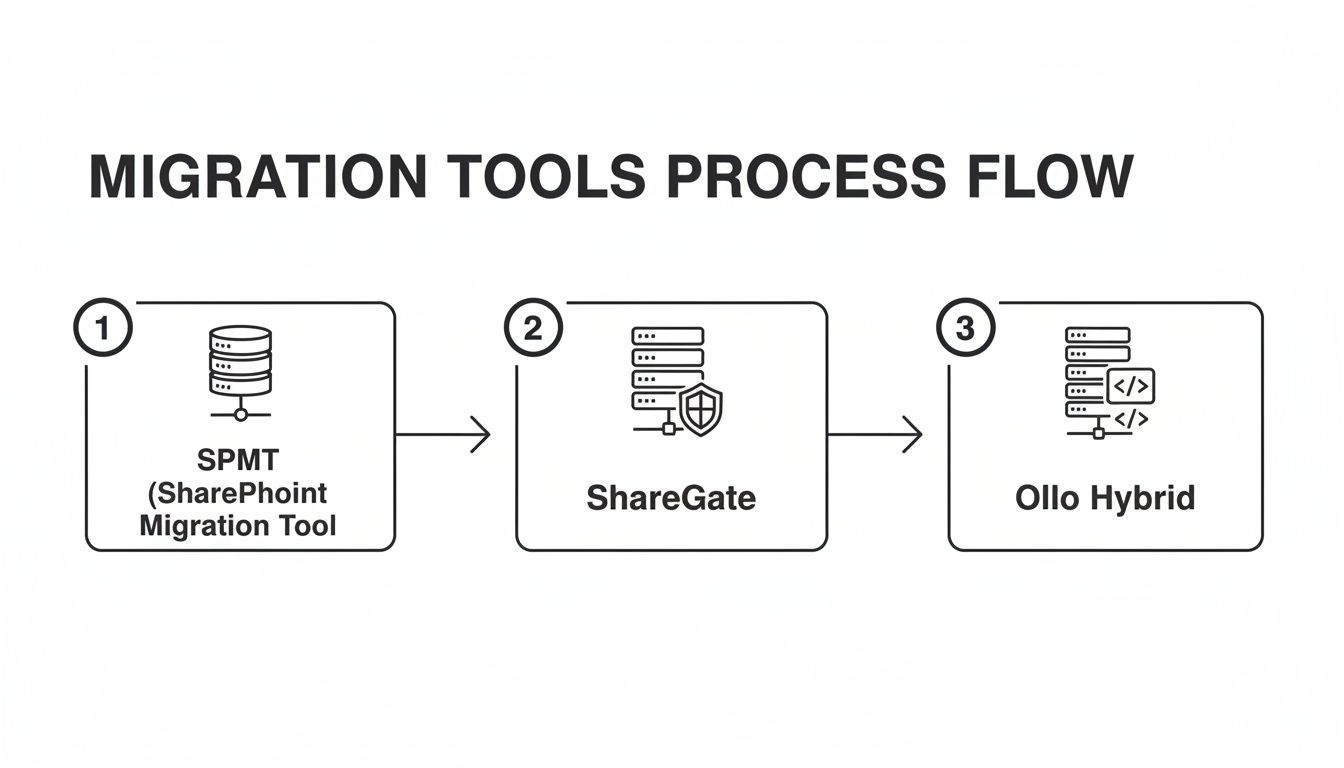
As you can see, simple tools like SPMT are quickly overwhelmed. This isn’t theoretical. We recently audited a Belfast finance house that lost €220,000 in remediation costs and lost productivity after a botched 80TB migration broke 52% of their critical workflows.
Our strategy is built from the ground up to avoid this kind of disaster. We use an orchestrated, multi-account approach that distributes the migration load across several dedicated service accounts. By combining this with intelligent batching and off-peak scheduling, we maintain maximum throughput without ever tripping Microsoft's throttling alarms.
Surviving the Cutover: A Phased Approach
Another fatal mistake is assuming you can perform a "big bang" cutover in a single weekend. For any enterprise-scale migration, this is just a recipe for a painful and chaotic rollback on Monday morning. The goal isn't just speed; it's zero data loss and 100% user adoption.
Forget the big bang. The only safe way to handle the final cutover is with a phased, delta-sync approach. Here’s how it works:
- The Initial Bulk Copy. First, we perform the main data transfer to a read-only location in SharePoint. During this time, your users continue to work on the old shared drives completely uninterrupted. Nothing changes for them.
- Incremental "Delta" Syncs. Over the next week or two, we run a series of incremental migrations. These "delta syncs" only copy over new and modified files, keeping the new SharePoint environment perfectly in sync with the live shared drives.
- User Acceptance Testing (UAT). This is the most important step. We give select groups of power users access to the read-only SharePoint data. They validate their files, check permissions, and confirm everything is exactly where it should be—all without the pressure of a live cutover.
- The Final Cutover. Only after UAT is complete and every stakeholder has signed off do we schedule the final cutover weekend. This involves one last delta sync, setting the legacy shared drives to read-only, and redirecting users to SharePoint.
This methodical process turns a high-risk gamble into a predictable, controlled event. You aren't hoping the data is correct; you know it is because your own users have already verified it. This phased approach is a non-negotiable part of any successful large-scale SharePoint migration playbook. It’s the difference between a smooth transition and a career-defining disaster.
Locking Down Your Environment with Post-Migration Governance
The single most dangerous moment in a migration is the minute after the last file lands in SharePoint. Your team celebrates, but I’ve seen too many IT Directors declare victory too early, only to fail their next audit because the real work hadn't even started.
The migration isn't over. You’ve just moved a legacy mess into a modern platform. Now you have to build the fences. Failing to implement robust governance immediately makes the entire effort a waste of time and exposes your organisation to a whole new class of risks. This is the moment to enforce controls that were simply impossible on your old file shares.
From Open Field to Fortified Walls
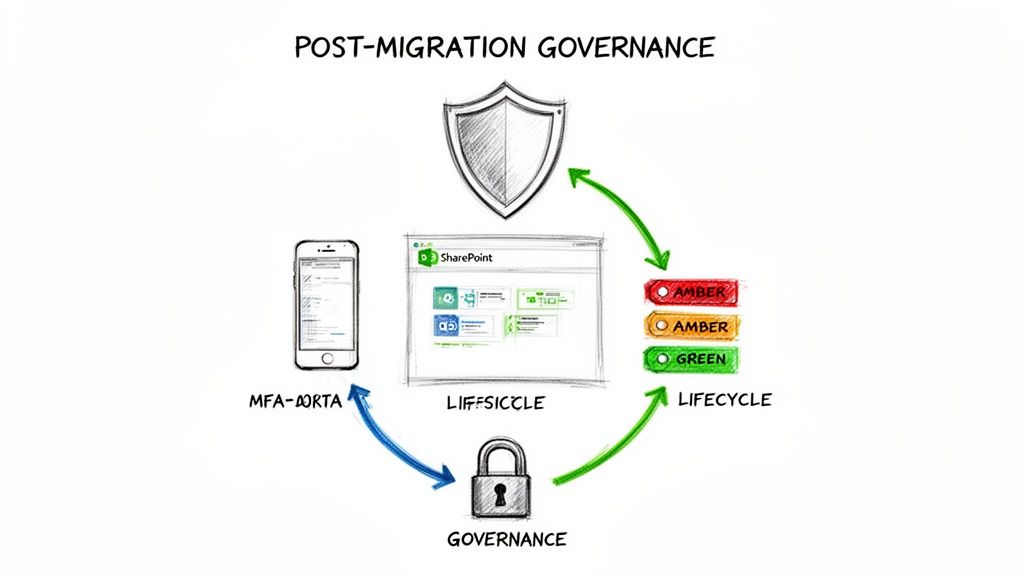
Your first move has to be architecting a Zero Trust security model. The default settings in SharePoint are far too permissive for any organisation, let alone one in a regulated sector. We often walk into new client environments and find a wide-open "everyone except external users" permission model, which is a compliance disaster waiting to happen.
You need to get into Microsoft Entra ID and enforce stricter controls right away:
- Conditional Access Policies: This is your number one priority. Configure policies that demand multi-factor authentication (MFA) for any user trying to access SharePoint from an unmanaged device or an untrusted location. This isn't a suggestion; it's a necessity.
- Sensitivity Labels: This is the real power you gain over old shared drives. You have to classify your data. Create and deploy sensitivity labels—like "Confidential - Finance" or "Internal Use Only"—and use them to automatically apply encryption and tight access restrictions.
- External Sharing Lockdown: By default, SharePoint's sharing settings are often dangerously liberal. Lock them down globally. Force users to request sharing permissions on a case-by-case basis. Your goal is to shift the mindset from implicit trust to explicit verification for everything.
I remember a client in financial services who moved 40TB of data and thought they were done. Six months later, an audit discovered that sensitive client agreements were discoverable by almost any employee through a simple SharePoint search. Why? No sensitivity labels or granular access controls were ever applied post-migration. Re-securing the data cost them more than the migration itself.
Building a Sustainable Governance Plan
Security controls are your immediate reaction force, but a long-term governance plan is what stops your new SharePoint environment from turning back into the chaotic mess you just left behind. This isn't a one-time setup; it's an operational framework you have to live by.
Your governance plan must be documented, enforced, and, wherever possible, automated. It needs to answer the hard questions before users even think to ask them. We can show you exactly how a strong SharePoint data governance plan is structured, but these are the absolute non-negotiable pillars.
- Site Lifecycle Management: Who can create a new SharePoint site? What happens to a project site when the project ends? You need an automated process for site creation, a mandatory review cycle (annually is a good starting point), and a clear archival or deletion policy. Without this, you'll have thousands of abandoned "Test Site Final v2" sites within a year.
- Retention and Deletion Policies: In regulated industries, you're not only required to keep certain data for a specific period—you're also required to delete it afterwards. Configure retention labels based on data type (e.g., "Contracts - Retain 7 Years") and apply them. This isn't just good housekeeping; it’s a legal imperative.
- Ownership and Accountability: Every single site must have a named business owner who is responsible for its content and permissions. This cannot be an IT function. The moment IT becomes the default owner, governance has already failed.
Getting your data into SharePoint is only the first checkpoint. The real work of a shared drive to SharePoint migration is everything you do after the data lands. Securing it, governing it, and turning it into a sustainable, compliant platform—that is the only true definition of success. Anything less is just moving a problem from one system to another.
The Hard Questions About Shared Drive Migrations
You’ve sat through the vendor pitches. You’ve read the Microsoft documentation. Now, let’s get to the blunt questions IT Directors and Enterprise Architects are actually asking in the boardroom when a multi-terabyte shared drive to SharePoint migration is on the table.
This isn’t about marketing spin. These are the technical truths based on our experience rescuing projects that have gone badly off the rails.
How Long Does This Migration Really Take?
Anyone who tells you a multi-terabyte shared drive migration takes "a few weeks" is either dangerously inexperienced or selling a simplified service that ignores critical risks.
For any enterprise-scale project, you need to budget for 3-6 months, minimum.
The bottleneck is never the data transfer speed itself. The timeline is dominated by three critical phases that you simply cannot rush:
- Forensic Discovery: Weeks of scripting and analysis to find every broken permission, overly long file path, and illegal character lurking in your drives.
- On-Source Remediation: Methodically fixing the problems you found before the migration starts. This alone can take a month or more for complex file shares.
- Phased UAT and Cutover: Weeks of user acceptance testing and incremental syncs to ensure zero data loss and absolute business continuity.
Rushing this process doesn’t save time; it manufactures disaster. You either lose data, break security, or face a complete rollback.
Can My Internal IT Team Handle This?
Your internal team is talented and knows your environment better than anyone. But a large-scale shared drive migration demands a very specific, niche skill set that most IT departments simply don’t have because they don't perform these migrations every day.
We often see brilliant internal teams get 80% of the way there. They can handle the bulk data movement, no problem.
But it’s the final 20%—the part that requires deep PowerShell scripting to transform complex permissions, strategies to navigate constant API throttling, and handling thousands of one-off file exceptions—where projects stall and costs spiral.
The Ollo Verdict: It’s not a question of your team's capability, but of their specific experience. The risk is asking your team to learn on the job during a high-stakes, mission-critical project with zero margin for error. Hiring a specialist isn't an admission of weakness; it's a strategic risk-reduction decision.
What Is the Single Biggest Mistake You See?
Without a doubt, the most common and fatal mistake is underestimating the discovery and remediation phase.
Teams are always eager to show progress, and that often means they want to start moving data immediately. They treat discovery as a quick inventory scan and plan to "clean up the data later" in SharePoint.
This is a catastrophic error in judgement.
Fixing a broken security model, thousands of bad file names, or a tangled folder structure inside a live SharePoint environment is exponentially more expensive, complex, and disruptive than fixing it on the source file server beforehand.
If your discovery process doesn't produce a multi-page remediation plan with specific, actionable fixes for permissions, paths, and metadata, your migration is already on the path to failure. To better understand the overarching strategy and considerations, a practical guide to cloud migration can provide a solid foundation for your shared drive transition.
Is This Really a Board-Level Risk?
Yes. A failed shared drive migration isn’t just an IT headache; it's a direct business risk.
- Financial Risk: A botched migration leads to budget overruns for remediation, lost productivity from inaccessible data, and potential fines for non-compliance.
- Compliance Risk: In regulated sectors like finance, energy, or healthcare, migrating data incorrectly can break data residency, retention, and security mandates. This isn't just an audit failure; it's a legal liability.
- Operational Risk: If your teams can't find or trust their data in the new system, core business operations grind to a halt. The project's failure directly impacts revenue-generating activities.
Framing the project as a technical "file copy" exercise is a failure of leadership. It must be presented to the board for what it is: a critical infrastructure project with significant financial, legal, and operational implications.
A successful shared drive to SharePoint migration is about eliminating risk, not just moving files. If these are the questions keeping you up at night, your concerns are valid. At Ollo, we don't just execute migrations; we de-risk them. We’ve built our reputation on handling the complex projects others can't. Contact us to discuss how we can ensure your migration is a definitive success, not another cautionary tale.

















