



Your SharePoint migration didn’t fail because files refused to copy. It failed because users clicked links that used to work and now don’t.
That’s the part too many project plans hide behind green status reports. The data lands in Microsoft 365, someone declares victory, and then operations discovers the ugly truth. Excel models point to dead paths. PDF references lead nowhere. Intranet pages return 404s. Permissions shift, links resolve for one user and fail for another, and your helpdesk becomes the de facto migration testing team.
I’ve seen this pattern too many times in enterprise estates across Ireland and the wider IE region. The documentation says migration tools preserve content. In reality, SharePoint migration broken links are one of the fastest ways to turn a technically “successful” move into an operational mess. If your estate includes finance workbooks, regulated records, old file shares, custom pages, or tenant-to-tenant restructuring, broken links aren’t a side issue. They’re the failure mode.
The Post-Migration Nightmare You Must Avoid
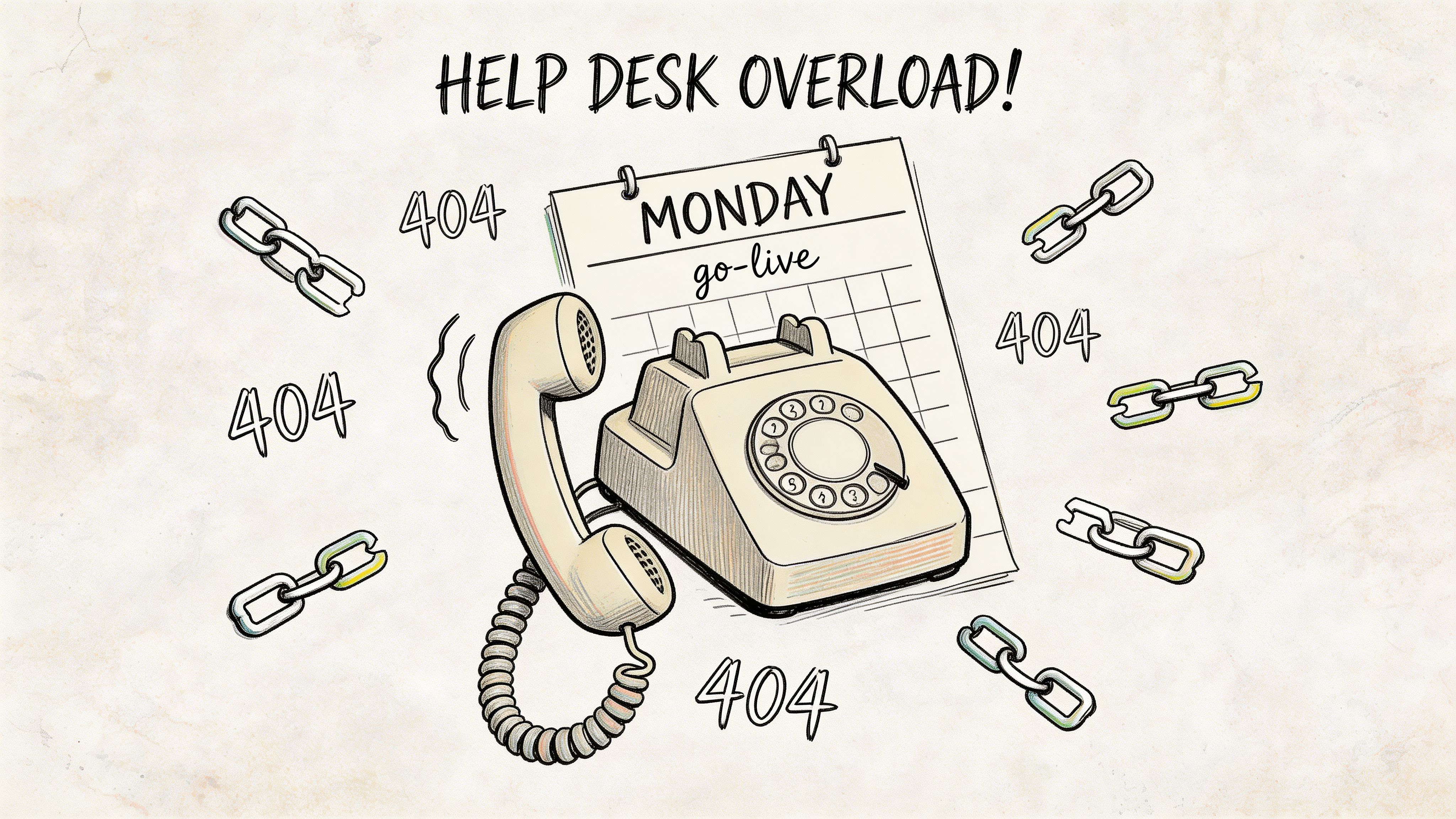
Monday morning after go-live tells the truth.
Finance opens quarter-end reporting packs and finds that linked Excel files now point to old drive letters. Legal clicks references inside signed documents and gets dead URLs. HR lands on an intranet page full of stale navigation. Your migration dashboard still says “completed”. Your users don’t care. They can’t do their jobs.
This isn’t a minor tidy-up task. It becomes a business continuity issue the moment your staff depend on linked content to complete payroll, close the month, respond to audits, or serve customers.
What the failure looks like
The worst projects all share the same pattern:
- Helpdesk overload: Support queues fill with “file not found”, “access denied”, and “this link used to work”.
- User trust collapse: Staff stop believing the new platform is reliable and fall back to email attachments and local copies.
- Compliance exposure: Broken references inside policy libraries and controlled documents create audit gaps.
- Invisible data integrity loss: The file exists, but the relationship between files doesn’t.
Broken links don’t just frustrate users. They destroy confidence in the migration and force your organisation back into shadow IT.
A lot of teams go looking for comfort in broad migration guides or general vendors offering Microsoft 365 migration services. That’s useful as background. It doesn’t change the core problem. If nobody inventories, tests, rewrites, and validates links at scale, your project is exposed.
Why this catches leaders off guard
Most steering groups measure copied volume, elapsed time, and cutover completion. They don’t measure link integrity. That’s how you end up with a migration that “finished” but still needs emergency remediation.
The documentation says the content moved. Reality is harsher. A document library can be fully populated and still be functionally broken because every meaningful reference inside it points to an old path, an old site, or an object that lost its identity during the move.
If you’ve already seen missing content alongside broken references, this is the same root problem wearing two masks. The file copy and the logical structure drift apart. That’s also why post-migration investigations overlap with issues like missing files after SharePoint migration.
Hoping users will “report anything odd” isn’t a recovery plan. It’s outsourced chaos.
The Anatomy of a Broken Link Failure
A broken link after migration is rarely just a bad URL. It’s the output of several bad assumptions stacked together.
The first bad assumption is that links behave the same in SharePoint Online as they did on file shares. They don’t. In SharePoint migrations across the IE region, a significant number of migrated Excel files contain broken internal links because they rely on hardcoded paths, and Microsoft Learn confirms those local or UNC-style references become invalid when SharePoint enforces URL-based access, as noted in this analysis of Excel links broken after migration.
Hardcoded paths are the obvious killer
Old estates are full of references like C:\, mapped drives, and UNC paths. Excel is bad for this, but Word, PDFs, shortcuts, and line-of-business documents carry the same disease.
When you move content into SharePoint:
- Drive mappings vanish:
Z:\Finance\Reportsmeans nothing in the cloud. - UNC references die: Old network locations don’t resolve from SharePoint URLs.
- Absolute links become stale: Site renames and path changes break brittle references.
That’s the simple version. Enterprise migrations stop there.
The failures that tooling misses
Out-of-the-box tooling catches obvious file movement. It doesn’t reliably handle the hidden layers.
| Failure point | Why it breaks | Why DIY misses it |
|---|---|---|
| Embedded Office links | URLs and file paths are stored inside documents, not in library metadata | Native tools migrate files, not the logic inside them |
| Web part references | Pages call libraries, images, or scripts using old paths | Basic scans don’t inspect every property |
| Custom scripts | Hardcoded tenant URLs survive cutover | Find-and-replace misses contextual dependencies |
| Permission-driven failures | Links return 401 instead of 404 when inheritance changes | Teams test as admins, not as real users |
| GUID conflicts | Object identity changes between tenants | Copy success hides relationship failure |
The last one is the one that catches experienced teams. GUID conflicts and identity changes sever links even when the destination file exists. Users click a valid-looking path and still hit dead behavior because the reference points to an object that no longer maps cleanly.
Practical rule: If your remediation plan is “we’ll update the URLs later”, you don’t have a remediation plan. You have deferred failure.
Microsoft limits turn a tidy problem into a nasty one
The documentation gives you the warning signs. Most projects ignore them until the move is underway.
Path restrictions, invalid characters, and platform limits create compound failures during large-scale migration. A link may be logically correct yet still fail because the target path became too long, the structure got flattened, or the page that contained the link crossed a list or library boundary that changed how it resolves.
Generic troubleshooting advice falls short in such cases. SharePoint migration broken links sit across content, identity, permissions, and architecture. If your team treats it as a search-and-replace exercise, they’ll fix the easy links and miss the dangerous ones.
For estates already in trouble, the work starts with proper triage, not optimism. That means isolating path failures, permission failures, and identity failures separately, which is exactly why serious programs need structured SharePoint migration troubleshooting rather than broad “best practice” checklists.
Your Tooling Will Fail You A Hard Look at Reality
Tools don’t rescue migrations. People who understand where tools break do.
That distinction matters because enterprise teams love to buy software and pretend they’ve bought certainty. They haven’t. They’ve bought a capability with edges, thresholds, and blind spots.
SPMT works until it doesn’t
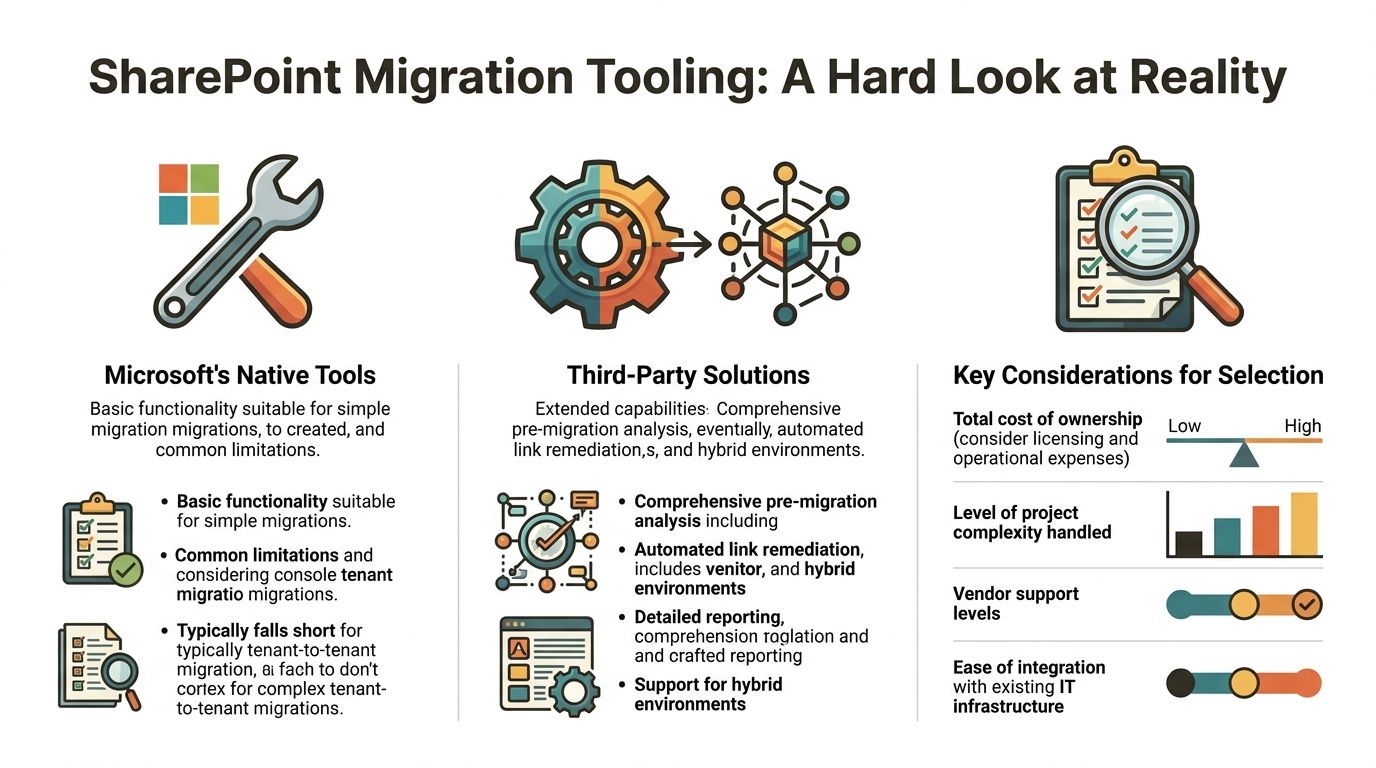
Microsoft’s SharePoint Migration Tool has a place. This place is smaller than admitted by teams.
It’s fine for straightforward lifts where the goal is to move files from one simple source into one simple destination with minimal dependency handling. It does not solve enterprise link integrity. It does not give you deep remediation of embedded references. It does not protect you from the structural defects in your source estate.
The platform limits are not hidden. Microsoft’s official 5,000-item threshold per view and 400-character URL limits contribute to 40% of failures in energy sector lifts from legacy servers, and DIY success rates can drop to <70%, while managed operations tracked by Ollo reported 100% uptime, as outlined in this review of SharePoint migration performance issues.
This is a reality check. SPMT copies. It doesn’t think.
ShareGate is excellent, but stop calling it magic
ShareGate is a strong tool. We use it because it’s useful. It’s still not a magic button.
Out of the box, it helps with reporting, basic restructuring, and some forms of URL handling. That’s valuable. But if your environment includes complex Excel dependencies, cross-site references, custom page components, broken inheritance, or tenant-to-tenant identity changes, the tool needs specialist scripting and design around it.
Here’s where projects go wrong. Someone buys ShareGate, runs a pilot, sees a few libraries migrate cleanly, and assumes scale will behave the same way. It won’t.
Native vs third-party is the wrong argument
The actual comparison isn’t “Microsoft tools or third-party tools”. The true comparison is “basic execution or engineered execution”.
What native tools typically do well
- Simple file movement: Good enough for small, low-risk workloads
- Basic scheduling: Useful where dependency chains are limited
- Low licence friction: Attractive to teams under budget pressure
Where they fail in enterprise estates
- No serious link remediation: Embedded references remain your problem
- Weak structural analysis: Large libraries and ugly path trees get through too far
- No specialist guardrails: Throttling, inheritance issues, and ID problems hit later
What third-party tools improve
- Pre-migration reporting: You can see more before cutover
- Broader migration support: Better handling for mixed or hybrid estates
- Operational visibility: Reporting is stronger than native tooling
What third-party tools still won’t do alone
- Interpret business-critical dependencies
- Rewrite everything hidden inside Office files by default
- Design around throttling and identity collisions without custom work
| Tooling option | Good for | Breaks on |
|---|---|---|
| SPMT | Small, clean, low-risk migrations | Link remediation, complex dependencies, structural defects |
| ShareGate | Better reporting and managed migration control | Deep embedded link repair without custom configuration |
| Custom PowerShell PnP plus migration tooling | Large estates with architectural control | Requires genuine expertise, not enthusiastic admins |
The cost of pretending the tool is enough
The documentation says the platform scales. Reality is that poor folder structures, long URLs, oversized lists, and API overhead punish lazy migration design. That punishment arrives after the project team has already promised a date.
If your team thinks the answer is “we’ll just run the tool again”, stop. Re-running a bad plan doesn’t make it a good one.
The only sensible decision is to choose tooling based on dependency risk, not licence cost. If you’re deciding whether to use native tooling, start with the hard limits and failure modes in this review of the SPMT SharePoint Migration Tool.
The Ollo verdict
Use SPMT for very small workloads. Use ShareGate with custom scripting for serious projects. For regulated estates, tenant-to-tenant moves, or anything with complex link dependencies, tool choice is secondary to migration architecture.
If your plan relies on out-of-the-box defaults, your tooling will fail you.
The Remediation Playbook From Chaos to Control
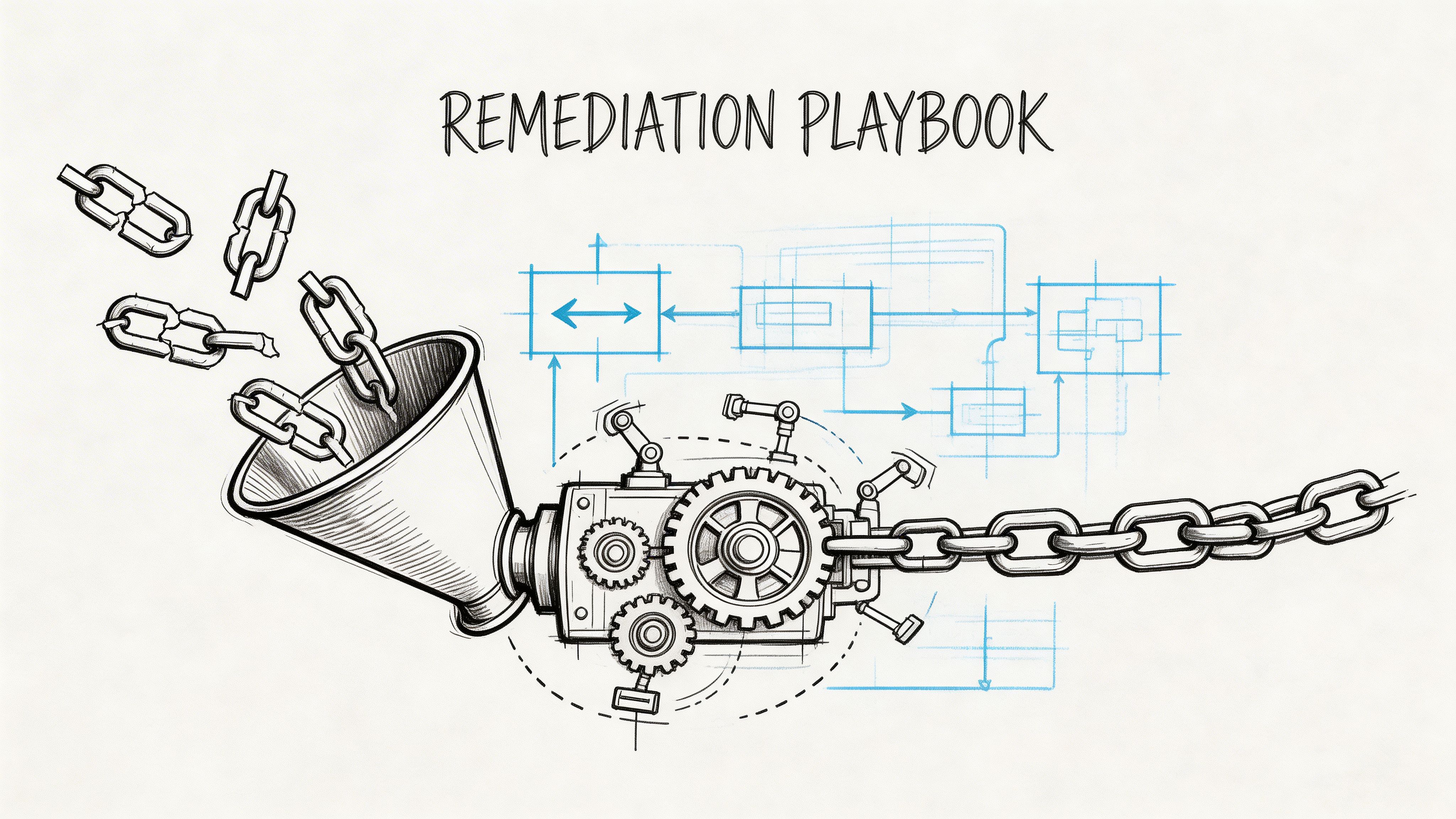
Once the links are broken, manual repair stops being realistic. You need a remediation process that behaves like engineering, not admin clean-up.
That means classification first, then targeted repair, then proof.
In Ireland’s regulated sectors, DIY approaches ignore hyperlinks in Word, Excel, and PDFs. A proper method requires pre-migration scanning, custom PowerShell path rewriting that respects SharePoint’s 260-character path limit, and post-migration validation that avoids API throttling. Manual fixes after go-live can waste 30-40% of project time on rework, as described in this piece on moving to SharePoint Online.
First classify the link type
You can’t fix every broken link the same way. Treating them all as plain text replacements creates collateral damage.
Use these categories:
Document-embedded links
These sit inside Word, Excel, PDFs, and OneNote. They need file-level parsing, not library metadata updates.Page and web part links
These live in page content, image references, navigation, and component properties. They need SharePoint-aware remediation.Systemic path shifts
These happen when sites, libraries, or folder structures were renamed. They need controlled bulk rewriting or redirects.
Then apply the right repair strategy
URL rewriting with PowerShell PnP
This is the workhorse for repeatable path correction. Build old-to-new mappings, validate target existence, and rewrite only known-safe patterns.
Done properly, it handles large estates quickly. Done badly, it overwrites valid links, ignores permissions context, and spreads the problem further.
Redirects with strict governance
Redirects are useful. They are not harmless.
A lot of migration advice says “just use redirects” and leaves it there. That’s reckless. Redirects applied in the wrong layer can create governance problems, latency issues, and permission bypass scenarios. If they sit outside SharePoint’s permission model, you can expose content paths you didn’t intend to expose.
Redirects are a temporary crutch, not a content strategy.
Use redirects only when you’ve defined where they’re enforced, who owns them, how they’re logged, and when they’ll be retired.
Targeted file updates
Some files need surgical intervention. Excel workbooks with linked tabs and external references are the offenders. These jobs require controlled updates, revalidation, and staged user testing with the departments that depend on them.
That’s also where newer thinking around AI for efficient remediation becomes useful as an operational aid. Not as a magic fix. AI can help classify patterns, prioritise remediation candidates, and reduce review effort. It still won’t understand your tenant architecture unless humans set the rules.
The sequence matters more than the script
Teams in trouble skip straight to repair. That’s backwards.
| Phase | What you do | What goes wrong if you skip it |
|---|---|---|
| Inventory | Scan documents, pages, and libraries for embedded and visible links | You only fix what users happen to report |
| Mapping | Build authoritative old-to-new path relationships | Bulk updates become guesswork |
| Repair | Apply different methods by link type | One-size-fits-all scripts cause collateral damage |
| Validation | Re-crawl and test under real permissions | You declare success without proof |
The rollback question nobody likes
Every remediation program needs a back-out plan. Not because rollback is desirable, but because careless link repair can corrupt trust faster than the original migration.
If your team is editing content at scale and you haven’t defined restore points, audit logs, or decision gates, you’re gambling with regulated data. That’s where the wider discipline of SharePoint migration rollback becomes relevant. Serious remediation assumes that some fixes need to be reversed cleanly.
The playbook is simple in principle. Scan thoroughly. Classify accurately. Rewrite carefully. Validate aggressively. Anything less turns remediation into another failure event.
Prove It Post-Migration Validation and Governance
A migration isn’t finished when the copy jobs stop. It’s finished when you can prove the environment works.
That standard sounds obvious. Most organisations don’t meet it.
Post-migration crawls reveal 40-70% link error rates, and after cutover, ticket volumes can spike by 500%. Best practice requires a pre-migration inventory, yet 95% of mid-size firms in Ireland skip it, according to this analysis on fixing broken links after a migration to SharePoint.
Validation has to be evidence-led
You need more than a few spot checks by admins.
Validation includes:
- Authenticated crawling: Scan pages, documents, navigation, and rich text fields using an identity that reflects actual user access.
- Status-based analysis: Separate 404 failures from 401 failures. One is pathing. The other is permission or inheritance.
- Dependency testing: Open linked Excel and business-critical document sets, not just sample PDFs and generic policies.
- Exception reporting: Produce a defect list with owner, location, type, and remediation status.
If your only proof is “users haven’t complained much”, you haven’t validated anything.
Governance keeps the problem from returning
Broken links don’t stop appearing after cutover. Users rename files, restructure libraries, rebuild sites, and break references all over again.
That’s why governance matters more than the migration runbook once the move is complete.
Set standards your team can enforce
- Relative vs absolute links: Define which one your organisation allows in which context
- Library design rules: Stop uncontrolled nesting and random renaming
- Permission hygiene: Review inheritance breaks before they create inaccessible content
- Change control for key sites: Don’t let business-critical hubs drift without link impact assessment
Keep an auditable record
Your compliance team doesn’t care that migration was difficult. They care whether controlled content remained accessible and traceable.
That means preserving:
- remediation logs
- validation reports
- exception registers
- ownership of unresolved items
If your project cannot produce that evidence pack, it leaves the organisation exposed. This is true in finance, healthcare, and energy estates where document access is tied to policy, operations, or regulated reporting.
For many IT leaders, the easiest way to spot whether governance is serious is to inspect the handover materials. If the documentation only shows copied volumes and cutover dates, it’s shallow. Strong programs maintain explicit SharePoint migration documentation for link integrity, permissions, structure changes, and open risks.
Validation is where mature teams separate themselves from optimistic ones. Mature teams prove link integrity. Optimistic teams hope users stop logging tickets.
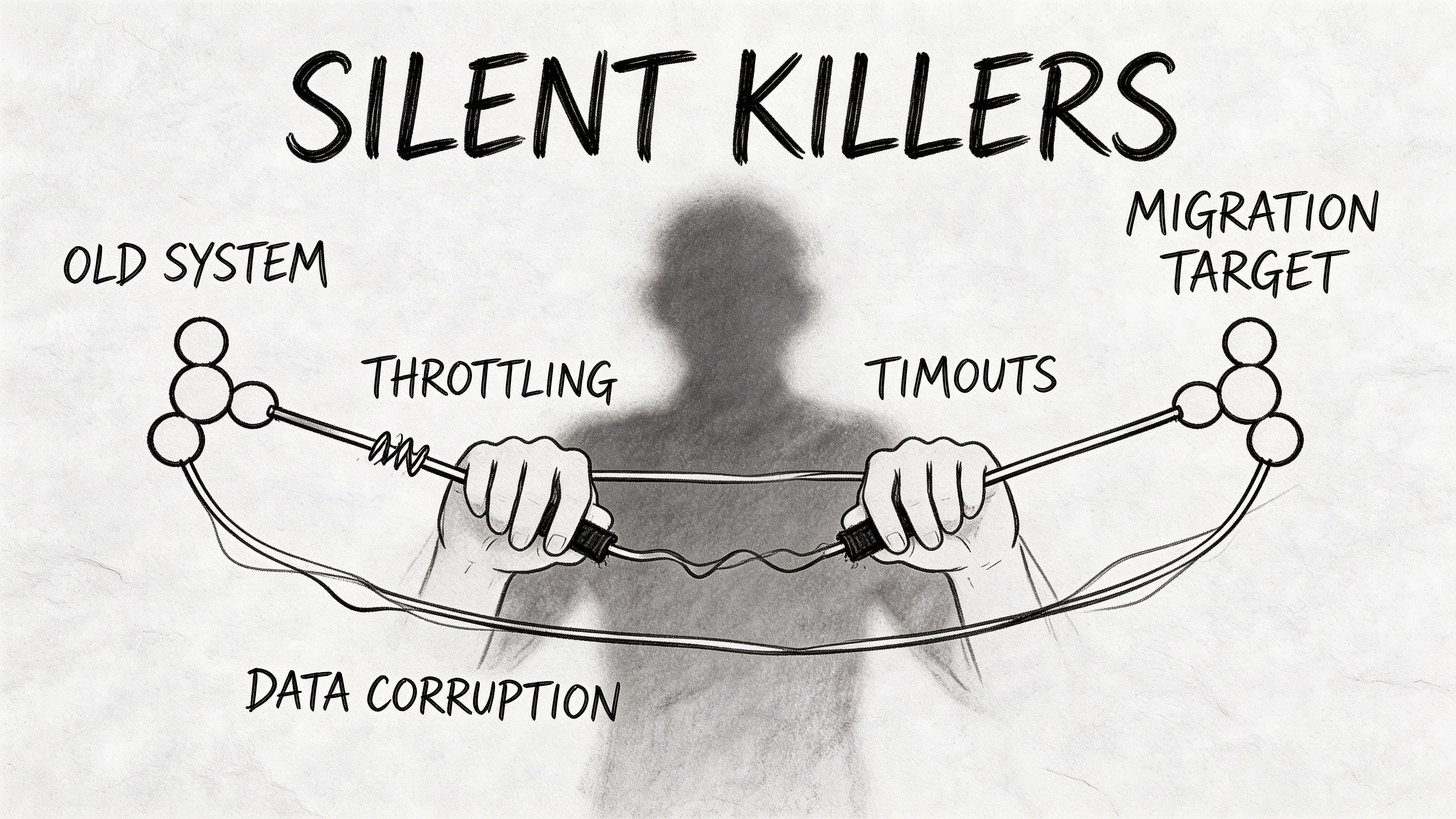
Confronting the Silent Killers of Your Migration
Some migration failures announce themselves with a visible 404. The ugly ones stay quiet until the business depends on them.
These are the silent killers. API throttling, oversized lists, long paths, redirect misuse, and identity conflicts. Microsoft documents the limits. Project managers wave them away because they don’t fit the timeline they already promised.
Redirects are not the safe shortcut people claim
The “just use redirects” school of thought causes real damage.
The Redirect Architecture Paradox is a major enterprise failure point. DIY guidance ignores throttling, latency, and governance conflicts. Enforcing redirects at the CDN layer can bypass SharePoint permissions, and bulk redirect creation via API can trigger throttling and fail without notification, leaving thousands of links unresolved, as outlined in this review of broken internal links in cloud migration.
That’s what makes redirect advice dangerous. It sounds simple because it omits the architecture decisions that make it safe or unsafe.
Throttling punishes naïve automation
Microsoft Learn confirms throttling limits. The exact thresholds vary by operation and context, but the practical takeaway is stable. Hammer the APIs carelessly and jobs slow down, queue, or fail.
That creates the worst kind of migration defect:
- the script says it ran
- some items updated
- some didn’t
- nobody knows which ones failed without additional logging
So the team reruns the job. Now they’ve introduced duplicates, inconsistent states, and a deeper audit headache.
The documentation says “respect throttling”. In practice, that means designing your migration around it from day one.
Structural limits break “successful” moves
The platform’s list and path limits don’t disappear because a project board approved a deadline.
Watch for these failure triggers
- Oversized libraries: The official 5,000-item threshold affects view performance and operational handling
- Long URLs: Microsoft documents 400-character URL limits, and path complexity compounds quickly
- Deep folder nesting: Legacy file shares carry structures SharePoint tolerates badly
- Broken inheritance: Links resolve for admins and fail for users under real permissions
The dangerous part
Most of these problems don’t stop the first copy attempt outright. They degrade quality, increase latency, and create partial failure. That’s why migration teams underestimate them. The damage accumulates in the background until users start relying on the environment.
Cross-workbook dependencies deserve their own paranoia
Excel links are bad enough when they’re simple hyperlinks. They’re worse when they contain cross-workbook formulas and external references.
Microsoft notes that repairs for migrated workbook links can depend on source ID mapping in some scenarios, particularly in Google-to-Microsoft migration contexts, and the practical problem remains the same in enterprise programs. Users don’t open these files immediately, so broken dependencies can sit undetected until reporting deadlines hit. In regulated teams, that’s not an inconvenience. It’s a data integrity risk.
That’s why experienced architects assume hidden dependency failure unless proven otherwise. Healthy paranoia is not pessimism here. It’s competence.
The Ollo Verdict Your Final Risk Calculation
You don’t need another migration article telling you to plan carefully and communicate early. You already know that.
What matters is this. SharePoint migration broken links are predictable. They happen in repeatable patterns. They hit hardest in estates with old file shares, Excel-heavy processes, large libraries, custom pages, and regulated content. They get worse when teams trust default tooling, skip discovery, and treat validation as optional.
Make the decision on risk, not optimism
If your workload is tiny, non-critical, and structurally clean, a DIY run might be acceptable.
If your environment includes any of the following, that gamble stops being responsible:
- regulated documents
- finance workbooks
- tenant-to-tenant consolidation
- complex permissions
- legacy folder sprawl
- business-critical intranet navigation
- audit obligations
This is not about paying for convenience. It’s about avoiding operational failure, user revolt, and compliance exposure.
The hard conclusion
Use native tooling for small jobs. Use ShareGate only when someone on the project understands how to wrap it with reporting, scripting, identity mapping, and validation. Treat SPMT as a basic mover, not an enterprise migration strategy.
If your team hasn’t already built a pre-migration link inventory, a path rewrite plan, a redirect governance model, a throttling-aware execution design, and a post-migration proof pack, your migration is at risk even if cutover is on the calendar.
That’s the final calculation. You can accept unmanaged risk and hope the breakage stays tolerable. Or you can handle the migration like the engineering and governance problem it is.
If you want a specialist team to assess your SharePoint migration risk before broken links become an operational incident, talk to Ollo. We help IT leaders in regulated and high-stakes environments de-risk Microsoft 365 and tenant-to-tenant migrations before the helpdesk starts counting the damage.

















