


Your team is probably operating in a common manner at this point. Someone has a migration runbook. Someone else has a comms spreadsheet. The sponsor wants “regular updates”. Security wants sign-off language. Business units want assurances that nothing important will disappear.
That looks organised. It isn't.
In a high-stakes Microsoft 365 migration, stakeholder communication isn't a soft skill and it isn't project admin. It's a control layer for technical risk. When that control layer fails, people upload into the wrong target, hold onto stale content, miss cutover actions, flood support, challenge security design, and force your engineers to troubleshoot politics while also fighting API throttling, broken inheritance, long path issues, and GUID conflicts.
I've seen strong infrastructure teams lose control of an otherwise workable migration because they treated communication as status reporting. That mistake turns a technical programme into a credibility crisis.
Your Last Comms Plan Is a Liability for This Migration
The war story is usually boring at first. A project manager sends a polite update. The business skims it. One department assumes its archive is out of scope. Another assumes everything is coming across. Security hears about identity changes too late. Then the migration team discovers, in the middle of execution, that nobody agreed what “success” meant.
That's how projects derail.
Stakeholder involvement and effective communication sit among the top three critical challenges in Microsoft 365 migrations, and projects fail when teams neglect them. The benchmark has to be explicit. Something like “Migrate 100% of needed data within 3 months with less than 2 hours of downtime” forces early engagement from executive sponsors, IT staff, and key business unit representatives so you don't migrate rubbish and miss mission-critical content at the same time, as outlined in ShareGate's guidance on Microsoft 365 migration challenges.
Status emails don't control risk
A generic comms plan assumes information equals alignment. It doesn't.
If your sponsor knows the timeline but doesn't know the decision points, you have no sponsorship. If your business leads know the cutover date but haven't validated content scope, you have no business ownership. If your helpdesk gets copied after the first incident, you have no operational readiness.
Practical rule: If your communication artefact doesn't change a stakeholder decision or action, it's paperwork, not stakeholder communication.
The documentation often makes migration sound like a technical workflow. In reality, the first failure usually happens before the first batch moves. It happens when nobody forces hard decisions on scope, ownership, retention, and tolerance for downtime.
That's why early engagement matters more than polished messaging. Exec sponsors need to approve trade-offs. IT needs to model impact. Business units need to validate what must move and what should die.
Clear goals stop bad migrations before they start
A proper migration communications plan does three things early:
- Defines what success looks like: Not “complete the migration”. Define target content, timescale, downtime tolerance, and validation ownership.
- Forces content accountability: Each business unit must confirm what stays, what goes, and what carries compliance value.
- Prevents false expectations: Users need to know whether Outlook, OneDrive, Teams, and SharePoint will behave differently after cutover.
That discipline matters outside migration too. If your organisation handles regulated outreach, the same principle applies in adjacent risk areas such as avoiding TCPA penalties for businesses. Bad communication design creates operational exposure long before a regulator or an outage makes it visible.
If your migration still treats communication as an afterthought, reset it now. Start with a proper Microsoft 365 migration strategy and build stakeholder decisions into the plan before your engineers touch production.
Mapping the Battlefield Audience Channels and Cadence
Most stakeholder maps are useless because they mirror the org chart. Migrations don't fail on the org chart. They fail in the gaps between formal authority and real influence.
The CFO might approve the programme, but the department coordinator who runs an ancient SharePoint list and an unofficial Access database can still wreck your timeline. The head of compliance might sign off governance, but a local business lead can still delay adoption if users don't understand what changes in OneDrive or Teams.
Effective stakeholder communication requires mapping every stakeholder to the technical phases of the migration and using channels deliberately: email for critical updates, SharePoint for detailed guidance, Teams for timely reminders, and town halls for visibility and Q&A, so users know exactly how Outlook, OneDrive, and Teams will behave after migration, as described in this tenant migration communication framework.
Build a political map, not a contact list
Start with four groups.
Decision makers
Sponsors, security approvers, architecture leads, compliance owners. These people approve risk and can stop the project.Operational controllers
IT leads, migration engineers, service desk, change managers. These people turn decisions into actions.Business validators
Department heads, records owners, site owners, team administrators. These people confirm whether the right content moved and whether access still works.Shadow influencers
The unofficial experts. The person every user messages when SharePoint behaves oddly. Ignore them and your formal comms will lose to corridor conversations.
Your stakeholder communication plan should identify who can approve, who can block, who can validate, and who can spread panic.
Match channels to behaviour
Don't spray the same message everywhere. Use channels for their actual job.
- Email for critical updates that need authority and traceability.
- SharePoint for durable guidance, FAQs, timelines, and support documentation.
- Teams for short reminders near high-risk events.
- Town halls for visible leadership, live questions, and rumour control.
Many teams get lazy by posting detailed instructions in Teams, where nobody finds them later. They bury urgent actions inside a SharePoint news post. They send technical notes to end users who only need to know what button to click on Monday morning.
That confusion creates resistance. Not because users hate change, but because your organisation gave them ambiguous operational instructions.
A RACI for migration comms
You need accountability in writing. Here's a simple version that works.
| Activity / Deliverable | Project Sponsor | IT Lead | Business Unit Lead | Helpdesk |
|---|---|---|---|---|
| Approve migration messaging | A | R | C | I |
| Confirm business impact by department | C | C | A/R | I |
| Publish end-user cutover notice | I | A/R | C | C |
| Maintain FAQs and support guidance | I | R | C | A/R |
| Validate post-migration access issues | I | R | A/R | C |
Use it, then test it. If two people think they own the same message, nobody owns it.
For long-term behaviour change, your comms model also needs an adoption track, not just a cutover track. That's where a proper Microsoft 365 adoption strategy stops the project from becoming a one-week success and a six-month support problem.
The Pre-Migration Arsenal Scripts and Timing
Your language can kill your migration before the tooling ever does.
Teams often believe they're being transparent when they announce an “Entra ID zero-trust redesign”, “tenant consolidation”, or “conditional access policy realignment”. What users hear is disruption. What security hears is risk. What leadership hears is cost. That's how you trigger internal vetoes.
In regulated Irish environments, zero-trust vetoes cause 68% of migration delays, and the fix isn't more technical detail. The fix is translating technical risk into business outcomes such as data loss prevention and access control, as noted in this stakeholder management analysis for SharePoint migrations.
Say what changes in business terms
Don't tell a steering group you're redesigning identity boundaries. Tell them you're reducing access ambiguity and controlling where sensitive data can move.
Don't tell end users that OneDrive shortcuts may be rehydrated differently after cutover. Tell them which folders they'll still see, what may look different, and who to contact if something appears missing.
The message must change by audience and by phase.
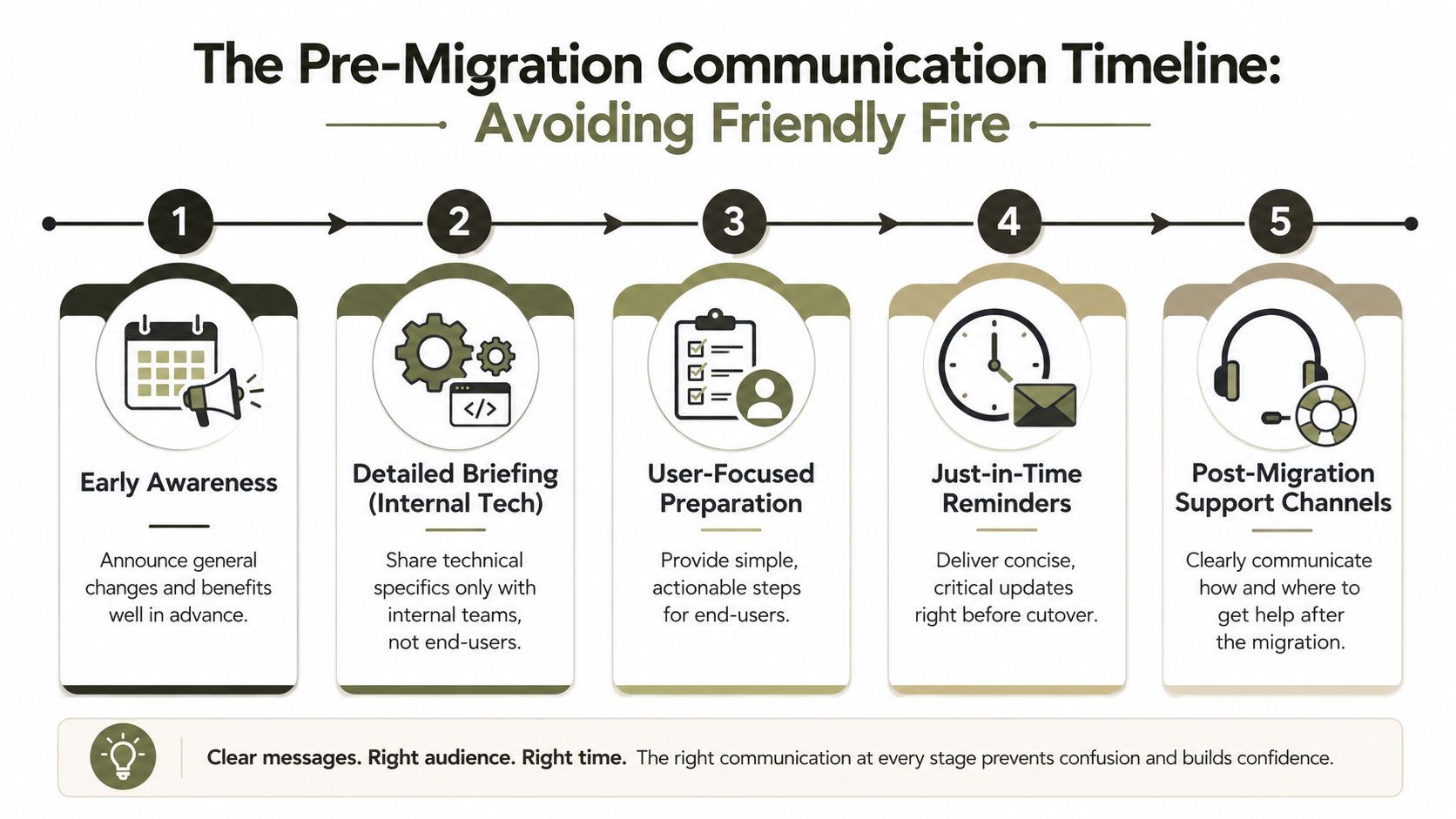
Use four message types, not one long announcement
Awareness
Keep this broad. Explain why the migration matters, what business risk it addresses, and what users should expect at a high level. No jargon.
Readiness
Now you tell people what changes, when it changes, and what they must do before cutover, incorporating deadlines, owner actions, and validation windows.
Cutover
Keep it brutally practical. System status. Downtime window. User actions. Support path. No theory.
Reinforcement
Tell people the environment is stable, where to report issues, and what to do if access or content looks wrong.
If your pre-migration message needs a glossary, you're talking to the wrong audience in the wrong language.
One practical point that gets overlooked. If your organisation relies heavily on email to deliver migration notices, make sure the messages do land and get opened. Deliverability can become its own operational dependency, especially in Microsoft 365-heavy environments. A useful primer is this guide to Mailwarm for Microsoft 365 email deliverability, because unread comms are functionally the same as no comms.
Timing matters more than enthusiasm
Another common failure pattern is over-communicating too early. Teams announce dates before the roadmap is validated, then spend weeks correcting themselves. That destroys trust faster than silence.
I prefer a controlled sequence:
- First message: Explain purpose and business impact.
- Second message: Confirm scope, timing, and preparation tasks.
- Third message: Issue just-in-time reminders near cutover.
- Fourth message: Confirm stability and support routes.
If you're still building this from scattered notes and tribal knowledge, stop. Formalise it in your SharePoint migration documentation approach before stakeholders start filling the gaps with assumptions.
Executing the Crisis Communication Playbook at Cutover
Cutover is where polite project language dies. Users don't care that your migration batch is “in progress”. They care whether Outlook works, whether their files are where they expect them, and whether anyone is telling the truth.
This is also the exact point where too many voices destroy control.
In regulated enterprise migrations, appointing a single designated communicator reduces stakeholder confusion by 40%, while multidirectional emails drive 65% of helpdesk ticket spikes during cutover weeks. The same approach requires a daily migration report to the whole organisation with specific content location updates and estimated resolution times for failed items, according to RSM's guidance on SharePoint migration communication plans.
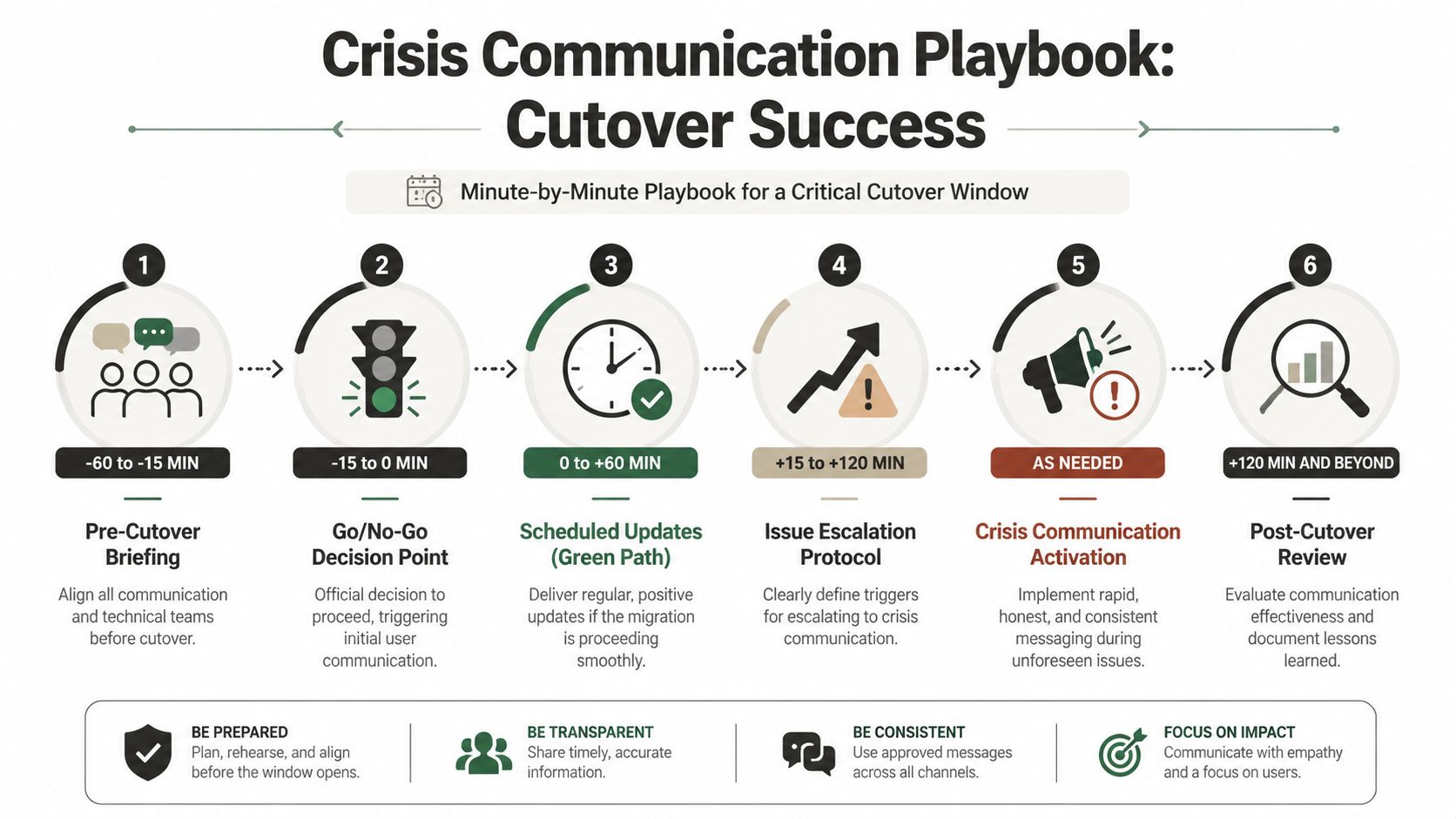
One voice only
When the migration engineer, project manager, service desk lead, and sponsor all send updates, users stop trusting all of them.
Pick one communicator. That person doesn't need to solve the technical issue. They need authority, timing discipline, and access to the actual status from engineering. Everyone else feeds information inward, not outward.
Use a strict path:
- Technical team validates current status.
- Incident lead confirms impact and response.
- Communicator sends the approved update.
- Helpdesk uses the same message, not a rewritten version.
What the daily report must contain
Vague reassurance makes people angrier. Your daily update should answer operational questions, not try to calm people down.
Include:
- Current migration status: Completed, in progress, paused, or rollback under review.
- Affected workloads: SharePoint, Teams, OneDrive, Outlook, or specific sites and libraries.
- Content location updates: Tell users where migrated material now lives.
- Failed item handling: State whether failed batches are being retried, remapped, or queued for manual remediation.
- Estimated resolution times: If you know them, say them. If you don't, say when you'll update again.
- Support route: One channel. One queue. No scavenger hunt.
Honest bad news preserves trust better than vague optimism.
Trigger points for crisis mode
Don't improvise escalation language in the middle of an incident. Define trigger points before cutover. Examples include unresolved access failures, major content visibility issues, unexpected downtime extension, or data validation failures from a business owner.
Once a trigger hits, switch from standard cutover updates to crisis communication. Shorter cadence. Clearer language. No speculation.
This is also where rollback messaging matters. If your organisation hasn't already documented that decision path, your technical team and your stakeholders will drift apart the second things go sideways. A proper SharePoint migration rollback plan keeps the message aligned with the engineering reality.
Communicating Unseen Risks Broken Permissions and Throttling
The migration can “complete” and still fail your users.
That's the part many leaders don't expect. The dashboard says done. The support queue says otherwise. Users hit folders they owned for years and get access denied. Teams open a library and insist files are missing. The helpdesk gets blamed first, then IT leadership.
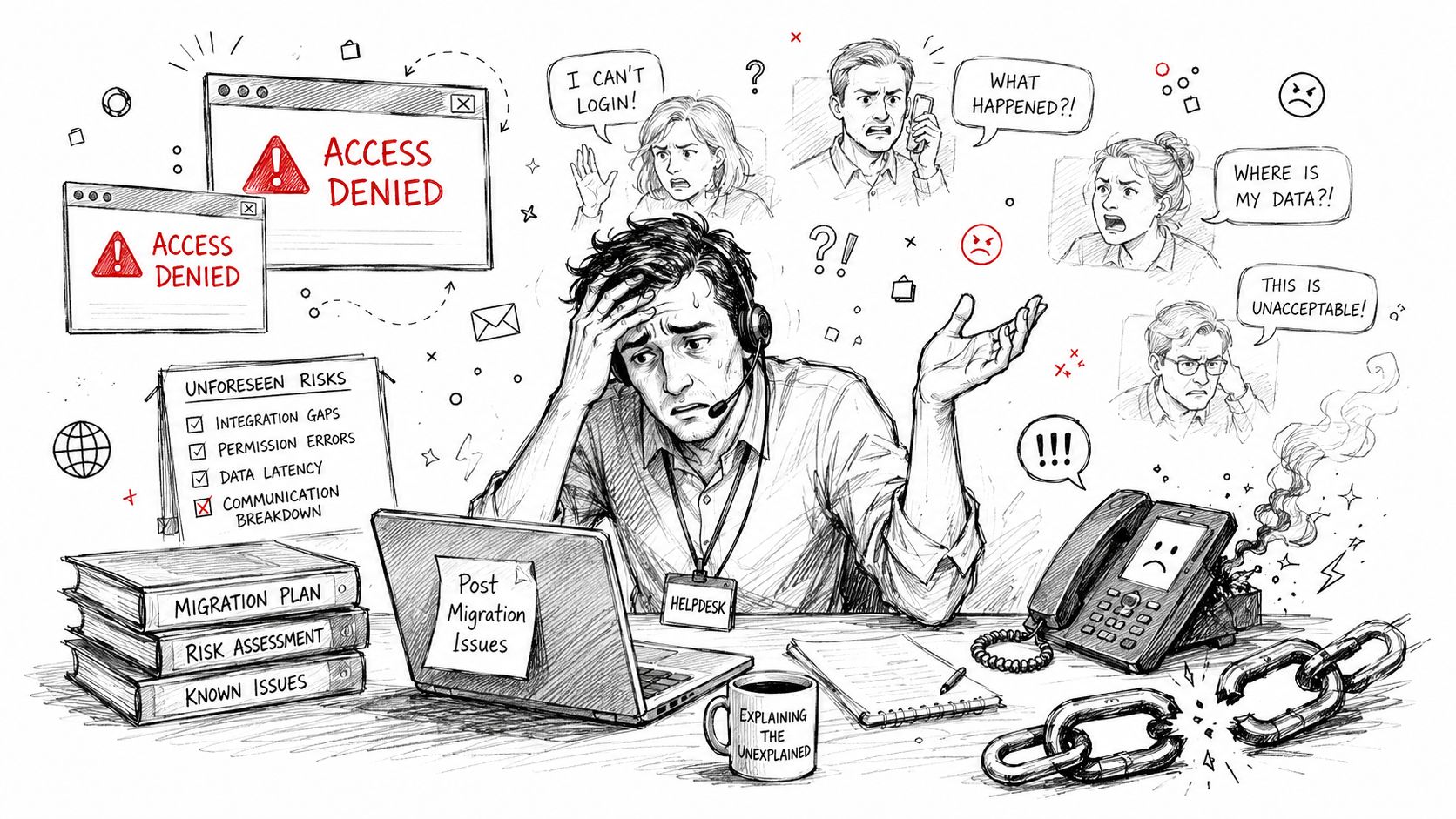
Broken permissions need plain-English reporting
Permission migration is the most error-prone part of enterprise migration, and 75% of IE enterprises report broken inheritance post-migration. Basic automated validation doesn't catch everything, and DIY tools such as SPMT can miss GUID conflicts and external user mismatches, as discussed in this review of SharePoint migration best practices.
That matters because permission errors don't just inconvenience users. They can expose sensitive content or block legitimate access. Missing this step doesn't just fail the migration. It breaks legal compliance.
When you communicate this to leadership, don't say “ACL remapping produced inheritance inconsistencies”. Say this instead:
- Business impact: Users may lose access to operational or regulated content.
- Cause: Legacy permissions didn't map cleanly to the target structure.
- Risk: Productivity loss, audit exposure, and trust erosion.
- Remediation: Validate affected libraries, rebuild inheritance where needed, and manually resolve edge cases.
That's how you preserve credibility. You explain impact, root cause, and next action.
Throttling and list limits are platform constraints, not bugs
The other invisible trap is SharePoint Online scale behaviour. Microsoft Learn confirms the 5,000-item List View Threshold is a hard SQL throttling limit, not a configurable setting, and queries beyond it can fail and return zero items rather than partial data, as documented in Microsoft's discussion of the SharePoint Online list view threshold.
On top of that, SharePoint limits lists and libraries to 20 indexed columns, which constrains metadata design for large migrations and affects your ability to build filtered views that stay below the threshold, as explained in ShareGate's breakdown of SharePoint list thresholds.
At this point, simplistic advice collapses. The documentation says “index columns” and “use filtered views”. Fine. But if your first indexed filter still returns more than the threshold, the view breaks anyway. That isn't a user training issue. It's an architectural constraint.
Leadership translation: “The platform is enforcing a hard limit on how large libraries can be queried in one operation. We need structural remediation, not another support article.”
The Ollo Verdict on tools
SPMT has a place. It's useful for straightforward lifts with limited complexity.
But once you're dealing with complex permissions, broken inheritance, GUID conflicts, large libraries, and threshold-sensitive information architecture, basic tooling stops being enough. ShareGate is stronger, but even then you still need custom PowerShell PnP work for enterprise edge cases.
The Ollo Verdict: Use SPMT for under 50GB and only when the structure is simple. For anything else, you need custom scripting and specialist oversight. Your SharePoint migration permissions strategy should reflect that before users discover the failures for you.
The Ollo Verdict Your Only Real Insurance Policy
A stakeholder communication plan isn't a PMO artefact. It's an insurance policy against operational failure.
Your migration doesn't break because somebody forgot to send a nice email. It breaks because poor stakeholder communication leaves scope unvalidated, security unconvinced, helpdesk unprepared, business owners inactive, and users confused at the exact moment your engineers need control. Then every technical problem gets worse. API throttling creates panic. Broken inheritance creates compliance exposure. Threshold limits create false “missing data” reports.
That's why DIY communication is such a bad bet in regulated migrations. It treats a risk discipline like admin work. Your internal team may be excellent, but unless they've handled tenant consolidations, zero-trust redesign messaging, rollback coordination, and rescue migrations repeatedly, they're learning on your production estate.
Here's the blunt version. A basic communication plan may be enough for a small file move with simple structure. For anything involving regulated data, complex permissions, tenant-to-tenant migration, or business-critical SharePoint estates, expert-led stakeholder communication is the only rational risk-reduction strategy.
The Ollo Verdict: For simple file lifts under 50GB, a basic plan may suffice. For anything else, you need custom scripting, technical governance, and communication control designed by specialists. That's the difference between a migration that finishes and a migration your organisation can still trust afterward.
If your team is staring at a high-risk Microsoft 365 or SharePoint migration and you don't want to learn these lessons in production, talk to Ollo. We handle complex tenant migrations, zero-trust redesigns, and rescue projects for organisations that can't afford data loss, compliance failures, or another helpdesk firestorm.